> ## Documentation Index
> Fetch the complete documentation index at: https://docs.wisepim.com/llms.txt
> Use this file to discover all available pages before exploring further.
# Editing Products
> Edit products two ways: quick edit for fast fixes or the full editor for deep work with AI enrichment, SEO, quality scores, and product relationships.
WISEPIM gives you two ways to edit products: the **quick edit modal** for fast, focused changes without leaving the product list, and the **full edit page** for comprehensive editing with AI enrichment, web research, quality scores, and relationship management.
## Quick edit vs. full edit page
| | Quick Edit Modal | Full Edit Page |
| -------------------- | ---------------------------------------------- | ------------------------------------------------------------- |
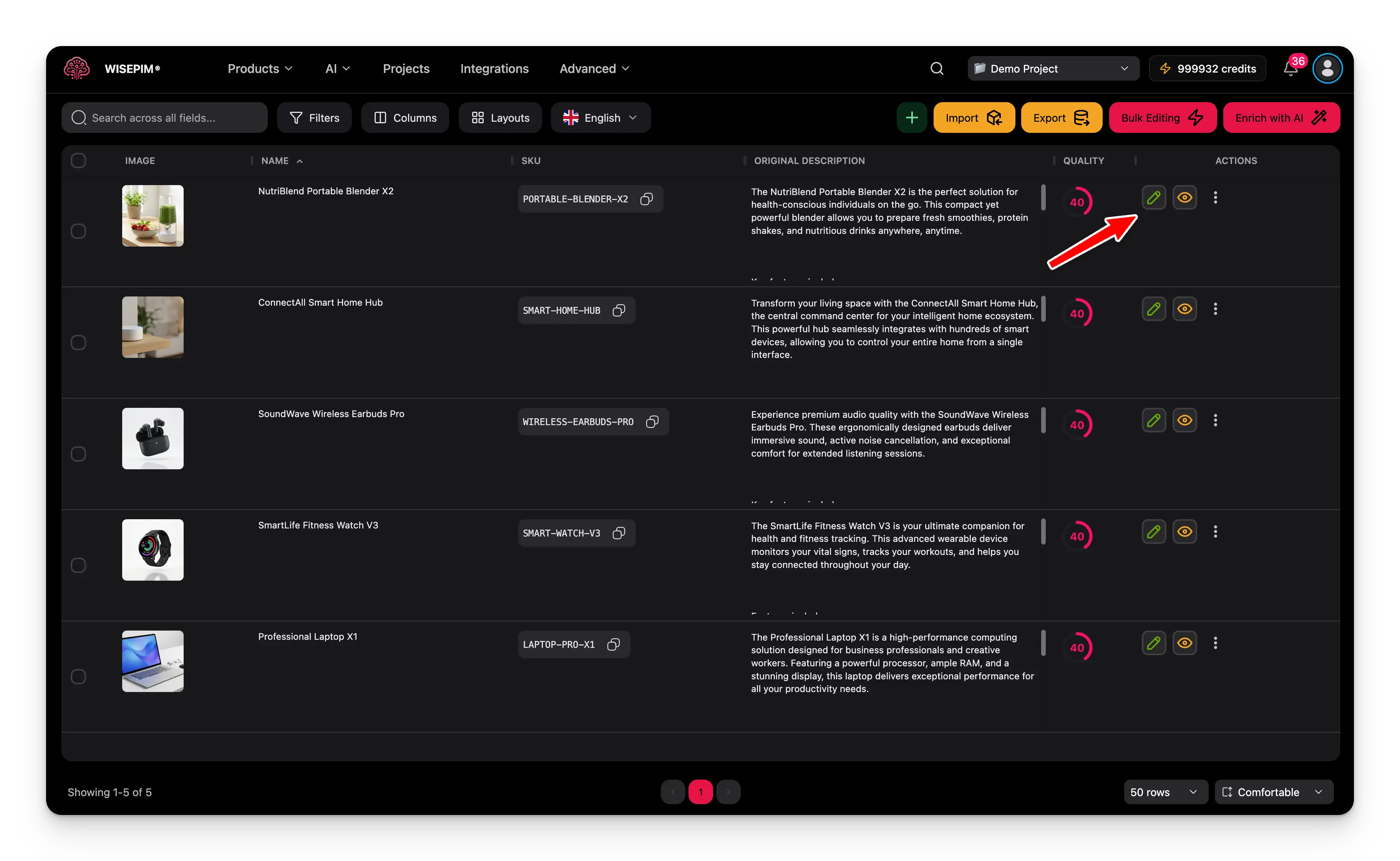
| **How to open** | Pencil icon in the product table | Row **⋮** menu > **Edit**, or open the product's URL directly |
| **Where it opens** | Modal overlay (stay in the product list) | Dedicated page at `/products/edit/{sku}` |
| **Best for** | Fast corrections, price tweaks, status updates | Deep product work, AI enrichment, content creation |
| **Tabs** | 7 tabs | 9 tabs |
| **AI enrichment** | No | Enrich buttons on every major field |
| **Web Research** | No | Full tab with research results and field merging |
| **Relationships** | No | Link variants, bundles, cross-sells, upsells |
| **Digital assets** | No | Product sheets, landing pages |
| **Volume discounts** | Multi-select with conflict detection | No |
| **Sale presets** | Quick buttons (24h, 7-day, weekend, monthly) | Date fields |
| **Profit margin** | Live calculation display | No |
| **Sidebar scores** | No | Completion, quality, and translation status |
| **Unsaved changes** | Visual indicator | Navigation blocking with confirmation dialog |
Both editors share the same core fields (name, descriptions, pricing, inventory, SEO, categories, custom attributes). The difference is context: the modal is for speed, the page is for depth.
## Quick edit modal
Click the **pencil icon** in the Actions column of the product table to open the quick edit modal. It gives you access to the most-used fields in a compact layout without navigating away from your product list.
 ### Tabs
* **Basic Info:** product name, product family, SKU, brand, and descriptions (original and enriched shown side-by-side)
* **Details:** product type, MPN, supplier, weight, dimensions, status, visibility
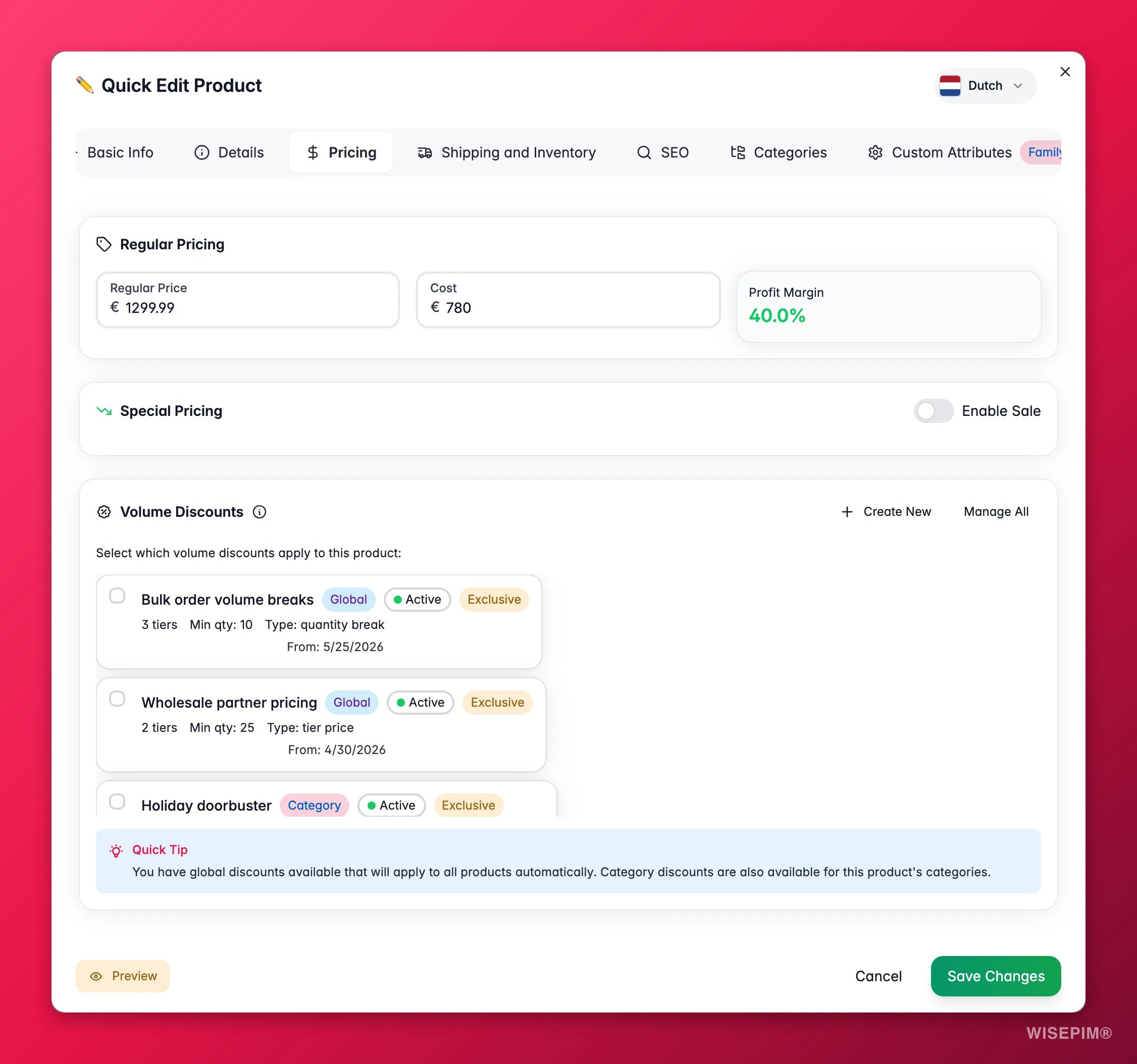
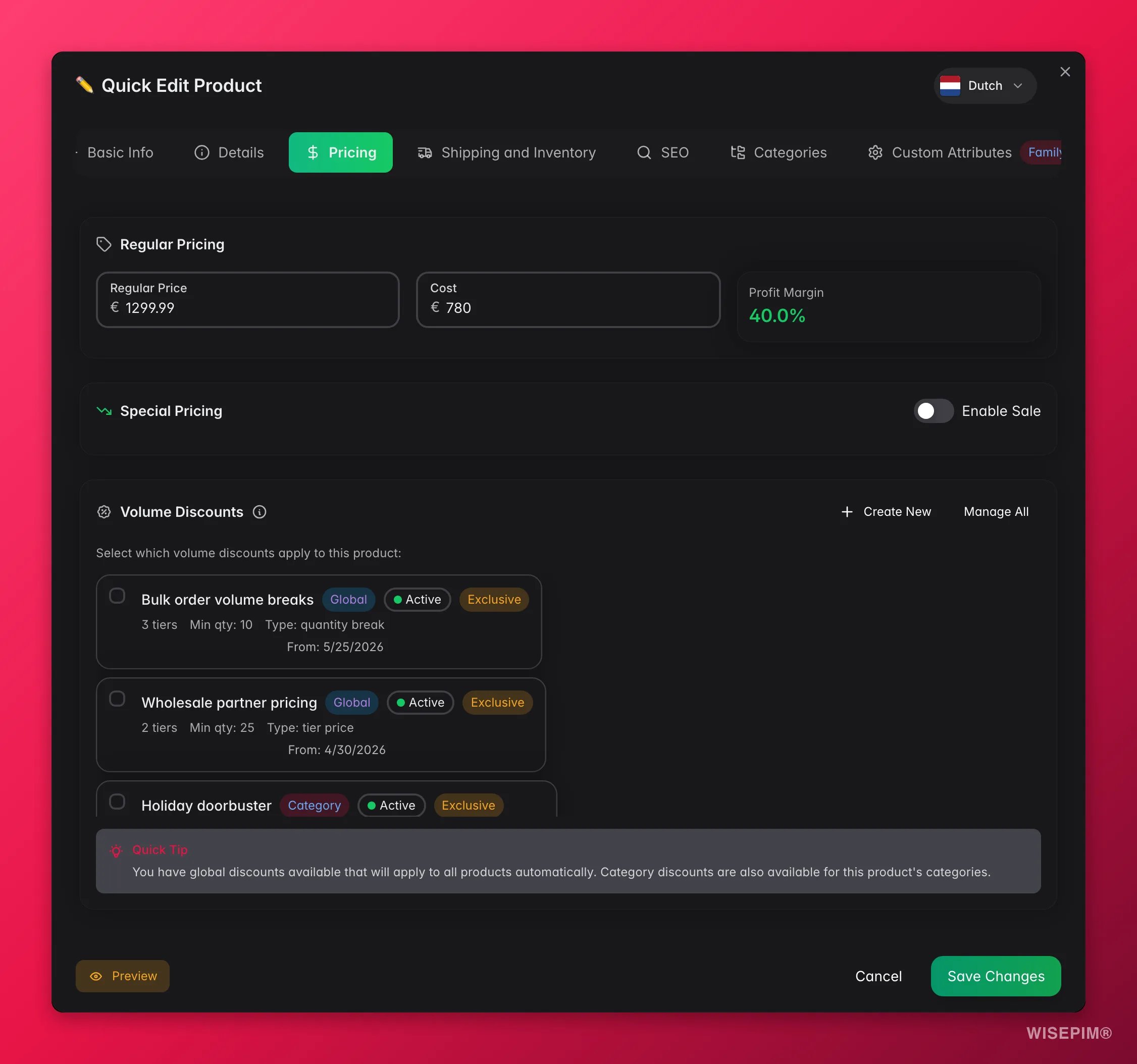
* **Pricing:** regular price and cost with live profit margin, special pricing with quick sale presets, volume discounts with conflict warnings
* **Shipping and Inventory:** EAN, UPC, HS code, stock quantity, stock status, low stock threshold, shipping toggles
* **SEO:** meta title, description, keywords with a live Google search preview and character counts
* **Categories:** tree-based category selector with multi-select
* **Custom Attributes:** product attributes from the assigned product family
### Original and enriched descriptions
The **Basic Info** tab shows the **Original Description** and the **Enriched Description** side-by-side. The original is always preserved exactly as it came from your source system. The enriched version is what AI generates. It stays as a draft until you review and save it.
### Special pricing features
The Pricing tab includes features designed for fast promotional setup:
* **Profit margin:** automatically calculated from price and cost
* **Quick sale presets:** one-click buttons for 24h Flash Sale, 7-Day Sale, Weekend Sale, and Monthly Sale that set the date range for you
* **Status badges:** shows whether a special price is active, scheduled, or expired
* **Volume discounts:** assign discount rules with automatic conflict detection (warns about overlapping quantity ranges or mixed discount types)
## Full edit page
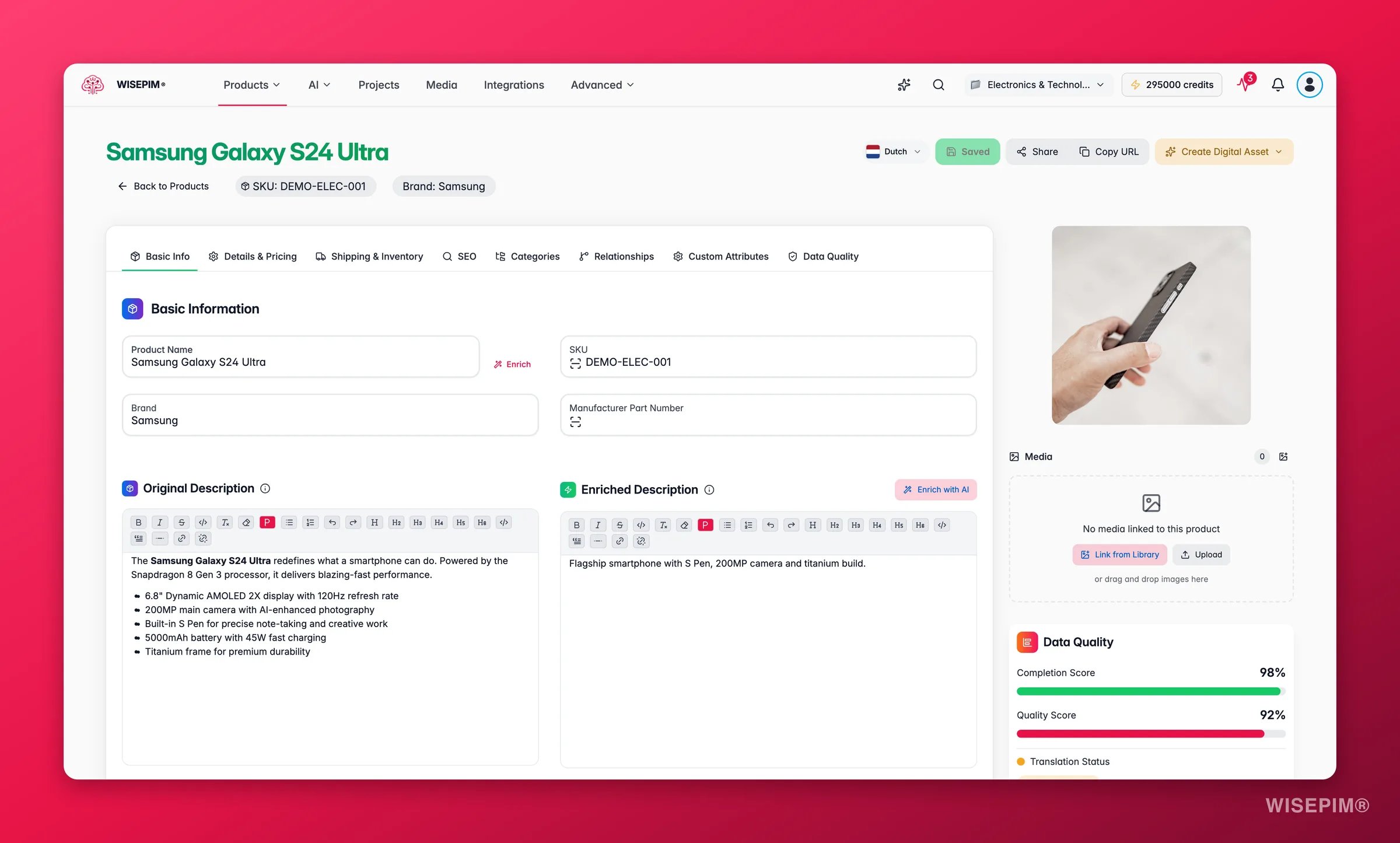
Open the full edit page from the row's **⋮ (three-dots) menu**: choose **Edit**. (You can also navigate straight to the product's URL.) This is a dedicated page with the full product URL (`/products/edit/{sku}`) and gives you access to everything.
### Tabs
* **Basic Info:** product name, product family, SKU, brand, and descriptions (original and enriched shown side-by-side)
* **Details:** product type, MPN, supplier, weight, dimensions, status, visibility
* **Pricing:** regular price and cost with live profit margin, special pricing with quick sale presets, volume discounts with conflict warnings
* **Shipping and Inventory:** EAN, UPC, HS code, stock quantity, stock status, low stock threshold, shipping toggles
* **SEO:** meta title, description, keywords with a live Google search preview and character counts
* **Categories:** tree-based category selector with multi-select
* **Custom Attributes:** product attributes from the assigned product family
### Original and enriched descriptions
The **Basic Info** tab shows the **Original Description** and the **Enriched Description** side-by-side. The original is always preserved exactly as it came from your source system. The enriched version is what AI generates. It stays as a draft until you review and save it.
### Special pricing features
The Pricing tab includes features designed for fast promotional setup:
* **Profit margin:** automatically calculated from price and cost
* **Quick sale presets:** one-click buttons for 24h Flash Sale, 7-Day Sale, Weekend Sale, and Monthly Sale that set the date range for you
* **Status badges:** shows whether a special price is active, scheduled, or expired
* **Volume discounts:** assign discount rules with automatic conflict detection (warns about overlapping quantity ranges or mixed discount types)
## Full edit page
Open the full edit page from the row's **⋮ (three-dots) menu**: choose **Edit**. (You can also navigate straight to the product's URL.) This is a dedicated page with the full product URL (`/products/edit/{sku}`) and gives you access to everything.
 ### Tabs
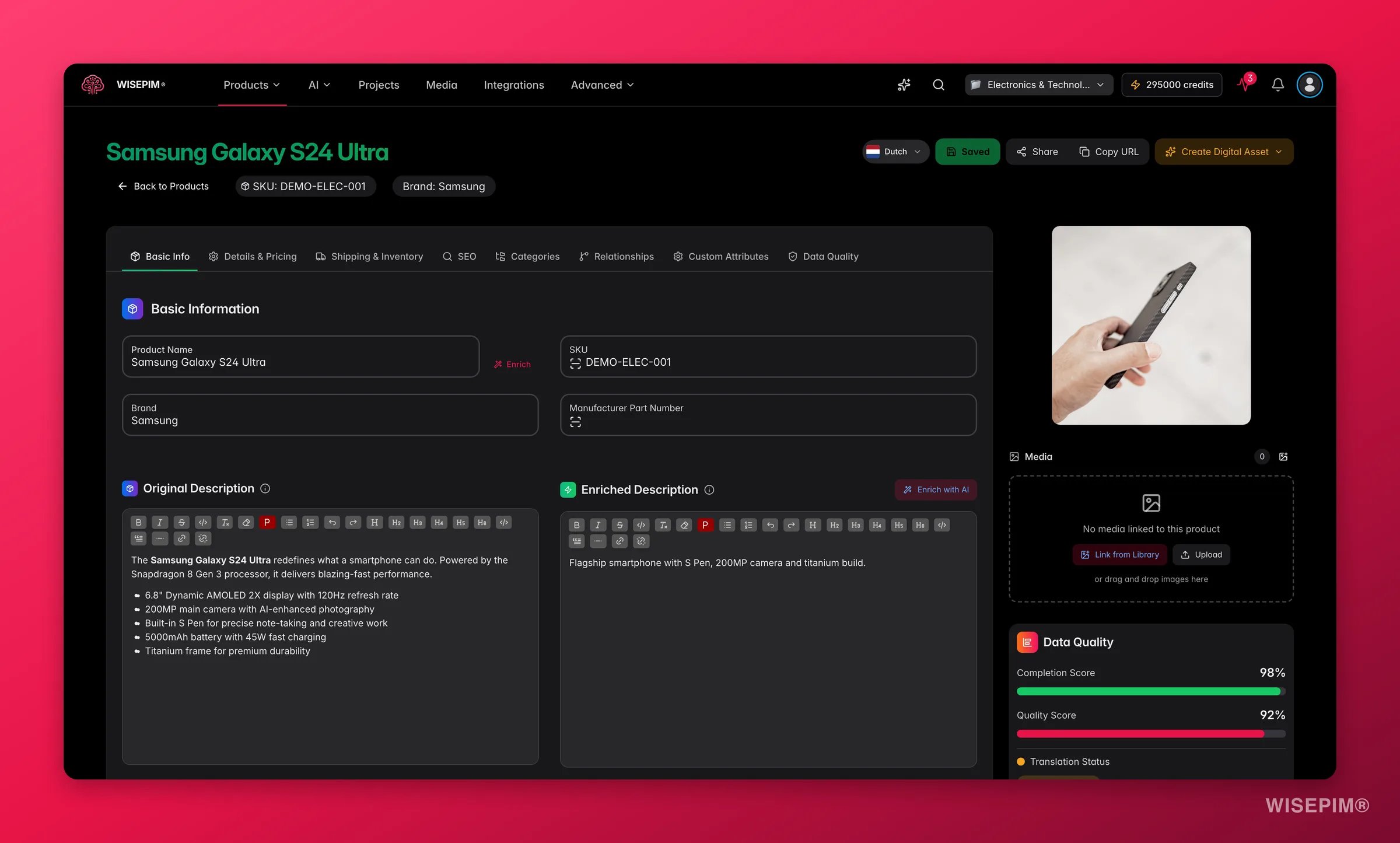
* **Basic Info:** product name, brand, SKU, and descriptions. The **Original Description** is preserved from your source system. The **Enriched Description** holds the AI-improved version, ready to review before publishing.
* **Details & Pricing:** product type, supplier, MPN, pricing, cost, and product configuration (visibility, product type)
* **Web Research:** AI-gathered product information from the web with merge status, field tracking, and the ability to merge research data into product fields
* **Shipping & Inventory:** EAN, UPC, HS code, country of origin, stock quantity, dimensions, weight, and shipping toggles
* **SEO:** meta title, description, and keywords with a live Google search preview. AI can also suggest internal links to related products directly in your descriptions.
* **Categories:** tree-based category selector with multi-select. Child categories automatically include their parents.
* **Relationships:** link this product to variants, bundle items, grouped items, cross-sells, upsells, and related products. View relationships as a list or an interactive graph.
* **Custom Attributes:** all attributes grouped by [attribute group](/en/other-features/managing-attributes), with unit-of-measure support. Available attributes depend on the assigned [product family](/en/products/product-families).
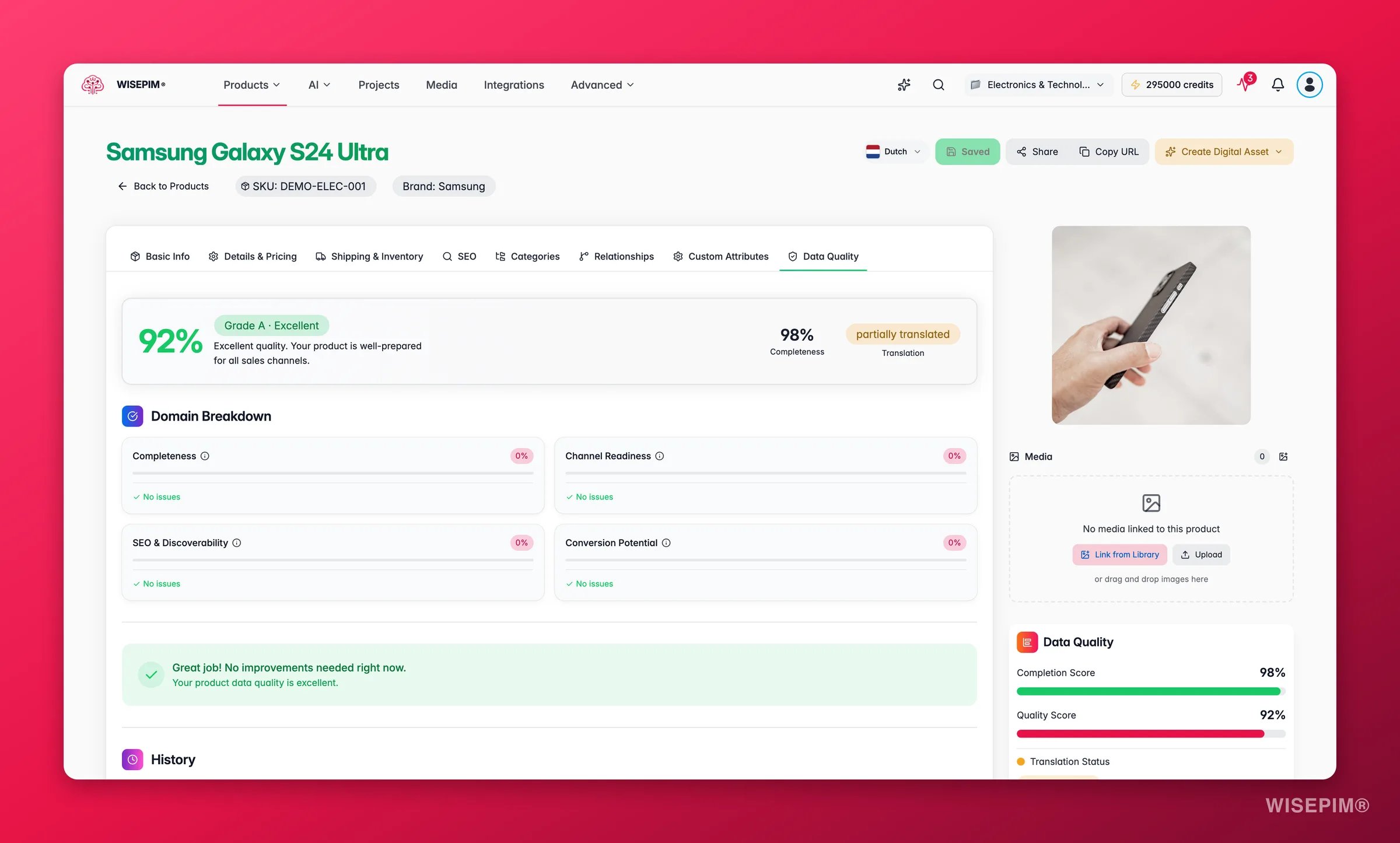
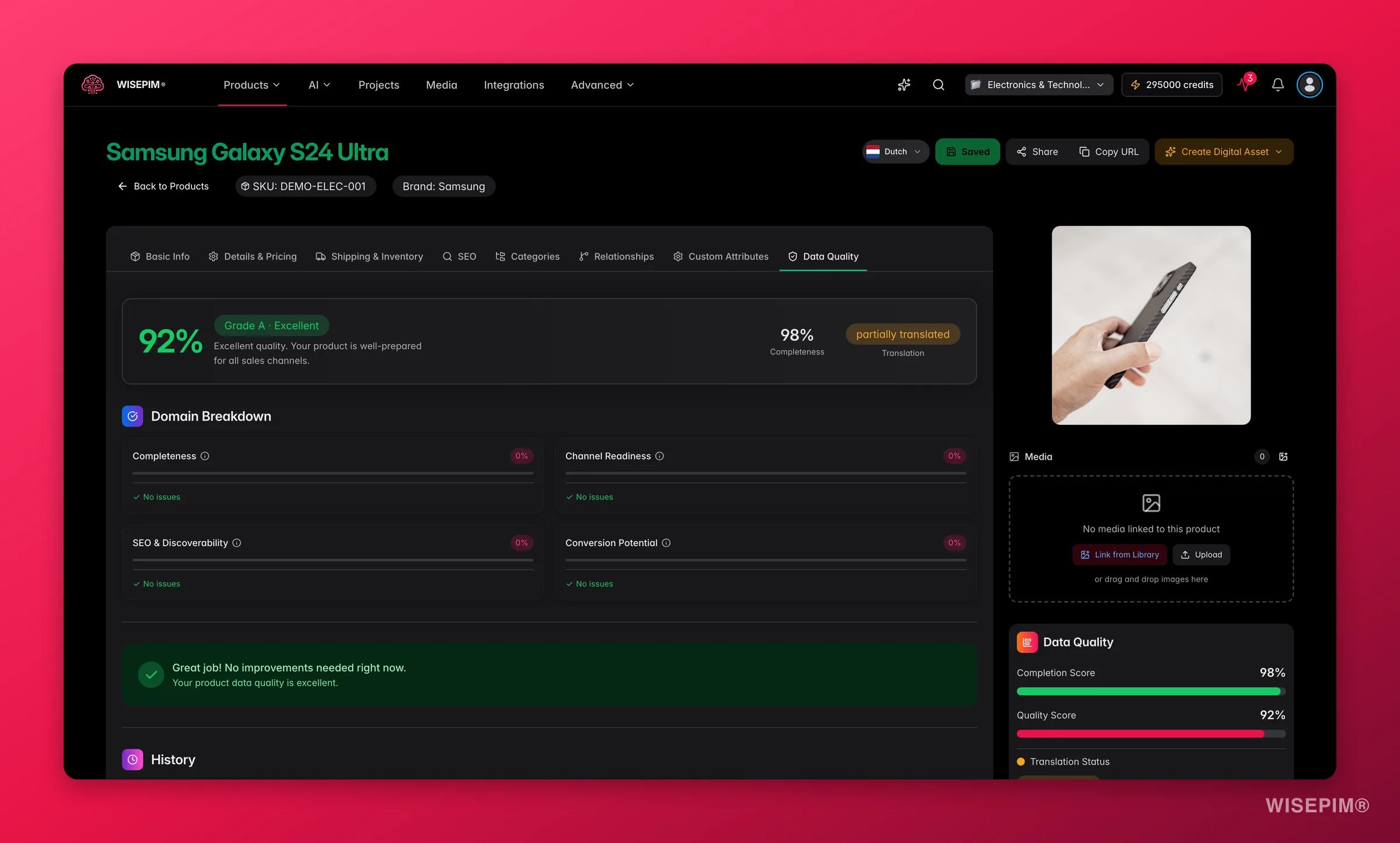
* **Data Quality:** overall quality grade, completeness, channel readiness, SEO and discoverability, and conversion potential scores with a detailed domain breakdown and actionable recommendations.
The **Web Research** and **Custom Attributes** tabs only show when there's something to display: Web Research appears once research has been run for the product, and Custom Attributes appears when the product has attributes (usually from its [product family](/en/products/product-families)). So nine tabs is the maximum, not what you'll always see.
### Tabs
* **Basic Info:** product name, brand, SKU, and descriptions. The **Original Description** is preserved from your source system. The **Enriched Description** holds the AI-improved version, ready to review before publishing.
* **Details & Pricing:** product type, supplier, MPN, pricing, cost, and product configuration (visibility, product type)
* **Web Research:** AI-gathered product information from the web with merge status, field tracking, and the ability to merge research data into product fields
* **Shipping & Inventory:** EAN, UPC, HS code, country of origin, stock quantity, dimensions, weight, and shipping toggles
* **SEO:** meta title, description, and keywords with a live Google search preview. AI can also suggest internal links to related products directly in your descriptions.
* **Categories:** tree-based category selector with multi-select. Child categories automatically include their parents.
* **Relationships:** link this product to variants, bundle items, grouped items, cross-sells, upsells, and related products. View relationships as a list or an interactive graph.
* **Custom Attributes:** all attributes grouped by [attribute group](/en/other-features/managing-attributes), with unit-of-measure support. Available attributes depend on the assigned [product family](/en/products/product-families).
* **Data Quality:** overall quality grade, completeness, channel readiness, SEO and discoverability, and conversion potential scores with a detailed domain breakdown and actionable recommendations.
The **Web Research** and **Custom Attributes** tabs only show when there's something to display: Web Research appears once research has been run for the product, and Custom Attributes appears when the product has attributes (usually from its [product family](/en/products/product-families)). So nine tabs is the maximum, not what you'll always see.
 ### Sidebar
The right sidebar shows three live scores for the product you are editing:
* **Completion Score:** how much of the expected data is filled in
* **Quality Score:** an overall data quality grade
* **Translation Status:** whether the product content has been translated and reviewed
### AI enrichment
The full edit page has **Enrich** buttons next to every major field: titles, descriptions, SEO metadata, categories, and product attributes. Click one to run an AI prompt on that specific field. When AI updates a field, it lights up with a visual animation so you can see exactly what changed.
Enrichment runs via WebSocket, so updates appear in real-time without refreshing.
### Original vs. enriched content
WISEPIM always keeps the **Original Description** intact. It is the exact text from your source system. AI writes to the **Enriched Description** field instead, which you can review and compare before saving. The translation status reflects whether the enriched content has been reviewed and approved.
### Product families and variants
If your product belongs to a [product family](/en/products/product-families), the **Custom Attributes** tab shows all the attributes defined for that family, organized by attribute group. The **Relationships** tab lets you link variants of a configurable product, or see which parent product this variant belongs to.
### Digital assets
From the header of the full edit page, you can create:
* **Product Sheet:** export as a downloadable PDF product sheet
* **Landing Page:** design a landing page for this product
### Unsaved changes protection
If you try to navigate away with unsaved changes, WISEPIM shows a confirmation dialog so you don't accidentally lose work.
## Previewing a product
Click the **eye icon** in the Actions column to open a read-only preview. This is useful when you just need to check a product's details without risking accidental edits.
### Sidebar
The right sidebar shows three live scores for the product you are editing:
* **Completion Score:** how much of the expected data is filled in
* **Quality Score:** an overall data quality grade
* **Translation Status:** whether the product content has been translated and reviewed
### AI enrichment
The full edit page has **Enrich** buttons next to every major field: titles, descriptions, SEO metadata, categories, and product attributes. Click one to run an AI prompt on that specific field. When AI updates a field, it lights up with a visual animation so you can see exactly what changed.
Enrichment runs via WebSocket, so updates appear in real-time without refreshing.
### Original vs. enriched content
WISEPIM always keeps the **Original Description** intact. It is the exact text from your source system. AI writes to the **Enriched Description** field instead, which you can review and compare before saving. The translation status reflects whether the enriched content has been reviewed and approved.
### Product families and variants
If your product belongs to a [product family](/en/products/product-families), the **Custom Attributes** tab shows all the attributes defined for that family, organized by attribute group. The **Relationships** tab lets you link variants of a configurable product, or see which parent product this variant belongs to.
### Digital assets
From the header of the full edit page, you can create:
* **Product Sheet:** export as a downloadable PDF product sheet
* **Landing Page:** design a landing page for this product
### Unsaved changes protection
If you try to navigate away with unsaved changes, WISEPIM shows a confirmation dialog so you don't accidentally lose work.
## Previewing a product
Click the **eye icon** in the Actions column to open a read-only preview. This is useful when you just need to check a product's details without risking accidental edits.
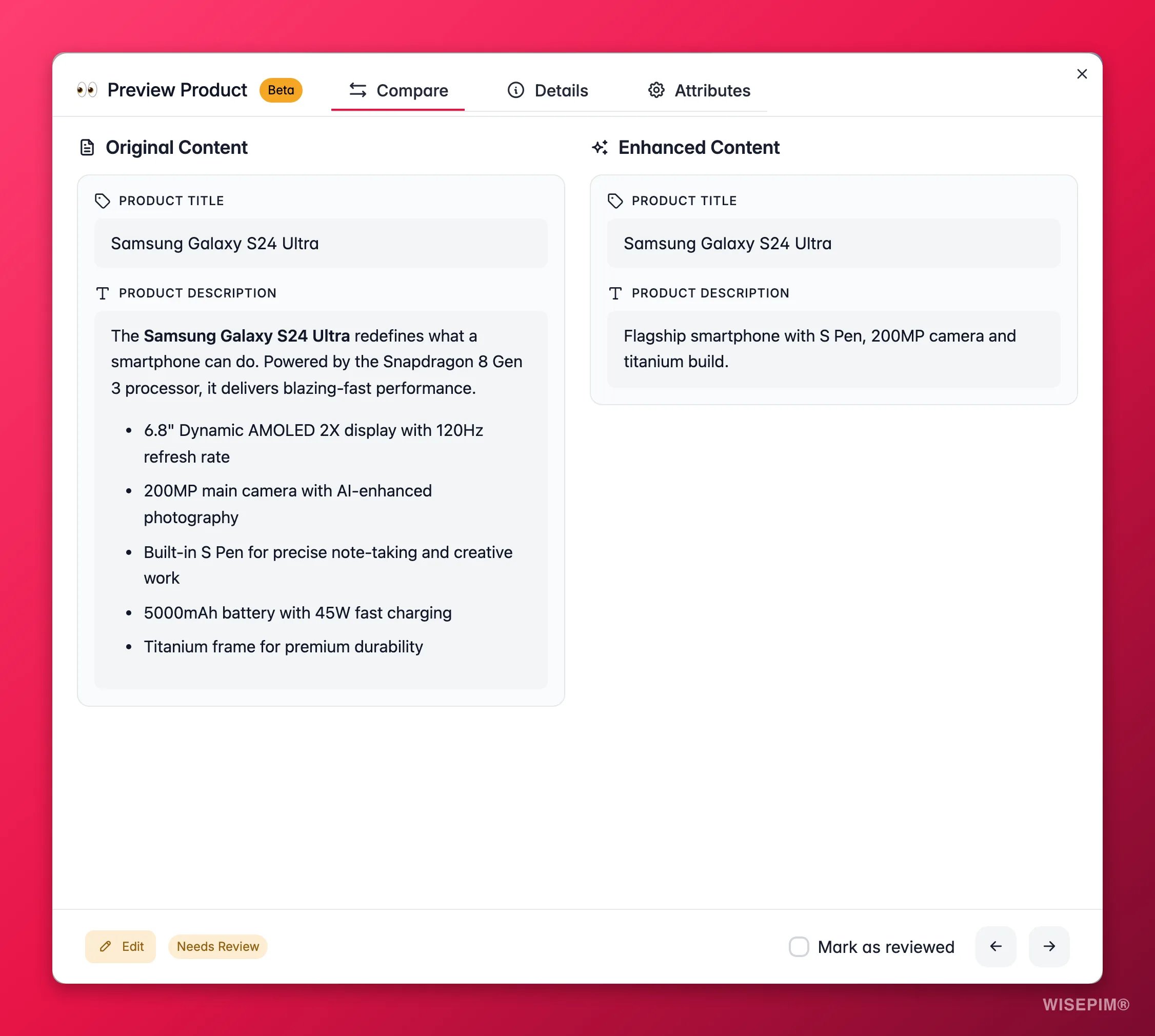
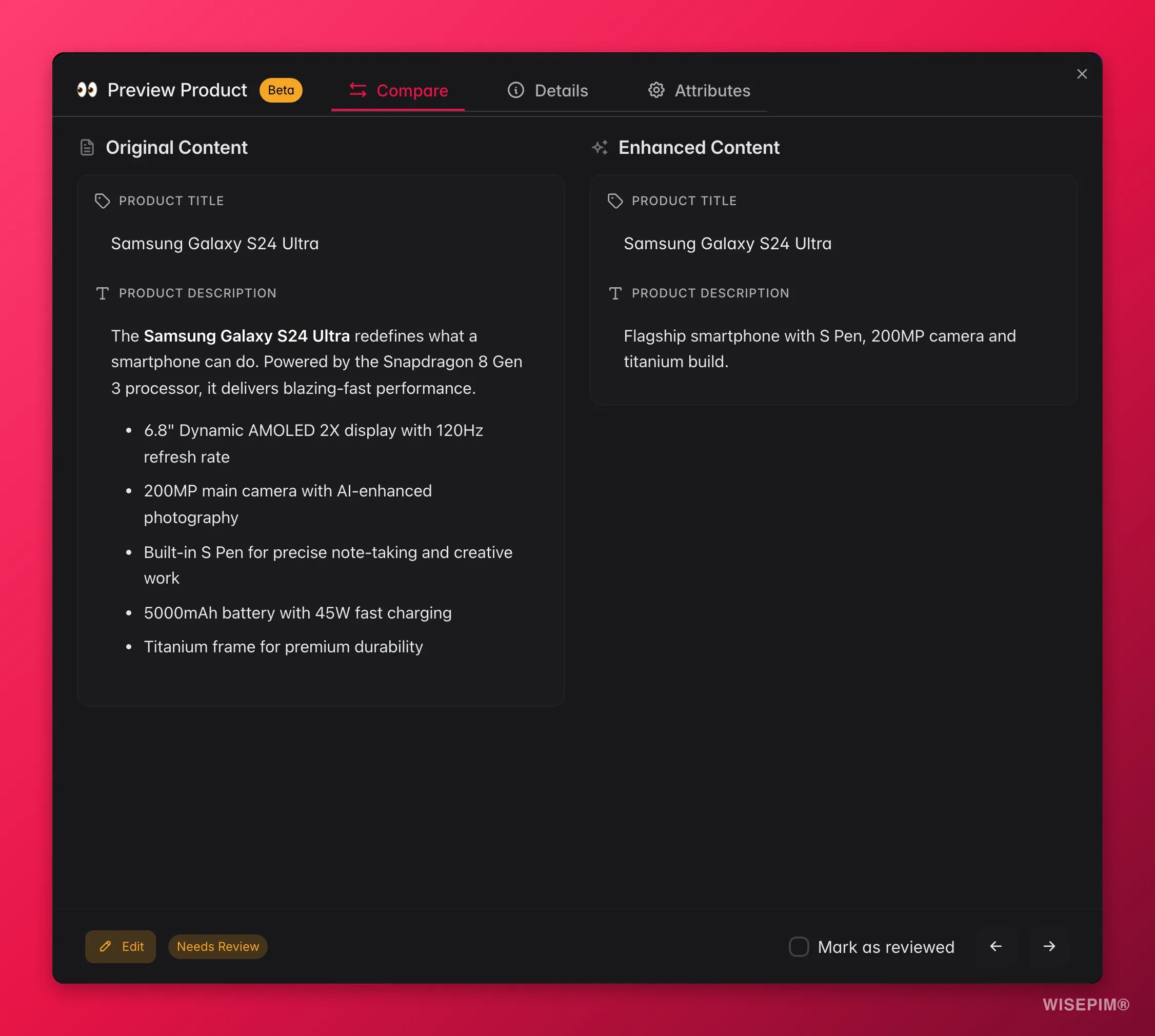 From the preview you can:
* **Browse** through products with previous/next arrows
* **Compare** original and AI-enhanced content side-by-side
* **Change status** (Reviewed / Unreviewed)
* **Edit** to start making changes. This opens the **quick edit modal** (not the full page), so you can fix things fast and stay close to your product list.
## Tips
* **Start with quick edit:** for most day-to-day edits (fixing a price, updating stock, tweaking a description), the quick edit modal is faster because you stay in your product list.
* **Switch to the full page for content work:** when you're writing descriptions, optimizing SEO, or enriching products with AI, the full edit page gives you the space and tools to do it properly.
* **Review enriched content before publishing:** AI writes to the enriched fields, not the originals. Check the side-by-side view, then save when you're happy.
* **Use the SEO preview:** both editors show a live Google search preview in the SEO tab. Stay within the recommended character ranges (Title: 30–60, Description: 70–160) for the best results.
* **For bulk changes, use bulk edit:** if you need to change the same field on multiple products, [bulk editing](/en/essentials/bulk-editing) is much faster than editing products one by one.
## Related
Set up families to define which custom attributes apply to a product.
Learn how AI enriches titles, descriptions, attributes, and more.
Change the same field across many products at once.
Create and organize the custom attributes shown in the editor.
From the preview you can:
* **Browse** through products with previous/next arrows
* **Compare** original and AI-enhanced content side-by-side
* **Change status** (Reviewed / Unreviewed)
* **Edit** to start making changes. This opens the **quick edit modal** (not the full page), so you can fix things fast and stay close to your product list.
## Tips
* **Start with quick edit:** for most day-to-day edits (fixing a price, updating stock, tweaking a description), the quick edit modal is faster because you stay in your product list.
* **Switch to the full page for content work:** when you're writing descriptions, optimizing SEO, or enriching products with AI, the full edit page gives you the space and tools to do it properly.
* **Review enriched content before publishing:** AI writes to the enriched fields, not the originals. Check the side-by-side view, then save when you're happy.
* **Use the SEO preview:** both editors show a live Google search preview in the SEO tab. Stay within the recommended character ranges (Title: 30–60, Description: 70–160) for the best results.
* **For bulk changes, use bulk edit:** if you need to change the same field on multiple products, [bulk editing](/en/essentials/bulk-editing) is much faster than editing products one by one.
## Related
Set up families to define which custom attributes apply to a product.
Learn how AI enriches titles, descriptions, attributes, and more.
Change the same field across many products at once.
Create and organize the custom attributes shown in the editor.