> ## Documentation Index
> Fetch the complete documentation index at: https://docs.wisepim.com/llms.txt
> Use this file to discover all available pages before exploring further.
# Customizing Your Product View
> Choose your columns, reorder them by drag-and-drop, set row height, and save the whole setup as a layout you can switch back to anytime.
The Products table adapts to how you work. Pick which columns to show, reorder them, set the row height, and save the whole setup as a layout. Then switch between layouts for daily review, bulk editing, export prep, or any other task.
## Choose your columns
Click the **Columns** button in the toolbar to open the column selector.
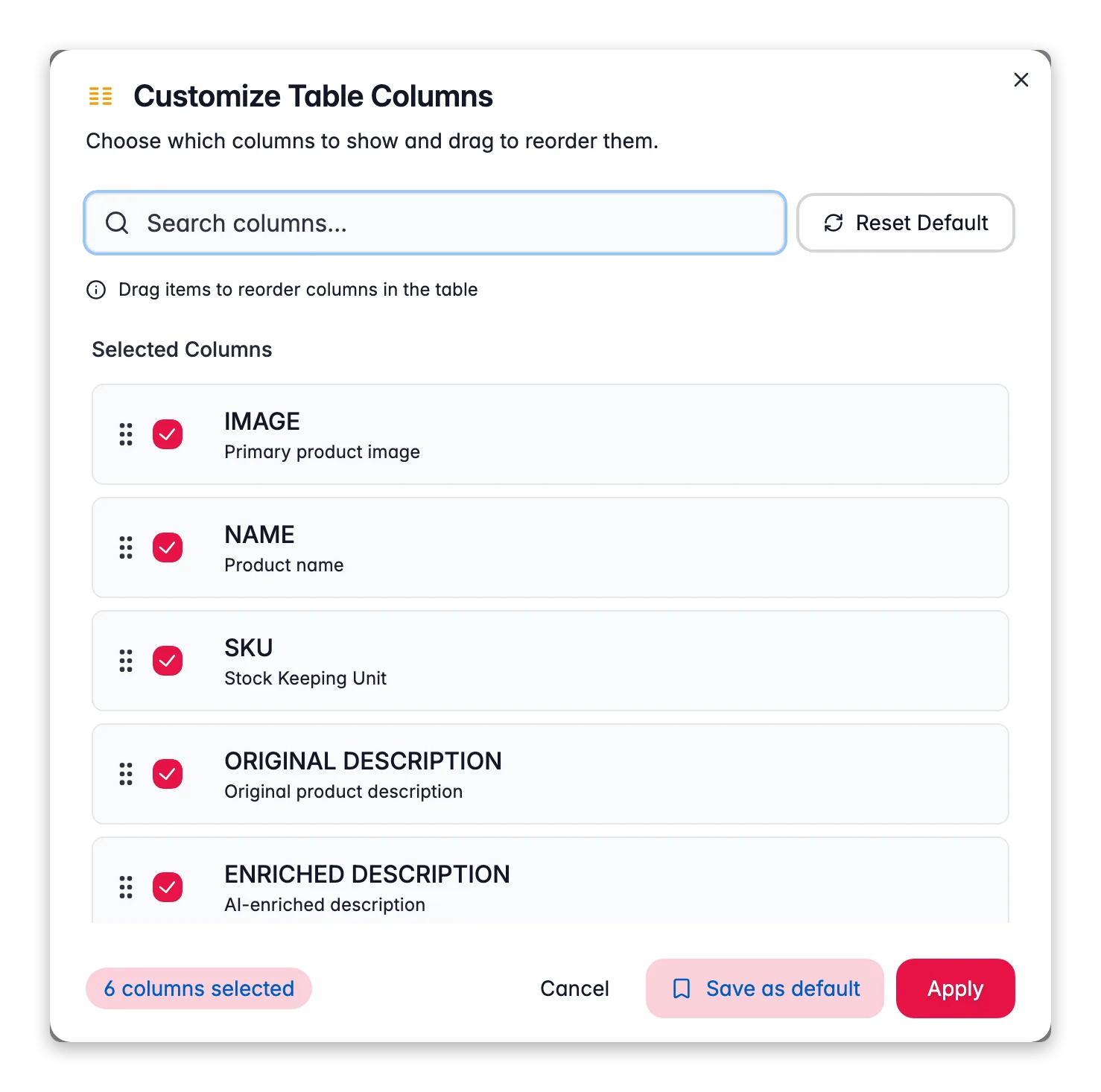
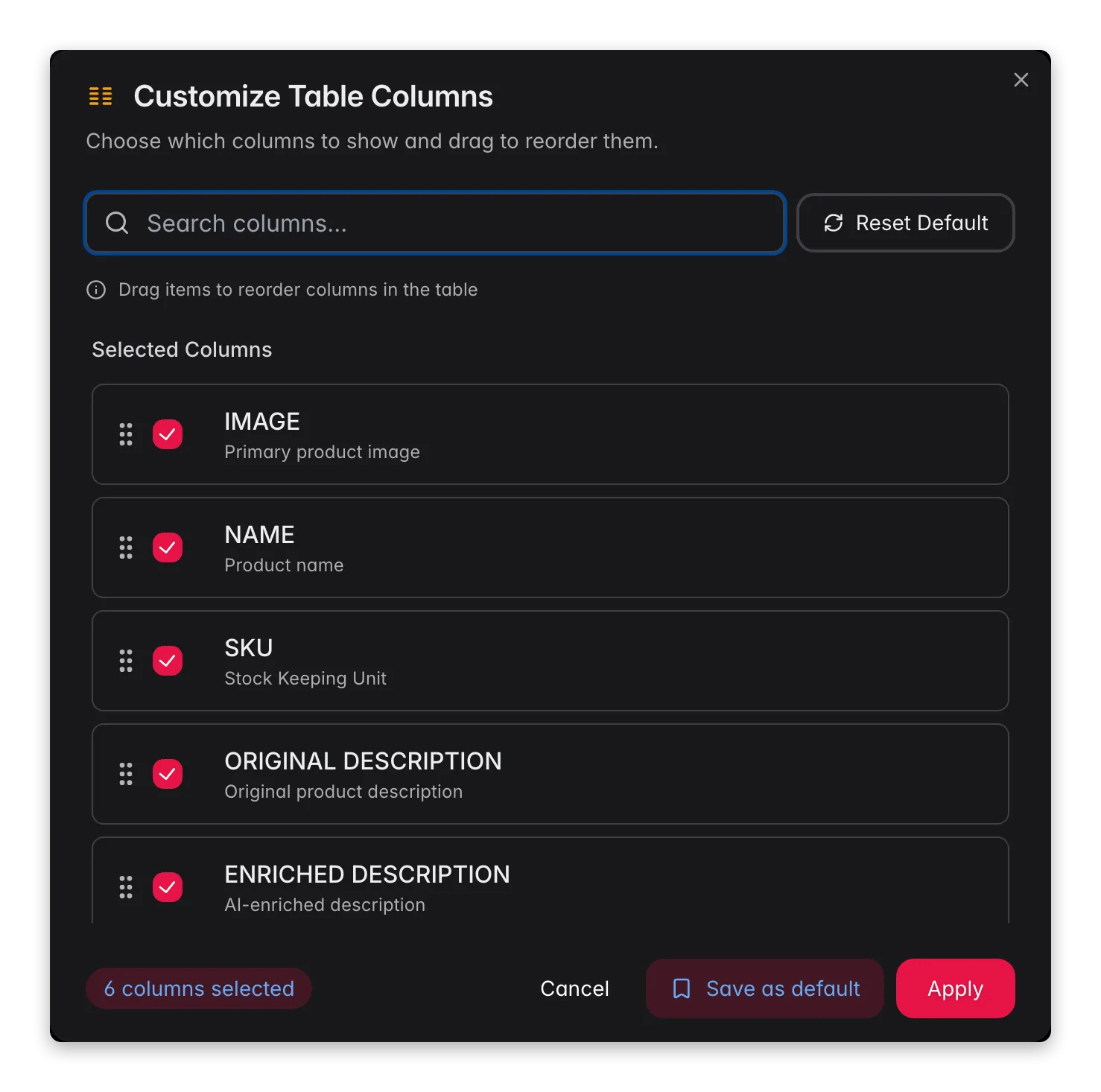 Click **Columns** in the toolbar.
Check a column to show it, uncheck to hide it. Use the search box to find columns fast.
Drag columns up or down in the selected list to change their order in the table.
Click **Apply** to update your view.
Click **Columns** in the toolbar.
Check a column to show it, uncheck to hide it. Use the search box to find columns fast.
Drag columns up or down in the selected list to change their order in the table.
Click **Apply** to update your view.
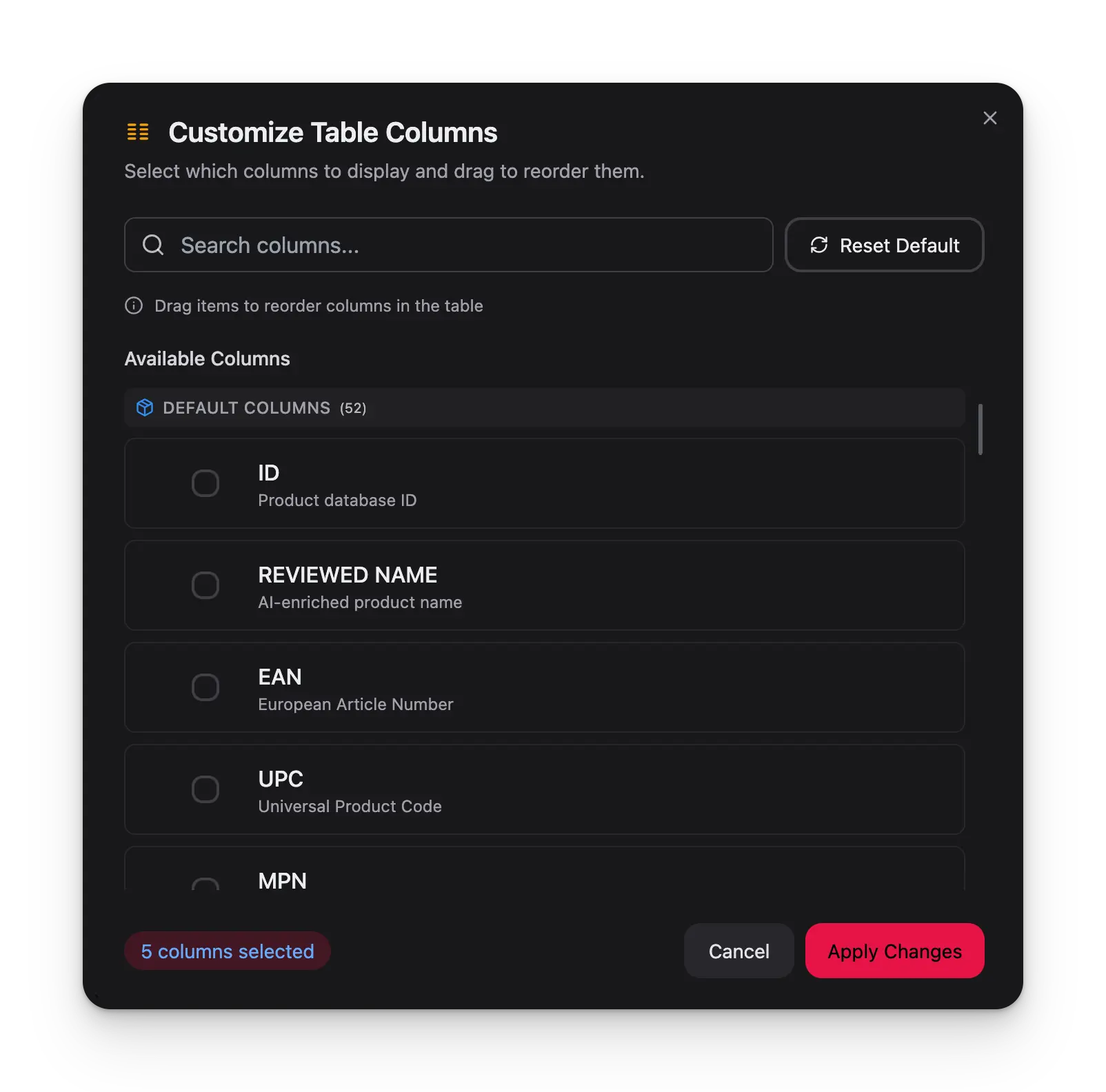 Columns are split into two groups:
* **Default columns**: standard product fields (Name, SKU, Price, Status, and more)
* **Custom attributes**: fields from your attribute groups and [product families](/en/products/product-families)
The **Actions** column is always visible and locked to the right of the table. You cannot hide or move it.
## Set the row height
Use the row height selector in the bottom-right pagination area to control how much space each row takes. Pick the height that fits your task.
| Height | Best for |
| --------------- | ----------------------------------- |
| **Compact** | Scanning large lists quickly |
| **Normal** | Everyday use |
| **Comfortable** | Reviewing product details (default) |
| **Spacious** | Working with product images |
## Save a layout
Got a view you like? Save it as a layout so you can switch back to it anytime.
Columns are split into two groups:
* **Default columns**: standard product fields (Name, SKU, Price, Status, and more)
* **Custom attributes**: fields from your attribute groups and [product families](/en/products/product-families)
The **Actions** column is always visible and locked to the right of the table. You cannot hide or move it.
## Set the row height
Use the row height selector in the bottom-right pagination area to control how much space each row takes. Pick the height that fits your task.
| Height | Best for |
| --------------- | ----------------------------------- |
| **Compact** | Scanning large lists quickly |
| **Normal** | Everyday use |
| **Comfortable** | Reviewing product details (default) |
| **Spacious** | Working with product images |
## Save a layout
Got a view you like? Save it as a layout so you can switch back to it anytime.
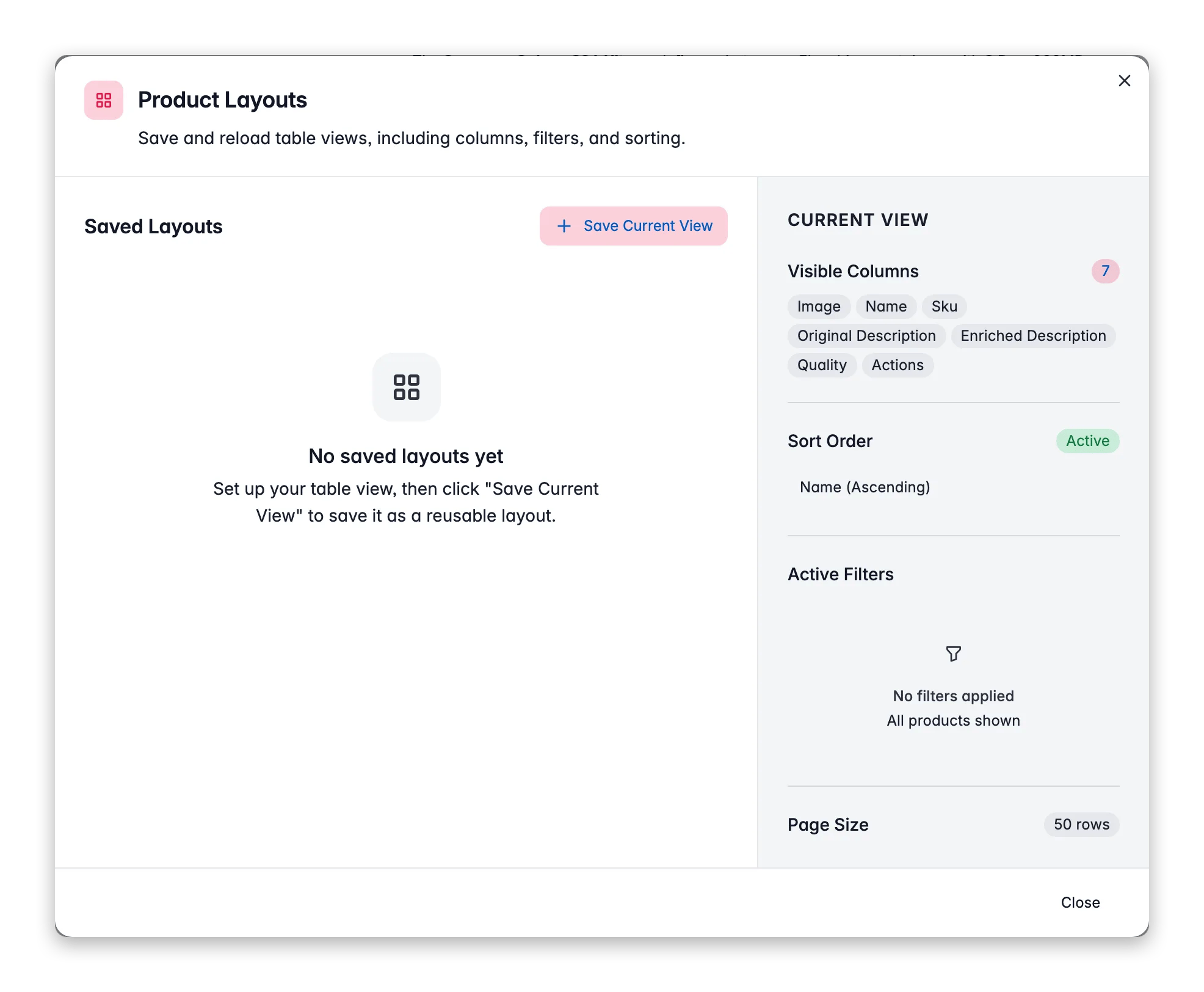
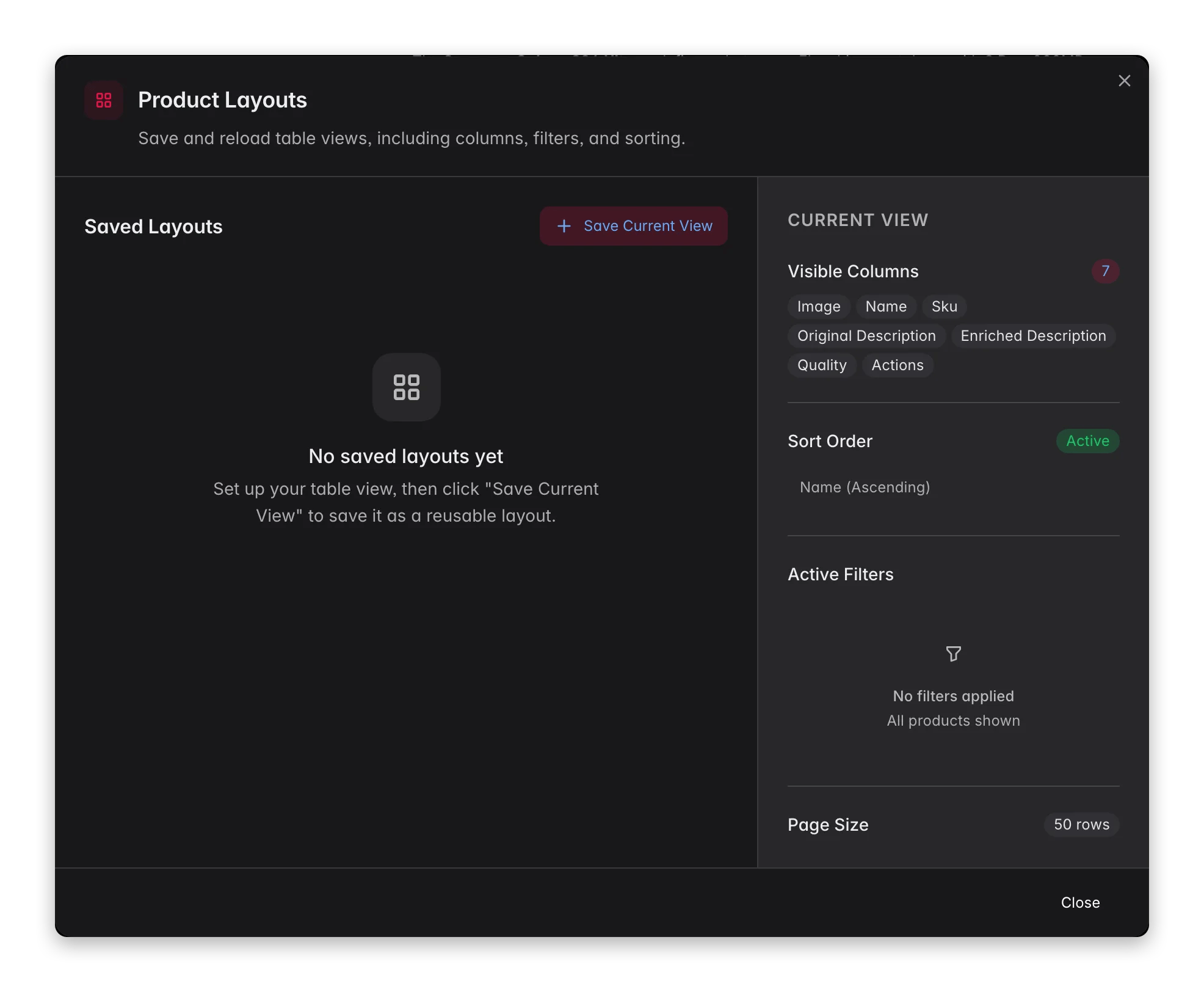 A layout captures your whole view setup:
* **Visible columns** and their order
* **Sort settings** (which column, which direction)
* **Active filters** (search query and advanced filters)
* **Page size** (rows per page)
### Create a layout
Configure columns, filters, and sorting the way you want them.
Click the **Layouts** button in the toolbar.
Click **Save Current View**, give it a clear name, and optionally set it as your default.
The modal suggests a name from your active filters (for example, "Status: Active + Category: Electronics"). Change it to anything you like.
### Switch and manage layouts
To switch, click **Layouts** and select a saved layout. The active layout name shows as a blue badge on the button.
From the Layouts modal you can also:
* **Apply** a saved layout
* **Update** the active layout with your current changes
* **Rename** a layout
* **Set as default** to auto-load it when you open the Products page
* **Delete** a layout you no longer need
When your current view differs from the active layout, an **Update** button appears. Use it to save your changes without creating a new layout.
## Tips for everyday use
Set up a layout for each job: a "Daily Review" with status and description columns, a "Price Update" with price and margin columns, or an "Export Prep" with every field your webshop needs.
Make your most-used layout the default. The Products page then opens ready for your main workflow every time.
Use the **Reset to Default** button in the column selector to start fresh whenever your view gets too busy.
## Related
Narrow the table down, then save the filters as part of a layout.
See where the custom attribute columns come from.
Build a layout that makes editing many products at once easier.
Set up an export-ready view with the exact columns you need.
A layout captures your whole view setup:
* **Visible columns** and their order
* **Sort settings** (which column, which direction)
* **Active filters** (search query and advanced filters)
* **Page size** (rows per page)
### Create a layout
Configure columns, filters, and sorting the way you want them.
Click the **Layouts** button in the toolbar.
Click **Save Current View**, give it a clear name, and optionally set it as your default.
The modal suggests a name from your active filters (for example, "Status: Active + Category: Electronics"). Change it to anything you like.
### Switch and manage layouts
To switch, click **Layouts** and select a saved layout. The active layout name shows as a blue badge on the button.
From the Layouts modal you can also:
* **Apply** a saved layout
* **Update** the active layout with your current changes
* **Rename** a layout
* **Set as default** to auto-load it when you open the Products page
* **Delete** a layout you no longer need
When your current view differs from the active layout, an **Update** button appears. Use it to save your changes without creating a new layout.
## Tips for everyday use
Set up a layout for each job: a "Daily Review" with status and description columns, a "Price Update" with price and margin columns, or an "Export Prep" with every field your webshop needs.
Make your most-used layout the default. The Products page then opens ready for your main workflow every time.
Use the **Reset to Default** button in the column selector to start fresh whenever your view gets too busy.
## Related
Narrow the table down, then save the filters as part of a layout.
See where the custom attribute columns come from.
Build a layout that makes editing many products at once easier.
Set up an export-ready view with the exact columns you need.