> ## Documentation Index
> Fetch the complete documentation index at: https://docs.wisepim.com/llms.txt
> Use this file to discover all available pages before exploring further.
# Process Tracker
> Monitor imports, exports, and AI enrichment in real time. Track progress, spot failures fast, view logs, and retry failed tasks in one place.
The Process Tracker is your command center for every background job in WISEPIM. Use it to watch imports, exports, and AI enrichment run in real time, catch failures early, and retry the tasks that did not finish.
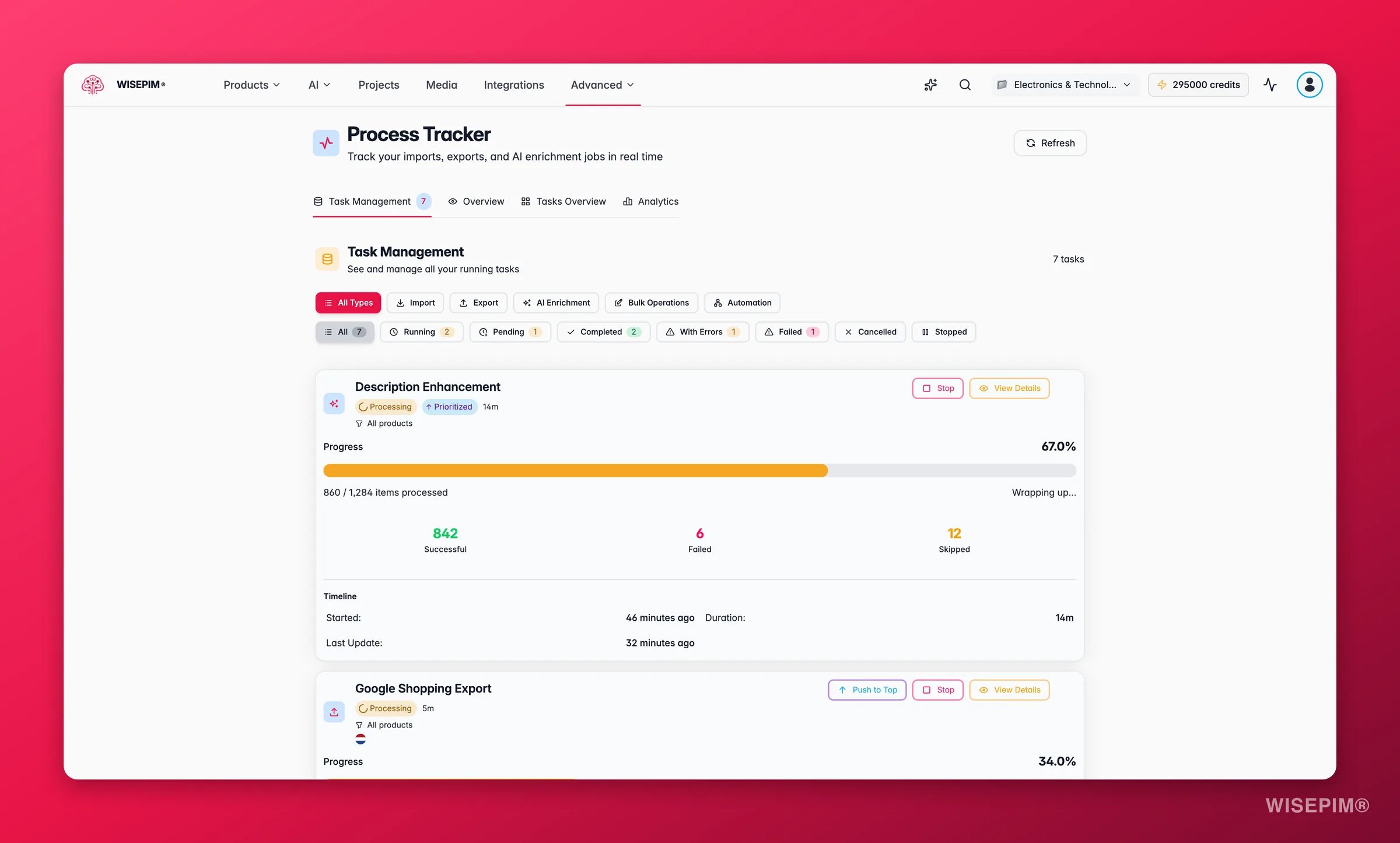
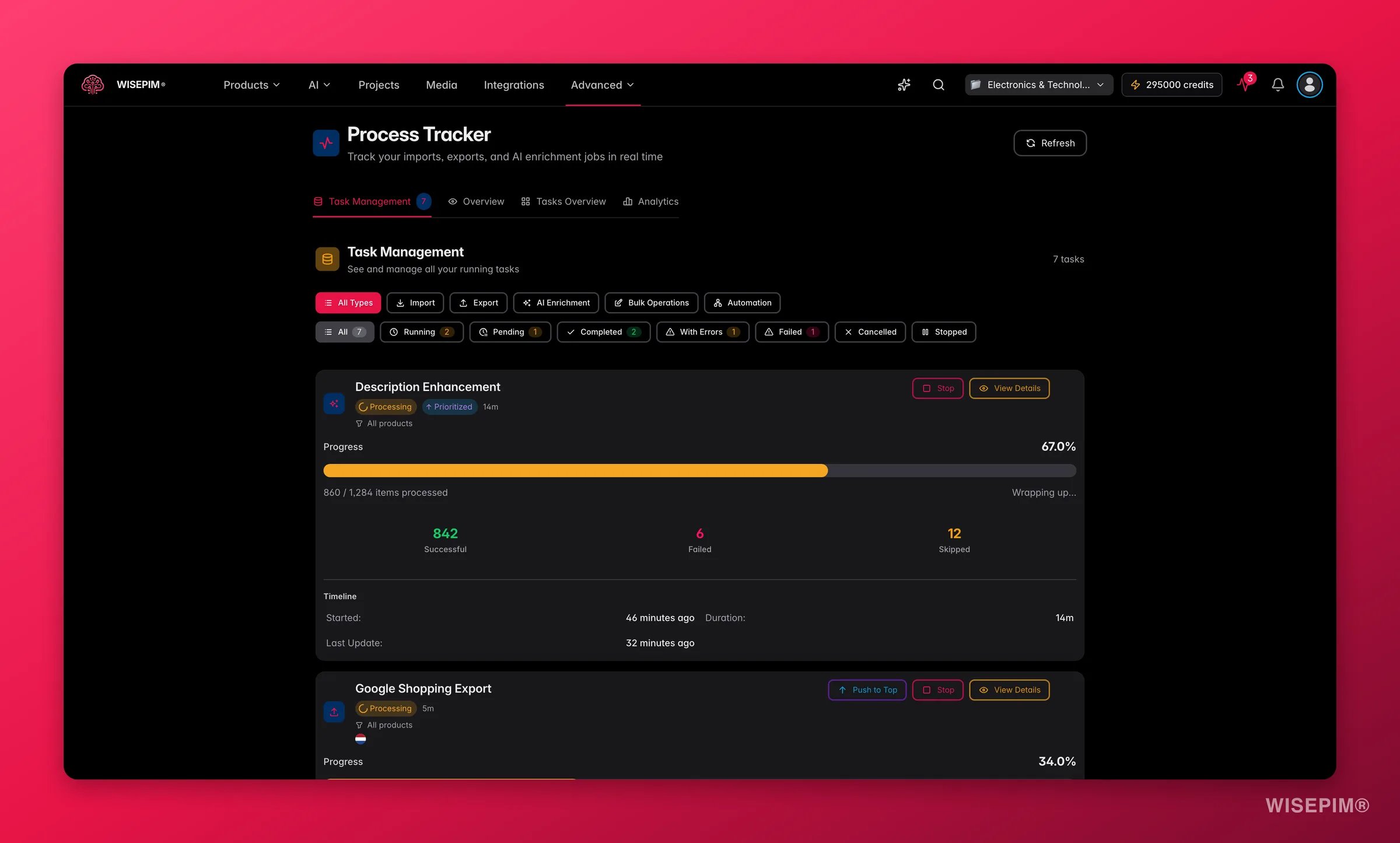 The Process Tracker updates on its own every 30 seconds. You do not need to refresh the page to see the latest progress.
## What you can track
The Process Tracker watches every long-running job in WISEPIM:
| Task type | What it covers |
| ----------------- | ----------------------------------------------------------------- |
| **Imports** | Products, categories, and attributes from platforms or CSV files. |
| **Exports** | Enriched data and feeds sent to your sales channels. |
| **AI enrichment** | AI-generated titles, descriptions, SEO meta, and attributes. |
| **Bulk updates** | Mass changes to attributes, categories, prices, and stock. |
## Find your way around
The Process Tracker has four views. Each answers a different question.
See active tasks and progress at a glance, with success rates and completion estimates.
Browse every task. Filter by status, type, and date, and open any task for full details.
A compact, color-coded layout for monitoring many tasks at once.
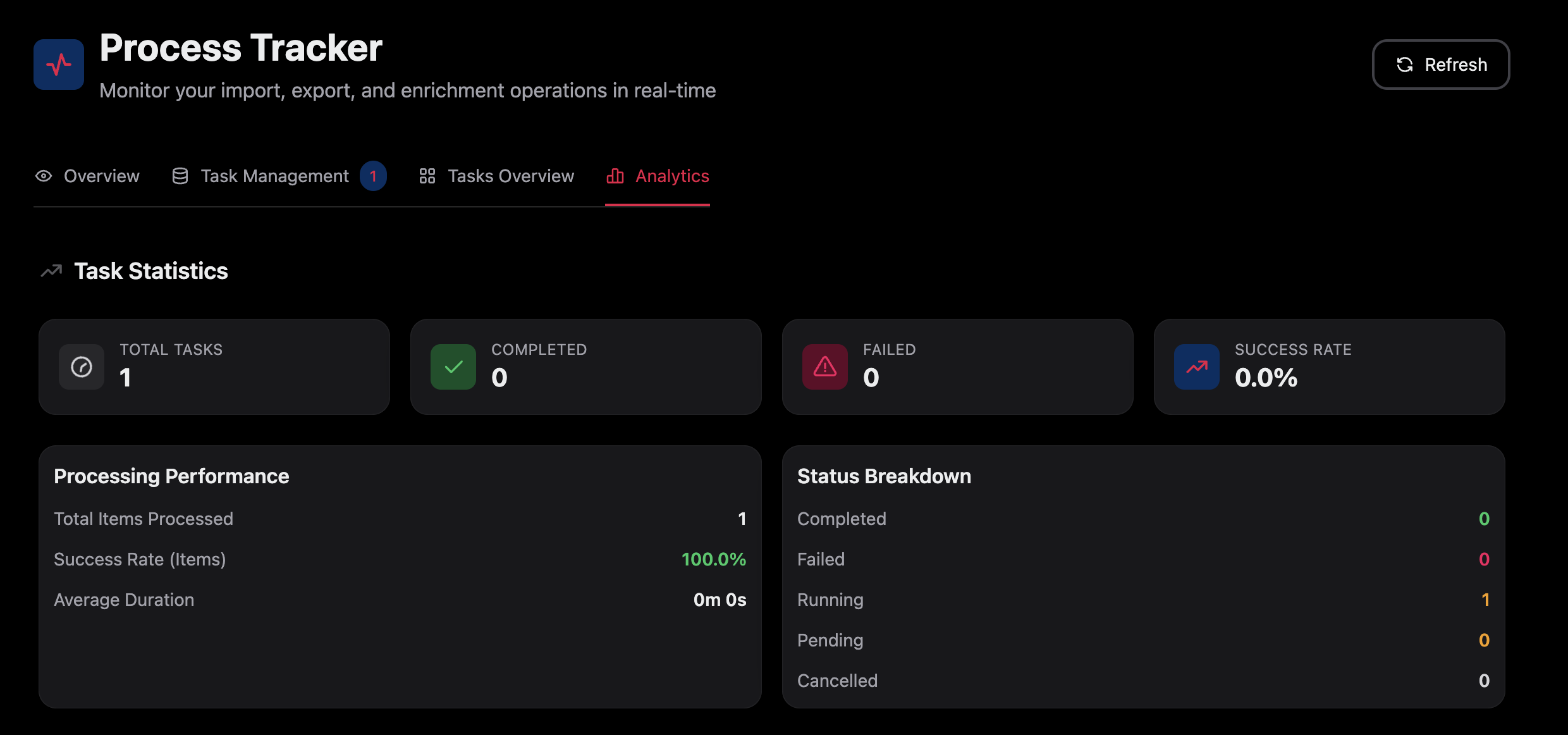
Review success rates, processing speed, and error trends over time.
The Process Tracker updates on its own every 30 seconds. You do not need to refresh the page to see the latest progress.
## What you can track
The Process Tracker watches every long-running job in WISEPIM:
| Task type | What it covers |
| ----------------- | ----------------------------------------------------------------- |
| **Imports** | Products, categories, and attributes from platforms or CSV files. |
| **Exports** | Enriched data and feeds sent to your sales channels. |
| **AI enrichment** | AI-generated titles, descriptions, SEO meta, and attributes. |
| **Bulk updates** | Mass changes to attributes, categories, prices, and stock. |
## Find your way around
The Process Tracker has four views. Each answers a different question.
See active tasks and progress at a glance, with success rates and completion estimates.
Browse every task. Filter by status, type, and date, and open any task for full details.
A compact, color-coded layout for monitoring many tasks at once.
Review success rates, processing speed, and error trends over time.
 ## Read task status
Every task shows a color-coded status so you can scan progress fast.
| Status | Color | What it means |
| ------------- | ------ | ---------------------------------------------------- |
| **Running** | Yellow | Currently processing. You can cancel it. |
| **Pending** | Gray | Queued and waiting to start. |
| **Completed** | Green | Finished successfully. |
| **Failed** | Red | Hit an error. Open it to read the message and retry. |
| **Cancelled** | Gray | You stopped it. Partial results may remain. |
## Check task details
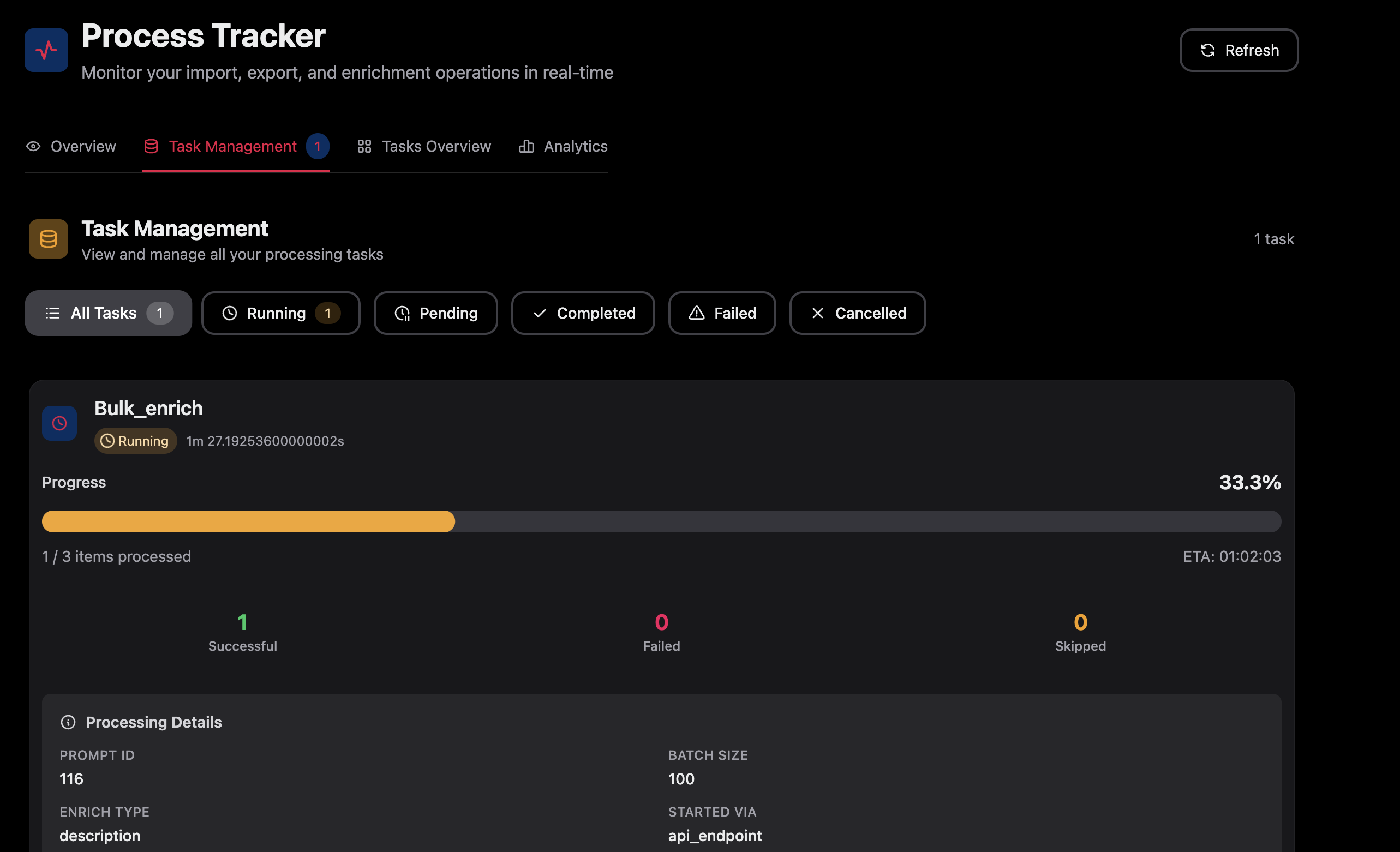
Open any task to see how it ran. Each task reports four item counts:
* **Processed:** items handled so far.
* **Successful:** items finished without errors.
* **Failed:** items that hit an error.
* **Skipped:** items bypassed by a rule or condition.
You also see the **success rate**, **duration**, **processing speed**, and an **estimated completion** time for running tasks. Failed tasks show the error message so you know what to fix.
## Read task status
Every task shows a color-coded status so you can scan progress fast.
| Status | Color | What it means |
| ------------- | ------ | ---------------------------------------------------- |
| **Running** | Yellow | Currently processing. You can cancel it. |
| **Pending** | Gray | Queued and waiting to start. |
| **Completed** | Green | Finished successfully. |
| **Failed** | Red | Hit an error. Open it to read the message and retry. |
| **Cancelled** | Gray | You stopped it. Partial results may remain. |
## Check task details
Open any task to see how it ran. Each task reports four item counts:
* **Processed:** items handled so far.
* **Successful:** items finished without errors.
* **Failed:** items that hit an error.
* **Skipped:** items bypassed by a rule or condition.
You also see the **success rate**, **duration**, **processing speed**, and an **estimated completion** time for running tasks. Failed tasks show the error message so you know what to fix.
 ## Manage running tasks
Find the task in the Overview or Task Management view and open it.
Click **Cancel** to stop a running task. WISEPIM keeps any results processed so far. Use this when you spot wrong settings or want to free up capacity.
The tracker auto-updates every 30 seconds. Click **Refresh** to pull the newest status right away.
## Fix failed tasks
When a task fails, open it and read the error message first. It tells you what went wrong and which items were affected. Then retry once the cause is fixed.
A pending task is queued and waiting for resources. Large jobs can hold up the queue. Check the queue order, and try smaller batches or off-peak timing for big operations.
Open a failed task and read the error. Common causes are missing required fields, data in the wrong format, and platform validation rules. Fix the data or mapping, then retry.
Large datasets and complex transformations take longer. Process data in smaller batches and run big jobs during off-peak hours.
These point to the platform connection. Check the platform status, confirm your credentials are valid, and test the connection in your integration settings.
## Related
Run mass updates that show up as tasks in the Process Tracker.
Trigger AI enrichment and track it here as it runs.
Set up the platform connections your imports and exports use.
Get alerts when tasks finish or fail.
## Manage running tasks
Find the task in the Overview or Task Management view and open it.
Click **Cancel** to stop a running task. WISEPIM keeps any results processed so far. Use this when you spot wrong settings or want to free up capacity.
The tracker auto-updates every 30 seconds. Click **Refresh** to pull the newest status right away.
## Fix failed tasks
When a task fails, open it and read the error message first. It tells you what went wrong and which items were affected. Then retry once the cause is fixed.
A pending task is queued and waiting for resources. Large jobs can hold up the queue. Check the queue order, and try smaller batches or off-peak timing for big operations.
Open a failed task and read the error. Common causes are missing required fields, data in the wrong format, and platform validation rules. Fix the data or mapping, then retry.
Large datasets and complex transformations take longer. Process data in smaller batches and run big jobs during off-peak hours.
These point to the platform connection. Check the platform status, confirm your credentials are valid, and test the connection in your integration settings.
## Related
Run mass updates that show up as tasks in the Process Tracker.
Trigger AI enrichment and track it here as it runs.
Set up the platform connections your imports and exports use.
Get alerts when tasks finish or fail.