> ## Documentation Index
> Fetch the complete documentation index at: https://docs.wisepim.com/llms.txt
> Use this file to discover all available pages before exploring further.
# Managing Product Categories
> Build a category tree to organize your catalog and list products in the right place on every sales channel.
Categories are the backbone of your catalog. They group related products into a tree (like Electronics > Smartphones > Android) so customers find what they need and your data stays organized for every platform you sell on.
Categories are shared across your project. A product can sit in many categories, but always mark one as the **primary category**. Platform integrations and reports use the primary category.
## How categories work
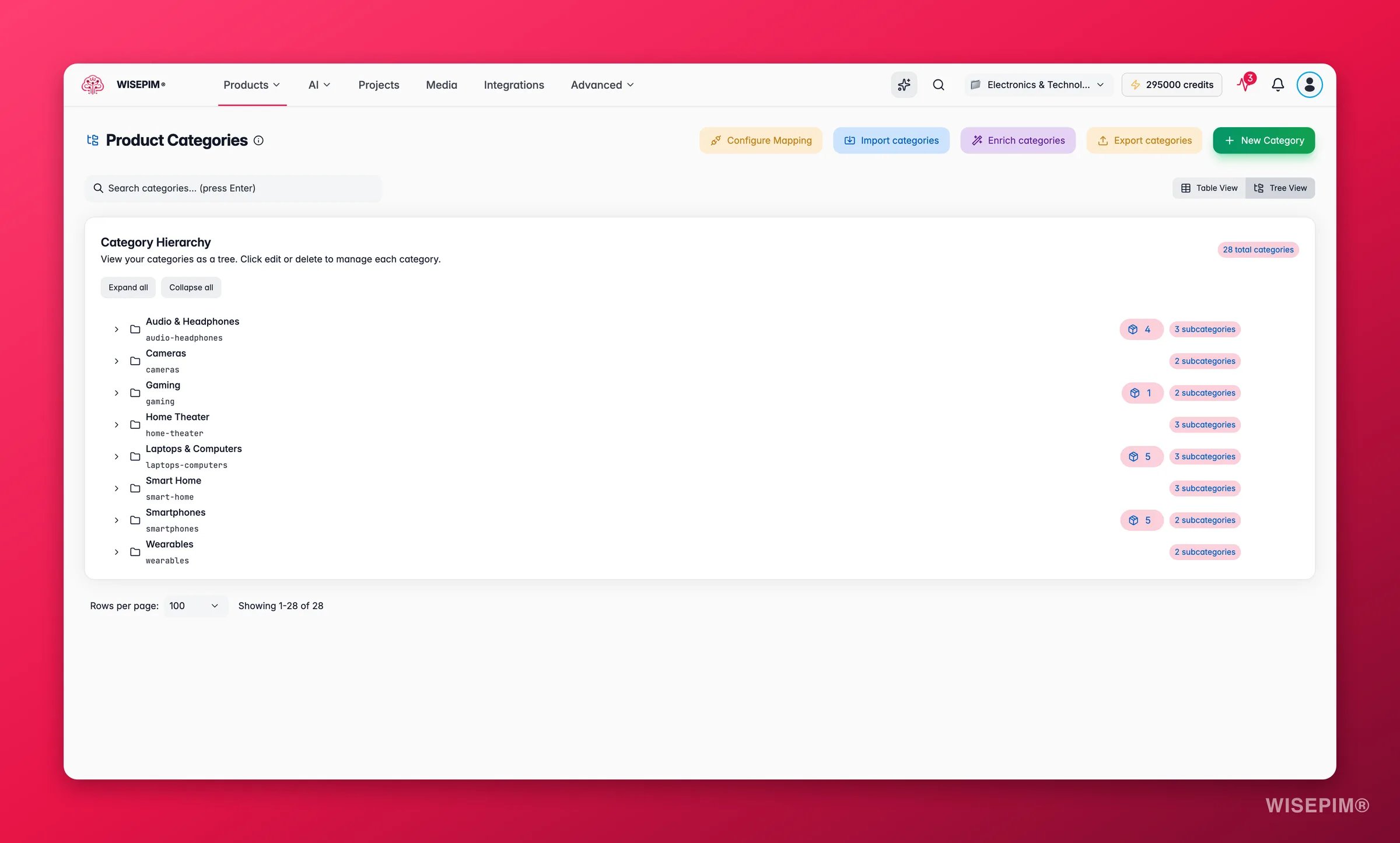
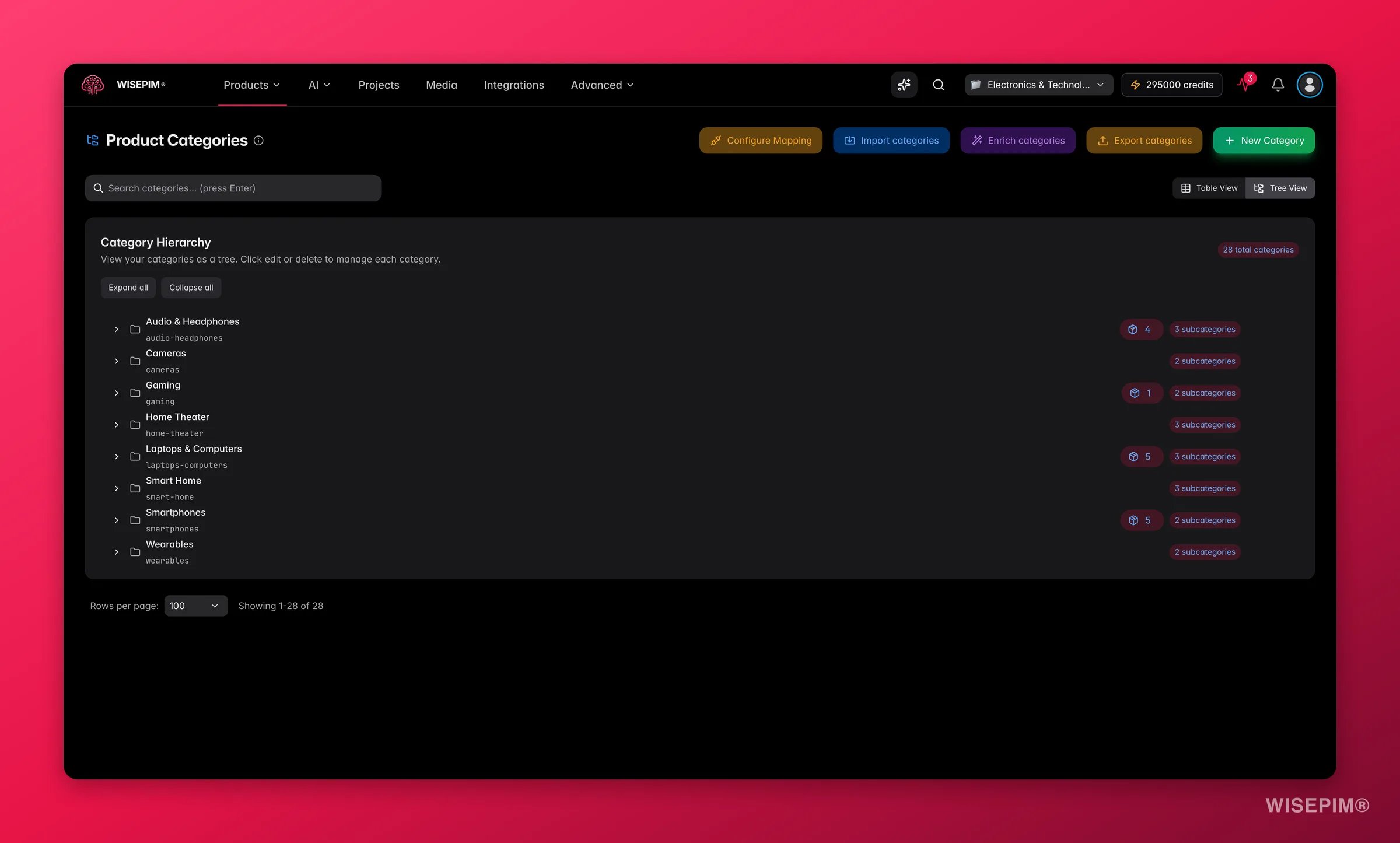 Categories form a parent-child tree. Each level narrows the scope.
* **Parent categories** are broad top-level groups (Electronics, Clothing, Home & Garden).
* **Child categories** sit under a parent and get more specific (Electronics > Laptops).
* **Category paths** are the full route from top to bottom (Electronics > Smartphones > Android Phones). Paths drive breadcrumbs, URLs, and platform mappings.
Keep your tree 3 to 4 levels deep. Going deeper adds clutter without helping customers find products faster.
A category is more than a label in a tree. It carries real content: a description, SEO meta, and AI notes that travel with it to your sales channels. Here is what you can set on each one:
| Field | What it does |
| --------------- | ----------------------------------------------------------------------------------------------------- |
| **Name** | The display name customers see. Keep it clear and jargon-free. |
| **Description** | Rich text shown on the category page. Great for SEO and for helping shoppers understand the section. |
| **Parent** | The category this one sits under. Leave it empty for a top-level category. |
| **Slug** | The URL-friendly identifier (for example `smartphones`). Generated from the name, and editable. |
| **Sort order** | Position within the same level. Lower numbers appear first. |
| **Active** | Whether the category is live. Turn it off to hide a category without deleting it. |
| **SEO meta** | Meta title, meta description, and keywords for search engines. |
| **AI notes** | Short guidance for the AI when it writes this category's content (tone, focus, must-mention details). |
The full hierarchy path (like `electronics/smartphones`) is shown as a read-only column. It is built automatically from the parents you choose, so you never type it by hand.
## Create a category
Go to **Product Categories** in the sidebar. You see your categories as a tree.
Click **New Category** to open the form.
Enter a **Name**. Add a **Description** to give the category page real content. The **Slug** fills in automatically, and you can edit it under advanced settings along with the **Sort order**.
Pick an existing category as the parent to make this a subcategory. Leave it empty for a top-level category.
Click **Save**. You can now assign products to the category.
## Assign products to categories
There are two ways to put products into a category:
* **From a product page:** open a product, pick categories in the category field, and mark one as primary.
* **In bulk:** select several products on the Products page, then use [bulk edit](/en/essentials/bulk-editing) to assign or change categories at once.
Assign products to the most specific child category, not a broad parent. A laptop belongs in "Electronics > Laptops", not just "Electronics".
## Fill categories with AI
Categories are a quiet SEO win. A good description and meta tags on every category help shoppers and search engines, but writing them by hand for a deep tree is slow. WISEPIM does it for you.
### Bulk enrichment
Use the **Enrich** action to generate content across many categories at once. You choose:
* **Which fields** to write: description, meta title, meta description, and keywords.
* **Which languages** to write them in, so multilingual catalogs get covered in one run.
* **Internal links** to weave in, pointing to related categories. This builds the kind of internal linking search engines reward.
This turns an empty tree into a fully described, search-ready one without manual writing.
### Per-category AI assist
When you edit a single category, an AI assist panel sits right in the form. Generate a description or SEO meta for that one category, review the suggestion, and accept it into the field. Add **AI notes** to steer the result toward your tone or must-mention details.
## Import and export categories
You do not have to build your tree by hand.
* **Import from CSV**: bring an existing category tree in from a spreadsheet, or import categories from a connected platform.
* **Export to CSV**: download your categories for backups, audits, or editing in a spreadsheet before re-importing.
## Navigate the tree
Categories show as an interactive tree by default. Expand and collapse branches to focus on one part of your catalog, and search to jump to a category fast. Matches are highlighted as you type, so a deep tree stays easy to navigate. Prefer a flat list? Switch to the table view.
## Reorganize your tree
Edit any category to change its name, slug, sort order, or parent. When you move a category under a new parent, its children move with it, and the hierarchy path updates automatically.
Changing a category's slug can break platform integrations that rely on the old URL. Check your category mappings after you reorganize.
Two common cleanups keep your tree useful:
* **Split** a category when it holds too many products and browsing gets hard. For example, split "Clothing" into "Men's Clothing" and "Women's Clothing".
* **Merge** categories when each holds only a few products and the split does not help customers. Combine "USB Cables" and "HDMI Cables" into "Cables & Adapters" when volumes are low.
## Map categories to your sales channels
Every platform has its own category system. Map your WISEPIM categories to each platform's categories in your [integration settings](/en/settings/integrations) so products land in the right place on every channel.
| Platform | Maps to |
| --------------- | ------------------------------ |
| **Shopify** | Shopify collections |
| **WooCommerce** | WooCommerce product categories |
| **Magento** | The Magento category tree |
| **Lightspeed** | Lightspeed categories |
You set mappings per integration. Go to **Settings > Integrations**, select your platform, and set up the category mappings there.
## Troubleshooting
* Confirm the product is assigned to the category on its product page.
* Check the category's visibility settings.
* If you use filters, make sure the category is not excluded.
* Confirm the category has a mapping in your integration settings.
* Run the integration sync after you set the mapping.
* Review the platform's category rules. Some require specific fields or formats.
* Check the **Sort order** values. Categories at the same level sort by this number, lowest first.
* Confirm parent assignments are correct. A misplaced parent builds the wrong tree.
## Related
Define which attributes each product type needs using families.
Create the custom fields that store your product data.
Analyze revenue and performance at the category level.
Categories form a parent-child tree. Each level narrows the scope.
* **Parent categories** are broad top-level groups (Electronics, Clothing, Home & Garden).
* **Child categories** sit under a parent and get more specific (Electronics > Laptops).
* **Category paths** are the full route from top to bottom (Electronics > Smartphones > Android Phones). Paths drive breadcrumbs, URLs, and platform mappings.
Keep your tree 3 to 4 levels deep. Going deeper adds clutter without helping customers find products faster.
A category is more than a label in a tree. It carries real content: a description, SEO meta, and AI notes that travel with it to your sales channels. Here is what you can set on each one:
| Field | What it does |
| --------------- | ----------------------------------------------------------------------------------------------------- |
| **Name** | The display name customers see. Keep it clear and jargon-free. |
| **Description** | Rich text shown on the category page. Great for SEO and for helping shoppers understand the section. |
| **Parent** | The category this one sits under. Leave it empty for a top-level category. |
| **Slug** | The URL-friendly identifier (for example `smartphones`). Generated from the name, and editable. |
| **Sort order** | Position within the same level. Lower numbers appear first. |
| **Active** | Whether the category is live. Turn it off to hide a category without deleting it. |
| **SEO meta** | Meta title, meta description, and keywords for search engines. |
| **AI notes** | Short guidance for the AI when it writes this category's content (tone, focus, must-mention details). |
The full hierarchy path (like `electronics/smartphones`) is shown as a read-only column. It is built automatically from the parents you choose, so you never type it by hand.
## Create a category
Go to **Product Categories** in the sidebar. You see your categories as a tree.
Click **New Category** to open the form.
Enter a **Name**. Add a **Description** to give the category page real content. The **Slug** fills in automatically, and you can edit it under advanced settings along with the **Sort order**.
Pick an existing category as the parent to make this a subcategory. Leave it empty for a top-level category.
Click **Save**. You can now assign products to the category.
## Assign products to categories
There are two ways to put products into a category:
* **From a product page:** open a product, pick categories in the category field, and mark one as primary.
* **In bulk:** select several products on the Products page, then use [bulk edit](/en/essentials/bulk-editing) to assign or change categories at once.
Assign products to the most specific child category, not a broad parent. A laptop belongs in "Electronics > Laptops", not just "Electronics".
## Fill categories with AI
Categories are a quiet SEO win. A good description and meta tags on every category help shoppers and search engines, but writing them by hand for a deep tree is slow. WISEPIM does it for you.
### Bulk enrichment
Use the **Enrich** action to generate content across many categories at once. You choose:
* **Which fields** to write: description, meta title, meta description, and keywords.
* **Which languages** to write them in, so multilingual catalogs get covered in one run.
* **Internal links** to weave in, pointing to related categories. This builds the kind of internal linking search engines reward.
This turns an empty tree into a fully described, search-ready one without manual writing.
### Per-category AI assist
When you edit a single category, an AI assist panel sits right in the form. Generate a description or SEO meta for that one category, review the suggestion, and accept it into the field. Add **AI notes** to steer the result toward your tone or must-mention details.
## Import and export categories
You do not have to build your tree by hand.
* **Import from CSV**: bring an existing category tree in from a spreadsheet, or import categories from a connected platform.
* **Export to CSV**: download your categories for backups, audits, or editing in a spreadsheet before re-importing.
## Navigate the tree
Categories show as an interactive tree by default. Expand and collapse branches to focus on one part of your catalog, and search to jump to a category fast. Matches are highlighted as you type, so a deep tree stays easy to navigate. Prefer a flat list? Switch to the table view.
## Reorganize your tree
Edit any category to change its name, slug, sort order, or parent. When you move a category under a new parent, its children move with it, and the hierarchy path updates automatically.
Changing a category's slug can break platform integrations that rely on the old URL. Check your category mappings after you reorganize.
Two common cleanups keep your tree useful:
* **Split** a category when it holds too many products and browsing gets hard. For example, split "Clothing" into "Men's Clothing" and "Women's Clothing".
* **Merge** categories when each holds only a few products and the split does not help customers. Combine "USB Cables" and "HDMI Cables" into "Cables & Adapters" when volumes are low.
## Map categories to your sales channels
Every platform has its own category system. Map your WISEPIM categories to each platform's categories in your [integration settings](/en/settings/integrations) so products land in the right place on every channel.
| Platform | Maps to |
| --------------- | ------------------------------ |
| **Shopify** | Shopify collections |
| **WooCommerce** | WooCommerce product categories |
| **Magento** | The Magento category tree |
| **Lightspeed** | Lightspeed categories |
You set mappings per integration. Go to **Settings > Integrations**, select your platform, and set up the category mappings there.
## Troubleshooting
* Confirm the product is assigned to the category on its product page.
* Check the category's visibility settings.
* If you use filters, make sure the category is not excluded.
* Confirm the category has a mapping in your integration settings.
* Run the integration sync after you set the mapping.
* Review the platform's category rules. Some require specific fields or formats.
* Check the **Sort order** values. Categories at the same level sort by this number, lowest first.
* Confirm parent assignments are correct. A misplaced parent builds the wrong tree.
## Related
Define which attributes each product type needs using families.
Create the custom fields that store your product data.
Analyze revenue and performance at the category level.