> ## Documentation Index
> Fetch the complete documentation index at: https://docs.wisepim.com/llms.txt
> Use this file to discover all available pages before exploring further.
# WordPress Integration
> Connect your WordPress site to WISEPIM. Create an Application Password, add it in WISEPIM, and publish enriched content to your site.
Connect your WordPress site to WISEPIM to publish enriched product content straight to your pages. Once connected, you can enrich your content with AI in WISEPIM and push it to WordPress.
Setup takes two steps: create an Application Password in WordPress, then add it in WISEPIM.
Selling with **WooCommerce**? Use the [WooCommerce integration](/en/integrations/woocommerce) instead, it connects to your WooCommerce products, not just WordPress posts and pages.
You need admin access to your WordPress site and a WISEPIM account with an active project.
## Create an Application Password in WordPress
 WordPress includes Application Passwords so apps can connect without using your real login password.
Log in to your WordPress admin. Go to **Users** > **Profile** (or edit the user you want WISEPIM to act as).
Scroll down to the **Application Passwords** section.
Enter a name like WISEPIM and click **Add New Application Password**.
Copy the generated password now (the spaces are fine to keep). It is only shown once.
## Add your credentials to WISEPIM
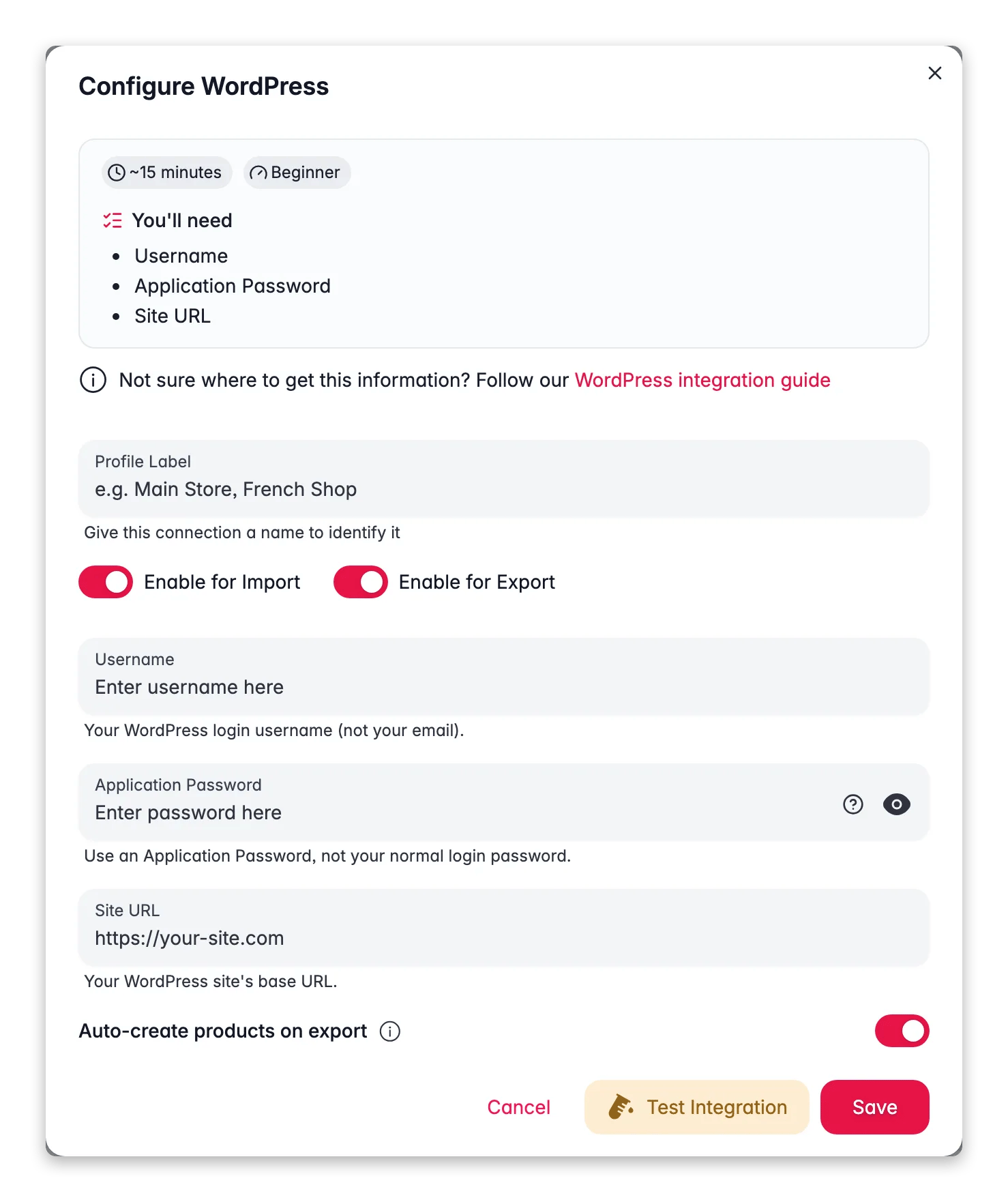
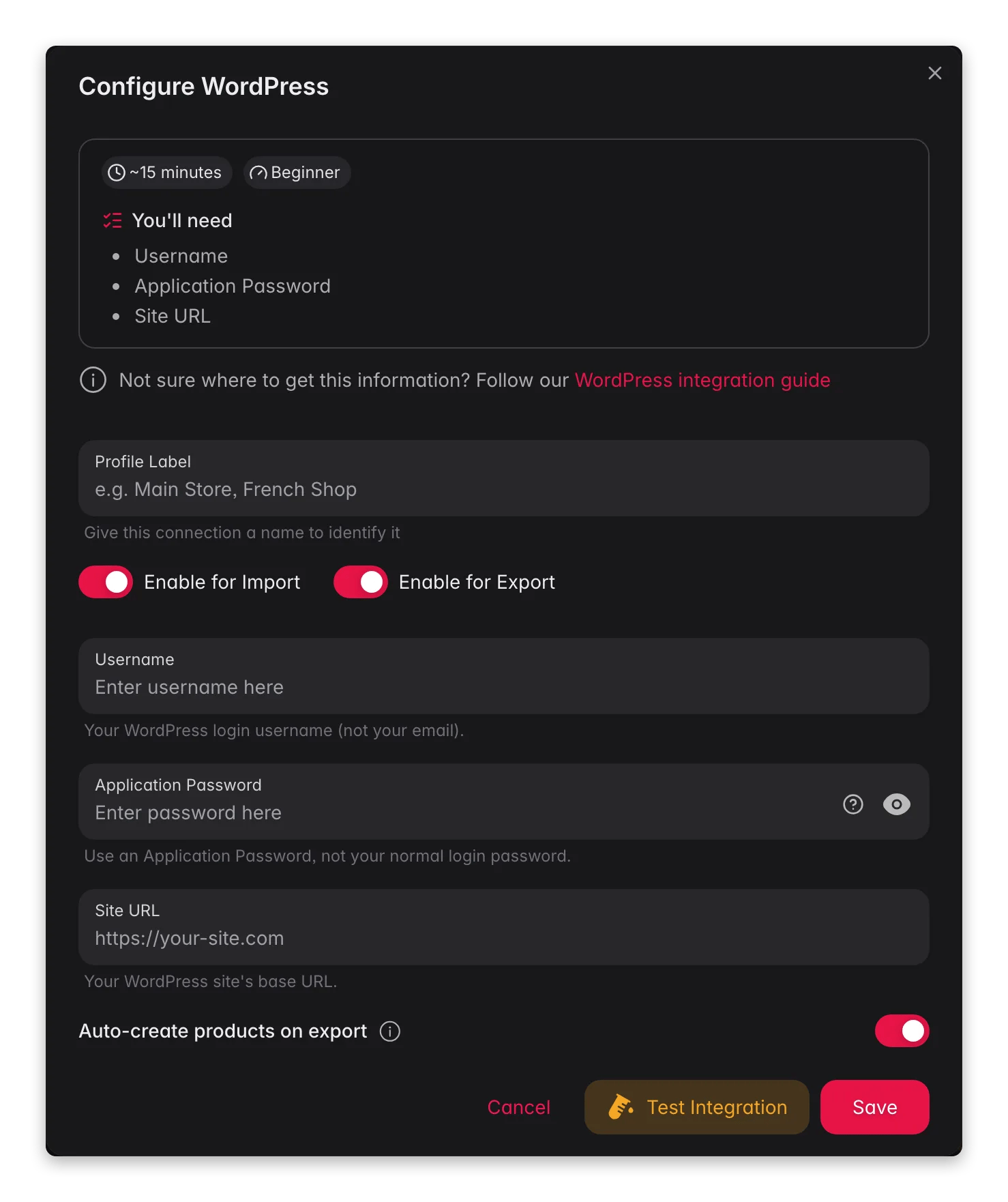
Enter the values from WordPress to finish the connection.
Log in to WISEPIM and go to **Settings** > **Integrations**.
Find and click the **WordPress** integration tile.
Fill in the following fields:
* **Username**: your WordPress login username (not your email)
* **Application Password**: the password you just generated
* **Site URL**: your WordPress site URL, including `https://` (for example, `https://your-site.com`)
Click **Test Connection** to confirm your credentials work.
If the test succeeds, click **Save**.
Your WordPress site is now connected. You can publish enriched content to it.
Your Application Password grants access to your WordPress site as the chosen user. Never share it publicly or commit it to version control. If you think it is exposed, revoke it under **Application Passwords** in WordPress and create a new one.
## Troubleshooting
Check your site URL first. It must be correct and start with `https://`. Then confirm you used your **username** (not your email) and pasted the Application Password exactly.
Application Passwords require WordPress 5.6 or later over HTTPS. Make sure your site is served over `https://` and that no security plugin disables the feature or blocks the REST API.
## Related
Improve titles, descriptions, and SEO with AI.
Publish the enriched content to your WordPress site.
Selling online? Connect WooCommerce to sync products.
See every platform WISEPIM connects to.
WordPress includes Application Passwords so apps can connect without using your real login password.
Log in to your WordPress admin. Go to **Users** > **Profile** (or edit the user you want WISEPIM to act as).
Scroll down to the **Application Passwords** section.
Enter a name like WISEPIM and click **Add New Application Password**.
Copy the generated password now (the spaces are fine to keep). It is only shown once.
## Add your credentials to WISEPIM
Enter the values from WordPress to finish the connection.
Log in to WISEPIM and go to **Settings** > **Integrations**.
Find and click the **WordPress** integration tile.
Fill in the following fields:
* **Username**: your WordPress login username (not your email)
* **Application Password**: the password you just generated
* **Site URL**: your WordPress site URL, including `https://` (for example, `https://your-site.com`)
Click **Test Connection** to confirm your credentials work.
If the test succeeds, click **Save**.
Your WordPress site is now connected. You can publish enriched content to it.
Your Application Password grants access to your WordPress site as the chosen user. Never share it publicly or commit it to version control. If you think it is exposed, revoke it under **Application Passwords** in WordPress and create a new one.
## Troubleshooting
Check your site URL first. It must be correct and start with `https://`. Then confirm you used your **username** (not your email) and pasted the Application Password exactly.
Application Passwords require WordPress 5.6 or later over HTTPS. Make sure your site is served over `https://` and that no security plugin disables the feature or blocks the REST API.
## Related
Improve titles, descriptions, and SEO with AI.
Publish the enriched content to your WordPress site.
Selling online? Connect WooCommerce to sync products.
See every platform WISEPIM connects to.