> ## Documentation Index
> Fetch the complete documentation index at: https://docs.wisepim.com/llms.txt
> Use this file to discover all available pages before exploring further.
# Shopify Integration
> Connect your Shopify store to WISEPIM in minutes. Create a custom app, set the access scopes, and import your products to enrich and translate them.
Connect your Shopify store to WISEPIM to import your products, enrich them with AI, and translate them into your target language. Setup takes a few minutes.
To connect Shopify, you create a custom app in your Shopify admin, then paste its API key and secret into WISEPIM. You only do this once.
## Create a custom app in Shopify
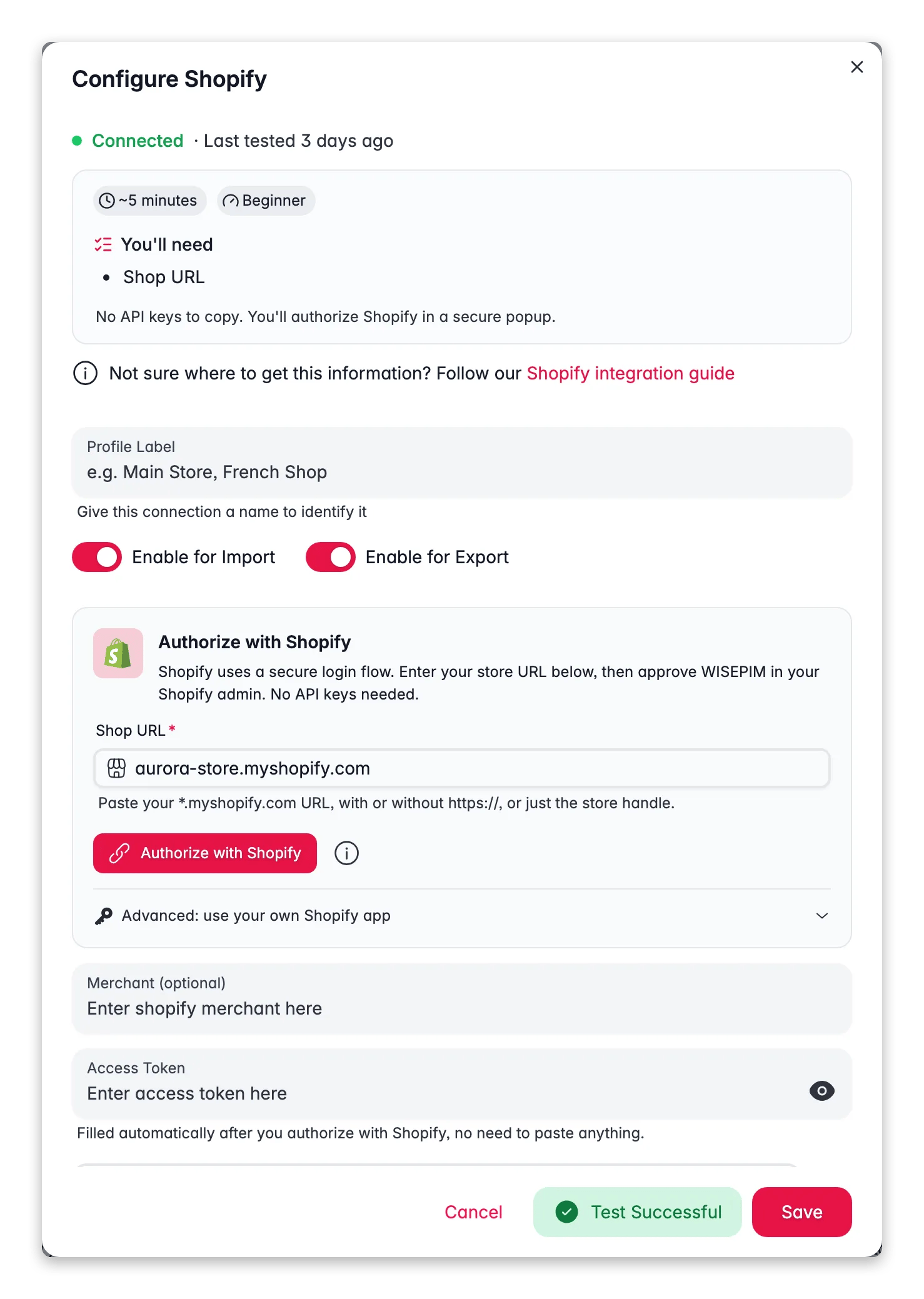
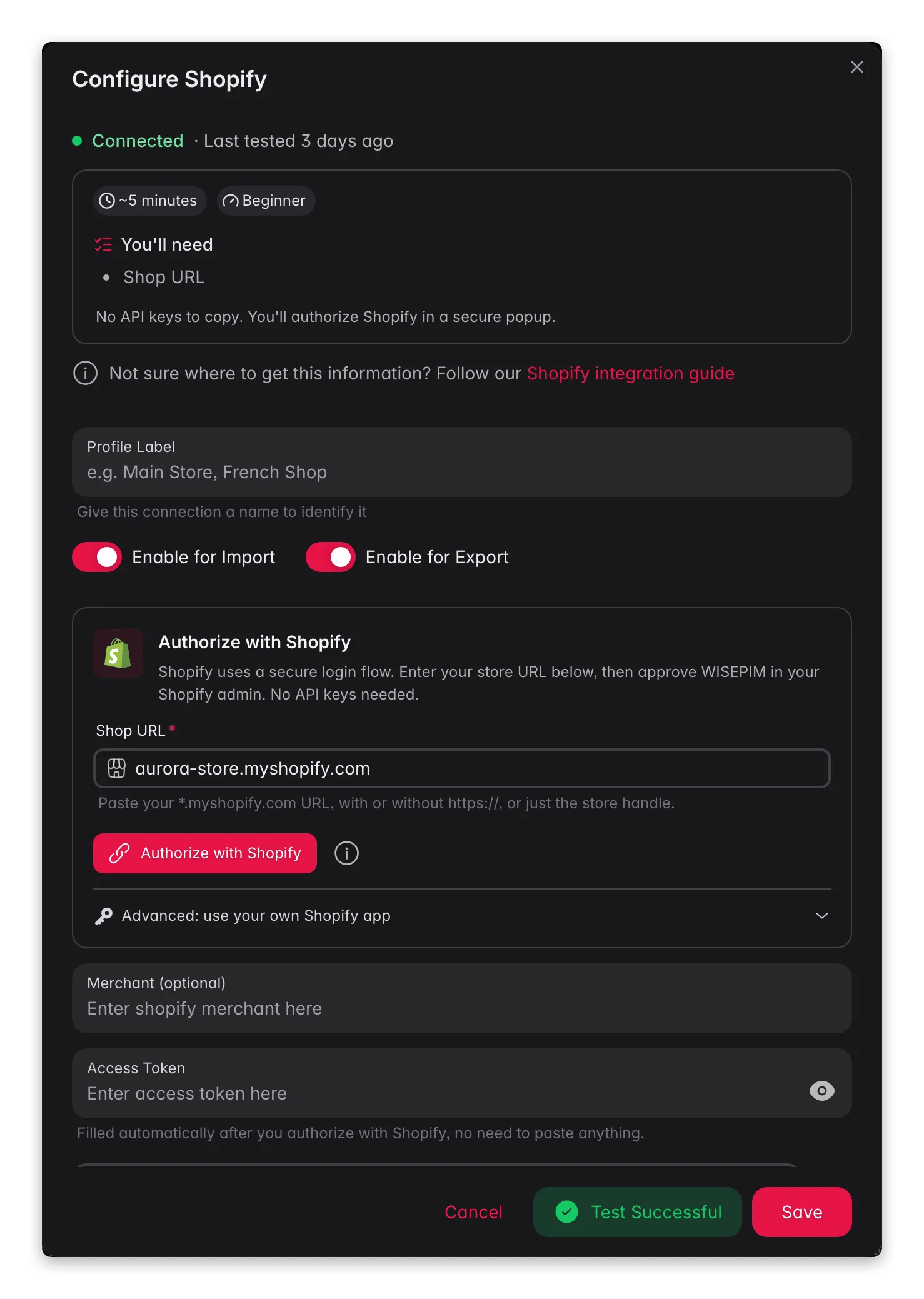 First, generate API credentials inside your Shopify admin.
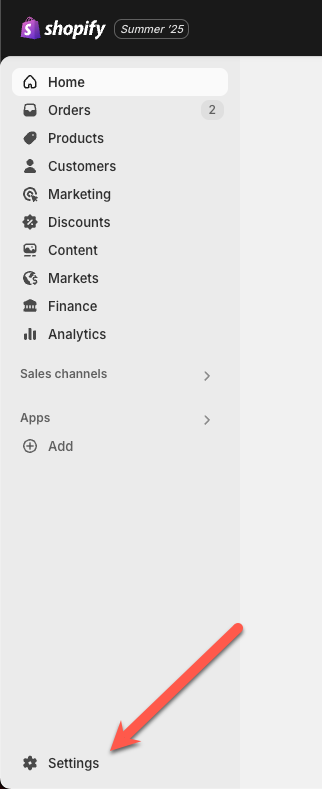
Log in to your Shopify admin and open **Settings**.
First, generate API credentials inside your Shopify admin.
Log in to your Shopify admin and open **Settings**.
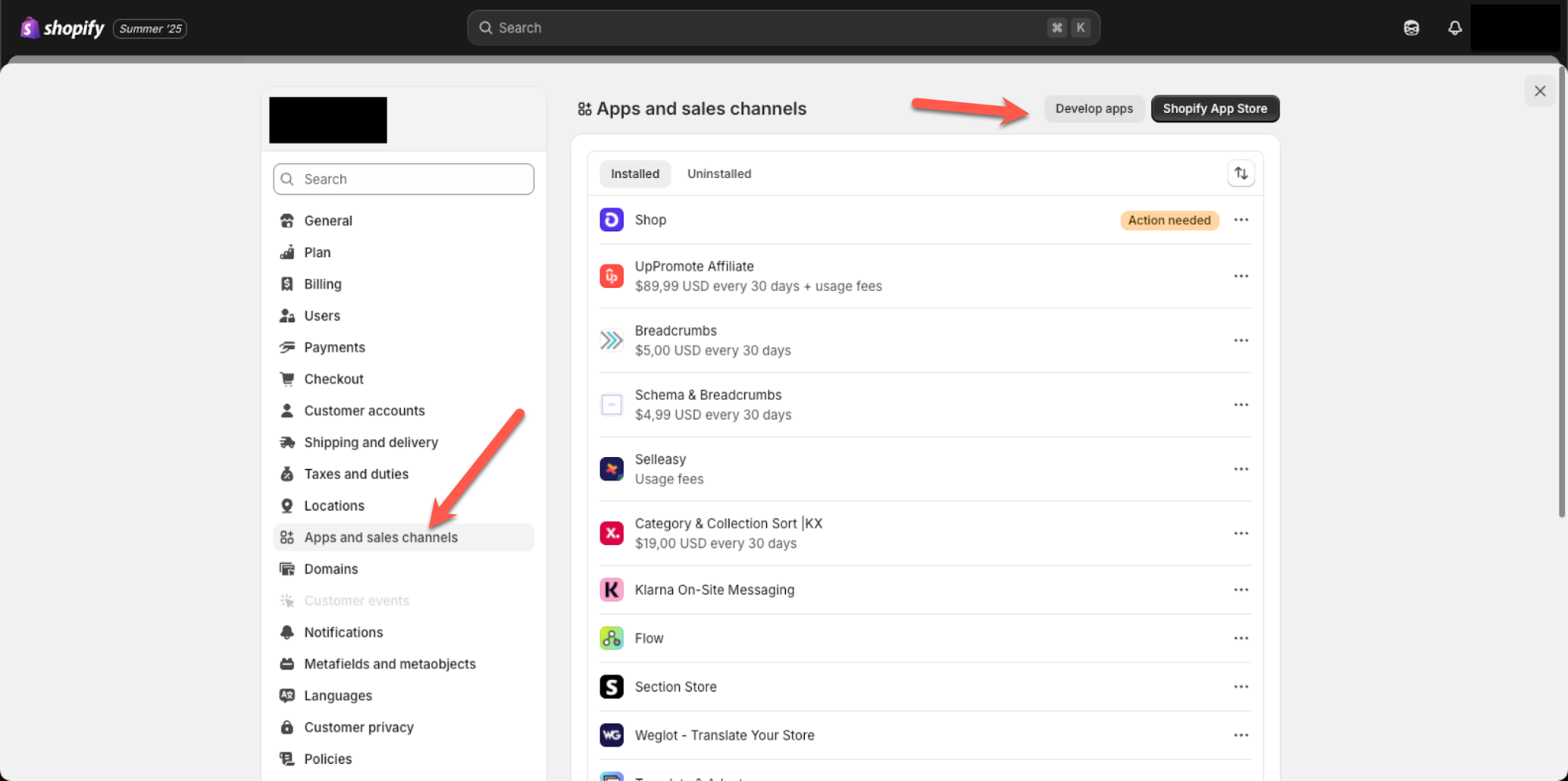
 Open **Apps and sales channels**, then click **Develop apps**. This is where you create a custom app for WISEPIM.
 Open the **Configuration** tab for your app. Here you set the access scopes that let WISEPIM read your product data.
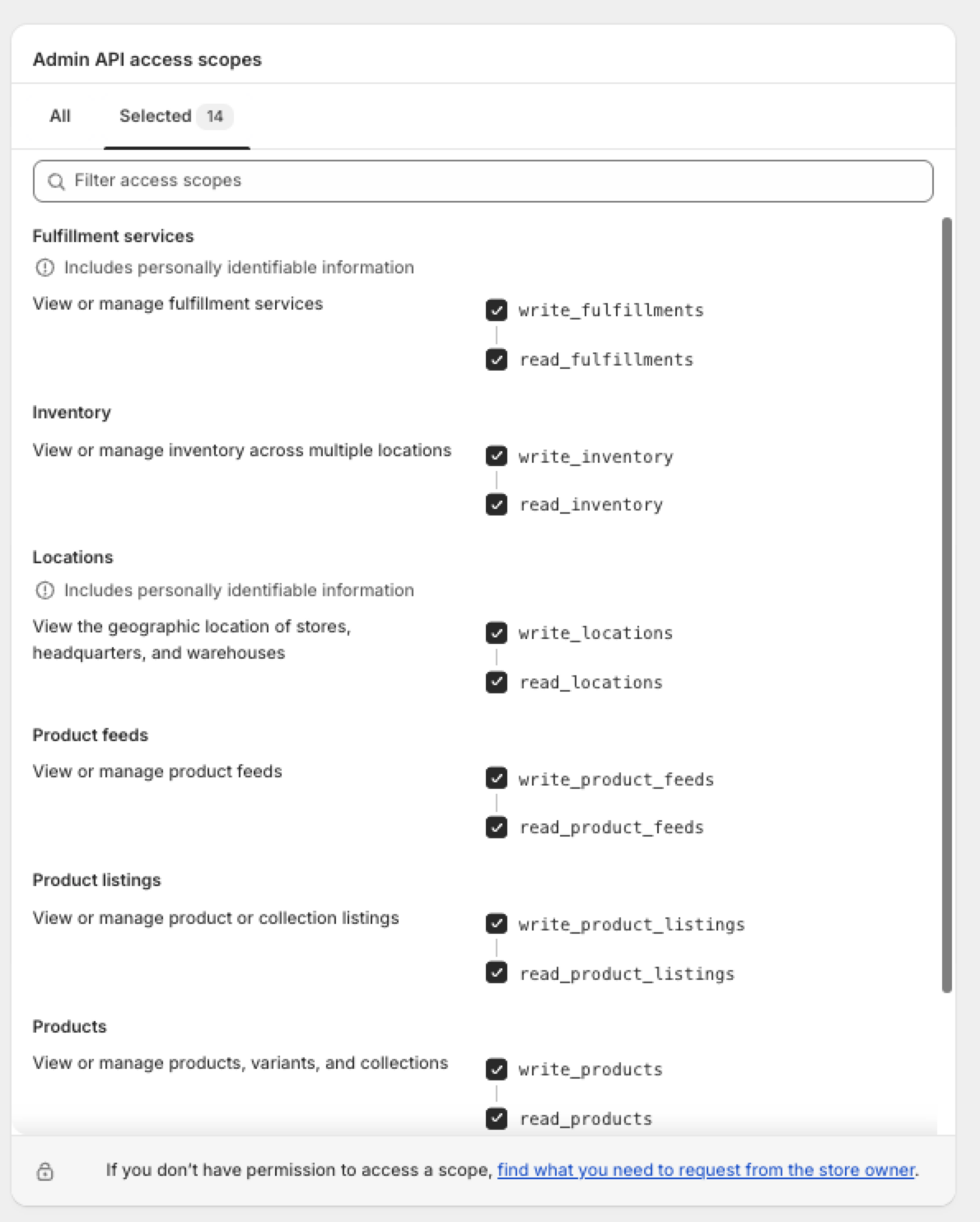
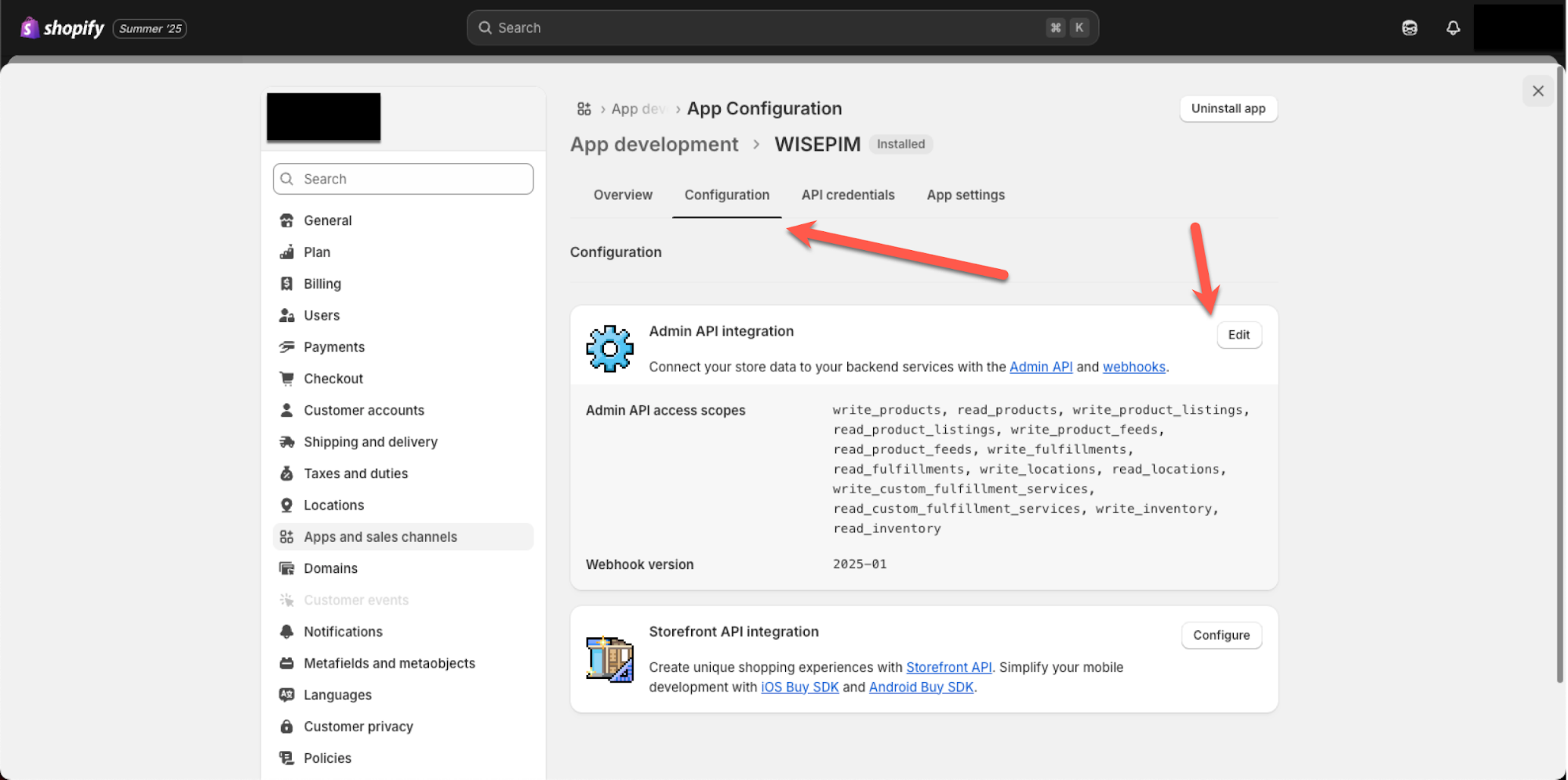 Add the access scopes shown below so WISEPIM can fetch your product data, then save your changes.
 ## Connect Shopify to WISEPIM
Next, copy your credentials from Shopify into WISEPIM.
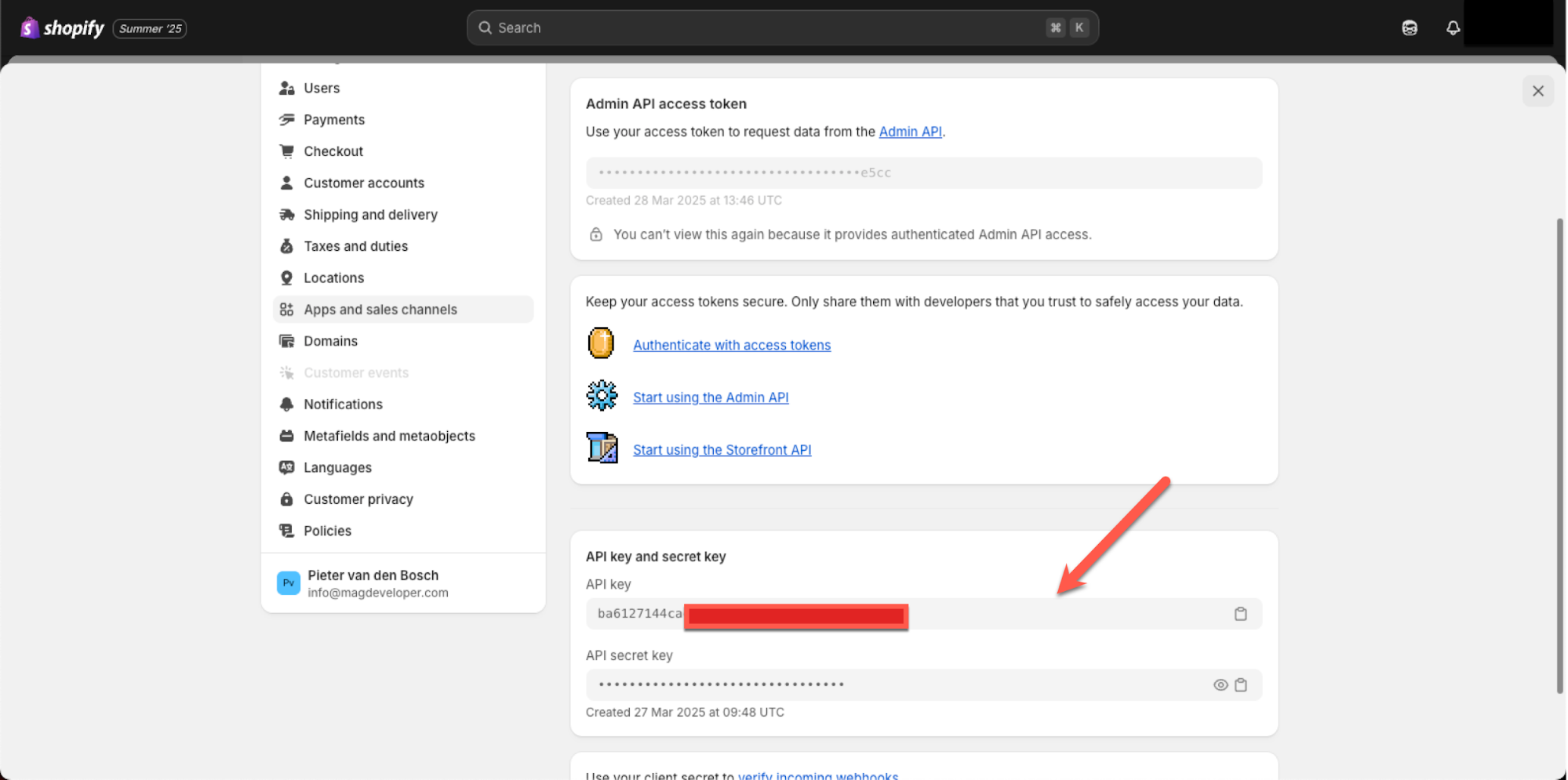
In your Shopify app, find the **API key** and **API secret key**. Keep this tab open so you can copy both values.
In WISEPIM, open your Shopify integration and paste in the API key and the secret. Save to connect your store.
## Connect Shopify to WISEPIM
Next, copy your credentials from Shopify into WISEPIM.
In your Shopify app, find the **API key** and **API secret key**. Keep this tab open so you can copy both values.
In WISEPIM, open your Shopify integration and paste in the API key and the secret. Save to connect your store.
 Your API secret gives full access to your store data. Never share it publicly or commit it to version control. If a secret is exposed, revoke the app in Shopify and create a new one.
## Import and enrich your products
Your store is now connected. You can fetch your Shopify products into WISEPIM, then enrich and translate them into your target language.
## Related
Fetch your Shopify catalog into WISEPIM.
Improve titles, descriptions, and SEO with AI.
Push enriched content back to your store.
See every platform WISEPIM connects to.
Your API secret gives full access to your store data. Never share it publicly or commit it to version control. If a secret is exposed, revoke the app in Shopify and create a new one.
## Import and enrich your products
Your store is now connected. You can fetch your Shopify products into WISEPIM, then enrich and translate them into your target language.
## Related
Fetch your Shopify catalog into WISEPIM.
Improve titles, descriptions, and SEO with AI.
Push enriched content back to your store.
See every platform WISEPIM connects to.