> ## Documentation Index
> Fetch the complete documentation index at: https://docs.wisepim.com/llms.txt
> Use this file to discover all available pages before exploring further.
# PrestaShop Integration
> Connect your PrestaShop store to WISEPIM. Enable the webservice, create a key, add it in WISEPIM, and start syncing your catalog.
Connect your PrestaShop store to WISEPIM to manage your whole catalog from one place. Once connected, you can import products, enrich them with AI, and push the improved content back to PrestaShop.
Setup takes two steps: enable the webservice and create a key in PrestaShop, then add that key in WISEPIM.
You need admin access to your PrestaShop back office and a WISEPIM account with an active project.
## Create a webservice key in PrestaShop
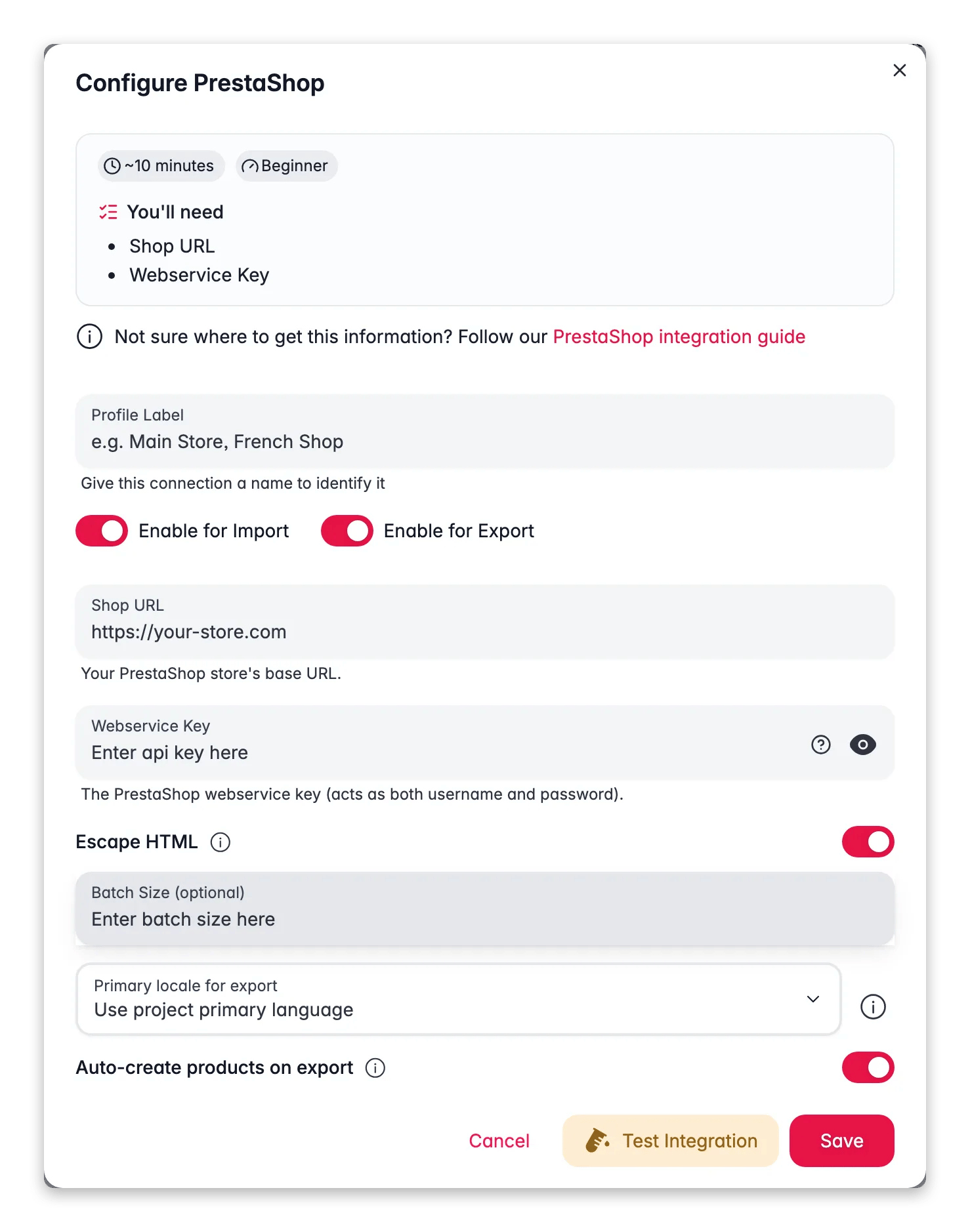
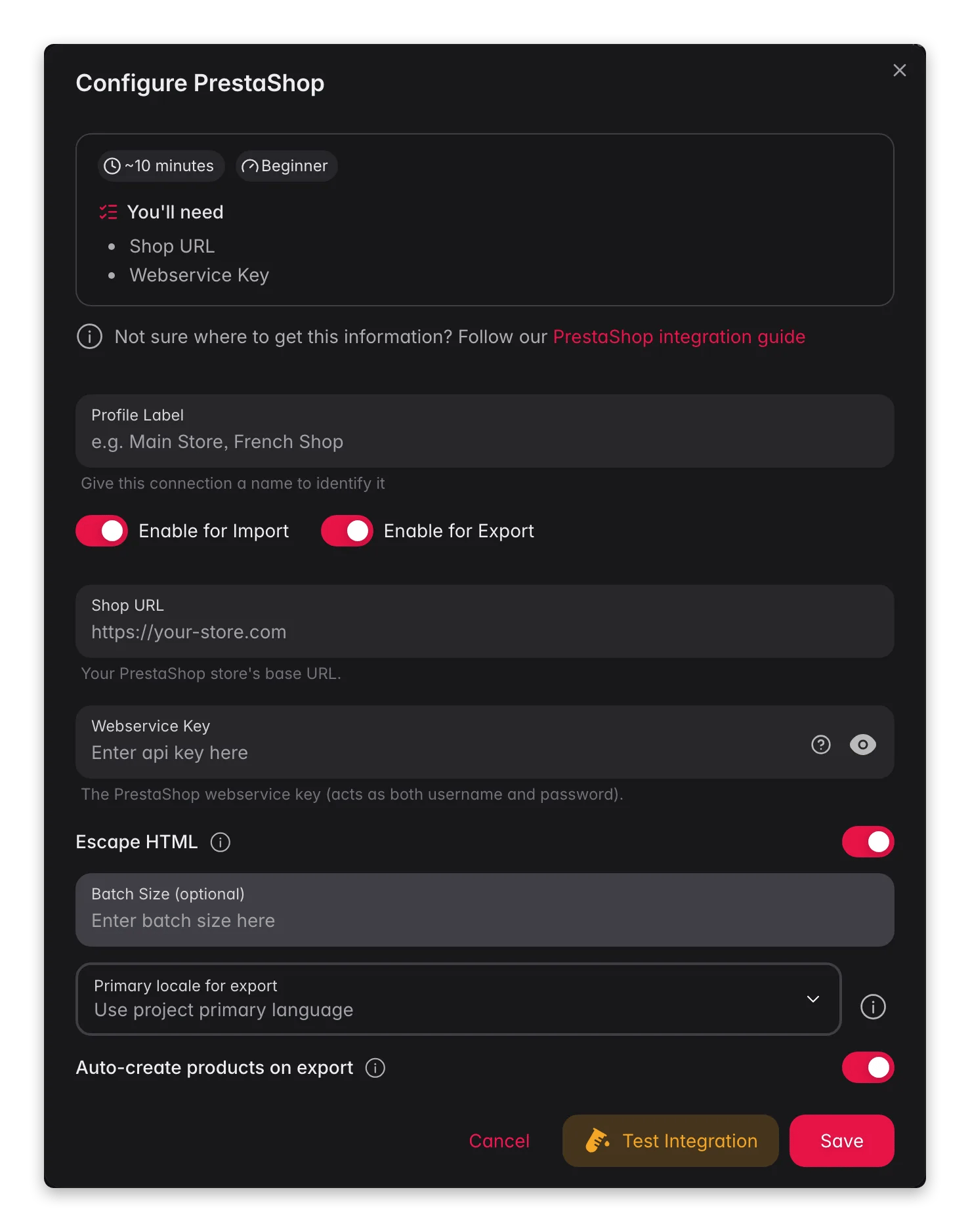 PrestaShop uses a single webservice key that acts as both the username and the password for the API.
Log in to your PrestaShop back office. Go to **Advanced Parameters** > **Webservice**.
Set **Enable PrestaShop's webservice** to **Yes** and save.
Click **Add new webservice key**, then set the permissions to allow access to **products** (and any related resources you sync, such as images and categories).
Save, then copy the generated key. You need it in the next step.
## Add your key to WISEPIM
Enter the key from PrestaShop to finish the connection.
Log in to WISEPIM and go to **Settings** > **Integrations**.
Find and click the **PrestaShop** integration tile.
Fill in the following fields:
* **Shop URL**: your PrestaShop store URL, including `https://` (for example, `https://your-store.com`)
* **Webservice Key**: the key you generated in PrestaShop
Click **Test Connection** to confirm your credentials work.
If the test succeeds, click **Save**.
Your PrestaShop store is now connected. You can start importing products.
Your webservice key gives full access to the resources you granted it. Never share it publicly or commit it to version control. If you think it is exposed, delete the key in PrestaShop and create a new one.
## Troubleshooting
Check your shop URL first. It must be correct and start with `https://`. Then confirm the webservice is enabled and that your key has permission for **products**.
Make sure your PrestaShop store is online and reachable from the internet, and that the webservice endpoint at `/api` is not blocked by a firewall or security plugin.
## Related
Pull your catalog from PrestaShop into WISEPIM.
Improve titles, descriptions, and SEO with AI.
Push the improved content back to PrestaShop.
See every platform WISEPIM connects to.
PrestaShop uses a single webservice key that acts as both the username and the password for the API.
Log in to your PrestaShop back office. Go to **Advanced Parameters** > **Webservice**.
Set **Enable PrestaShop's webservice** to **Yes** and save.
Click **Add new webservice key**, then set the permissions to allow access to **products** (and any related resources you sync, such as images and categories).
Save, then copy the generated key. You need it in the next step.
## Add your key to WISEPIM
Enter the key from PrestaShop to finish the connection.
Log in to WISEPIM and go to **Settings** > **Integrations**.
Find and click the **PrestaShop** integration tile.
Fill in the following fields:
* **Shop URL**: your PrestaShop store URL, including `https://` (for example, `https://your-store.com`)
* **Webservice Key**: the key you generated in PrestaShop
Click **Test Connection** to confirm your credentials work.
If the test succeeds, click **Save**.
Your PrestaShop store is now connected. You can start importing products.
Your webservice key gives full access to the resources you granted it. Never share it publicly or commit it to version control. If you think it is exposed, delete the key in PrestaShop and create a new one.
## Troubleshooting
Check your shop URL first. It must be correct and start with `https://`. Then confirm the webservice is enabled and that your key has permission for **products**.
Make sure your PrestaShop store is online and reachable from the internet, and that the webservice endpoint at `/api` is not blocked by a firewall or security plugin.
## Related
Pull your catalog from PrestaShop into WISEPIM.
Improve titles, descriptions, and SEO with AI.
Push the improved content back to PrestaShop.
See every platform WISEPIM connects to.