> ## Documentation Index
> Fetch the complete documentation index at: https://docs.wisepim.com/llms.txt
> Use this file to discover all available pages before exploring further.
# Kaufland Integration
> Connect your Kaufland seller account to WISEPIM. Sync product data, optimize listings, and meet Kaufland data quality requirements.
Kaufland.de is one of the largest online marketplaces in Germany. Connect your seller account to WISEPIM to manage all your listings in one place, optimize them for the marketplace, and meet Kaufland's strict data requirements before you publish.
Kaufland runs across several European markets, including Germany, Czechia, Slovakia, Austria, and Poland. WISEPIM lets you manage product data for every market from one project.
## Before you start
 Make sure you have:
* An active Kaufland.de seller account with API access enabled
* A WISEPIM account with an active project
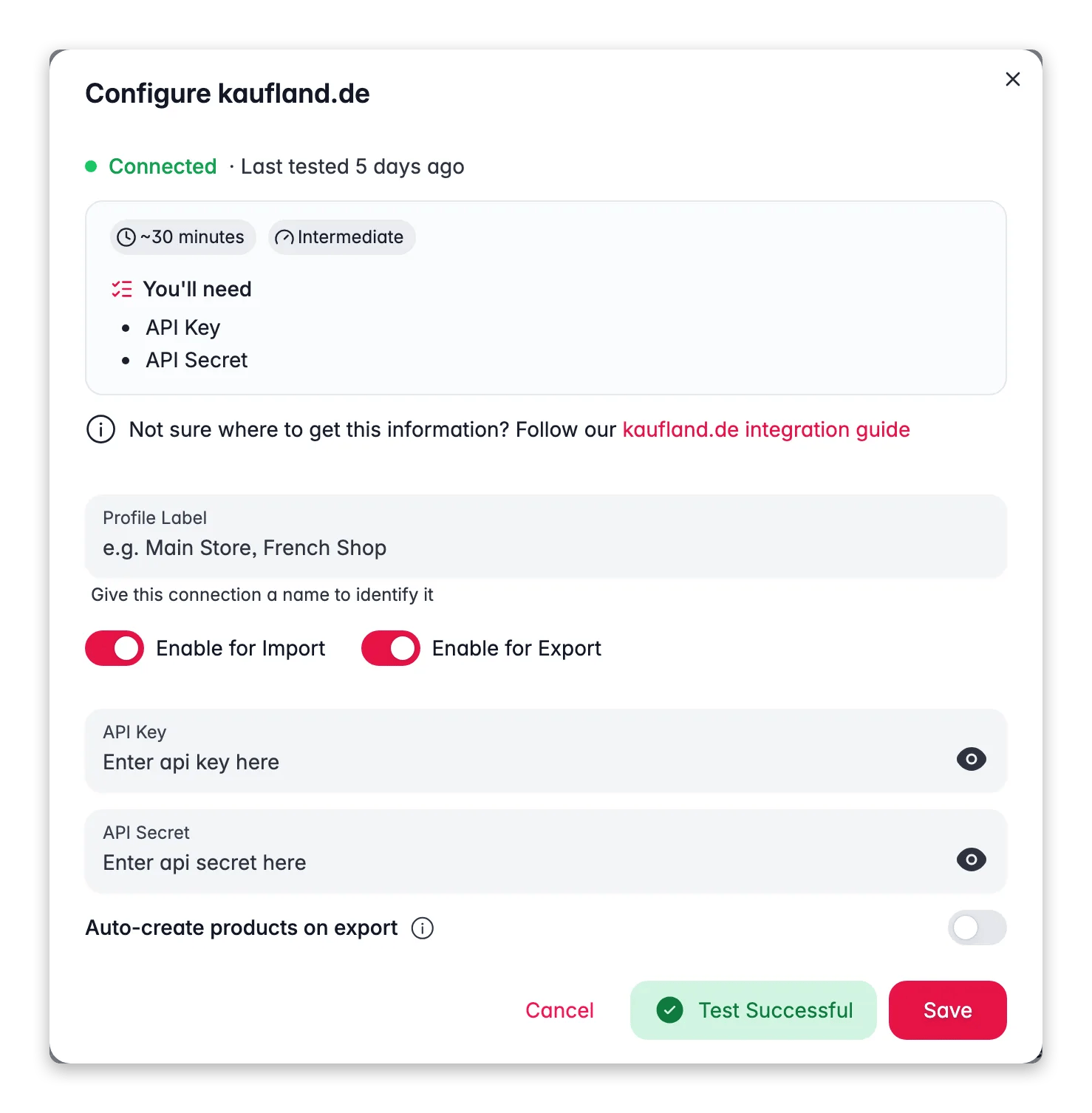
* Your Kaufland **API Key** (Client Key) and **API Secret** (Secret Key) (you'll get these next)
## Get your Kaufland API credentials
You need an API key and secret from your Kaufland seller account to connect.
Sign in to the [Kaufland Seller Portal](https://sellerportal.kaufland.de). Go to **Settings** and open the **API** or **Interface** section.
Click **Create new API key** (or similar). Kaufland gives you two values:
| Credential | What it is |
| --------------------------- | ------------------------------------- |
| **Client Key** (API Key) | Your unique identifier for API access |
| **Secret Key** (API Secret) | Your authentication secret |
Copy both and store them securely.
Make sure your API key has these permissions:
* **Products**: read and write
* **Categories**: read
* **Orders**: read (optional, for analytics)
Keep your API Secret confidential. Never share it publicly, commit it to version control, or send it over unencrypted channels. If you think it's been exposed, regenerate it in the Kaufland Seller Portal right away.
## Connect Kaufland to WISEPIM
With your credentials ready, set up the integration in WISEPIM.
In WISEPIM, go to **Integrations** from the main sidebar.
Find the **Kaufland.de** tile in the App Marketplace and click it.
Fill in your **API Key** (Client Key) and **API Secret** (Secret Key).
Click **Test Connection** to confirm WISEPIM can reach your seller account. When the test passes, click **Save**.
A successful test confirms your credentials are valid and your permissions are set correctly.
## Import products from Kaufland
Pull your existing Kaufland listings into WISEPIM to manage them centrally.
Go to the **Products** page, click **Import**, and select **Kaufland.de** as the source.
WISEPIM imports your listings, including:
* Titles and descriptions
* EAN/GTIN identifiers
* Prices and shipping info
* Images
* Category assignments
* Attributes and specifications
## Export products to Kaufland
Once your products are enriched, push optimized listings back to Kaufland.
On the **Products** page, select the products you want to export.
Click **Export** and choose **Kaufland.de** as the destination.
Check the export preview to verify your data, then confirm.
Enrich your titles and descriptions with AI before you export. Well-optimized listings rank higher in Kaufland search and convert better.
## Map categories and meet data requirements
Kaufland uses a fixed category tree. Your products must be mapped to it, and each category requires specific attributes. Get this right and your listings get accepted and show up in the correct search results.
### Map your categories
On the **Integrations** page, click **Open Attribute Mapper** on your Kaufland tile.
Match your WISEPIM categories to the matching Kaufland categories. Then map the attributes for each category's required fields.
Save your configuration.
Kaufland requires specific attributes per category, such as brand, color, size, or material. The Attribute Mapper helps you fill every required field before export, so fewer listings get rejected.
### How WISEPIM helps you comply
Kaufland has strict data quality rules. WISEPIM checks your data before export by:
* **Validating required fields** so you catch missing data early
* **Standardizing attribute values** to match Kaufland's expected formats
* **Verifying EAN/GTIN codes** to confirm your product identifiers are valid
* **Checking images** against Kaufland's specifications
Listings that don't meet Kaufland's requirements can be rejected or shown less often. Always review the export preview and clear any validation warnings before you confirm.
## Sell across multiple markets
Kaufland operates in several European markets, and you can manage them all from one WISEPIM project. With this you can:
* Translate content from German into Czech, Slovak, Polish, and more with AI translation
* Keep product information consistent across markets
* Export to each market with the right language and localization
Start with your main market (usually Germany), then use WISEPIM's translation features to expand to other Kaufland markets with consistent quality.
## Troubleshooting
* Check that your **API Key** and **API Secret** are entered correctly.
* Confirm your credentials haven't expired or been revoked in the Seller Portal.
* Make sure your seller account is active and in good standing.
* Confirm your account has active listings to import.
* Check that your API key has read permissions for products.
* Missing products may be in a draft or deactivated state on Kaufland.
* Confirm every required category attribute is filled in.
* Verify your EAN/GTIN codes are valid and correctly formatted.
* Check that images meet Kaufland's minimum resolution and format.
* Review the WISEPIM error log for field validation errors.
* Make sure your WISEPIM categories map to valid Kaufland categories.
* Confirm every required attribute for the target category is set in the Attribute Mapper.
* If a category changed on Kaufland's side, refresh and update your mapping.
If you regenerate your API credentials in the Seller Portal, update them in WISEPIM right away. The old credentials stop working as soon as new ones are generated.
## Related
Bring your Kaufland listings into WISEPIM.
Optimize titles, descriptions, and SEO with AI.
Push optimized listings back to Kaufland.
See every platform WISEPIM connects to.
Make sure you have:
* An active Kaufland.de seller account with API access enabled
* A WISEPIM account with an active project
* Your Kaufland **API Key** (Client Key) and **API Secret** (Secret Key) (you'll get these next)
## Get your Kaufland API credentials
You need an API key and secret from your Kaufland seller account to connect.
Sign in to the [Kaufland Seller Portal](https://sellerportal.kaufland.de). Go to **Settings** and open the **API** or **Interface** section.
Click **Create new API key** (or similar). Kaufland gives you two values:
| Credential | What it is |
| --------------------------- | ------------------------------------- |
| **Client Key** (API Key) | Your unique identifier for API access |
| **Secret Key** (API Secret) | Your authentication secret |
Copy both and store them securely.
Make sure your API key has these permissions:
* **Products**: read and write
* **Categories**: read
* **Orders**: read (optional, for analytics)
Keep your API Secret confidential. Never share it publicly, commit it to version control, or send it over unencrypted channels. If you think it's been exposed, regenerate it in the Kaufland Seller Portal right away.
## Connect Kaufland to WISEPIM
With your credentials ready, set up the integration in WISEPIM.
In WISEPIM, go to **Integrations** from the main sidebar.
Find the **Kaufland.de** tile in the App Marketplace and click it.
Fill in your **API Key** (Client Key) and **API Secret** (Secret Key).
Click **Test Connection** to confirm WISEPIM can reach your seller account. When the test passes, click **Save**.
A successful test confirms your credentials are valid and your permissions are set correctly.
## Import products from Kaufland
Pull your existing Kaufland listings into WISEPIM to manage them centrally.
Go to the **Products** page, click **Import**, and select **Kaufland.de** as the source.
WISEPIM imports your listings, including:
* Titles and descriptions
* EAN/GTIN identifiers
* Prices and shipping info
* Images
* Category assignments
* Attributes and specifications
## Export products to Kaufland
Once your products are enriched, push optimized listings back to Kaufland.
On the **Products** page, select the products you want to export.
Click **Export** and choose **Kaufland.de** as the destination.
Check the export preview to verify your data, then confirm.
Enrich your titles and descriptions with AI before you export. Well-optimized listings rank higher in Kaufland search and convert better.
## Map categories and meet data requirements
Kaufland uses a fixed category tree. Your products must be mapped to it, and each category requires specific attributes. Get this right and your listings get accepted and show up in the correct search results.
### Map your categories
On the **Integrations** page, click **Open Attribute Mapper** on your Kaufland tile.
Match your WISEPIM categories to the matching Kaufland categories. Then map the attributes for each category's required fields.
Save your configuration.
Kaufland requires specific attributes per category, such as brand, color, size, or material. The Attribute Mapper helps you fill every required field before export, so fewer listings get rejected.
### How WISEPIM helps you comply
Kaufland has strict data quality rules. WISEPIM checks your data before export by:
* **Validating required fields** so you catch missing data early
* **Standardizing attribute values** to match Kaufland's expected formats
* **Verifying EAN/GTIN codes** to confirm your product identifiers are valid
* **Checking images** against Kaufland's specifications
Listings that don't meet Kaufland's requirements can be rejected or shown less often. Always review the export preview and clear any validation warnings before you confirm.
## Sell across multiple markets
Kaufland operates in several European markets, and you can manage them all from one WISEPIM project. With this you can:
* Translate content from German into Czech, Slovak, Polish, and more with AI translation
* Keep product information consistent across markets
* Export to each market with the right language and localization
Start with your main market (usually Germany), then use WISEPIM's translation features to expand to other Kaufland markets with consistent quality.
## Troubleshooting
* Check that your **API Key** and **API Secret** are entered correctly.
* Confirm your credentials haven't expired or been revoked in the Seller Portal.
* Make sure your seller account is active and in good standing.
* Confirm your account has active listings to import.
* Check that your API key has read permissions for products.
* Missing products may be in a draft or deactivated state on Kaufland.
* Confirm every required category attribute is filled in.
* Verify your EAN/GTIN codes are valid and correctly formatted.
* Check that images meet Kaufland's minimum resolution and format.
* Review the WISEPIM error log for field validation errors.
* Make sure your WISEPIM categories map to valid Kaufland categories.
* Confirm every required attribute for the target category is set in the Attribute Mapper.
* If a category changed on Kaufland's side, refresh and update your mapping.
If you regenerate your API credentials in the Seller Portal, update them in WISEPIM right away. The old credentials stop working as soon as new ones are generated.
## Related
Bring your Kaufland listings into WISEPIM.
Optimize titles, descriptions, and SEO with AI.
Push optimized listings back to Kaufland.
See every platform WISEPIM connects to.