> ## Documentation Index
> Fetch the complete documentation index at: https://docs.wisepim.com/llms.txt
> Use this file to discover all available pages before exploring further.
# Google Analytics 4 Integration
> Connect a GA4 property to WISEPIM, sync traffic and ecommerce behavior, and link conversion performance to products by SKU.
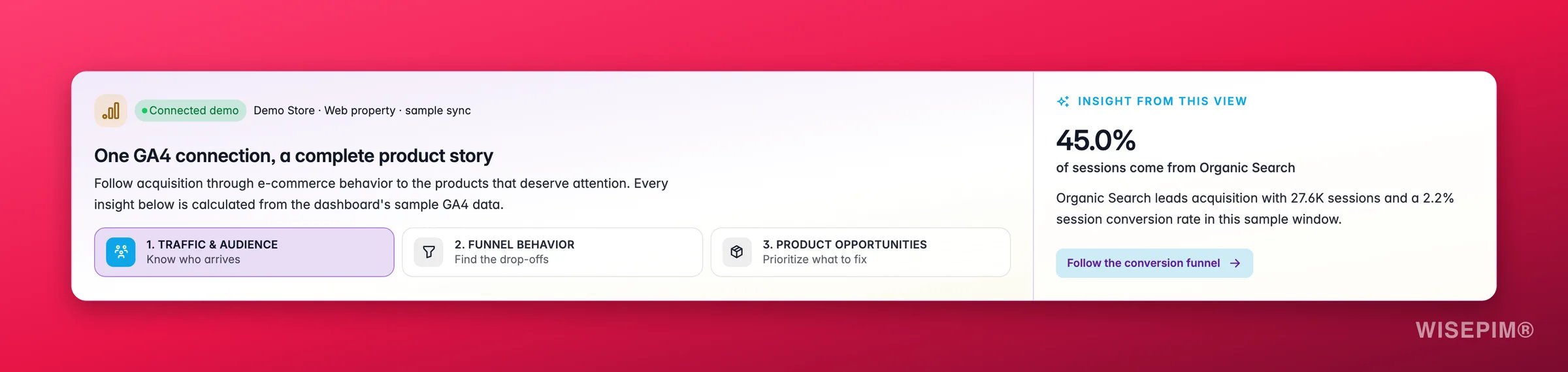
Google Analytics 4 (GA4) connects what visitors do in your store with the product data you manage in WISEPIM. It adds real traffic, engagement, funnel, and item-performance data to Analytics without changing anything in your catalog. The connection is read-only and uses Google OAuth, so you do not need to copy API keys.
 ## Before you start
* A Google account with access to at least **one GA4 property**.
* A GA4 property that is receiving data from the storefront for this WISEPIM project.
* Standard GA4 ecommerce events for the complete funnel: `view_item`, `add_to_cart`, `begin_checkout`, and `purchase`.
* For product-level attribution, send the WISEPIM product SKU as GA4's `item_id`. Matching is exact and case-sensitive.
Each WISEPIM project connects to **one GA4 property**. If you operate several storefronts, use a separate project and property for each data boundary.
## Connect Google Analytics 4
Go to **Channels → Integrations**, filter by **Analytics**, and open **Google Analytics 4**.
Click **Connect with Google**. WISEPIM redirects you to Google's consent screen and requests read-only Analytics access.
Sign in with the Google account that can access the required GA4 property. After consent, you return to WISEPIM automatically.
WISEPIM lists the GA4 properties available to that account, including their Analytics account and property ID. Select the property that belongs to this project.
WISEPIM verifies the selected property and queues its first sync automatically. The status dialog follows the background job and shows its result and row count.
## What WISEPIM imports
| Data | What it unlocks |
| -------------------------------------------------------------------- | ----------------------------------------------- |
| Sessions, users, and daily totals | Store traffic and period-over-period trends |
| Source, medium, and device | Acquisition and channel analysis |
| Engaged sessions, engagement rate, bounce rate, and average duration | Traffic-quality and behavior analysis |
| Page paths and page views | Landing-page and product-page performance |
| Ecommerce events and revenue | The view-to-cart-to-checkout-to-purchase funnel |
| Item views, carts, checkouts, purchases, and item revenue | Conversion performance for individual products |
GA4 only sends analytics data into WISEPIM. It does not import, edit, or export product titles, prices, images, stock, or other catalog fields.
## How products are matched
WISEPIM links a GA4 item to a product only when GA4's `item_id` is exactly equal to that product's SKU inside the same project. Product names are deliberately not used as a fallback because names are not stable identifiers.
| GA4 value | WISEPIM result |
| --------------------------------------------- | --------------------------------------------------------- |
| `item_id` exactly matches a SKU | Funnel metrics appear on that product |
| `item_id` uses a different case or identifier | The row stays unmatched and cannot affect another product |
| `item_id` is missing or `(not set)` | The row is ignored for product attribution |
Configure your storefront's GA4 ecommerce implementation to send the WISEPIM SKU as `item_id`. Without that contract, aggregate GA4 reports still work, but product-level conversion insights cannot be linked reliably.
## Understand the conversion rates
WISEPIM keeps rate names and denominators explicit:
* **Session key-event rate** is GA4's `sessionKeyEventRate`: the share of sessions in which at least one event marked as a key event occurred. It is not `keyEvents ÷ sessions`, because a session can contain several key events.
* **Unit cart rate** is synced item additions divided by synced item views.
* **Unit purchase rate** is synced purchased items divided by synced item views.
The unit rates answer a product-merchandising question, while the session key-event rate answers a visitor-session question. They can legitimately differ.
## What it powers
| WISEPIM report | What GA4 adds |
| ------------------------------------------------------------ | ----------------------------------------------------------------- |
| [Traffic & Behavior](/en/analytics/traffic-behavior) | Sessions, engagement, sources, devices, pages, and trends |
| [Conversions](/en/analytics/conversions) | The behavioral ecommerce funnel and its largest drop-offs |
| [Product Performance](/en/analytics/product-performance) | Item views, item revenue, and product-level unit conversion rates |
| [Marketing Attribution](/en/analytics/marketing-attribution) | Source and medium context for acquisition performance |
| [Integration Health](/en/analytics/integration-health) | Connection and synchronization visibility |
## Manage and refresh the connection
Open the GA4 integration again to:
* **Change property**. WISEPIM verifies it and automatically starts a new property-scoped sync. Data from the old and new properties is never mixed.
* **Test connection** to confirm the stored authorization and selected property still work.
* **Sync now** to refresh the latest seven days and fill gaps in the retained 180-day window.
* **Force re-sync** to rebuild the complete retained 180-day snapshot.
* View recent sync history, including running, successful, partial, and failed jobs, duration, range, and row count.
* **Disconnect** GA4 from the current project.
GA4 is not a real-time feed in WISEPIM. Syncs run in the background and end at yesterday. Google may revise recent analytics data, so WISEPIM refreshes the latest seven days during every smart sync.
## Troubleshooting
The selected Google account cannot access a GA4 property, or the required Google Analytics APIs are unavailable. Switch to an account with property access and retry. If WISEPIM reports an API configuration problem, contact support.
Confirm that the selected property belongs to this storefront, receives data, and has completed at least one successful sync. GA4 processing delay and an empty selected date range can also explain missing recent data.
Inspect the storefront's ecommerce payload. Its `item_id` must equal the WISEPIM SKU exactly, including capitalization. Do not send a product name, database ID, or variant label unless that value is also the SKU in WISEPIM.
Open the sync history for the provider error and affected range. Retry a normal sync first. Use **Force re-sync** when the retained history must be rebuilt after fixing the property or tracking setup.
## Related
Find the largest drop-off in the GA4 ecommerce funnel.
Tie item views and purchases to products and content quality.
Add organic-search clicks, impressions, CTR, and positions.
See everything you can connect to WISEPIM.
## Before you start
* A Google account with access to at least **one GA4 property**.
* A GA4 property that is receiving data from the storefront for this WISEPIM project.
* Standard GA4 ecommerce events for the complete funnel: `view_item`, `add_to_cart`, `begin_checkout`, and `purchase`.
* For product-level attribution, send the WISEPIM product SKU as GA4's `item_id`. Matching is exact and case-sensitive.
Each WISEPIM project connects to **one GA4 property**. If you operate several storefronts, use a separate project and property for each data boundary.
## Connect Google Analytics 4
Go to **Channels → Integrations**, filter by **Analytics**, and open **Google Analytics 4**.
Click **Connect with Google**. WISEPIM redirects you to Google's consent screen and requests read-only Analytics access.
Sign in with the Google account that can access the required GA4 property. After consent, you return to WISEPIM automatically.
WISEPIM lists the GA4 properties available to that account, including their Analytics account and property ID. Select the property that belongs to this project.
WISEPIM verifies the selected property and queues its first sync automatically. The status dialog follows the background job and shows its result and row count.
## What WISEPIM imports
| Data | What it unlocks |
| -------------------------------------------------------------------- | ----------------------------------------------- |
| Sessions, users, and daily totals | Store traffic and period-over-period trends |
| Source, medium, and device | Acquisition and channel analysis |
| Engaged sessions, engagement rate, bounce rate, and average duration | Traffic-quality and behavior analysis |
| Page paths and page views | Landing-page and product-page performance |
| Ecommerce events and revenue | The view-to-cart-to-checkout-to-purchase funnel |
| Item views, carts, checkouts, purchases, and item revenue | Conversion performance for individual products |
GA4 only sends analytics data into WISEPIM. It does not import, edit, or export product titles, prices, images, stock, or other catalog fields.
## How products are matched
WISEPIM links a GA4 item to a product only when GA4's `item_id` is exactly equal to that product's SKU inside the same project. Product names are deliberately not used as a fallback because names are not stable identifiers.
| GA4 value | WISEPIM result |
| --------------------------------------------- | --------------------------------------------------------- |
| `item_id` exactly matches a SKU | Funnel metrics appear on that product |
| `item_id` uses a different case or identifier | The row stays unmatched and cannot affect another product |
| `item_id` is missing or `(not set)` | The row is ignored for product attribution |
Configure your storefront's GA4 ecommerce implementation to send the WISEPIM SKU as `item_id`. Without that contract, aggregate GA4 reports still work, but product-level conversion insights cannot be linked reliably.
## Understand the conversion rates
WISEPIM keeps rate names and denominators explicit:
* **Session key-event rate** is GA4's `sessionKeyEventRate`: the share of sessions in which at least one event marked as a key event occurred. It is not `keyEvents ÷ sessions`, because a session can contain several key events.
* **Unit cart rate** is synced item additions divided by synced item views.
* **Unit purchase rate** is synced purchased items divided by synced item views.
The unit rates answer a product-merchandising question, while the session key-event rate answers a visitor-session question. They can legitimately differ.
## What it powers
| WISEPIM report | What GA4 adds |
| ------------------------------------------------------------ | ----------------------------------------------------------------- |
| [Traffic & Behavior](/en/analytics/traffic-behavior) | Sessions, engagement, sources, devices, pages, and trends |
| [Conversions](/en/analytics/conversions) | The behavioral ecommerce funnel and its largest drop-offs |
| [Product Performance](/en/analytics/product-performance) | Item views, item revenue, and product-level unit conversion rates |
| [Marketing Attribution](/en/analytics/marketing-attribution) | Source and medium context for acquisition performance |
| [Integration Health](/en/analytics/integration-health) | Connection and synchronization visibility |
## Manage and refresh the connection
Open the GA4 integration again to:
* **Change property**. WISEPIM verifies it and automatically starts a new property-scoped sync. Data from the old and new properties is never mixed.
* **Test connection** to confirm the stored authorization and selected property still work.
* **Sync now** to refresh the latest seven days and fill gaps in the retained 180-day window.
* **Force re-sync** to rebuild the complete retained 180-day snapshot.
* View recent sync history, including running, successful, partial, and failed jobs, duration, range, and row count.
* **Disconnect** GA4 from the current project.
GA4 is not a real-time feed in WISEPIM. Syncs run in the background and end at yesterday. Google may revise recent analytics data, so WISEPIM refreshes the latest seven days during every smart sync.
## Troubleshooting
The selected Google account cannot access a GA4 property, or the required Google Analytics APIs are unavailable. Switch to an account with property access and retry. If WISEPIM reports an API configuration problem, contact support.
Confirm that the selected property belongs to this storefront, receives data, and has completed at least one successful sync. GA4 processing delay and an empty selected date range can also explain missing recent data.
Inspect the storefront's ecommerce payload. Its `item_id` must equal the WISEPIM SKU exactly, including capitalization. Do not send a product name, database ID, or variant label unless that value is also the SKU in WISEPIM.
Open the sync history for the provider error and affected range. Retry a normal sync first. Use **Force re-sync** when the retained history must be rebuilt after fixing the property or tracking setup.
## Related
Find the largest drop-off in the GA4 ecommerce funnel.
Tie item views and purchases to products and content quality.
Add organic-search clicks, impressions, CTR, and positions.
See everything you can connect to WISEPIM.