> ## Documentation Index
> Fetch the complete documentation index at: https://docs.wisepim.com/llms.txt
> Use this file to discover all available pages before exploring further.
# Ecwid Integration
> Connect your Ecwid store to WISEPIM. Import your catalog, enrich it with AI, and push optimized content back to your storefront.
Connect your Lightspeed E-Series (Ecwid) store to WISEPIM to manage your catalog in one place. Import your products, enrich them with AI, and push the optimized content back to your storefront in bulk.
This integration syncs products, variants, categories, images, and custom attributes between Ecwid and WISEPIM, in both directions.
## Before you start
 Make sure you have:
* An active Lightspeed E-Series (Ecwid) store with admin access
* A WISEPIM account with an active project
* Your Ecwid **Store ID**, **Secret Token**, and **Public Token** (you'll get these next)
## Get your Ecwid API credentials
You need three values from Ecwid to connect: your Store ID and two API tokens.
Log in to your Ecwid control panel at [my.ecwid.com](https://my.ecwid.com). In the left sidebar, go to **Settings** and click **API**.
Your **Store ID** appears at the top of the API settings page. Copy it.
On the same page, find your **Secret Token** and **Public Token**. If they aren't there yet, click **Generate tokens**. Copy both.
| Token | Use |
| ---------------- | -------------------------------------------- |
| **Secret Token** | Server-side calls with read and write access |
| **Public Token** | Client-side operations with read-only access |
Never share your Secret Token publicly or commit it to version control. It gives full read and write access to your store. Only enter it in trusted apps like WISEPIM.
## Connect Ecwid to WISEPIM
With your credentials ready, set up the integration in WISEPIM.
In WISEPIM, go to **Integrations** from the main sidebar.
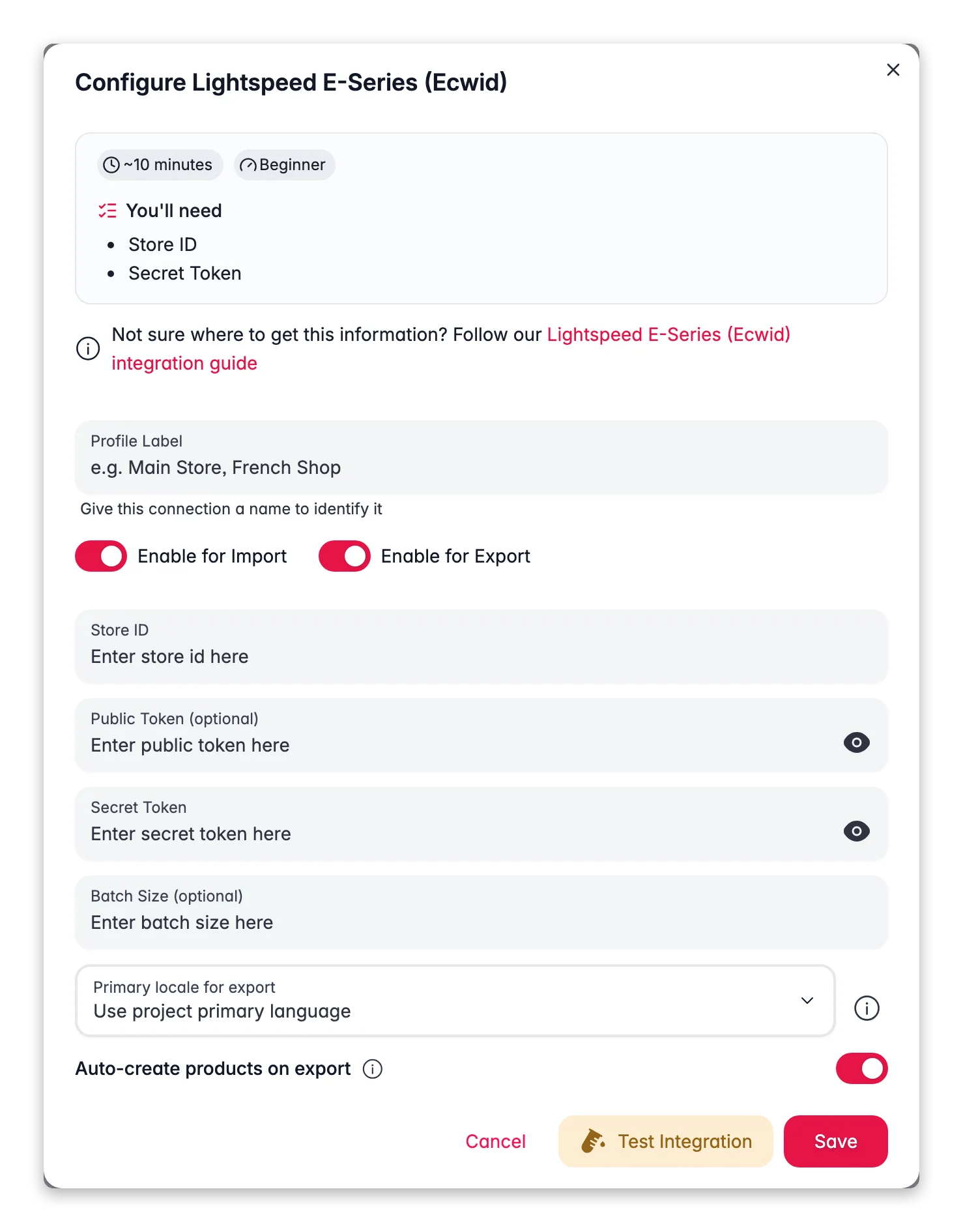
Find the **Lightspeed E-Series (Ecwid)** tile in the App Marketplace and click it.
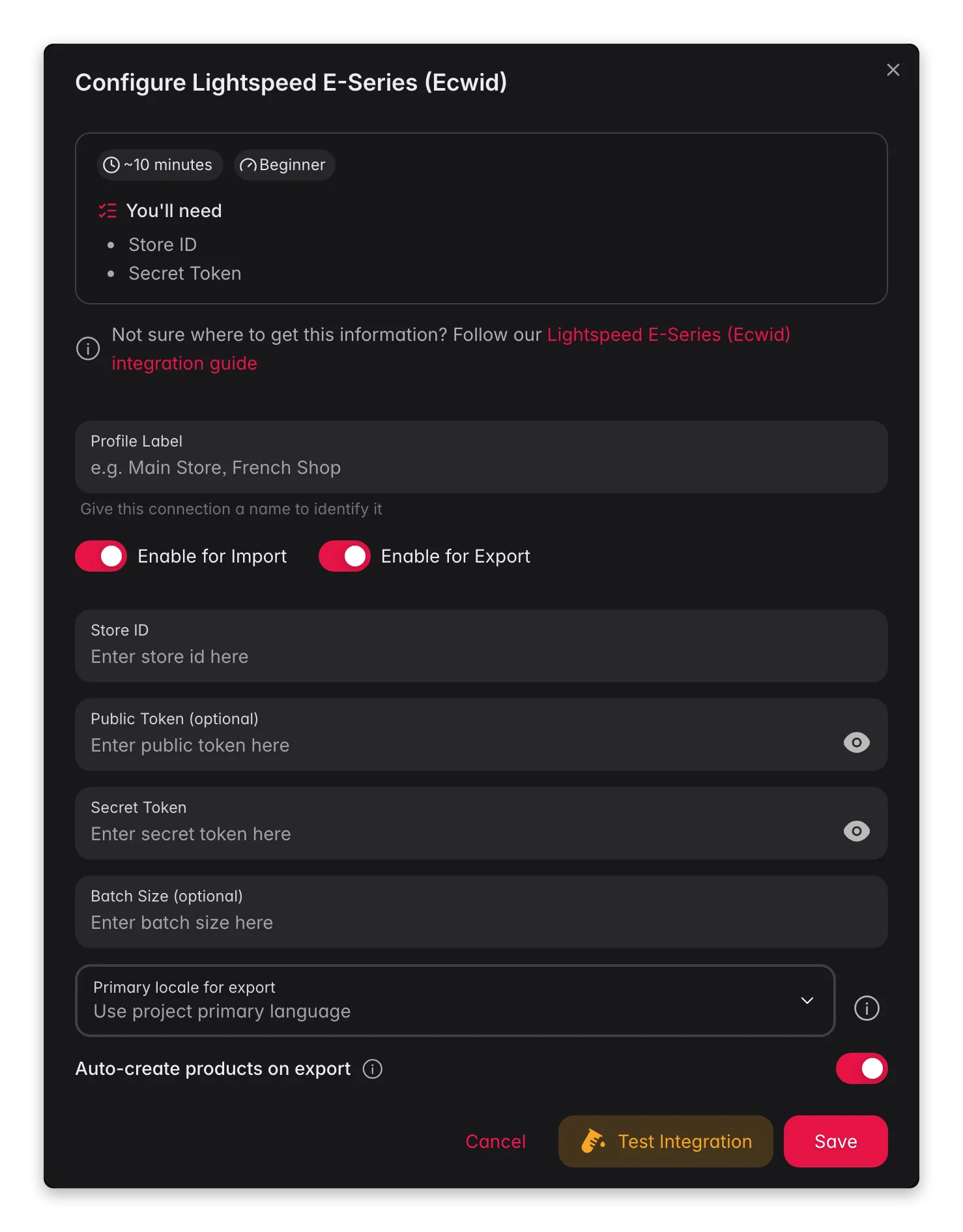
Fill in your **Store ID**, **Secret Token**, and **Public Token**.
Click **Test Connection** to confirm WISEPIM can reach your store. When the test passes, click **Save**.
A successful connection test means your credentials are valid and you're ready to import.
## Import products from Ecwid
Pull your full catalog from Ecwid into WISEPIM.
Go to the **Products** page, click **Import**, and select **Ecwid** as the source.
WISEPIM imports your products, including:
* Names and descriptions
* Prices and SKUs
* Stock quantities
* Images
* Categories
* Variants (combinations)
* Custom attributes
WISEPIM maps Ecwid fields to your attributes automatically. To adjust the mapping, open the **Attribute Mapper** from your Ecwid tile on the Integrations page.
### Adjust the attribute mapping
The Attribute Mapper controls how Ecwid fields line up with your WISEPIM attributes. Use it when a field lands in the wrong place or you want to remap data.
On the **Integrations** page, find your Ecwid tile and click **Open Attribute Mapper**.
Check the field mappings and change any that don't match.
Save your configuration so data flows correctly on every import and export.
## Export products to Ecwid
Once your products are enriched, push them back to your store.
On the **Products** page, select the products you want to export.
Click **Export** and choose **Ecwid** as the destination.
Check the export preview, then confirm.
Turn on **Auto-Create Products** in the integration settings to create products that exist in WISEPIM but not yet in Ecwid during export.
### What gets exported
Each export syncs:
* Names and descriptions (including translations)
* Prices, SKUs, and stock quantities
* Images
* Categories and subcategories
* Variant options and combinations
* Custom attributes
## Sell in multiple languages
Ecwid supports a multi-language storefront, and WISEPIM exports translated content into the right language fields. With this you can:
* Translate your catalog with AI translation
* Export each translation to the matching language in Ecwid
* Keep terminology consistent across every language
Set your target languages in WISEPIM before you export. WISEPIM then matches each translation to the right language in Ecwid automatically.
## Troubleshooting
* Check that your **Store ID** is correct (it's a numeric value).
* Confirm your **Secret Token** hasn't been regenerated since you set up the integration.
* Make sure your Ecwid store is active and not suspended.
* Confirm your store actually has products to import.
* Check that your token has read permissions.
* If specific products are missing, see whether they're hidden or disabled in Ecwid.
* Confirm your token has write permissions.
* Check that the attribute mapping is set up correctly.
* Review the error log in WISEPIM for field validation errors.
If you regenerate your API tokens in Ecwid, update them in WISEPIM right away. The old tokens stop working the moment you regenerate them.
## Related
Bring your Ecwid catalog into WISEPIM.
Optimize titles, descriptions, and SEO with AI.
Push optimized content back to your store.
See every platform WISEPIM connects to.
Make sure you have:
* An active Lightspeed E-Series (Ecwid) store with admin access
* A WISEPIM account with an active project
* Your Ecwid **Store ID**, **Secret Token**, and **Public Token** (you'll get these next)
## Get your Ecwid API credentials
You need three values from Ecwid to connect: your Store ID and two API tokens.
Log in to your Ecwid control panel at [my.ecwid.com](https://my.ecwid.com). In the left sidebar, go to **Settings** and click **API**.
Your **Store ID** appears at the top of the API settings page. Copy it.
On the same page, find your **Secret Token** and **Public Token**. If they aren't there yet, click **Generate tokens**. Copy both.
| Token | Use |
| ---------------- | -------------------------------------------- |
| **Secret Token** | Server-side calls with read and write access |
| **Public Token** | Client-side operations with read-only access |
Never share your Secret Token publicly or commit it to version control. It gives full read and write access to your store. Only enter it in trusted apps like WISEPIM.
## Connect Ecwid to WISEPIM
With your credentials ready, set up the integration in WISEPIM.
In WISEPIM, go to **Integrations** from the main sidebar.
Find the **Lightspeed E-Series (Ecwid)** tile in the App Marketplace and click it.
Fill in your **Store ID**, **Secret Token**, and **Public Token**.
Click **Test Connection** to confirm WISEPIM can reach your store. When the test passes, click **Save**.
A successful connection test means your credentials are valid and you're ready to import.
## Import products from Ecwid
Pull your full catalog from Ecwid into WISEPIM.
Go to the **Products** page, click **Import**, and select **Ecwid** as the source.
WISEPIM imports your products, including:
* Names and descriptions
* Prices and SKUs
* Stock quantities
* Images
* Categories
* Variants (combinations)
* Custom attributes
WISEPIM maps Ecwid fields to your attributes automatically. To adjust the mapping, open the **Attribute Mapper** from your Ecwid tile on the Integrations page.
### Adjust the attribute mapping
The Attribute Mapper controls how Ecwid fields line up with your WISEPIM attributes. Use it when a field lands in the wrong place or you want to remap data.
On the **Integrations** page, find your Ecwid tile and click **Open Attribute Mapper**.
Check the field mappings and change any that don't match.
Save your configuration so data flows correctly on every import and export.
## Export products to Ecwid
Once your products are enriched, push them back to your store.
On the **Products** page, select the products you want to export.
Click **Export** and choose **Ecwid** as the destination.
Check the export preview, then confirm.
Turn on **Auto-Create Products** in the integration settings to create products that exist in WISEPIM but not yet in Ecwid during export.
### What gets exported
Each export syncs:
* Names and descriptions (including translations)
* Prices, SKUs, and stock quantities
* Images
* Categories and subcategories
* Variant options and combinations
* Custom attributes
## Sell in multiple languages
Ecwid supports a multi-language storefront, and WISEPIM exports translated content into the right language fields. With this you can:
* Translate your catalog with AI translation
* Export each translation to the matching language in Ecwid
* Keep terminology consistent across every language
Set your target languages in WISEPIM before you export. WISEPIM then matches each translation to the right language in Ecwid automatically.
## Troubleshooting
* Check that your **Store ID** is correct (it's a numeric value).
* Confirm your **Secret Token** hasn't been regenerated since you set up the integration.
* Make sure your Ecwid store is active and not suspended.
* Confirm your store actually has products to import.
* Check that your token has read permissions.
* If specific products are missing, see whether they're hidden or disabled in Ecwid.
* Confirm your token has write permissions.
* Check that the attribute mapping is set up correctly.
* Review the error log in WISEPIM for field validation errors.
If you regenerate your API tokens in Ecwid, update them in WISEPIM right away. The old tokens stop working the moment you regenerate them.
## Related
Bring your Ecwid catalog into WISEPIM.
Optimize titles, descriptions, and SEO with AI.
Push optimized content back to your store.
See every platform WISEPIM connects to.