> ## Documentation Index
> Fetch the complete documentation index at: https://docs.wisepim.com/llms.txt
> Use this file to discover all available pages before exploring further.
# Databricks Integration
> Connect WISEPIM to Databricks. Export enriched product data to Unity Catalog and Delta Lake for analytics, ML pipelines, and governance.
Connect WISEPIM to Databricks to move product data between your catalog and your lakehouse. Export enriched products into Unity Catalog and Delta Lake for analytics and machine learning. Import product data from upstream pipelines back into WISEPIM. The flow runs in both directions.
The Databricks integration is available only on the **Enterprise plan**. Contact our sales team to learn about Enterprise features and pricing.
## Before you start
 Make sure you have:
* A WISEPIM account on the **Enterprise plan**
* A Databricks workspace with Unity Catalog enabled
* Permission to create schemas and tables in your Databricks catalog
* Your Databricks **Server Hostname**, **HTTP Path**, and an authentication method (Personal Access Token or OAuth)
## Get your connection details from Databricks
Gather four things from your Databricks workspace before you set up the integration.
Open your Databricks workspace URL and sign in.
Go to **SQL Warehouses** (or **Compute** for clusters):
1. Select the SQL warehouse or cluster WISEPIM will connect to.
2. Click **Connection Details**.
3. Copy the **Server Hostname**, such as `adb-1234567890.1.azuredatabricks.net`.
4. Copy the **HTTP Path**, such as `/sql/1.0/warehouses/abc123def456`.
Choose one of two methods.
**Option A: Personal Access Token**
1. Click your username in the top-right corner.
2. Go to **Settings**, then **Developer**, then **Access Tokens**.
3. Click **Generate New Token**, add a description such as `WISEPIM Integration`, and set an expiration.
4. Copy the token now. Databricks will not show it again.
**Option B: OAuth (Service Principal)**
1. In your Databricks account console, create a Service Principal.
2. Generate a **Client ID** and **Client Secret** for it.
3. Grant it access to the workspace and the target catalog.
Go to **Data** in the sidebar to browse Unity Catalog:
1. Select or create the **Catalog** that will hold your WISEPIM data.
2. Select or create the **Schema** (database) inside that catalog.
3. Note the catalog and schema names.
A Personal Access Token has the same access as your user account. For production, use OAuth with a Service Principal that has only the permissions it needs. Rotate credentials regularly and never share them publicly.
## Connect Databricks to WISEPIM
With your details ready, set up the integration in WISEPIM.
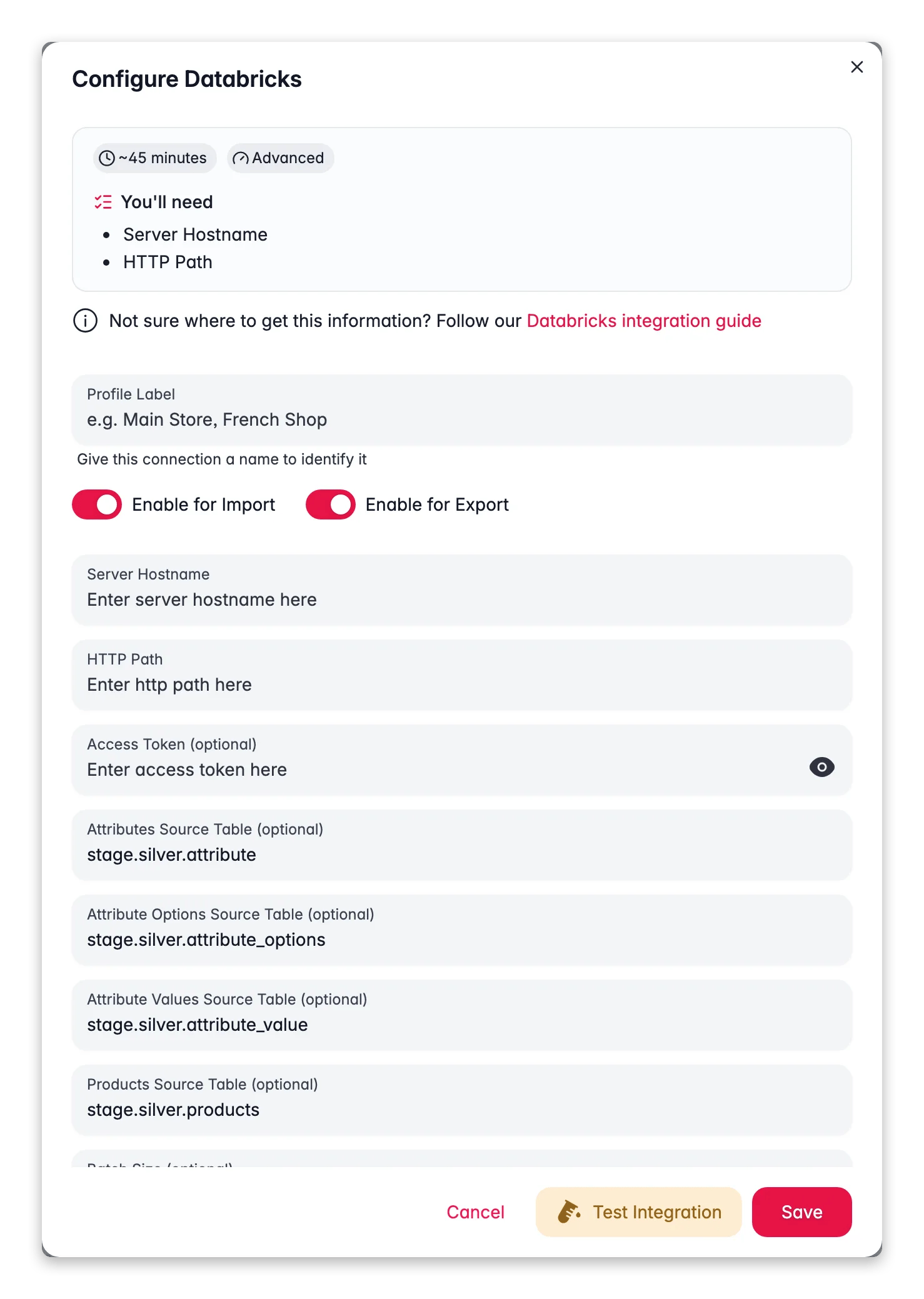
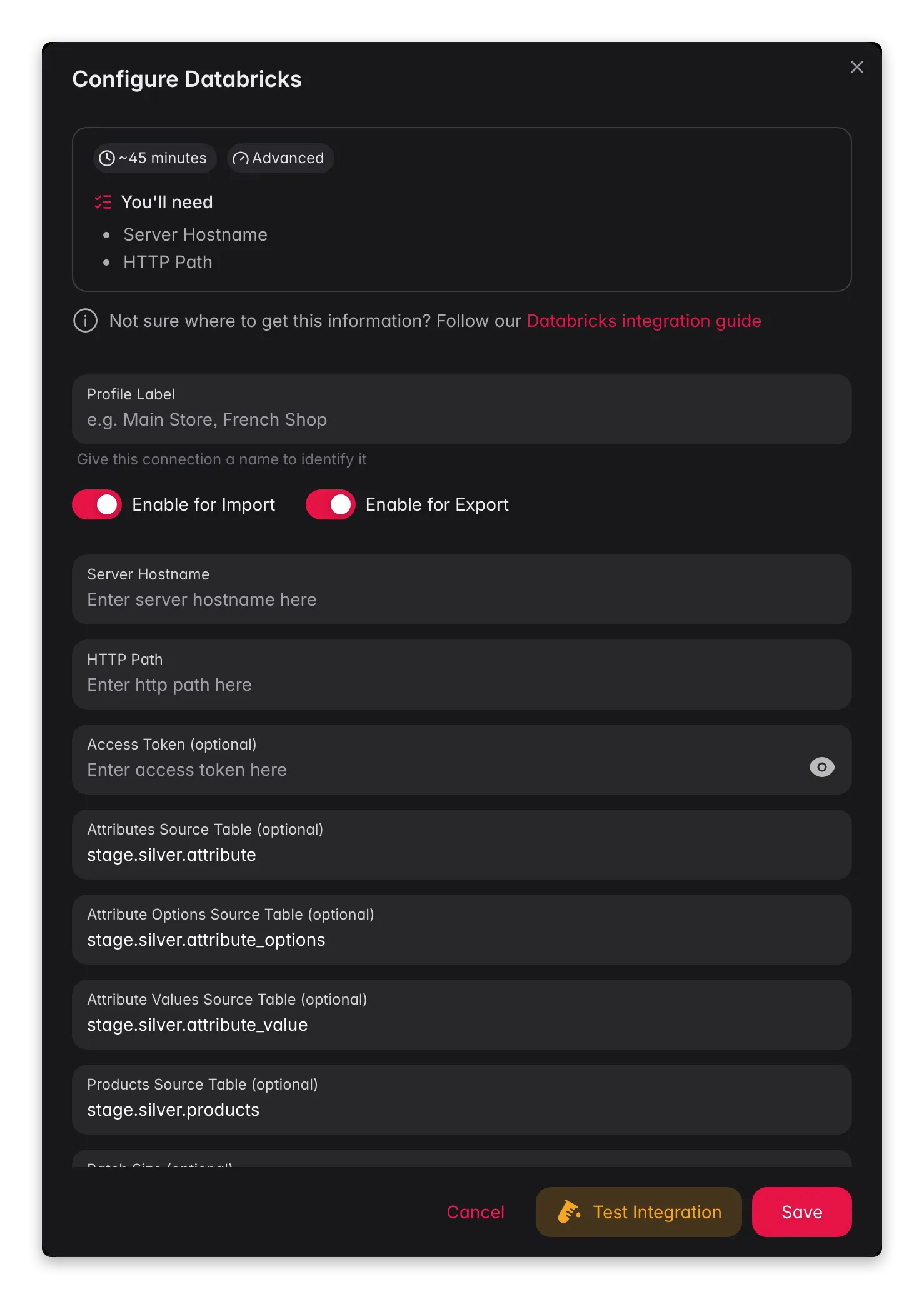
Log in to WISEPIM and go to the **Integrations** page. Find the **Databricks** tile in the App Marketplace and click it.
Fill in the fields:
**Connection Settings**
* **Server Hostname**: your Databricks workspace hostname
* **HTTP Path**: the path to your SQL warehouse or cluster
**Authentication** (choose one)
* **Access Token**: your Personal Access Token
* Or **Client ID** and **Client Secret**: your OAuth service principal credentials
**Data Location**
* **Catalog**: your Unity Catalog name, such as `wisepim_data`
* **Schema**: your schema name inside the catalog, such as `product_catalog`
Only needed if you import data from Databricks into WISEPIM:
* **Attributes Source Table**: the table with attribute definitions
* **Attribute Options Source Table**: the table with attribute option values
* **Products Source Table**: the table with product data
* **Batch Size**: rows processed per batch (default `1000`)
Click **Test Connection** to confirm WISEPIM can reach your workspace and the chosen catalog and schema.
If the test passes, click **Save** to store your settings.
## Export product data to Databricks
Push enriched products from WISEPIM into Delta Lake for analytics and ML.
Go to the **Products** page in WISEPIM.
Select the products you want to export, or select all.
Click **Export** and choose **Databricks** as the destination. WISEPIM writes the data to Delta Lake tables in your catalog and schema.
WISEPIM exports:
* Product identifiers (IDs, SKUs, EAN/GTIN)
* Product names and descriptions (all languages)
* Prices and stock information
* Category hierarchies
* Product attributes and custom fields
* Image URLs and metadata
* Translation status and quality scores
Delta Lake gives you ACID transactions, schema enforcement, and time travel. You can query historical versions of your product data at any point.
## Import product data from Databricks
If your product data lives in Databricks, for example from upstream pipelines, bring it into WISEPIM.
Add the **source table names** in your integration settings.
Click **Import** on the Products page and choose **Databricks** as the source. WISEPIM reads your tables and maps the data to your project attributes.
Keep your source tables on a consistent schema. WISEPIM maps columns to product attributes automatically, and you can adjust the mapping with the Attribute Mapper.
## Tune batch size for large catalogs
WISEPIM processes data in batches. Match the batch size to your catalog to balance speed and resource use.
| Catalog size | Products | Suggested batch size |
| ------------ | ----------------- | --------------------------------- |
| Small | Under 10,000 | `1000` (default) |
| Medium | 10,000 to 100,000 | `5000` |
| Large | 100,000+ | `10000`, and watch resource usage |
Set the value in the integration modal under **Batch Size**.
## What you can build with your data
Once your products are in Databricks, you can use them across analytics and data science.
* Build dashboards to track product performance across channels and markets.
* Find which attributes correlate with higher conversion rates.
* Compare performance across languages and regions.
* Train product recommendation models on enriched data.
* Build demand forecasts from historical product and pricing data.
* Develop pricing optimization based on market data.
* Use WISEPIM product embeddings for similarity search and clustering.
* Track data lineage from source to enrichment to export with Unity Catalog.
* Set access controls for who can read and modify product data.
* Audit every change with the Delta Lake transaction log.
Use WISEPIM product IDs as the primary key when you join product data with sales, inventory, or customer data. This keeps identity consistent across all your datasets.
## Troubleshooting
* Check the **Server Hostname** is correct and includes the full domain, such as `adb-1234567890.1.azuredatabricks.net`.
* Check the **HTTP Path** points to an active SQL warehouse or cluster.
* Make sure the warehouse or cluster is running, not stopped or terminated.
* If using a Personal Access Token, check it has not expired.
* If using OAuth, confirm the Service Principal has workspace-level access.
* Regenerate your access token if you think it is expired or compromised.
* For OAuth, check the Client ID and Client Secret are correct.
* Make sure the user or service principal has `USE CATALOG` and `USE SCHEMA` on the target catalog and schema.
* Confirm the user has `CREATE TABLE` and `MODIFY` on the target schema.
* Check the catalog and schema names are spelled correctly and exist in Unity Catalog.
* If exports are slow, reduce the batch size or use a larger SQL warehouse.
* Review WISEPIM's error log for messages from the Databricks API.
* Check the source table names are correct and the tables exist.
* Confirm the user has `SELECT` on the source tables.
* Check the source table schemas match WISEPIM's expected format.
* If imports time out, reduce the batch size.
Databricks resources (SQL warehouses, clusters) cost money while running. Set auto-stop in your workspace to avoid surprise charges. WISEPIM will try to start a stopped warehouse, which may add latency to the first operation.
## Related
Pull products from your Databricks tables.
Improve product content with AI.
Send products to Delta Lake tables.
Make sure you have:
* A WISEPIM account on the **Enterprise plan**
* A Databricks workspace with Unity Catalog enabled
* Permission to create schemas and tables in your Databricks catalog
* Your Databricks **Server Hostname**, **HTTP Path**, and an authentication method (Personal Access Token or OAuth)
## Get your connection details from Databricks
Gather four things from your Databricks workspace before you set up the integration.
Open your Databricks workspace URL and sign in.
Go to **SQL Warehouses** (or **Compute** for clusters):
1. Select the SQL warehouse or cluster WISEPIM will connect to.
2. Click **Connection Details**.
3. Copy the **Server Hostname**, such as `adb-1234567890.1.azuredatabricks.net`.
4. Copy the **HTTP Path**, such as `/sql/1.0/warehouses/abc123def456`.
Choose one of two methods.
**Option A: Personal Access Token**
1. Click your username in the top-right corner.
2. Go to **Settings**, then **Developer**, then **Access Tokens**.
3. Click **Generate New Token**, add a description such as `WISEPIM Integration`, and set an expiration.
4. Copy the token now. Databricks will not show it again.
**Option B: OAuth (Service Principal)**
1. In your Databricks account console, create a Service Principal.
2. Generate a **Client ID** and **Client Secret** for it.
3. Grant it access to the workspace and the target catalog.
Go to **Data** in the sidebar to browse Unity Catalog:
1. Select or create the **Catalog** that will hold your WISEPIM data.
2. Select or create the **Schema** (database) inside that catalog.
3. Note the catalog and schema names.
A Personal Access Token has the same access as your user account. For production, use OAuth with a Service Principal that has only the permissions it needs. Rotate credentials regularly and never share them publicly.
## Connect Databricks to WISEPIM
With your details ready, set up the integration in WISEPIM.
Log in to WISEPIM and go to the **Integrations** page. Find the **Databricks** tile in the App Marketplace and click it.
Fill in the fields:
**Connection Settings**
* **Server Hostname**: your Databricks workspace hostname
* **HTTP Path**: the path to your SQL warehouse or cluster
**Authentication** (choose one)
* **Access Token**: your Personal Access Token
* Or **Client ID** and **Client Secret**: your OAuth service principal credentials
**Data Location**
* **Catalog**: your Unity Catalog name, such as `wisepim_data`
* **Schema**: your schema name inside the catalog, such as `product_catalog`
Only needed if you import data from Databricks into WISEPIM:
* **Attributes Source Table**: the table with attribute definitions
* **Attribute Options Source Table**: the table with attribute option values
* **Products Source Table**: the table with product data
* **Batch Size**: rows processed per batch (default `1000`)
Click **Test Connection** to confirm WISEPIM can reach your workspace and the chosen catalog and schema.
If the test passes, click **Save** to store your settings.
## Export product data to Databricks
Push enriched products from WISEPIM into Delta Lake for analytics and ML.
Go to the **Products** page in WISEPIM.
Select the products you want to export, or select all.
Click **Export** and choose **Databricks** as the destination. WISEPIM writes the data to Delta Lake tables in your catalog and schema.
WISEPIM exports:
* Product identifiers (IDs, SKUs, EAN/GTIN)
* Product names and descriptions (all languages)
* Prices and stock information
* Category hierarchies
* Product attributes and custom fields
* Image URLs and metadata
* Translation status and quality scores
Delta Lake gives you ACID transactions, schema enforcement, and time travel. You can query historical versions of your product data at any point.
## Import product data from Databricks
If your product data lives in Databricks, for example from upstream pipelines, bring it into WISEPIM.
Add the **source table names** in your integration settings.
Click **Import** on the Products page and choose **Databricks** as the source. WISEPIM reads your tables and maps the data to your project attributes.
Keep your source tables on a consistent schema. WISEPIM maps columns to product attributes automatically, and you can adjust the mapping with the Attribute Mapper.
## Tune batch size for large catalogs
WISEPIM processes data in batches. Match the batch size to your catalog to balance speed and resource use.
| Catalog size | Products | Suggested batch size |
| ------------ | ----------------- | --------------------------------- |
| Small | Under 10,000 | `1000` (default) |
| Medium | 10,000 to 100,000 | `5000` |
| Large | 100,000+ | `10000`, and watch resource usage |
Set the value in the integration modal under **Batch Size**.
## What you can build with your data
Once your products are in Databricks, you can use them across analytics and data science.
* Build dashboards to track product performance across channels and markets.
* Find which attributes correlate with higher conversion rates.
* Compare performance across languages and regions.
* Train product recommendation models on enriched data.
* Build demand forecasts from historical product and pricing data.
* Develop pricing optimization based on market data.
* Use WISEPIM product embeddings for similarity search and clustering.
* Track data lineage from source to enrichment to export with Unity Catalog.
* Set access controls for who can read and modify product data.
* Audit every change with the Delta Lake transaction log.
Use WISEPIM product IDs as the primary key when you join product data with sales, inventory, or customer data. This keeps identity consistent across all your datasets.
## Troubleshooting
* Check the **Server Hostname** is correct and includes the full domain, such as `adb-1234567890.1.azuredatabricks.net`.
* Check the **HTTP Path** points to an active SQL warehouse or cluster.
* Make sure the warehouse or cluster is running, not stopped or terminated.
* If using a Personal Access Token, check it has not expired.
* If using OAuth, confirm the Service Principal has workspace-level access.
* Regenerate your access token if you think it is expired or compromised.
* For OAuth, check the Client ID and Client Secret are correct.
* Make sure the user or service principal has `USE CATALOG` and `USE SCHEMA` on the target catalog and schema.
* Confirm the user has `CREATE TABLE` and `MODIFY` on the target schema.
* Check the catalog and schema names are spelled correctly and exist in Unity Catalog.
* If exports are slow, reduce the batch size or use a larger SQL warehouse.
* Review WISEPIM's error log for messages from the Databricks API.
* Check the source table names are correct and the tables exist.
* Confirm the user has `SELECT` on the source tables.
* Check the source table schemas match WISEPIM's expected format.
* If imports time out, reduce the batch size.
Databricks resources (SQL warehouses, clusters) cost money while running. Set auto-stop in your workspace to avoid surprise charges. WISEPIM will try to start a stopped warehouse, which may add latency to the first operation.
## Related
Pull products from your Databricks tables.
Improve product content with AI.
Send products to Delta Lake tables.