> ## Documentation Index
> Fetch the complete documentation index at: https://docs.wisepim.com/llms.txt
> Use this file to discover all available pages before exploring further.
# Teach WISEPIM your house style
> AI wrote thousands of descriptions and they all sound the same. Give it your brand context in the right order, then re-run the catalog and hear the difference.
You enriched 5,000 products and the copy is technically fine and completely forgettable. Every description opens the same way, nothing sounds like your brand, and half of it uses words your style guide bans. The instinct is to blame the AI, but the usual cause is that nobody told it who you are, so it wrote the only thing it could: average.
The fix is an order of operations, not a setting. Budget about two hours for the setup and a short review after each run.
**Before you start:** pick a project in the project switcher, because [Knowledge Library](/en/other-features/knowledge-library), [Keywords](/en/settings/keywords), and prompt defaults are all project-scoped. If this is a brand-new project, do [1. Set up](/en/guides/first-catalog/set-up) first - this guide is the deeper pass for a catalog that is already enriched and sounds generic.
**What you'll get:** brand context the AI reads on every run, one proven prompt per content type set as your project default, and a re-enriched catalog that sounds like your team wrote it.
## Give the AI something to sound like
Do this before you touch a prompt. Every AI feature in WISEPIM reads from the [Knowledge Library](/en/other-features/knowledge-library), so filling it once improves everything downstream at the same time - and a prompt tuned against an empty library is tuned against the wrong baseline, which means tuning it twice.
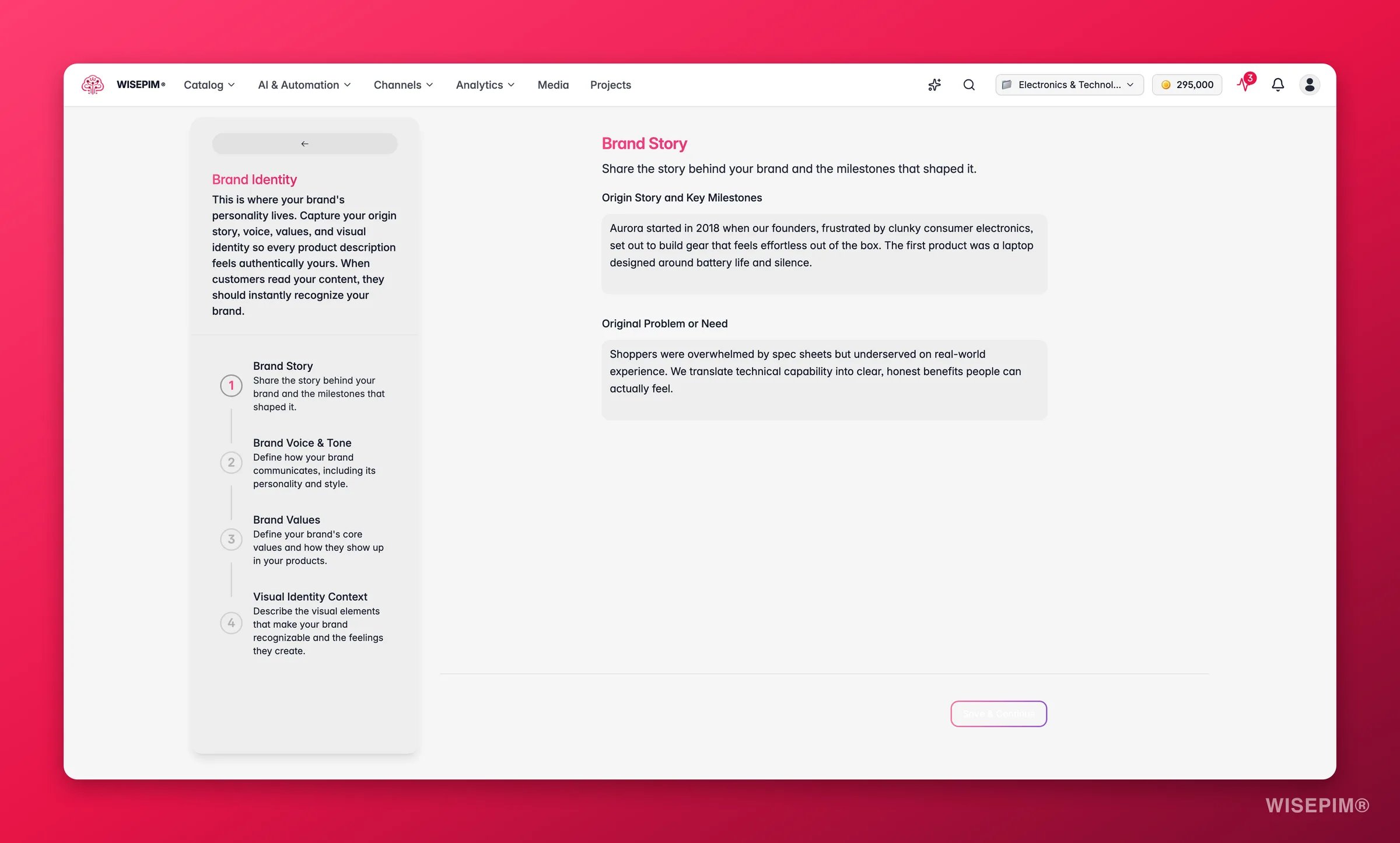
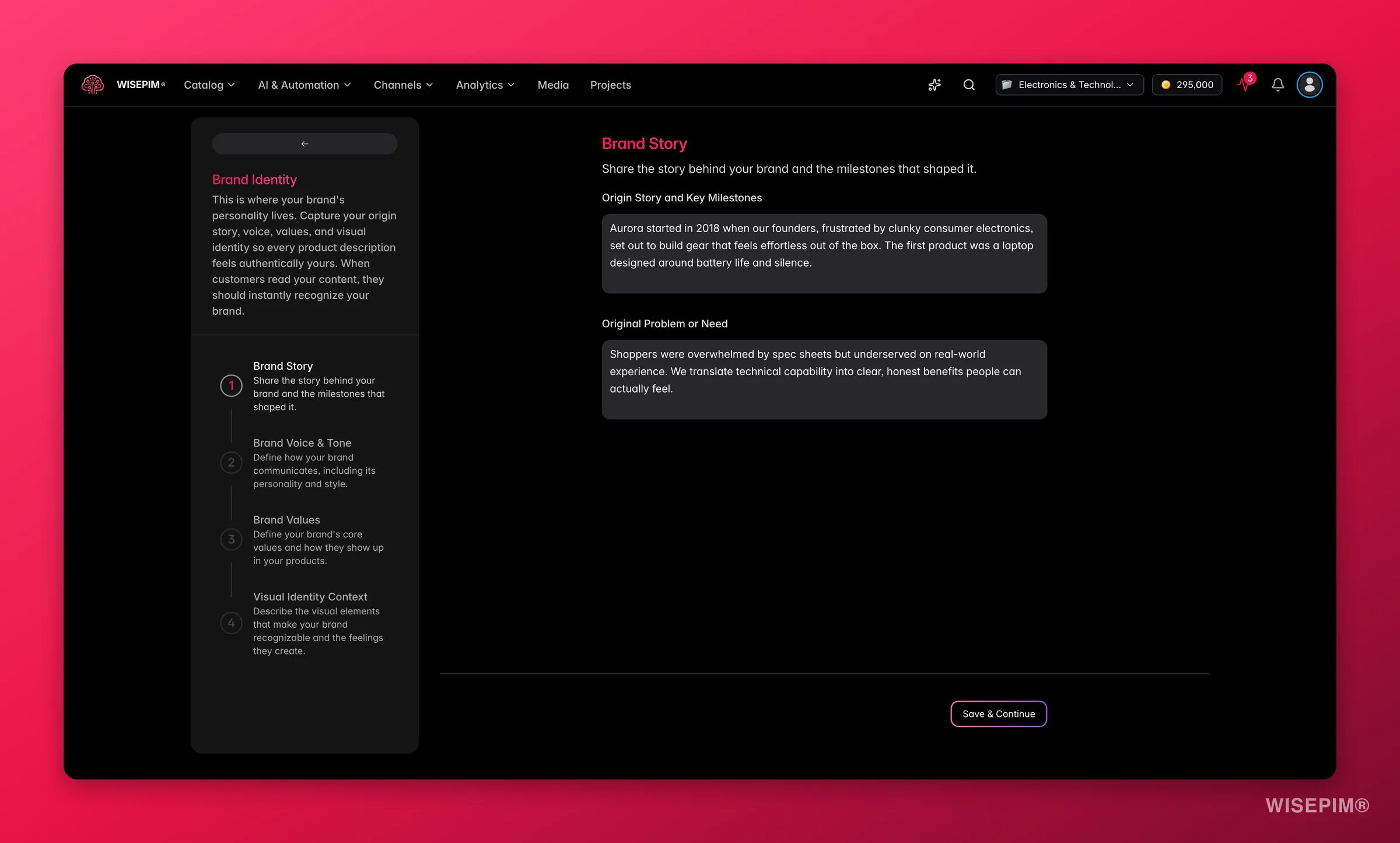 Open the [Knowledge Library](/en/other-features/knowledge-library) from the main menu and start with the **Brand identity** card: brand story, voice, and values. It is the foundation the other categories build on, and the first place to look whenever output feels off-brand later.
Copy from existing brand guidelines, a tone-of-voice doc, or customer research. Writing it from scratch in the form is the slow route and usually produces vaguer input. Progress saves as you type.
Move on to **Brand voice**, **Target audience**, **Value proposition**, and **Content requirements**. Finishing a card before starting the next keeps your context coherent rather than half-answered everywhere, and the overview's completion percentages show you which one to open next.
Name tone adjectives, quote phrases your brand actually uses, and use the exact terms your industry uses. Vague input gives vague output, which is the whole problem you are here to solve.
In [Keywords](/en/settings/keywords), put off-brand wording and competitor names on the **Negative** tab so AI keeps them out, and your must-use terms on the **Positive** tab at **High** priority so they carry more weight. Scope them by locale and target field so they only appear where they belong.
## Prove one prompt before you trust it
Now, and only now, work on prompts. [Prompt Lab](/en/essentials/prompt-lab) runs a prompt against a real product and shows the result beside the original, with nothing written to your catalog, so it is where you find out whether the brand context alone already fixed things.
Open the [Knowledge Library](/en/other-features/knowledge-library) from the main menu and start with the **Brand identity** card: brand story, voice, and values. It is the foundation the other categories build on, and the first place to look whenever output feels off-brand later.
Copy from existing brand guidelines, a tone-of-voice doc, or customer research. Writing it from scratch in the form is the slow route and usually produces vaguer input. Progress saves as you type.
Move on to **Brand voice**, **Target audience**, **Value proposition**, and **Content requirements**. Finishing a card before starting the next keeps your context coherent rather than half-answered everywhere, and the overview's completion percentages show you which one to open next.
Name tone adjectives, quote phrases your brand actually uses, and use the exact terms your industry uses. Vague input gives vague output, which is the whole problem you are here to solve.
In [Keywords](/en/settings/keywords), put off-brand wording and competitor names on the **Negative** tab so AI keeps them out, and your must-use terms on the **Positive** tab at **High** priority so they carry more weight. Scope them by locale and target field so they only appear where they belong.
## Prove one prompt before you trust it
Now, and only now, work on prompts. [Prompt Lab](/en/essentials/prompt-lab) runs a prompt against a real product and shows the result beside the original, with nothing written to your catalog, so it is where you find out whether the brand context alone already fixed things.
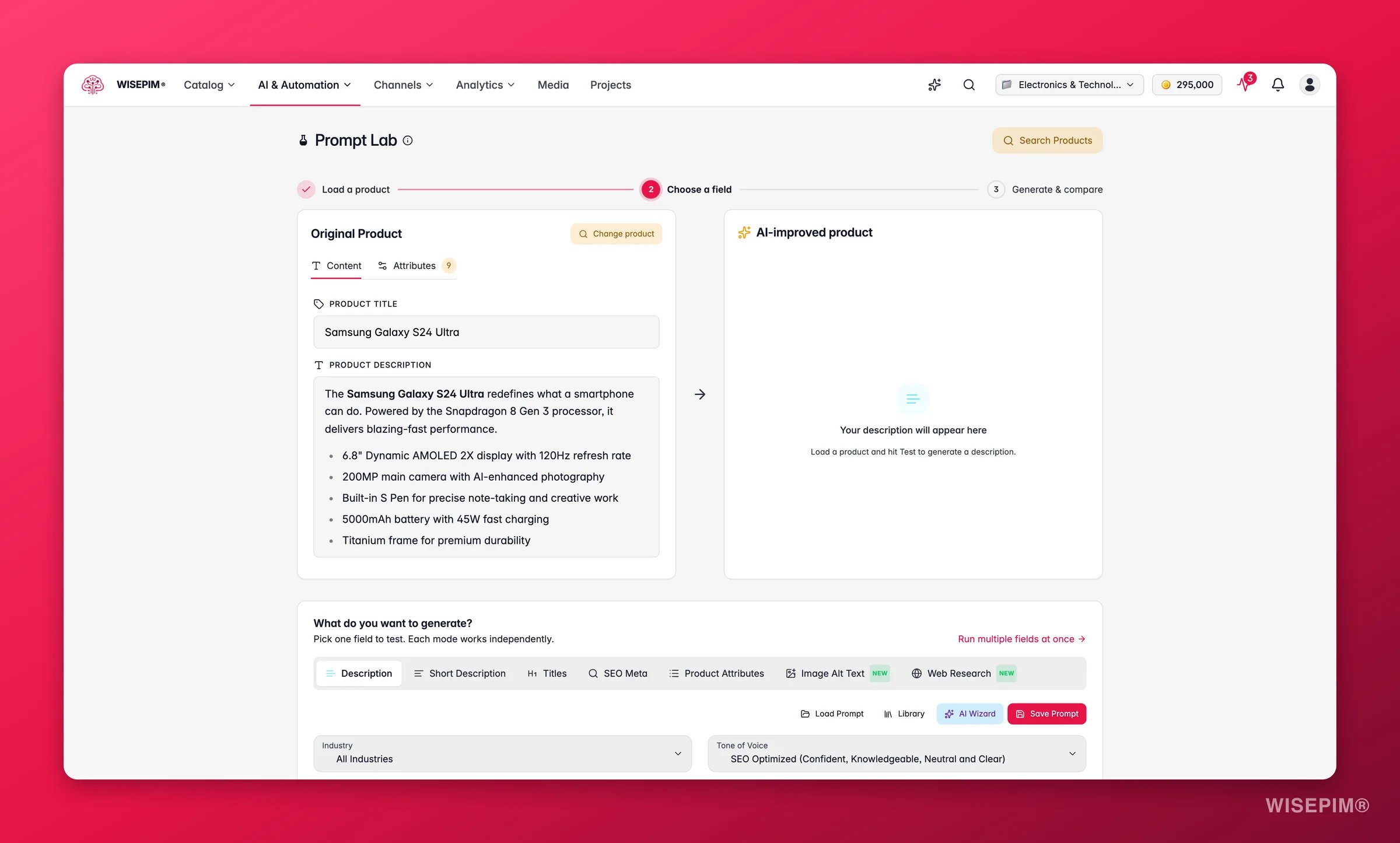
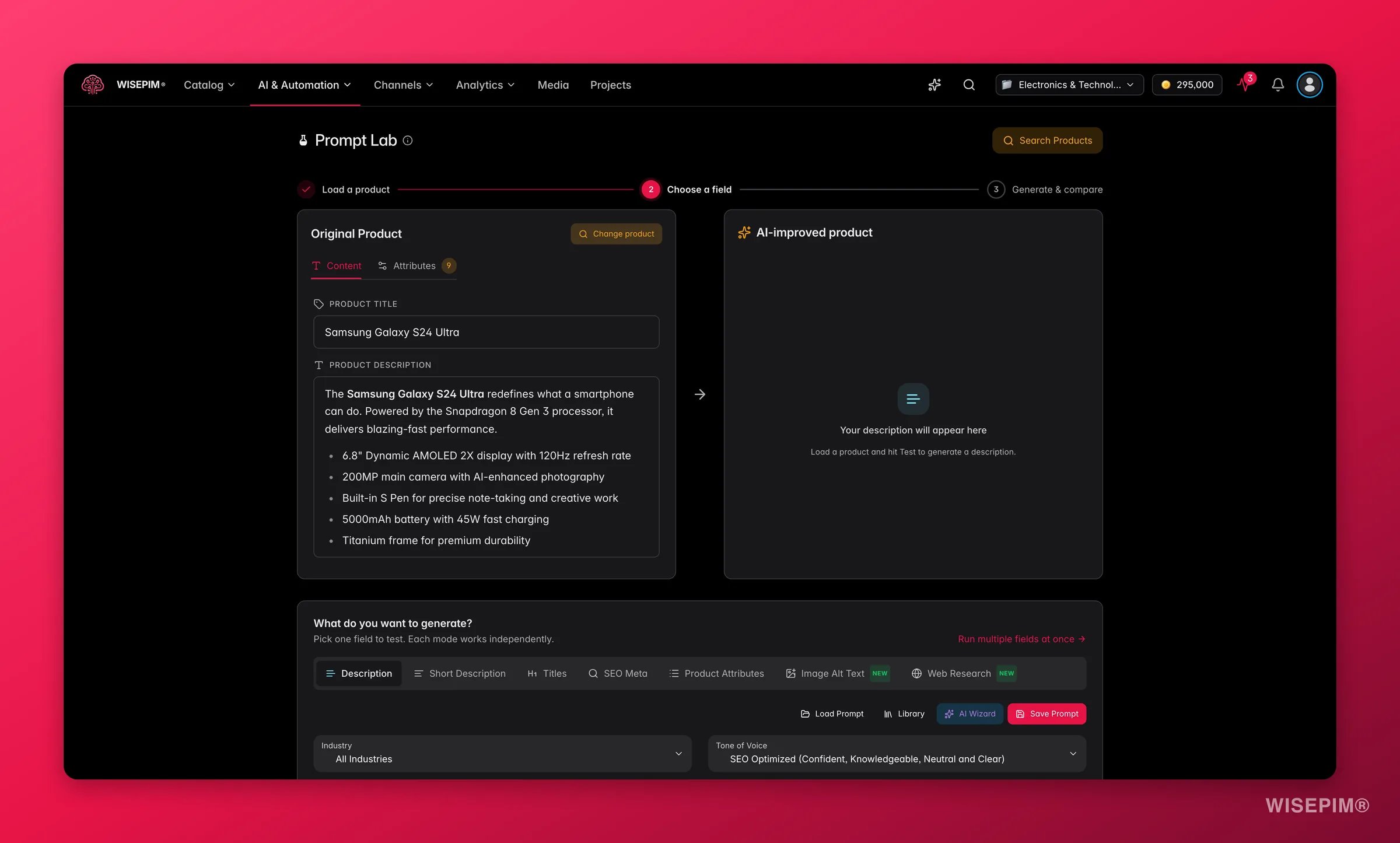 Click **Load Product** and pull in a SKU from your current project. An existing description gives you a real before-and-after instead of a comparison against nothing.
Hit **Test Prompt** and read the output. This is what your brand context alone produces, and it is often already better than what you had. Each test takes roughly 30 to 60 seconds, which is why the next step matters.
In the prompt configuration panel, adjust industry, purpose, tone of voice, or point of view, then test again. Changing several at once tells you the result improved but not which change did it.
Run the winning prompt across a few products from each category, including ones with minimal data. A prompt that only works on your best-documented product will disappoint at catalog scale - and that is the failure you cannot undo once it has run on 5,000 products.
Save the winner into your [Prompt Library](/en/essentials/prompt-library), then open [Enrich Prompts settings](/en/settings/enrich-defaults) and assign a default per content type. Nothing applies until you hit **Save changes**. Defaults mean your whole team enriches with the same voice without remembering which prompt to pick.
## Re-run the catalog
[Bulk Enrich](/en/ai/bulk-enrich) regenerates the fields you choose across every selected product, using those defaults. It is the right tool here precisely because you want the old, off-brand copy gone, which also means there is no undo. Run it last, and only once the checks below all pass.
| Before you start the bulk run | How you confirm it |
| ---------------------------------------- | ------------------------------------------------------------------------------------------------------------------------------------------------------------------------------------------------------------------------ |
| Brand identity is filled in, not stubbed | Story, voice, and values each hold real sentences you would defend in a meeting |
| The cards that carry your voice are done | Completion percentages on the [Knowledge Library](/en/other-features/knowledge-library) overview for brand voice, audience, value proposition, and content requirements. You do not need every field, just no empty card |
| Banned words are on the list | The **Negative** tab in [Keywords](/en/settings/keywords) holds your competitor names and off-brand wording |
| No content type is left on "No default" | Every dropdown in [Enrich Prompts settings](/en/settings/enrich-defaults) is assigned and saved |
| The prompt survived a sparse product | A [Prompt Lab](/en/essentials/prompt-lab) test on a thin product still reads on-brand |
Click **Load Product** and pull in a SKU from your current project. An existing description gives you a real before-and-after instead of a comparison against nothing.
Hit **Test Prompt** and read the output. This is what your brand context alone produces, and it is often already better than what you had. Each test takes roughly 30 to 60 seconds, which is why the next step matters.
In the prompt configuration panel, adjust industry, purpose, tone of voice, or point of view, then test again. Changing several at once tells you the result improved but not which change did it.
Run the winning prompt across a few products from each category, including ones with minimal data. A prompt that only works on your best-documented product will disappoint at catalog scale - and that is the failure you cannot undo once it has run on 5,000 products.
Save the winner into your [Prompt Library](/en/essentials/prompt-library), then open [Enrich Prompts settings](/en/settings/enrich-defaults) and assign a default per content type. Nothing applies until you hit **Save changes**. Defaults mean your whole team enriches with the same voice without remembering which prompt to pick.
## Re-run the catalog
[Bulk Enrich](/en/ai/bulk-enrich) regenerates the fields you choose across every selected product, using those defaults. It is the right tool here precisely because you want the old, off-brand copy gone, which also means there is no undo. Run it last, and only once the checks below all pass.
| Before you start the bulk run | How you confirm it |
| ---------------------------------------- | ------------------------------------------------------------------------------------------------------------------------------------------------------------------------------------------------------------------------ |
| Brand identity is filled in, not stubbed | Story, voice, and values each hold real sentences you would defend in a meeting |
| The cards that carry your voice are done | Completion percentages on the [Knowledge Library](/en/other-features/knowledge-library) overview for brand voice, audience, value proposition, and content requirements. You do not need every field, just no empty card |
| Banned words are on the list | The **Negative** tab in [Keywords](/en/settings/keywords) holds your competitor names and off-brand wording |
| No content type is left on "No default" | Every dropdown in [Enrich Prompts settings](/en/settings/enrich-defaults) is assigned and saved |
| The prompt survived a sparse product | A [Prompt Lab](/en/essentials/prompt-lab) test on a thin product still reads on-brand |
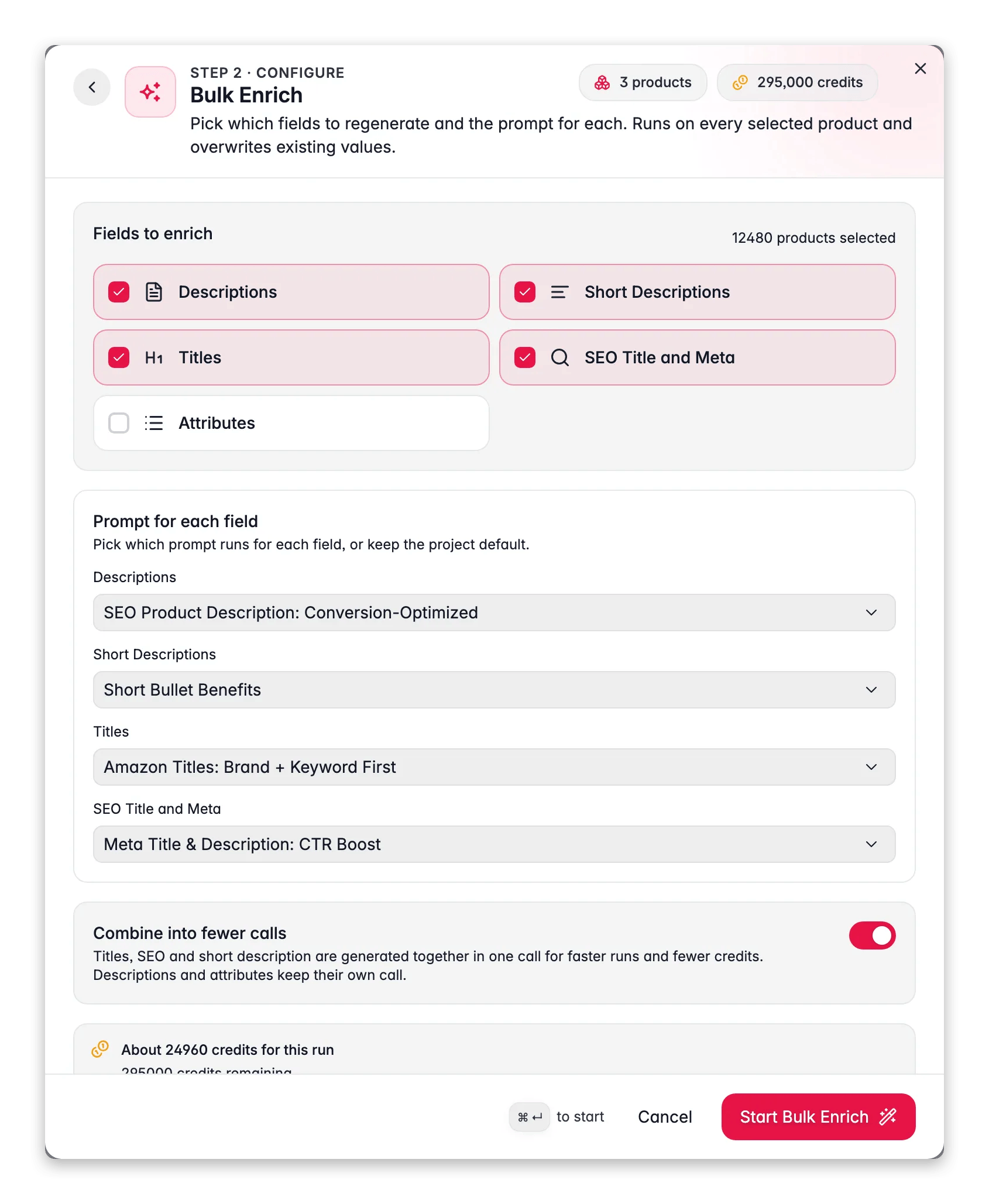
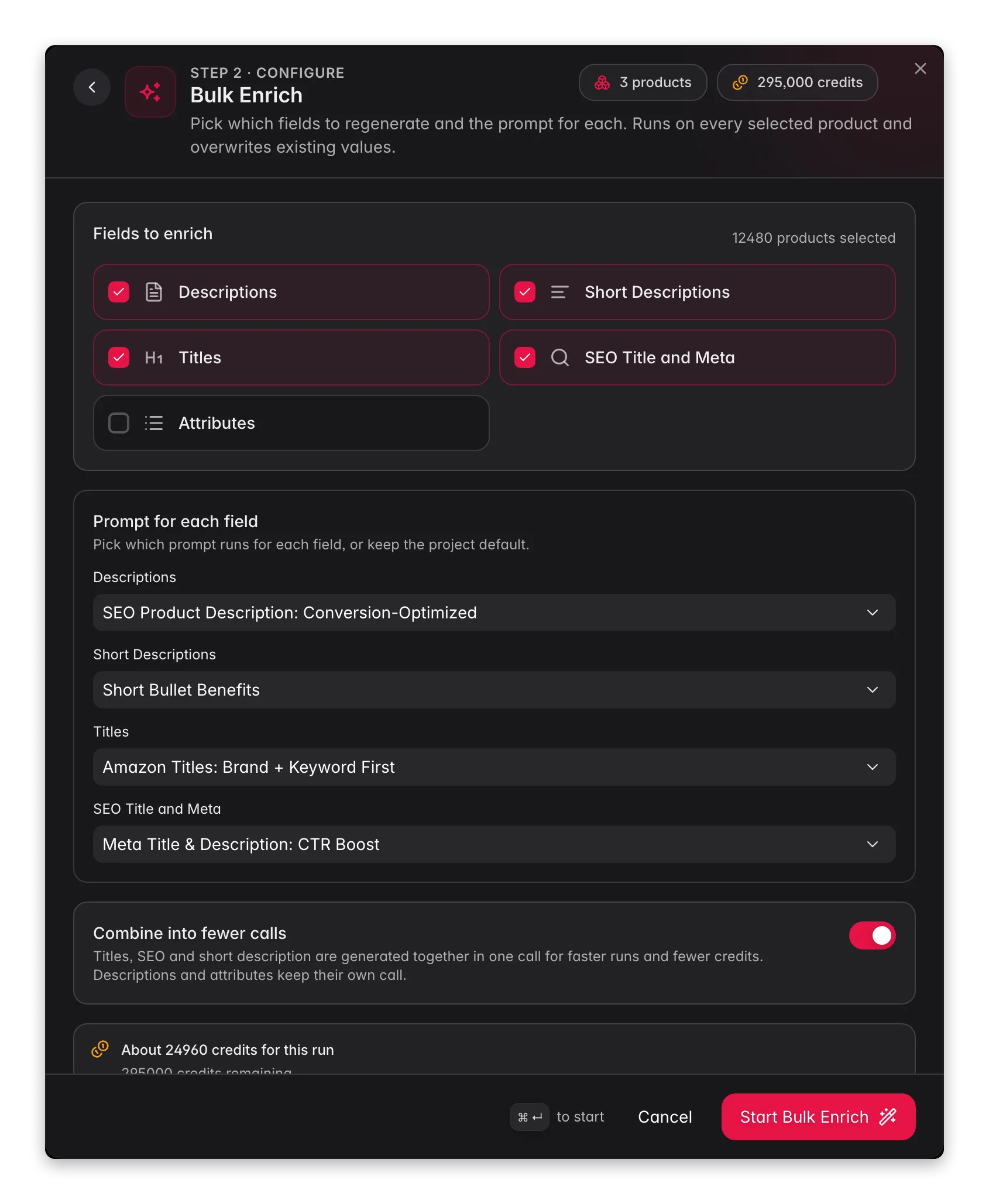 On the Products page, filter to a single category, click **Enrich with AI** in the toolbar, and open **Bulk Enrich** - the first card in the **Start here** shelf. A category is large enough to be representative and small enough to abandon.
Everything is pre-selected except attributes, which are opt-in because re-deriving them in bulk is rarely what you want. The **Combine into fewer calls** switch changes what you pay: combined, two or more fields cost less per product than running each field separately. Then **Start Bulk Enrich**.
Do they sound like your brand? Are the banned words gone? Do the must-use terms appear naturally rather than bolted on? If not, go back to the Knowledge Library card that covers the gap before you run anything else.
Once a batch reads right, select the remaining products and run the same configuration. Track it in the [Process Tracker](/en/other-features/process-tracker); if a run stops early, **Resume** finishes the untouched products without charging for them again.
Content that repeats across many products - warranty wording, shipping promises, brand taglines - is better held once as a [Content Logic](/en/workflows/content-logic) variable than retyped into every prompt. Change it in one place and every prompt that uses it follows.
Bulk Enrich always overwrites the fields you select. Check the product count in the modal header before starting, especially when you are running on all matching products rather than a ticked selection.
## How to tell it worked
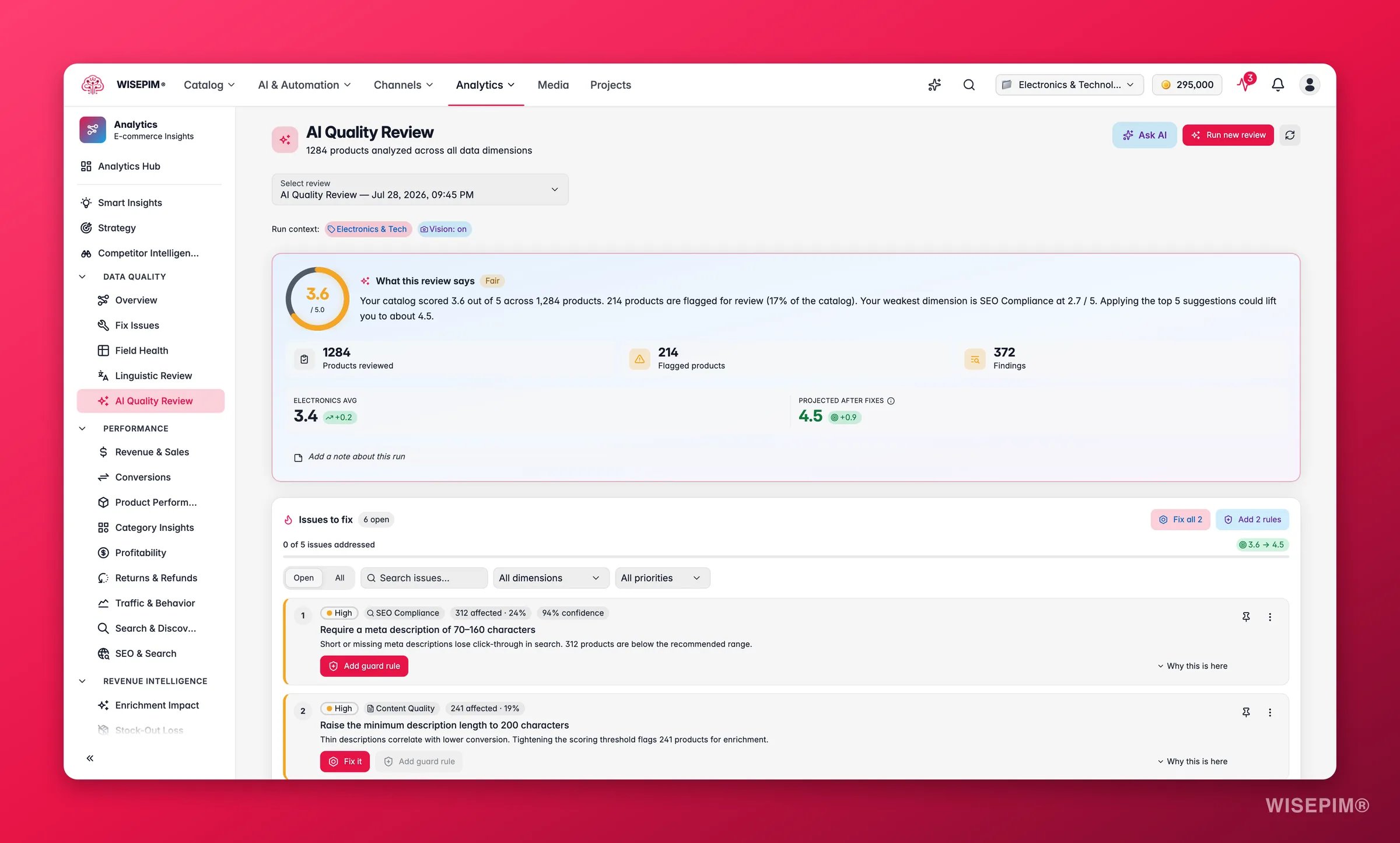
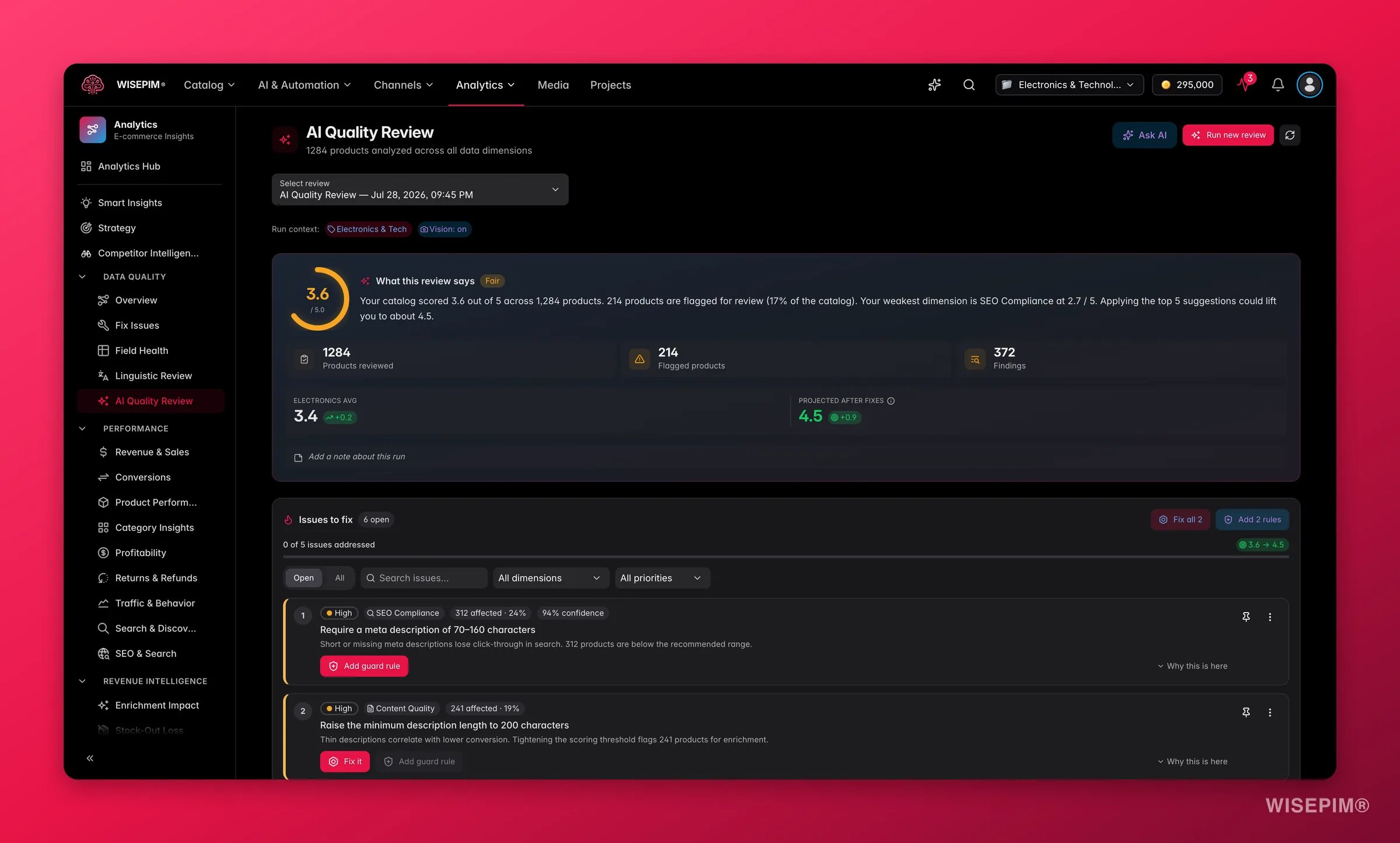
Reading a handful of products tells you whether the voice landed. [AI Quality Review](/en/analytics/quality-review) tells you whether it landed across the catalog, because it reads content the way a demanding customer would rather than just checking that fields are filled. Find it in the Analytics sidebar under the quality section, or start it straight from a product selection.
On the Products page, filter to a single category, click **Enrich with AI** in the toolbar, and open **Bulk Enrich** - the first card in the **Start here** shelf. A category is large enough to be representative and small enough to abandon.
Everything is pre-selected except attributes, which are opt-in because re-deriving them in bulk is rarely what you want. The **Combine into fewer calls** switch changes what you pay: combined, two or more fields cost less per product than running each field separately. Then **Start Bulk Enrich**.
Do they sound like your brand? Are the banned words gone? Do the must-use terms appear naturally rather than bolted on? If not, go back to the Knowledge Library card that covers the gap before you run anything else.
Once a batch reads right, select the remaining products and run the same configuration. Track it in the [Process Tracker](/en/other-features/process-tracker); if a run stops early, **Resume** finishes the untouched products without charging for them again.
Content that repeats across many products - warranty wording, shipping promises, brand taglines - is better held once as a [Content Logic](/en/workflows/content-logic) variable than retyped into every prompt. Change it in one place and every prompt that uses it follows.
Bulk Enrich always overwrites the fields you select. Check the product count in the modal header before starting, especially when you are running on all matching products rather than a ticked selection.
## How to tell it worked
Reading a handful of products tells you whether the voice landed. [AI Quality Review](/en/analytics/quality-review) tells you whether it landed across the catalog, because it reads content the way a demanding customer would rather than just checking that fields are filled. Find it in the Analytics sidebar under the quality section, or start it straight from a product selection.
 | Signal | Where to look | When it moves |
| --------------------------------------------------------- | ------------------------------------------------------------------ | -------------------------------------------------------------------------------------------------------------------------------------- |
| Content Quality dimension | [AI Quality Review](/en/analytics/quality-review), dimension radar | A few minutes after the review run finishes |
| Consistency dimension (brand spelling, units, formatting) | Same review, same radar | Same run. This is the one that catches "all sounds the same" the other way round |
| Overall score above 4.0 | AI Quality Review dashboard | 4.0–5.0 reads as good, below 3.0 as needs work. The dashboard also projects the score you would reach by applying the open suggestions |
| Banned words gone | Spot-check ten products in the products table | Immediately after the Bulk Enrich run |
| Knowledge Library completion | Per-card progress on the Knowledge Library overview | Live as you type, before you enrich anything |
Run the review with the **Prelaunch** or **Conversion** intent preset for house-style work. Those presets select the text dimensions, so you are not paying vision credits for image checks that say nothing about tone.
## When it doesn't work
Brand voice and brand identity are almost certainly thin - vague input gives vague output. Add concrete tone adjectives and example phrases your brand actually uses, then re-test the same product in [Prompt Lab](/en/essentials/prompt-lab) before re-running a batch. No prompt tuning compensates for an empty library.
Generic output is usually missing selling points, not missing tone. Fill in **Value proposition** and **Content requirements** in the [Knowledge Library](/en/other-features/knowledge-library) - your specific benefits, and the must-have details every description should carry - then re-run one category.
You tuned against one well-documented product. Re-test the prompt on products from each category, including ones with sparse data, and save the version that survives all of them. If the weak results all come from thin source records, fix the source data first - AI writes from what is in the product.
That content type has no default prompt assigned, so it is excluded from the run. Assign one per type in [Enrich Prompts settings](/en/settings/enrich-defaults) and save, or pick a prompt for that field in the modal for this run only. The field becomes selectable either way.
Turn the finding into a standing check instead of re-fixing it. [AI Quality Review](/en/analytics/quality-review) offers **Add guard rule** on an issue, which drafts a [Quality Guard](/en/quality-guard/rules) rule for you - it arrives inactive, so review it and switch it on.
Bulk Enrich overwrites by design. When you only want to fill gaps and leave hand-written copy alone, use [Auto-Fill](/en/ai/auto-fill) instead - same fields and same prompts, but it only touches empty fields unless you deliberately raise its overwrite threshold, and a low threshold upgrades your weakest content without touching the good stuff.
## Related
Every section the AI reads before it writes a single word.
Test a prompt on a real product before it touches your catalog.
Fix the terminology drift that survives a rewrite.
Now make that on-brand copy earn the click in search results.
| Signal | Where to look | When it moves |
| --------------------------------------------------------- | ------------------------------------------------------------------ | -------------------------------------------------------------------------------------------------------------------------------------- |
| Content Quality dimension | [AI Quality Review](/en/analytics/quality-review), dimension radar | A few minutes after the review run finishes |
| Consistency dimension (brand spelling, units, formatting) | Same review, same radar | Same run. This is the one that catches "all sounds the same" the other way round |
| Overall score above 4.0 | AI Quality Review dashboard | 4.0–5.0 reads as good, below 3.0 as needs work. The dashboard also projects the score you would reach by applying the open suggestions |
| Banned words gone | Spot-check ten products in the products table | Immediately after the Bulk Enrich run |
| Knowledge Library completion | Per-card progress on the Knowledge Library overview | Live as you type, before you enrich anything |
Run the review with the **Prelaunch** or **Conversion** intent preset for house-style work. Those presets select the text dimensions, so you are not paying vision credits for image checks that say nothing about tone.
## When it doesn't work
Brand voice and brand identity are almost certainly thin - vague input gives vague output. Add concrete tone adjectives and example phrases your brand actually uses, then re-test the same product in [Prompt Lab](/en/essentials/prompt-lab) before re-running a batch. No prompt tuning compensates for an empty library.
Generic output is usually missing selling points, not missing tone. Fill in **Value proposition** and **Content requirements** in the [Knowledge Library](/en/other-features/knowledge-library) - your specific benefits, and the must-have details every description should carry - then re-run one category.
You tuned against one well-documented product. Re-test the prompt on products from each category, including ones with sparse data, and save the version that survives all of them. If the weak results all come from thin source records, fix the source data first - AI writes from what is in the product.
That content type has no default prompt assigned, so it is excluded from the run. Assign one per type in [Enrich Prompts settings](/en/settings/enrich-defaults) and save, or pick a prompt for that field in the modal for this run only. The field becomes selectable either way.
Turn the finding into a standing check instead of re-fixing it. [AI Quality Review](/en/analytics/quality-review) offers **Add guard rule** on an issue, which drafts a [Quality Guard](/en/quality-guard/rules) rule for you - it arrives inactive, so review it and switch it on.
Bulk Enrich overwrites by design. When you only want to fill gaps and leave hand-written copy alone, use [Auto-Fill](/en/ai/auto-fill) instead - same fields and same prompts, but it only touches empty fields unless you deliberately raise its overwrite threshold, and a low threshold upgrades your weakest content without touching the good stuff.
## Related
Every section the AI reads before it writes a single word.
Test a prompt on a real product before it touches your catalog.
Fix the terminology drift that survives a rewrite.
Now make that on-brand copy earn the click in search results.