> ## Documentation Index
> Fetch the complete documentation index at: https://docs.wisepim.com/llms.txt
> Use this file to discover all available pages before exploring further.
# Use WISEPIM as a smart layer on your PIM
> Keep Akeneo or your existing PIM as the system of record and put WISEPIM on top as the AI layer: import, enrich, gate, and send the results back.
You already have a PIM. It took a year to model, three departments agreed on the attribute tree, and your ERP writes into it every night. Nobody is going to sign off on replacing it, and honestly nobody should. What it cannot do is write two thousand product descriptions in four languages, or tell you which of them are too thin to sell.
So don't replace it. Put WISEPIM on top of it: pull the catalog in, let the AI do the writing and the checking, and send the result back. Your PIM stays the system of record and gains the one capability it was never built for.
This is the deliberate alternative to [migrating your catalog](/en/guides/migrate-your-catalog) - read that one instead if the goal really is to leave your old platform behind. Budget about half a day for the first loop, most of it spent deciding who owns which field.
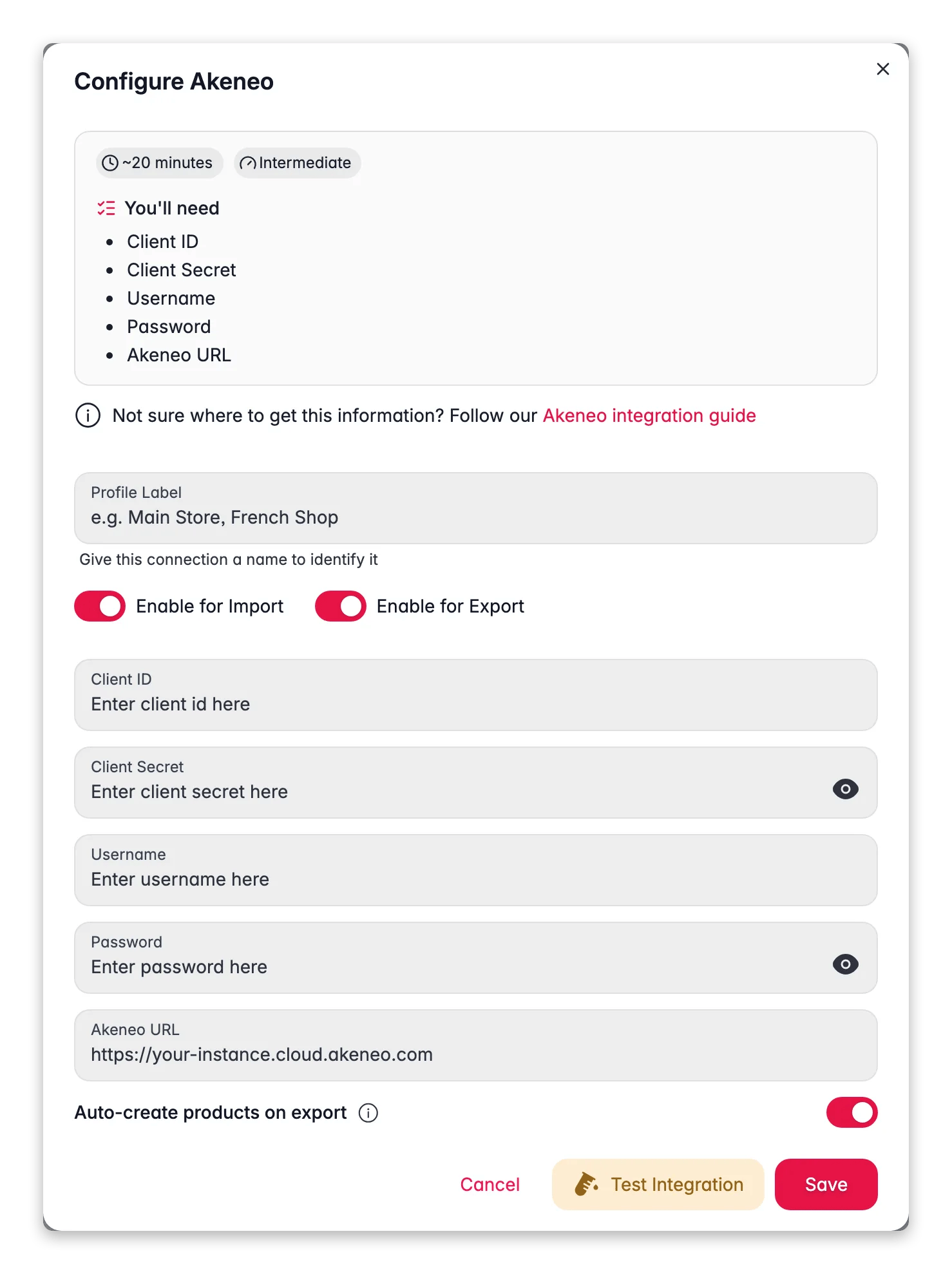
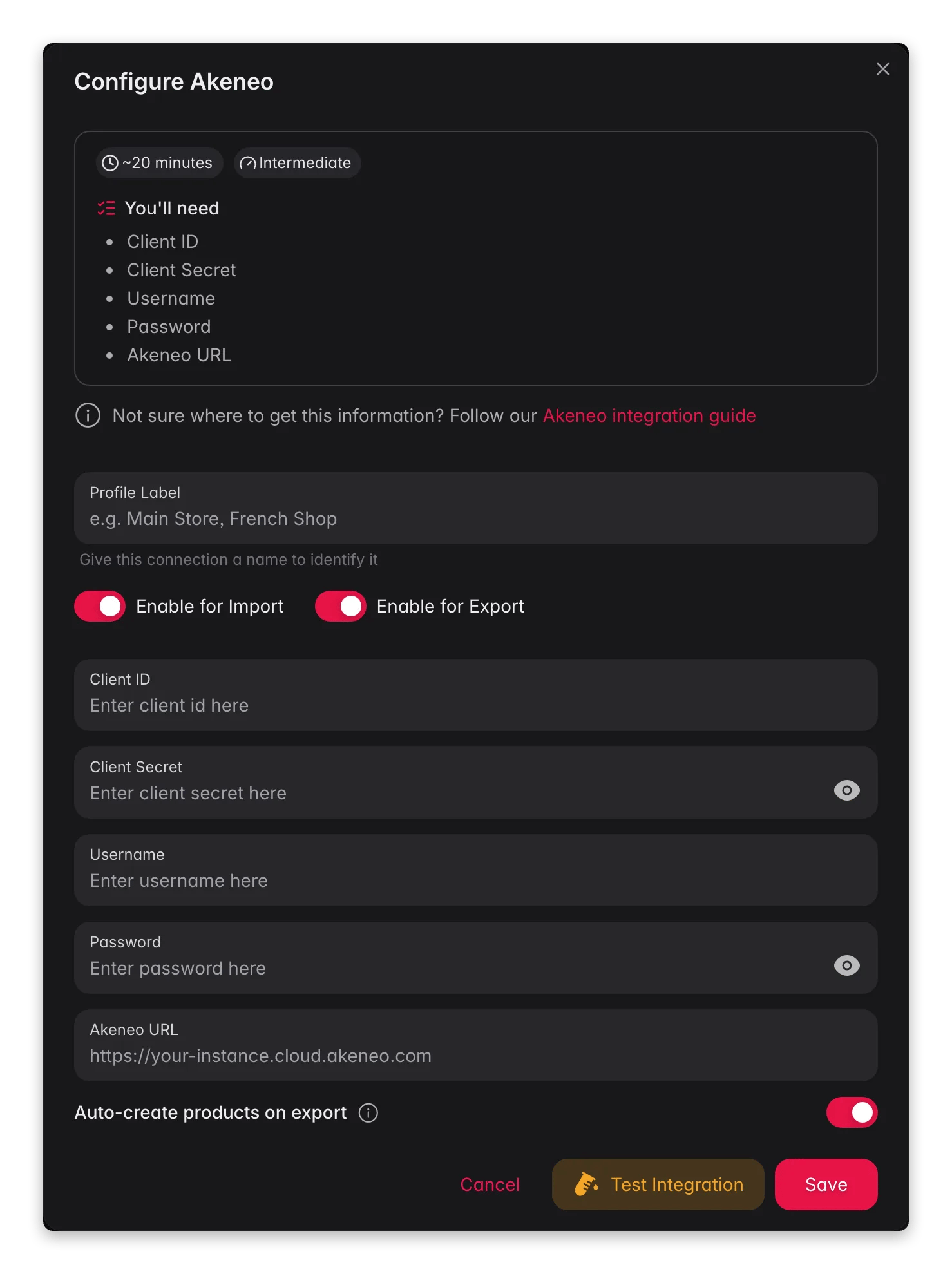
**Before you start:** you need admin access to your PIM so you can create a connection - for [Akeneo](/en/integrations/akeneo) that is a connection under **System → Connections** with read and edit permission on products, and a WISEPIM project you can fill with a copy of the catalog.
**What you'll get:** a repeatable round trip where your PIM keeps the master data, WISEPIM writes the content, and only quality-checked products travel back - plus channels your PIM never served, fed straight from WISEPIM.
The loop runs in one direction and branches once, at the gate:
```mermaid theme={null}
flowchart LR
A["Your PIM"] --> B["Import"]
B --> C["Enrich"]
C --> D["Quality gate"]
D --> E["Back to the PIM"]
D --> F["Feeds and channels"]
```
## Agree who owns which field
Do this before you connect anything. Every painful moment in a two-system setup comes from the same root cause: both systems believe they own the same field, and whichever one wrote last wins. Decide the split on paper first, and the rest of this guide is just configuration.
 A split that works for most teams, and the mechanism that keeps each side honest:
| Data | Owner | What keeps the split intact |
| ---------------------------------------- | -------- | ------------------------------------------------------------------------------------- |
| SKU, EAN, price, stock, supplier | Your PIM | Re-imported every cycle; nothing in WISEPIM generates them |
| Attribute model and category tree | Your PIM | Comes across with the products on your first platform import |
| Titles, descriptions, short descriptions | WISEPIM | Written by AI, and protected on the next import by **Skip empty fields** |
| SEO title and meta | WISEPIM | Generated here; check whether your PIM even has fields to receive them back |
| Translations | WISEPIM | Generated per language; test what your PIM accepts before you rely on the return trip |
| Quality rules and compliance | WISEPIM | [Quality Guard](/en/quality-guard/overview) runs on every export, sync, or publish |
A shared doc with two columns is enough. The rows that need the most thought are the ones your PIM technically has but nobody maintains - an empty `meta_description` in Akeneo is a field WISEPIM should own, not a field to keep syncing blank.
Follow the setup for [Akeneo](/en/integrations/akeneo), or find yours on the [supported platforms](/en/integrations/supported-platforms) page. Connect it before anything else: only connected integrations appear in the import and export modals.
Use **Test Connection** on the integration and fix credentials now. A connection that authenticates but lacks edit permission on products imports happily and fails on the way back, which is the expensive place to find out.
No integration tile for your system? The [WISEPIM REST API](/en/settings/api) reads and writes products programmatically, which is the path for an in-house PIM. The rest of this guide still applies - only the transport changes.
## Import so the PIM can never clobber your content
The first import is easy. The second one is where catalogs get damaged: your PIM exports a product with an empty description field, WISEPIM already has a good description in it, and the wrong setting turns your enrichment into a blank. Set the defaults once, in [Import settings](/en/settings/import), and every recurring pull behaves the same way.
A split that works for most teams, and the mechanism that keeps each side honest:
| Data | Owner | What keeps the split intact |
| ---------------------------------------- | -------- | ------------------------------------------------------------------------------------- |
| SKU, EAN, price, stock, supplier | Your PIM | Re-imported every cycle; nothing in WISEPIM generates them |
| Attribute model and category tree | Your PIM | Comes across with the products on your first platform import |
| Titles, descriptions, short descriptions | WISEPIM | Written by AI, and protected on the next import by **Skip empty fields** |
| SEO title and meta | WISEPIM | Generated here; check whether your PIM even has fields to receive them back |
| Translations | WISEPIM | Generated per language; test what your PIM accepts before you rely on the return trip |
| Quality rules and compliance | WISEPIM | [Quality Guard](/en/quality-guard/overview) runs on every export, sync, or publish |
A shared doc with two columns is enough. The rows that need the most thought are the ones your PIM technically has but nobody maintains - an empty `meta_description` in Akeneo is a field WISEPIM should own, not a field to keep syncing blank.
Follow the setup for [Akeneo](/en/integrations/akeneo), or find yours on the [supported platforms](/en/integrations/supported-platforms) page. Connect it before anything else: only connected integrations appear in the import and export modals.
Use **Test Connection** on the integration and fix credentials now. A connection that authenticates but lacks edit permission on products imports happily and fails on the way back, which is the expensive place to find out.
No integration tile for your system? The [WISEPIM REST API](/en/settings/api) reads and writes products programmatically, which is the path for an in-house PIM. The rest of this guide still applies - only the transport changes.
## Import so the PIM can never clobber your content
The first import is easy. The second one is where catalogs get damaged: your PIM exports a product with an empty description field, WISEPIM already has a good description in it, and the wrong setting turns your enrichment into a blank. Set the defaults once, in [Import settings](/en/settings/import), and every recurring pull behaves the same way.
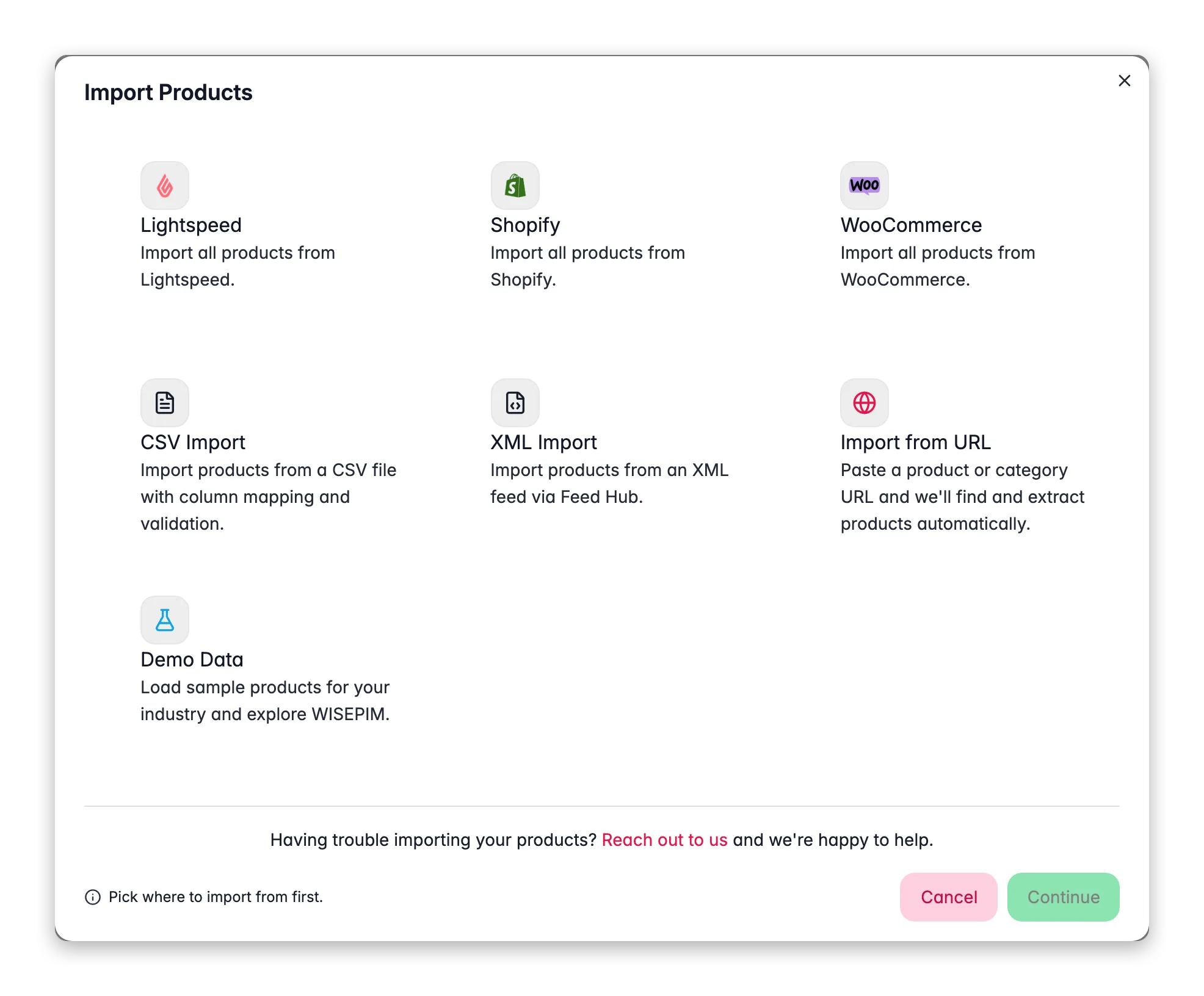
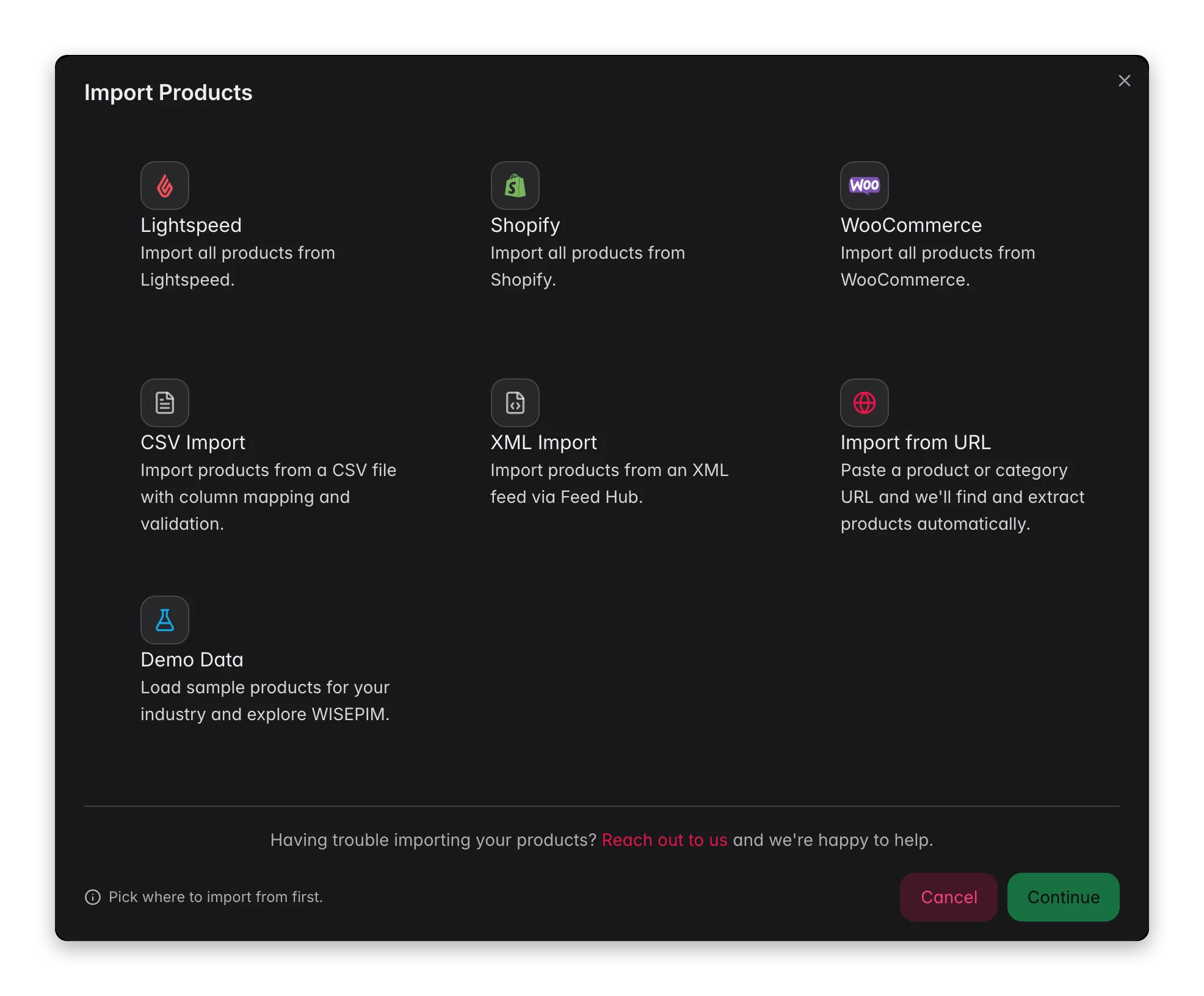 Conflict resolution decides what happens when an incoming product already exists in WISEPIM. This project-wide setting governs platform and integration imports, so it is the one that applies to every pull from your PIM. **Overwrite** replaces every field on the matched product - on a smart-layer setup that is the option that erases your AI content. Read the three options in [Import settings](/en/settings/import) and pick deliberately.
**Skip empty fields** keeps the existing WISEPIM value when the incoming field is blank. That single setting is what lets a sparse PIM export flow in every night without wiping the fields WISEPIM owns.
Add an import filter so the first run brings in a few hundred products rather than the whole catalog, then check them. You want to discover a mapping surprise on a sample, not on 40,000 records.
On a first platform import WISEPIM pulls your categories and attributes across alongside the products, so open the category tree and the attribute list and compare them to your PIM. A right-looking product count can still hide a branch that flattened. See [importing products](/en/essentials/importing-products).
Fields your PIM does not send fall back to your [Product Template](/en/settings/templates) defaults. Those defaults apply only when a product is **created** and never when one is updated, so a nightly re-import cannot quietly overwrite a real value with a default.
Imported the wrong store, or the wrong scope? Open the import task in the [Process Tracker](/en/other-features/process-tracker) and choose **Rollback**, before you enrich on top of it.
## Enrich, gate, then send it back
Now the layer earns its keep. Two enrichment tools, and the choice between them is exactly the ownership question again: are you filling holes your PIM left, or replacing content your PIM holds?
Conflict resolution decides what happens when an incoming product already exists in WISEPIM. This project-wide setting governs platform and integration imports, so it is the one that applies to every pull from your PIM. **Overwrite** replaces every field on the matched product - on a smart-layer setup that is the option that erases your AI content. Read the three options in [Import settings](/en/settings/import) and pick deliberately.
**Skip empty fields** keeps the existing WISEPIM value when the incoming field is blank. That single setting is what lets a sparse PIM export flow in every night without wiping the fields WISEPIM owns.
Add an import filter so the first run brings in a few hundred products rather than the whole catalog, then check them. You want to discover a mapping surprise on a sample, not on 40,000 records.
On a first platform import WISEPIM pulls your categories and attributes across alongside the products, so open the category tree and the attribute list and compare them to your PIM. A right-looking product count can still hide a branch that flattened. See [importing products](/en/essentials/importing-products).
Fields your PIM does not send fall back to your [Product Template](/en/settings/templates) defaults. Those defaults apply only when a product is **created** and never when one is updated, so a nightly re-import cannot quietly overwrite a real value with a default.
Imported the wrong store, or the wrong scope? Open the import task in the [Process Tracker](/en/other-features/process-tracker) and choose **Rollback**, before you enrich on top of it.
## Enrich, gate, then send it back
Now the layer earns its keep. Two enrichment tools, and the choice between them is exactly the ownership question again: are you filling holes your PIM left, or replacing content your PIM holds?
 [Auto-Fill](/en/ai/auto-fill) writes only the fields that are empty and leaves existing content alone, which makes it the safe default when your PIM's content is worth keeping. It runs on your project's default prompts, so set those in [Enrich Prompts settings](/en/settings/enrich-defaults) first.
[Bulk Enrich](/en/ai/bulk-enrich) always overwrites the fields you pick. That is right for a range whose copy nobody defends, and wrong for anything your PIM is still the author of - so run it on a filtered selection, never on "all products" out of habit.
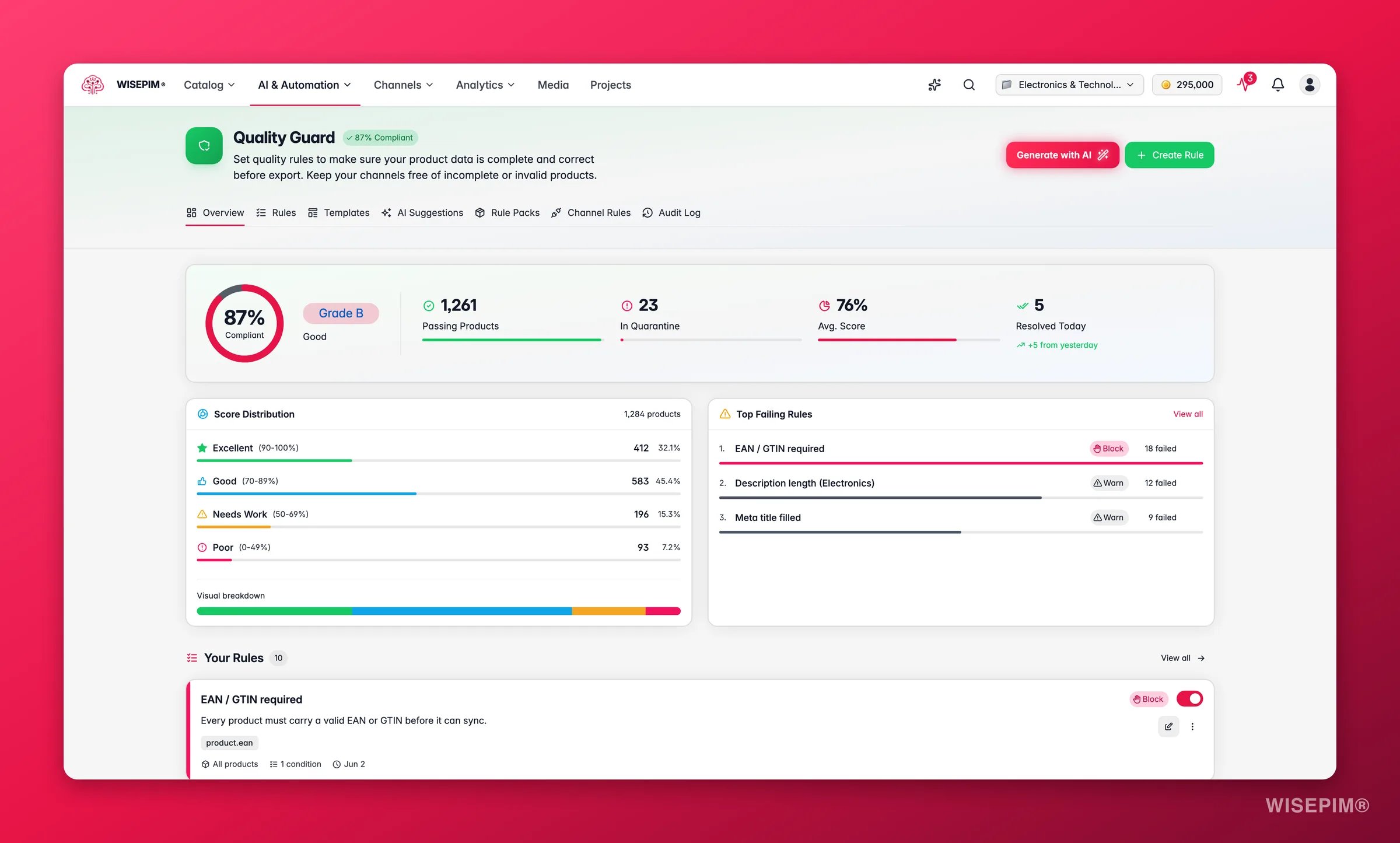
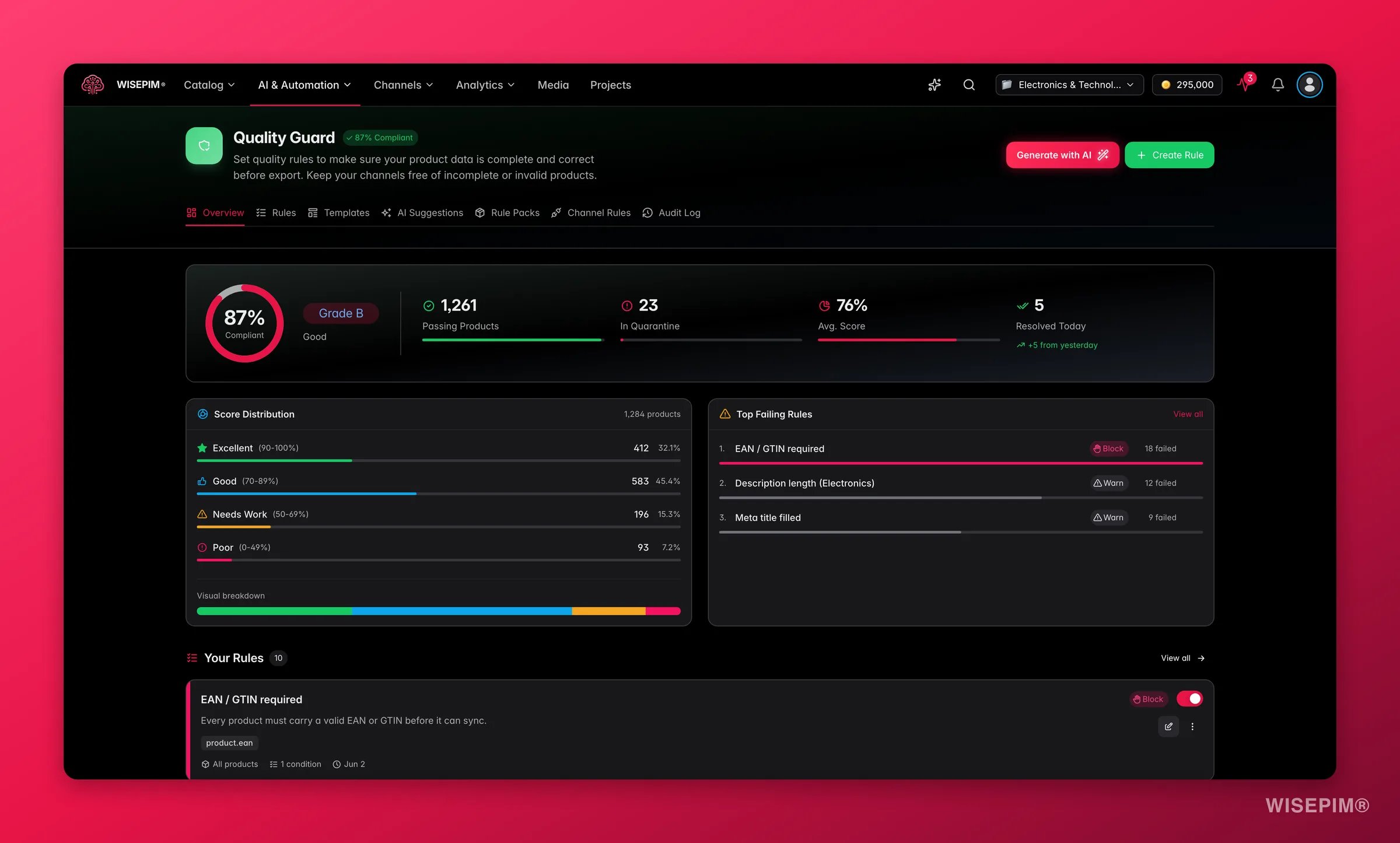
[Quality Guard](/en/quality-guard/overview) runs automatically on every export, sync, or publish, so the rules you activate become the gate your PIM sits behind. Rules with **Block** severity hold failing products in [quarantine](/en/quality-guard/quarantine) instead of shipping them, which is exactly the behaviour you want when the destination is your system of record.
Filter to a few representative products, [export](/en/essentials/exporting-products) them to your PIM, and read the result in the PIM itself. Confirm on that sample that the fields you expected to change changed, and the fields your PIM owns did not.
**Skip unchanged** is on by default for platform exports, so after the first full push every sync only sends products that actually changed. Save the setup as an [export template](/en/settings/export-templates) so the recurring job is one click.
Field-level column selection is documented for CSV and Excel exports. If you need tight control over exactly which fields travel back into your PIM, a column-picked file export is the documented way to limit them - check what a direct platform push sends on a test batch before you run it at scale.
## Serve the channels your PIM was never going to
The round trip is only half the argument for a smart layer. The other half is everything you can publish from WISEPIM without involving your PIM at all - and this is usually where the setup pays for itself first, because it needs no round trip to be safe.
[Auto-Fill](/en/ai/auto-fill) writes only the fields that are empty and leaves existing content alone, which makes it the safe default when your PIM's content is worth keeping. It runs on your project's default prompts, so set those in [Enrich Prompts settings](/en/settings/enrich-defaults) first.
[Bulk Enrich](/en/ai/bulk-enrich) always overwrites the fields you pick. That is right for a range whose copy nobody defends, and wrong for anything your PIM is still the author of - so run it on a filtered selection, never on "all products" out of habit.
[Quality Guard](/en/quality-guard/overview) runs automatically on every export, sync, or publish, so the rules you activate become the gate your PIM sits behind. Rules with **Block** severity hold failing products in [quarantine](/en/quality-guard/quarantine) instead of shipping them, which is exactly the behaviour you want when the destination is your system of record.
Filter to a few representative products, [export](/en/essentials/exporting-products) them to your PIM, and read the result in the PIM itself. Confirm on that sample that the fields you expected to change changed, and the fields your PIM owns did not.
**Skip unchanged** is on by default for platform exports, so after the first full push every sync only sends products that actually changed. Save the setup as an [export template](/en/settings/export-templates) so the recurring job is one click.
Field-level column selection is documented for CSV and Excel exports. If you need tight control over exactly which fields travel back into your PIM, a column-picked file export is the documented way to limit them - check what a direct platform push sends on a test batch before you run it at scale.
## Serve the channels your PIM was never going to
The round trip is only half the argument for a smart layer. The other half is everything you can publish from WISEPIM without involving your PIM at all - and this is usually where the setup pays for itself first, because it needs no round trip to be safe.
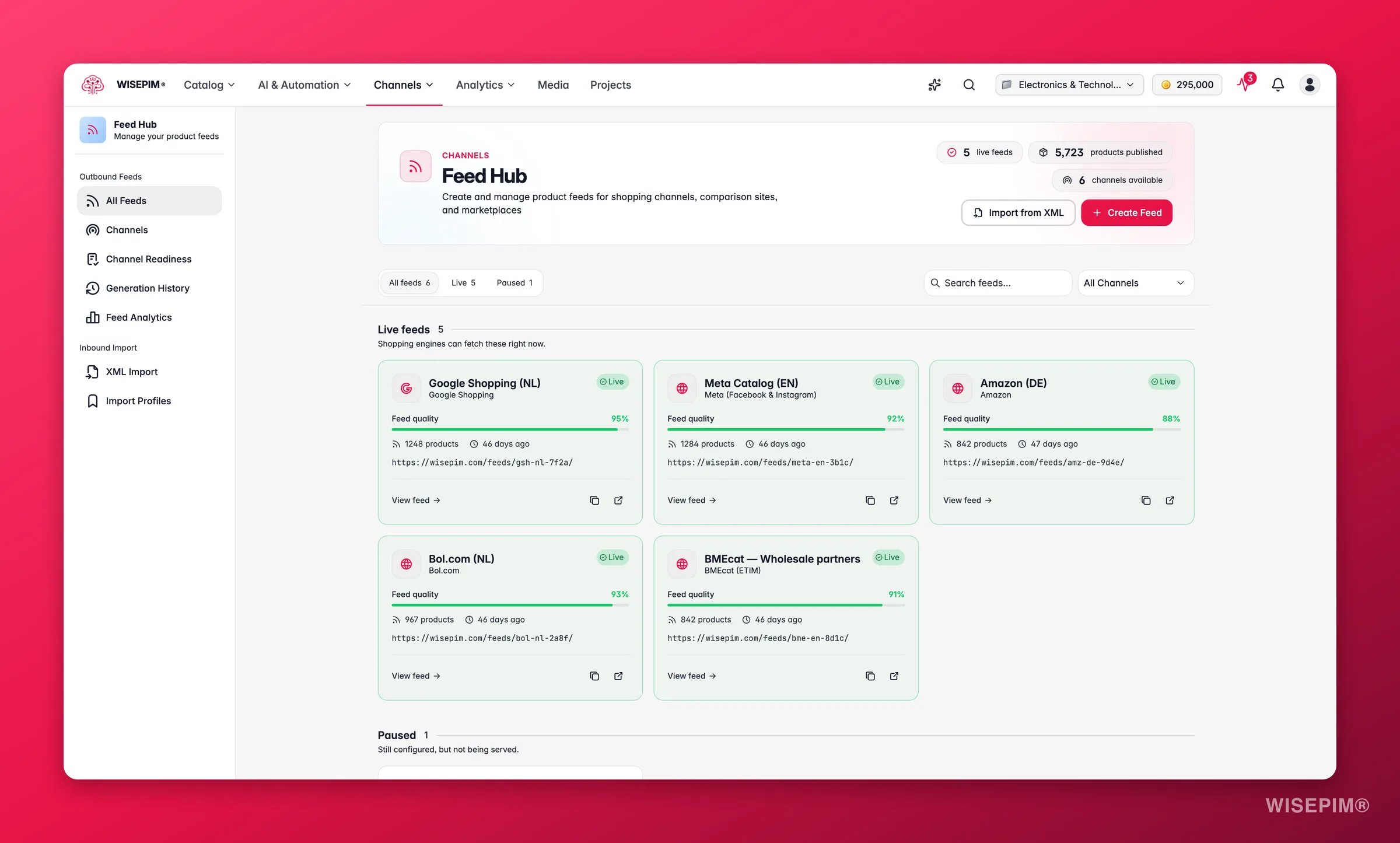
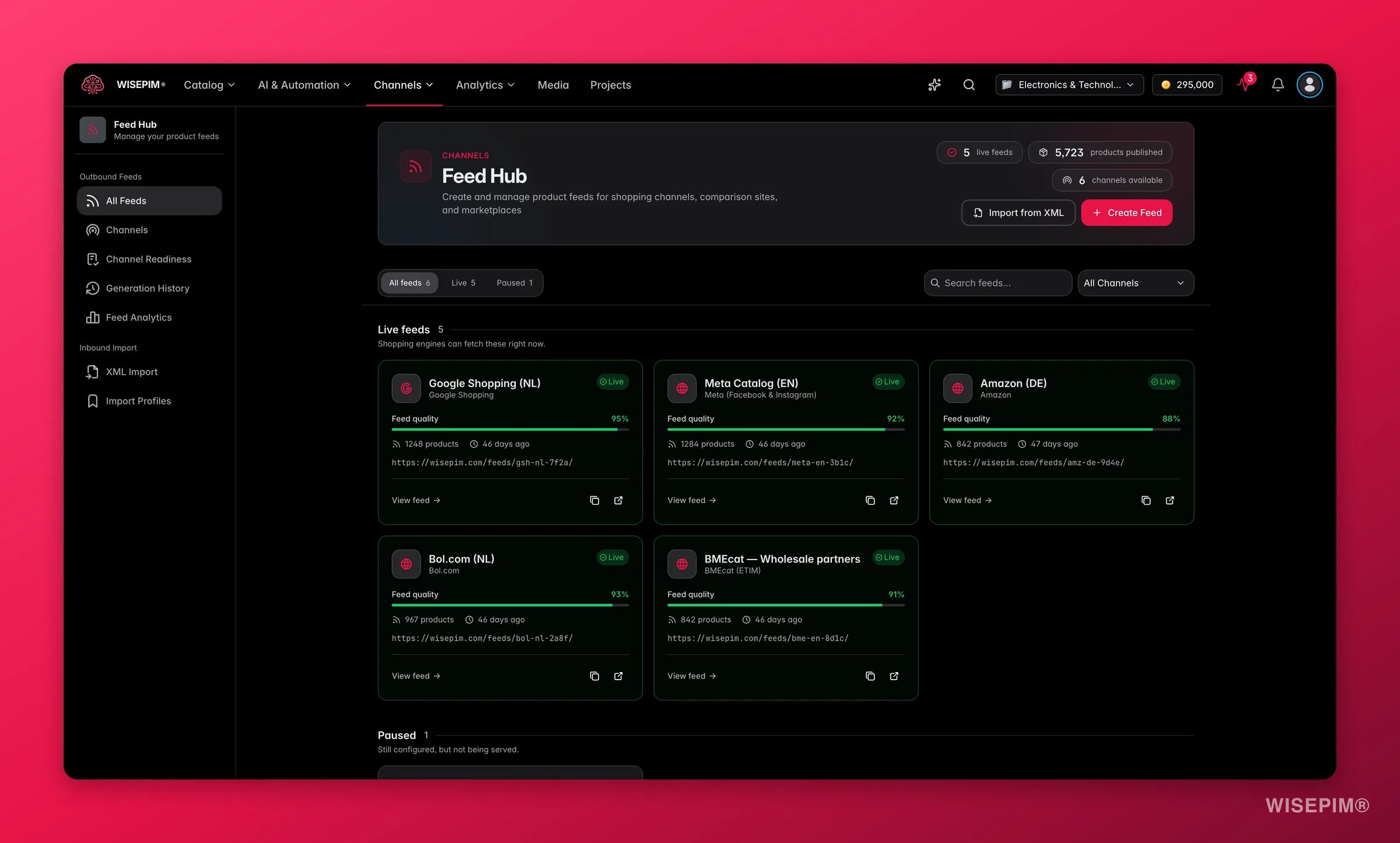 In [Feed Hub](/en/essentials/feed-hub), create a feed from a channel preset - Google Shopping, Meta, price comparison sites, affiliate networks, BMEcat for wholesalers, and more. Each feed gets a URL the channel fetches on its own schedule, so nothing has to travel back through your PIM to go live.
Feed Hub's filter rules drop products below a quality threshold, without a price, or without an image before they reach the channel. That is a second gate, independent of the one guarding your PIM.
Build an [automation](/en/automations/overview) with an **After Import** [trigger](/en/automations/triggers) so a fresh pull from your PIM is enriched the moment it lands, and finish it with a notification. The full build is in [Build a pipeline that runs itself](/en/guides/automate-your-enrichment-pipeline).
[Integration Health](/en/analytics/integration-health) shows last sync, failure rate, and last error per channel over a rolling 30 days. In a two-system setup this is the page that tells you the loop broke, usually before anyone notices stale content.
## How to tell it worked
| Signal | Where to look | When it moves |
| ------------------------------------- | -------------------------------------------------------------------------------------------------------------------------------- | ---------------------------------------------------------------------------------------------------------------------------- |
| The import is not eating your content | Spot-check enriched products after the second import from your PIM | On the next scheduled pull - this is the check that matters most in month one |
| Content is export-ready | [Quality Guard](/en/quality-guard/overview) compliance rate, quarantine count near zero | On the next check after a rule change or a data fix |
| The return trip lands | Your PIM's own product screen, on a spot-check, plus the job result in the [Process Tracker](/en/other-features/process-tracker) | As each export job completes |
| The loop stays healthy | [Integration Health](/en/analytics/integration-health): failure rate under 3 % is green, 3–10 % is worth investigating | Rolling 30-day window |
| The layer is paying for itself | [Enrichment Impact](/en/analytics/enrichment-impact) net lift | Not for at least a month - it compares 30 days before against 30 after, and reads **Low** confidence until enough sales land |
A healthy smart layer is quiet: imports that change only master data, exports that skip most products because nothing changed, and feeds your PIM team never had to think about.
## When it doesn't work
Two settings decide this, both in [Import settings](/en/settings/import): conflict resolution, where **Overwrite** replaces every field on a matched product, and empty-field handling, where **Skip empty fields** is what preserves an existing value against a blank incoming one. Fix the settings first, then restore the content with an enrichment run rather than by hand.
Check the validation mode. **Strict** rejects any row with missing required fields or invalid formats, which a real PIM export will trip over regularly; **Standard** imports the valid rows and reports what it skipped. Also check whether an import filter is narrowing the pull. Both live in [Import settings](/en/settings/import).
That pattern is almost always permissions rather than credentials: the connection can read but not write. For [Akeneo](/en/integrations/akeneo), confirm the connection's user group has permission to read *and edit* products and product attributes, then re-run **Test Connection**.
With **Skip unchanged** on, products unchanged since the last export to that destination are skipped on purpose. Turn it off to force a full re-push, which is what you want after changing the destination's settings. See [exporting products](/en/essentials/exporting-products).
A [Quality Guard](/en/quality-guard/overview) rule with **Block** severity quarantines a product instead of exporting it. Open [quarantine](/en/quality-guard/quarantine), read the failure reason, fix the underlying field in bulk, and release the batch. On a large catalog a single blocking rule can hold up the whole return trip, so review the impact before you activate one.
## Related
Create the connection, add the credentials, and sync your catalog both ways.
Every destination, template, and the skip-unchanged option in full.
The other route: leave the old system instead of layering on top of it.
Turn the import-enrich-export loop into an automation you never start by hand.
In [Feed Hub](/en/essentials/feed-hub), create a feed from a channel preset - Google Shopping, Meta, price comparison sites, affiliate networks, BMEcat for wholesalers, and more. Each feed gets a URL the channel fetches on its own schedule, so nothing has to travel back through your PIM to go live.
Feed Hub's filter rules drop products below a quality threshold, without a price, or without an image before they reach the channel. That is a second gate, independent of the one guarding your PIM.
Build an [automation](/en/automations/overview) with an **After Import** [trigger](/en/automations/triggers) so a fresh pull from your PIM is enriched the moment it lands, and finish it with a notification. The full build is in [Build a pipeline that runs itself](/en/guides/automate-your-enrichment-pipeline).
[Integration Health](/en/analytics/integration-health) shows last sync, failure rate, and last error per channel over a rolling 30 days. In a two-system setup this is the page that tells you the loop broke, usually before anyone notices stale content.
## How to tell it worked
| Signal | Where to look | When it moves |
| ------------------------------------- | -------------------------------------------------------------------------------------------------------------------------------- | ---------------------------------------------------------------------------------------------------------------------------- |
| The import is not eating your content | Spot-check enriched products after the second import from your PIM | On the next scheduled pull - this is the check that matters most in month one |
| Content is export-ready | [Quality Guard](/en/quality-guard/overview) compliance rate, quarantine count near zero | On the next check after a rule change or a data fix |
| The return trip lands | Your PIM's own product screen, on a spot-check, plus the job result in the [Process Tracker](/en/other-features/process-tracker) | As each export job completes |
| The loop stays healthy | [Integration Health](/en/analytics/integration-health): failure rate under 3 % is green, 3–10 % is worth investigating | Rolling 30-day window |
| The layer is paying for itself | [Enrichment Impact](/en/analytics/enrichment-impact) net lift | Not for at least a month - it compares 30 days before against 30 after, and reads **Low** confidence until enough sales land |
A healthy smart layer is quiet: imports that change only master data, exports that skip most products because nothing changed, and feeds your PIM team never had to think about.
## When it doesn't work
Two settings decide this, both in [Import settings](/en/settings/import): conflict resolution, where **Overwrite** replaces every field on a matched product, and empty-field handling, where **Skip empty fields** is what preserves an existing value against a blank incoming one. Fix the settings first, then restore the content with an enrichment run rather than by hand.
Check the validation mode. **Strict** rejects any row with missing required fields or invalid formats, which a real PIM export will trip over regularly; **Standard** imports the valid rows and reports what it skipped. Also check whether an import filter is narrowing the pull. Both live in [Import settings](/en/settings/import).
That pattern is almost always permissions rather than credentials: the connection can read but not write. For [Akeneo](/en/integrations/akeneo), confirm the connection's user group has permission to read *and edit* products and product attributes, then re-run **Test Connection**.
With **Skip unchanged** on, products unchanged since the last export to that destination are skipped on purpose. Turn it off to force a full re-push, which is what you want after changing the destination's settings. See [exporting products](/en/essentials/exporting-products).
A [Quality Guard](/en/quality-guard/overview) rule with **Block** severity quarantines a product instead of exporting it. Open [quarantine](/en/quality-guard/quarantine), read the failure reason, fix the underlying field in bulk, and release the batch. On a large catalog a single blocking rule can hold up the whole return trip, so review the impact before you activate one.
## Related
Create the connection, add the credentials, and sync your catalog both ways.
Every destination, template, and the skip-unchanged option in full.
The other route: leave the old system instead of layering on top of it.
Turn the import-enrich-export loop into an automation you never start by hand.