> ## Documentation Index
> Fetch the complete documentation index at: https://docs.wisepim.com/llms.txt
> Use this file to discover all available pages before exploring further.
# Sell to wholesalers with ETIM and BMEcat
> Your wholesaler wants a BMEcat catalog and you have never heard of ETIM. Adopt the classes, fill the features, and send the file they can actually import.
A wholesaler, buying group, or installer chain has told you they need your catalog "in BMEcat, ETIM 9". They will not take a spreadsheet, and this isn't a preference - in electrical, HVAC, and plumbing trade it's a hard condition of being listed at all. Nobody has explained what any of it means.
Two unfamiliar words, and neither is as hard as it sounds. **ETIM** is a shared vocabulary for product types: where you say "circuit breaker" and someone else says "MCB", ETIM assigns that product type one class code, and each class comes with a fixed list of technical features, the unit each one must be measured in, and - for the features that need it - the exact set of values you're allowed to use. Your partner's system already knows every class code, so nobody has to learn your attribute names. **BMEcat** is the XML file that carries all of that between systems: it's the envelope, and ETIM is the language written inside it.
The order below follows from one fact. A BMEcat feed has **no field mapping to configure**; what lands in the file is decided entirely by the ETIM class each of your product families is linked to. So you classify first, fill the features second, and generate the file last. Budget a day for a first catalog of a few hundred products.
**Before you start:** an administrator must import the ETIM release your partner asked for - nothing below works until that's done, because [Classification](/en/products/classification) only ever browses the newest fully imported release. An empty class catalog means the release is missing, not that you configured something wrong.
**What you'll get:** your product types linked to their ETIM classes, a conformance score per product telling you exactly what's still missing, and a BMEcat feed your partner can import as-is.
## Adopt the classes your products belong to
Adopting a class does most of the work for you: it builds a ready-made [product family](/en/products/product-families) with one attribute per class feature, so you never define the structure by hand. If you already have families that cover these product types, skip ahead to the next section and let mapping review link them instead.
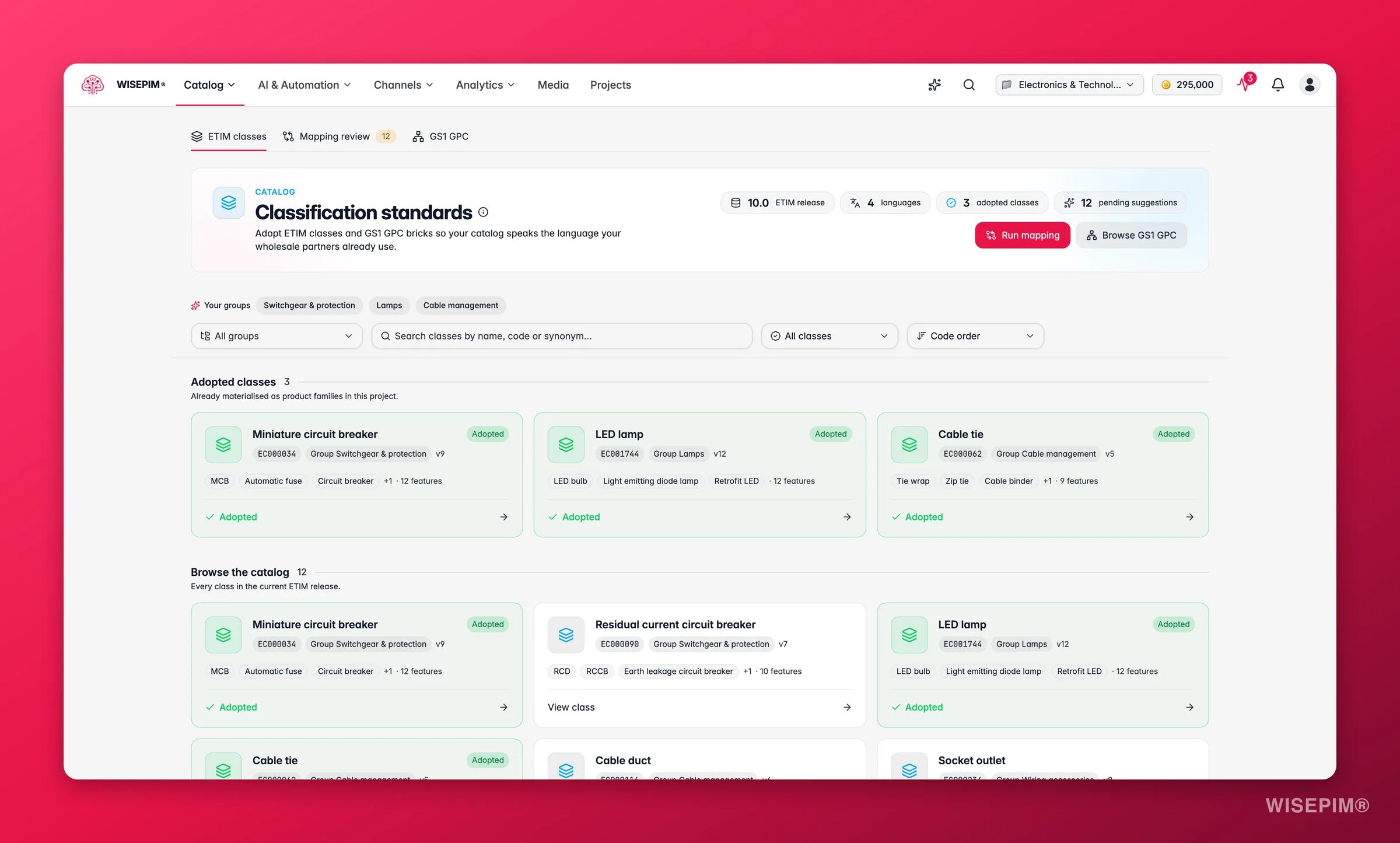
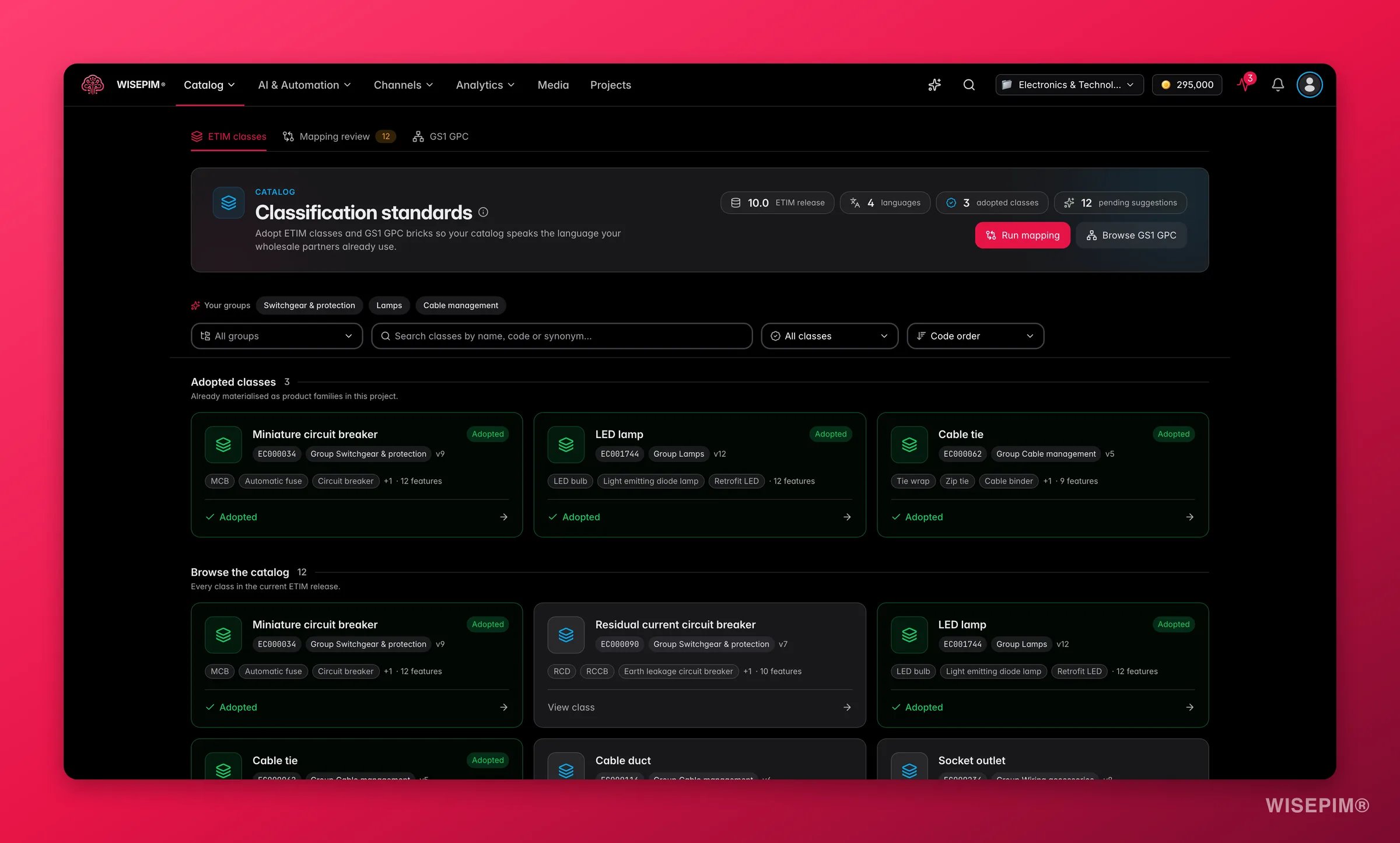 **Products → Classification**. The hub header shows the current ETIM release, its languages, how many classes you've adopted, and any pending mapping suggestions. Confirm the release matches what your partner asked for.
Search by name, by code like `EC000034`, or by trade synonym like "MCB" - search spans the whole release. **Your groups** shows chips for the ETIM product groups your project actually works in, most-used first, which is usually a faster start than browsing.
Click **View class** and read the feature table: each feature's code and name, whether it's required, its type, the unit ETIM prescribes, and the permitted values for select features. This tells you exactly which data your products will need, so you find out now rather than at export time.
**Adopt class** shows what will be created before anything is written: a family named after the class, one attribute per feature, value lists for select features, and the prescribed units. Nothing is overwritten and you can edit all of it afterwards.
Products in the family get the standard's attributes immediately. Repeat for each product type your partner is buying - you don't need to classify the whole catalog to send a first catalog.
## Link the catalog you already have
If you already have families and attributes, do not redo them by hand. On the **Mapping review** tab of Classification, the engine compares what you own against the standard and proposes the links for you to confirm. Work the tiers cheapest-first: the fast tiers clear most of the queue for free, so the slow AI tier only ever sees what's genuinely ambiguous.
**Products → Classification**. The hub header shows the current ETIM release, its languages, how many classes you've adopted, and any pending mapping suggestions. Confirm the release matches what your partner asked for.
Search by name, by code like `EC000034`, or by trade synonym like "MCB" - search spans the whole release. **Your groups** shows chips for the ETIM product groups your project actually works in, most-used first, which is usually a faster start than browsing.
Click **View class** and read the feature table: each feature's code and name, whether it's required, its type, the unit ETIM prescribes, and the permitted values for select features. This tells you exactly which data your products will need, so you find out now rather than at export time.
**Adopt class** shows what will be created before anything is written: a family named after the class, one attribute per feature, value lists for select features, and the prescribed units. Nothing is overwritten and you can edit all of it afterwards.
Products in the family get the standard's attributes immediately. Repeat for each product type your partner is buying - you don't need to classify the whole catalog to send a first catalog.
## Link the catalog you already have
If you already have families and attributes, do not redo them by hand. On the **Mapping review** tab of Classification, the engine compares what you own against the standard and proposes the links for you to confirm. Work the tiers cheapest-first: the fast tiers clear most of the queue for free, so the slow AI tier only ever sees what's genuinely ambiguous.
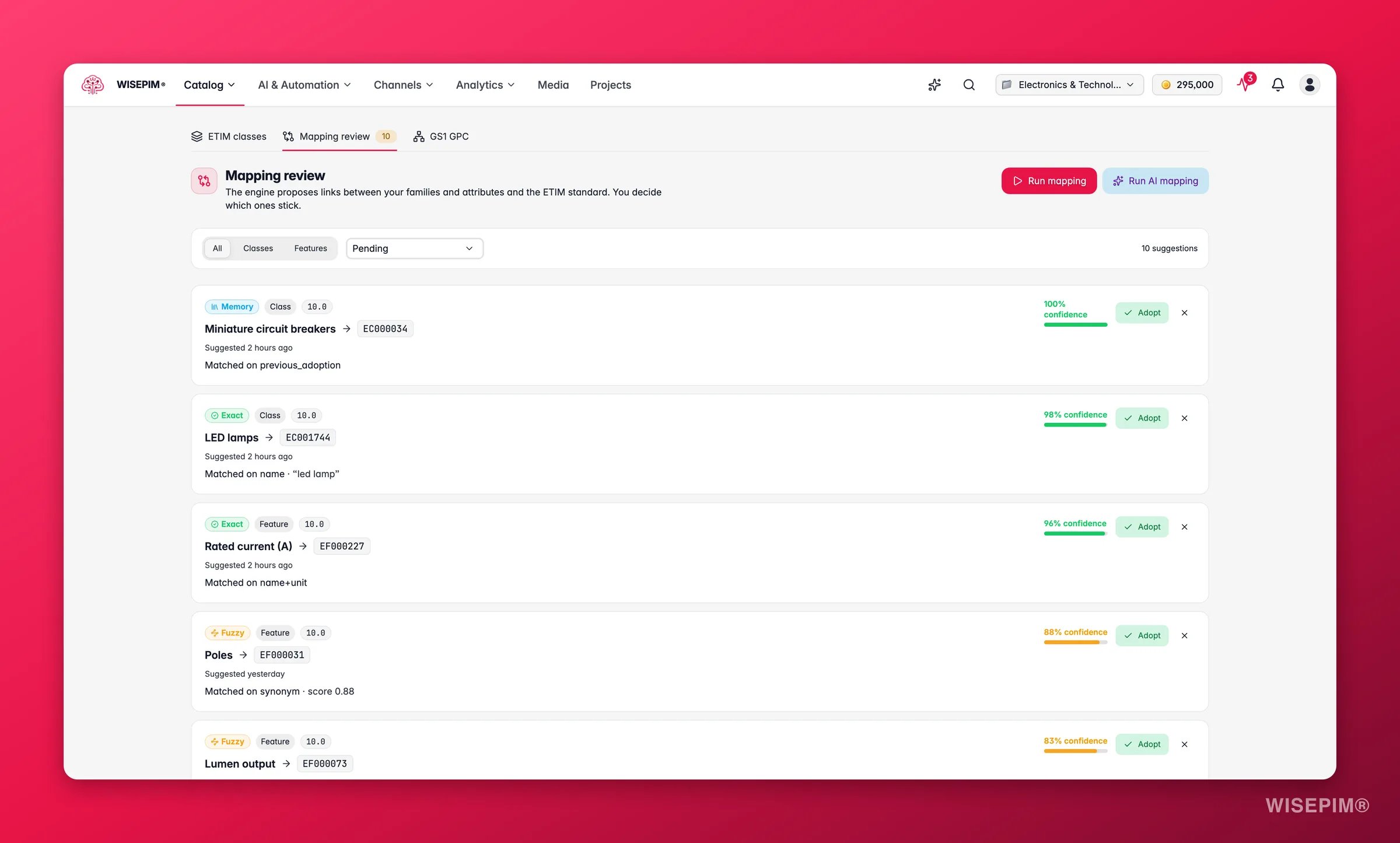
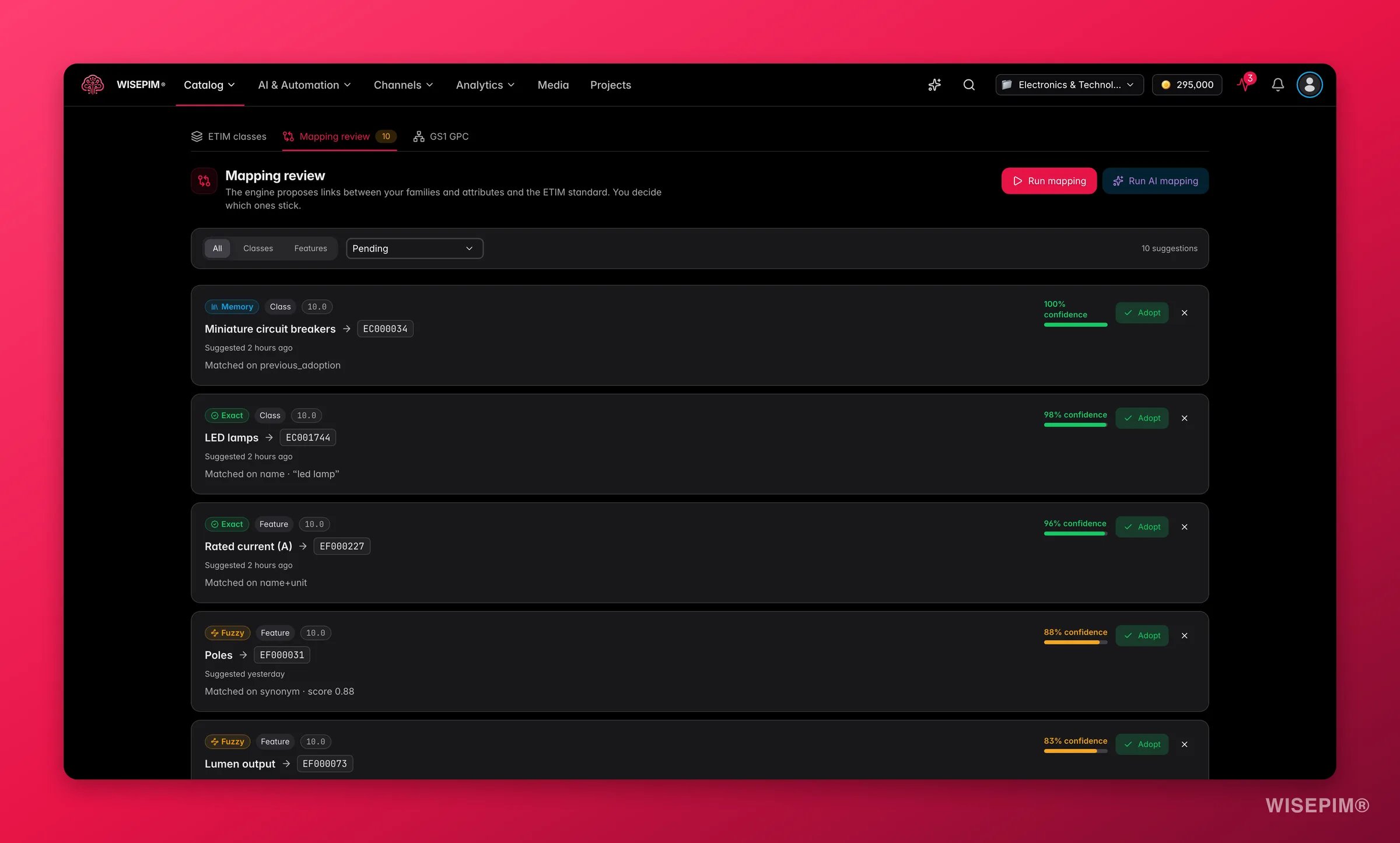 Click **Run mapping**. This runs the memory, exact, and fuzzy tiers, which finish in seconds. Every suggestion carries a tier chip telling you how it was found and therefore how much scrutiny it deserves.
In the bulk bar, **Select safe matches** ticks every suggestion the engine is at least 90% confident about - memory and exact matches, the ones that are almost always right, and one click adopts the whole selection. This clears most of the queue in seconds.
Fuzzy matches are close-but-not-identical names and deserve a glance. Each card puts your family or attribute next to the proposal with a confidence percentage and a plain-English rationale. Runner-up candidates appear as **close alternatives**; adopting any one of them settles the whole suggestion.
**Run AI mapping** sends the leftovers to the AI tier. It's slower, so it belongs here rather than at the start. Read the model's reasoning on each card before accepting.
**Pick a different class…** lets you search the standard yourself when the proposal is wrong but you know the right code. Your correction is learned by the memory tier, so the engine gets it right next time. **Dismiss** hides a suggestion permanently.
## Fill the features and check conformance
A linked class doesn't mean a complete product - it means you now know exactly what's missing. Do this before you build the feed: the generation stats can tell you a product was skipped, but only this tab tells you which feature is wrong and why.
Click **Run mapping**. This runs the memory, exact, and fuzzy tiers, which finish in seconds. Every suggestion carries a tier chip telling you how it was found and therefore how much scrutiny it deserves.
In the bulk bar, **Select safe matches** ticks every suggestion the engine is at least 90% confident about - memory and exact matches, the ones that are almost always right, and one click adopts the whole selection. This clears most of the queue in seconds.
Fuzzy matches are close-but-not-identical names and deserve a glance. Each card puts your family or attribute next to the proposal with a confidence percentage and a plain-English rationale. Runner-up candidates appear as **close alternatives**; adopting any one of them settles the whole suggestion.
**Run AI mapping** sends the leftovers to the AI tier. It's slower, so it belongs here rather than at the start. Read the model's reasoning on each card before accepting.
**Pick a different class…** lets you search the standard yourself when the proposal is wrong but you know the right code. Your correction is learned by the memory tier, so the engine gets it right next time. **Dismiss** hides a suggestion permanently.
## Fill the features and check conformance
A linked class doesn't mean a complete product - it means you now know exactly what's missing. Do this before you build the feed: the generation stats can tell you a product was skipped, but only this tab tells you which feature is wrong and why.
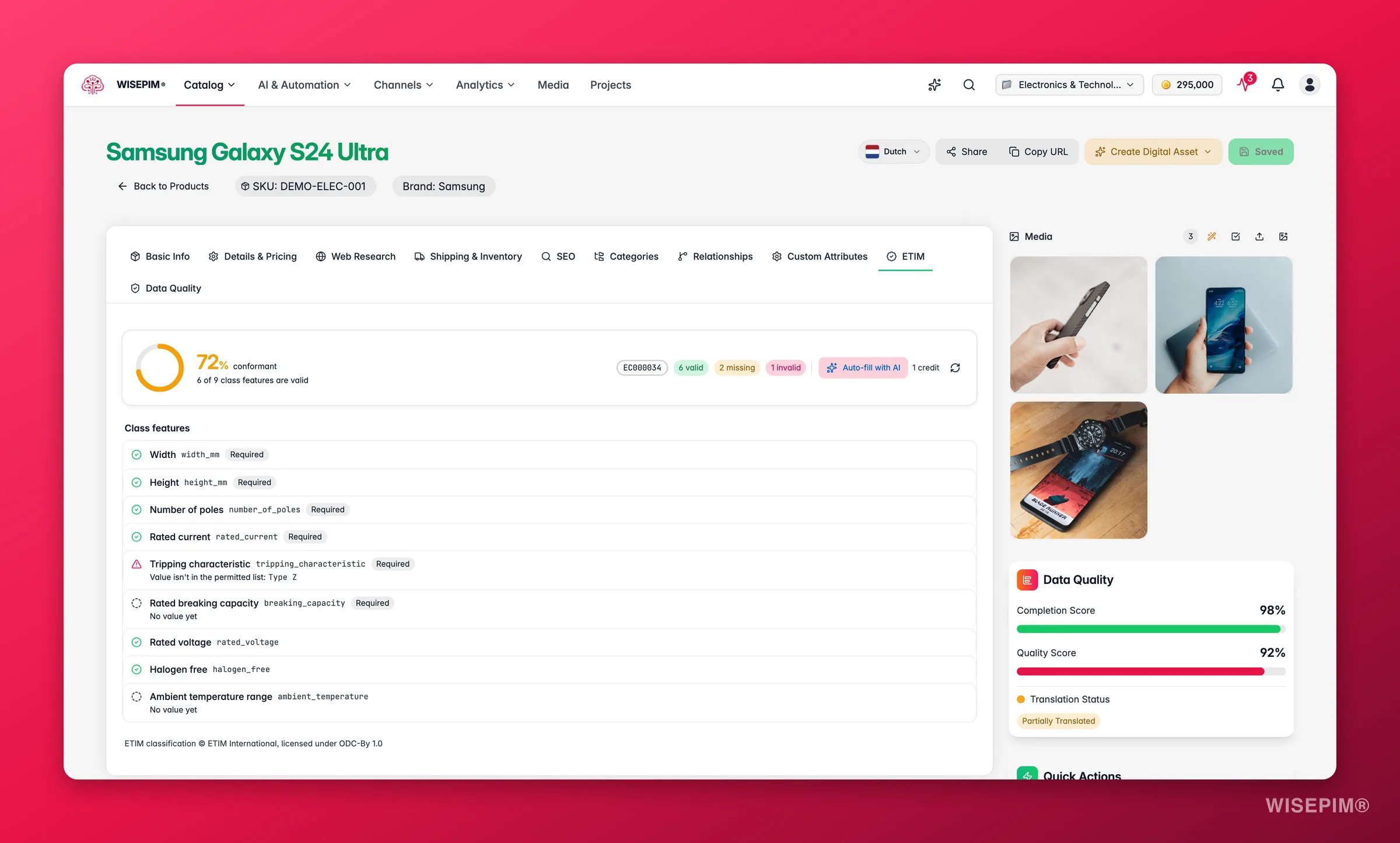
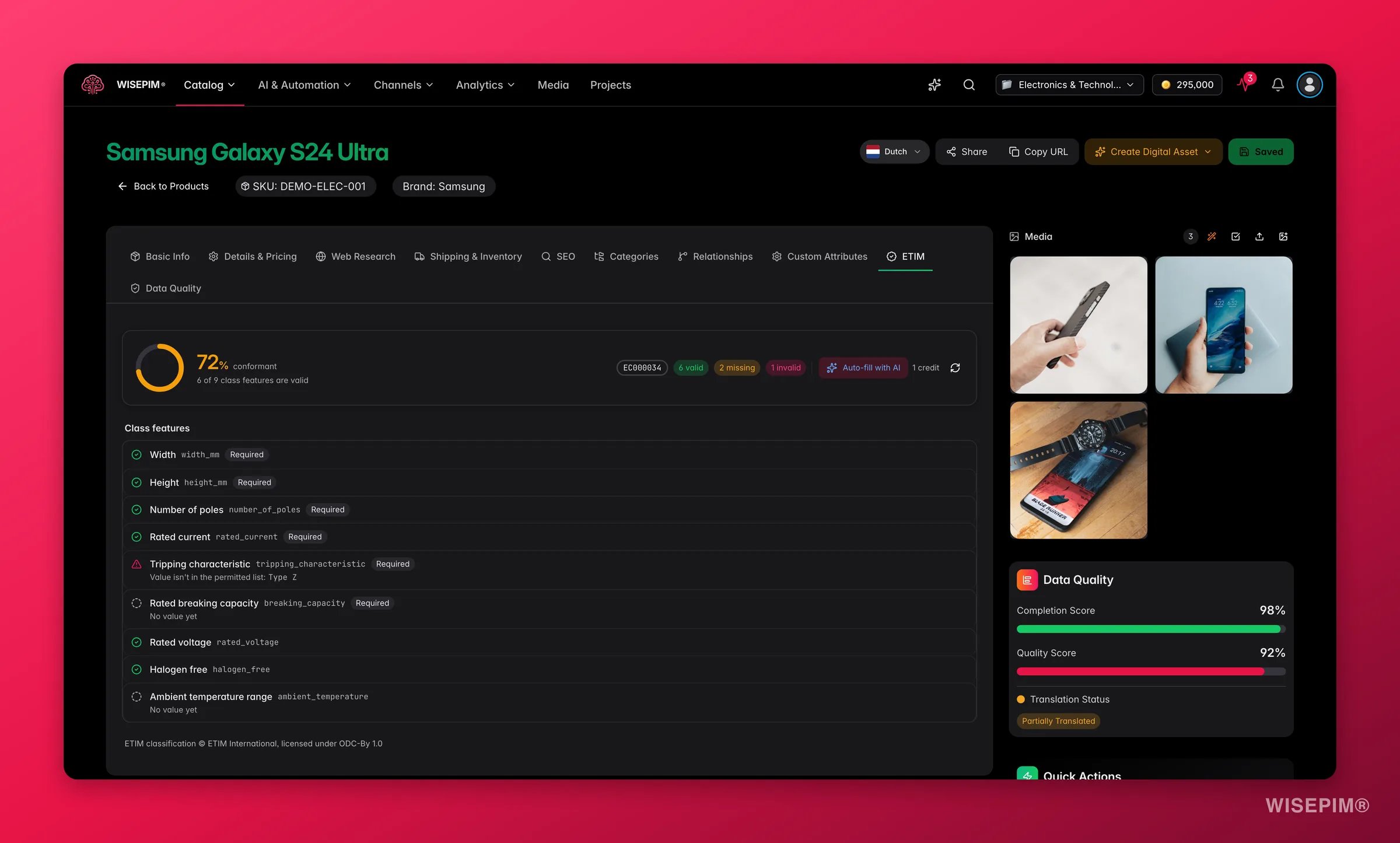 Once a product's family is linked to a class, the product editor and Quick Edit gain an **ETIM** tab with a conformance score: how many of the class's features are valid on this product.
The checklist explains every failure in plain English - "No value yet", "Add a unit", "Value isn't in the permitted list", "Unit isn't an ETIM unit". These are the exact complaints your partner's import tool would raise, surfaced before you send anything.
Every failing row carries a **Fix** jump straight to that attribute. For a handful of features, this is faster than anything automated.
When features are missing or invalid, an **Auto-fill with AI** button appears. It fills the missing ones, corrects the invalid ones, and re-scores instantly. It costs **1 credit per run**, and the button only shows when there's something to fix, so a conformant product never triggers a paid no-op.
Anything the AI can't determine confidently is skipped and annotated rather than guessed - which is the behaviour you want on technical specs, but it means a blank feature after a run is a real gap. Fill those from your supplier's datasheet.
ETIM conformance also feeds into your [Data Quality](/en/analytics/data-quality) score, so this work shows up in your overall catalog health rather than sitting in a corner of the product editor.
## Deliver the catalog
Once a product's family is linked to a class, the product editor and Quick Edit gain an **ETIM** tab with a conformance score: how many of the class's features are valid on this product.
The checklist explains every failure in plain English - "No value yet", "Add a unit", "Value isn't in the permitted list", "Unit isn't an ETIM unit". These are the exact complaints your partner's import tool would raise, surfaced before you send anything.
Every failing row carries a **Fix** jump straight to that attribute. For a handful of features, this is faster than anything automated.
When features are missing or invalid, an **Auto-fill with AI** button appears. It fills the missing ones, corrects the invalid ones, and re-scores instantly. It costs **1 credit per run**, and the button only shows when there's something to fix, so a conformant product never triggers a paid no-op.
Anything the AI can't determine confidently is skipped and annotated rather than guessed - which is the behaviour you want on technical specs, but it means a blank feature after a run is a real gap. Fill those from your supplier's datasheet.
ETIM conformance also feeds into your [Data Quality](/en/analytics/data-quality) score, so this work shows up in your overall catalog health rather than sitting in a corner of the product editor.
## Deliver the catalog
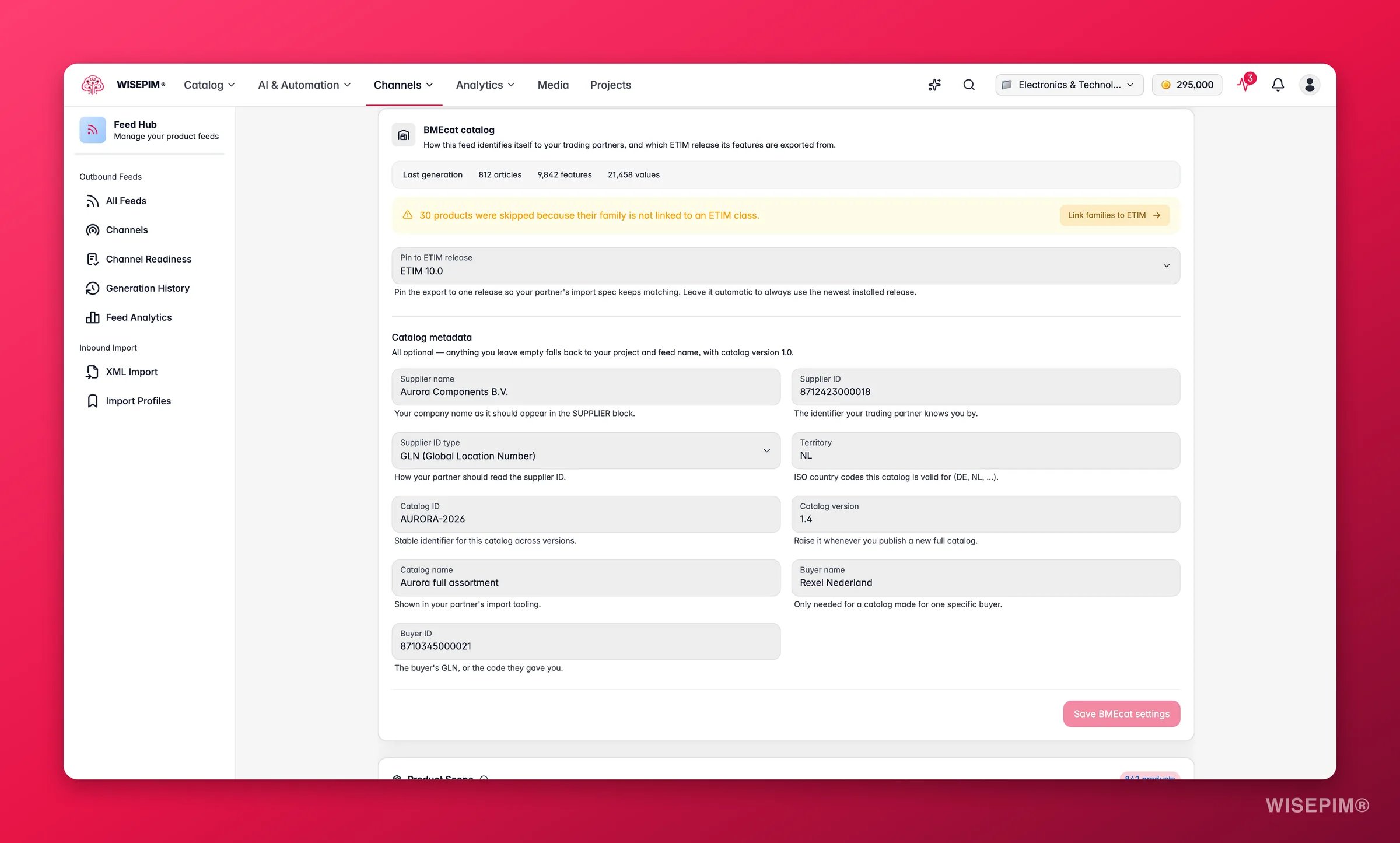
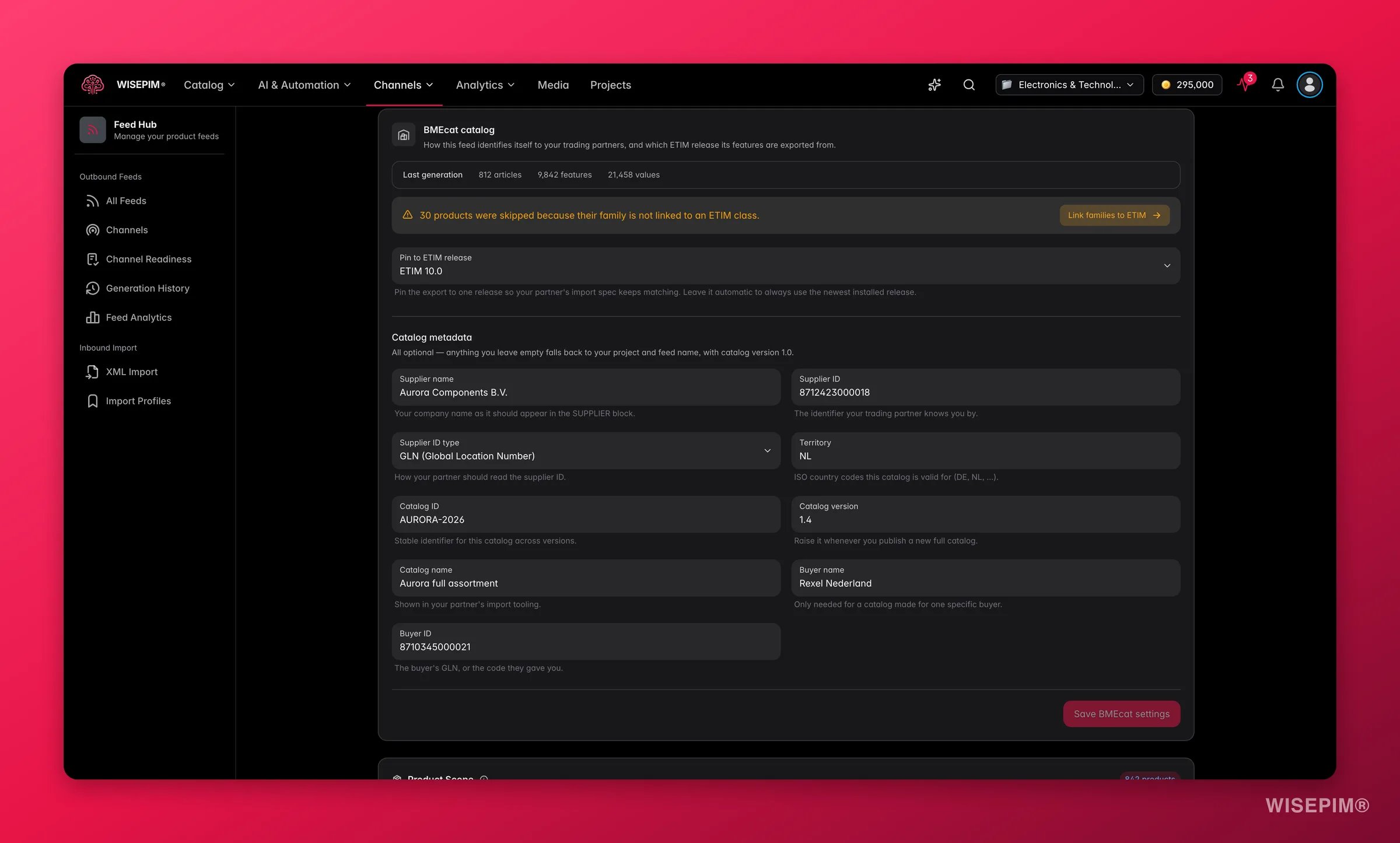 In [Feed Hub](/en/essentials/feed-hub), create a feed and pick the **BMEcat 2005 (ETIM)** channel. It works differently from every other channel in one important way: **there is no field mapping to configure**. What ends up in the catalog is decided by the ETIM class each family is linked to, which is why the classification work came first.
This is how the catalog identifies itself to your trading partner: supplier name and ID (GLN, D-U-N-S, or a supplier-specific code), territory, catalog ID, version, and name, plus an optional buyer name and ID for a catalog built for one specific partner. Everything is optional and empty fields fall back to your project and feed name, but a partner's import usually expects these filled.
Leave it on **Automatic** while you're still setting up. Once your partner has validated their import against your catalog, pin it: an automatic release bump on your side can break a spec they built against the older release.
After each generation the card reports how many articles, features, and values were exported - and how many products were skipped because their family isn't linked to an ETIM class, with a link straight back to Classification to fix it. A skipped count is your remaining to-do list.
When a partner wants to browse rather than import, a [Brand Portal](/en/other-features/brand-portals) gives them a live, read-only catalog on one link. Scope it to what they buy, switch off the sensitive columns (cost price, supplier, margin), and turn on **Apply pricing rules** so they see their own price level from [Pricing & Margins](/en/settings/pricing) rather than your stored price.
## How to tell it worked
| Signal | Where to look | When it moves |
| --------------------------------------- | ------------------------------------------ | ---------------------------------------------------------------------------- |
| Adopted classes and pending suggestions | Classification hub header | Live - adopted count rises, pending count falls as you work the queue |
| ETIM conformance score on a product | The **ETIM** tab in the product editor | On the spot - auto-filled rows flash green and the score recalculates |
| Articles, features, and values exported | The BMEcat card after generation | Every generation; all three should grow as you fill features |
| Products skipped for having no class | The same card | Take it to zero before you send the catalog |
| ETIM conformance dimension | Feed quality panel on the BMEcat feed | After each generation |
| Overall data quality | [Data Quality](/en/analytics/data-quality) | Over days, as conformance improves across the classified part of the catalog |
## When it doesn't work
ETIM class data is loaded per release by an administrator, and WISEPIM only browses the newest fully imported release. There is no setting on your side that fixes this: ask your administrator to import the release your partner specified, and check the release name in the Classification hub header once they have.
A skipped product means its family isn't linked to an ETIM class, so BMEcat has nothing to write for it. The generation card names the count and links straight back to [Classification](/en/products/classification). Two fix paths: adopt the class for that product type, or if you already have a suitable family, run **Mapping review** and adopt the family→class match. Regenerate and the skipped count should fall.
Two different symptoms, same cause. If your **partner's** import broke, your feed was on **Automatic** and moved to your newest installed release, invalidating the spec they validated against - pin the feed to the release they built on. If your **own** adopted family now looks out of date, open the class and click **Re-sync family**: it refreshes against the imported release and existing attributes keep their data.
By design: anything the AI can't determine confidently is skipped and annotated rather than guessed, which is the behaviour you want on technical specs. Those features need a real source - your supplier's datasheet, or a [Web Research](/en/ai/web-research) run to pull the specs in - then re-open the ETIM tab and re-score.
ETIM validates more than presence, so read the reason on the row. The unit has to be an ETIM unit, and a select value has to be in the class's permitted list - "Add a unit" and "Value isn't in the permitted list" are the two you'll see most. The **Fix** jump takes you to the attribute; **View class** lists every permitted value with its EV code so you can match it exactly.
## Related
The full reference for browsing, adopting, mapping, and conformance scoring.
BMEcat feed configuration, release pinning, and importing a supplier's BMEcat.
Give each wholesale partner their own price level without a second price list.
The retail equivalent: get a marketplace or shopping feed accepted first time.
In [Feed Hub](/en/essentials/feed-hub), create a feed and pick the **BMEcat 2005 (ETIM)** channel. It works differently from every other channel in one important way: **there is no field mapping to configure**. What ends up in the catalog is decided by the ETIM class each family is linked to, which is why the classification work came first.
This is how the catalog identifies itself to your trading partner: supplier name and ID (GLN, D-U-N-S, or a supplier-specific code), territory, catalog ID, version, and name, plus an optional buyer name and ID for a catalog built for one specific partner. Everything is optional and empty fields fall back to your project and feed name, but a partner's import usually expects these filled.
Leave it on **Automatic** while you're still setting up. Once your partner has validated their import against your catalog, pin it: an automatic release bump on your side can break a spec they built against the older release.
After each generation the card reports how many articles, features, and values were exported - and how many products were skipped because their family isn't linked to an ETIM class, with a link straight back to Classification to fix it. A skipped count is your remaining to-do list.
When a partner wants to browse rather than import, a [Brand Portal](/en/other-features/brand-portals) gives them a live, read-only catalog on one link. Scope it to what they buy, switch off the sensitive columns (cost price, supplier, margin), and turn on **Apply pricing rules** so they see their own price level from [Pricing & Margins](/en/settings/pricing) rather than your stored price.
## How to tell it worked
| Signal | Where to look | When it moves |
| --------------------------------------- | ------------------------------------------ | ---------------------------------------------------------------------------- |
| Adopted classes and pending suggestions | Classification hub header | Live - adopted count rises, pending count falls as you work the queue |
| ETIM conformance score on a product | The **ETIM** tab in the product editor | On the spot - auto-filled rows flash green and the score recalculates |
| Articles, features, and values exported | The BMEcat card after generation | Every generation; all three should grow as you fill features |
| Products skipped for having no class | The same card | Take it to zero before you send the catalog |
| ETIM conformance dimension | Feed quality panel on the BMEcat feed | After each generation |
| Overall data quality | [Data Quality](/en/analytics/data-quality) | Over days, as conformance improves across the classified part of the catalog |
## When it doesn't work
ETIM class data is loaded per release by an administrator, and WISEPIM only browses the newest fully imported release. There is no setting on your side that fixes this: ask your administrator to import the release your partner specified, and check the release name in the Classification hub header once they have.
A skipped product means its family isn't linked to an ETIM class, so BMEcat has nothing to write for it. The generation card names the count and links straight back to [Classification](/en/products/classification). Two fix paths: adopt the class for that product type, or if you already have a suitable family, run **Mapping review** and adopt the family→class match. Regenerate and the skipped count should fall.
Two different symptoms, same cause. If your **partner's** import broke, your feed was on **Automatic** and moved to your newest installed release, invalidating the spec they validated against - pin the feed to the release they built on. If your **own** adopted family now looks out of date, open the class and click **Re-sync family**: it refreshes against the imported release and existing attributes keep their data.
By design: anything the AI can't determine confidently is skipped and annotated rather than guessed, which is the behaviour you want on technical specs. Those features need a real source - your supplier's datasheet, or a [Web Research](/en/ai/web-research) run to pull the specs in - then re-open the ETIM tab and re-score.
ETIM validates more than presence, so read the reason on the row. The unit has to be an ETIM unit, and a select value has to be in the class's permitted list - "Add a unit" and "Value isn't in the permitted list" are the two you'll see most. The **Fix** jump takes you to the attribute; **View class** lists every permitted value with its EV code so you can match it exactly.
## Related
The full reference for browsing, adopting, mapping, and conformance scoring.
BMEcat feed configuration, release pinning, and importing a supplier's BMEcat.
Give each wholesale partner their own price level without a second price list.
The retail equivalent: get a marketplace or shopping feed accepted first time.