> ## Documentation Index
> Fetch the complete documentation index at: https://docs.wisepim.com/llms.txt
> Use this file to discover all available pages before exploring further.
# Onboard a supplier catalog end to end
> Turn a supplier CSV, XML feed, or bare website into classified, researched, sellable products in your own structure, without retyping a single spec.
A new supplier sends you 4,000 products in whatever shape they happen to keep them: a spreadsheet with mystery column names, an XML feed, a BMEcat file, or nothing at all except a website. None of it matches your categories, half the specs are missing, and the descriptions are written for someone else's shop. Retyping is not an option and importing it raw just moves the mess into your catalog.
The fix is an order of operations: decide how the data gets in, make sure the slots it should land in already exist, bring in a small capped batch, then fill facts before words. Budget about 90 minutes for your first supplier, and far less for every one after - the setup is reusable. Moving your *own* catalog off an old platform rather than taking on a supplier's range? That is [migrate your catalog](/en/guides/migrate-your-catalog).
**Before you start:** get whatever the supplier can give you - a file, a feed URL, or just their catalog URL, and know which of their categories you actually intend to sell. See [importing products](/en/essentials/importing-products) for what each format needs.
**What you'll get:** the supplier's range in your own category and attribute structure, with verified identifiers and specs, content written in your voice, and a repeatable setup for their next update.
## Pick your intake route
Choose by what the supplier can hand over, not by what you are used to. Ask for the most structured thing they have, then take the highest route in this table they can actually deliver - every row below the first costs you more setup, and the ones near the bottom carry less of the supplier's own structure with them.
 | What the supplier can give you | Route | What you set up, and what you get |
| ----------------------------------- | --------------------------------------------------------- | ---------------------------------------------------------------------- |
| A supported distributor account | A direct [integration](/en/essentials/integrations) | Credentials once, no files ever - the supplier's own update cadence |
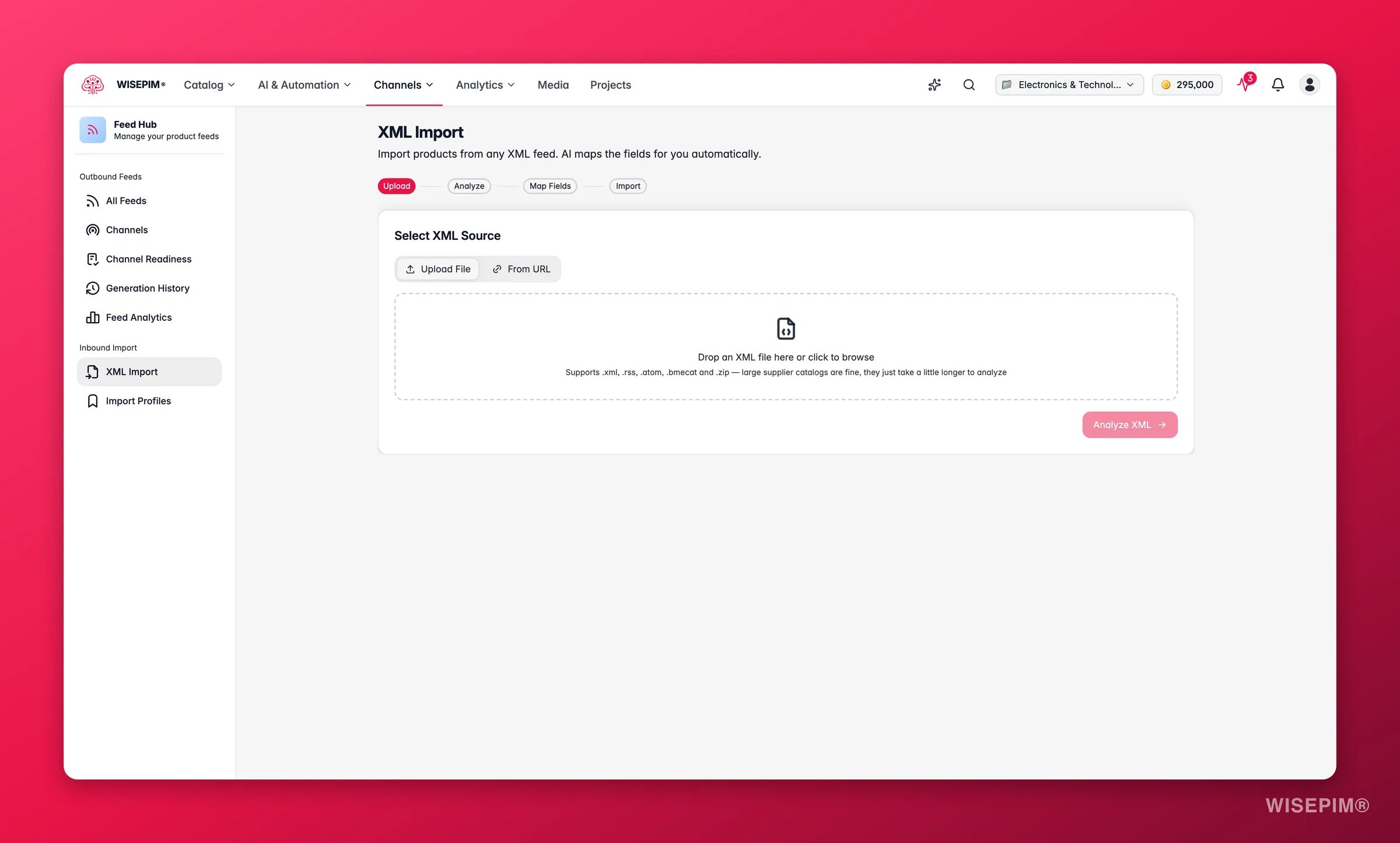
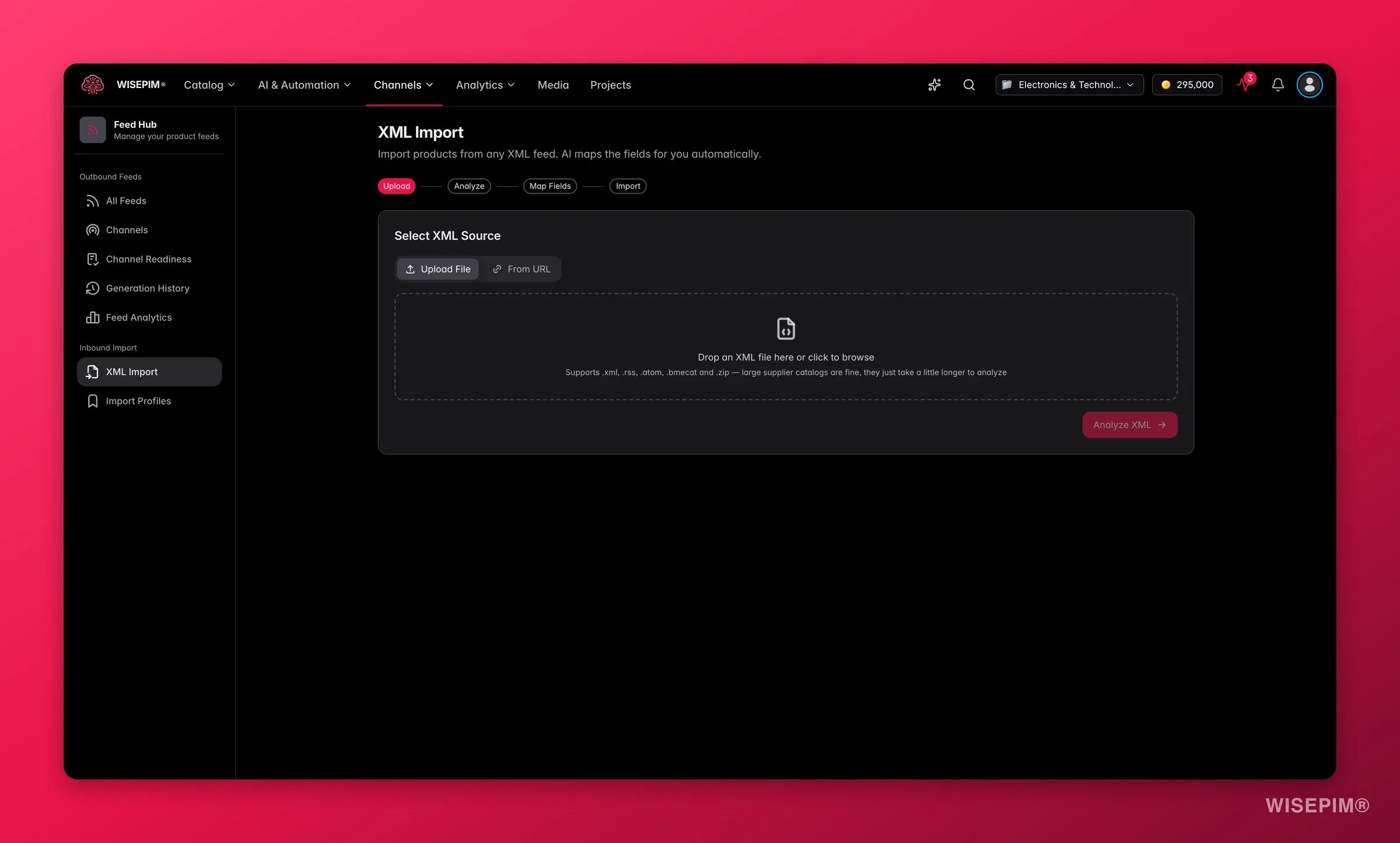
| A BMEcat file | [Feed Hub](/en/essentials/feed-hub) → **XML Import** | Almost nothing: the catalog carries its own ETIM classes and features |
| XML, RSS, Atom, or a zipped catalog | [Feed Hub](/en/essentials/feed-hub) → **XML Import** | AI-proposed field mapping, saved as an Import Profile you can schedule |
| A CSV or Excel file | [CSV or Excel import](/en/essentials/importing-products) | A column mapping you save as a template and reuse on every future file |
| A public website and nothing else | [Web scraping import](/en/essentials/web-scraping-import) | A seed URL and caps; AI extracts each product page, so preview first |
If your supplier is [TechData](/en/integrations/techdata), or delivers through [WebshopImporter](/en/integrations/webshopimporter), which is also how the [Shots](/en/integrations/suppliers/Shots) feed arrives - connect the integration and none of the rest of this section applies.
File and scrape routes start on the [Products](/en/essentials/managing-products) page: click **Import** in the toolbar and choose the source. Feed routes start in [Feed Hub](/en/essentials/feed-hub) under **XML Import**, where you paste the URL or upload the file.
Every route shows you what it found before it commits: the row count and detected delimiter for a CSV, the item count and XPaths for a feed, the matched URL count and one extracted sample for a scrape. Compare it to the number of products you expect. A mismatch here is cheap; the same mismatch after 4,000 products land is not.
For a feed, AI proposes a mapping per field with a confidence chip - accept the confident ones and read the rest. For a CSV, auto-mapping does the same from your column names. A wrong guess you wave through is what quietly fills the wrong attribute on every product.
Save a CSV mapping as an **import template** and a feed mapping as an **Import Profile**. This is the step that makes the supplier's *next* file a five-minute job instead of a repeat of today, and an Import Profile can be scheduled to pull updates on its own.
## Adopt your standards before the products land
This is the step everyone does last and should do first. Classification decides which attribute slots exist on a product - and everything downstream, from research to enrichment to a wholesale feed, can only fill slots that already exist.
| What the supplier can give you | Route | What you set up, and what you get |
| ----------------------------------- | --------------------------------------------------------- | ---------------------------------------------------------------------- |
| A supported distributor account | A direct [integration](/en/essentials/integrations) | Credentials once, no files ever - the supplier's own update cadence |
| A BMEcat file | [Feed Hub](/en/essentials/feed-hub) → **XML Import** | Almost nothing: the catalog carries its own ETIM classes and features |
| XML, RSS, Atom, or a zipped catalog | [Feed Hub](/en/essentials/feed-hub) → **XML Import** | AI-proposed field mapping, saved as an Import Profile you can schedule |
| A CSV or Excel file | [CSV or Excel import](/en/essentials/importing-products) | A column mapping you save as a template and reuse on every future file |
| A public website and nothing else | [Web scraping import](/en/essentials/web-scraping-import) | A seed URL and caps; AI extracts each product page, so preview first |
If your supplier is [TechData](/en/integrations/techdata), or delivers through [WebshopImporter](/en/integrations/webshopimporter), which is also how the [Shots](/en/integrations/suppliers/Shots) feed arrives - connect the integration and none of the rest of this section applies.
File and scrape routes start on the [Products](/en/essentials/managing-products) page: click **Import** in the toolbar and choose the source. Feed routes start in [Feed Hub](/en/essentials/feed-hub) under **XML Import**, where you paste the URL or upload the file.
Every route shows you what it found before it commits: the row count and detected delimiter for a CSV, the item count and XPaths for a feed, the matched URL count and one extracted sample for a scrape. Compare it to the number of products you expect. A mismatch here is cheap; the same mismatch after 4,000 products land is not.
For a feed, AI proposes a mapping per field with a confidence chip - accept the confident ones and read the rest. For a CSV, auto-mapping does the same from your column names. A wrong guess you wave through is what quietly fills the wrong attribute on every product.
Save a CSV mapping as an **import template** and a feed mapping as an **Import Profile**. This is the step that makes the supplier's *next* file a five-minute job instead of a repeat of today, and an Import Profile can be scheduled to pull updates on its own.
## Adopt your standards before the products land
This is the step everyone does last and should do first. Classification decides which attribute slots exist on a product - and everything downstream, from research to enrichment to a wholesale feed, can only fill slots that already exist.
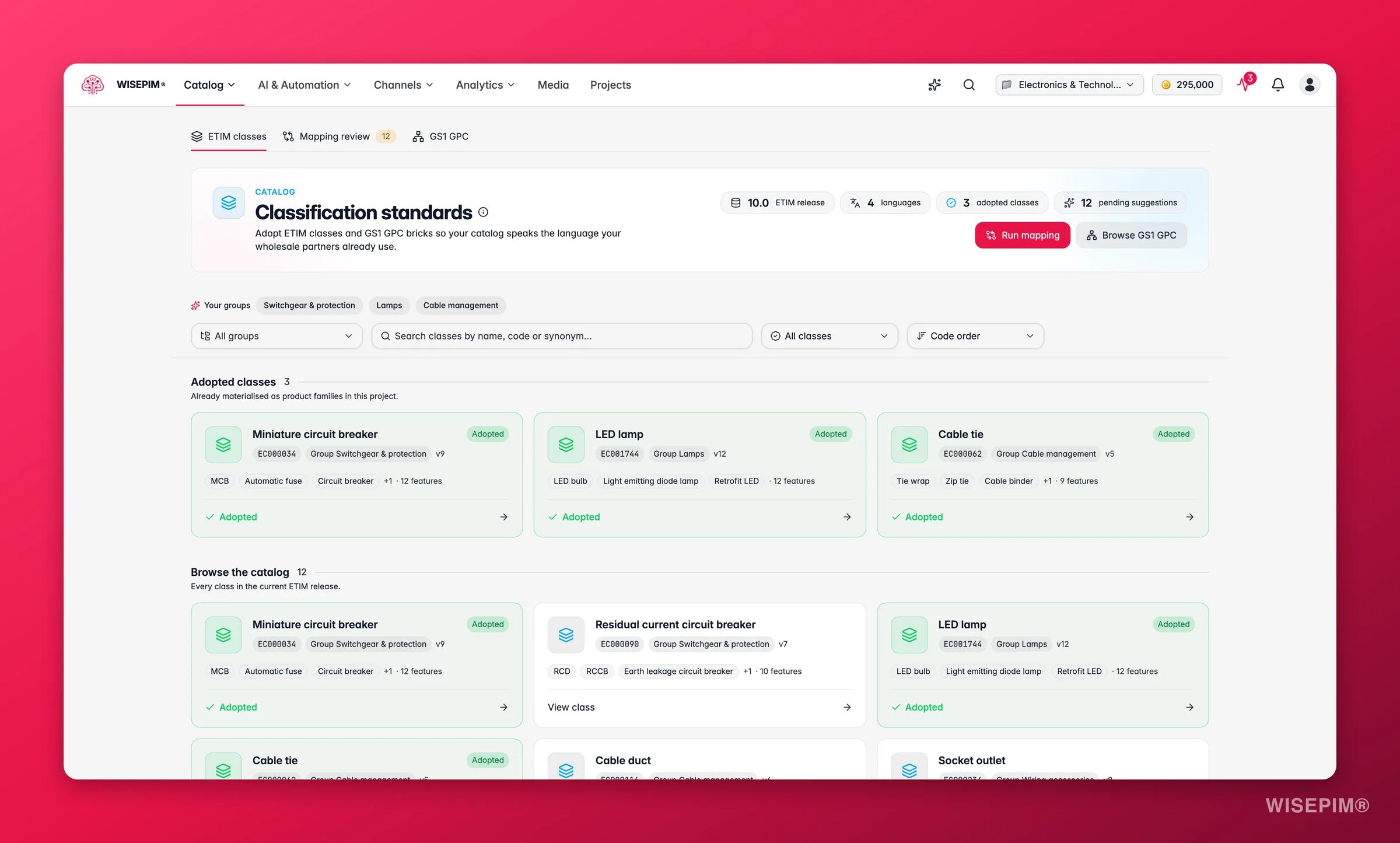
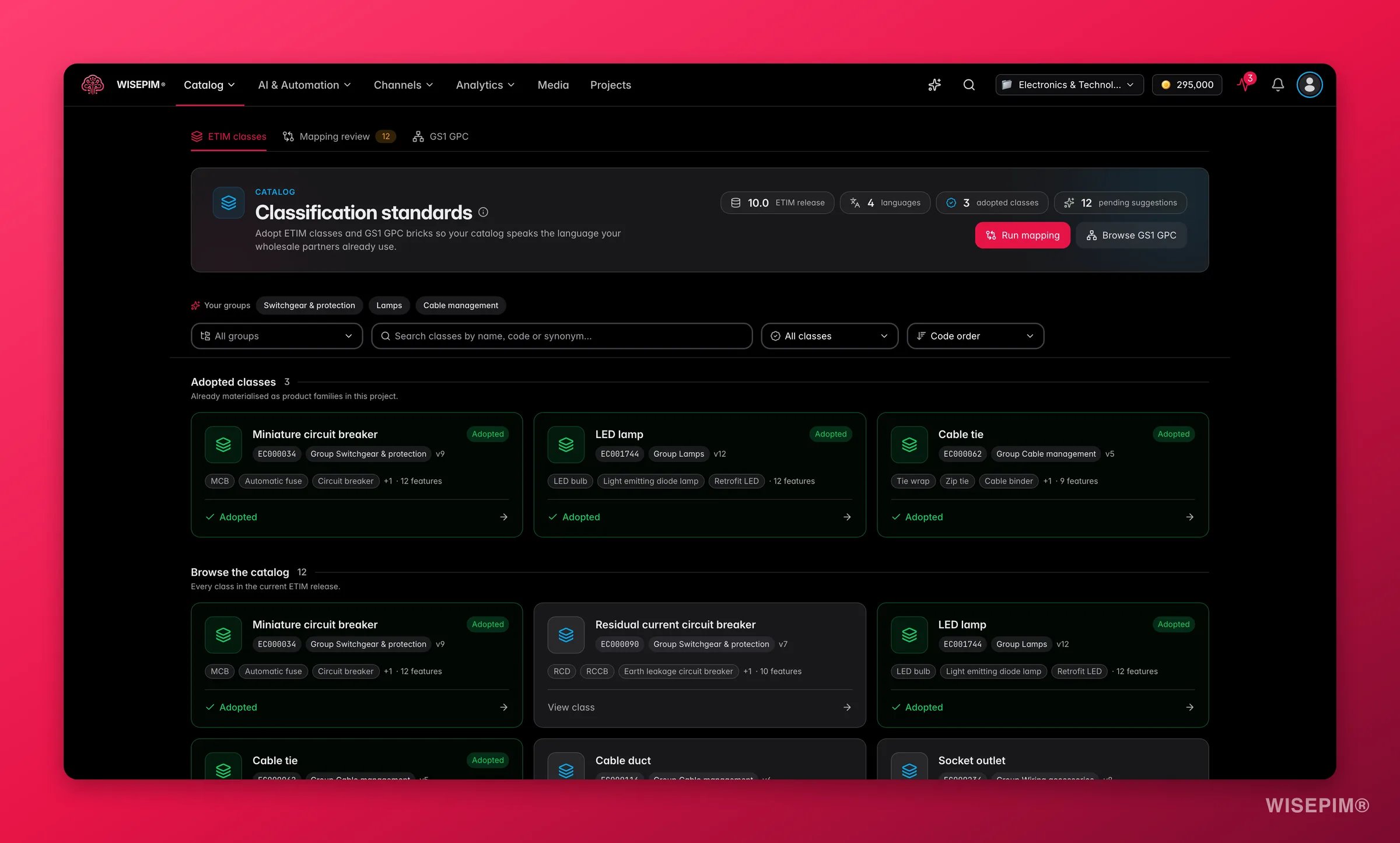 Go to **Products → [Classification](/en/products/classification)** and search the **ETIM classes** tab by name, code, or trade synonym. Click **View class** before you adopt anything: the feature table is the honest answer to "which attributes will these products need to carry?"
Click **Adopt class**. WISEPIM builds a ready-to-use [product family](/en/products/product-families) from the standard, with one attribute per feature, its value lists, and its prescribed units - products assigned to that family get the attributes immediately.
On the **GS1 GPC** tab, drill to the bricks you sell and click **Add as category**. The full parent path is created with them, so imported products land in the right place in your tree instead of in a duplicate one next to it.
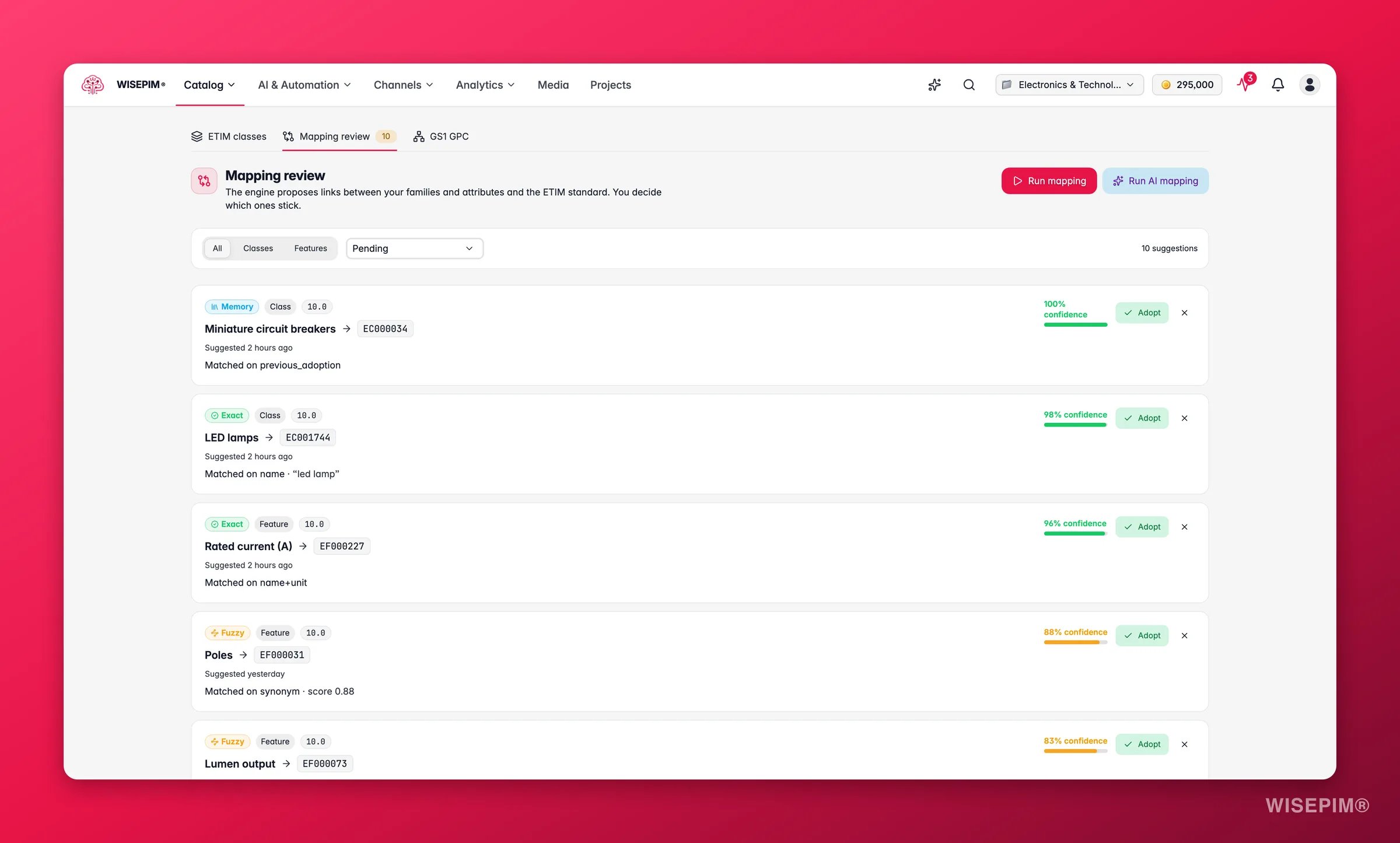
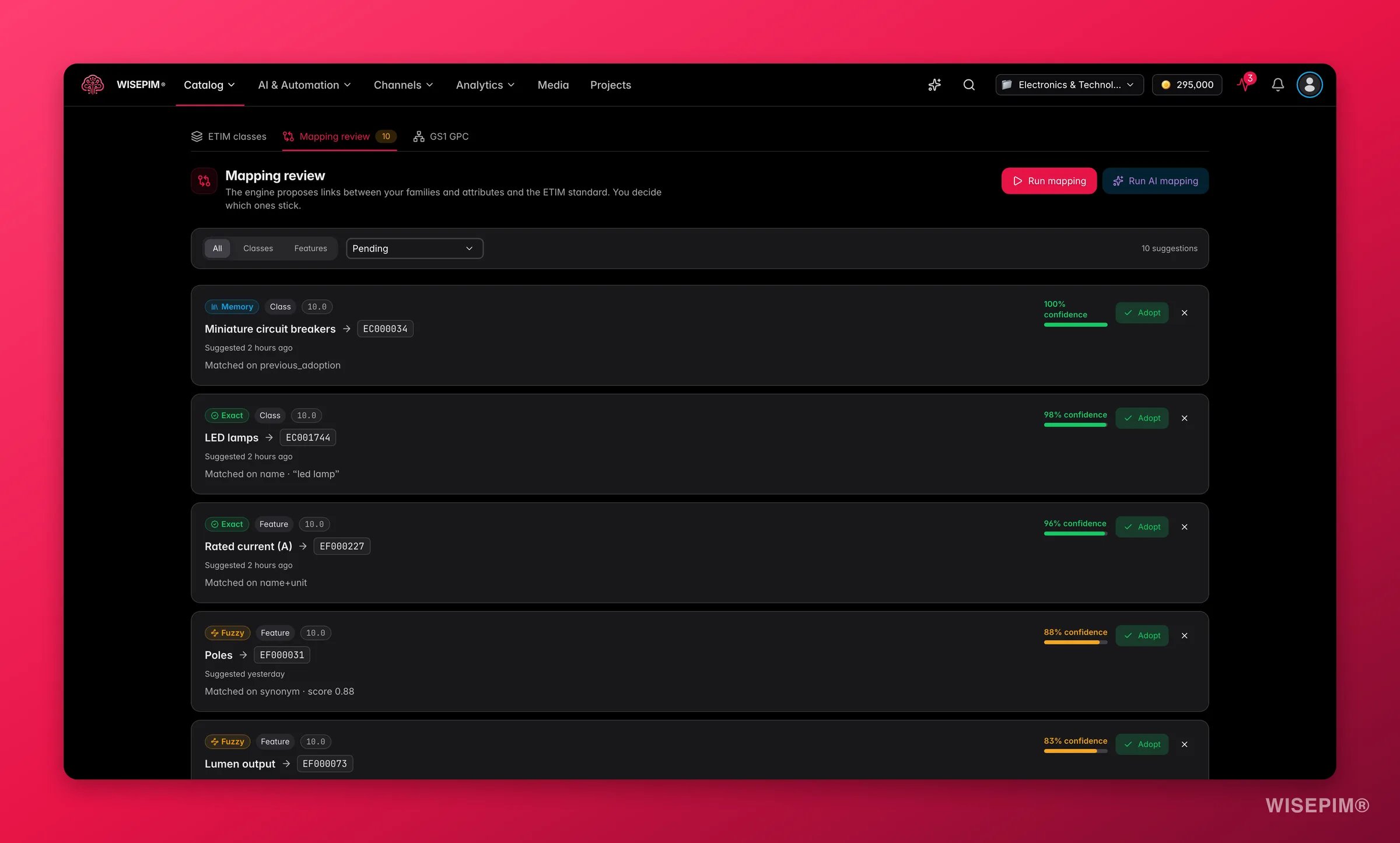
If you already have families and attributes, open the **Mapping review** tab, click **Run mapping**, then use **Select safe matches** to bulk-adopt the high-confidence proposals and hand-review the fuzzy and AI tiers. Your corrections are remembered, so the next supplier's range needs less review than this one.
Go to **Products → [Classification](/en/products/classification)** and search the **ETIM classes** tab by name, code, or trade synonym. Click **View class** before you adopt anything: the feature table is the honest answer to "which attributes will these products need to carry?"
Click **Adopt class**. WISEPIM builds a ready-to-use [product family](/en/products/product-families) from the standard, with one attribute per feature, its value lists, and its prescribed units - products assigned to that family get the attributes immediately.
On the **GS1 GPC** tab, drill to the bricks you sell and click **Add as category**. The full parent path is created with them, so imported products land in the right place in your tree instead of in a duplicate one next to it.
If you already have families and attributes, open the **Mapping review** tab, click **Run mapping**, then use **Select safe matches** to bulk-adopt the high-confidence proposals and hand-review the fuzzy and AI tiers. Your corrections are remembered, so the next supplier's range needs less review than this one.
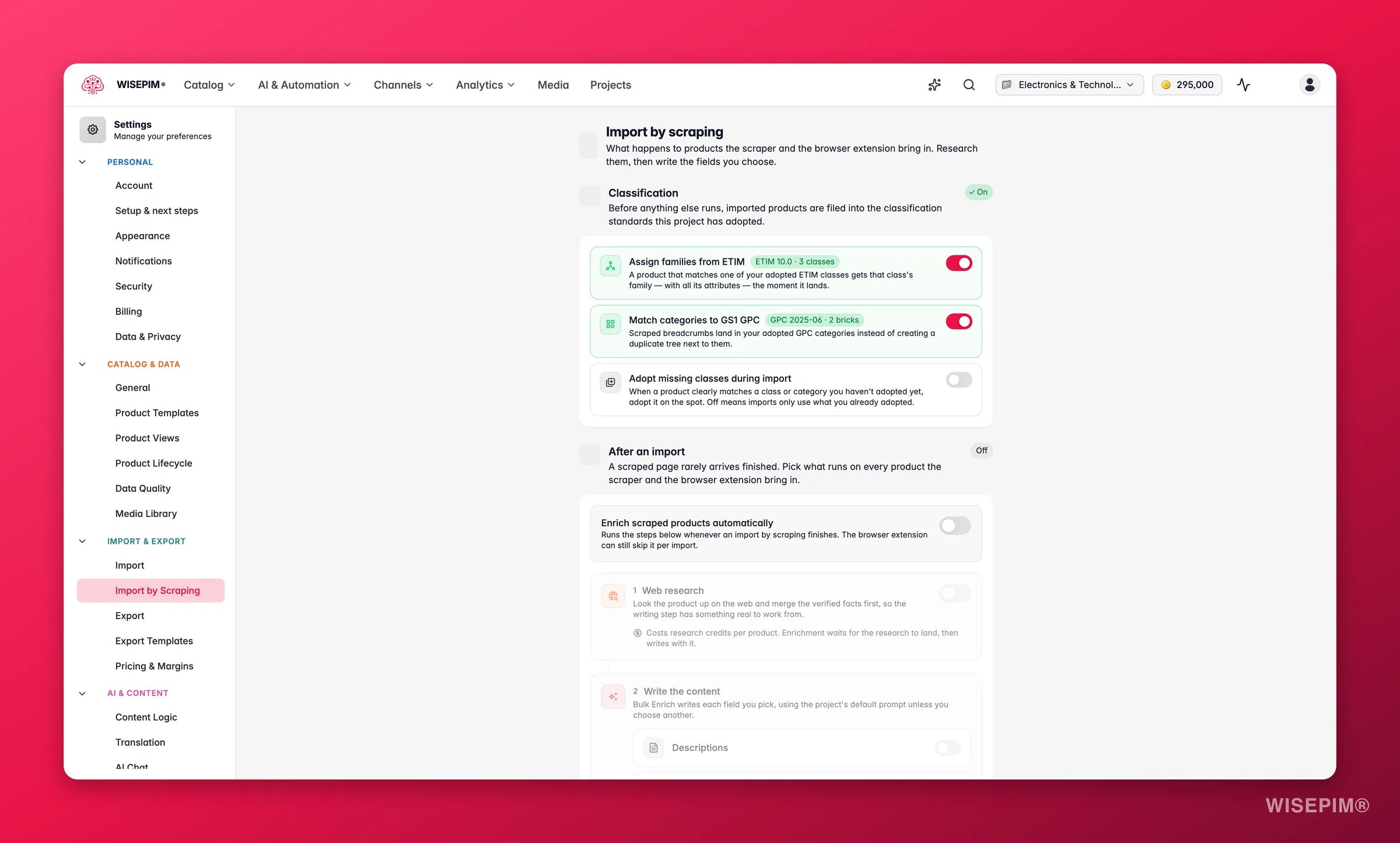
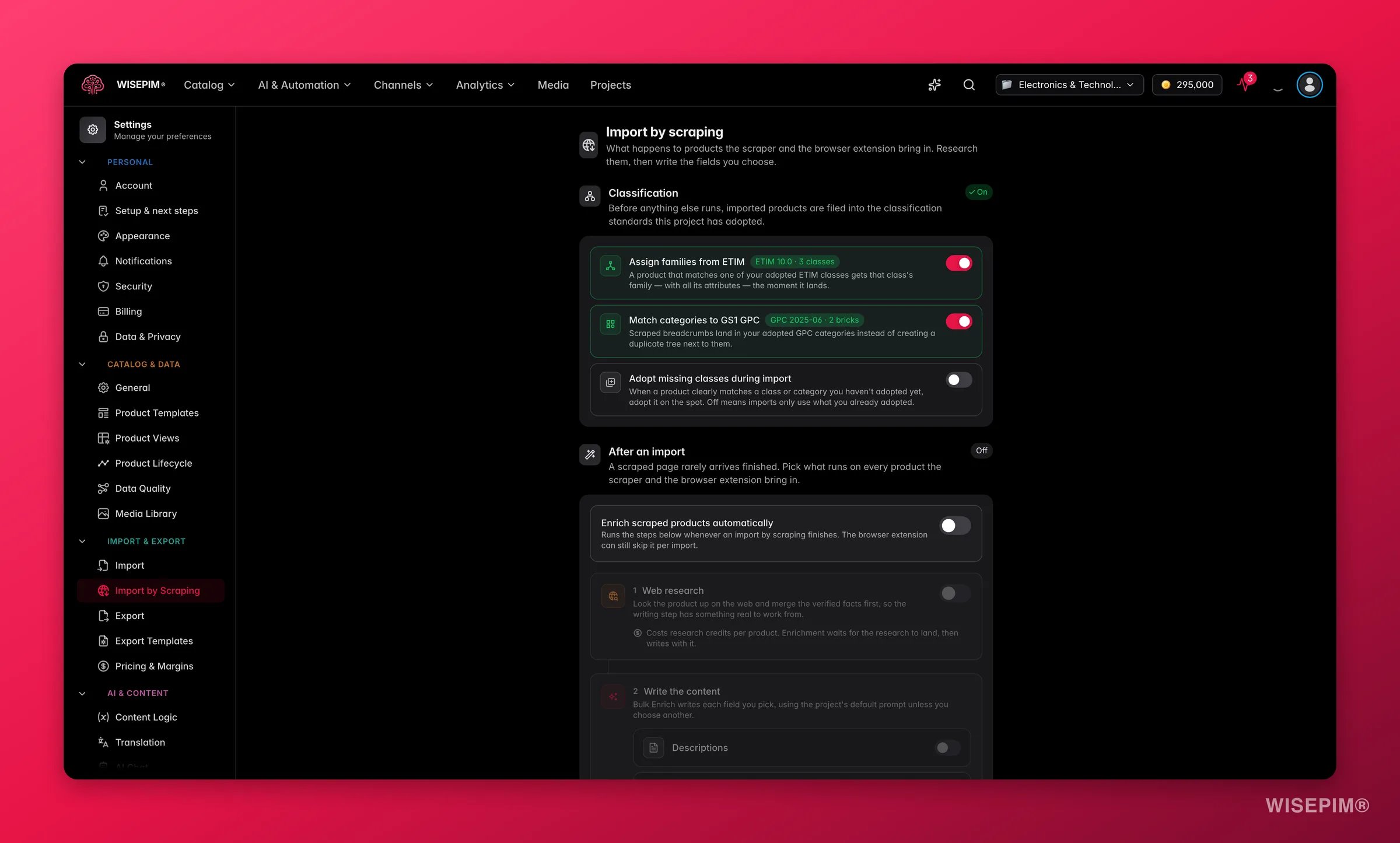
 In **Settings → [Import by Scraping](/en/settings/import-by-scraping)**, the **Classification** section files incoming products into your adopted ETIM classes and GPC categories as they land. Turn it on before the import, not after: it costs no credits, and it runs ahead of the enrichment chain so the family is already there when enrichment looks for attributes to fill.
## Import a capped first batch, enriched on arrival
Never point a fresh supplier feed at your whole catalog with enrichment switched on. Cap it, look at the result, then scale.
In **Settings → [Import by Scraping](/en/settings/import-by-scraping)**, the **Classification** section files incoming products into your adopted ETIM classes and GPC categories as they land. Turn it on before the import, not after: it costs no credits, and it runs ahead of the enrichment chain so the family is already there when enrichment looks for attributes to fill.
## Import a capped first batch, enriched on arrival
Never point a fresh supplier feed at your whole catalog with enrichment switched on. Cap it, look at the result, then scale.
 Suppliers ship their whole range. Add import filters in **Settings → [Import](/en/settings/import)** so only the products you actually carry come in. These are project-wide defaults that apply to every import anyone on your team runs, so set them before the first batch rather than deleting products afterwards.
For scraped imports, turn on the enrichment chain in [Import by Scraping settings](/en/settings/import-by-scraping): web research first so verified facts land before anything is written, then [Bulk Enrich](/en/ai/bulk-enrich) for the fields you pick. For file and platform imports, use an **After Import** [automation trigger](/en/automations/triggers) instead, optionally filtered to that one import source.
Set low **Max products** and **Max listing pages** limits on a scrape, or import a trimmed file. The chain runs on every product an import brings in, so a misconfigured chain on 2,000 products is an expensive way to learn.
Open a few of the imported products by hand. Check that the family and category are right, the attributes landed where you expected, and the generated text is usable. Fix the configuration, then run the full import - everything you correct now is a correction you do not repeat 4,000 times.
## Fill the facts, then the words, then the structure
Supplier data is thin on specs and thick on someone else's marketing copy. Research first: writing on top of verified facts is a different quality of output than writing on top of a guess.
Suppliers ship their whole range. Add import filters in **Settings → [Import](/en/settings/import)** so only the products you actually carry come in. These are project-wide defaults that apply to every import anyone on your team runs, so set them before the first batch rather than deleting products afterwards.
For scraped imports, turn on the enrichment chain in [Import by Scraping settings](/en/settings/import-by-scraping): web research first so verified facts land before anything is written, then [Bulk Enrich](/en/ai/bulk-enrich) for the fields you pick. For file and platform imports, use an **After Import** [automation trigger](/en/automations/triggers) instead, optionally filtered to that one import source.
Set low **Max products** and **Max listing pages** limits on a scrape, or import a trimmed file. The chain runs on every product an import brings in, so a misconfigured chain on 2,000 products is an expensive way to learn.
Open a few of the imported products by hand. Check that the family and category are right, the attributes landed where you expected, and the generated text is usable. Fix the configuration, then run the full import - everything you correct now is a correction you do not repeat 4,000 times.
## Fill the facts, then the words, then the structure
Supplier data is thin on specs and thick on someone else's marketing copy. Research first: writing on top of verified facts is a different quality of output than writing on top of a guess.
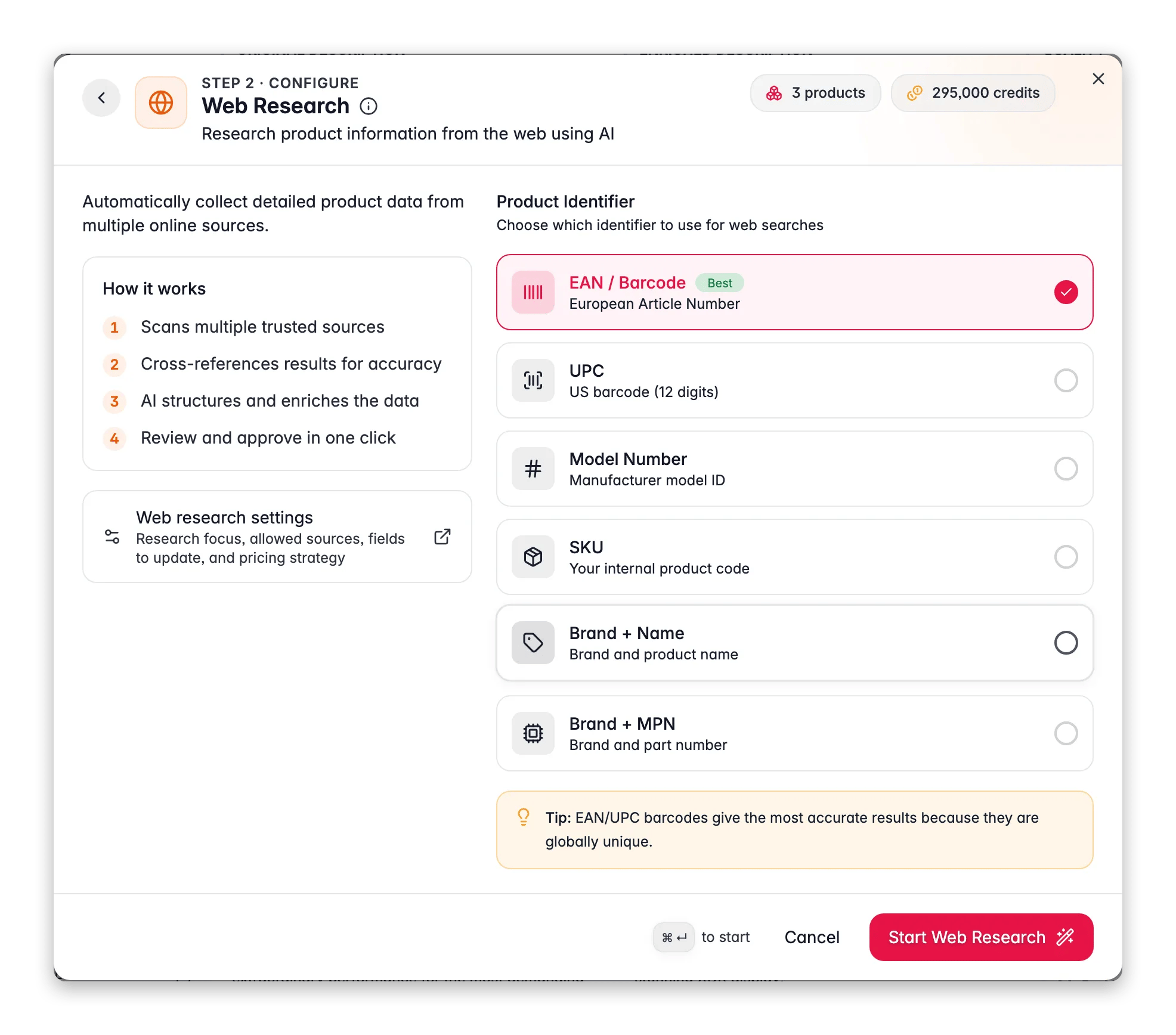
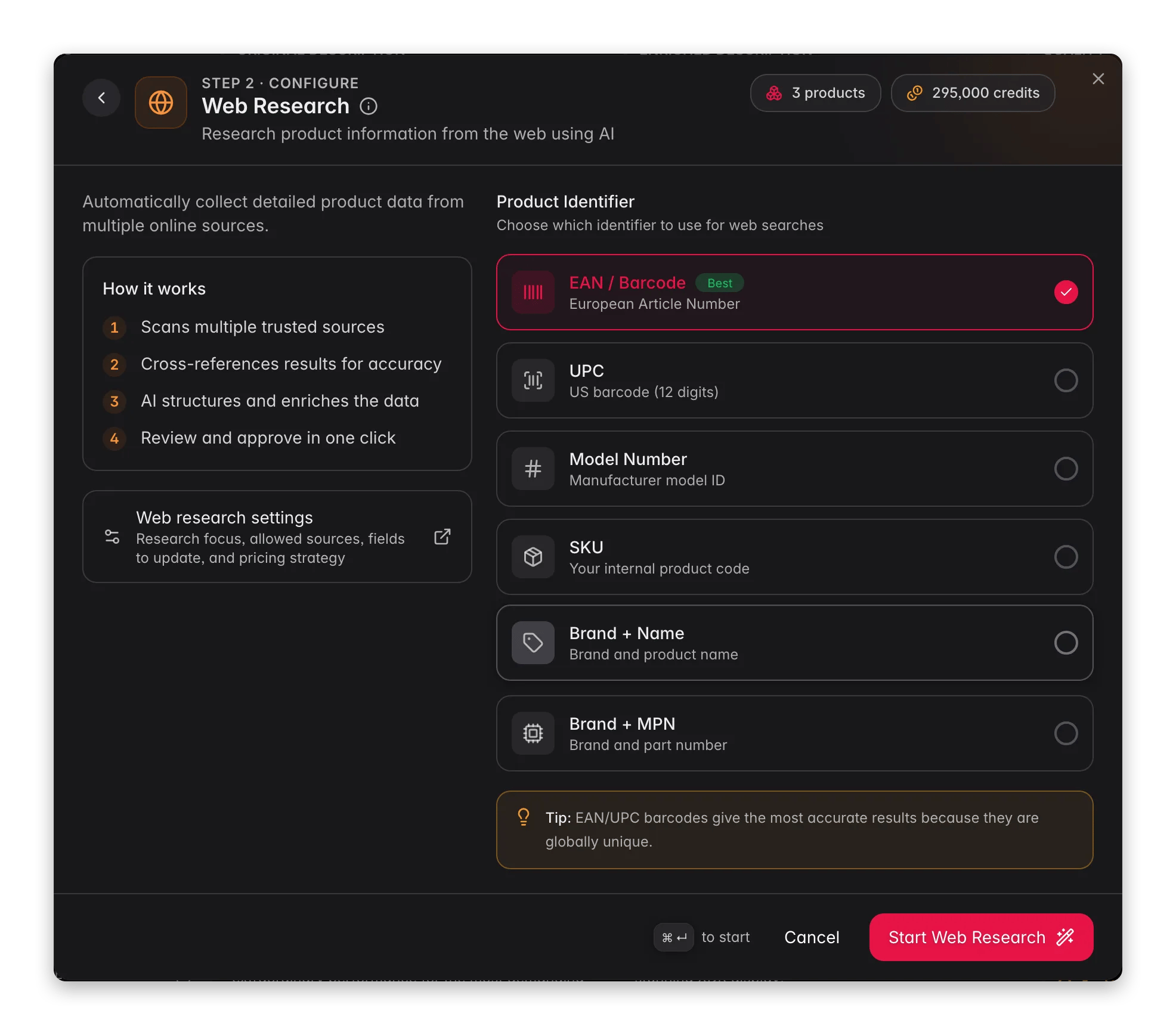 Filter to the batch, click **Enrich with AI** in the Products toolbar, and start [Web Research](/en/ai/web-research). EAN/GTIN is the most accurate identifier because it is globally unique; fall back to Brand + MPN or Brand + Name when the supplier gave you no barcodes. Test the settings on a single product from its edit page first if you are unsure.
Research can discover missing EAN, UPC, MPN, and model numbers. Identifiers follow stricter rules than other fields: they only ever land in empty fields, every value is checksum-validated, and a value that conflicts with yours is flagged instead of overwriting it.
From the same **Enrich with AI** modal, run [Bulk Enrich](/en/ai/bulk-enrich) on descriptions, titles, and SEO meta to replace inherited copy with your own. Run it after research, not before, so the writing is built on the facts you just verified. Reach for [Auto-Fill](/en/ai/auto-fill) instead when you only want to fill gaps and keep what is already there.
Supplier files list every size and color as its own row. Select the ones that belong together, click **Bulk Edit**, and use [Group as Variants](/en/essentials/bulk-editing/group-as-variants) to attach them to one parent, so channels get a single configurable listing instead of twenty look-alikes. The CSV importer's nested-data step can link them during the import itself next time.
Every product remembers where it first came from, and that record never changes. Open **Filters → Advanced filters** on the [Products page](/en/products/filtering-products) and filter on **Import Source** to isolate exactly this supplier's products, then read the quality scores and the **Presets** counts across that set alone.
## How to tell it worked
| Signal | Where to look | When it moves |
| ---------------------------------------- | ------------------------------------------------------------------------------------------------------- | -------------------------------------------------------------------------------------------------------------------------- |
| The right products arrived | Filter by **Import Source** and compare the count to what the importer previewed | When the import finishes - seconds to minutes for a file, longer for a large crawl |
| Products carry the standard's attributes | The **ETIM** tab on a product, with its conformance score and per-feature checklist | As soon as the product has a family linked to an ETIM class |
| Facts were found, not invented | The **Web Research** tab on a product's edit page, with its sources listed | When the research run completes in the [Process Tracker](/en/other-features/process-tracker) |
| Identifier gaps closed | The EAN/GTIN and MPN fields, plus any conflicts flagged rather than overwritten | After research - empty fields only, every value checksum-validated |
| The batch is sellable | [Data Quality](/en/analytics/data-quality) scores and the **Presets** counts, filtered to this supplier | Once enrichment finishes; force a refresh with [Recalculate Data Quality](/en/essentials/bulk-editing/recalculate-quality) |
## When it doesn't work
The seed URL or the pattern is off. For category mode paste the listing page, not a single product; for sitemap mode paste a real product URL so the pattern can be learned. Adjust the product URL pattern override and preview again - see [web scraping import](/en/essentials/web-scraping-import).
Some shops sit behind bot protection, and WISEPIM names the service doing the blocking rather than failing vaguely. The documented way through is the browser extension: install it, choose the project it imports into, click **Connect this browser**, then open the supplier's product pages yourself. Same extraction, on sites the crawler cannot reach - see [web scraping import](/en/essentials/web-scraping-import).
Usually the identifier is wrong, or the product is too new or too niche to have public data. Try a different identifier type: if EAN returns nothing, Brand + Name or model number often does. See [Web Research](/en/ai/web-research).
Check your import filters first - they are project-wide defaults in [Import settings](/en/settings/import). Then check your validation mode, which decides whether rows with errors are skipped. Distributor feeds can have their own rules too: [TechData](/en/integrations/techdata) only imports an article that has both a price line and a stock line.
The catalog most likely declares an ETIM release you have not installed. WISEPIM warns you and applies the features against your newest installed release instead, which is usually close but not identical. If your partner needs an exact match, import the declared release from [Classification](/en/products/classification) first, then re-run the import.
## Related
Adopt the classes and categories that give imported products their attribute slots.
XML, RSS, and BMEcat import with AI mapping and reusable import profiles.
Promote this manual sequence into an automation once it works.
The same middle-layer approach, applied to replatforming instead of a supplier.
Filter to the batch, click **Enrich with AI** in the Products toolbar, and start [Web Research](/en/ai/web-research). EAN/GTIN is the most accurate identifier because it is globally unique; fall back to Brand + MPN or Brand + Name when the supplier gave you no barcodes. Test the settings on a single product from its edit page first if you are unsure.
Research can discover missing EAN, UPC, MPN, and model numbers. Identifiers follow stricter rules than other fields: they only ever land in empty fields, every value is checksum-validated, and a value that conflicts with yours is flagged instead of overwriting it.
From the same **Enrich with AI** modal, run [Bulk Enrich](/en/ai/bulk-enrich) on descriptions, titles, and SEO meta to replace inherited copy with your own. Run it after research, not before, so the writing is built on the facts you just verified. Reach for [Auto-Fill](/en/ai/auto-fill) instead when you only want to fill gaps and keep what is already there.
Supplier files list every size and color as its own row. Select the ones that belong together, click **Bulk Edit**, and use [Group as Variants](/en/essentials/bulk-editing/group-as-variants) to attach them to one parent, so channels get a single configurable listing instead of twenty look-alikes. The CSV importer's nested-data step can link them during the import itself next time.
Every product remembers where it first came from, and that record never changes. Open **Filters → Advanced filters** on the [Products page](/en/products/filtering-products) and filter on **Import Source** to isolate exactly this supplier's products, then read the quality scores and the **Presets** counts across that set alone.
## How to tell it worked
| Signal | Where to look | When it moves |
| ---------------------------------------- | ------------------------------------------------------------------------------------------------------- | -------------------------------------------------------------------------------------------------------------------------- |
| The right products arrived | Filter by **Import Source** and compare the count to what the importer previewed | When the import finishes - seconds to minutes for a file, longer for a large crawl |
| Products carry the standard's attributes | The **ETIM** tab on a product, with its conformance score and per-feature checklist | As soon as the product has a family linked to an ETIM class |
| Facts were found, not invented | The **Web Research** tab on a product's edit page, with its sources listed | When the research run completes in the [Process Tracker](/en/other-features/process-tracker) |
| Identifier gaps closed | The EAN/GTIN and MPN fields, plus any conflicts flagged rather than overwritten | After research - empty fields only, every value checksum-validated |
| The batch is sellable | [Data Quality](/en/analytics/data-quality) scores and the **Presets** counts, filtered to this supplier | Once enrichment finishes; force a refresh with [Recalculate Data Quality](/en/essentials/bulk-editing/recalculate-quality) |
## When it doesn't work
The seed URL or the pattern is off. For category mode paste the listing page, not a single product; for sitemap mode paste a real product URL so the pattern can be learned. Adjust the product URL pattern override and preview again - see [web scraping import](/en/essentials/web-scraping-import).
Some shops sit behind bot protection, and WISEPIM names the service doing the blocking rather than failing vaguely. The documented way through is the browser extension: install it, choose the project it imports into, click **Connect this browser**, then open the supplier's product pages yourself. Same extraction, on sites the crawler cannot reach - see [web scraping import](/en/essentials/web-scraping-import).
Usually the identifier is wrong, or the product is too new or too niche to have public data. Try a different identifier type: if EAN returns nothing, Brand + Name or model number often does. See [Web Research](/en/ai/web-research).
Check your import filters first - they are project-wide defaults in [Import settings](/en/settings/import). Then check your validation mode, which decides whether rows with errors are skipped. Distributor feeds can have their own rules too: [TechData](/en/integrations/techdata) only imports an article that has both a price line and a stock line.
The catalog most likely declares an ETIM release you have not installed. WISEPIM warns you and applies the features against your newest installed release instead, which is usually close but not identical. If your partner needs an exact match, import the declared release from [Classification](/en/products/classification) first, then re-run the import.
## Related
Adopt the classes and categories that give imported products their attribute slots.
XML, RSS, and BMEcat import with AI mapping and reusable import profiles.
Promote this manual sequence into an automation once it works.
The same middle-layer approach, applied to replatforming instead of a supplier.