> ## Documentation Index
> Fetch the complete documentation index at: https://docs.wisepim.com/llms.txt
> Use this file to discover all available pages before exploring further.
# Make brand names and terms consistent
> Half your catalog says SoundMax, the other half Sound Max. Collapse every spelling variant, then make the approved wording stick across imports and languages.
Your brand filter lists "SoundMax", "Sound Max", "SOUNDMAX" and "Soundmax " with a trailing space as four different brands. Shoppers filtering by brand see a quarter of the range. Your feeds ship four values where the channel expects one. It happens to everyone who imports from more than one source, and it happens again with every new supplier file unless you close the door behind you.
Fixing it is three jobs: find every variant, collapse them into one, and make the approved spelling the only one that survives the next import. Budget about an hour per term family. If the whole catalog is a mess and not just its vocabulary, run [clean up a catalog you inherited](/en/guides/clean-up-an-inherited-catalog) first - its whitespace and case pass is what makes the matching below reliable.
**Before you start:** decide which spelling is correct before you touch anything, ideally from the brand's own site. Everything below is a bulk edit, so link a term to the wrong master and you will be running the whole pass twice.
**What you'll get:** one spelling per term across the catalog, an approved-terms dictionary you can re-apply after every import, and a rule that flags the old variants if they come back.
## Find every variant before you replace anything
Replacing the variants you happen to have noticed leaves the ones you have not. Build the full list first.
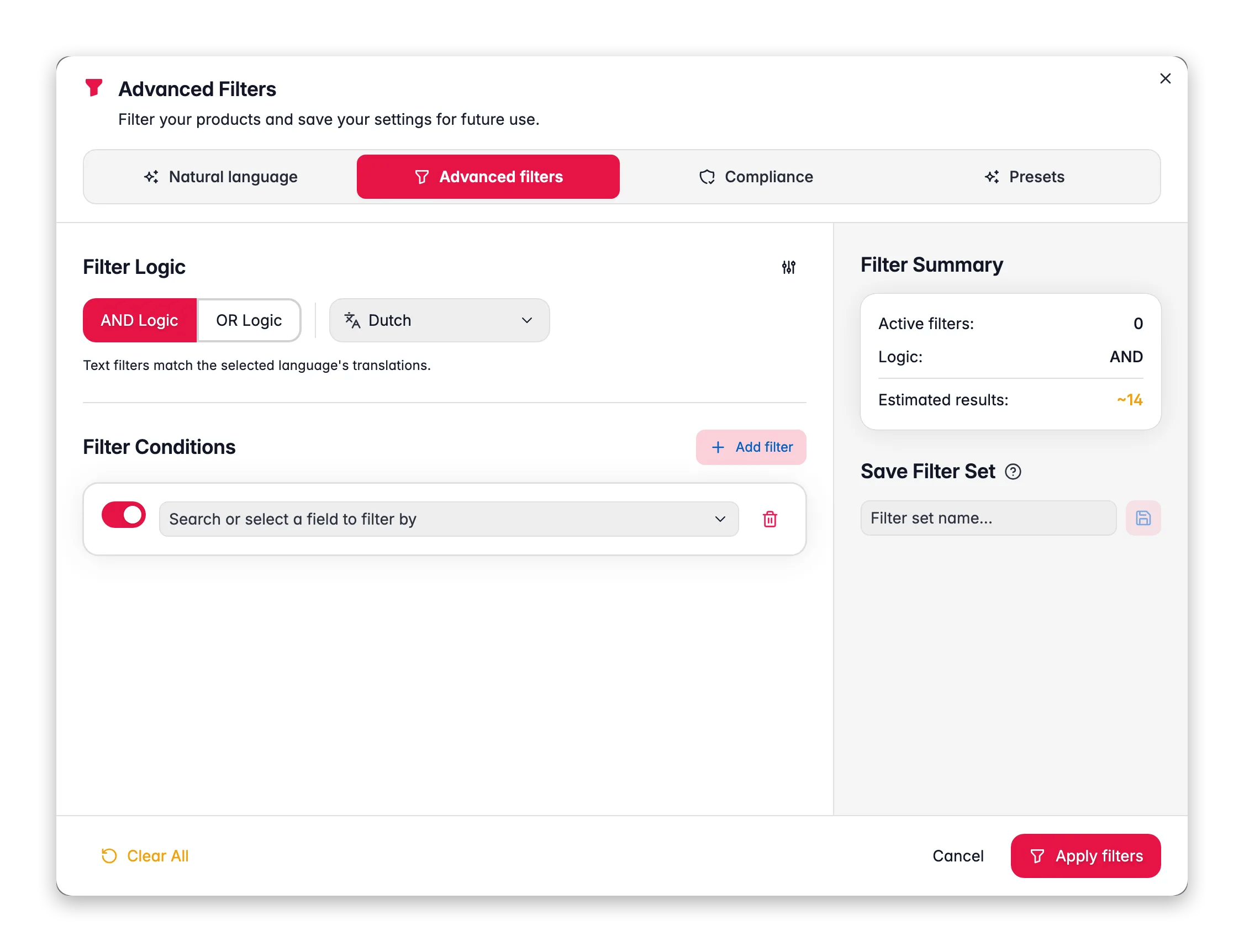
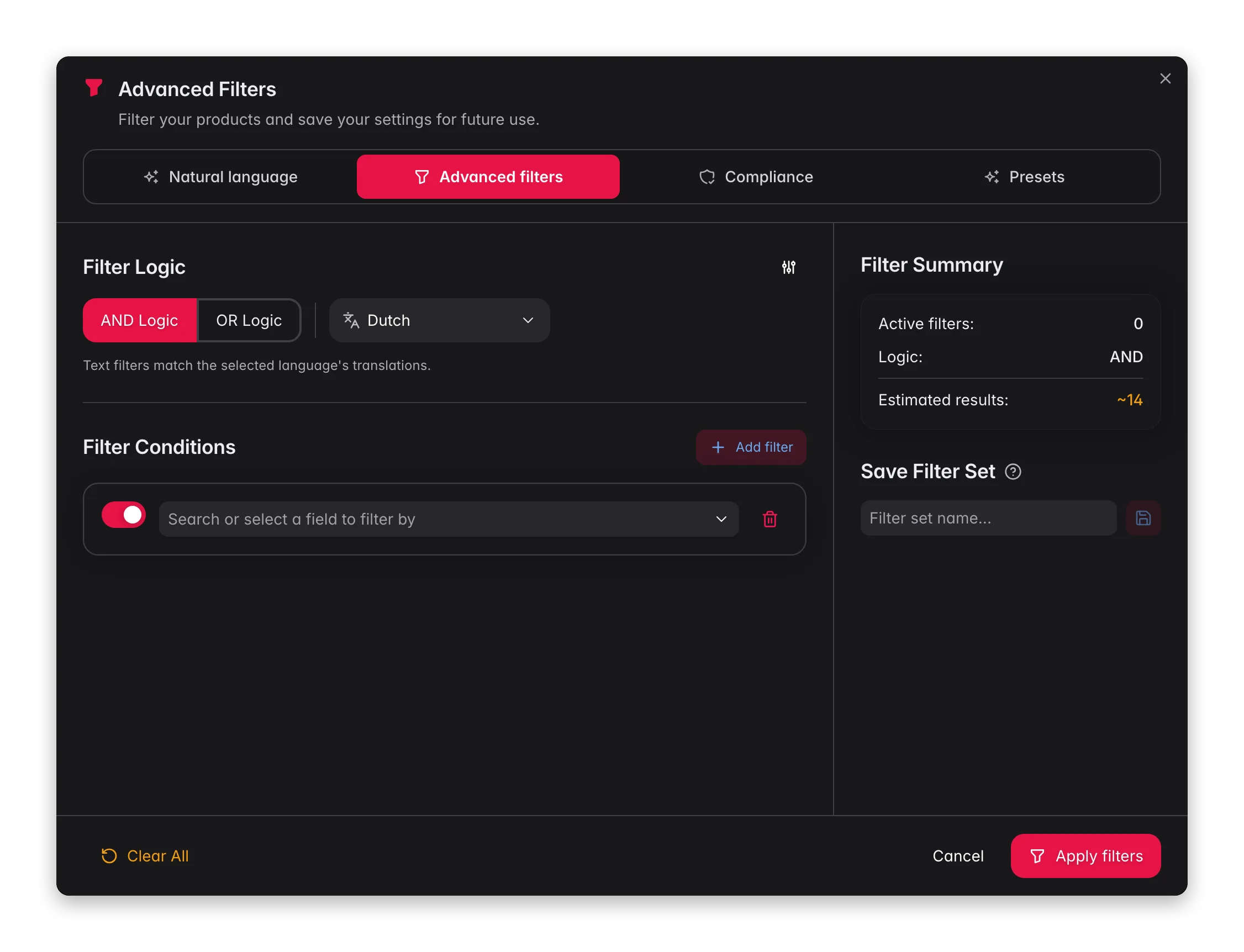 On the [Products](/en/essentials/managing-products) page, click **Filters** next to the search bar, open the **Advanced filters** tab, and filter the **Brand** field (or whichever field holds the term) with **contains** and the shortest distinctive fragment: `sound`, not `SoundMax`. The summary panel previews the match count while you build, so you can see how wide you have cast before applying anything.
Now narrow with the operators that distinguish near-identical values: **case-sensitive equals** to isolate one capitalisation, **regex match** for spacing and punctuation differences, **starts with** and **ends with** for prefix and suffix noise. Write down the count behind each variant - those numbers are how you will know the replacement worked. See [filtering products](/en/products/filtering-products) for the full operator list.
Terminology drift and duplicate products often arrive in the same supplier file, and rewriting text across a set that is half duplicates means doing it twice. A quick **is duplicate** check on **SKU** settles it; if it comes back full, resolve the duplicates first with [clean up a catalog you inherited](/en/guides/clean-up-an-inherited-catalog).
Name it in the **Save filter set** box and save. You will re-run this exact filter after the replacement to prove the variant is gone, and after every future import to check it has not come back.
## Collapse the variants into one spelling
Order matters here for the same reason it does in any text cleanup: a hidden trailing space or an unexpected capital is what makes a replacement silently miss a few hundred products. Three bulk actions look interchangeable and are not, so pick deliberately.
| Use | When | Watch out for |
| --------------------------------------------------------------------- | -------------------------------------------------------------- | ------------------------------------------------------------------ |
| [Find and Replace](/en/essentials/bulk-editing/find-replace) | One known variant becomes one known spelling | Short terms matching inside longer words |
| [Standardize Text Case](/en/essentials/bulk-editing/standardize-case) | A whole field should read one way, such as names in Title Case | Values styled on purpose getting flattened |
| [Enforce Dictionary](/en/essentials/bulk-editing/enforce-dictionary) | Applying your whole approved list at once, repeatedly | Nothing happens until the dictionary exists - see the next section |
On the [Products](/en/essentials/managing-products) page, click **Filters** next to the search bar, open the **Advanced filters** tab, and filter the **Brand** field (or whichever field holds the term) with **contains** and the shortest distinctive fragment: `sound`, not `SoundMax`. The summary panel previews the match count while you build, so you can see how wide you have cast before applying anything.
Now narrow with the operators that distinguish near-identical values: **case-sensitive equals** to isolate one capitalisation, **regex match** for spacing and punctuation differences, **starts with** and **ends with** for prefix and suffix noise. Write down the count behind each variant - those numbers are how you will know the replacement worked. See [filtering products](/en/products/filtering-products) for the full operator list.
Terminology drift and duplicate products often arrive in the same supplier file, and rewriting text across a set that is half duplicates means doing it twice. A quick **is duplicate** check on **SKU** settles it; if it comes back full, resolve the duplicates first with [clean up a catalog you inherited](/en/guides/clean-up-an-inherited-catalog).
Name it in the **Save filter set** box and save. You will re-run this exact filter after the replacement to prove the variant is gone, and after every future import to check it has not come back.
## Collapse the variants into one spelling
Order matters here for the same reason it does in any text cleanup: a hidden trailing space or an unexpected capital is what makes a replacement silently miss a few hundred products. Three bulk actions look interchangeable and are not, so pick deliberately.
| Use | When | Watch out for |
| --------------------------------------------------------------------- | -------------------------------------------------------------- | ------------------------------------------------------------------ |
| [Find and Replace](/en/essentials/bulk-editing/find-replace) | One known variant becomes one known spelling | Short terms matching inside longer words |
| [Standardize Text Case](/en/essentials/bulk-editing/standardize-case) | A whole field should read one way, such as names in Title Case | Values styled on purpose getting flattened |
| [Enforce Dictionary](/en/essentials/bulk-editing/enforce-dictionary) | Applying your whole approved list at once, repeatedly | Nothing happens until the dictionary exists - see the next section |
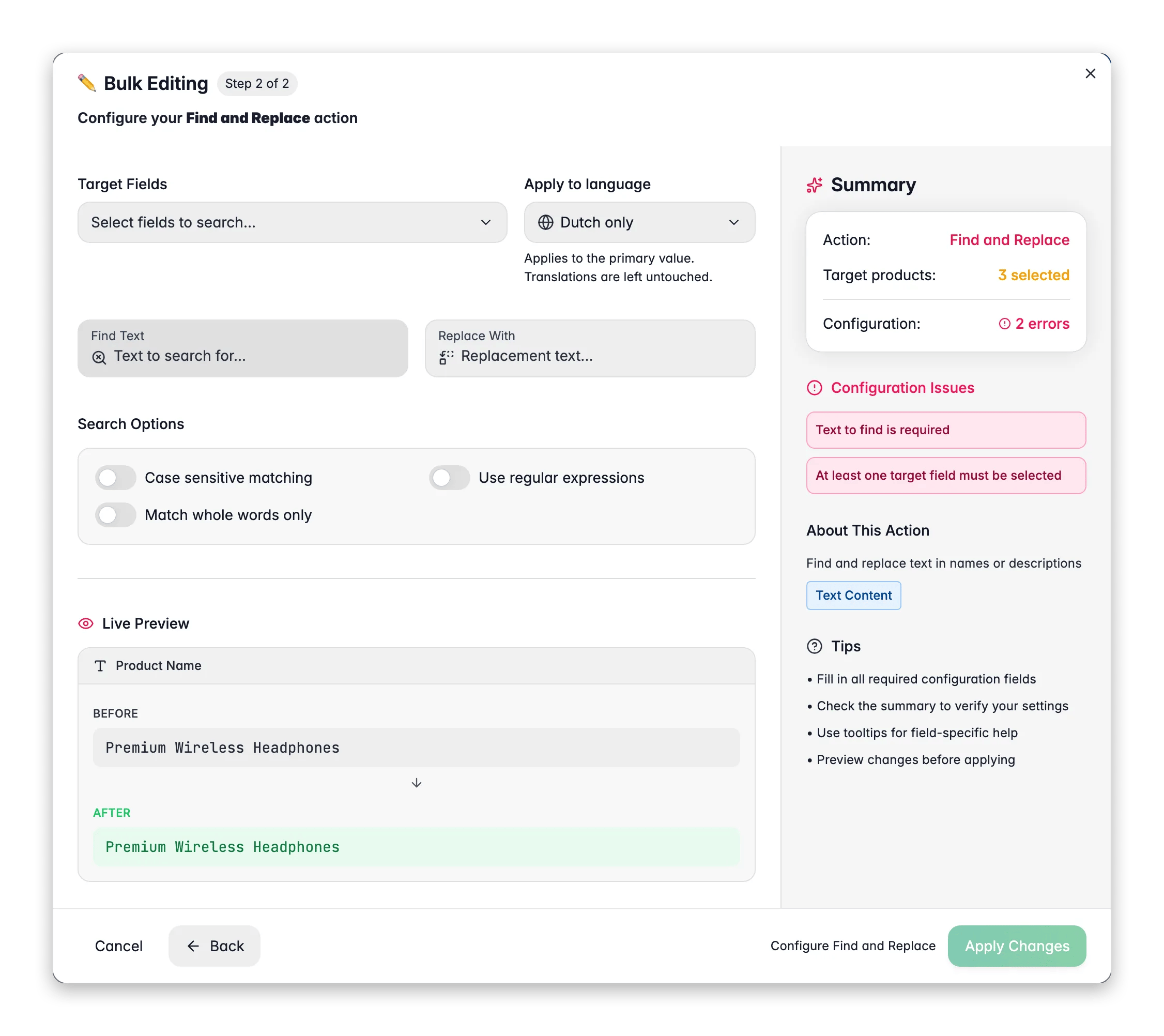
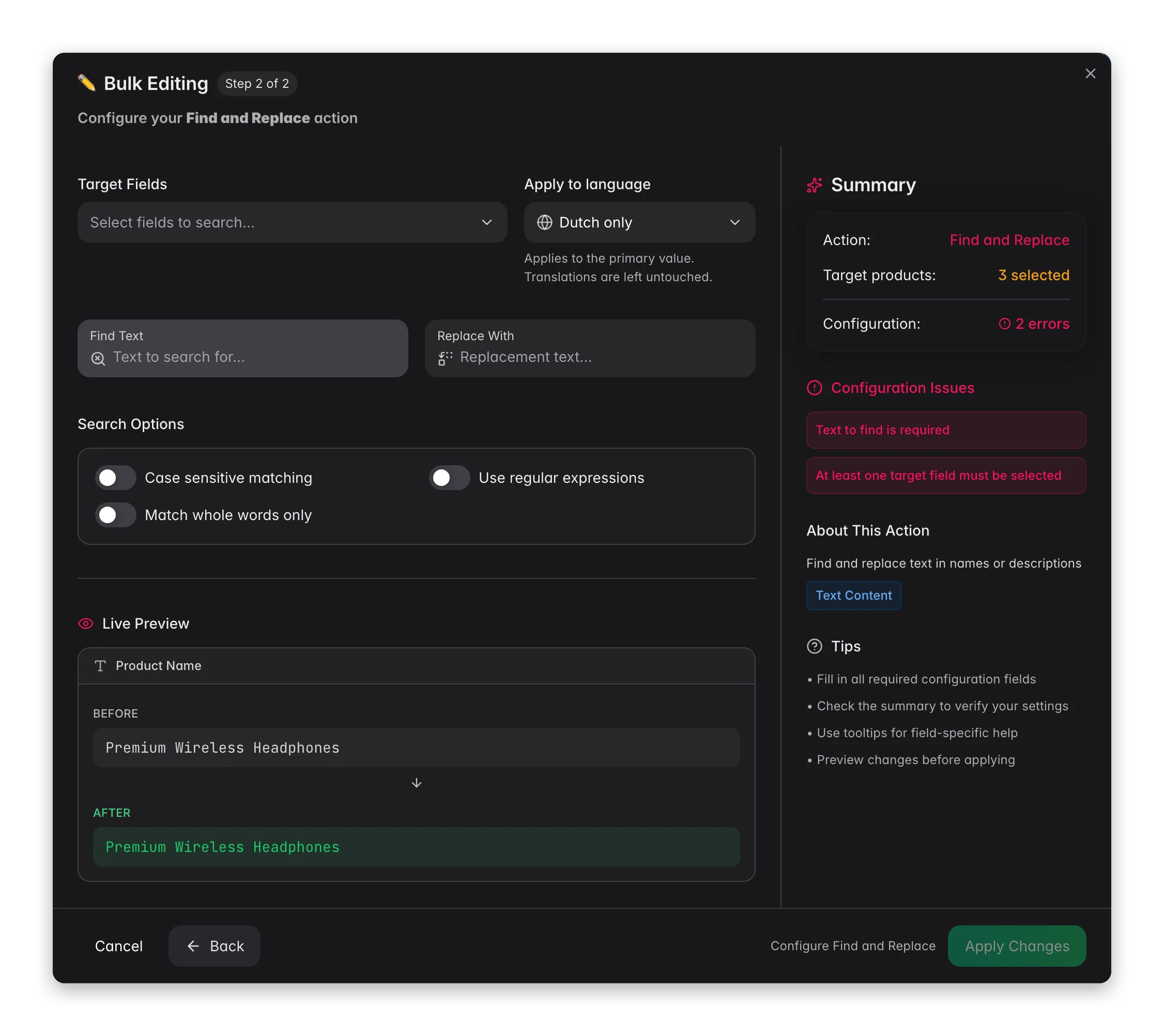 Select your products, click **Bulk Edit** in the Products toolbar, and run [Trim Whitespace](/en/essentials/bulk-editing/trim-whitespace) over the fields that hold the term. `Soundmax ` and `Soundmax` are two values to a filter and two facets to a storefront, and no later step will match both reliably while the space is still there.
Run [Find and Replace](/en/essentials/bulk-editing/find-replace) once per variant, targeting every field the term appears in: name, descriptions, SEO fields, brand, supplier, custom text attributes. Turn on **Match whole words only** so a short term is not rewritten inside a longer word, and leave **Case sensitive** off so every capitalisation of that variant is caught in the one run.
Reach for [Standardize Text Case](/en/essentials/bulk-editing/standardize-case) only on a field that genuinely should read one way throughout. Run it after the replacements, not before: a Title Case pass over a field you have already corrected will re-capitalize the exact brand strings you just fixed. Keep the field selection narrow and read the live before/after preview.
Load the filter set from the first section. Every variant should now return zero products and the approved spelling should hold the combined count. If a variant still has matches, you missed a field, not a product.
## Write the approved terms down once
Everything so far was a one-off. The dictionary is what makes it repeatable, and it is the input to a bulk action most people never find on their own.
Select your products, click **Bulk Edit** in the Products toolbar, and run [Trim Whitespace](/en/essentials/bulk-editing/trim-whitespace) over the fields that hold the term. `Soundmax ` and `Soundmax` are two values to a filter and two facets to a storefront, and no later step will match both reliably while the space is still there.
Run [Find and Replace](/en/essentials/bulk-editing/find-replace) once per variant, targeting every field the term appears in: name, descriptions, SEO fields, brand, supplier, custom text attributes. Turn on **Match whole words only** so a short term is not rewritten inside a longer word, and leave **Case sensitive** off so every capitalisation of that variant is caught in the one run.
Reach for [Standardize Text Case](/en/essentials/bulk-editing/standardize-case) only on a field that genuinely should read one way throughout. Run it after the replacements, not before: a Title Case pass over a field you have already corrected will re-capitalize the exact brand strings you just fixed. Keep the field selection narrow and read the live before/after preview.
Load the filter set from the first section. Every variant should now return zero products and the approved spelling should hold the combined count. If a variant still has matches, you missed a field, not a product.
## Write the approved terms down once
Everything so far was a one-off. The dictionary is what makes it repeatable, and it is the input to a bulk action most people never find on their own.
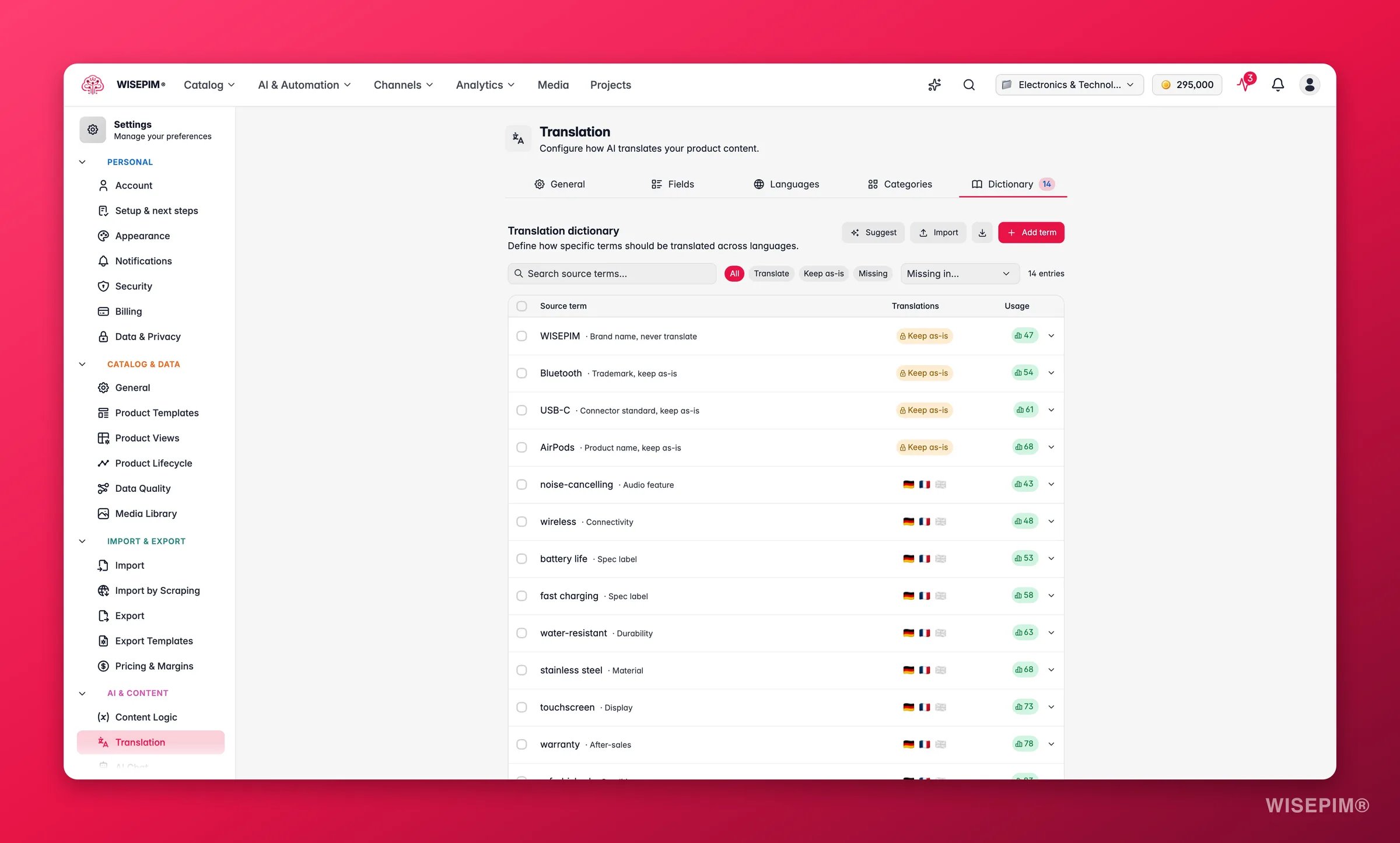
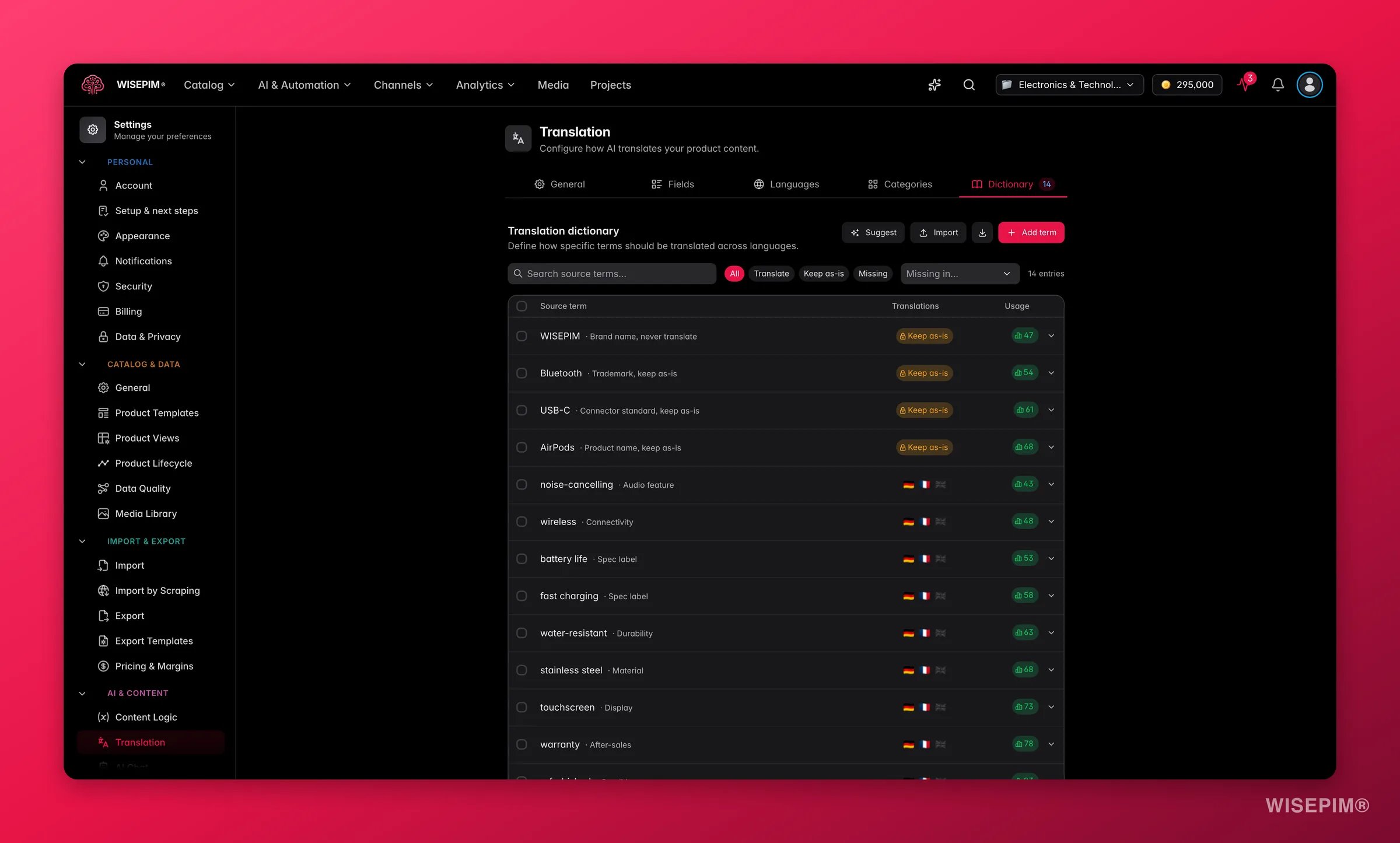 Go to **Settings → [Translation](/en/settings/translation) → Dictionary** and click **+ Add term**: enter the source term and the exact wording you want in each language. Add context where a term is ambiguous, so "mouse" as an audio category and "mouse" as a computer peripheral do not collide.
Turn on **Keep as-is** for brand names, product codes, and trademarks. That is what stops a translation run from helpfully rendering your brand into German, and it is why the dictionary is worth building even if you sell in one language today.
The Dictionary has a **Bulk edit** text mode for adding many terms at once, which is far quicker than clicking through entries when you are transcribing a brand style guide.
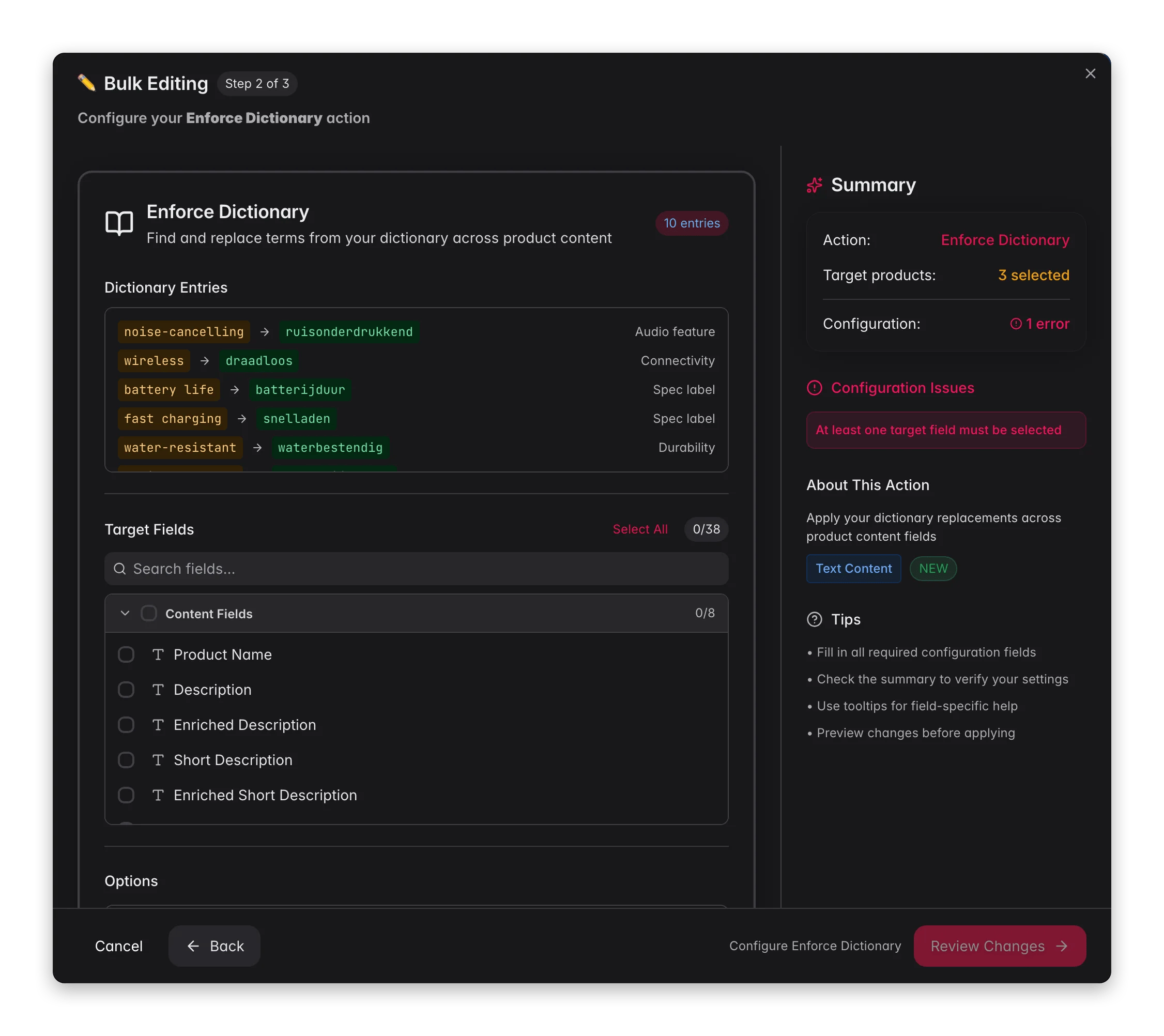
Select your products, click **Bulk Edit**, and pick [Enforce Dictionary](/en/essentials/bulk-editing/enforce-dictionary) under **Text & Content**. It reads your active dictionary entries and swaps the source terms for the approved wording across the fields you choose, including the translated fields per language, which is the part a manual find-and-replace pass almost always misses. Terms you locked to stay as-is are skipped rather than rewritten.
Go to **Settings → [Translation](/en/settings/translation) → Dictionary** and click **+ Add term**: enter the source term and the exact wording you want in each language. Add context where a term is ambiguous, so "mouse" as an audio category and "mouse" as a computer peripheral do not collide.
Turn on **Keep as-is** for brand names, product codes, and trademarks. That is what stops a translation run from helpfully rendering your brand into German, and it is why the dictionary is worth building even if you sell in one language today.
The Dictionary has a **Bulk edit** text mode for adding many terms at once, which is far quicker than clicking through entries when you are transcribing a brand style guide.
Select your products, click **Bulk Edit**, and pick [Enforce Dictionary](/en/essentials/bulk-editing/enforce-dictionary) under **Text & Content**. It reads your active dictionary entries and swaps the source terms for the approved wording across the fields you choose, including the translated fields per language, which is the part a manual find-and-replace pass almost always misses. Terms you locked to stay as-is are skipped rather than rewritten.
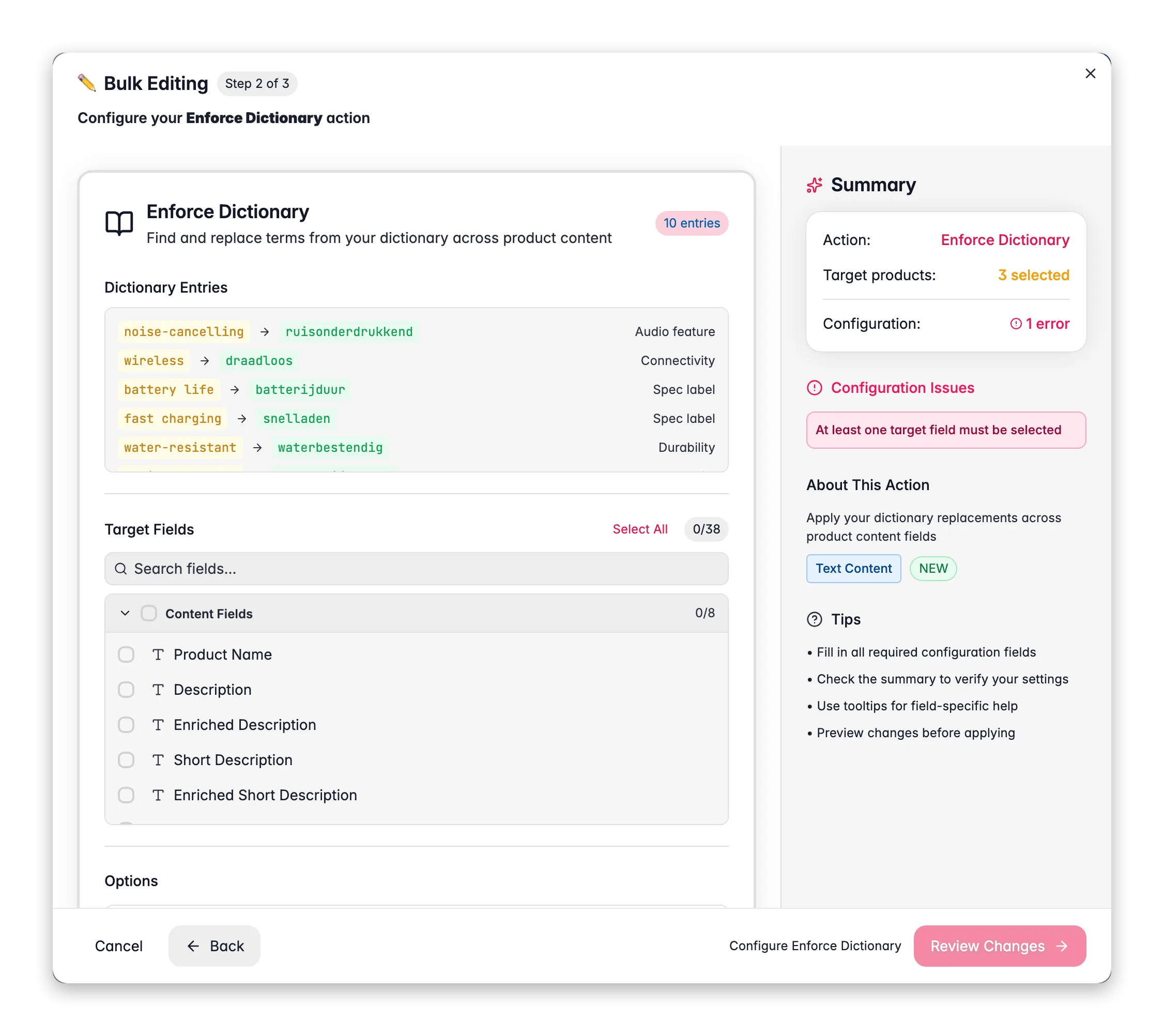
 Run Enforce Dictionary after each new supplier file lands. A feed brings its own vocabulary with it, and one bulk action costs you less than the filtering you did in section one.
## Stop the variants coming back
The dictionary fixes wording you already have; this section is about wording that has not arrived yet. Do it now, while you still remember which spellings were wrong - in three months the retired variants are exactly what nobody can list from memory.
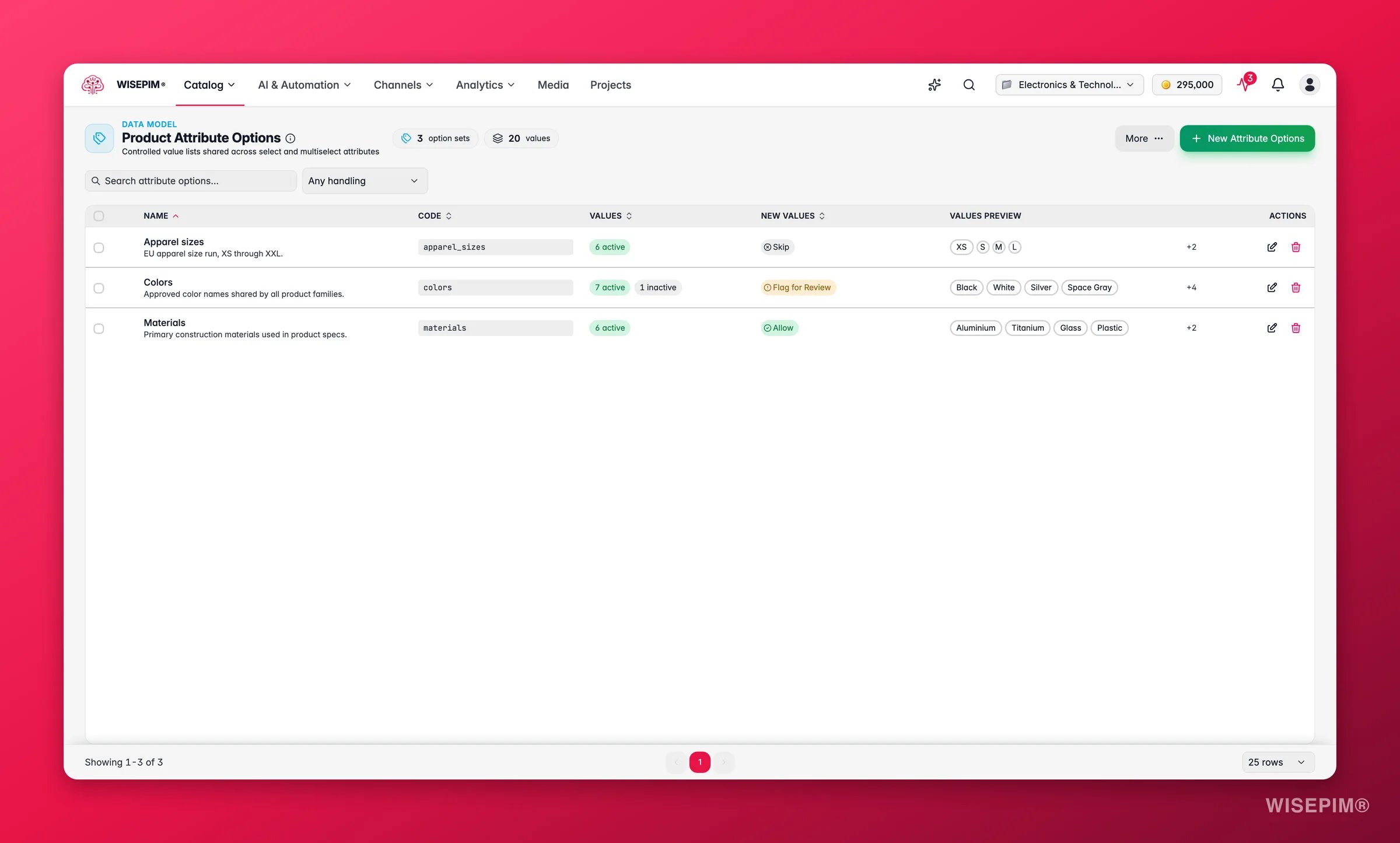
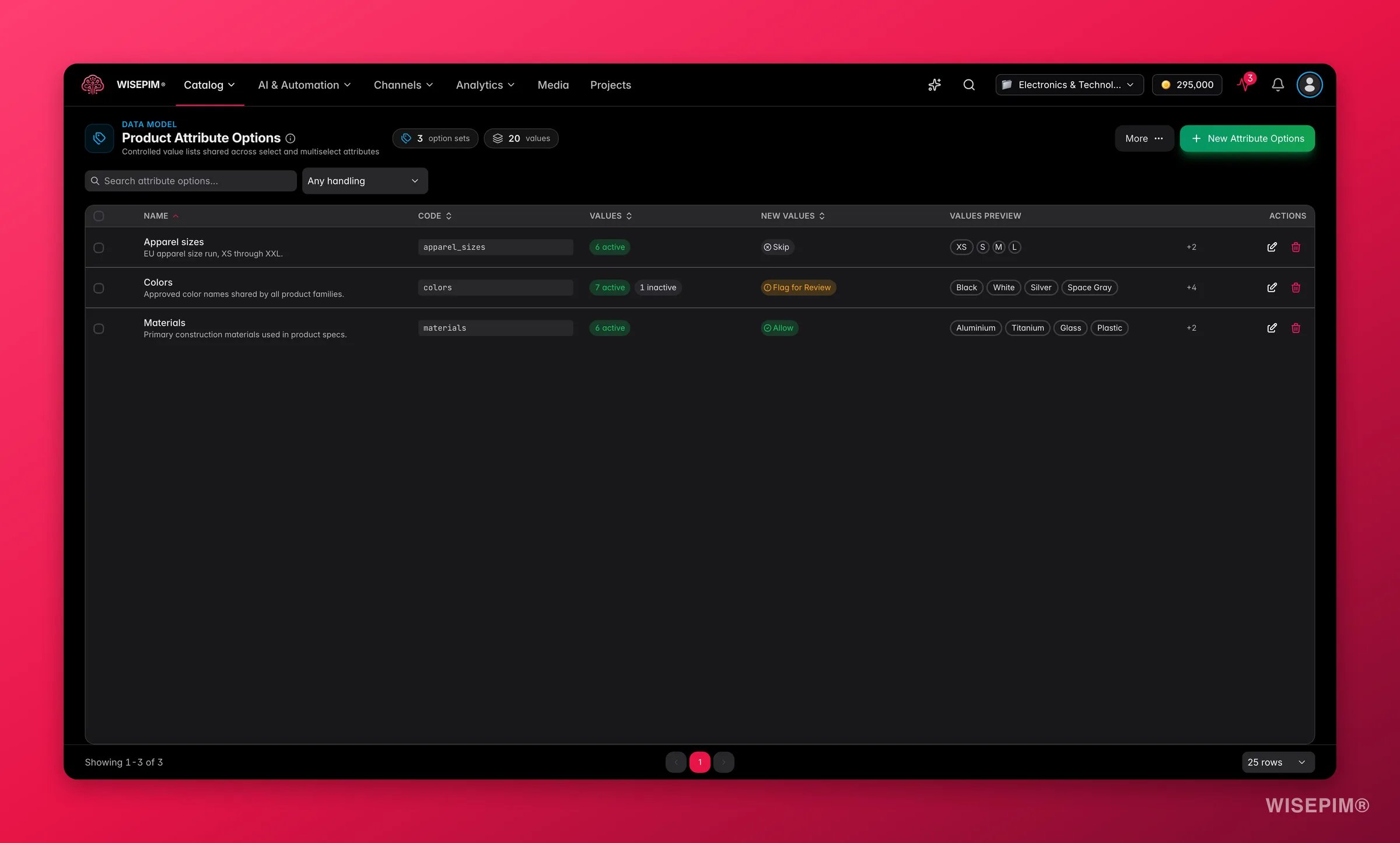
The most durable fix is structural: where the possible values are known in advance, a select attribute backed by a shared options set means nobody can type a fifth spelling, because there is nothing to type into. Set this up in [attributes](/en/other-features/managing-attributes).
Run Enforce Dictionary after each new supplier file lands. A feed brings its own vocabulary with it, and one bulk action costs you less than the filtering you did in section one.
## Stop the variants coming back
The dictionary fixes wording you already have; this section is about wording that has not arrived yet. Do it now, while you still remember which spellings were wrong - in three months the retired variants are exactly what nobody can list from memory.
The most durable fix is structural: where the possible values are known in advance, a select attribute backed by a shared options set means nobody can type a fifth spelling, because there is nothing to type into. Set this up in [attributes](/en/other-features/managing-attributes).
 In [Quality Guard](/en/quality-guard/rules), click **Create Rule** and add a condition on the product name or description with the **does not include** operator and the retired spelling as its value. Set the trigger mode to **The product matches them**, which is what turns the rule into a detector for wording you have banned rather than a requirement.
Warn logs the failure and lets the product export anyway. A misspelled brand is worth flagging, not worth stopping a sync over. Check the live impact preview before saving to see how many products the rule catches today.
Back on the **Dictionary** tab, **Auto-learn glossary from reviews** grows the dictionary from wording inconsistencies your [linguistic reviews](/en/analytics/linguistic-review) are highly confident about. It is off by default, and leaving it off until your first reviews read sensibly is the point: you want the reviews trustworthy before they start writing entries. Your own terms and anything marked **Keep as-is** always win.
## How to tell it worked
| Signal | Where to look | When it moves |
| ---------------------------------------------- | ---------------------------------------------------- | -------------------------------------------- |
| Each variant filter returns zero products | Your saved advanced filter set | Immediately after the find-and-replace pass |
| The approved spelling holds the combined count | Same filter, approved term | Same pass |
| Brand facets collapse to one entry per brand | Your storefront or channel feed | On the next export or sync |
| Dictionary terms come out identical everywhere | [Linguistic Review](/en/analytics/linguistic-review) | After the next translation run |
| Old spellings get flagged, not shipped | [Quality Guard](/en/quality-guard/overview) | On the next check after the rule goes active |
The filter counts are the honest test, and you get them in seconds. Treat the channel-side signals as confirmation that the change reached the outside world.
## When it doesn't work
A short term matched as a fragment of a longer one. Turn on **Match whole words only** and re-run. For patterns rather than fixed strings, enable regular expressions and test on a small selection first. See [Find and Replace](/en/essentials/bulk-editing/find-replace).
Case-sensitive matching is off by default, which normally catches every capitalisation at once, so a survivor points at a field you did not include in the target-field list rather than at the matching options. Re-run with the missing fields selected.
Only active dictionary entries are applied, and entries locked to stay as they are get skipped by design. Open the **Dictionary** tab in [Translation settings](/en/settings/translation) and confirm the term is there with the replacement you expect, then re-run with the right target fields selected.
Names with intentional internal capitals are exactly what the live preview in [Standardize Text Case](/en/essentials/bulk-editing/standardize-case) exists to catch. Repair the values with a find-and-replace, then add the term to the dictionary with **Keep as-is** so translation runs leave it alone too.
A feed carries its own vocabulary and nothing in the import knows about your preferences. Run Enforce Dictionary as a standing step after each import, and move the field to a select attribute with a shared options set so free text is no longer possible.
## Related
The bulk action that applies your approved terms across the catalog.
Where the dictionary lives, including keep-as-is and auto-learn.
The full cleanup sequence this terminology pass belongs to.
Teach WISEPIM to write new content in your approved wording from the start.
In [Quality Guard](/en/quality-guard/rules), click **Create Rule** and add a condition on the product name or description with the **does not include** operator and the retired spelling as its value. Set the trigger mode to **The product matches them**, which is what turns the rule into a detector for wording you have banned rather than a requirement.
Warn logs the failure and lets the product export anyway. A misspelled brand is worth flagging, not worth stopping a sync over. Check the live impact preview before saving to see how many products the rule catches today.
Back on the **Dictionary** tab, **Auto-learn glossary from reviews** grows the dictionary from wording inconsistencies your [linguistic reviews](/en/analytics/linguistic-review) are highly confident about. It is off by default, and leaving it off until your first reviews read sensibly is the point: you want the reviews trustworthy before they start writing entries. Your own terms and anything marked **Keep as-is** always win.
## How to tell it worked
| Signal | Where to look | When it moves |
| ---------------------------------------------- | ---------------------------------------------------- | -------------------------------------------- |
| Each variant filter returns zero products | Your saved advanced filter set | Immediately after the find-and-replace pass |
| The approved spelling holds the combined count | Same filter, approved term | Same pass |
| Brand facets collapse to one entry per brand | Your storefront or channel feed | On the next export or sync |
| Dictionary terms come out identical everywhere | [Linguistic Review](/en/analytics/linguistic-review) | After the next translation run |
| Old spellings get flagged, not shipped | [Quality Guard](/en/quality-guard/overview) | On the next check after the rule goes active |
The filter counts are the honest test, and you get them in seconds. Treat the channel-side signals as confirmation that the change reached the outside world.
## When it doesn't work
A short term matched as a fragment of a longer one. Turn on **Match whole words only** and re-run. For patterns rather than fixed strings, enable regular expressions and test on a small selection first. See [Find and Replace](/en/essentials/bulk-editing/find-replace).
Case-sensitive matching is off by default, which normally catches every capitalisation at once, so a survivor points at a field you did not include in the target-field list rather than at the matching options. Re-run with the missing fields selected.
Only active dictionary entries are applied, and entries locked to stay as they are get skipped by design. Open the **Dictionary** tab in [Translation settings](/en/settings/translation) and confirm the term is there with the replacement you expect, then re-run with the right target fields selected.
Names with intentional internal capitals are exactly what the live preview in [Standardize Text Case](/en/essentials/bulk-editing/standardize-case) exists to catch. Repair the values with a find-and-replace, then add the term to the dictionary with **Keep as-is** so translation runs leave it alone too.
A feed carries its own vocabulary and nothing in the import knows about your preferences. Run Enforce Dictionary as a standing step after each import, and move the field to a select attribute with a shared options set so free text is no longer possible.
## Related
The bulk action that applies your approved terms across the catalog.
Where the dictionary lives, including keep-as-is and auto-learn.
The full cleanup sequence this terminology pass belongs to.
Teach WISEPIM to write new content in your approved wording from the start.