> ## Documentation Index
> Fetch the complete documentation index at: https://docs.wisepim.com/llms.txt
> Use this file to discover all available pages before exploring further.
# Launch on a channel without rejections
> Your feed keeps getting disapproved. Sequence channel readiness, rule packs, bulk fixes and feed validation into one clean launch instead of four.
Someone in the business has decided you're selling on Google Shopping, Kaufland, or Meta next month. You export a feed, the channel eats it, and half your catalog comes back disapproved - missing GTIN, missing brand, title too long. Then you fix a few products, resubmit, and wait another day to find out what else is wrong.
The fix is to stop discovering requirements one rejection at a time. WISEPIM can tell you what a channel wants *before* you send anything, and this guide puts those checks in the order that avoids rework. Budget half a day for your first channel, and about an hour for each one after that.
**Before you start:** connect the channel (or at least know which one you're targeting) under [Integrations](/en/integrations/supported-platforms), and have a catalog with products in it. Marketplace-specific credentials are covered on the [Kaufland](/en/integrations/kaufland) and [Mirakl](/en/integrations/mirakl) pages.
**What you'll get:** a feed the channel accepts on the first submission, and a compliance number you can watch instead of waiting for a rejection email.
## Which tool does what
Four surfaces shape what a channel receives, and mixing them up is the main reason a launch takes three attempts. Read this table once and the rest of the guide is just execution.
| Surface | The question it answers | Where it sits |
| ------------------------------------ | ------------------------------------------------------------------------------------------ | ------------------------------------------------------------------------------------------------ |
| **Channel Readiness** | Across my whole catalog, how much is listable on this channel, and which field is the gap? | Its own page in [Feed Hub](/en/essentials/feed-hub) |
| **Rule packs and channel rules** | Which products break this channel's requirements, on every export, permanently? | [Quality Guard](/en/quality-guard/overview) and [Channel Rules](/en/quality-guard/channel-rules) |
| **Feed validation and feed quality** | Does this one feed, as configured, satisfy the channel field by field? | The feed's own page in Feed Hub |
| **Quarantine** | Which products are being held back right now, and why? | [Quality Guard → Quarantine](/en/quality-guard/quarantine) |
That table is also the order. Readiness tells you what to fix, rules keep it fixed, the feed gets built on data that is already clean, and quarantine is the last gate you clear before the first sync. Build the feed first and you will rebuild it after every data fix.
```mermaid theme={null}
flowchart LR
A[Channel Readiness] --> B[Rule pack on Warn]
B --> C[Bulk fix data]
C --> D[Build feed]
D --> E[Validate feed]
E --> F[Switch to Block]
F --> G[Clear quarantine]
G --> H[First sync]
```
## See what the channel actually wants
Do this before you touch a single product. Readiness gives you today's snapshot; a rule pack turns the same requirements into checks that keep running after you stop looking.

 On the Channel Readiness page, pick the channels you sell on. Each one gets a card: a percentage ready for that channel, coverage bars per required field, and chips counting the products missing each one. Write the percentage down - it is your before number.
The coverage bars rank themselves for you. One field is almost always responsible for most of the gap - usually GTIN or brand. Each card carries a **Fix** button that opens the AI fix drawer with exactly those products preloaded, so the biggest gap in your launch is one pass rather than a project.
A readiness percentage is a snapshot that goes stale. Open the **Rule Packs** tab in [Quality Guard](/en/quality-guard/overview) and install the pre-built bundle for your channel: its requirements land as channel-scoped rules in one click and re-run on every export from then on. The Google Shopping pack covers GTIN, brand, product category, image requirements, and title formatting.
Severity decides what happens on failure: **Block** quarantines the product, **Skip** silently leaves it out, **Warn** lets it through and logs it. Start on Warn so you can measure the real size of the problem without holding up an export you still need today. You switch to Block in the last section, once the data is clean.
[Channel Rules](/en/quality-guard/channel-rules) is a filtered view of the same rules, grouped by destination. Find your channel - if it's still listed under **Unconfigured Channels**, click **Add Rules**, and write down its compliance rate. Green means 80% or more of covered products pass, amber 60–79%, red below 60%. This is the one number you'll watch for the rest of the launch.
## Fix the blockers in bulk
You now know which rule fails and how often. Never fix these product by product - filter to the violators and act on the whole set at once.
On the Channel Readiness page, pick the channels you sell on. Each one gets a card: a percentage ready for that channel, coverage bars per required field, and chips counting the products missing each one. Write the percentage down - it is your before number.
The coverage bars rank themselves for you. One field is almost always responsible for most of the gap - usually GTIN or brand. Each card carries a **Fix** button that opens the AI fix drawer with exactly those products preloaded, so the biggest gap in your launch is one pass rather than a project.
A readiness percentage is a snapshot that goes stale. Open the **Rule Packs** tab in [Quality Guard](/en/quality-guard/overview) and install the pre-built bundle for your channel: its requirements land as channel-scoped rules in one click and re-run on every export from then on. The Google Shopping pack covers GTIN, brand, product category, image requirements, and title formatting.
Severity decides what happens on failure: **Block** quarantines the product, **Skip** silently leaves it out, **Warn** lets it through and logs it. Start on Warn so you can measure the real size of the problem without holding up an export you still need today. You switch to Block in the last section, once the data is clean.
[Channel Rules](/en/quality-guard/channel-rules) is a filtered view of the same rules, grouped by destination. Find your channel - if it's still listed under **Unconfigured Channels**, click **Add Rules**, and write down its compliance rate. Green means 80% or more of covered products pass, amber 60–79%, red below 60%. This is the one number you'll watch for the rest of the launch.
## Fix the blockers in bulk
You now know which rule fails and how often. Never fix these product by product - filter to the violators and act on the whole set at once.
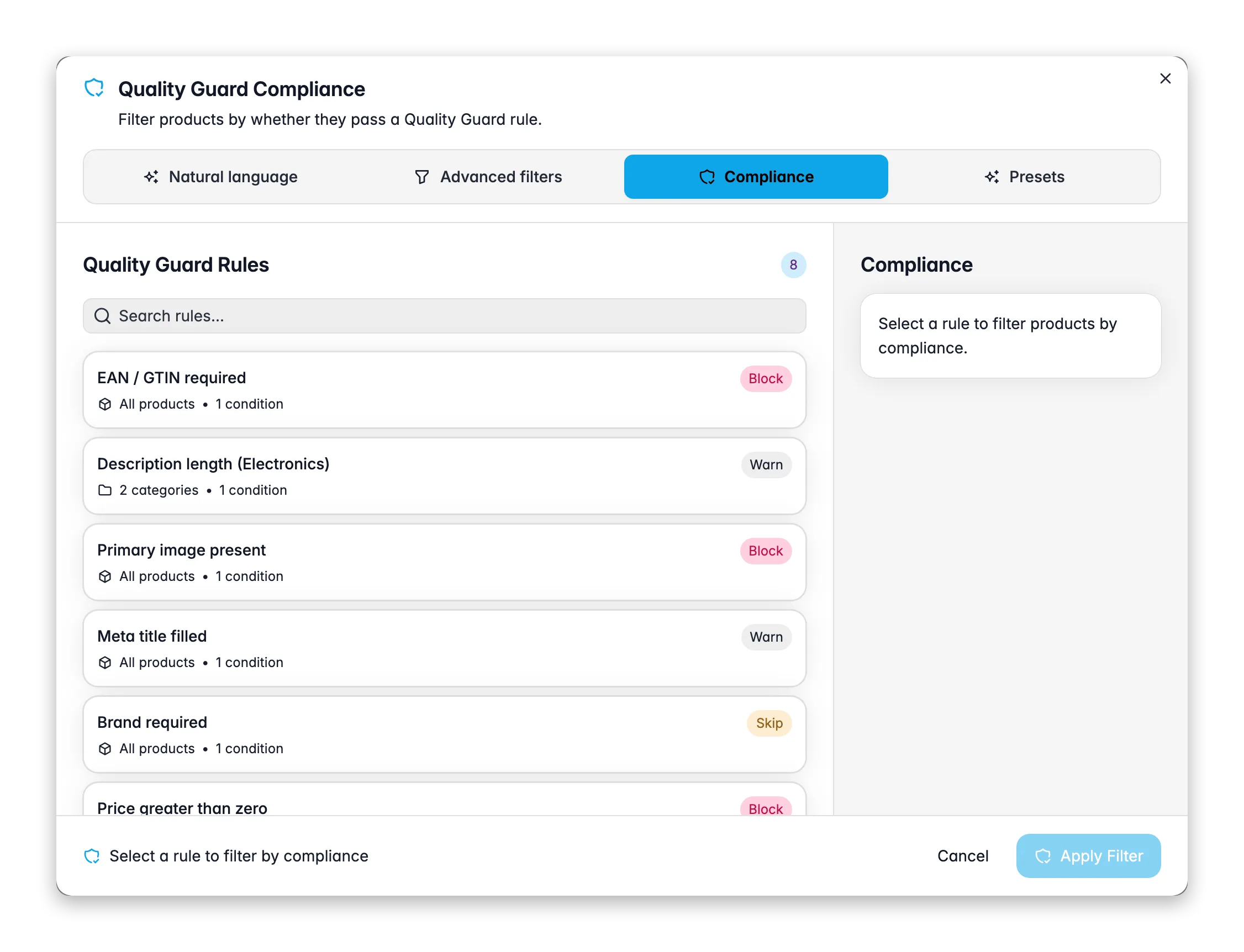
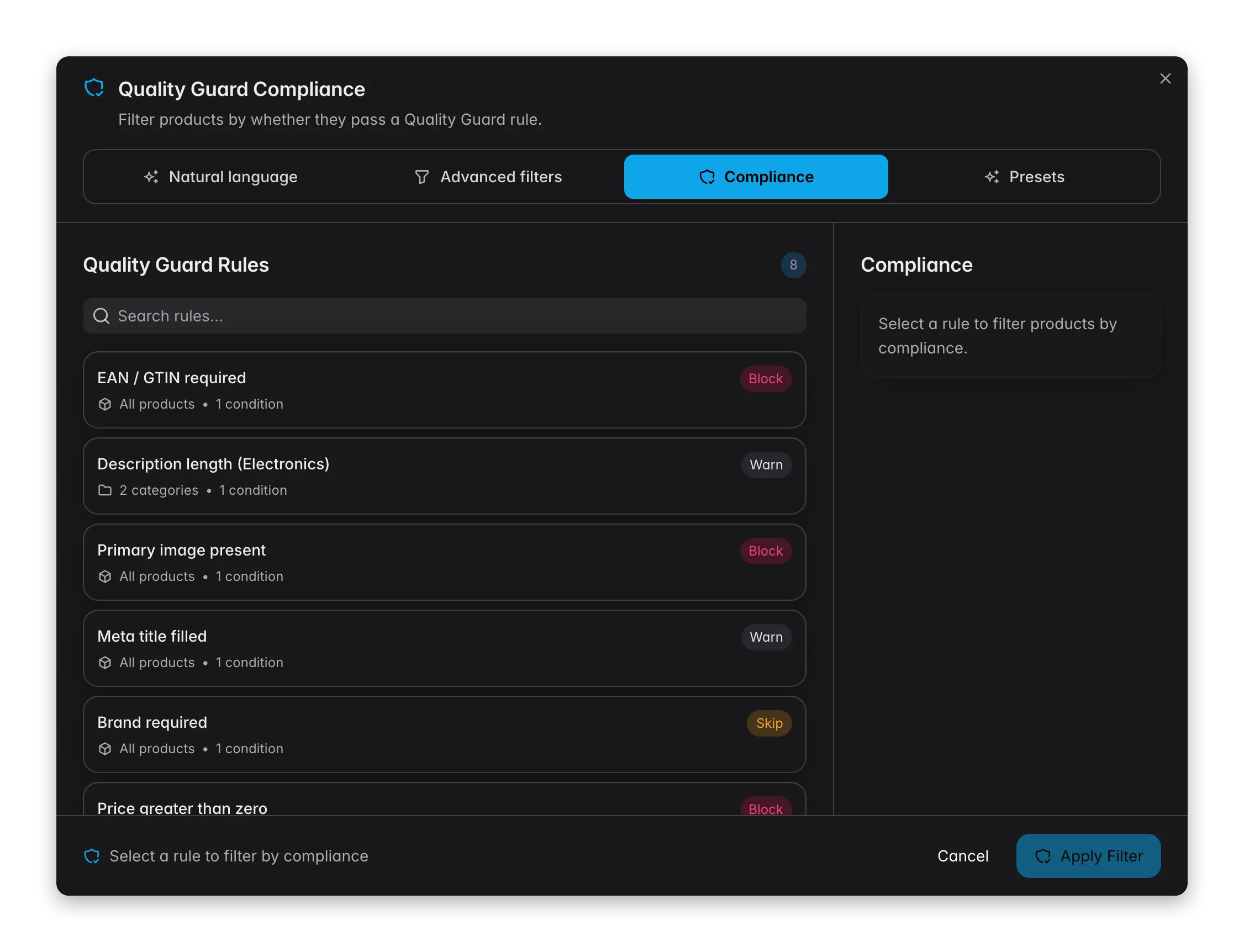 On the Products page, open the [filter modal](/en/products/filtering-products) and switch to the **Compliance** tab. Pick the failing rule and choose **Violates**. The rule's own scope is applied automatically, so you get exactly the products it targets, with a live count before you commit.
Anything that's a known value - a brand you can set per supplier, a category assignment, a stock status - belongs in [bulk editing](/en/essentials/bulk-editing) rather than in AI. It's instant and it costs no credits.
When a channel wants colour, material, or size and the information is buried in your descriptions, run [AI attribute extraction](/en/ai/attributes) on the filtered set. It only fills attributes that already exist on the product's family, so nothing unexpected appears in your structure.
GTIN, UPC, MPN, and model number can't be written - they have to be found. Run [Web Research](/en/ai/web-research) on the filtered set and switch on the identifiers you need under **Identifiers to discover**. Identifiers follow stricter rules than anything else research writes: they only ever go into empty fields, every value is checksum-validated, and a value that conflicts with yours is flagged rather than written over it.
Run the Compliance filter again with the same rule. The count should have dropped. Work down the rules in order of how many products they fail, and stop when the remaining ones are genuine exceptions rather than data gaps.
## Build the feed and validate it before you submit
Only now is it worth creating the feed, because a feed is a snapshot of data you have already cleaned. Everything from here happens in [Feed Hub](/en/essentials/feed-hub).
On the Products page, open the [filter modal](/en/products/filtering-products) and switch to the **Compliance** tab. Pick the failing rule and choose **Violates**. The rule's own scope is applied automatically, so you get exactly the products it targets, with a live count before you commit.
Anything that's a known value - a brand you can set per supplier, a category assignment, a stock status - belongs in [bulk editing](/en/essentials/bulk-editing) rather than in AI. It's instant and it costs no credits.
When a channel wants colour, material, or size and the information is buried in your descriptions, run [AI attribute extraction](/en/ai/attributes) on the filtered set. It only fills attributes that already exist on the product's family, so nothing unexpected appears in your structure.
GTIN, UPC, MPN, and model number can't be written - they have to be found. Run [Web Research](/en/ai/web-research) on the filtered set and switch on the identifiers you need under **Identifiers to discover**. Identifiers follow stricter rules than anything else research writes: they only ever go into empty fields, every value is checksum-validated, and a value that conflicts with yours is flagged rather than written over it.
Run the Compliance filter again with the same rule. The count should have dropped. Work down the rules in order of how many products they fail, and stop when the remaining ones are genuine exceptions rather than data gaps.
## Build the feed and validate it before you submit
Only now is it worth creating the feed, because a feed is a snapshot of data you have already cleaned. Everything from here happens in [Feed Hub](/en/essentials/feed-hub).
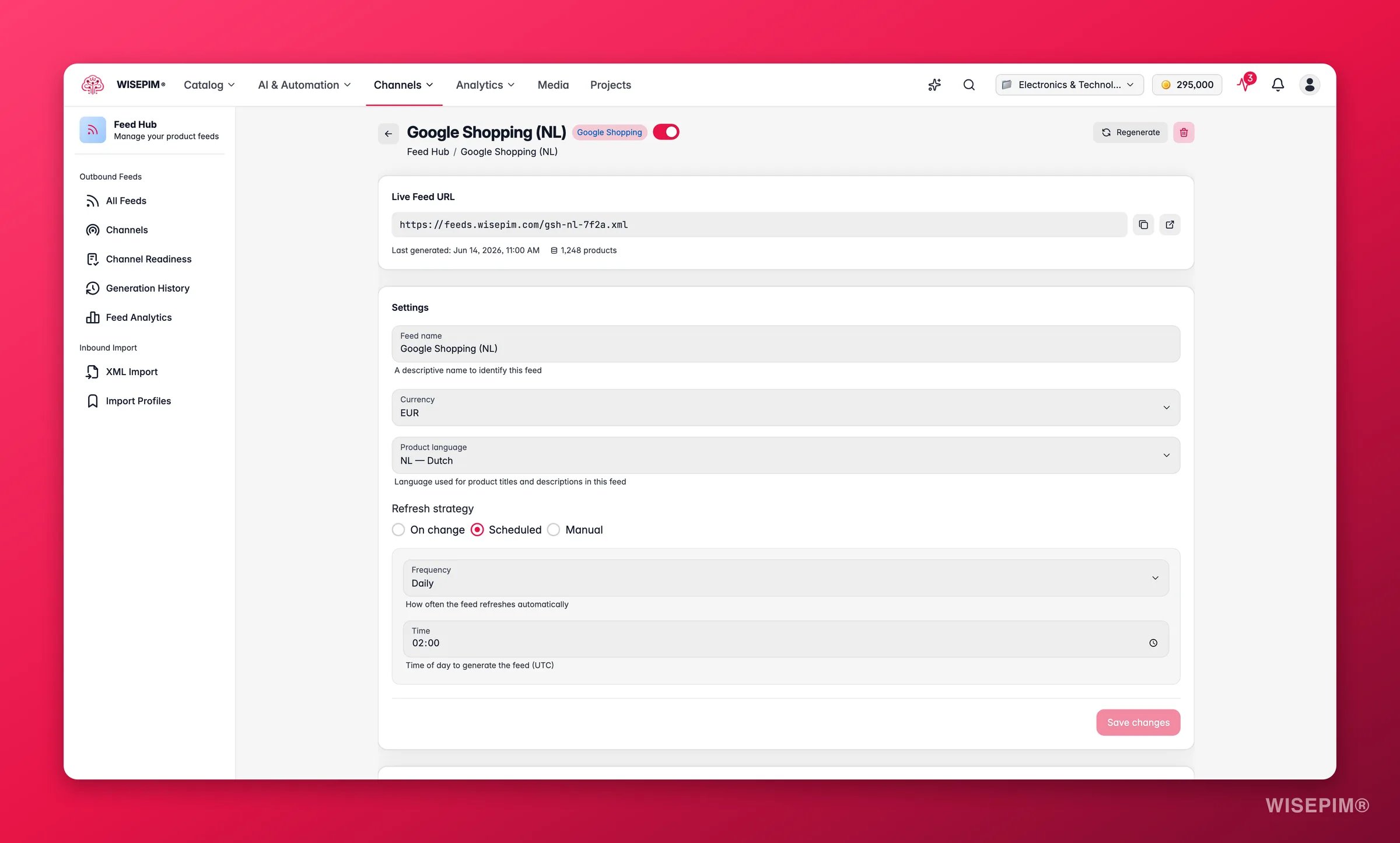
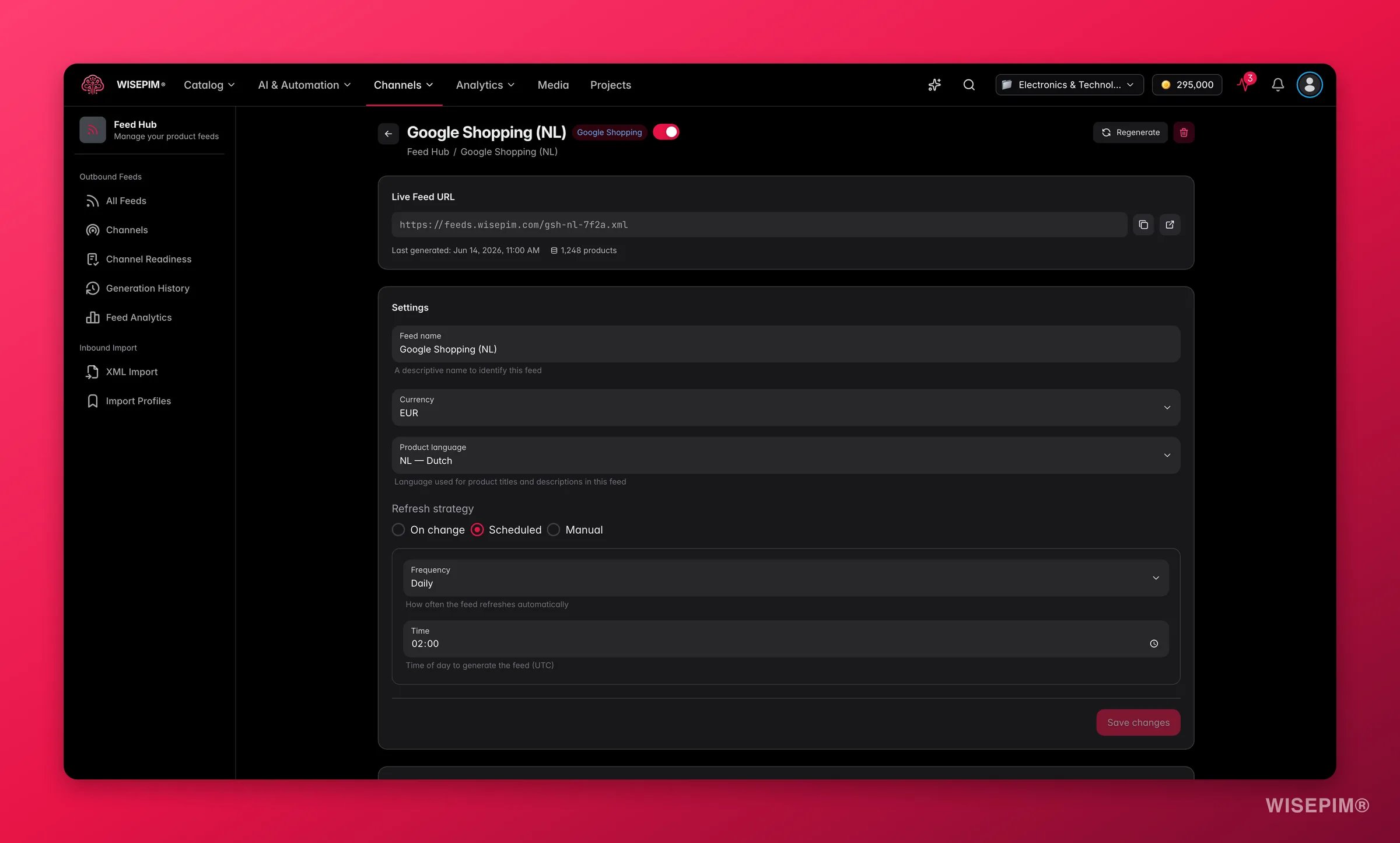 Click **Create Feed** on the Feed Hub overview and pick your channel in the two-step wizard. The preset sets sensible defaults; you set the name, product language, currency, and refresh strategy. Selling in more than one language? One feed per language - most channels expect a separate URL per market.
On the feed's **Field Mappings**, **Auto-map** matches on field names and **AI Auto-map** handles the cases where your names and the channel's don't line up. Review the required fields yourself afterwards, and add a **fallback** value on any field where your primary source is sometimes empty.
Two different controls, in this order. **Product Scope** decides who is eligible at all - categories, product families, whether out-of-stock counts. **Filter rules** then drop the products that would embarrass you: no price, no image, quality score below a threshold. Hit **Preview** to see how many each rule removes before you save, because this is where a feed silently loses half its catalog.
**Validate** checks each individual product against the channel's field requirements and lists errors and warnings per product - that is your rejection list, written before the channel writes it. The **Feed Quality** panel scores the feed itself across six dimensions, including GTIN/EAN coverage and title quality. Fix, regenerate, then **Recalculate**.
## Clear quarantine, then go live
Only now do the rules become blocking. Flip severity first, empty the queue that flip creates, and give the channel its URL last - in the other order you hand a platform a feed that quarantine is quietly shrinking.
Click **Create Feed** on the Feed Hub overview and pick your channel in the two-step wizard. The preset sets sensible defaults; you set the name, product language, currency, and refresh strategy. Selling in more than one language? One feed per language - most channels expect a separate URL per market.
On the feed's **Field Mappings**, **Auto-map** matches on field names and **AI Auto-map** handles the cases where your names and the channel's don't line up. Review the required fields yourself afterwards, and add a **fallback** value on any field where your primary source is sometimes empty.
Two different controls, in this order. **Product Scope** decides who is eligible at all - categories, product families, whether out-of-stock counts. **Filter rules** then drop the products that would embarrass you: no price, no image, quality score below a threshold. Hit **Preview** to see how many each rule removes before you save, because this is where a feed silently loses half its catalog.
**Validate** checks each individual product against the channel's field requirements and lists errors and warnings per product - that is your rejection list, written before the channel writes it. The **Feed Quality** panel scores the feed itself across six dimensions, including GTIN/EAN coverage and title quality. Fix, regenerate, then **Recalculate**.
## Clear quarantine, then go live
Only now do the rules become blocking. Flip severity first, empty the queue that flip creates, and give the channel its URL last - in the other order you hand a platform a feed that quarantine is quietly shrinking.
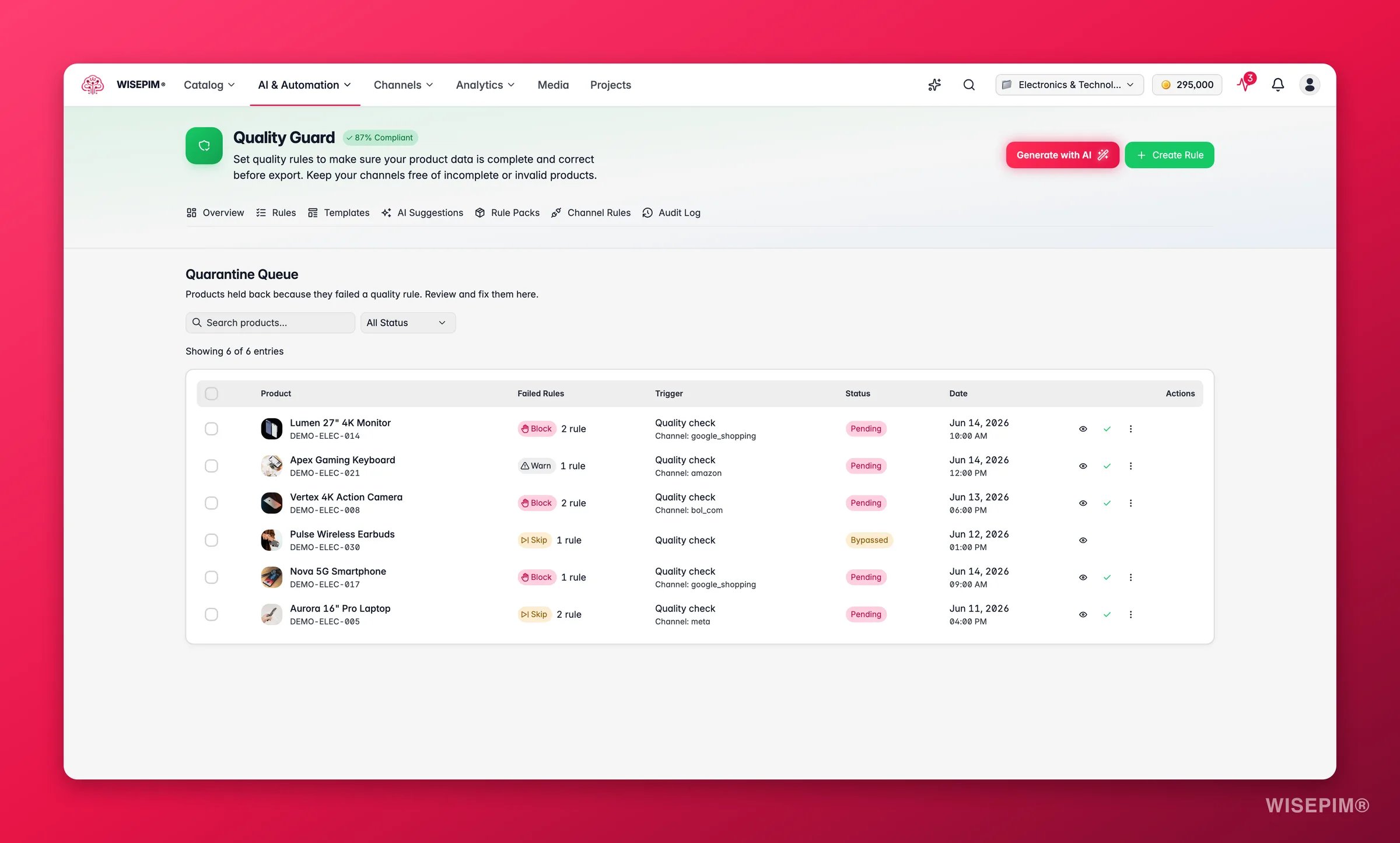
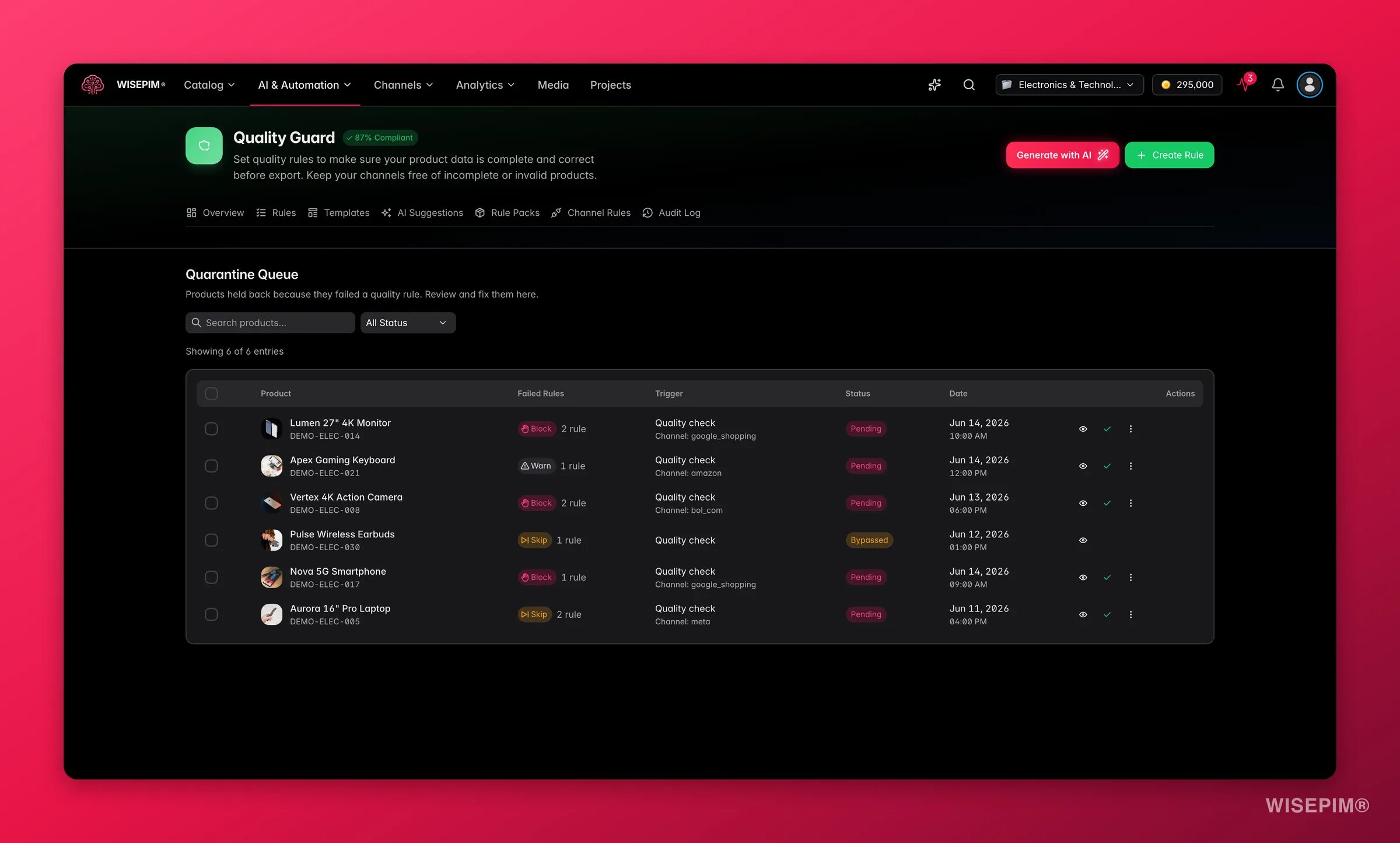 Now that the data is clean, Block severity is protection rather than an obstacle. From here, a product that breaks a channel requirement is held instead of shipped.
This is the step people miss. Nothing in [quarantine](/en/quality-guard/quarantine) can be exported, synced, or published - so if products vanish from a launch with no error anywhere, quarantine is the first place to look. Open an entry to see the exact field, operator, expected value, and actual value, fix the data, then **Bulk Resolve** the entries you fixed together. For a genuine exception the channel will accept anyway, **Bypass** it with a reason instead; the reason goes to the [audit log](/en/quality-guard/audit-log) under your name.
Marketplace fees change what a healthy price looks like. If this channel takes a commission, set up the markup before the first sync rather than after the first invoice - see [Send a different price per channel](/en/guides/price-per-channel).
Each feed has its own hosted URL that the channel fetches on its own. Choose **Scheduled** or **On change** so you're not regenerating by hand, and give the platform its first fetch.
[Integration Health](/en/analytics/integration-health) tells you whether the sync itself is reliable; [Channel Analytics](/en/analytics/channels) tells you whether the channel is earning. Check the first before you judge the second.
## How to tell it worked
| Signal | Where to look | When it moves |
| ----------------------------------- | ----------------------------------------------------------------------- | ---------------------------------------------------------------------------- |
| Percentage ready for the channel | Channel Readiness in [Feed Hub](/en/essentials/feed-hub) | After each bulk fix, once field coverage recalculates |
| Channel compliance rate | [Channel Rules](/en/quality-guard/channel-rules) - you want green, 80%+ | On the next check run against that channel's rules |
| Per-product errors | **Validate** on the feed | Same session - the list appears as soon as the run finishes |
| Feed quality score | Feed Quality panel, after **Recalculate** | Same session, once you regenerate following a data fix |
| Quarantined products | [Quality Guard dashboard](/en/quality-guard/overview) | As you resolve entries; take it to zero before the first sync |
| Sync failure rate | [Integration Health](/en/analytics/integration-health) | First runs appear within a day; under 3% over the rolling 30 days is healthy |
| Revenue and AOV for the new channel | [Channel Analytics](/en/analytics/channels) | Only once orders arrive - judge the sync first, the channel second |
## When it doesn't work
Three silent shrinkers, in the order worth checking. [Quarantine](/en/quality-guard/quarantine) holds every product a Block-severity rule caught, and nothing held there can be exported, synced, or published. Your feed's **Filter rules** may be removing more than you intended - hit **Preview** to see the real number per rule. And **Product Scope** may never have included them: an out-of-stock toggle or a category selection narrows the feed before any rule runs. Feed Hub's **Generation History** settles it - compare the last two versions and read the product count.
Red means below 60%, and it is the pack telling you the truth about data you already had. Keep the rules on **Warn**, open the Quality Guard dashboard's **Top Failing Rules** list, and work it from the top using the Compliance filter - one rule at a time, in bulk. Switch to **Block** only when the rate is where you want it. Installing a pack straight onto Block on a large catalog can hold up your next export.
Readiness and validation are scored on the required fields WISEPIM tracks for that channel - required fields it doesn't track are flagged rather than guessed. For marketplaces, the remaining gap is usually platform-side setup: category mapping, shipping attributes, or account configuration. See [Kaufland](/en/integrations/kaufland) or [Mirakl](/en/integrations/mirakl) for what that channel needs on its own side.
The identifier you searched with was the wrong key. If EAN returns nothing, switch the picker to **Brand + Name** or **Model Number** - technical products are far better indexed by model. Some products genuinely have no public barcode; for those the identifier has to come from your supplier. A wrong barcode is worse than an empty one, which is why conflicts are flagged rather than written.
Open [Integration Health](/en/analytics/integration-health) and read the **Last error** column - it names the cause without you logging into the platform. A failure rate that climbs gradually past 3% is the classic signature of a rotated API key or an expired token: re-test the connection from [Integrations](/en/integrations/supported-platforms). A burst of validation failures instead means the channel is rejecting products for a missing field, and the error usually names it - that field belongs in your channel rules, not in a retry.
## Related
Every option behind feeds, channel readiness, validation, and feed quality.
The per-channel compliance view you'll watch through the launch.
Cover a marketplace fee at export time without touching your stored prices.
The B2B version of this launch: standards-based classification and a BMEcat catalog.
Now that the data is clean, Block severity is protection rather than an obstacle. From here, a product that breaks a channel requirement is held instead of shipped.
This is the step people miss. Nothing in [quarantine](/en/quality-guard/quarantine) can be exported, synced, or published - so if products vanish from a launch with no error anywhere, quarantine is the first place to look. Open an entry to see the exact field, operator, expected value, and actual value, fix the data, then **Bulk Resolve** the entries you fixed together. For a genuine exception the channel will accept anyway, **Bypass** it with a reason instead; the reason goes to the [audit log](/en/quality-guard/audit-log) under your name.
Marketplace fees change what a healthy price looks like. If this channel takes a commission, set up the markup before the first sync rather than after the first invoice - see [Send a different price per channel](/en/guides/price-per-channel).
Each feed has its own hosted URL that the channel fetches on its own. Choose **Scheduled** or **On change** so you're not regenerating by hand, and give the platform its first fetch.
[Integration Health](/en/analytics/integration-health) tells you whether the sync itself is reliable; [Channel Analytics](/en/analytics/channels) tells you whether the channel is earning. Check the first before you judge the second.
## How to tell it worked
| Signal | Where to look | When it moves |
| ----------------------------------- | ----------------------------------------------------------------------- | ---------------------------------------------------------------------------- |
| Percentage ready for the channel | Channel Readiness in [Feed Hub](/en/essentials/feed-hub) | After each bulk fix, once field coverage recalculates |
| Channel compliance rate | [Channel Rules](/en/quality-guard/channel-rules) - you want green, 80%+ | On the next check run against that channel's rules |
| Per-product errors | **Validate** on the feed | Same session - the list appears as soon as the run finishes |
| Feed quality score | Feed Quality panel, after **Recalculate** | Same session, once you regenerate following a data fix |
| Quarantined products | [Quality Guard dashboard](/en/quality-guard/overview) | As you resolve entries; take it to zero before the first sync |
| Sync failure rate | [Integration Health](/en/analytics/integration-health) | First runs appear within a day; under 3% over the rolling 30 days is healthy |
| Revenue and AOV for the new channel | [Channel Analytics](/en/analytics/channels) | Only once orders arrive - judge the sync first, the channel second |
## When it doesn't work
Three silent shrinkers, in the order worth checking. [Quarantine](/en/quality-guard/quarantine) holds every product a Block-severity rule caught, and nothing held there can be exported, synced, or published. Your feed's **Filter rules** may be removing more than you intended - hit **Preview** to see the real number per rule. And **Product Scope** may never have included them: an out-of-stock toggle or a category selection narrows the feed before any rule runs. Feed Hub's **Generation History** settles it - compare the last two versions and read the product count.
Red means below 60%, and it is the pack telling you the truth about data you already had. Keep the rules on **Warn**, open the Quality Guard dashboard's **Top Failing Rules** list, and work it from the top using the Compliance filter - one rule at a time, in bulk. Switch to **Block** only when the rate is where you want it. Installing a pack straight onto Block on a large catalog can hold up your next export.
Readiness and validation are scored on the required fields WISEPIM tracks for that channel - required fields it doesn't track are flagged rather than guessed. For marketplaces, the remaining gap is usually platform-side setup: category mapping, shipping attributes, or account configuration. See [Kaufland](/en/integrations/kaufland) or [Mirakl](/en/integrations/mirakl) for what that channel needs on its own side.
The identifier you searched with was the wrong key. If EAN returns nothing, switch the picker to **Brand + Name** or **Model Number** - technical products are far better indexed by model. Some products genuinely have no public barcode; for those the identifier has to come from your supplier. A wrong barcode is worse than an empty one, which is why conflicts are flagged rather than written.
Open [Integration Health](/en/analytics/integration-health) and read the **Last error** column - it names the cause without you logging into the platform. A failure rate that climbs gradually past 3% is the classic signature of a rotated API key or an expired token: re-test the connection from [Integrations](/en/integrations/supported-platforms). A burst of validation failures instead means the channel is rejecting products for a missing field, and the error usually names it - that field belongs in your channel rules, not in a retry.
## Related
Every option behind feeds, channel readiness, validation, and feed quality.
The per-channel compliance view you'll watch through the launch.
Cover a marketplace fee at export time without touching your stored prices.
The B2B version of this launch: standards-based classification and a BMEcat catalog.