> ## Documentation Index
> Fetch the complete documentation index at: https://docs.wisepim.com/llms.txt
> Use this file to discover all available pages before exploring further.
# Set up WISEPIM before you import
> You signed up yesterday and a 5,000-row export is waiting. Spend one hour on setup first, and every AI run afterwards comes out on-brand instead of generic.
You signed up yesterday, there is a messy 5,000-product export sitting on your desktop, and the obvious move is to upload it right now. Hold off for an hour. The usual complaint about AI-written product copy, that it reads generic and off-brand, is far cheaper to prevent here than to fix across 5,000 products in part 4. This part puts four things in place: your locales, your brand context, a default prompt per content type, and the defaults new products inherit. Budget about an hour here, and roughly five hours of hands-on work across the full five-part series, plus background time for the import and AI runs.
```mermaid theme={null}
flowchart LR
A["1. Set up"] --> B["2. Import"] --> C["3. Clean"] --> D["4. Enrich"] --> E["5. Publish"]
```
**Before you start:** you need a WISEPIM account and the file or store you plan to import from. Have your brand guidelines or tone-of-voice document open, you will paste from them into the [Knowledge Library](/en/other-features/knowledge-library).
**What you'll get:** a project with its markets and languages fixed, a Knowledge Library the AI can write from, and a default prompt for every content type, so your first enrichment run in part 4 sounds like your brand.
## Finish the wizard and fix your markets
New accounts start with a setup wizard that runs once. Do it before anything else: the markets and languages you pick become your project's locales, and the primary language is the source every translation starts from. Changing that on a catalog that already holds content is a much bigger decision than changing it on an empty one.
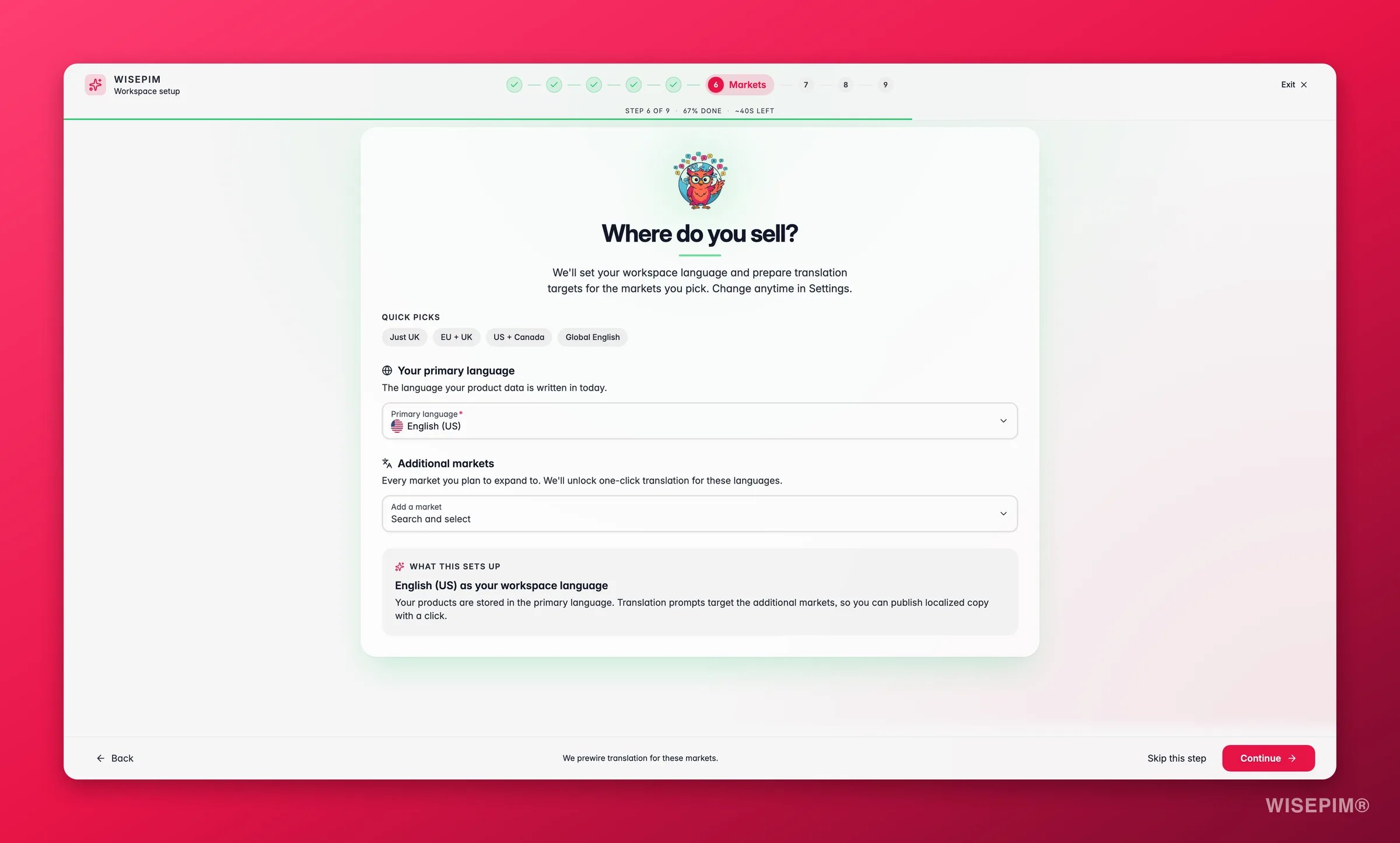
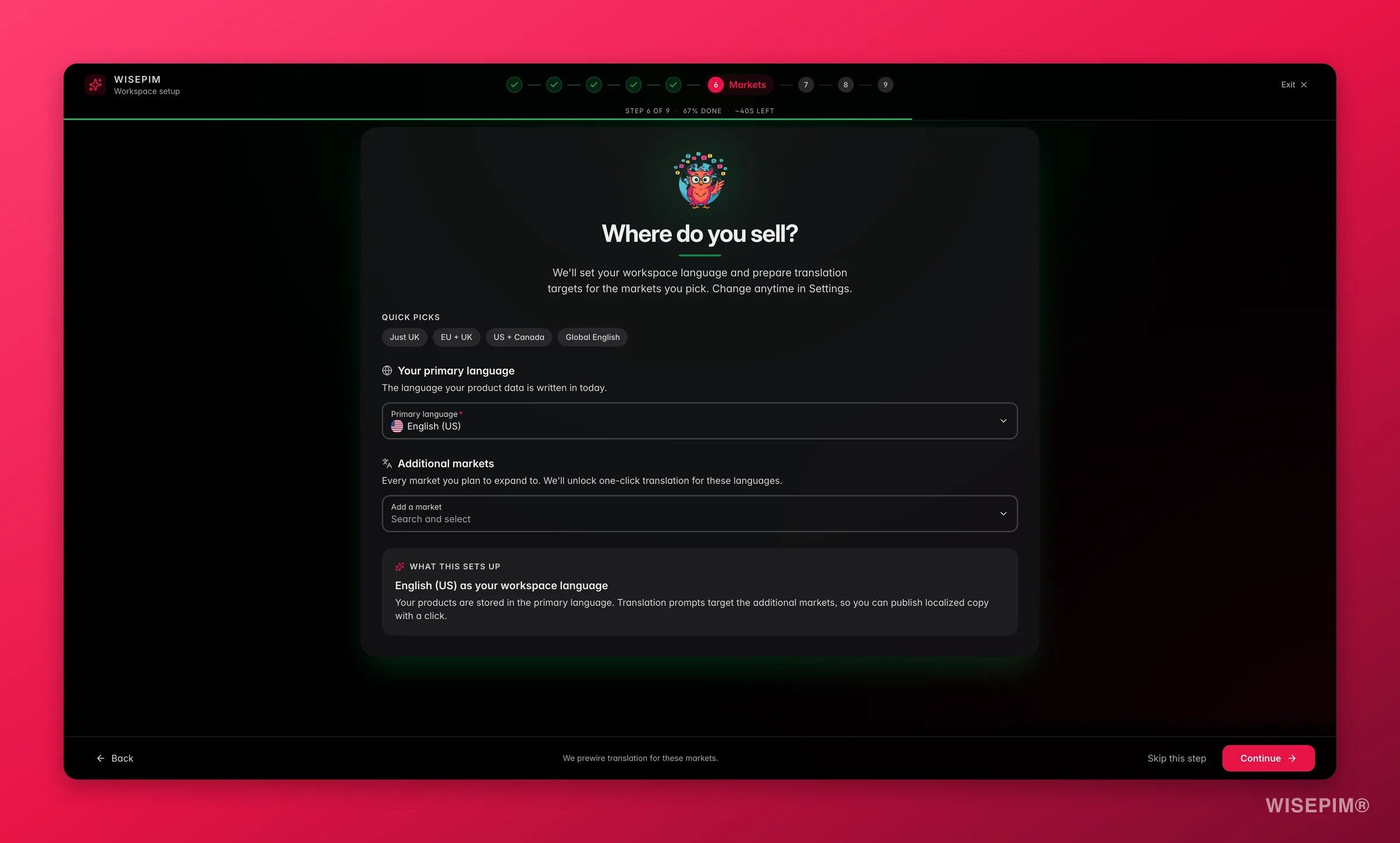 It asks about your company, your website, the markets you sell in, and the platforms you want to connect. The [Quickstart](/en/quickstart) walks through each screen.
WISEPIM crawls it during setup and pre-fills your company details, industry, and brand context, so the AI has something to work from before you have written a word yourself.
These become your project locales, and everything you import and translate later hangs off them. Decide now, while the catalog is empty.
Open [General settings](/en/settings/general) and check the project name, industry, and target keywords. Industry shapes how the AI writes from here on; it does not rewrite anything that already exists.
## Fill the Knowledge Library, brand identity first
An empty Knowledge Library is the single biggest cause of bland AI output, and every AI feature reads from it at run time. An hour here improves every description, title, and translation you generate in part 4 and after. Start with **brand identity**: it is the foundation the other sections build on.
It asks about your company, your website, the markets you sell in, and the platforms you want to connect. The [Quickstart](/en/quickstart) walks through each screen.
WISEPIM crawls it during setup and pre-fills your company details, industry, and brand context, so the AI has something to work from before you have written a word yourself.
These become your project locales, and everything you import and translate later hangs off them. Decide now, while the catalog is empty.
Open [General settings](/en/settings/general) and check the project name, industry, and target keywords. Industry shapes how the AI writes from here on; it does not rewrite anything that already exists.
## Fill the Knowledge Library, brand identity first
An empty Knowledge Library is the single biggest cause of bland AI output, and every AI feature reads from it at run time. An hour here improves every description, title, and translation you generate in part 4 and after. Start with **brand identity**: it is the foundation the other sections build on.
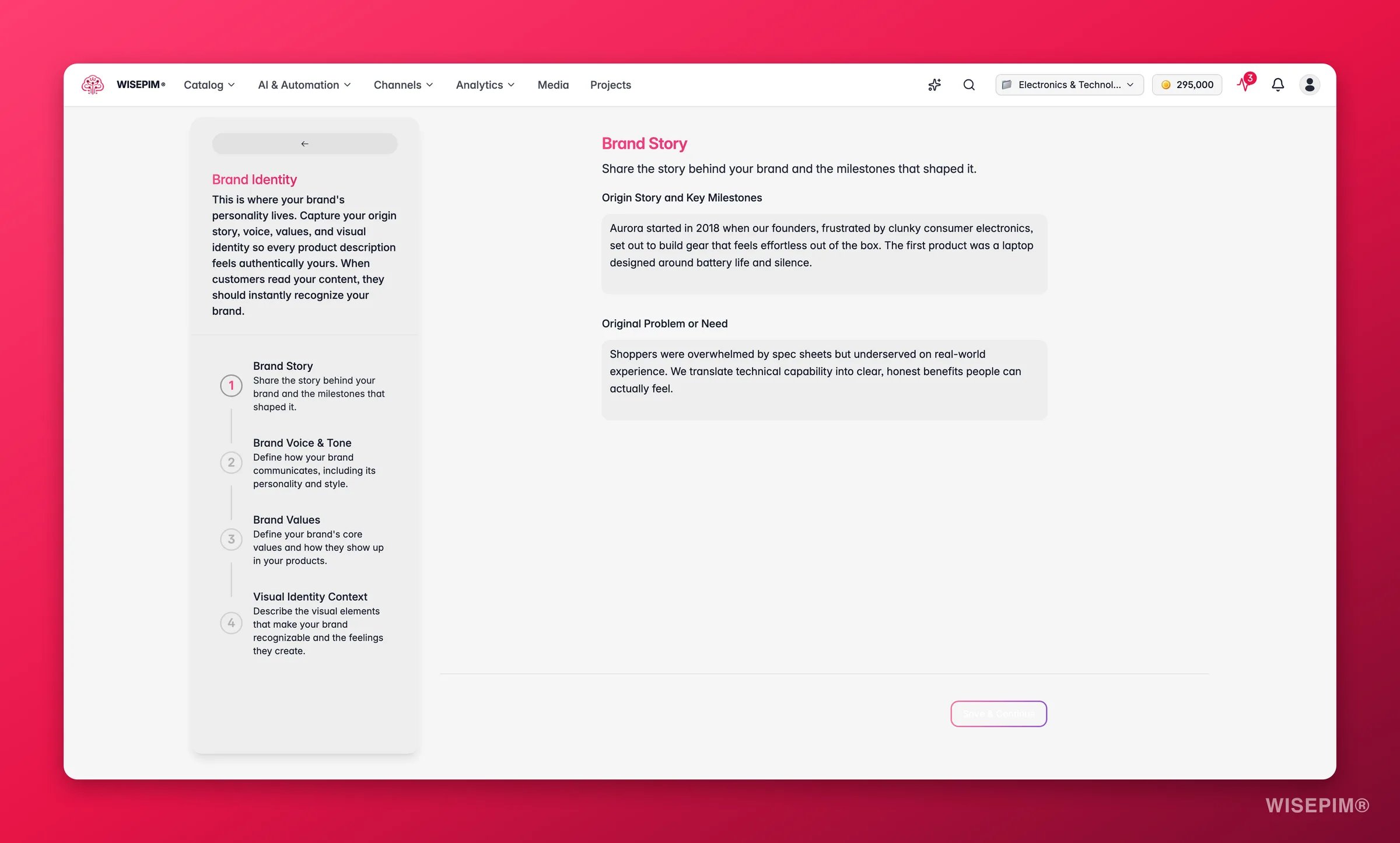
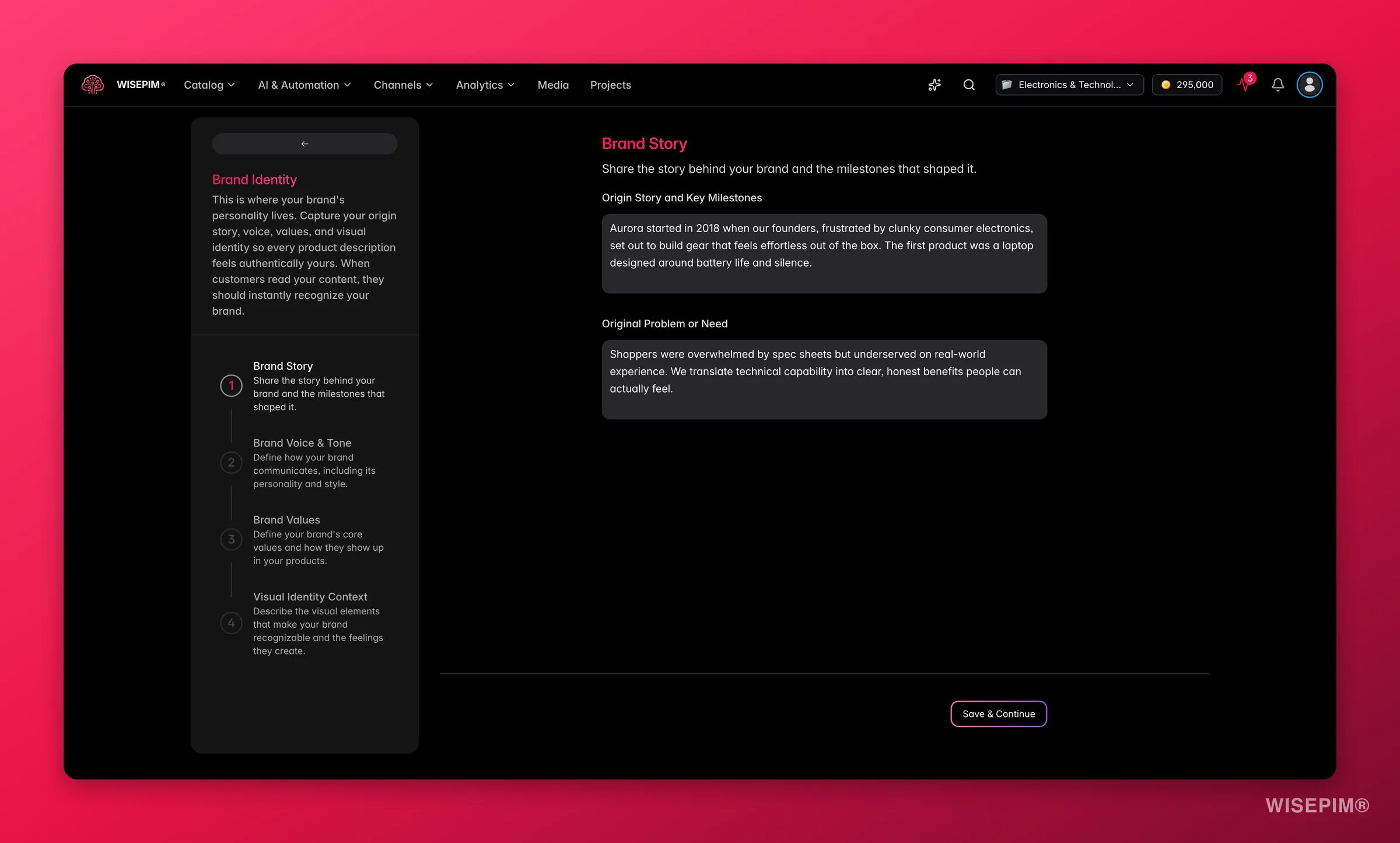 Reach the [Knowledge Library](/en/other-features/knowledge-library) from your main menu, open the brand identity card, and fill in your brand story, voice, and values. If output ever feels off-brand, this is the first place to look.
Concrete tone adjectives and the words you never use beat vague statements. Describe who you sell to, what they worry about, and the questions they ask before buying.
Why customers pick you, and any rules your content must follow, such as required details or compliance wording. These two sections are what stop descriptions reading like every competitor's.
Existing brand guidelines, a tone-of-voice deck, or customer research are the fastest source. Progress saves as you type, and each category shows its own completion percentage.
## Pick one prompt per content type and set it as the default
Enrichment runs from prompts. Until a default exists for a content type, [Auto-Fill](/en/ai/auto-fill) skips that type, and you only find out as a greyed-out option inside the enrich modal in part 4. Ten minutes here removes that dead end before you have 5,000 products riding on it.
Reach the [Knowledge Library](/en/other-features/knowledge-library) from your main menu, open the brand identity card, and fill in your brand story, voice, and values. If output ever feels off-brand, this is the first place to look.
Concrete tone adjectives and the words you never use beat vague statements. Describe who you sell to, what they worry about, and the questions they ask before buying.
Why customers pick you, and any rules your content must follow, such as required details or compliance wording. These two sections are what stop descriptions reading like every competitor's.
Existing brand guidelines, a tone-of-voice deck, or customer research are the fastest source. Progress saves as you type, and each category shows its own completion percentage.
## Pick one prompt per content type and set it as the default
Enrichment runs from prompts. Until a default exists for a content type, [Auto-Fill](/en/ai/auto-fill) skips that type, and you only find out as a greyed-out option inside the enrich modal in part 4. Ten minutes here removes that dead end before you have 5,000 products riding on it.
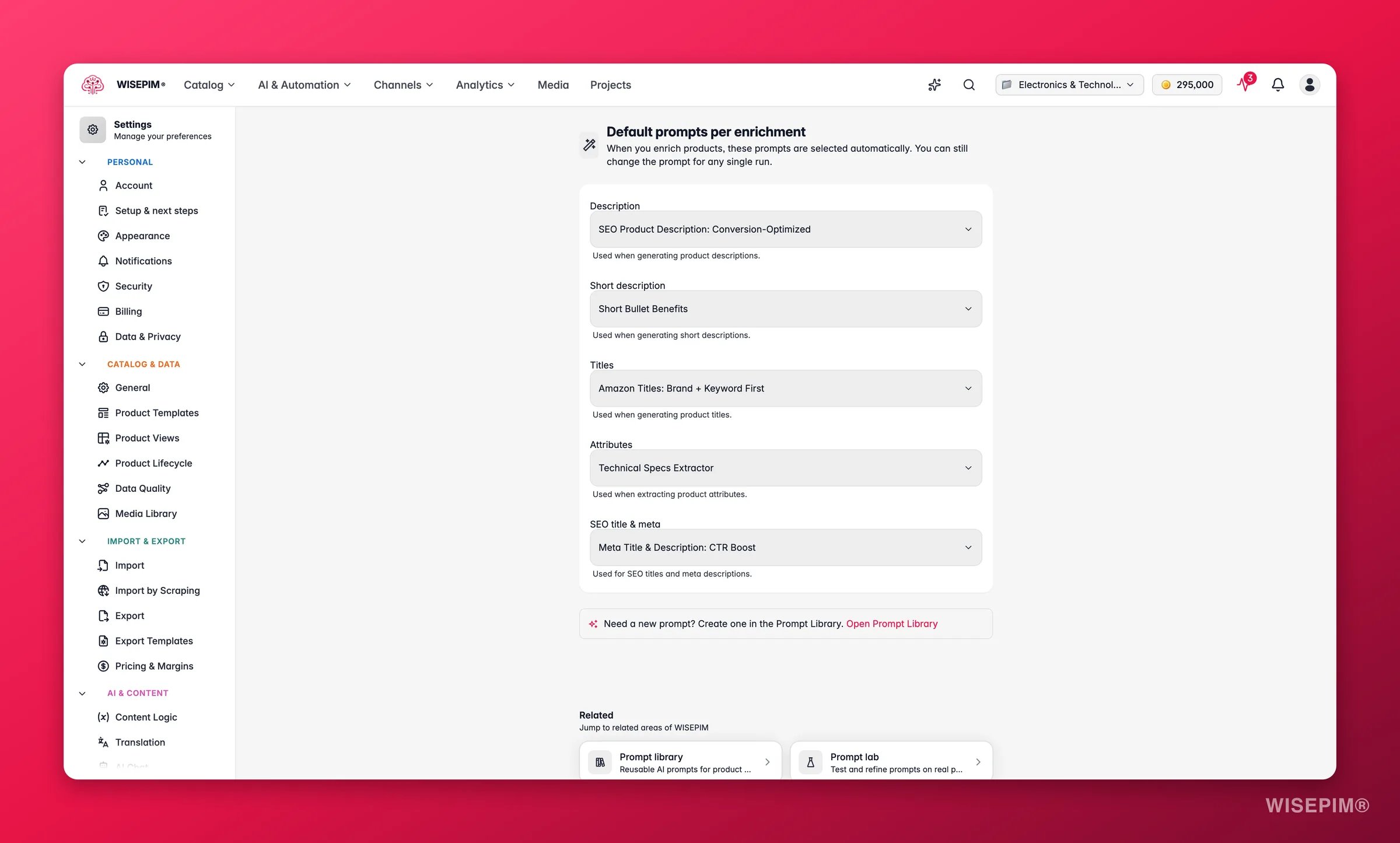
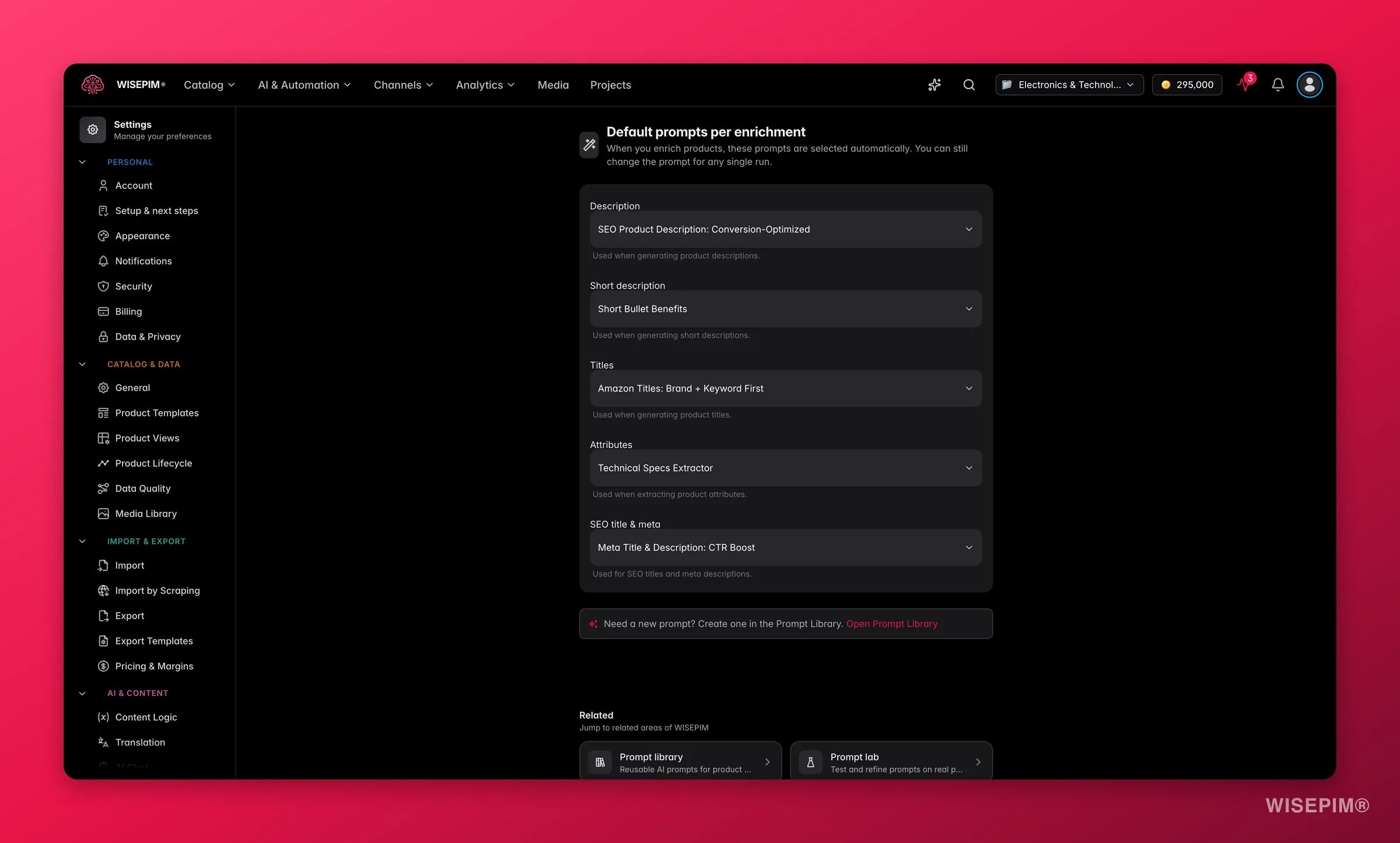 Open the **Curated Prompts** tab in the [Prompt Library](/en/essentials/prompt-library). It is ranked for your industry and tone, so the best fit is usually near the top. Save one per content type into your own collection rather than writing from scratch.
In the [Prompt Lab](/en/essentials/prompt-lab), search a SKU, click **Load Product**, and test. You get the original and the generated version side by side and nothing is written to your catalog. Adjust one setting at a time and test again.
In [Enrich Prompts settings](/en/settings/enrich-defaults), choose a prompt for each enrichment type and save. Description and short description deliberately share one default.
Every type without a default is a type Auto-Fill will not touch in part 4. An empty dropdown means you have no prompt of that type yet, so create one in the Prompt Library first.
## Optional: defaults and keywords that fill the gaps
Your import file will not carry every field. These two settings decide what happens to the rest. Both only apply to products created *after* you save them, which is exactly why they belong before part 2 rather than after it.
Open the **Curated Prompts** tab in the [Prompt Library](/en/essentials/prompt-library). It is ranked for your industry and tone, so the best fit is usually near the top. Save one per content type into your own collection rather than writing from scratch.
In the [Prompt Lab](/en/essentials/prompt-lab), search a SKU, click **Load Product**, and test. You get the original and the generated version side by side and nothing is written to your catalog. Adjust one setting at a time and test again.
In [Enrich Prompts settings](/en/settings/enrich-defaults), choose a prompt for each enrichment type and save. Description and short description deliberately share one default.
Every type without a default is a type Auto-Fill will not touch in part 4. An empty dropdown means you have no prompt of that type yet, so create one in the Prompt Library first.
## Optional: defaults and keywords that fill the gaps
Your import file will not carry every field. These two settings decide what happens to the rest. Both only apply to products created *after* you save them, which is exactly why they belong before part 2 rather than after it.
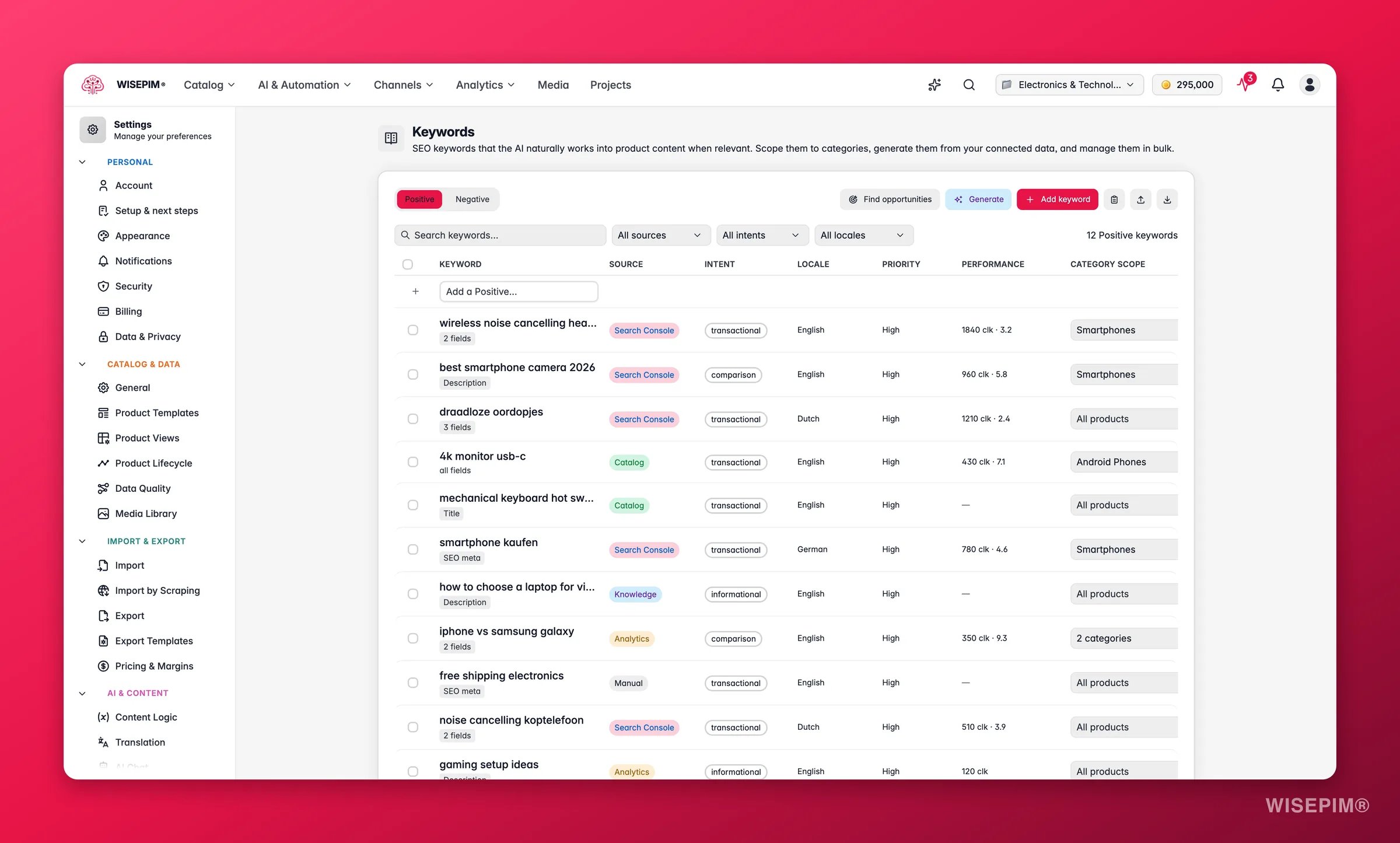
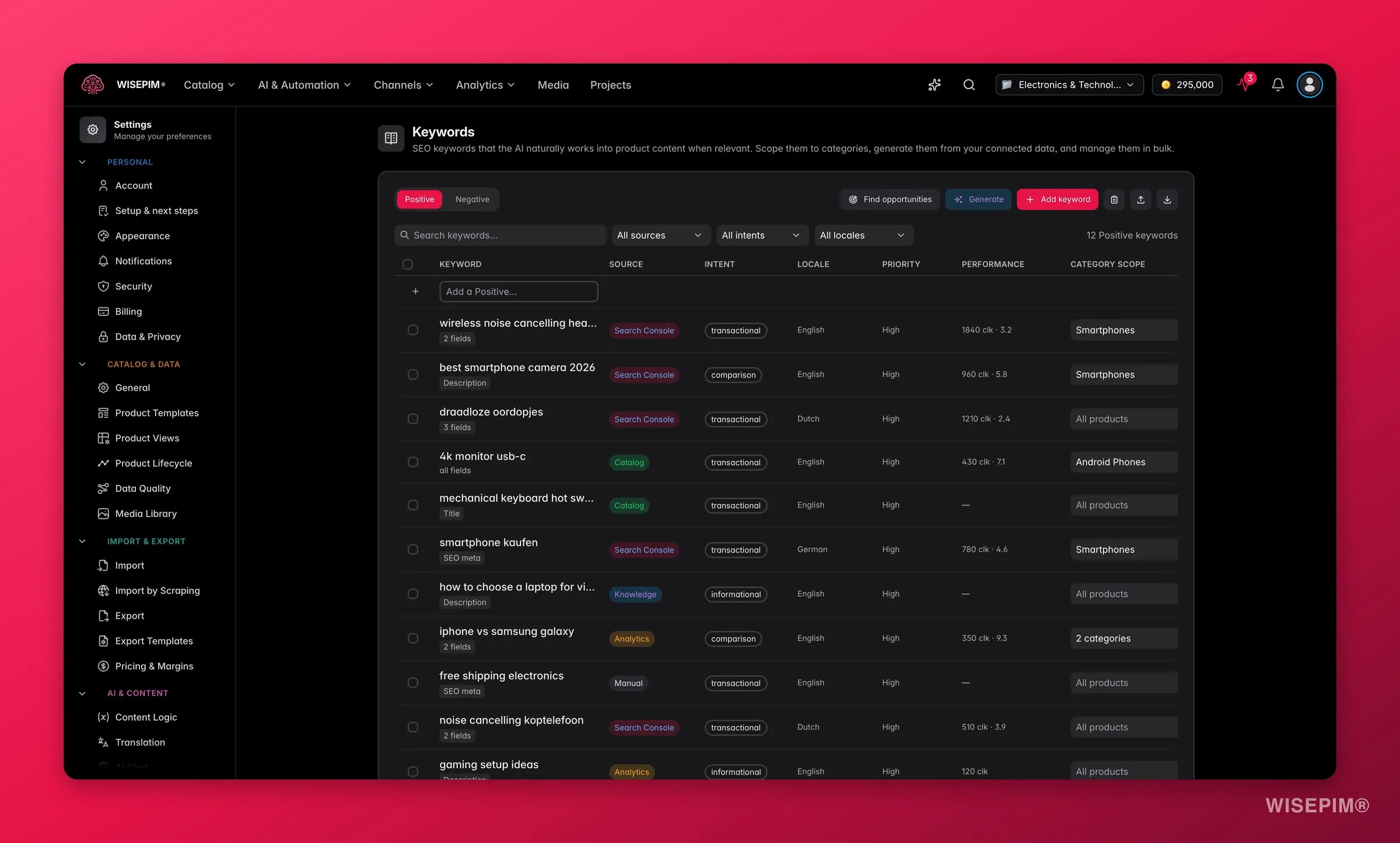 In [Product Templates](/en/settings/templates), set the status, visibility, brand, and supplier new products should start with. Template defaults apply when a product is created, never when one is updated.
The same page builds SKUs from a pattern, with a live preview under the field. Leave it blank if your file already carries good identifiers.
In [Keywords](/en/settings/keywords), add the SEO terms you want to rank for. The AI weaves them in only where they fit, so a tight list beats a long one. **Generate** proposes terms from your own data.
Competitor names and off-brand wording go in the **Negative** tab, and the AI keeps them out of generated content. Changes on this page save immediately, no save bar.
## How to tell it worked
| Signal | Where to look | When it moves |
| ---------------------------------------------- | --------------------------------------------------------- | -------------------------------------------- |
| Per-category and overall completion percentage | Knowledge Library overview | While you type, progress saves automatically |
| No enrichment type left on **No default** | [Enrich Prompts settings](/en/settings/enrich-defaults) | On save, a toast confirms |
| No greyed-out gap types | Auto-Fill in the enrich modal | Immediately after your defaults are saved |
| Output that sounds like you | A test run in the [Prompt Lab](/en/essentials/prompt-lab) | The result appears in 30 to 60 seconds |
## When it doesn't work
A greyed-out gap type has no default prompt and no override chosen for that run. Set a default in [Enrich Prompts](/en/settings/enrich-defaults), or pick a prompt from the override dropdown in the panel itself.
Each dropdown only lists prompts matching that enrichment type, so an empty one means you have no prompt of that type yet. Create or save one in the [Prompt Library](/en/essentials/prompt-library) first, then come back.
Thin brand voice and brand identity are the usual cause. Add concrete tone adjectives, example phrases, and your specific benefits to the [Knowledge Library](/en/other-features/knowledge-library), then re-test the same product in the Prompt Lab.
Enrich Prompts, Export Templates, Keywords, and General settings are project-level. Choose a project in the project switcher, then reopen the page.
Nothing is wasted. Fill the Knowledge Library and set your defaults now, then go to [part 3](/en/guides/first-catalog/clean): enrichment reads both at run time, not at import time.
Setup done. [Part 2](/en/guides/first-catalog/import) takes the file itself, which is where the real damage usually happens.
## Related
Next in the series: test-import, map once, and keep a rollback option open.
Go deeper on brand voice so thousands of descriptions still sound like you.
Every field the AI reads before it writes a single word.
The default prompt per enrichment type, and where it shows up.
In [Product Templates](/en/settings/templates), set the status, visibility, brand, and supplier new products should start with. Template defaults apply when a product is created, never when one is updated.
The same page builds SKUs from a pattern, with a live preview under the field. Leave it blank if your file already carries good identifiers.
In [Keywords](/en/settings/keywords), add the SEO terms you want to rank for. The AI weaves them in only where they fit, so a tight list beats a long one. **Generate** proposes terms from your own data.
Competitor names and off-brand wording go in the **Negative** tab, and the AI keeps them out of generated content. Changes on this page save immediately, no save bar.
## How to tell it worked
| Signal | Where to look | When it moves |
| ---------------------------------------------- | --------------------------------------------------------- | -------------------------------------------- |
| Per-category and overall completion percentage | Knowledge Library overview | While you type, progress saves automatically |
| No enrichment type left on **No default** | [Enrich Prompts settings](/en/settings/enrich-defaults) | On save, a toast confirms |
| No greyed-out gap types | Auto-Fill in the enrich modal | Immediately after your defaults are saved |
| Output that sounds like you | A test run in the [Prompt Lab](/en/essentials/prompt-lab) | The result appears in 30 to 60 seconds |
## When it doesn't work
A greyed-out gap type has no default prompt and no override chosen for that run. Set a default in [Enrich Prompts](/en/settings/enrich-defaults), or pick a prompt from the override dropdown in the panel itself.
Each dropdown only lists prompts matching that enrichment type, so an empty one means you have no prompt of that type yet. Create or save one in the [Prompt Library](/en/essentials/prompt-library) first, then come back.
Thin brand voice and brand identity are the usual cause. Add concrete tone adjectives, example phrases, and your specific benefits to the [Knowledge Library](/en/other-features/knowledge-library), then re-test the same product in the Prompt Lab.
Enrich Prompts, Export Templates, Keywords, and General settings are project-level. Choose a project in the project switcher, then reopen the page.
Nothing is wasted. Fill the Knowledge Library and set your defaults now, then go to [part 3](/en/guides/first-catalog/clean): enrichment reads both at run time, not at import time.
Setup done. [Part 2](/en/guides/first-catalog/import) takes the file itself, which is where the real damage usually happens.
## Related
Next in the series: test-import, map once, and keep a rollback option open.
Go deeper on brand voice so thousands of descriptions still sound like you.
Every field the AI reads before it writes a single word.
The default prompt per enrichment type, and where it shows up.