> ## Documentation Index
> Fetch the complete documentation index at: https://docs.wisepim.com/llms.txt
> Use this file to discover all available pages before exploring further.
# Publish your first enriched catalog
> The catalog is clean and enriched, now get it out. Clear the quality gate, run your first export with the defaults, and verify what actually landed.
Part 4 left you with a catalog worth publishing. Getting it out is where people declare victory too early: the export reports success, and then a buyer says half the products are missing, or the prices are wrong. Both have documented causes you can check in minutes, and your first export needs nothing more than the defaults. Budget about 30 minutes.
**Before you start:** finish [part 4](/en/guides/first-catalog/enrich), and connect the destination on the [Integrations](/en/integrations/supported-platforms) page if you are publishing to a platform rather than a file.
**What you'll get:** an empty quarantine queue, enriched products live on your channel, and two reports that tell you it actually landed.
## Clear the gate before you press export
[Quality Guard](/en/quality-guard/overview) runs automatically on every export, sync, and publish, and rules with **Block** severity send products to quarantine, where they cannot be exported at all. Clearing the queue before you export is what stops "nothing was sent" from becoming a mystery after it.
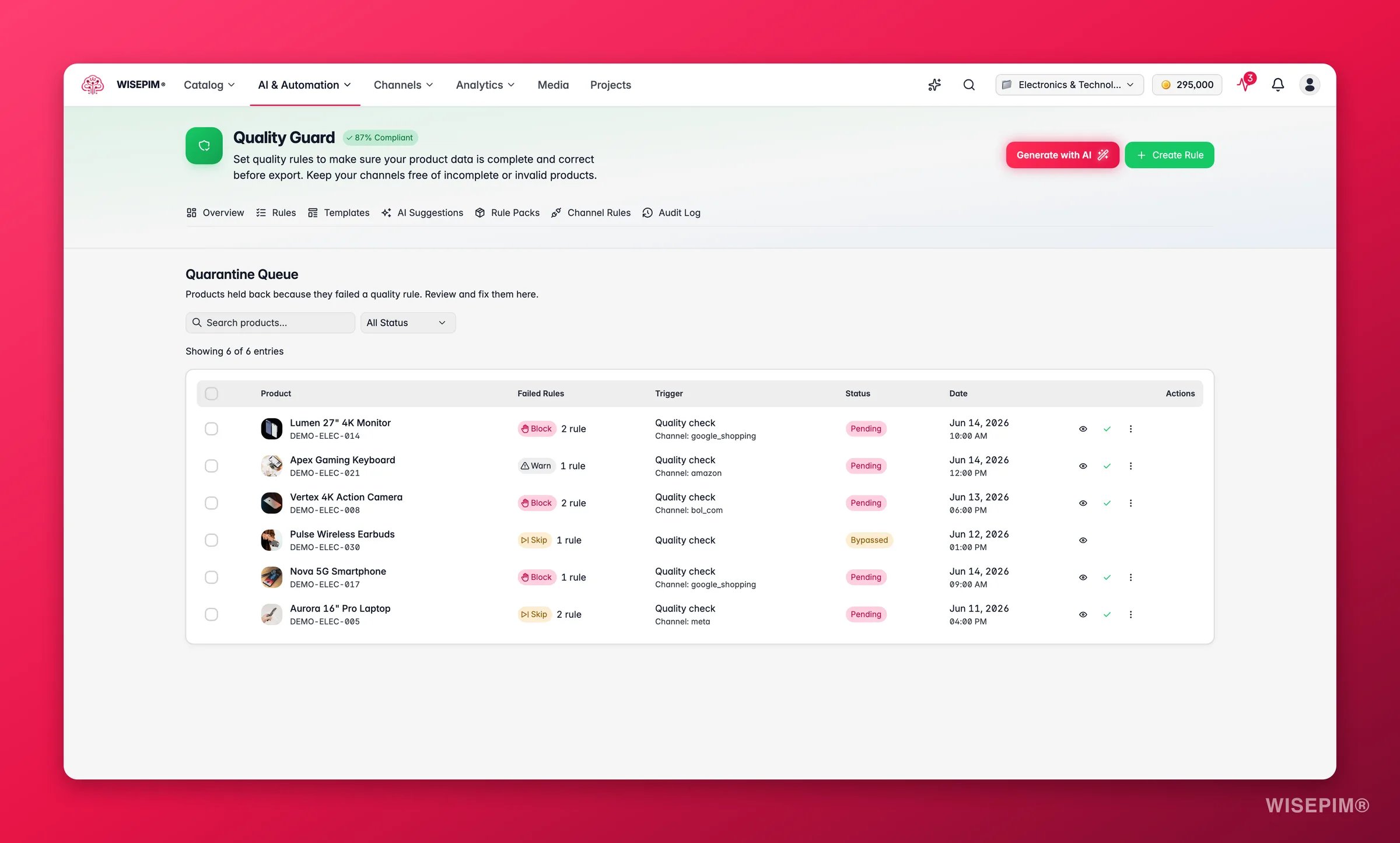
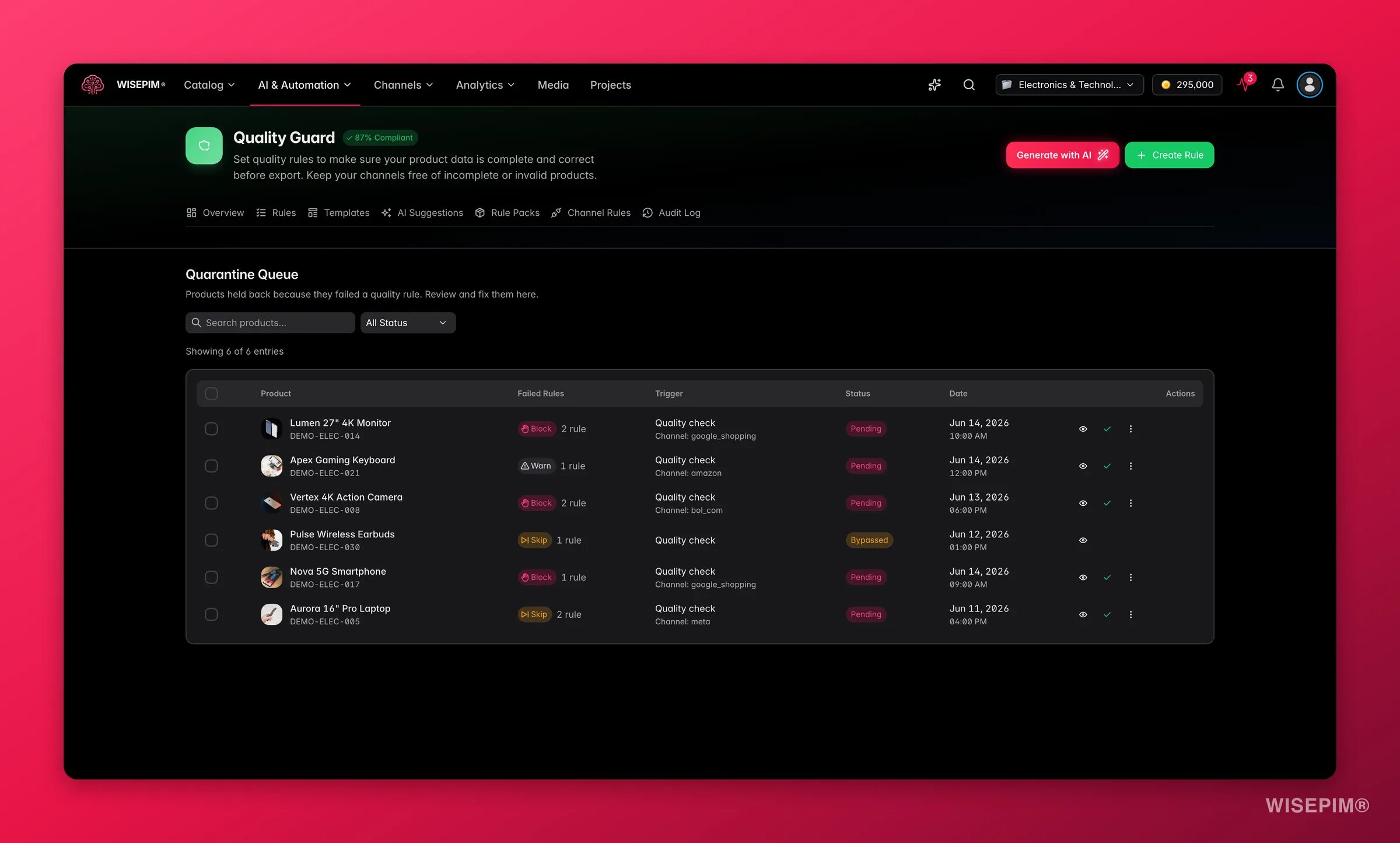 The Quality Guard dashboard shows **Compliance Rate**, **Quarantined Products**, and a **Top Failing Rules** list. Start at the top of that list: fixing the top failing rule moves the most products at once.
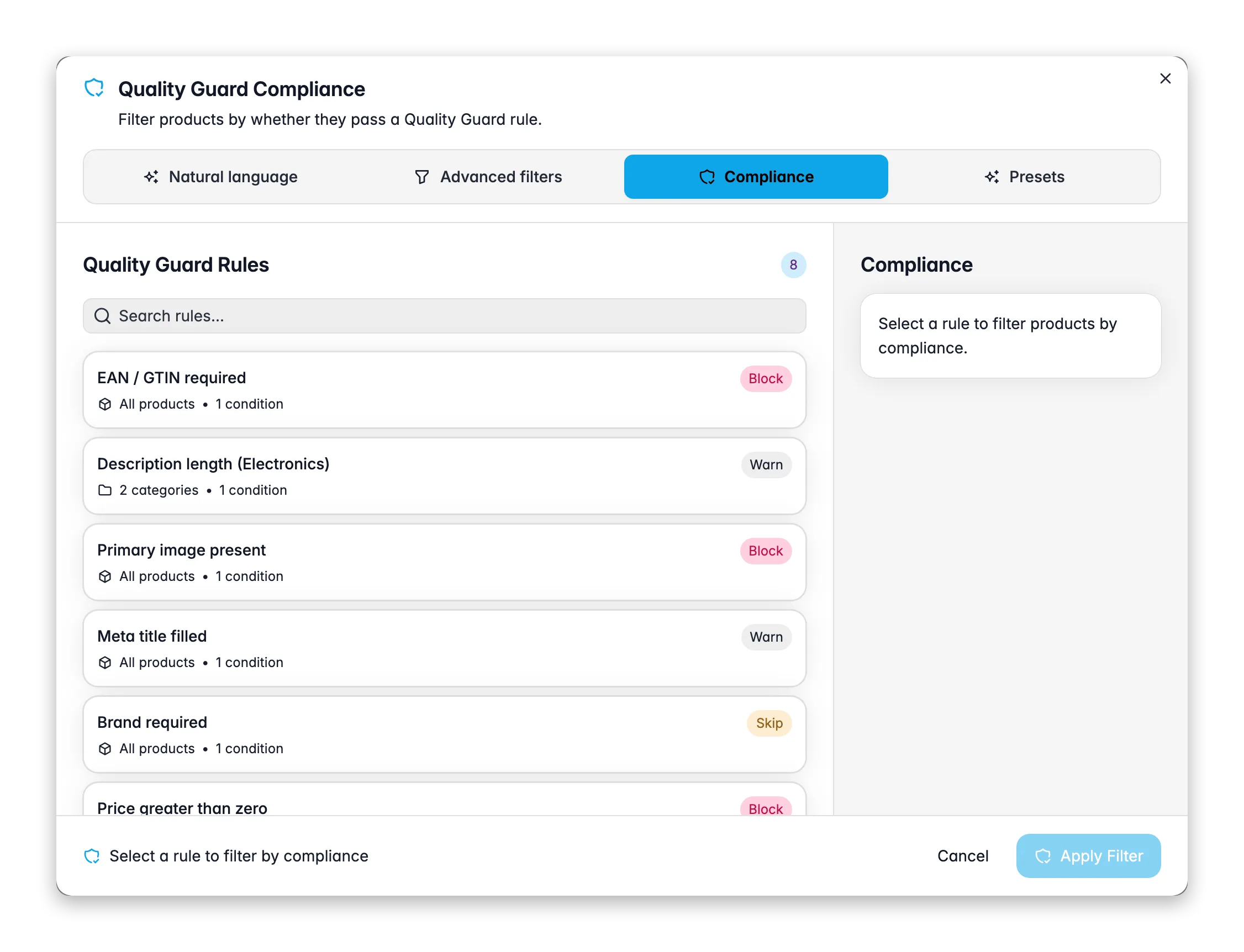
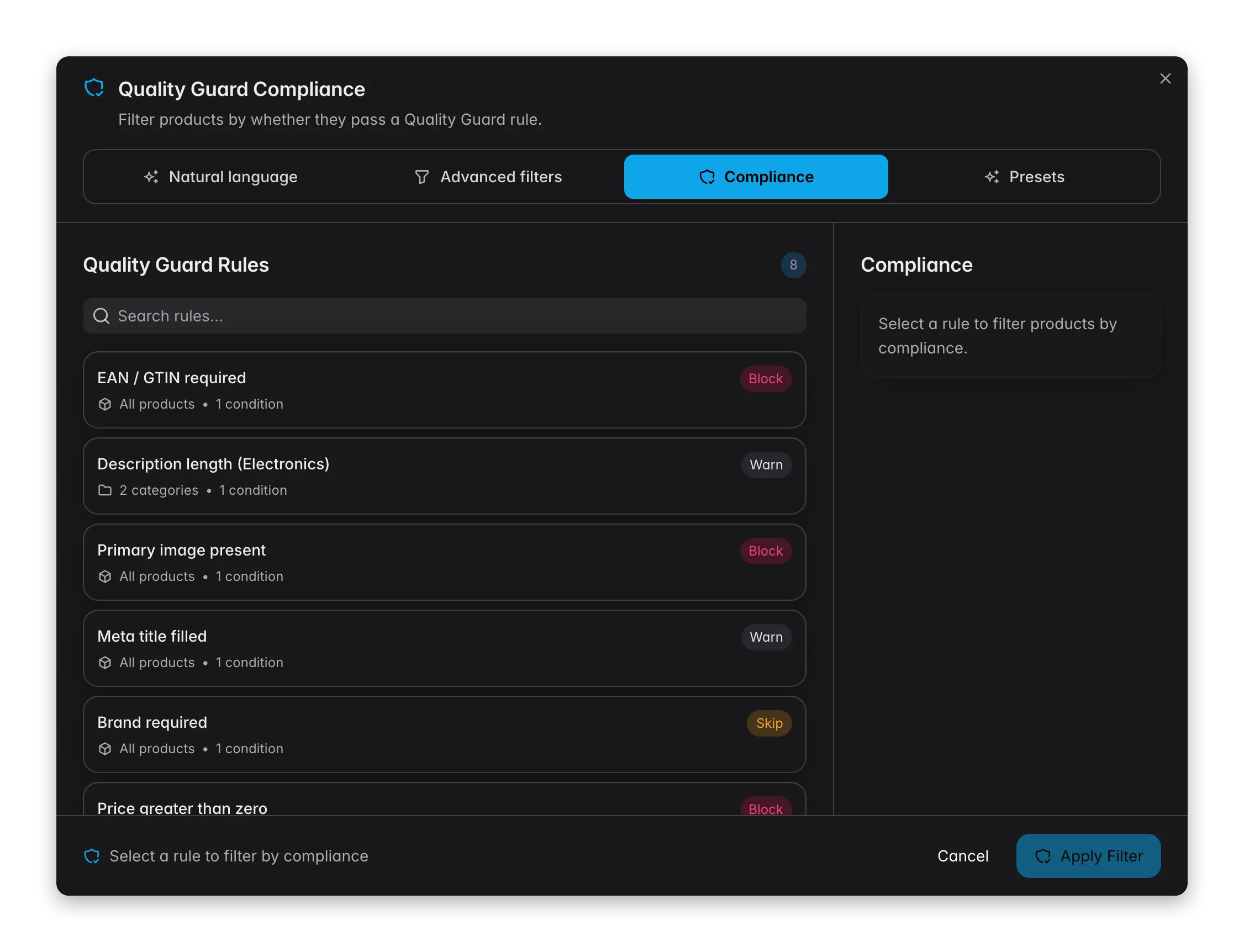
Click **Filters** on the Products page and open the **Compliance** tab. It filters your catalog to the products violating a specific rule, with a live count before you commit.
Missing EAN, description too short, and no image are the usual triggers. Use [bulk editing](/en/essentials/bulk-editing) or another [enrichment](/en/essentials/enriching-products) pass rather than editing one by one.
Back in [Quarantine](/en/quality-guard/quarantine), use **Bulk Resolve** on the entries you fixed. One root cause often clears several rules at once.
Bypassing releases a product despite the violation and records who approved it and why. Use it for genuine exceptions, not to clear a queue quickly.
The Quality Guard dashboard shows **Compliance Rate**, **Quarantined Products**, and a **Top Failing Rules** list. Start at the top of that list: fixing the top failing rule moves the most products at once.
Click **Filters** on the Products page and open the **Compliance** tab. It filters your catalog to the products violating a specific rule, with a live count before you commit.
Missing EAN, description too short, and no image are the usual triggers. Use [bulk editing](/en/essentials/bulk-editing) or another [enrichment](/en/essentials/enriching-products) pass rather than editing one by one.
Back in [Quarantine](/en/quality-guard/quarantine), use **Bulk Resolve** on the entries you fixed. One root cause often clears several rules at once.
Bypassing releases a product despite the violation and records who approved it and why. Use it for genuine exceptions, not to clear a queue quickly.
 ## Export, then verify what landed
Both routes start from the same **Export** button, and which one you want depends on whether you push or the channel pulls.
| Route | Reach for it when | How it refreshes |
| ------------------------------------------ | ---------------------------------------------------------------------------------------- | --------------------------------------------- |
| Platform or file export | A store, a marketplace, a data platform, or a one-off CSV or Excel someone asked you for | You trigger each run yourself |
| A [Feed Hub](/en/essentials/feed-hub) feed | Google, Meta, or any channel that fetches a hosted URL on its own schedule | Manually, on change, or on a schedule you set |
## Export, then verify what landed
Both routes start from the same **Export** button, and which one you want depends on whether you push or the channel pulls.
| Route | Reach for it when | How it refreshes |
| ------------------------------------------ | ---------------------------------------------------------------------------------------- | --------------------------------------------- |
| Platform or file export | A store, a marketplace, a data platform, or a one-off CSV or Excel someone asked you for | You trigger each run yourself |
| A [Feed Hub](/en/essentials/feed-hub) feed | Google, Meta, or any channel that fetches a hosted URL on its own schedule | Manually, on change, or on a schedule you set |
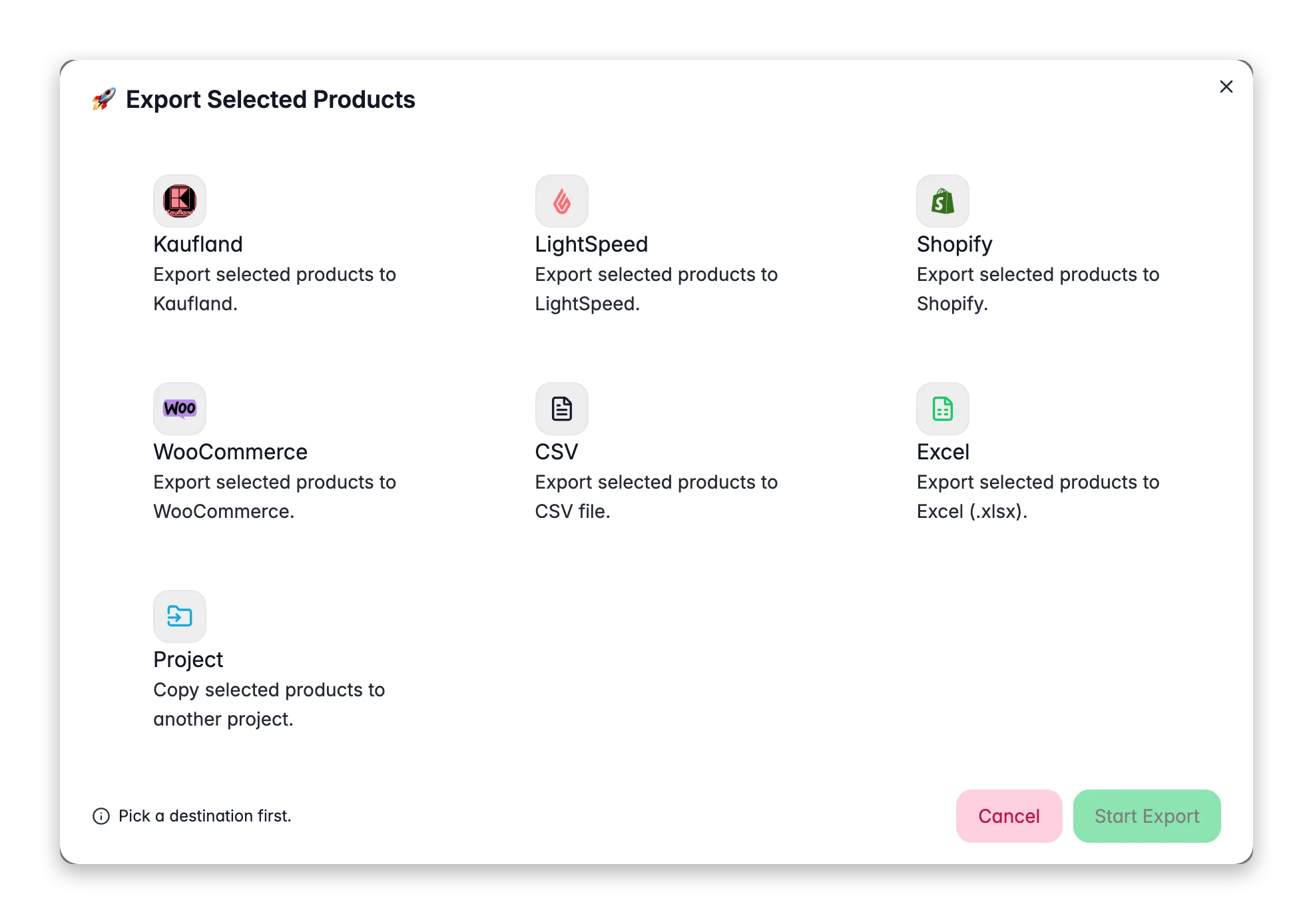
 On the Products page, select products or apply a filter, then open the **Export** button in the toolbar. File exports are always available; every other destination appears once the matching integration is connected.
Pick the destination and keep the default settings. Platform exports map fields sensibly on their own; a file export lets you pick columns as you go. Shaping exact columns and headers is a later refinement, not a prerequisite.
When [Pricing & Margins](/en/settings/pricing) rules are active, they add markup or margin at export time, per channel, so an exported price may not equal the price stored on the product. Your stored prices never change, and the master switch turns every rule off at once.
It is on by default for platform exports and skips products that have not changed since the last export to that destination. That is what makes routine syncs fast, and also why a repeat export can legitimately send nothing.
Exports run in the background with live status in the [Process Tracker](/en/other-features/process-tracker). When it completes, log into the store and open a few products to confirm what shoppers see.
## Make the next publish one click
Once the first export looks right on the channel, save the setup as an [export template](/en/settings/export-templates): it fixes which fields go out, in what order, and under which column headers, and its three-product **Preview** catches a wrong header in seconds. Mark it default for the platform and every future publish to that destination reuses it automatically. Do this when a buyer or channel asks for specific columns - not before your first export.
## How to tell it worked
| Signal | Where to look | When it moves |
| -------------------------------------- | ------------------------------------------------------ | ----------------------------------------------------------------------------- |
| Export task status and item counts | [Process Tracker](/en/other-features/process-tracker) | Minutes for a file; 15 minutes to an hour for a 5,000-product platform export |
| Quarantined product count | [Quality Guard](/en/quality-guard/overview) dashboard | After each export, sync, or manual check |
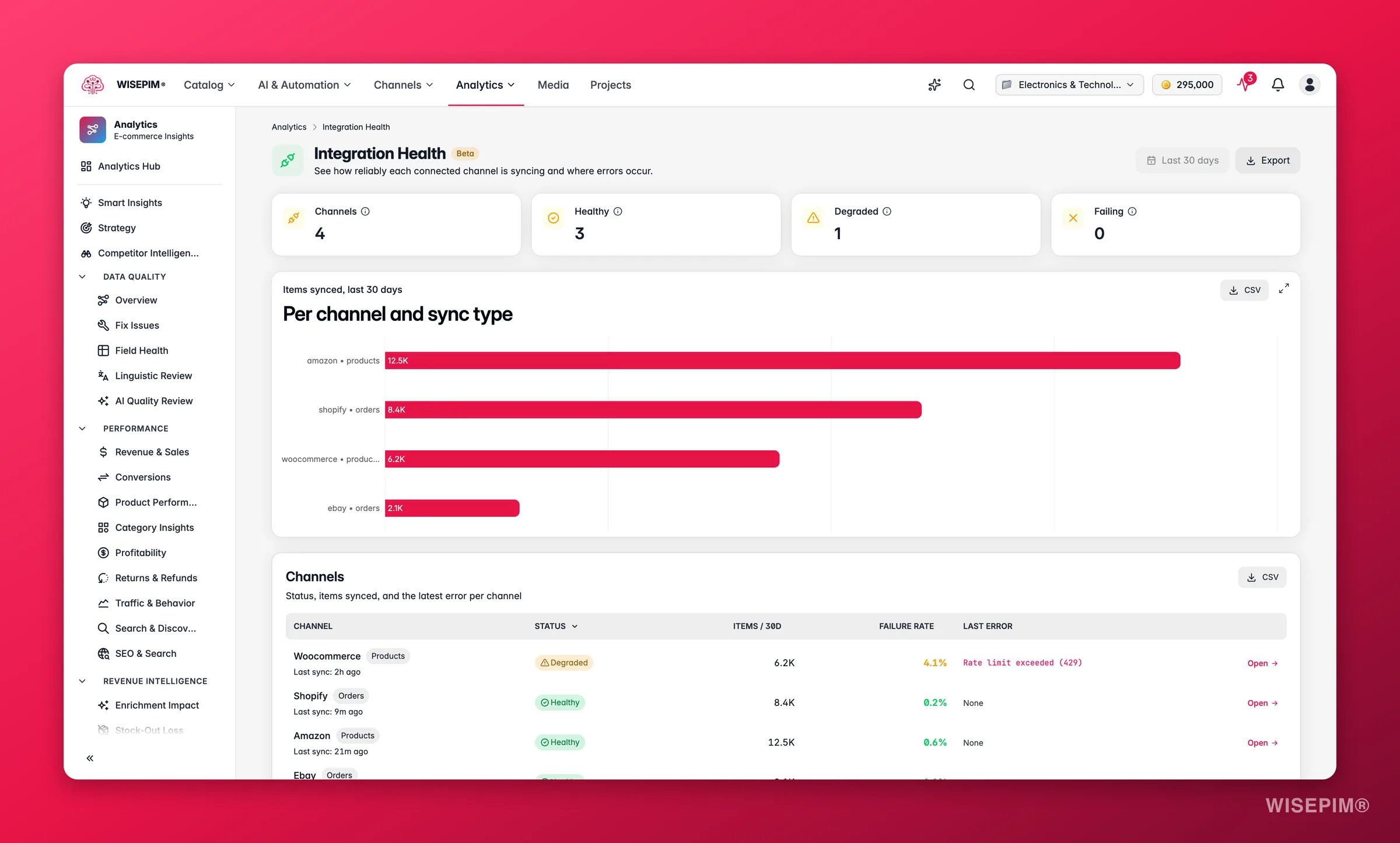
| Last sync and failure rate per channel | [Integration Health](/en/analytics/integration-health) | Rolling 30-day window; under 3% failure is healthy |
| Products visible on the storefront | Your store, checked by hand | Once the platform finishes processing |
On the Products page, select products or apply a filter, then open the **Export** button in the toolbar. File exports are always available; every other destination appears once the matching integration is connected.
Pick the destination and keep the default settings. Platform exports map fields sensibly on their own; a file export lets you pick columns as you go. Shaping exact columns and headers is a later refinement, not a prerequisite.
When [Pricing & Margins](/en/settings/pricing) rules are active, they add markup or margin at export time, per channel, so an exported price may not equal the price stored on the product. Your stored prices never change, and the master switch turns every rule off at once.
It is on by default for platform exports and skips products that have not changed since the last export to that destination. That is what makes routine syncs fast, and also why a repeat export can legitimately send nothing.
Exports run in the background with live status in the [Process Tracker](/en/other-features/process-tracker). When it completes, log into the store and open a few products to confirm what shoppers see.
## Make the next publish one click
Once the first export looks right on the channel, save the setup as an [export template](/en/settings/export-templates): it fixes which fields go out, in what order, and under which column headers, and its three-product **Preview** catches a wrong header in seconds. Mark it default for the platform and every future publish to that destination reuses it automatically. Do this when a buyer or channel asks for specific columns - not before your first export.
## How to tell it worked
| Signal | Where to look | When it moves |
| -------------------------------------- | ------------------------------------------------------ | ----------------------------------------------------------------------------- |
| Export task status and item counts | [Process Tracker](/en/other-features/process-tracker) | Minutes for a file; 15 minutes to an hour for a 5,000-product platform export |
| Quarantined product count | [Quality Guard](/en/quality-guard/overview) dashboard | After each export, sync, or manual check |
| Last sync and failure rate per channel | [Integration Health](/en/analytics/integration-health) | Rolling 30-day window; under 3% failure is healthy |
| Products visible on the storefront | Your store, checked by hand | Once the platform finishes processing |
 ## When it doesn't work
With **Skip unchanged** on, products that have not changed since the last export to that platform are skipped on purpose. Turn it off to force a full re-export, for example after changing the channel's settings.
Check [Quarantine](/en/quality-guard/quarantine): products held by a **Block** rule cannot be exported, and **Skip**-severity rules leave products out silently. The queue names the rule and the field for each one.
Look at your [pricing rules](/en/settings/pricing) before hunting through product data. They transform prices on the way out, per channel, and turning off the master switch reverts every export to your stored prices immediately.
Rename the headers in your [export template](/en/settings/export-templates) to match what they expect, then run the three-product preview to confirm before sending again.
Open [Integration Health](/en/analytics/integration-health) and read the last error message. Repeated authentication errors mean expired credentials; repeated validation errors name the missing field, which is a Quality Guard rule worth adding so it never reaches the channel again.
That is the series: set up, import, clean, enrich, publish. From here, take the catalog to a marketplace, or stop doing this by hand. [All guides](/en/guides/overview) has the rest.
## Related
Take the same catalog to a marketplace with its own rules.
Promote this five-part run into an automation with a quality safety net.
Every destination, option, and troubleshooting path for exports.
The rules that gate every export, sync, and publish.
## When it doesn't work
With **Skip unchanged** on, products that have not changed since the last export to that platform are skipped on purpose. Turn it off to force a full re-export, for example after changing the channel's settings.
Check [Quarantine](/en/quality-guard/quarantine): products held by a **Block** rule cannot be exported, and **Skip**-severity rules leave products out silently. The queue names the rule and the field for each one.
Look at your [pricing rules](/en/settings/pricing) before hunting through product data. They transform prices on the way out, per channel, and turning off the master switch reverts every export to your stored prices immediately.
Rename the headers in your [export template](/en/settings/export-templates) to match what they expect, then run the three-product preview to confirm before sending again.
Open [Integration Health](/en/analytics/integration-health) and read the last error message. Repeated authentication errors mean expired credentials; repeated validation errors name the missing field, which is a Quality Guard rule worth adding so it never reaches the channel again.
That is the series: set up, import, clean, enrich, publish. From here, take the catalog to a marketplace, or stop doing this by hand. [All guides](/en/guides/overview) has the rest.
## Related
Take the same catalog to a marketplace with its own rules.
Promote this five-part run into an automation with a quality safety net.
Every destination, option, and troubleshooting path for exports.
The rules that gate every export, sync, and publish.