> ## Documentation Index
> Fetch the complete documentation index at: https://docs.wisepim.com/llms.txt
> Use this file to discover all available pages before exploring further.
# Import your catalog safely
> A 5,000-row export can land as 5,000 broken products. Test on 50 rows, save the mapping, then run the real import with a rollback still available.
Part 1 left you with a configured project, so now the file itself is the risk. A 5,000-row supplier export usually hides three problems at once: every size and colour is its own row, all the image URLs are crammed into one cell, and a few hundred SKUs already exist in your catalog. Importing blind turns those into 5,000 records you unpick by hand. Doing it in two passes, 50 rows first and the rest afterwards, costs ten extra minutes and saves the afternoon. Budget about 45 minutes of your attention, plus background time for the run itself.
**Before you start:** finish [part 1](/en/guides/first-catalog/set-up), and have your file saved as UTF-8 CSV with headers in the first row, or your platform connected on the [Integrations](/en/integrations/supported-platforms) page. Products already in? Skip to [part 3](/en/guides/first-catalog/clean).
**What you'll get:** your full catalog in WISEPIM with variants and images structured correctly, a saved mapping template for next time, and no critical fields left silently empty.
## Decide the rules before you upload anything
[Import settings](/en/settings/import) are project-wide defaults that apply to every import, including the ones your colleagues run later. Setting them before the first upload is what makes the second and third import boring.
The one that bites is conflict resolution: what happens when an incoming product already exists, matched on SKU or another identifier.
| If your file… | Choose | What happens to a matched product |
| ------------------------------------- | ------------- | ---------------------------------------------------------------------------------- |
| Carries only part of each product | **Merge** | Existing and imported data are combined, keeping the most complete value per field |
| Is the complete, authoritative record | **Overwrite** | Every field is replaced with your file's value, blanks included |
| Should only ever add new products | **Skip** | The existing product is left untouched and the incoming duplicate is ignored |
**Overwrite** replaces every field, so a partial supplier file is how a good description gets replaced with a blank. Reach for it only when your file is genuinely complete.
Pick from the table above. You can still override it for one specific run in the importer, so the setting here is your safe default, not a lock.
**Skip empty fields** keeps whatever is already in WISEPIM, which is the safe choice when your file only carries part of each product. The alternatives clear the field or fall back to the attribute's default.
Strict rejects any row with missing required fields, standard imports the valid rows and reports what it skipped, lenient auto-fixes minor issues. Standard is the documented recommendation.
Conditions on fields like price or SKU let you leave test products and incomplete rows behind, instead of importing them and deleting them afterwards.
## Test-import about 50 rows
Cut the first 50 rows of your file into a separate file and import that. You are not checking whether the import works, you are checking whether *your interpretation of the file* is right, while the cost of being wrong is 50 records instead of 5,000.
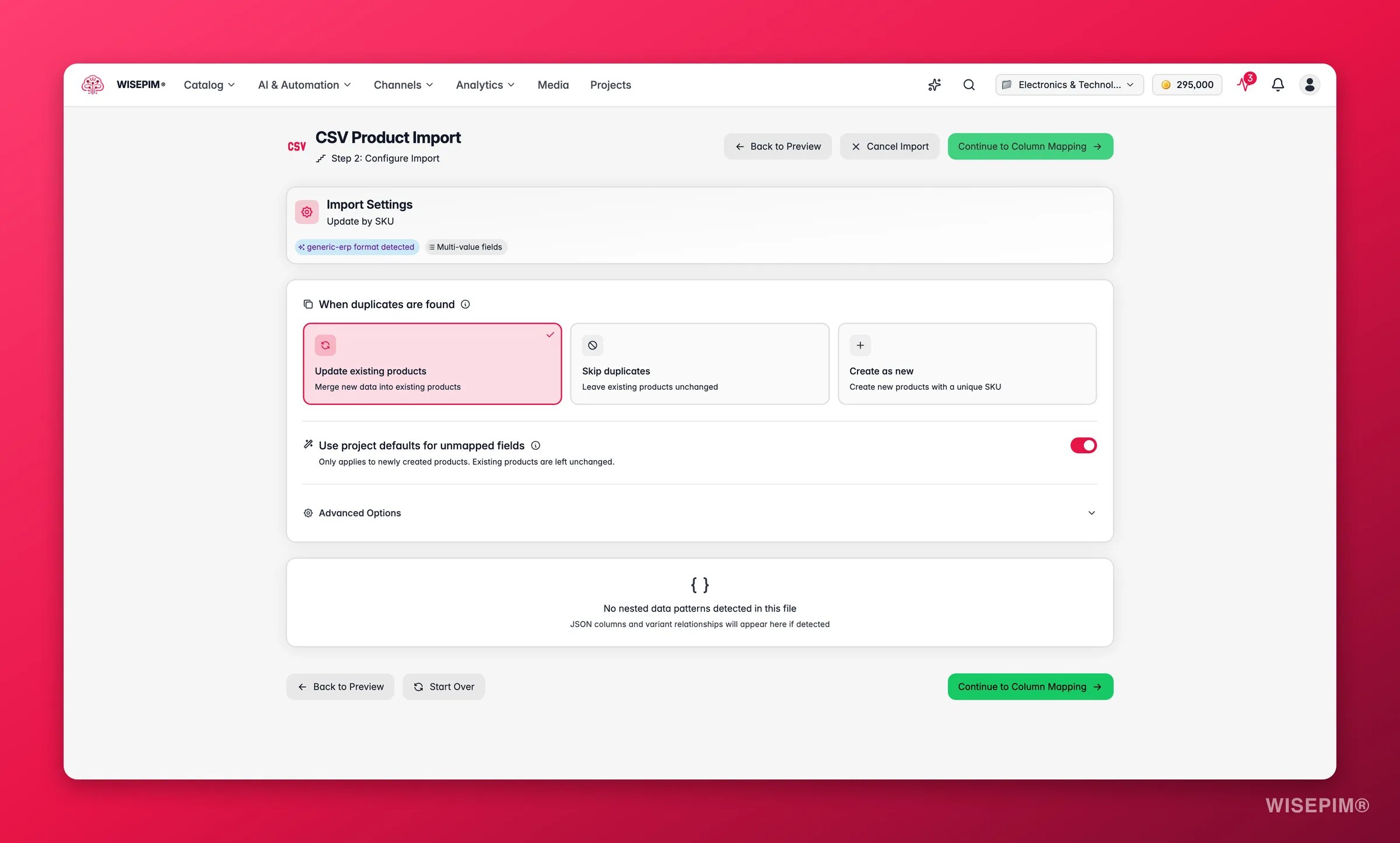
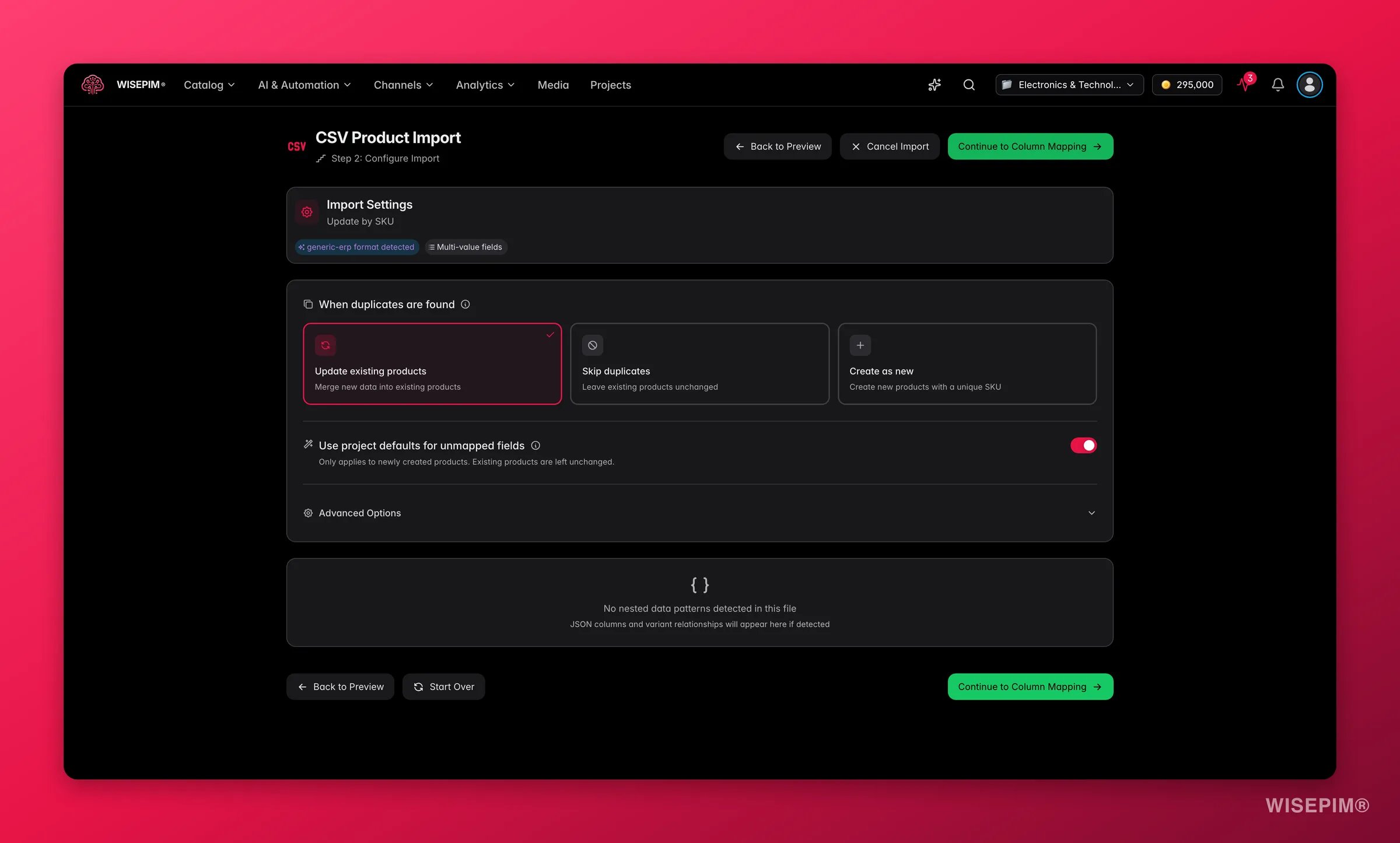 On the Products page, click **Import** in the toolbar and pick your source. The [CSV importer](/en/essentials/importing-products) runs in four steps, **Upload**, **Configure**, **Mapping**, and **Importing**, and the first one reports the row count, the detected delimiter, and the encoding. Fix a wrong guess here rather than debugging garbled text later.
When the file's structure suggests variants, a **Variants detected** chip appears with a proposed setup, and WISEPIM shows how many **Parents**, **Variants**, and **Standalone** products it would produce before you import. Those three numbers are the cheapest sanity check in the whole import, and getting them right here saves regrouping by hand in part 3.
In the **Multi-Value** panel of the **Configure** step. One column can hold several image URLs; the first becomes the main image and the rest become gallery images. The default separator is the pipe character, so switch it if your file uses something else.
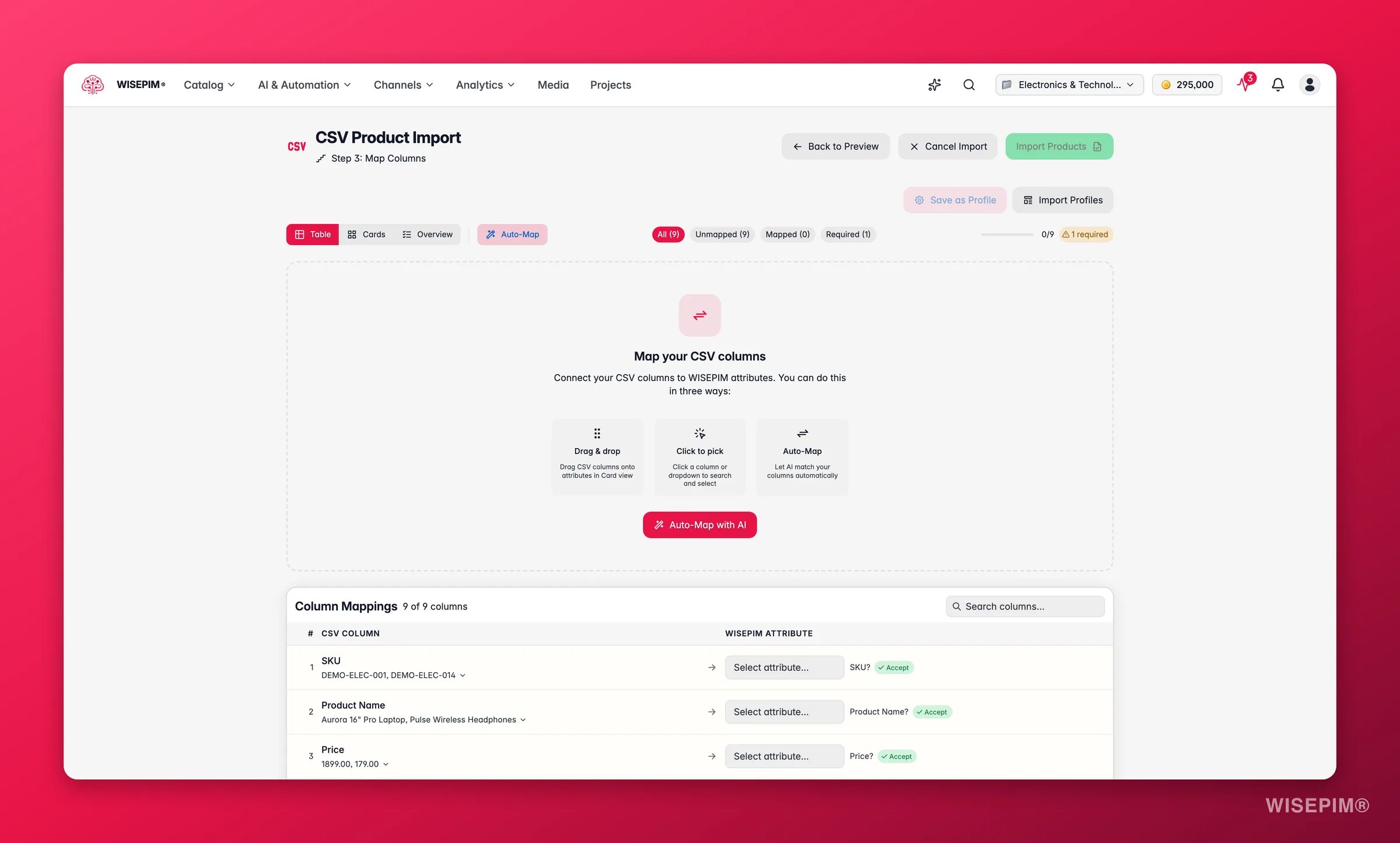
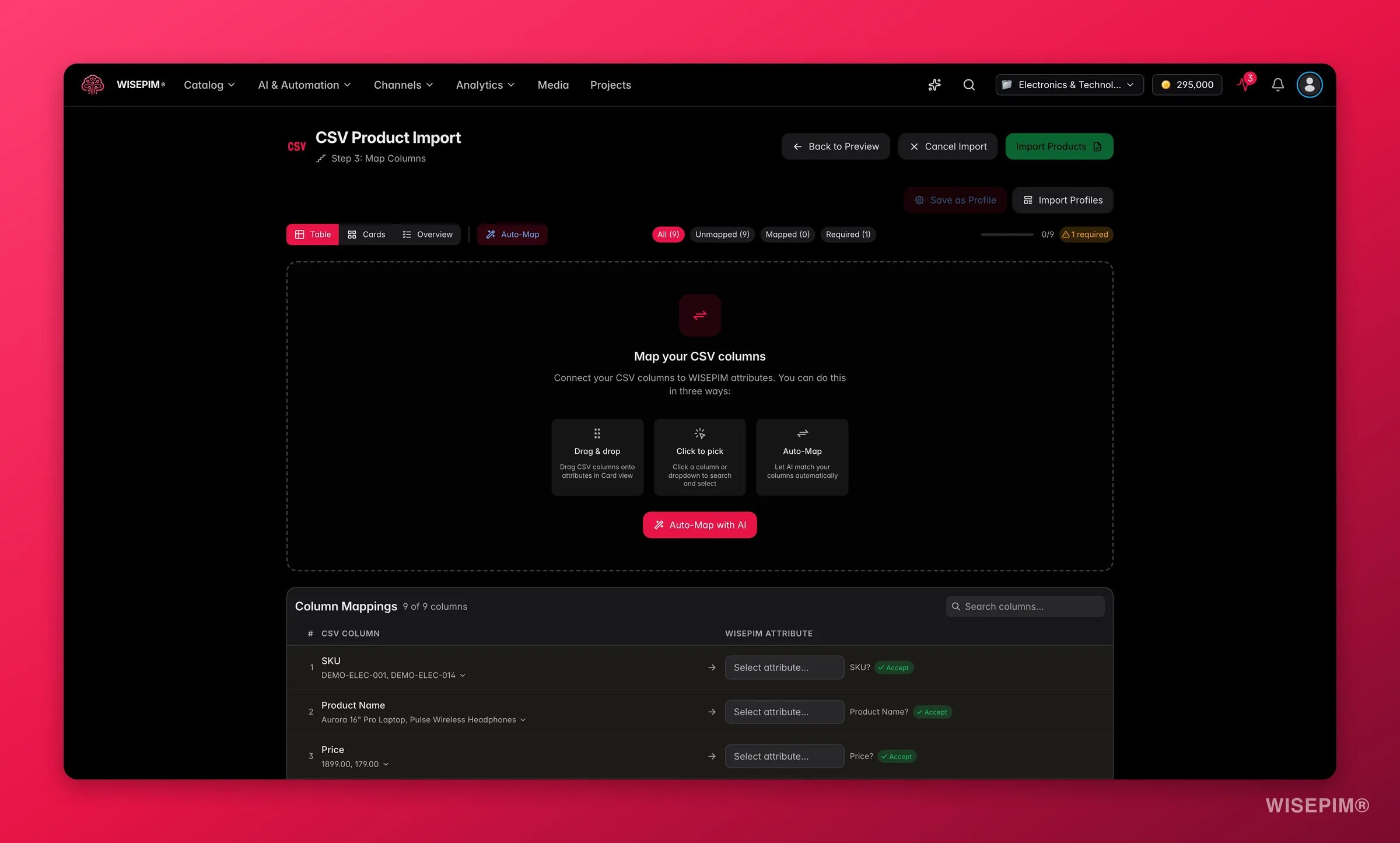
Auto-mapping proposes matches from your column names. Correct them once, save the setup as a template, and every future file from this supplier skips the mapping work entirely.
Check the title, price, images, and category path on a handful of records. This is the step people skip and regret.
On the Products page, click **Import** in the toolbar and pick your source. The [CSV importer](/en/essentials/importing-products) runs in four steps, **Upload**, **Configure**, **Mapping**, and **Importing**, and the first one reports the row count, the detected delimiter, and the encoding. Fix a wrong guess here rather than debugging garbled text later.
When the file's structure suggests variants, a **Variants detected** chip appears with a proposed setup, and WISEPIM shows how many **Parents**, **Variants**, and **Standalone** products it would produce before you import. Those three numbers are the cheapest sanity check in the whole import, and getting them right here saves regrouping by hand in part 3.
In the **Multi-Value** panel of the **Configure** step. One column can hold several image URLs; the first becomes the main image and the rest become gallery images. The default separator is the pipe character, so switch it if your file uses something else.
Auto-mapping proposes matches from your column names. Correct them once, save the setup as a template, and every future file from this supplier skips the mapping work entirely.
Check the title, price, images, and category path on a handful of records. This is the step people skip and regret.
 ## Run the full import and work the Cleanup Wizard
With the mapping proven on 50 rows, run the rest. Imports execute in the background, so you can keep working while they do.
## Run the full import and work the Cleanup Wizard
With the mapping proven on 50 rows, run the rest. Imports execute in the background, so you can keep working while they do.
 Load the template you just saved so the full run uses the same mapping and configuration as your test.
The [Process Tracker](/en/other-features/process-tracker) shows processed, successful, failed, and skipped counts per task, and a plain-language recap when it finishes.
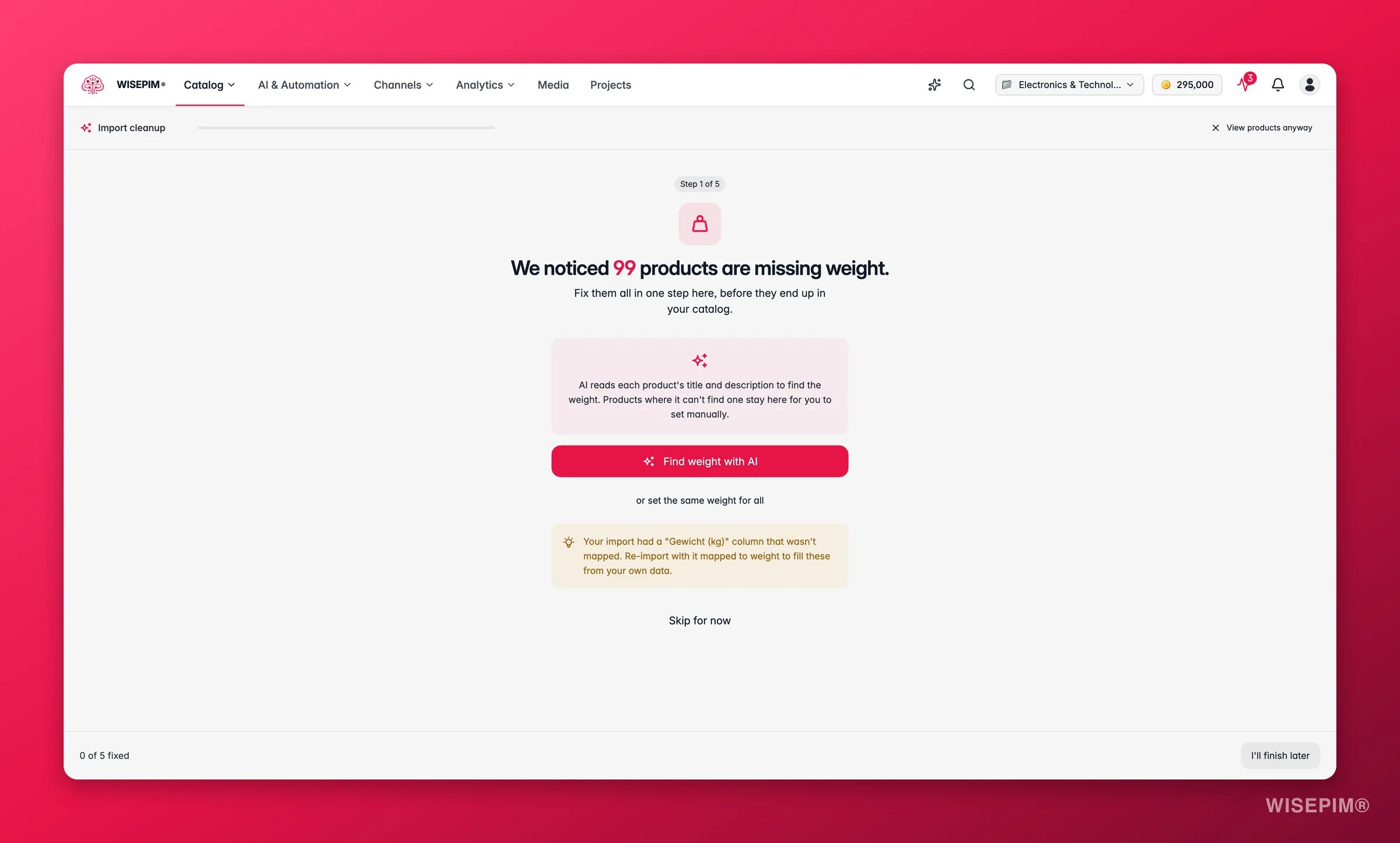
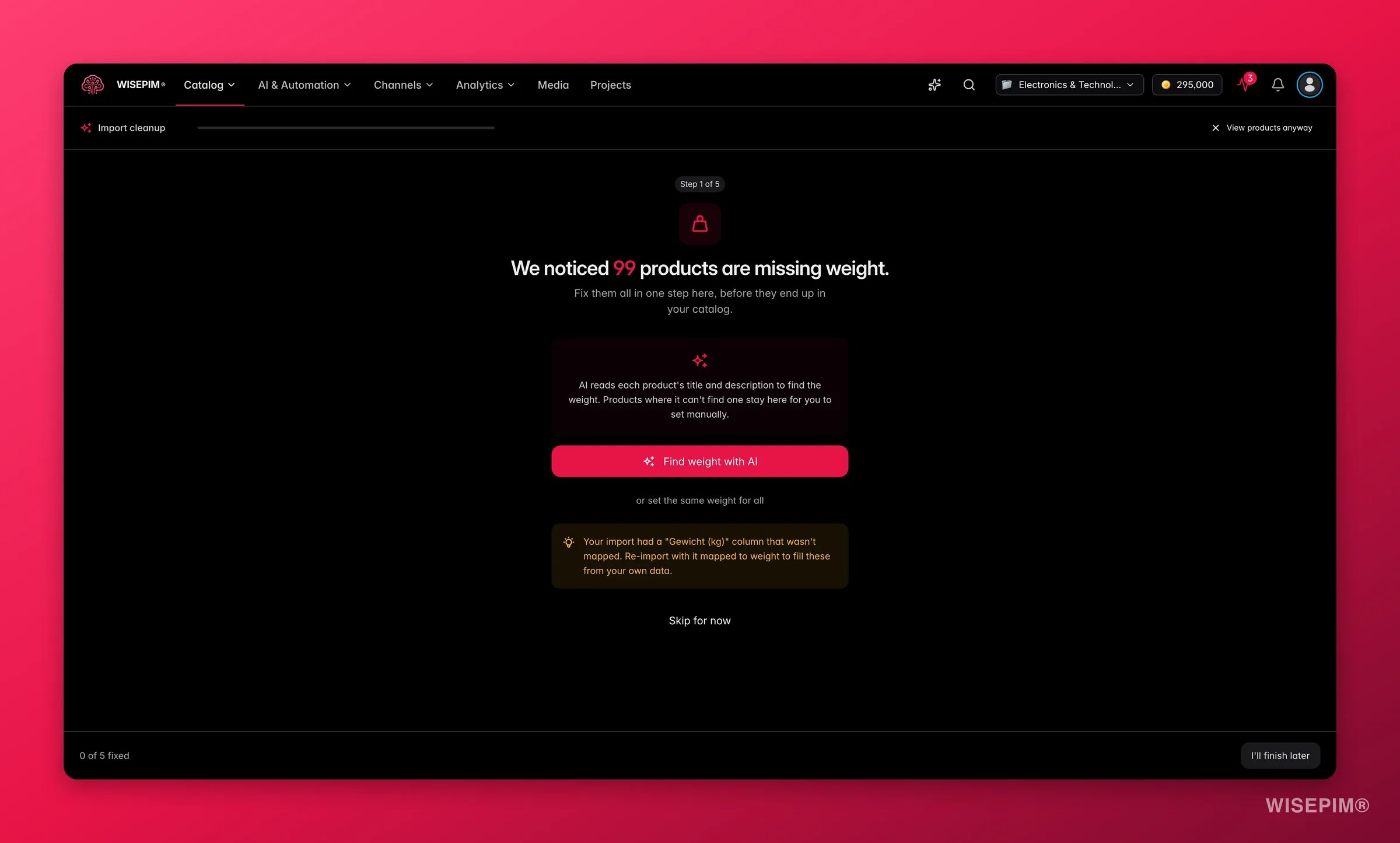
After a CSV import, WISEPIM scans for missing critical fields and opens the wizard when it finds gaps. It handles missing images, weight, and price one step at a time, including suggesting an unmapped column that might hold your image URLs. Skipped gaps stay visible as a banner on the Products page until they are filled.
Open the import task and choose **Rollback** to remove everything that import brought in. Rollback exists on import tasks only, and it takes the enrichment you did on top with it, so decide before part 4 rather than after.
## How to tell it worked
| Signal | Where to look | When it moves |
| ---------------------------------------- | ----------------------------------------------------- | ---------------------------------------------------------------------------------- |
| Parents, variants, and standalone counts | The **Nested Data** step, before importing | While you configure, not after |
| Task status and item counts | [Process Tracker](/en/other-features/process-tracker) | Minutes for a 5,000-row CSV; 15 minutes to an hour for a platform import that size |
| Cleanup banner on the Products page | Products page, above the table | Disappears once every critical field is filled |
| Spot-checked products look right | Five products opened by hand | Right after the run |
## When it doesn't work
Nested data handling was off, or no variant mode was picked. Either roll back and re-import with one chosen, or fix it in place in part 3 with [Group as Variants](/en/essentials/bulk-editing/group-as-variants).
Usually the multi-value delimiter did not match your file, or the image column was never mapped. The Cleanup Wizard checks whether an unmapped column looks like image URLs and offers to re-run with it mapped.
Under standard validation, rows with errors are skipped and reported rather than imported. Read the report, then fix the file or loosen the setting in [Import settings](/en/settings/import).
That is **Overwrite** doing what it says on a partial file. Roll the import back, switch conflict resolution to **Merge**, and run it again.
The import modal only shows platforms that have been successfully connected. Set the connection up and test it on the [Integrations](/en/integrations/supported-platforms) page, and the source appears on its own.
Products are in. [Part 3](/en/guides/first-catalog/clean) makes them usable, and the order it uses is the point.
## Related
Next in the series: dedupe, normalize, categorize, and group variants in the right order.
The same import discipline applied to a full replatform.
Every source, every step of the importer, and what each option does.
Conflict resolution, empty fields, validation, and import filters.
Load the template you just saved so the full run uses the same mapping and configuration as your test.
The [Process Tracker](/en/other-features/process-tracker) shows processed, successful, failed, and skipped counts per task, and a plain-language recap when it finishes.
After a CSV import, WISEPIM scans for missing critical fields and opens the wizard when it finds gaps. It handles missing images, weight, and price one step at a time, including suggesting an unmapped column that might hold your image URLs. Skipped gaps stay visible as a banner on the Products page until they are filled.
Open the import task and choose **Rollback** to remove everything that import brought in. Rollback exists on import tasks only, and it takes the enrichment you did on top with it, so decide before part 4 rather than after.
## How to tell it worked
| Signal | Where to look | When it moves |
| ---------------------------------------- | ----------------------------------------------------- | ---------------------------------------------------------------------------------- |
| Parents, variants, and standalone counts | The **Nested Data** step, before importing | While you configure, not after |
| Task status and item counts | [Process Tracker](/en/other-features/process-tracker) | Minutes for a 5,000-row CSV; 15 minutes to an hour for a platform import that size |
| Cleanup banner on the Products page | Products page, above the table | Disappears once every critical field is filled |
| Spot-checked products look right | Five products opened by hand | Right after the run |
## When it doesn't work
Nested data handling was off, or no variant mode was picked. Either roll back and re-import with one chosen, or fix it in place in part 3 with [Group as Variants](/en/essentials/bulk-editing/group-as-variants).
Usually the multi-value delimiter did not match your file, or the image column was never mapped. The Cleanup Wizard checks whether an unmapped column looks like image URLs and offers to re-run with it mapped.
Under standard validation, rows with errors are skipped and reported rather than imported. Read the report, then fix the file or loosen the setting in [Import settings](/en/settings/import).
That is **Overwrite** doing what it says on a partial file. Roll the import back, switch conflict resolution to **Merge**, and run it again.
The import modal only shows platforms that have been successfully connected. Set the connection up and test it on the [Integrations](/en/integrations/supported-platforms) page, and the source appears on its own.
Products are in. [Part 3](/en/guides/first-catalog/clean) makes them usable, and the order it uses is the point.
## Related
Next in the series: dedupe, normalize, categorize, and group variants in the right order.
The same import discipline applied to a full replatform.
Every source, every step of the importer, and what each option does.
Conflict resolution, empty fields, validation, and import filters.