> ## Documentation Index
> Fetch the complete documentation index at: https://docs.wisepim.com/llms.txt
> Use this file to discover all available pages before exploring further.
# Enrich your catalog with AI
> Half your products have no description and the rest have bad ones. Fill the gaps without overwriting good copy, and test on ten before spending on 5,000.
Part 3 left you with clean, categorized products that are still half empty: no descriptions on the new lines, one-line descriptions on the old ones, and meta titles nowhere. This is the part that pays for the previous three. Two mistakes cost real money here: running the tool that overwrites when you meant to fill gaps, and running any tool on 5,000 products before reading its output on ten. Budget an hour of your attention, plus background time for the catalog run.
**Before you start:** you need default prompts set in [Enrich Prompts](/en/settings/enrich-defaults) and a filled [Knowledge Library](/en/other-features/knowledge-library) from [part 1](/en/guides/first-catalog/set-up), and clean, categorized products from [part 3](/en/guides/first-catalog/clean).
**What you'll get:** every empty title, description, short description, SEO field, and attribute filled in your own brand voice, with existing content left intact and a measurable jump in your data quality score.
## Pick the right tool: fill gaps or start over
Both tools write the same fields with the same prompts, and they treat existing content in opposite ways. This is the one choice in the series that cannot be undone by running the other tool afterwards.
 | | [Auto-Fill](/en/ai/auto-fill) | [Bulk Enrich](/en/ai/bulk-enrich) |
| ----------------- | ----------------------------------------------- | ------------------------------------------------ |
| Existing content | Left alone | Overwritten, always |
| What it writes | Only the fields that are empty | Every field you pick, on every product selected |
| Reach for it when | A first or half-filled catalog needs completing | The copy you inherited is not worth keeping |
| In this part | Use this one | Come back to it once you have a prompt you trust |
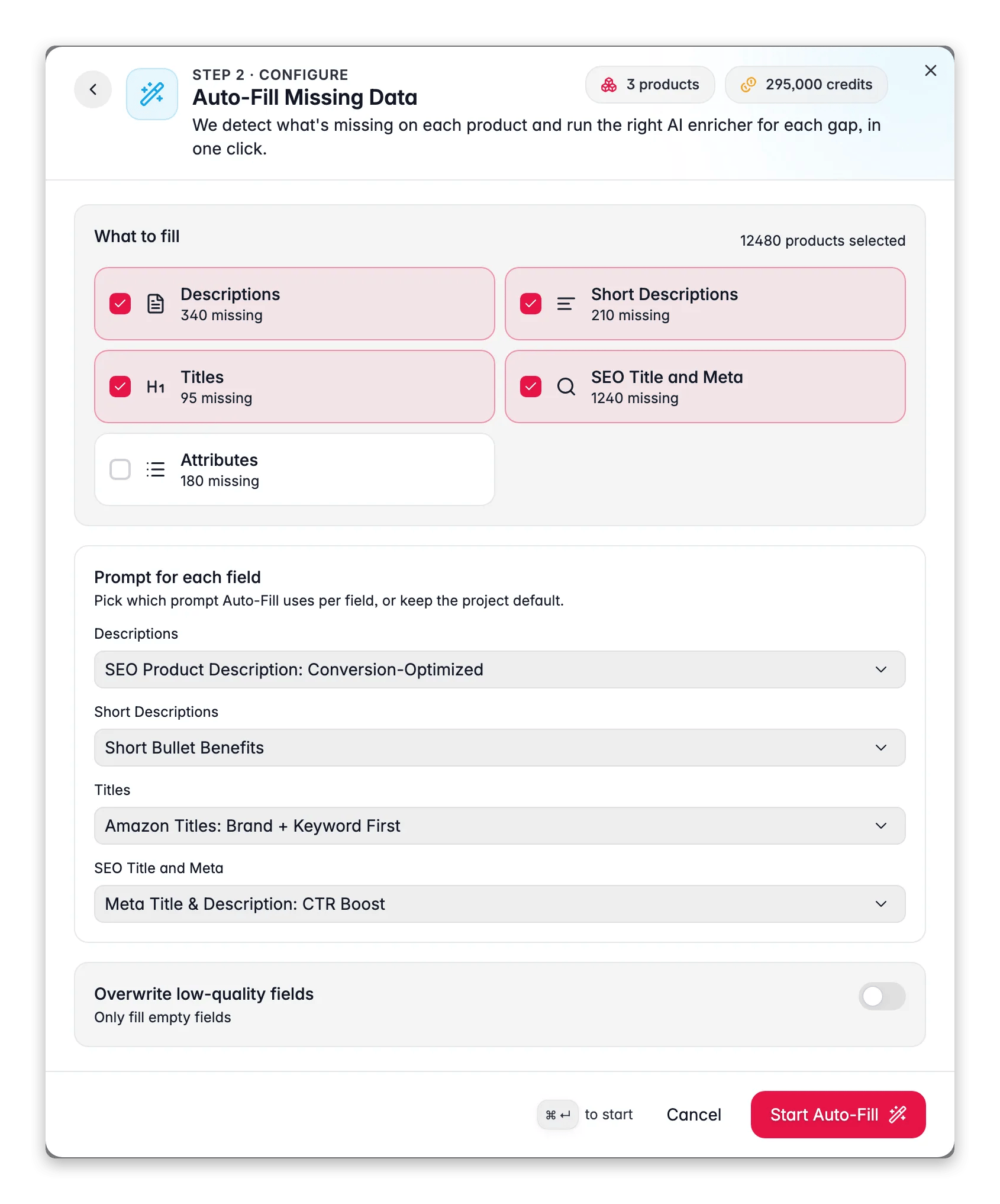
A first catalog is gap-filling by definition, so Auto-Fill is almost always right here. It costs one credit per product per field it actually generates, and fields that already have content are skipped, so they cost nothing.
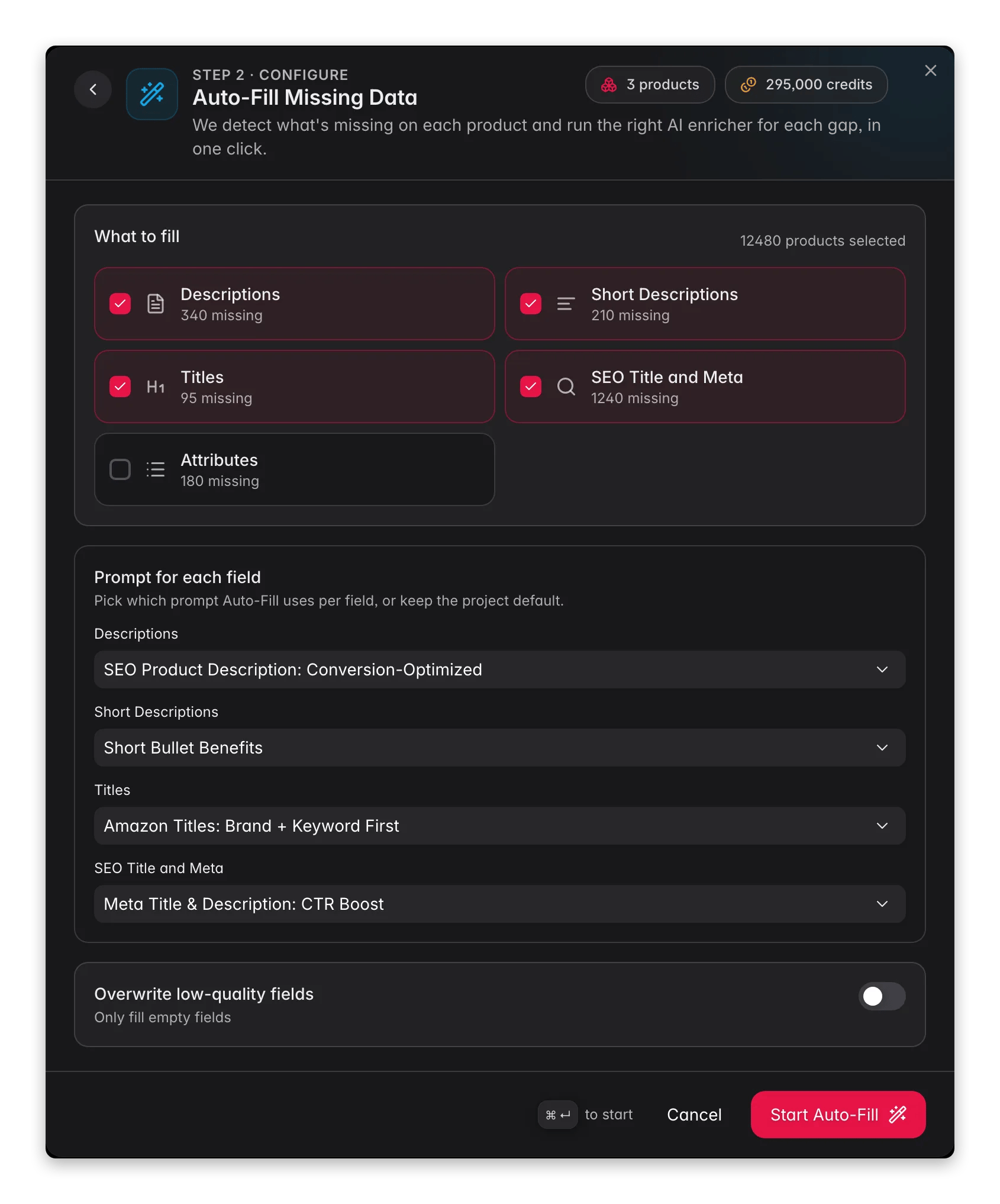
A gap type shows as greyed out when it has no default prompt and no override picked. Set the default in [Enrich Prompts](/en/settings/enrich-defaults) or choose an override in the panel, otherwise that content type is silently skipped.
With it off, Auto-Fill only touches completely empty fields. Turn it on later, at a low threshold, once you trust the output enough to let it replace weak existing content too.
## Test on ten products, and actually read the output
Ten products cost almost nothing and tell you everything, but only if you pick them badly on purpose.
| | [Auto-Fill](/en/ai/auto-fill) | [Bulk Enrich](/en/ai/bulk-enrich) |
| ----------------- | ----------------------------------------------- | ------------------------------------------------ |
| Existing content | Left alone | Overwritten, always |
| What it writes | Only the fields that are empty | Every field you pick, on every product selected |
| Reach for it when | A first or half-filled catalog needs completing | The copy you inherited is not worth keeping |
| In this part | Use this one | Come back to it once you have a prompt you trust |
A first catalog is gap-filling by definition, so Auto-Fill is almost always right here. It costs one credit per product per field it actually generates, and fields that already have content are skipped, so they cost nothing.
A gap type shows as greyed out when it has no default prompt and no override picked. Set the default in [Enrich Prompts](/en/settings/enrich-defaults) or choose an override in the panel, otherwise that content type is silently skipped.
With it off, Auto-Fill only touches completely empty fields. Turn it on later, at a low threshold, once you trust the output enough to let it replace weak existing content too.
## Test on ten products, and actually read the output
Ten products cost almost nothing and tell you everything, but only if you pick them badly on purpose.
 Take a few products with rich source data, a few with almost none, and one from each of your main categories. Auto-Fill writes from what is already in the record, so thin products are where output quality shows its floor.
Tick the ten rows, click **Enrich with AI** in the toolbar, pick **Auto-Fill Missing Data**, and click **Start Enrichment**. Enriched content is stored in separate reviewed fields alongside your originals, so your source data stays as it was.
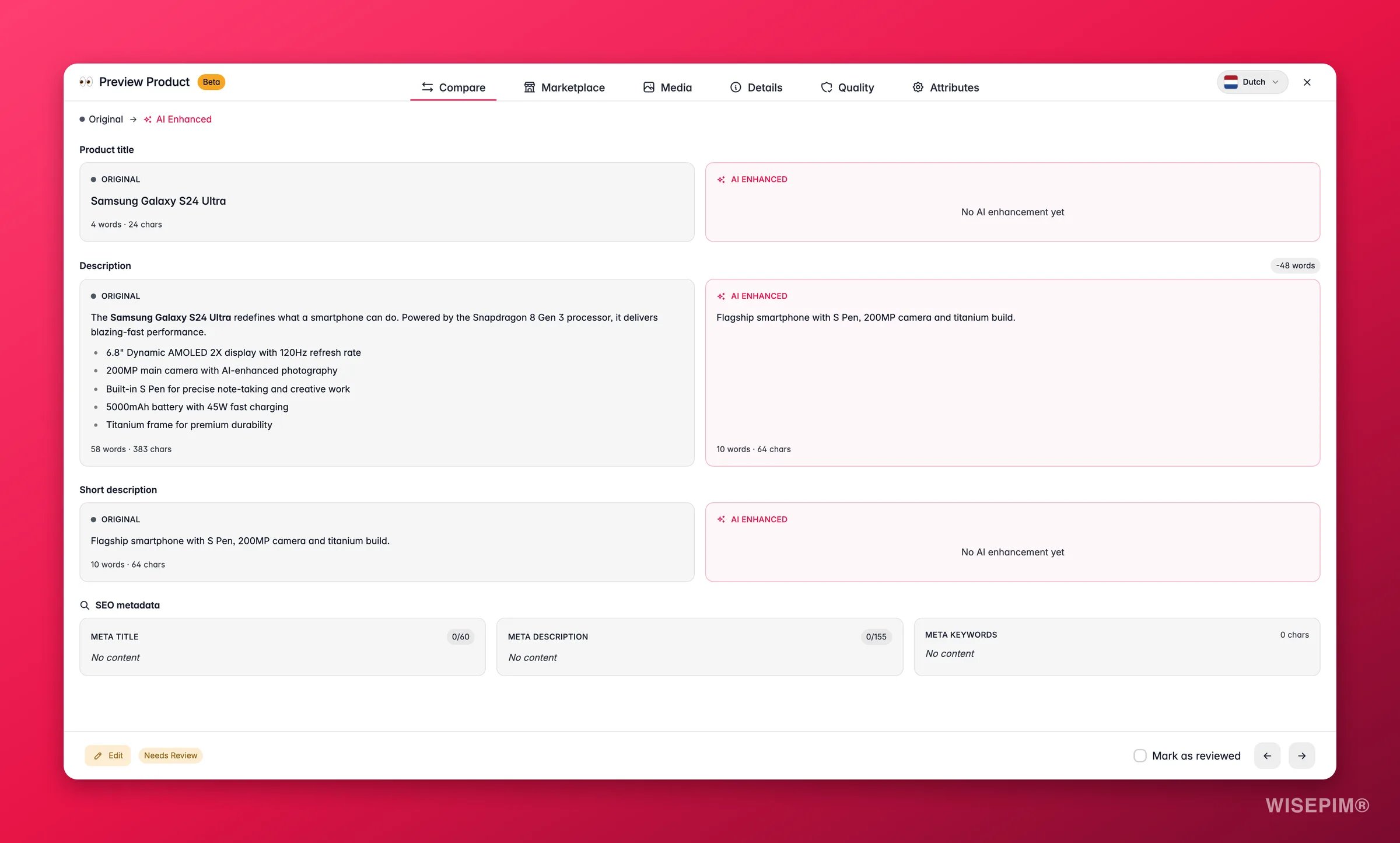
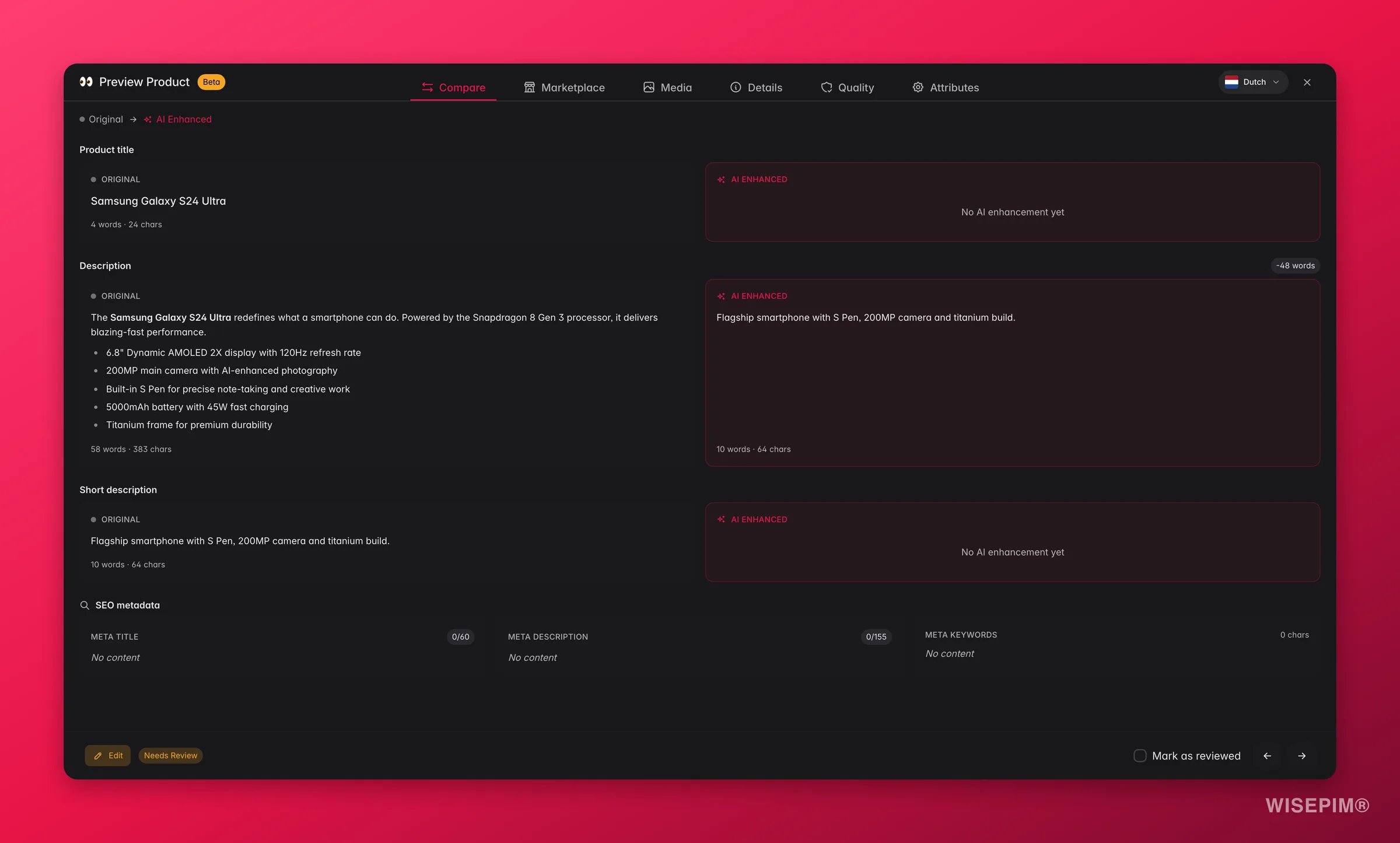
Not skim: read. Open the products and check tone, length, and factual claims against the source data. This is the moment to catch a prompt that invents specifications, while it has only invented them ten times.
If something is off, adjust the prompt in the [Prompt Lab](/en/essentials/prompt-lab) against a real product, or add the missing context to your [Knowledge Library](/en/other-features/knowledge-library), then re-test the same ten.
When two rounds in a row produce nothing you would edit, the prompt is ready for the catalog.
## Run the catalog and manage the job, not the products
A 5,000-product run is a background job. Your work during it is watching for the one failure that repeats, not reading products.
Take a few products with rich source data, a few with almost none, and one from each of your main categories. Auto-Fill writes from what is already in the record, so thin products are where output quality shows its floor.
Tick the ten rows, click **Enrich with AI** in the toolbar, pick **Auto-Fill Missing Data**, and click **Start Enrichment**. Enriched content is stored in separate reviewed fields alongside your originals, so your source data stays as it was.
Not skim: read. Open the products and check tone, length, and factual claims against the source data. This is the moment to catch a prompt that invents specifications, while it has only invented them ten times.
If something is off, adjust the prompt in the [Prompt Lab](/en/essentials/prompt-lab) against a real product, or add the missing context to your [Knowledge Library](/en/other-features/knowledge-library), then re-test the same ten.
When two rounds in a row produce nothing you would edit, the prompt is ready for the catalog.
## Run the catalog and manage the job, not the products
A 5,000-product run is a background job. Your work during it is watching for the one failure that repeats, not reading products.
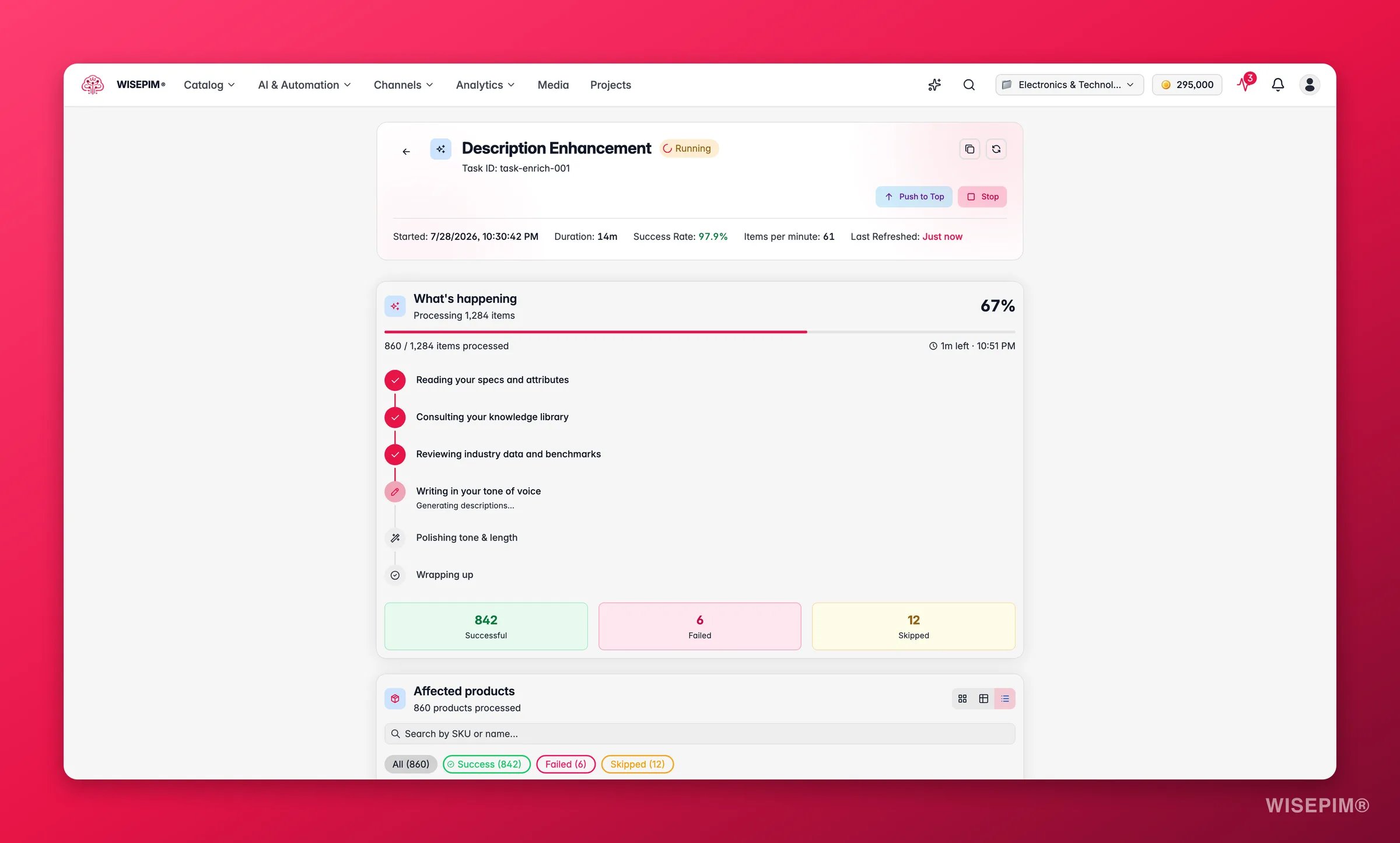
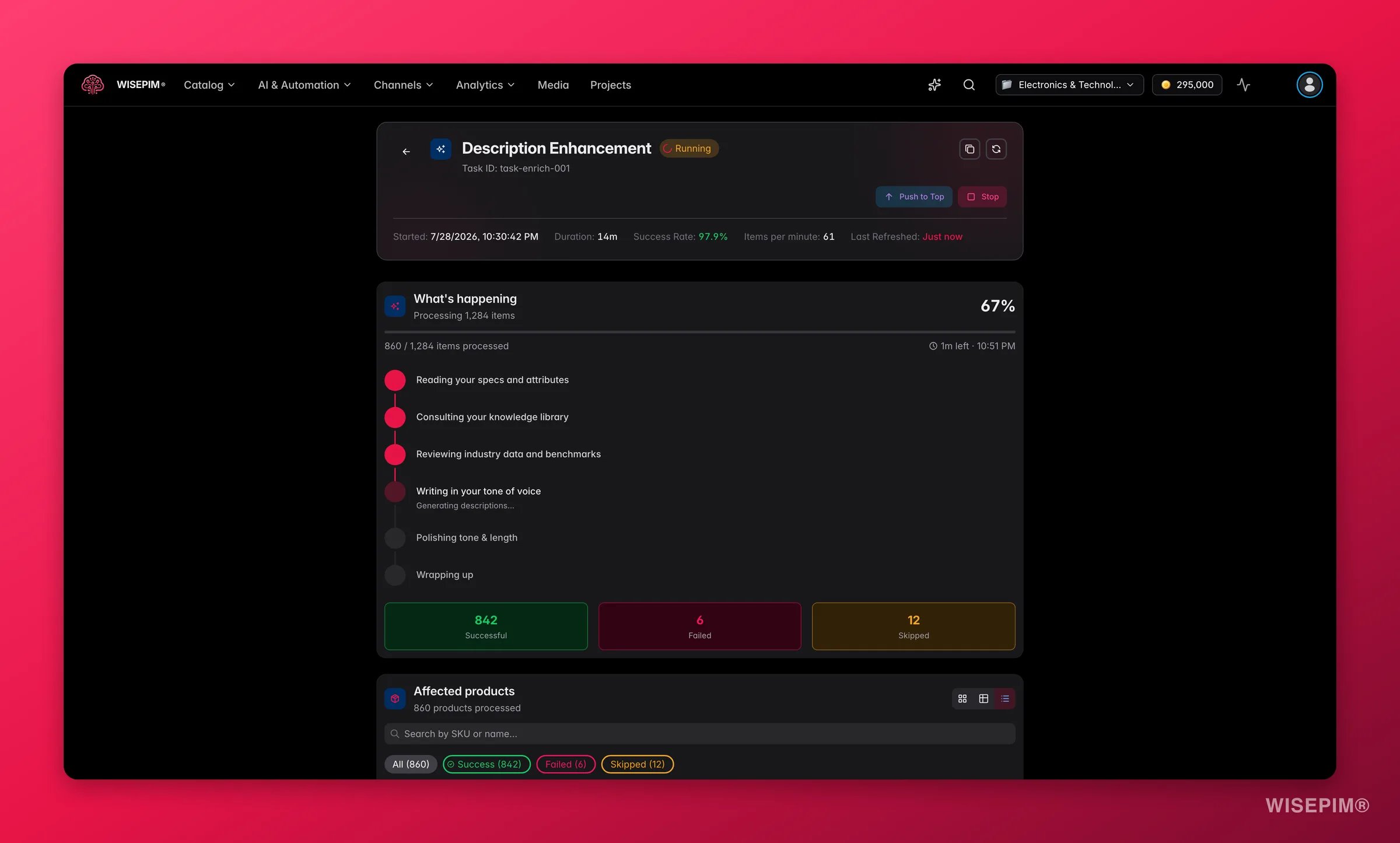 Filter to the products that need work, use **Apply to all** to take every match across all pages, and read the product count before starting. This is your last chance to catch a filter that is wider than you thought.
It appears in the [Process Tracker](/en/other-features/process-tracker) as one parent task with a child task per product or field, with live progress.
It narrates the run in plain language and shows what the AI drew on. If it never consulted your Knowledge Library, that explains an off-brand result better than any guesswork.
If the run stops, whether you stopped it or credits ran out, **Resume** processes only the remainder at no extra credit cost. **Restart** re-runs the full original selection and is charged as a new run.
"Here is what WISEPIM did" sums up how many products were enriched, how long it took, and which of your rules and context it used.
## How to tell it worked
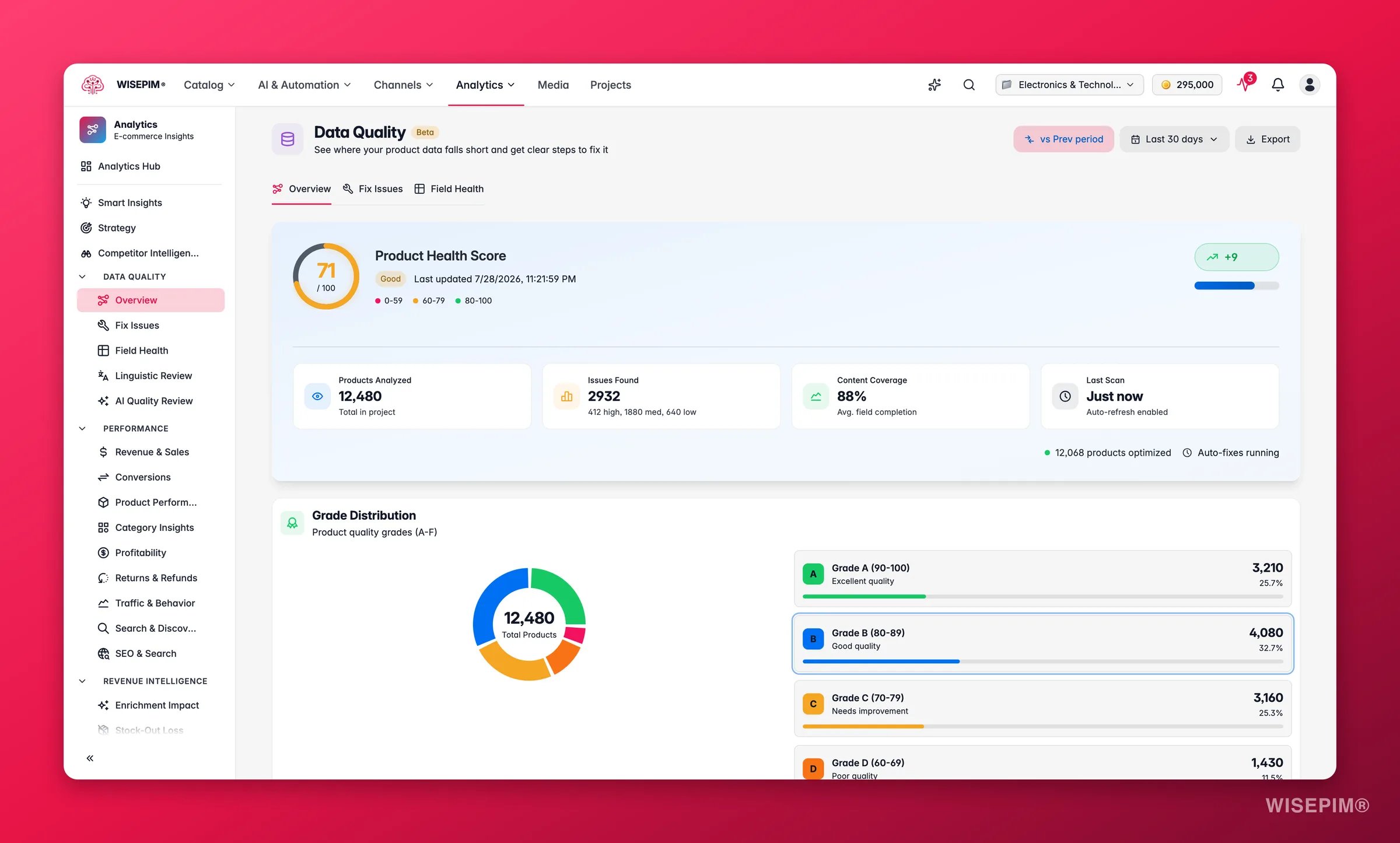
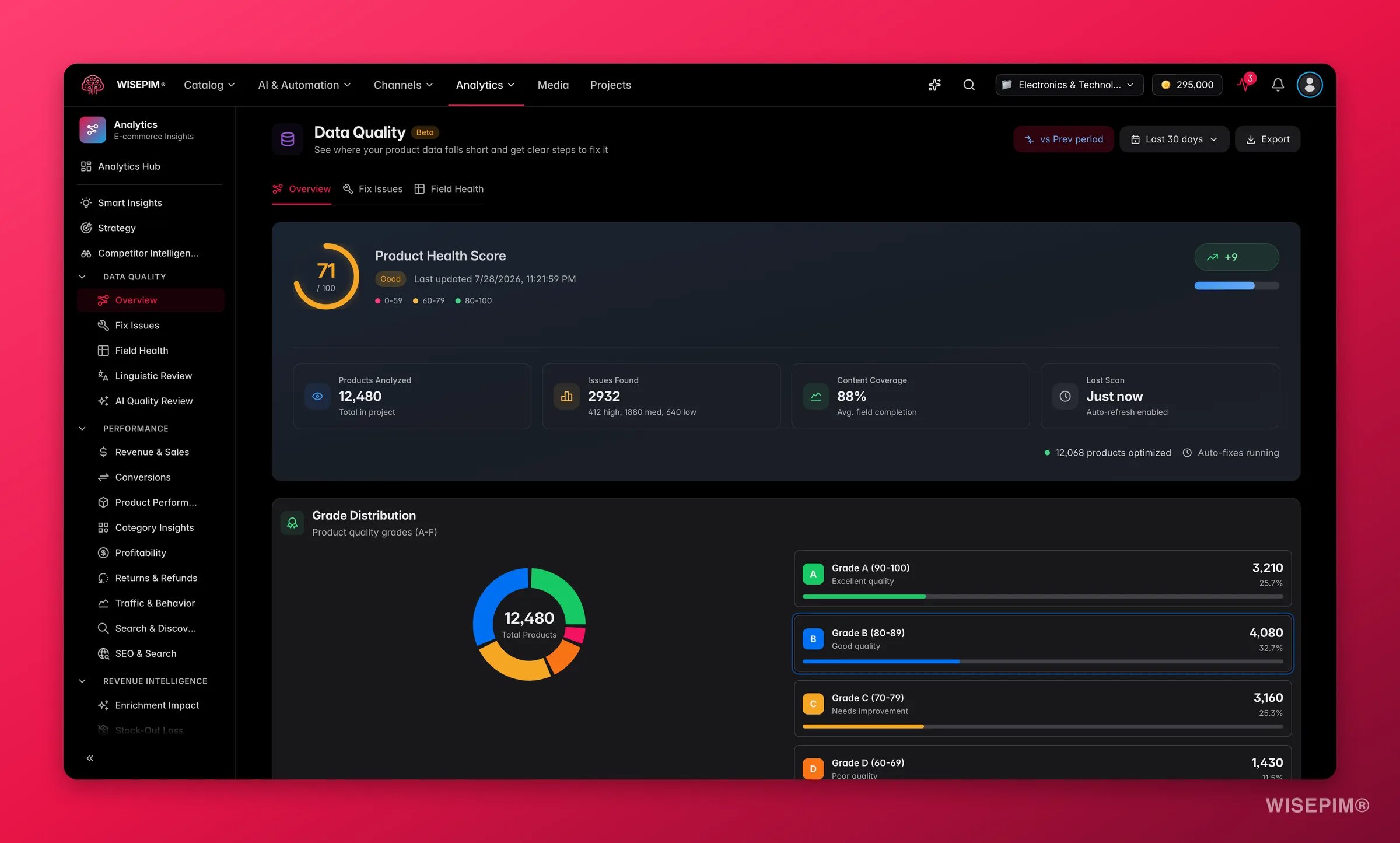
Open [Data Quality](/en/analytics/data-quality) and read the content coverage funnel: it shows the percentage of products carrying each key field, so a remaining gap is obvious rather than anecdotal. Aim for a B, 80 or above, before part 5.
Filter to the products that need work, use **Apply to all** to take every match across all pages, and read the product count before starting. This is your last chance to catch a filter that is wider than you thought.
It appears in the [Process Tracker](/en/other-features/process-tracker) as one parent task with a child task per product or field, with live progress.
It narrates the run in plain language and shows what the AI drew on. If it never consulted your Knowledge Library, that explains an off-brand result better than any guesswork.
If the run stops, whether you stopped it or credits ran out, **Resume** processes only the remainder at no extra credit cost. **Restart** re-runs the full original selection and is charged as a new run.
"Here is what WISEPIM did" sums up how many products were enriched, how long it took, and which of your rules and context it used.
## How to tell it worked
Open [Data Quality](/en/analytics/data-quality) and read the content coverage funnel: it shows the percentage of products carrying each key field, so a remaining gap is obvious rather than anecdotal. Aim for a B, 80 or above, before part 5.
 | Signal | Where to look | When it moves |
| --------------------------------------- | ----------------------------------------------------------------- | -------------------------------- |
| Task recap and success rate | [Process Tracker](/en/other-features/process-tracker) task detail | The moment the run finishes |
| Content coverage funnel | [Data Quality](/en/analytics/data-quality) overview | Once enriched fields are written |
| Overall score and grade, aiming for 80+ | Data Quality hero metric | Automatically as data improves |
| Remaining gaps, ranked by product count | Action queue on the [Overview](/en/overview) | Next time you load the dashboard |
## When it doesn't work
That is Bulk Enrich behaving as designed: it always overwrites the fields you pick. For gap-filling, use [Auto-Fill](/en/ai/auto-fill) instead, which leaves existing content alone.
Compare the weak ones' source data. Auto-Fill works from what is already in the product record, so shorter existing descriptions and fewer attributes produce weaker output. Improve the source data first, then run again.
Open the task and use **Resume**. It runs only the items that were never processed, with no extra credits, because the original run already paid for them.
It had no default prompt and no override, so it was greyed out in the panel. Set the default in [Enrich Prompts](/en/settings/enrich-defaults) and run again on the affected products.
Fill in brand voice and brand identity in the [Knowledge Library](/en/other-features/knowledge-library) with concrete tone adjectives and example phrasing, re-test in the Prompt Lab, then re-run on a sample before the full catalog.
At a B or better, the catalog is worth publishing. [Part 5](/en/guides/first-catalog/publish) gets it out and proves it landed.
## Related
Next in the series: get the enriched data out to your store or channel without surprises.
When the output is close but not yet yours.
Gap types, prompt overrides, and the overwrite threshold.
The rewrite tool: fields, prompts, and what a run costs.
| Signal | Where to look | When it moves |
| --------------------------------------- | ----------------------------------------------------------------- | -------------------------------- |
| Task recap and success rate | [Process Tracker](/en/other-features/process-tracker) task detail | The moment the run finishes |
| Content coverage funnel | [Data Quality](/en/analytics/data-quality) overview | Once enriched fields are written |
| Overall score and grade, aiming for 80+ | Data Quality hero metric | Automatically as data improves |
| Remaining gaps, ranked by product count | Action queue on the [Overview](/en/overview) | Next time you load the dashboard |
## When it doesn't work
That is Bulk Enrich behaving as designed: it always overwrites the fields you pick. For gap-filling, use [Auto-Fill](/en/ai/auto-fill) instead, which leaves existing content alone.
Compare the weak ones' source data. Auto-Fill works from what is already in the product record, so shorter existing descriptions and fewer attributes produce weaker output. Improve the source data first, then run again.
Open the task and use **Resume**. It runs only the items that were never processed, with no extra credits, because the original run already paid for them.
It had no default prompt and no override, so it was greyed out in the panel. Set the default in [Enrich Prompts](/en/settings/enrich-defaults) and run again on the affected products.
Fill in brand voice and brand identity in the [Knowledge Library](/en/other-features/knowledge-library) with concrete tone adjectives and example phrasing, re-test in the Prompt Lab, then re-run on a sample before the full catalog.
At a B or better, the catalog is worth publishing. [Part 5](/en/guides/first-catalog/publish) gets it out and proves it landed.
## Related
Next in the series: get the enriched data out to your store or channel without surprises.
When the output is close but not yet yours.
Gap types, prompt overrides, and the overwrite threshold.
The rewrite tool: fields, prompts, and what a run costs.