> ## Documentation Index
> Fetch the complete documentation index at: https://docs.wisepim.com/llms.txt
> Use this file to discover all available pages before exploring further.
# Clean up a catalog you inherited
> You inherited someone else's messy product catalog. Here is the order to clean it in, from a baseline to a quality floor that stops it sliding back.
Someone else built this catalog and they are not around to explain it. Product names are capitalised four different ways, half the descriptions carry links to a site you do not own, thousands of products sit in "Uncategorized", and nobody can tell you which numbers are trustworthy. You do not need to read every product. You need an order of operations that fixes the cheap, catalog-wide problems first and leaves you with a floor the catalog cannot fall below again.
This is that order. Budget about half a day of hands-on work, spread across your first two weeks. If you imported this catalog yourself and it is only days old, [part 3 of the first-catalog series](/en/guides/first-catalog/clean) is the shorter version - this guide assumes a catalog you did not build and cannot ask anyone about.
**Before you start:** your products need to be imported already, so [Data Quality](/en/analytics/data-quality) has something to measure. If data is still arriving, finish [importing](/en/essentials/importing-products) first and work through the Import Cleanup Wizard it opens for you.
**What you'll get:** a measured before-and-after quality score, a catalog with consistent text, real categories, and grouped variants, plus two or three [Quality Guard](/en/quality-guard/overview) rules that keep it from regressing.
## Take a baseline before you touch anything
Do this first. Once you start bulk-editing you lose the ability to prove the cleanup was worth doing, and you lose the map of what was actually broken.
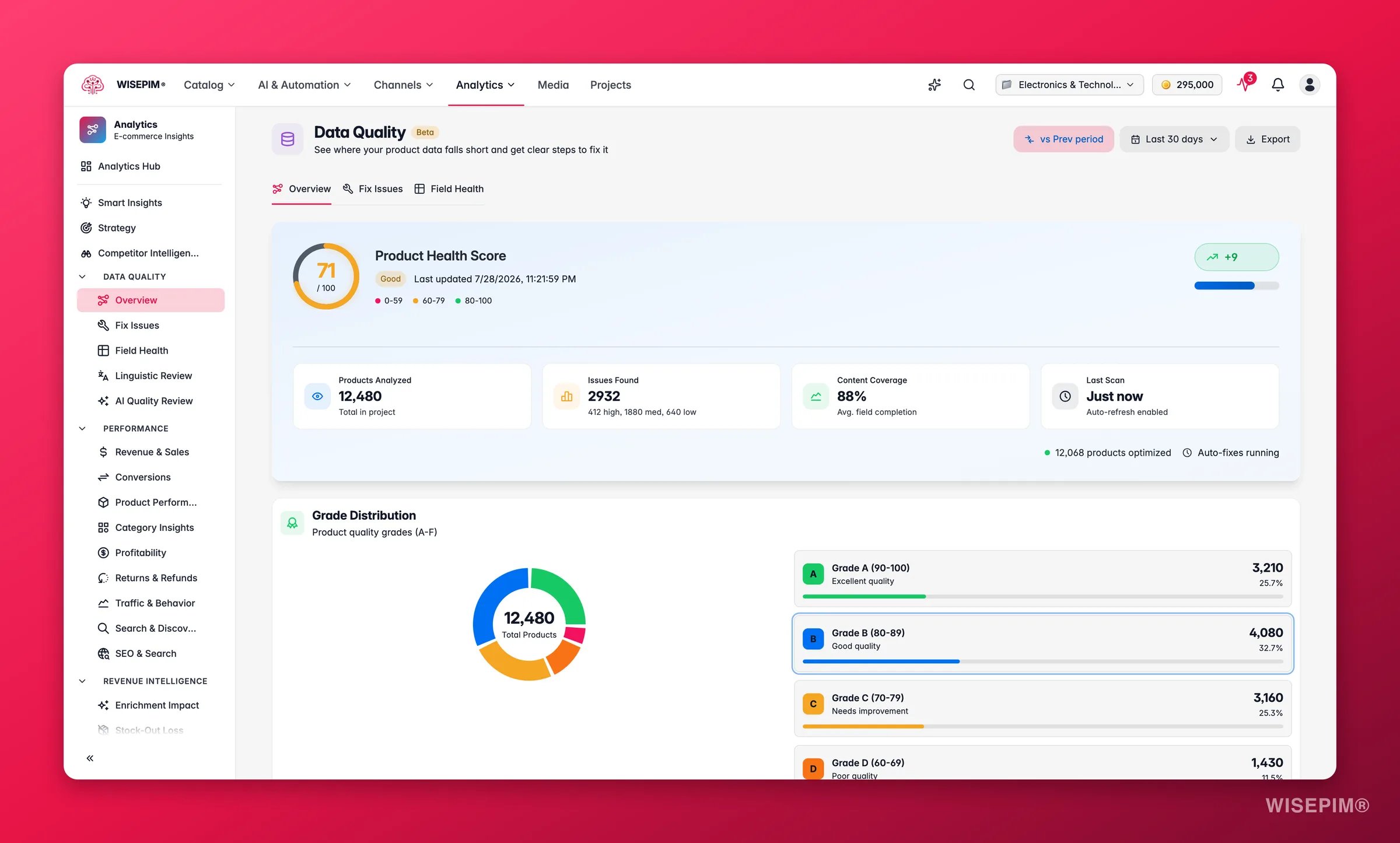
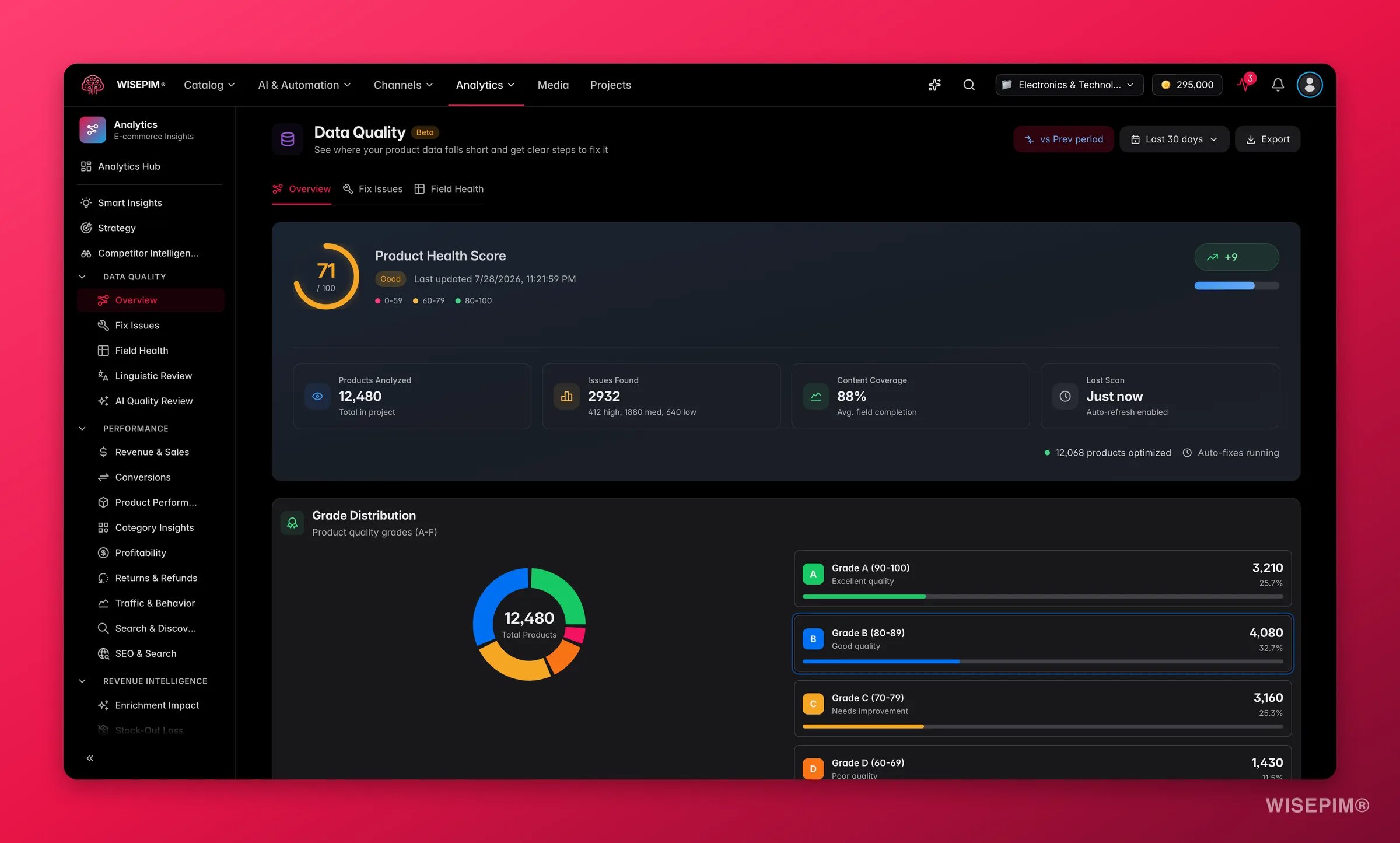 Open [Data Quality](/en/analytics/data-quality) and stay on the **Overview** tab. Note the overall score, the letter grade, and how many products sit in D and F on the grade distribution, then screenshot it. This is the number you compare against at the end, and the D/F pile is your working set.
The [Overview](/en/overview) - the screen you land on after logging in - ranks the most worthwhile fixes by how many products they touch and how much they move your score, and each row opens Products already filtered to them. Working top-down tells you what the previous owner neglected without you auditing anything by hand.
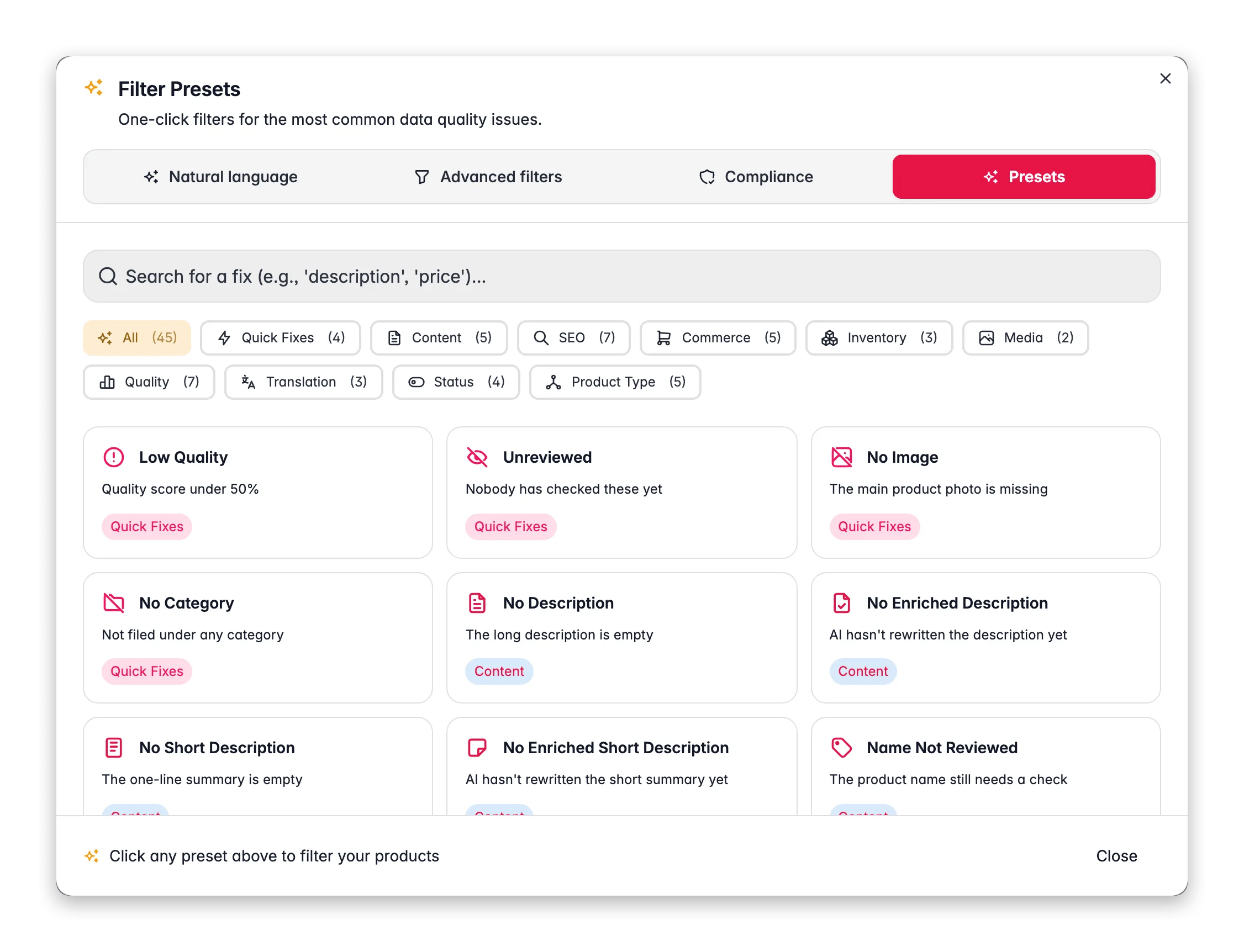
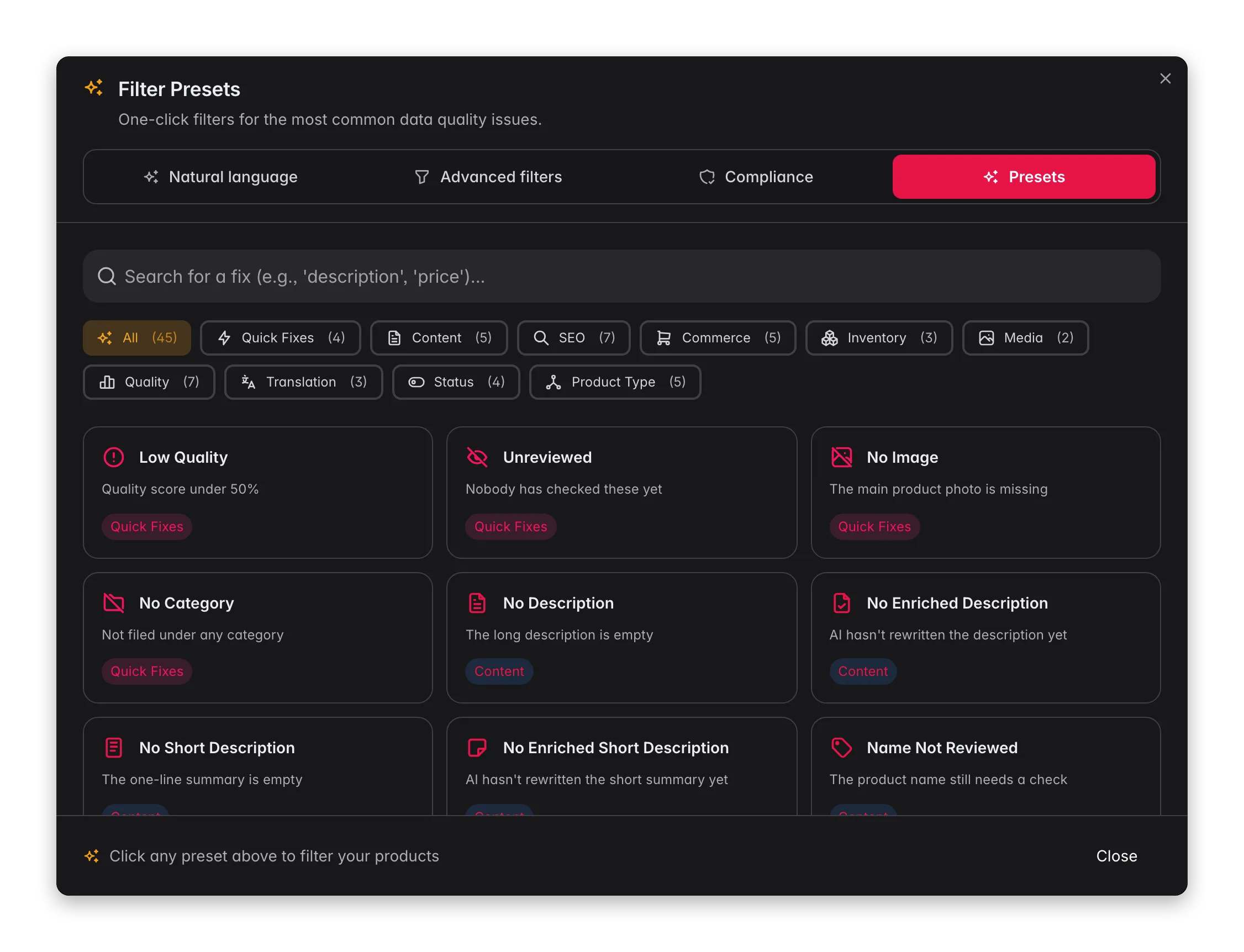
On the [Products](/en/essentials/managing-products) page, click **Filters** next to the search bar and open the **Presets** tab. Each of the 46 presets shows how many products have that issue right now. Note the biggest counts: they are your cleanup backlog in priority order.
Open [Data Quality](/en/analytics/data-quality) and stay on the **Overview** tab. Note the overall score, the letter grade, and how many products sit in D and F on the grade distribution, then screenshot it. This is the number you compare against at the end, and the D/F pile is your working set.
The [Overview](/en/overview) - the screen you land on after logging in - ranks the most worthwhile fixes by how many products they touch and how much they move your score, and each row opens Products already filtered to them. Working top-down tells you what the previous owner neglected without you auditing anything by hand.
On the [Products](/en/essentials/managing-products) page, click **Filters** next to the search bar and open the **Presets** tab. Each of the 46 presets shows how many products have that issue right now. Note the biggest counts: they are your cleanup backlog in priority order.
 Switch to the **Advanced filters** tab and use the **is duplicate** operator on **SKU**, then again on **EAN**. Do this before any text cleanup: cleaning makes near-identical rows look even more alike, and a repeated SKU is sometimes two genuinely different products from two suppliers, so you want to judge them while they still read differently. See [filtering products](/en/products/filtering-products) for the operator list.
Name each filter in the **Save filter set** box and save it. You will run these same queries after every pass to watch the counts drop, and saved sets live on your account rather than in your browser.
## Clean the text, in this exact order
Each of these is a bulk action: filter to a set, select it, click **Bulk Edit** in the Products toolbar, and search the action by name. The order matters more than the actions do - each step makes the next one's matching more reliable, and running them the other way round means redoing work.
Switch to the **Advanced filters** tab and use the **is duplicate** operator on **SKU**, then again on **EAN**. Do this before any text cleanup: cleaning makes near-identical rows look even more alike, and a repeated SKU is sometimes two genuinely different products from two suppliers, so you want to judge them while they still read differently. See [filtering products](/en/products/filtering-products) for the operator list.
Name each filter in the **Save filter set** box and save it. You will run these same queries after every pass to watch the counts drop, and saved sets live on your account rather than in your browser.
## Clean the text, in this exact order
Each of these is a bulk action: filter to a set, select it, click **Bulk Edit** in the Products toolbar, and search the action by name. The order matters more than the actions do - each step makes the next one's matching more reliable, and running them the other way round means redoing work.
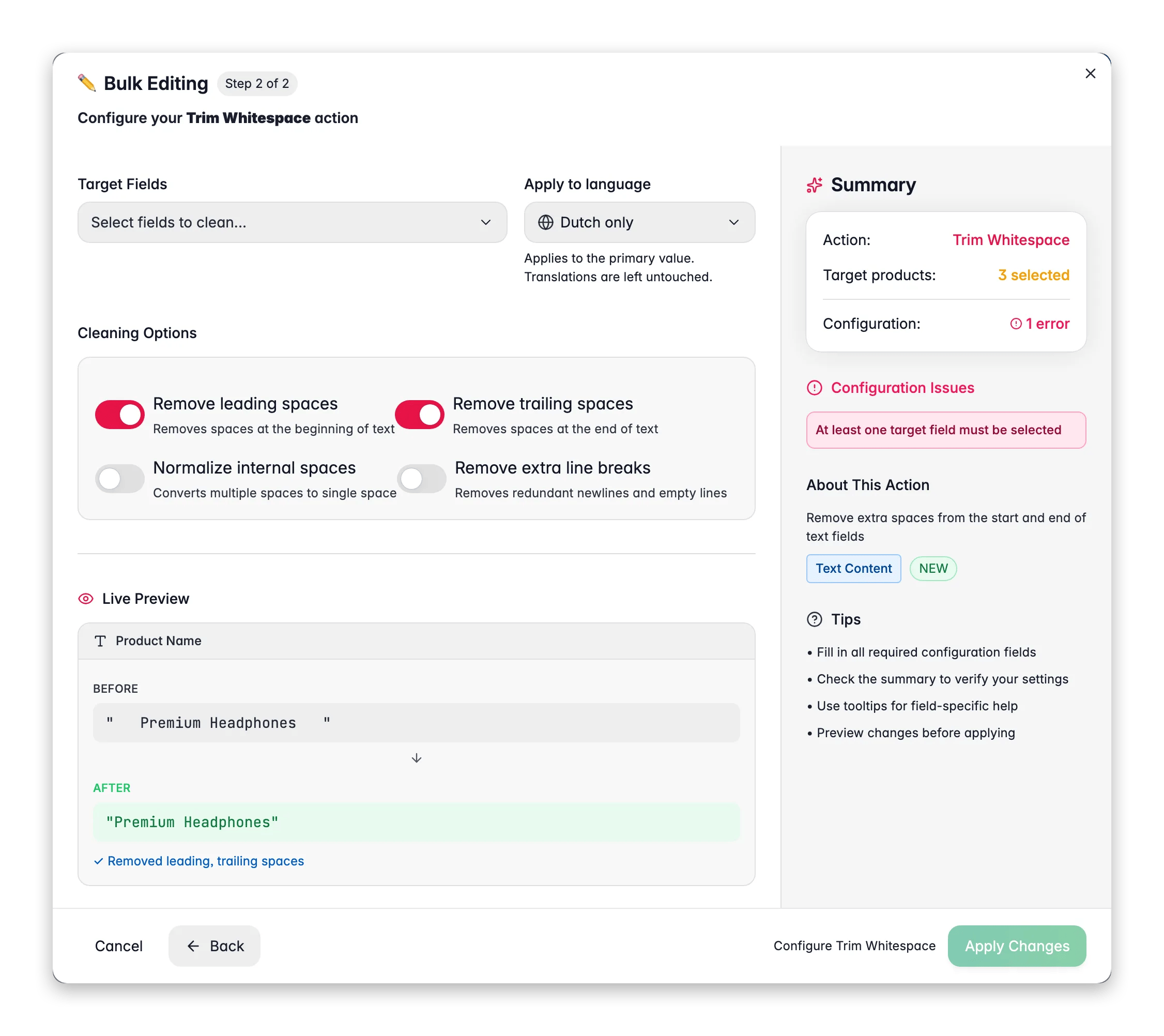
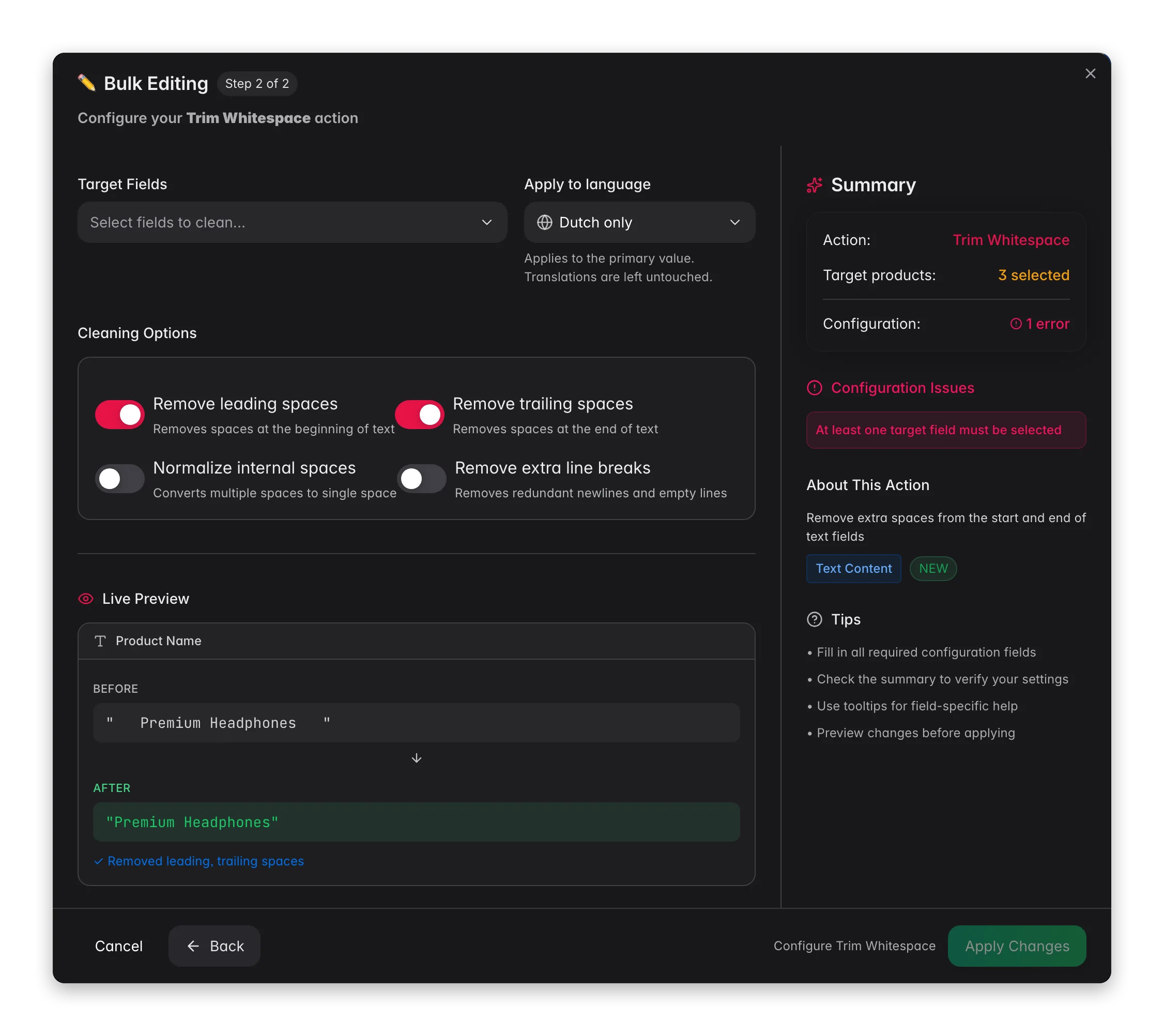 [Trim Whitespace](/en/essentials/bulk-editing/trim-whitespace) is the safe opener: stray leading, trailing, and doubled spaces never carry meaning, so nothing can go wrong. Do it before anything else, because invisible spaces are what make find-and-replace and case rules miss products they should have matched. Turn on **Normalize internal spaces** when data came from several sources.
[Standardize Text Case](/en/essentials/bulk-editing/standardize-case) gives names and titles one style instead of four. Run it after trimming so the case rule sees clean word boundaries. Check the live before/after preview: fields holding brand names with deliberate styling should not be swept into a uniform case.
Now that spacing and case are predictable, [Find and Replace](/en/essentials/bulk-editing/find-replace) actually finds things. Use it here for the one-off junk your predecessor left behind: dead promo lines, a former owner's name, placeholder text. Leave the replacement empty to delete a phrase outright. Brand and term variants are a bigger job than a single replacement - that is [make terminology consistent](/en/guides/make-terminology-consistent), and it is worth doing right after this pass.
Inherited descriptions are full of hyperlinks to the old storefront, a supplier's site, or a blog that no longer exists. [Remove Links](/en/essentials/bulk-editing/remove-links) strips them in bulk, and you choose whether the linked words stay. Internal versus external is decided against this project's sitemap, so if your sitemap is empty, remove all links instead.
Feeds leave prices like 19.9900 and weights recorded in grams where the rest of the catalog uses kilograms. [Convert Numbers](/en/essentials/bulk-editing/convert-numbers) rounds and rescales built-in numeric fields; [Change Unit of Measure](/en/essentials/bulk-editing/change-uom) switches units with the conversion factor worked out for you, or relabels without converting when an import set the wrong unit. Both show a preview, use it.
## Give the catalog a structure again
Clean text on unstructured products still browses badly. Two jobs here: empty the uncategorized bucket, and turn look-alike rows back into single products.
[Trim Whitespace](/en/essentials/bulk-editing/trim-whitespace) is the safe opener: stray leading, trailing, and doubled spaces never carry meaning, so nothing can go wrong. Do it before anything else, because invisible spaces are what make find-and-replace and case rules miss products they should have matched. Turn on **Normalize internal spaces** when data came from several sources.
[Standardize Text Case](/en/essentials/bulk-editing/standardize-case) gives names and titles one style instead of four. Run it after trimming so the case rule sees clean word boundaries. Check the live before/after preview: fields holding brand names with deliberate styling should not be swept into a uniform case.
Now that spacing and case are predictable, [Find and Replace](/en/essentials/bulk-editing/find-replace) actually finds things. Use it here for the one-off junk your predecessor left behind: dead promo lines, a former owner's name, placeholder text. Leave the replacement empty to delete a phrase outright. Brand and term variants are a bigger job than a single replacement - that is [make terminology consistent](/en/guides/make-terminology-consistent), and it is worth doing right after this pass.
Inherited descriptions are full of hyperlinks to the old storefront, a supplier's site, or a blog that no longer exists. [Remove Links](/en/essentials/bulk-editing/remove-links) strips them in bulk, and you choose whether the linked words stay. Internal versus external is decided against this project's sitemap, so if your sitemap is empty, remove all links instead.
Feeds leave prices like 19.9900 and weights recorded in grams where the rest of the catalog uses kilograms. [Convert Numbers](/en/essentials/bulk-editing/convert-numbers) rounds and rescales built-in numeric fields; [Change Unit of Measure](/en/essentials/bulk-editing/change-uom) switches units with the conversion factor worked out for you, or relabels without converting when an import set the wrong unit. Both show a preview, use it.
## Give the catalog a structure again
Clean text on unstructured products still browses badly. Two jobs here: empty the uncategorized bucket, and turn look-alike rows back into single products.
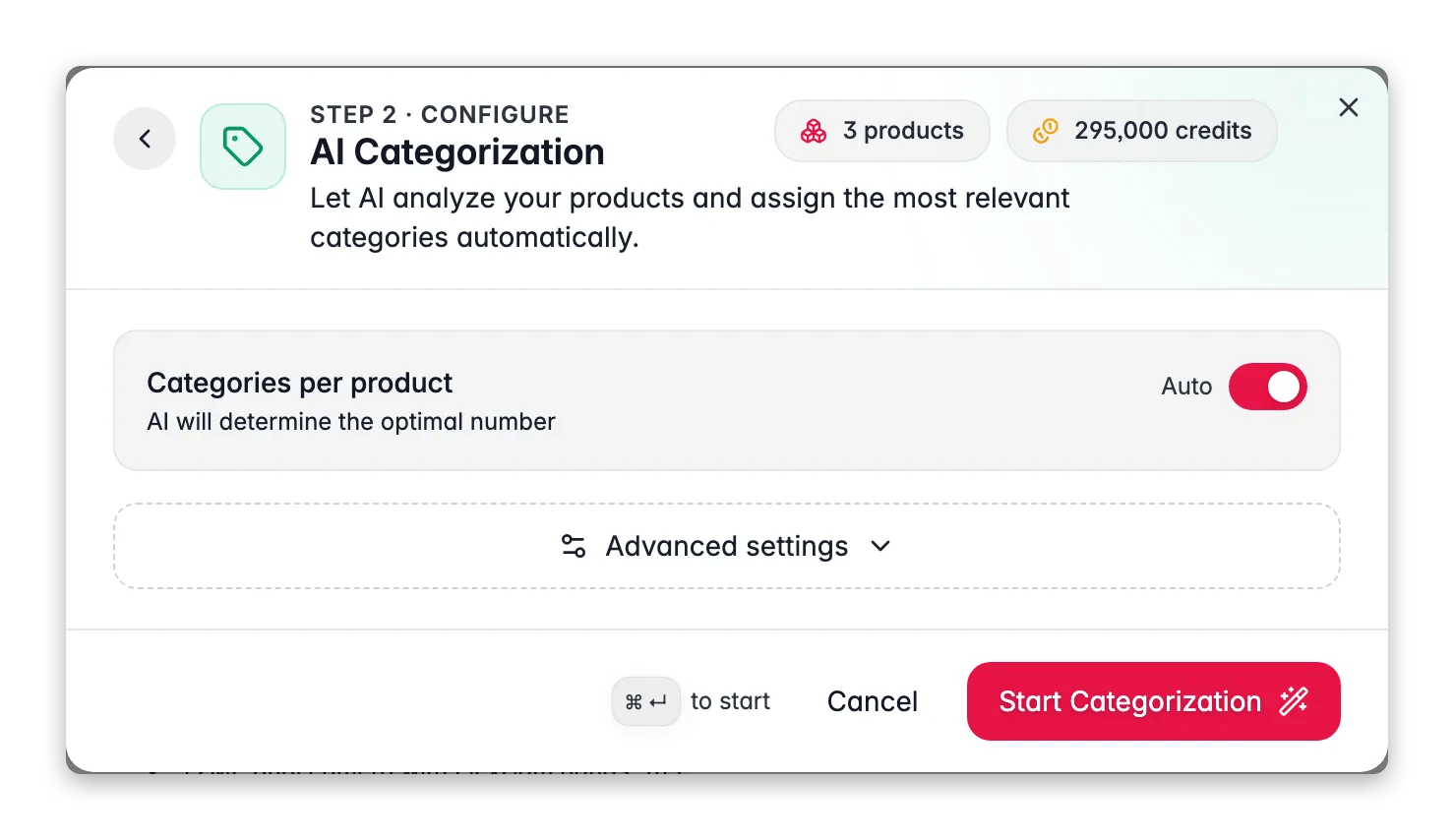
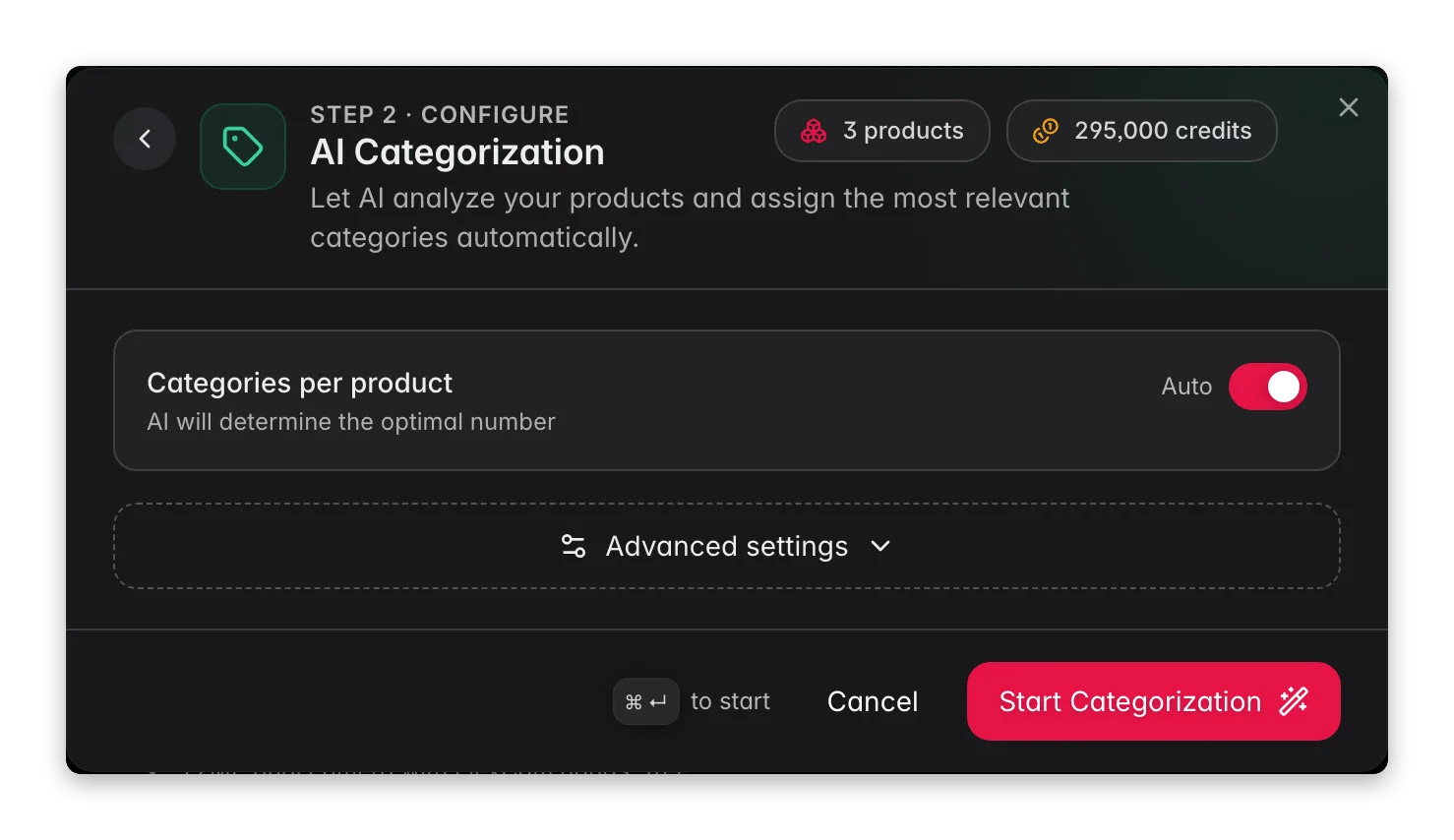 Filter to uncategorized products, select all matching results, click **Enrich with AI** in the toolbar and pick [AI Categorization](/en/ai/categorization) at the default 75% confidence. Run it now rather than before the text cleanup: it reads each product's own content, so it places better on text you have already normalized. It only uses the category tree you already have and never invents new ones, which is what makes a default-threshold pass safe to accept in bulk.
Re-filter to whatever is still uncategorized and run it again at 60–65%. You get the confident assignments committed first and only review the genuinely ambiguous remainder, instead of reviewing everything at a low threshold.
If a lot of products stayed uncategorized, the cause is usually thin content rather than a bad threshold. Enrich the title and description first, then re-categorize. Place the last stragglers by hand.
Products in several categories need one designated primary, because most platforms build breadcrumbs and canonical URLs from it. Filter by category, then run [Set Primary Category](/en/essentials/bulk-editing/set-primary-category) from **Bulk Edit** on that selection - after categorization, so it has the full set of assignments to choose from.
Inherited imports arrive flat: every size and colour is its own product. Select the ones that belong together on a single page and run [Group as Variants](/en/essentials/bulk-editing/group-as-variants) from **Bulk Edit** to attach them to one parent. It refuses a select-all-across-pages selection and caps at 500 products per run, so plan on working through it in batches.
## Measure it, then put a floor under it
Do this last, and do it in one sitting: the score only tells a story once every bulk action has landed, and rules written now are shaped by the problems you actually found rather than the ones you expected.
Bulk actions do not always refresh quality metrics straight away. Select your catalog and run [Recalculate Data Quality](/en/essentials/bulk-editing/recalculate-quality) from **Bulk Edit**, otherwise you will compare today's data against yesterday's score and conclude nothing happened.
Reopen [Data Quality](/en/analytics/data-quality) and put it next to the screenshot you took on day one: overall score, grade distribution, content coverage funnel. This is the number you report to whoever handed you the catalog.
A cleanup without rules decays. In [Quality Guard](/en/quality-guard/rules), open the **Rule Templates** tab and start from a ready-made check rather than **Create Rule** on a blank one. Pick the problems you just spent a day fixing: typically a required identifier, a minimum description length, and a minimum image count.
Filter to uncategorized products, select all matching results, click **Enrich with AI** in the toolbar and pick [AI Categorization](/en/ai/categorization) at the default 75% confidence. Run it now rather than before the text cleanup: it reads each product's own content, so it places better on text you have already normalized. It only uses the category tree you already have and never invents new ones, which is what makes a default-threshold pass safe to accept in bulk.
Re-filter to whatever is still uncategorized and run it again at 60–65%. You get the confident assignments committed first and only review the genuinely ambiguous remainder, instead of reviewing everything at a low threshold.
If a lot of products stayed uncategorized, the cause is usually thin content rather than a bad threshold. Enrich the title and description first, then re-categorize. Place the last stragglers by hand.
Products in several categories need one designated primary, because most platforms build breadcrumbs and canonical URLs from it. Filter by category, then run [Set Primary Category](/en/essentials/bulk-editing/set-primary-category) from **Bulk Edit** on that selection - after categorization, so it has the full set of assignments to choose from.
Inherited imports arrive flat: every size and colour is its own product. Select the ones that belong together on a single page and run [Group as Variants](/en/essentials/bulk-editing/group-as-variants) from **Bulk Edit** to attach them to one parent. It refuses a select-all-across-pages selection and caps at 500 products per run, so plan on working through it in batches.
## Measure it, then put a floor under it
Do this last, and do it in one sitting: the score only tells a story once every bulk action has landed, and rules written now are shaped by the problems you actually found rather than the ones you expected.
Bulk actions do not always refresh quality metrics straight away. Select your catalog and run [Recalculate Data Quality](/en/essentials/bulk-editing/recalculate-quality) from **Bulk Edit**, otherwise you will compare today's data against yesterday's score and conclude nothing happened.
Reopen [Data Quality](/en/analytics/data-quality) and put it next to the screenshot you took on day one: overall score, grade distribution, content coverage funnel. This is the number you report to whoever handed you the catalog.
A cleanup without rules decays. In [Quality Guard](/en/quality-guard/rules), open the **Rule Templates** tab and start from a ready-made check rather than **Create Rule** on a blank one. Pick the problems you just spent a day fixing: typically a required identifier, a minimum description length, and a minimum image count.
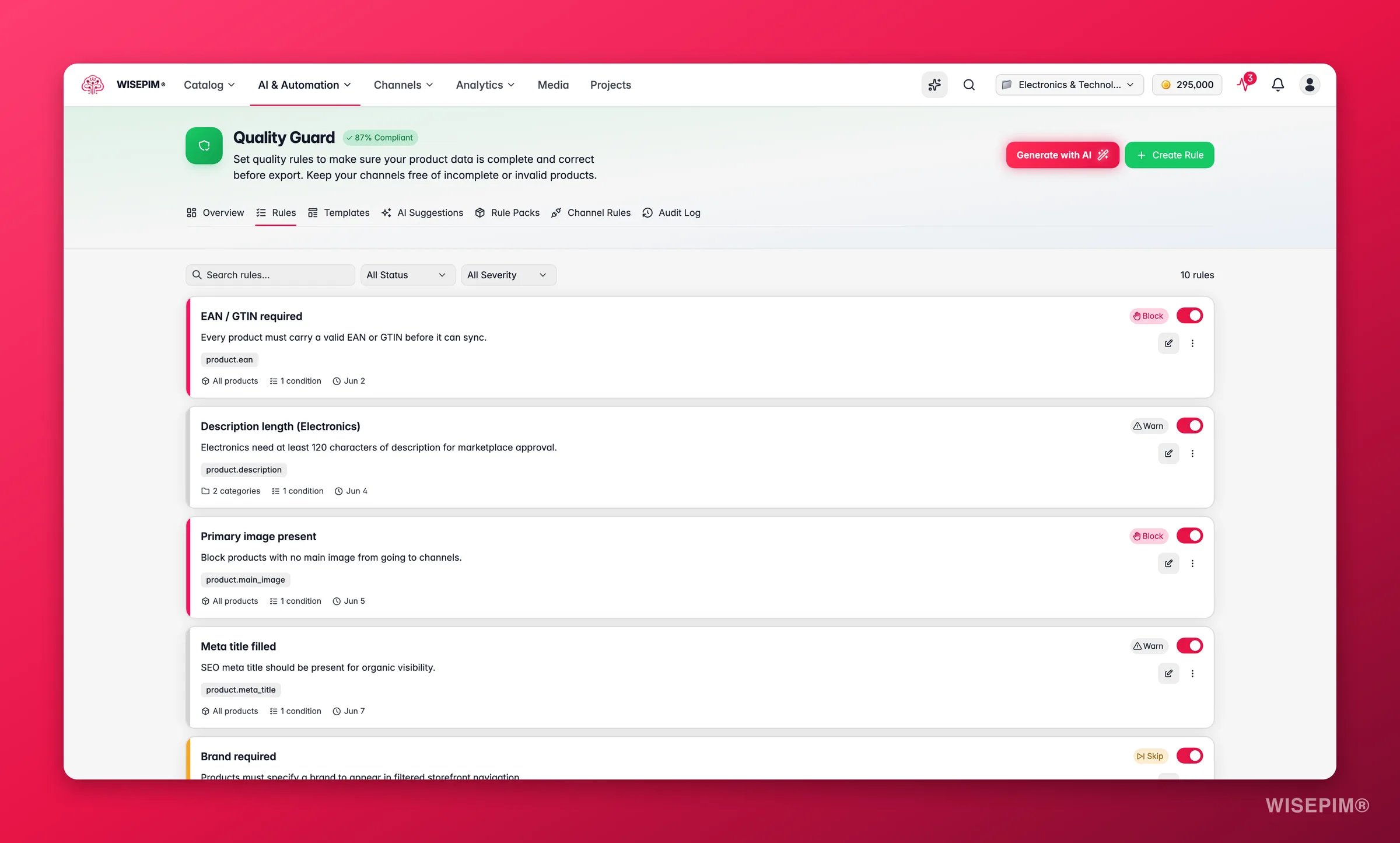
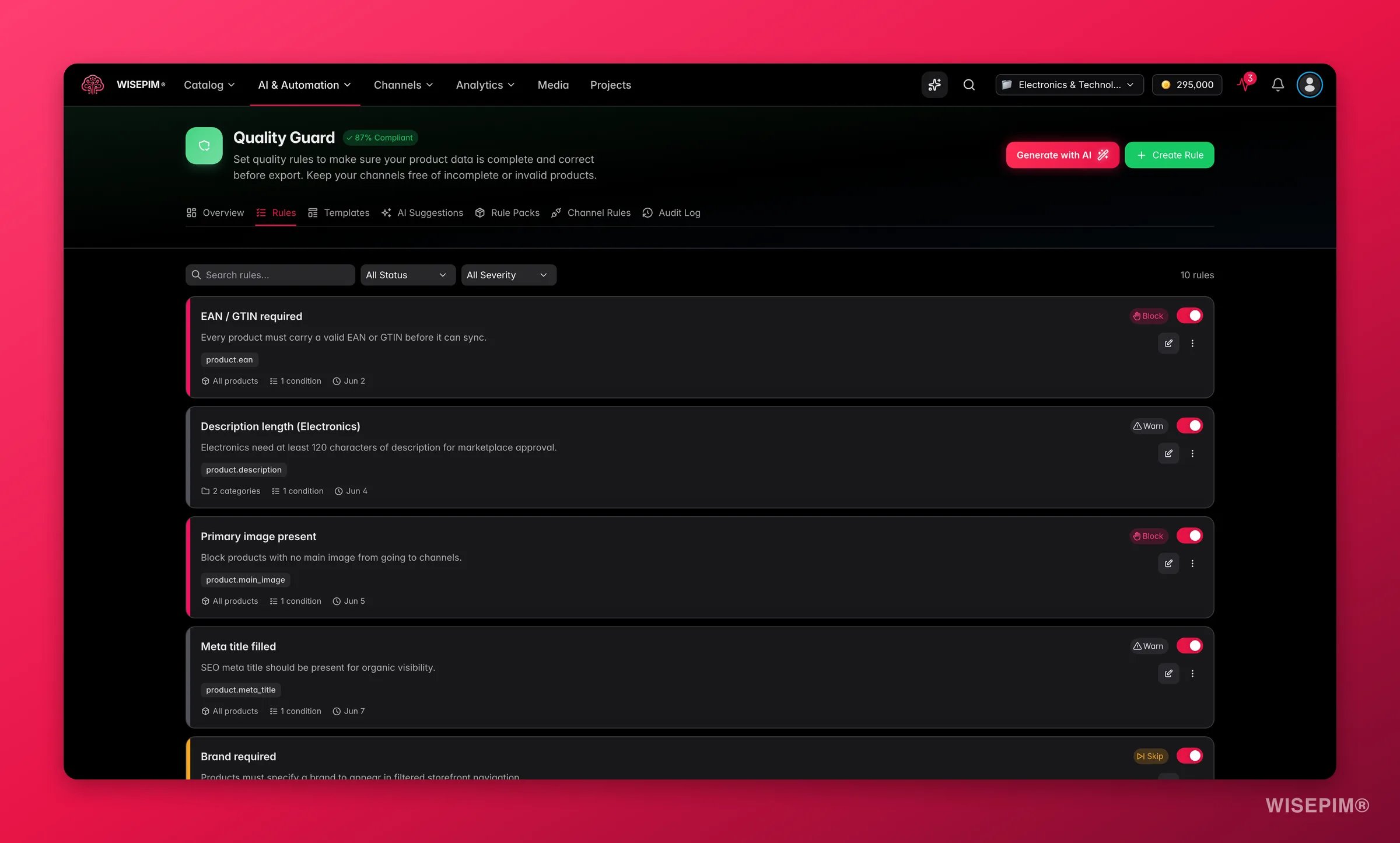 Keep the severity on **Warn** for the first weeks. Warned products still export and the failure is logged, so you learn how often each rule actually fires before it can stop a sync. The rule builder's live impact preview tells you how many products would fail before you save.
## How to tell it worked
| Signal | Where to look | When it moves |
| ----------------------------------------- | --------------------------------------------------- | --------------------------------------- |
| Overall quality score above your baseline | [Data Quality](/en/analytics/data-quality) Overview | After Recalculate Data Quality finishes |
| Fewer products in grades D and F | Grade distribution chart | Same recalculation |
| Preset issue counts dropping | **Filters → Presets** tab in Products | Immediately after each bulk action |
| Uncategorized count near zero | Your saved uncategorized filter | After each categorization pass |
| No duplicate SKU or EAN matches | Advanced filter, **is duplicate** operator | After you resolve the duplicates |
| Rule warnings, not surprises | [Quality Guard](/en/quality-guard/overview) | On the next export or sync |
Give the trend charts a week before you read them as a trend: a single recalculation moves the score at once, but the historical chart needs days of data to show direction. For a target, [Data Quality](/en/analytics/data-quality) documents a B (80+) as the baseline worth holding, and the thresholds themselves are configurable if your team's standards differ.
## When it doesn't work
Quality scores refresh on their own when you edit a single product, but bulk actions may not refresh them right away. Run [Recalculate Data Quality](/en/essentials/bulk-editing/recalculate-quality) across the affected products, then re-read the dashboard.
Either the threshold is too high for this catalog or your category names are ambiguous. Lower it and re-run on the remainder, and clarify vague category names. If products keep failing to place, the real cause is usually thin product content, enrich first and categorize after. See [AI Categorization](/en/ai/categorization).
The action deliberately refuses a select-all-across-pages selection, so a stray filter cannot build a 2,000-variant product, and it caps at 500 products per run. Products that cannot become variants are skipped and reported in the toast. Details on [Group as Variants](/en/essentials/bulk-editing/group-as-variants).
Internal and external are decided by matching each link against this project's sitemap. With an empty sitemap WISEPIM cannot tell them apart, so scope the action to **All links** and re-add the ones you want, or fill the sitemap first. See [Remove Links](/en/essentials/bulk-editing/remove-links).
Check the Action Impact chart on the [Data Quality](/en/analytics/data-quality) Overview. A sharp drop nearly always traces to a specific event, an import, a batch delete, or an automated update, rather than to your cleanup. Identify the event first, then fix the products it touched.
## Related
The score, the grade distribution, and the fix workspace you measure against.
Every bulk edit used in this guide, with its full option list.
Collapse the brand-name and wording variants this cleanup will surface.
Keep the catalog clean once the one-off cleanup is done.
Keep the severity on **Warn** for the first weeks. Warned products still export and the failure is logged, so you learn how often each rule actually fires before it can stop a sync. The rule builder's live impact preview tells you how many products would fail before you save.
## How to tell it worked
| Signal | Where to look | When it moves |
| ----------------------------------------- | --------------------------------------------------- | --------------------------------------- |
| Overall quality score above your baseline | [Data Quality](/en/analytics/data-quality) Overview | After Recalculate Data Quality finishes |
| Fewer products in grades D and F | Grade distribution chart | Same recalculation |
| Preset issue counts dropping | **Filters → Presets** tab in Products | Immediately after each bulk action |
| Uncategorized count near zero | Your saved uncategorized filter | After each categorization pass |
| No duplicate SKU or EAN matches | Advanced filter, **is duplicate** operator | After you resolve the duplicates |
| Rule warnings, not surprises | [Quality Guard](/en/quality-guard/overview) | On the next export or sync |
Give the trend charts a week before you read them as a trend: a single recalculation moves the score at once, but the historical chart needs days of data to show direction. For a target, [Data Quality](/en/analytics/data-quality) documents a B (80+) as the baseline worth holding, and the thresholds themselves are configurable if your team's standards differ.
## When it doesn't work
Quality scores refresh on their own when you edit a single product, but bulk actions may not refresh them right away. Run [Recalculate Data Quality](/en/essentials/bulk-editing/recalculate-quality) across the affected products, then re-read the dashboard.
Either the threshold is too high for this catalog or your category names are ambiguous. Lower it and re-run on the remainder, and clarify vague category names. If products keep failing to place, the real cause is usually thin product content, enrich first and categorize after. See [AI Categorization](/en/ai/categorization).
The action deliberately refuses a select-all-across-pages selection, so a stray filter cannot build a 2,000-variant product, and it caps at 500 products per run. Products that cannot become variants are skipped and reported in the toast. Details on [Group as Variants](/en/essentials/bulk-editing/group-as-variants).
Internal and external are decided by matching each link against this project's sitemap. With an empty sitemap WISEPIM cannot tell them apart, so scope the action to **All links** and re-add the ones you want, or fill the sitemap first. See [Remove Links](/en/essentials/bulk-editing/remove-links).
Check the Action Impact chart on the [Data Quality](/en/analytics/data-quality) Overview. A sharp drop nearly always traces to a specific event, an import, a batch delete, or an automated update, rather than to your cleanup. Identify the event first, then fix the products it touched.
## Related
The score, the grade distribution, and the fix workspace you measure against.
Every bulk edit used in this guide, with its full option list.
Collapse the brand-name and wording variants this cleanup will surface.
Keep the catalog clean once the one-off cleanup is done.