> ## Documentation Index
> Fetch the complete documentation index at: https://docs.wisepim.com/llms.txt
> Use this file to discover all available pages before exploring further.
# Prompt Library
> Save, organize, and reuse the AI prompts that generate your product content. Build your own collection, or start from community and expert-made prompts.
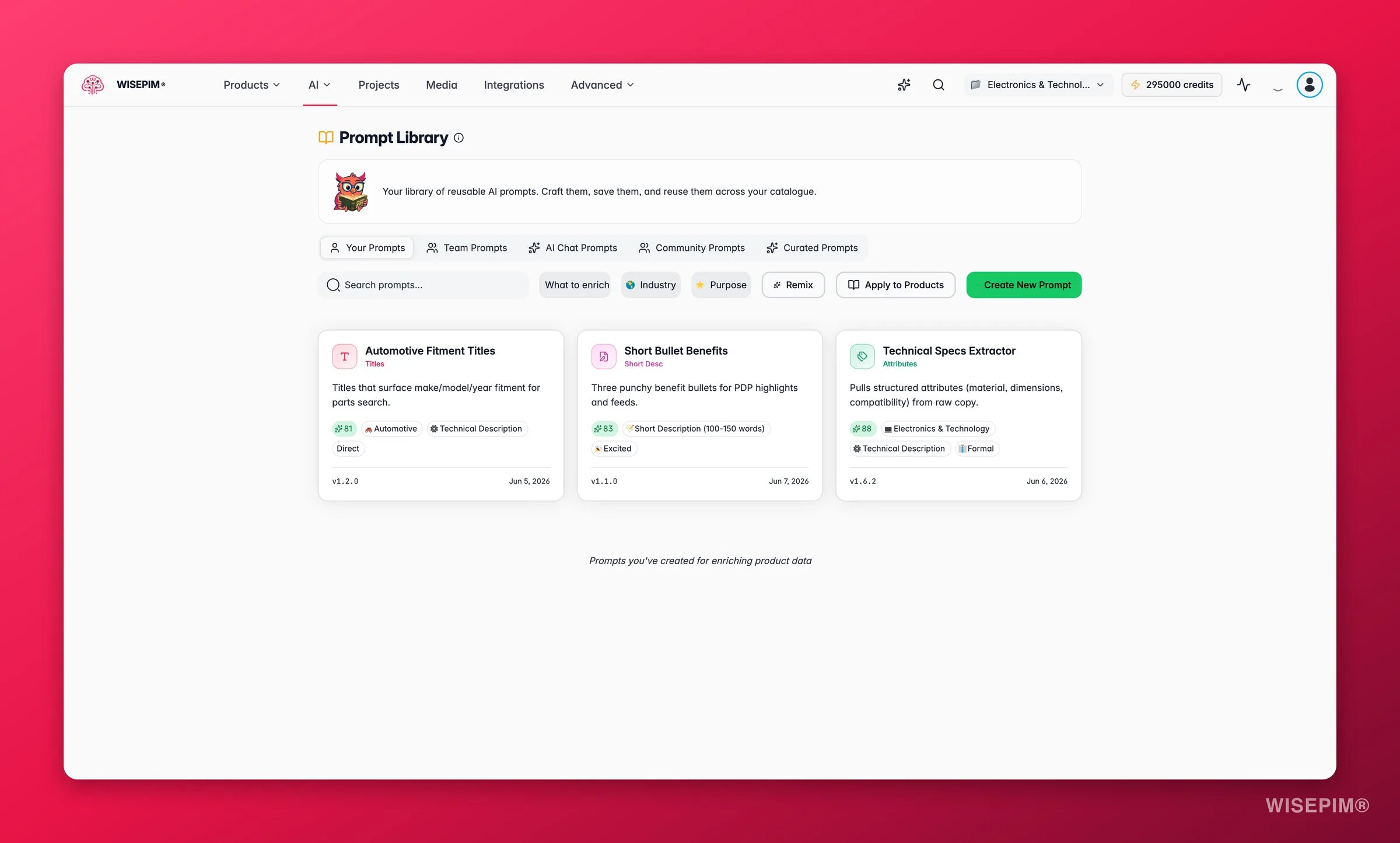
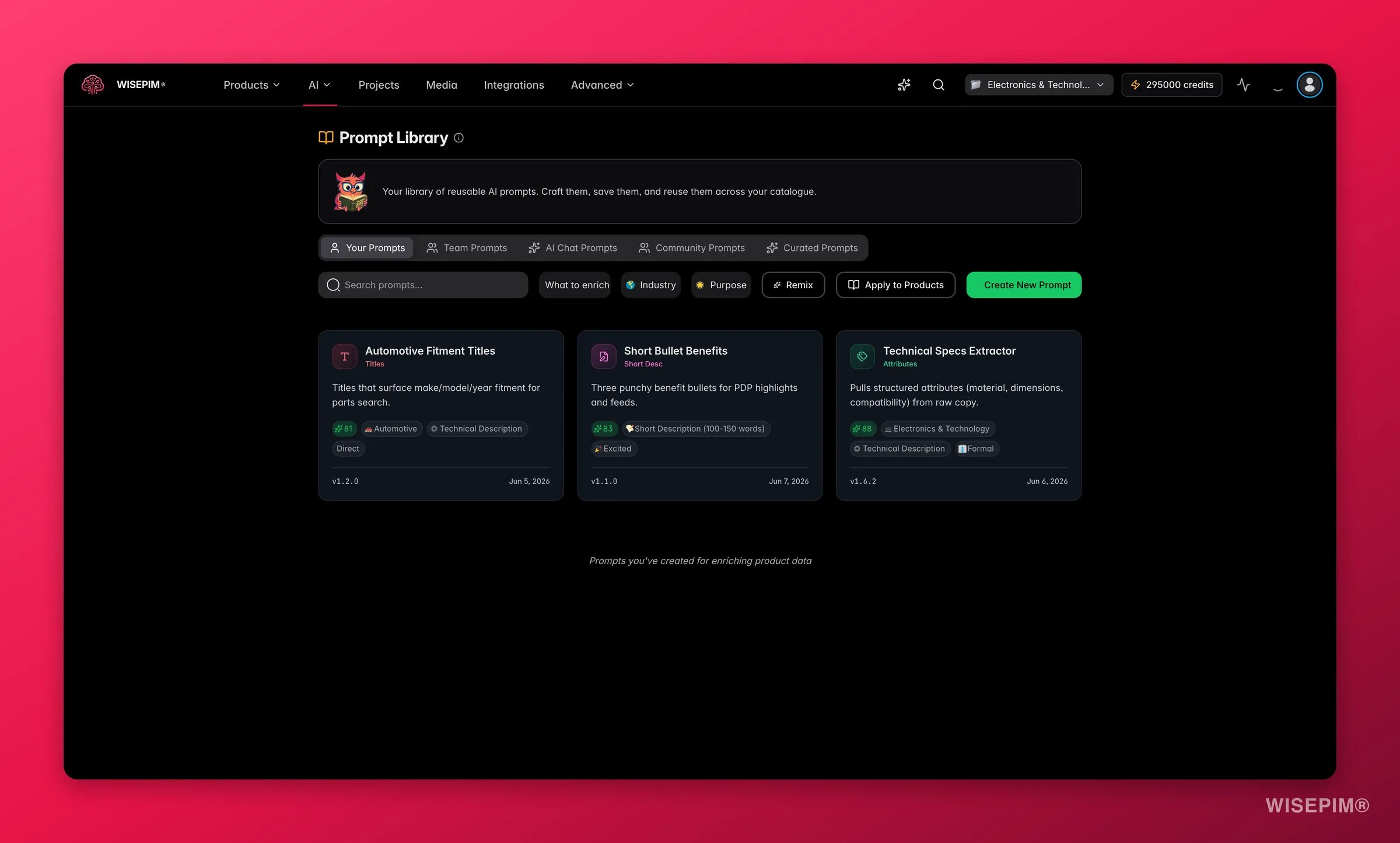
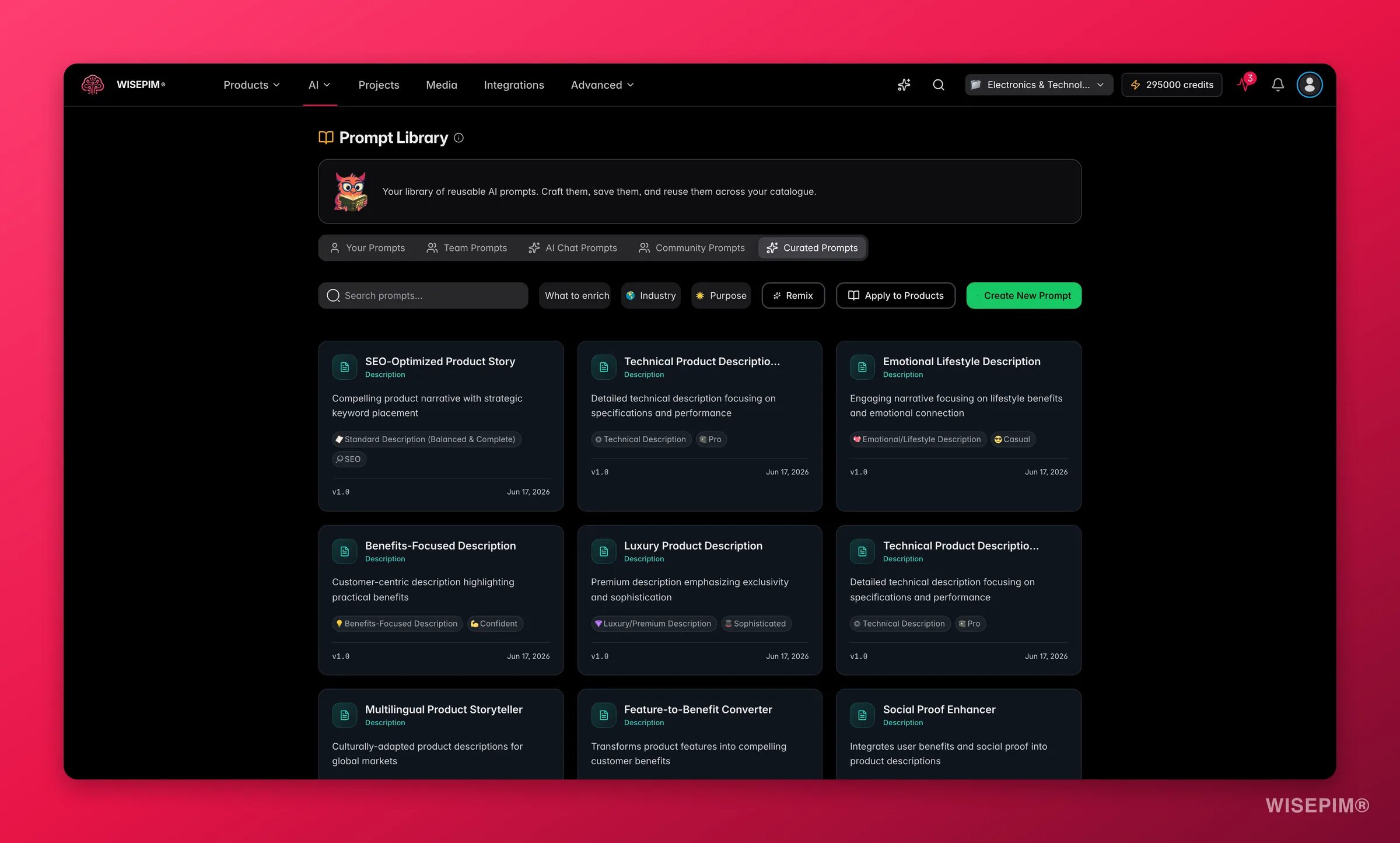
The Prompt Library is where all your AI prompts live. Save the prompts you perfect in the Prompt Lab, organize them by category, and reuse them to keep your content consistent. You can also browse prompts shared by other users and expert-made prompts from the WISEPIM team.
A saved prompt is reusable across your whole catalog. Build a small collection of proven prompts, and your content stays consistent no matter who runs it.
 ## Three collections
The library is split into three tabs. Use the right one for the job.
| Collection | What's inside | Use it to |
| --------------------- | ---------------------------------------------- | --------------------------------------------- |
| **Your Prompts** | Prompts you created and saved. Private to you. | Reuse your proven, brand-specific prompts. |
| **Community Prompts** | Prompts shared by other WISEPIM users. | Find inspiration and adapt tested approaches. |
| **Curated Prompts** | Expert prompts built and tested by WISEPIM. | Start from a reliable, high-quality template. |
## Find a prompt
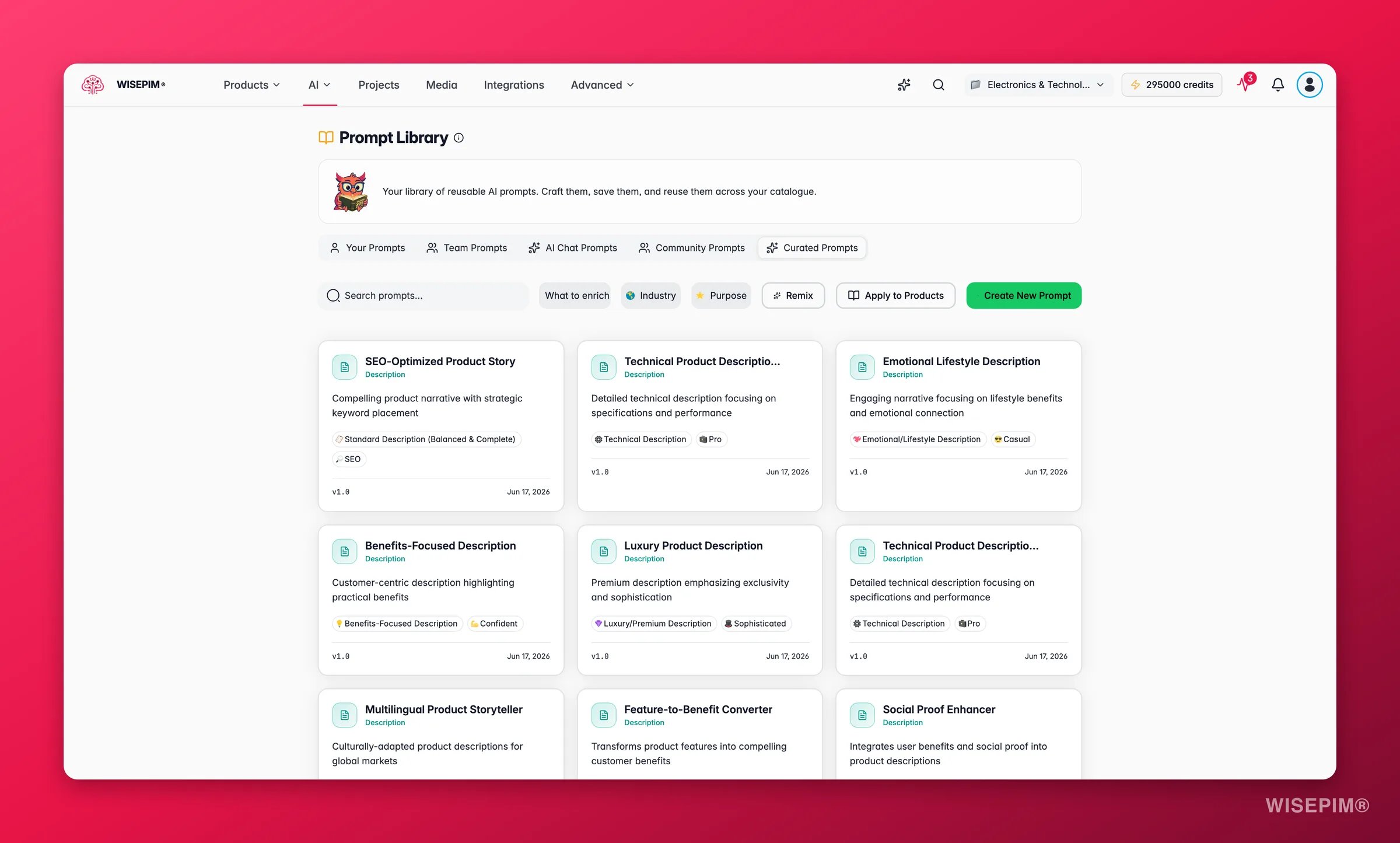
Search by title or description, and the results filter as you type. Narrow them further with the filters:
* **What to Enrich**: description, title, or attributes
* **Industry**: your market sector
* **Purpose**: SEO, marketing, technical, or standard
Filter by industry first to cut the list down fast. Then add a purpose filter for precise results.
Each prompt appears as a card showing its title, description, category tags, version number, and last-updated date. Color-coded chips mark the industry, purpose, and tone at a glance.
## Three collections
The library is split into three tabs. Use the right one for the job.
| Collection | What's inside | Use it to |
| --------------------- | ---------------------------------------------- | --------------------------------------------- |
| **Your Prompts** | Prompts you created and saved. Private to you. | Reuse your proven, brand-specific prompts. |
| **Community Prompts** | Prompts shared by other WISEPIM users. | Find inspiration and adapt tested approaches. |
| **Curated Prompts** | Expert prompts built and tested by WISEPIM. | Start from a reliable, high-quality template. |
## Find a prompt
Search by title or description, and the results filter as you type. Narrow them further with the filters:
* **What to Enrich**: description, title, or attributes
* **Industry**: your market sector
* **Purpose**: SEO, marketing, technical, or standard
Filter by industry first to cut the list down fast. Then add a purpose filter for precise results.
Each prompt appears as a card showing its title, description, category tags, version number, and last-updated date. Color-coded chips mark the industry, purpose, and tone at a glance.
 ## Create a prompt
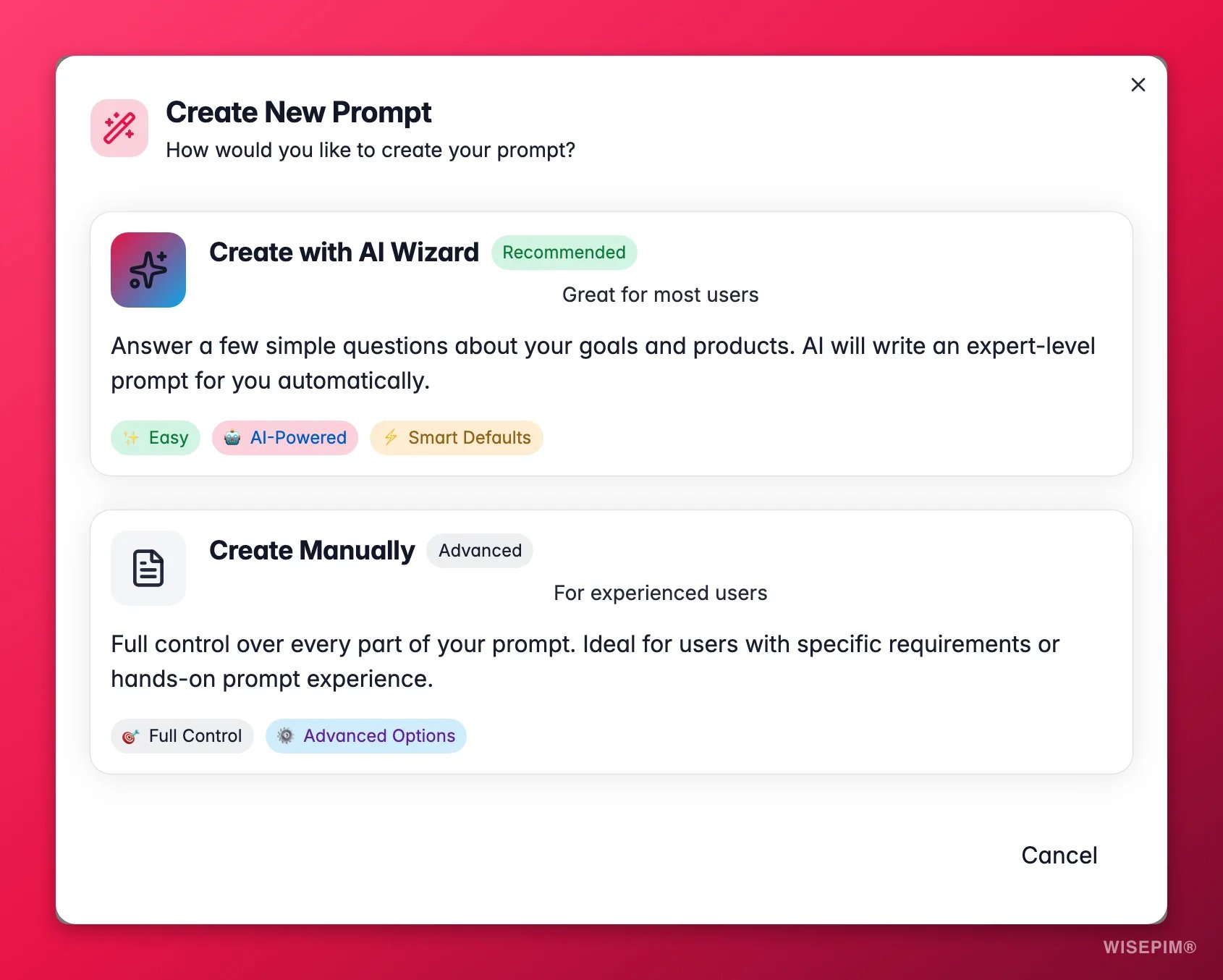
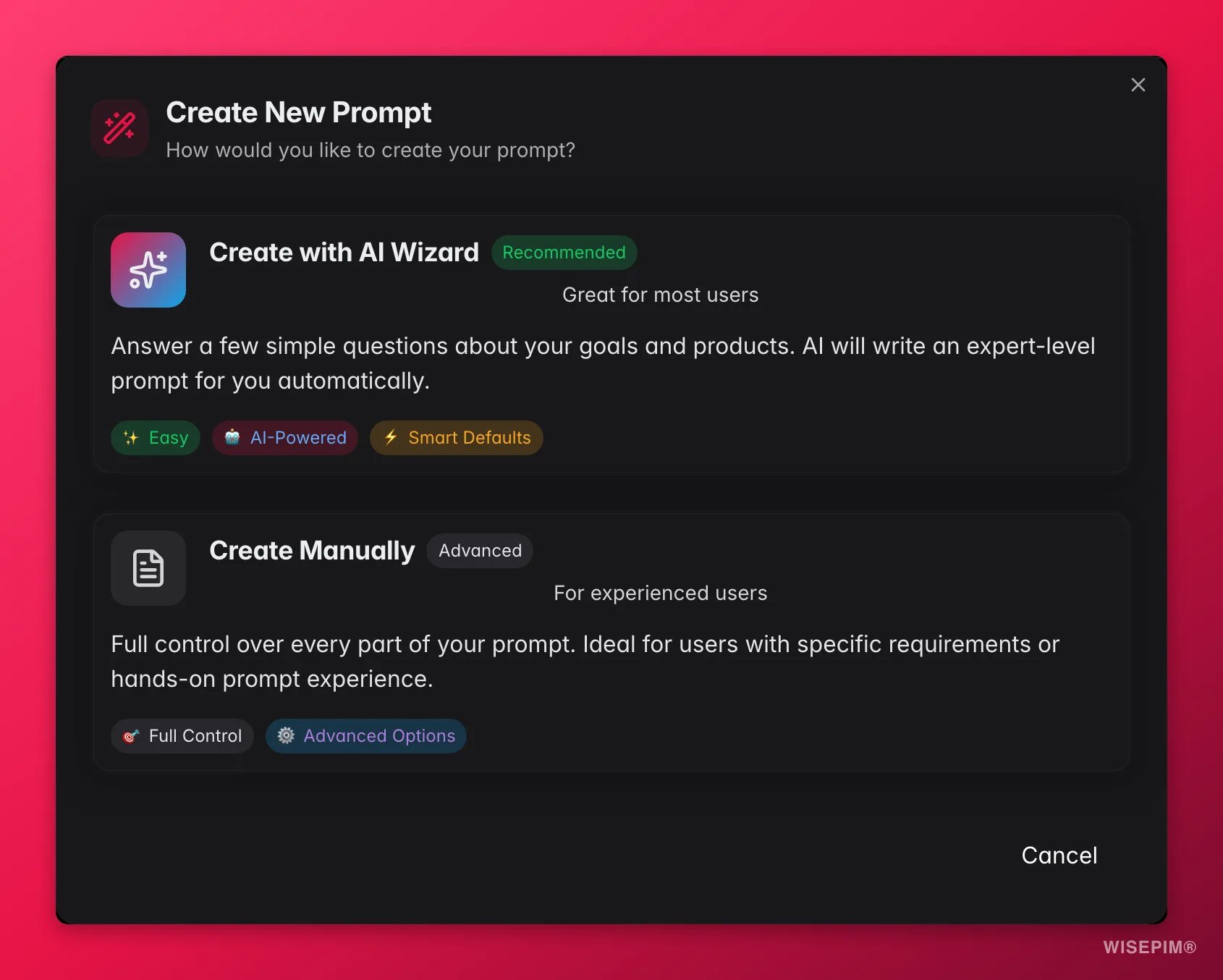
Click **Create New Prompt** (the green button, top right). Or open the [Prompt Lab](/en/essentials/prompt-lab) and save a prompt from there.
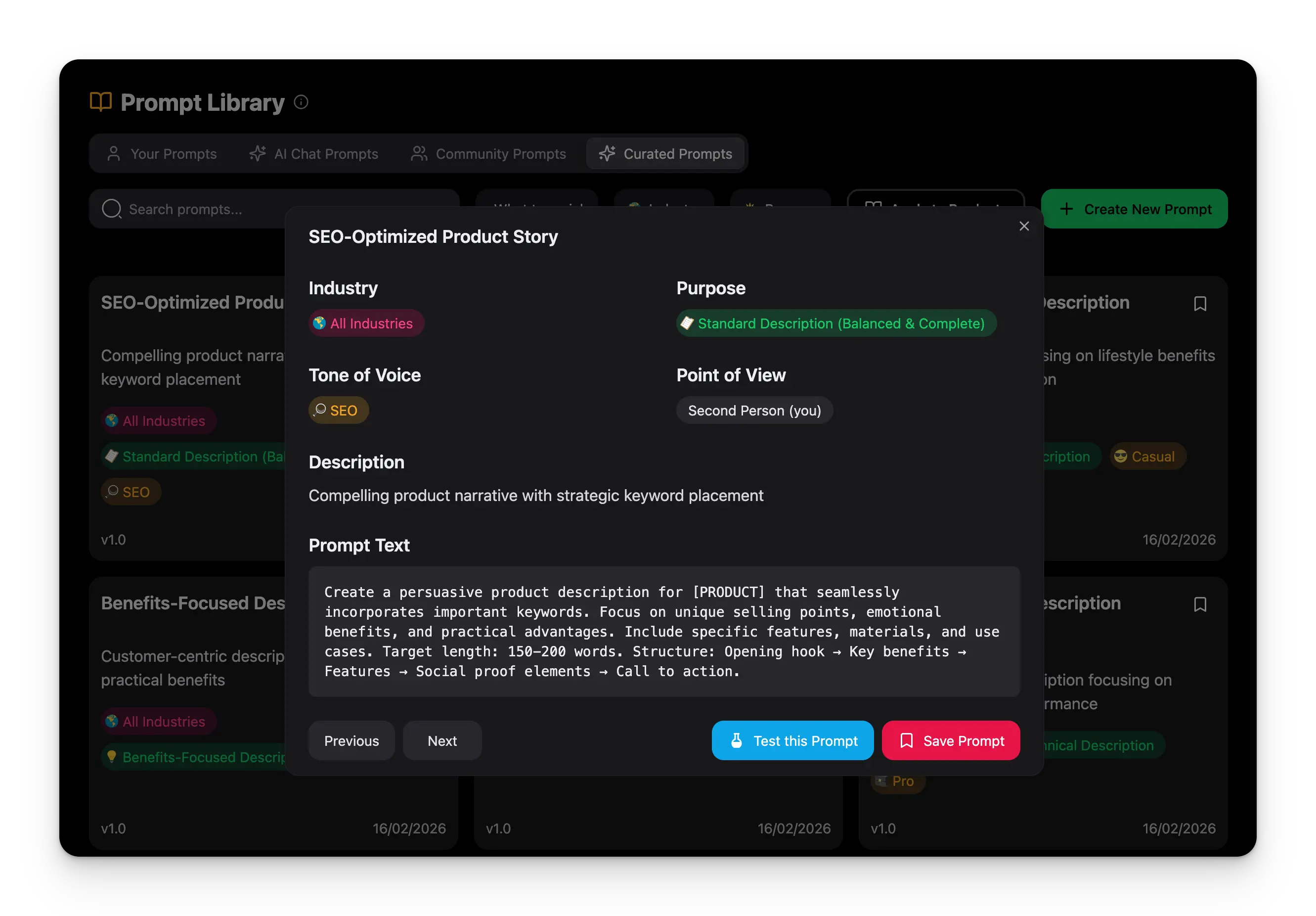
Give it a descriptive, searchable title, a clear description, and the prompt text.
Choose the industry, purpose, and tone so the prompt is easy to filter later. Set the point of view and any advanced options.
Save to your library, then test it in the [Prompt Lab](/en/essentials/prompt-lab) before using it in production.
## Create a prompt
Click **Create New Prompt** (the green button, top right). Or open the [Prompt Lab](/en/essentials/prompt-lab) and save a prompt from there.
Give it a descriptive, searchable title, a clear description, and the prompt text.
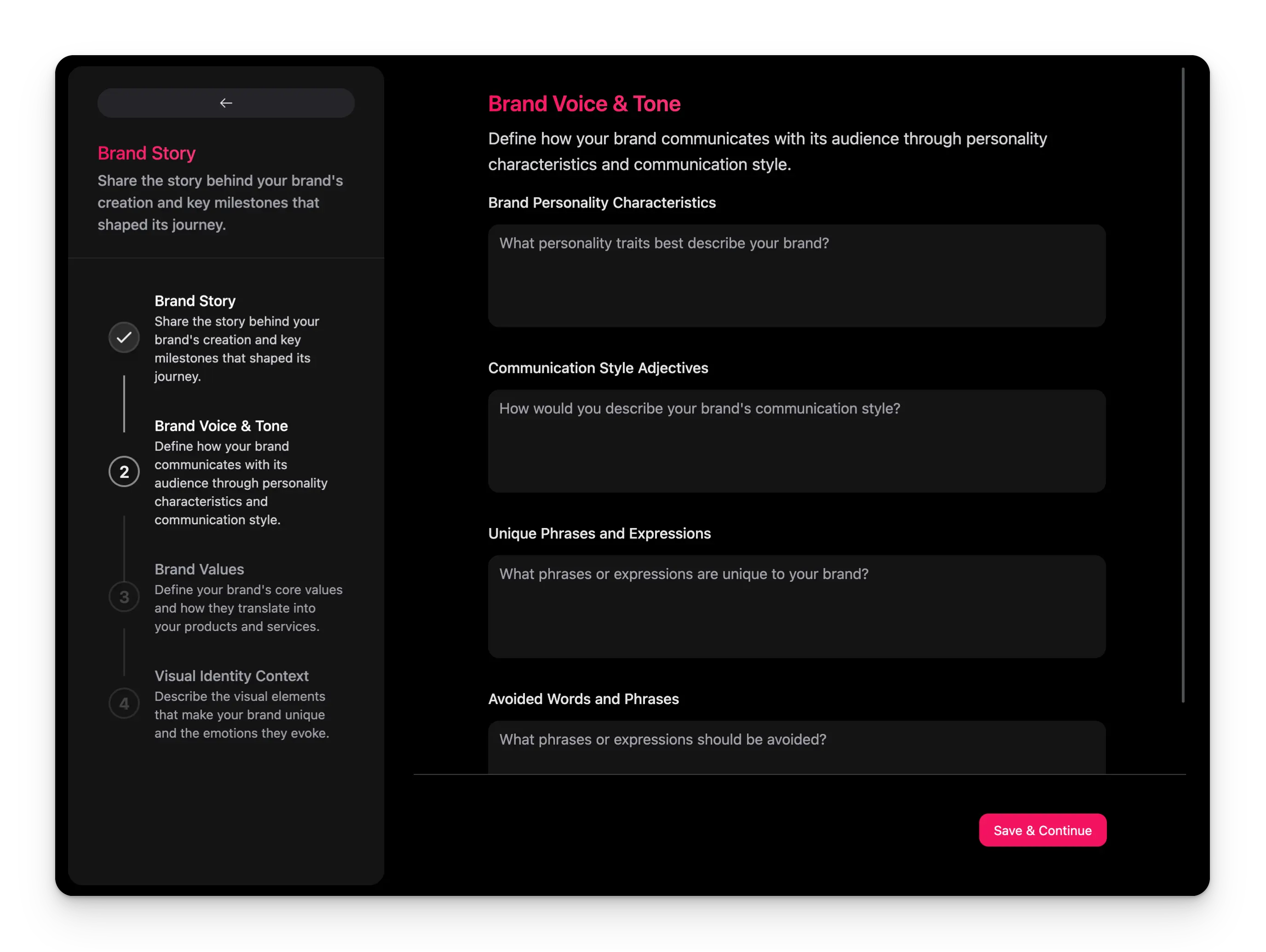
Choose the industry, purpose, and tone so the prompt is easy to filter later. Set the point of view and any advanced options.
Save to your library, then test it in the [Prompt Lab](/en/essentials/prompt-lab) before using it in production.
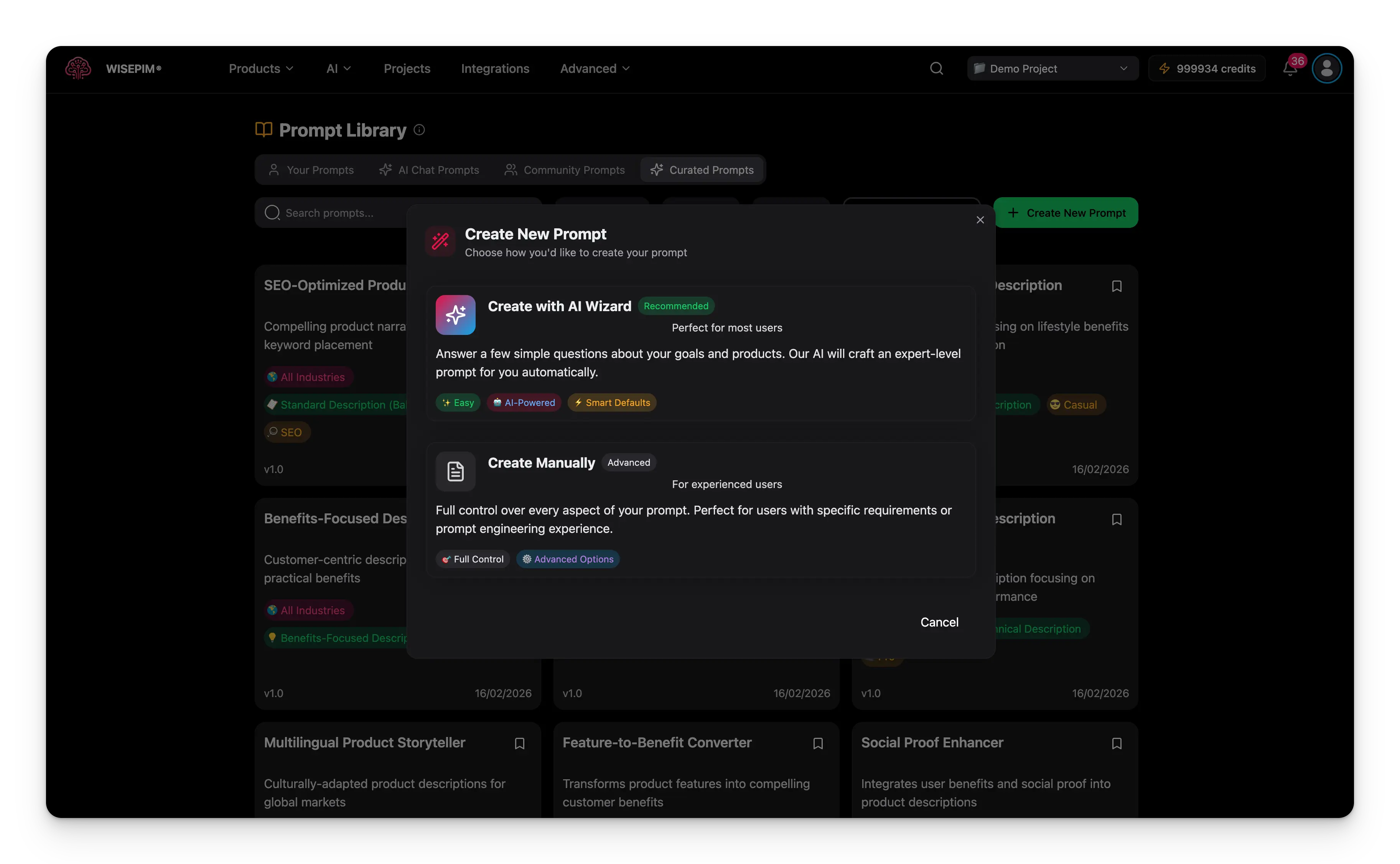 Need a head start? Use the **AI Prompt Wizard** to generate a prompt for you, then refine it.
 ### Edit a prompt
Click the edit icon on any of your prompts to change its title, description, text, or categories. Save the changes instantly. Edit a prompt when you want to improve its results, adapt it for new products, or refine its language.
Version numbers increment automatically with each update, and the last-updated date is tracked for you. For a major change, create a new prompt instead of overwriting, so you keep the working version as a backup.
## Reuse community and curated prompts
You don't have to write every prompt yourself. Copy a good one into your own collection and adapt it.
1. Browse and find a useful prompt.
2. Click the copy icon to **Duplicate** it into your collection.
3. Edit the copy to match your brand and products.
4. Test and refine it in the [Prompt Lab](/en/essentials/prompt-lab).
1. Browse the curated collection.
2. Click the bookmark icon to **Save to Your Prompts**.
3. The prompt is added to your personal collection.
4. Customize it to fit your needs.
When you reuse a prompt, study its structure. Note how the instructions are organized and how variables are used, then apply those techniques to your own prompts.
### Edit a prompt
Click the edit icon on any of your prompts to change its title, description, text, or categories. Save the changes instantly. Edit a prompt when you want to improve its results, adapt it for new products, or refine its language.
Version numbers increment automatically with each update, and the last-updated date is tracked for you. For a major change, create a new prompt instead of overwriting, so you keep the working version as a backup.
## Reuse community and curated prompts
You don't have to write every prompt yourself. Copy a good one into your own collection and adapt it.
1. Browse and find a useful prompt.
2. Click the copy icon to **Duplicate** it into your collection.
3. Edit the copy to match your brand and products.
4. Test and refine it in the [Prompt Lab](/en/essentials/prompt-lab).
1. Browse the curated collection.
2. Click the bookmark icon to **Save to Your Prompts**.
3. The prompt is added to your personal collection.
4. Customize it to fit your needs.
When you reuse a prompt, study its structure. Note how the instructions are organized and how variables are used, then apply those techniques to your own prompts.
 ## Keep your library organized
A tidy library is faster to search. A few habits keep it that way:
* **Name clearly.** Use descriptive names like "Electronics SEO Description v2" or "Fashion Marketing Copy".
* **Categorize consistently.** Group by industry or content type, and tag with relevant keywords.
* **Review regularly.** Archive or delete prompts that no longer perform, and test the rest against new products.
## Keep your library organized
A tidy library is faster to search. A few habits keep it that way:
* **Name clearly.** Use descriptive names like "Electronics SEO Description v2" or "Fashion Marketing Copy".
* **Categorize consistently.** Group by industry or content type, and tag with relevant keywords.
* **Review regularly.** Archive or delete prompts that no longer perform, and test the rest against new products.
 Press `C` to create a new prompt when you're not typing in a field.
## Troubleshooting
Use more specific search terms, try different filter combinations, and browse the community and curated collections for inspiration.
Customize it for your product types and adjust the industry and purpose settings. Test it on a few different products in the Prompt Lab to find what needs changing.
Use the same prompt across similar products, complete your [Knowledge Library](/en/other-features/knowledge-library), and make sure the prompt instructions are specific enough.
Apply consistent naming and categories, and archive or delete prompts you no longer use.
## Related
Build and test prompts on a real product before you save them.
Apply your saved prompts to products in bulk.
Give the AI your brand voice for on-brand results.
Generate and refine content in a conversation.
Press `C` to create a new prompt when you're not typing in a field.
## Troubleshooting
Use more specific search terms, try different filter combinations, and browse the community and curated collections for inspiration.
Customize it for your product types and adjust the industry and purpose settings. Test it on a few different products in the Prompt Lab to find what needs changing.
Use the same prompt across similar products, complete your [Knowledge Library](/en/other-features/knowledge-library), and make sure the prompt instructions are specific enough.
Apply consistent naming and categories, and archive or delete prompts you no longer use.
## Related
Build and test prompts on a real product before you save them.
Apply your saved prompts to products in bulk.
Give the AI your brand voice for on-brand results.
Generate and refine content in a conversation.