> ## Documentation Index
> Fetch the complete documentation index at: https://docs.wisepim.com/llms.txt
> Use this file to discover all available pages before exploring further.
# Prompt Lab
> Test and refine AI prompts on a real product before you run them across your catalog. Tweak the settings, preview the output, and save what works.
The Prompt Lab is where you perfect an AI prompt before using it in bulk. Load a real product, write or tweak a prompt, and see the generated content side by side with the original. Nothing changes in your catalog until you choose to apply it, so you can experiment freely.
Use the Prompt Lab to get a prompt right once. Then save it to your library and reuse it across hundreds of products with consistent results.
 ## The layout
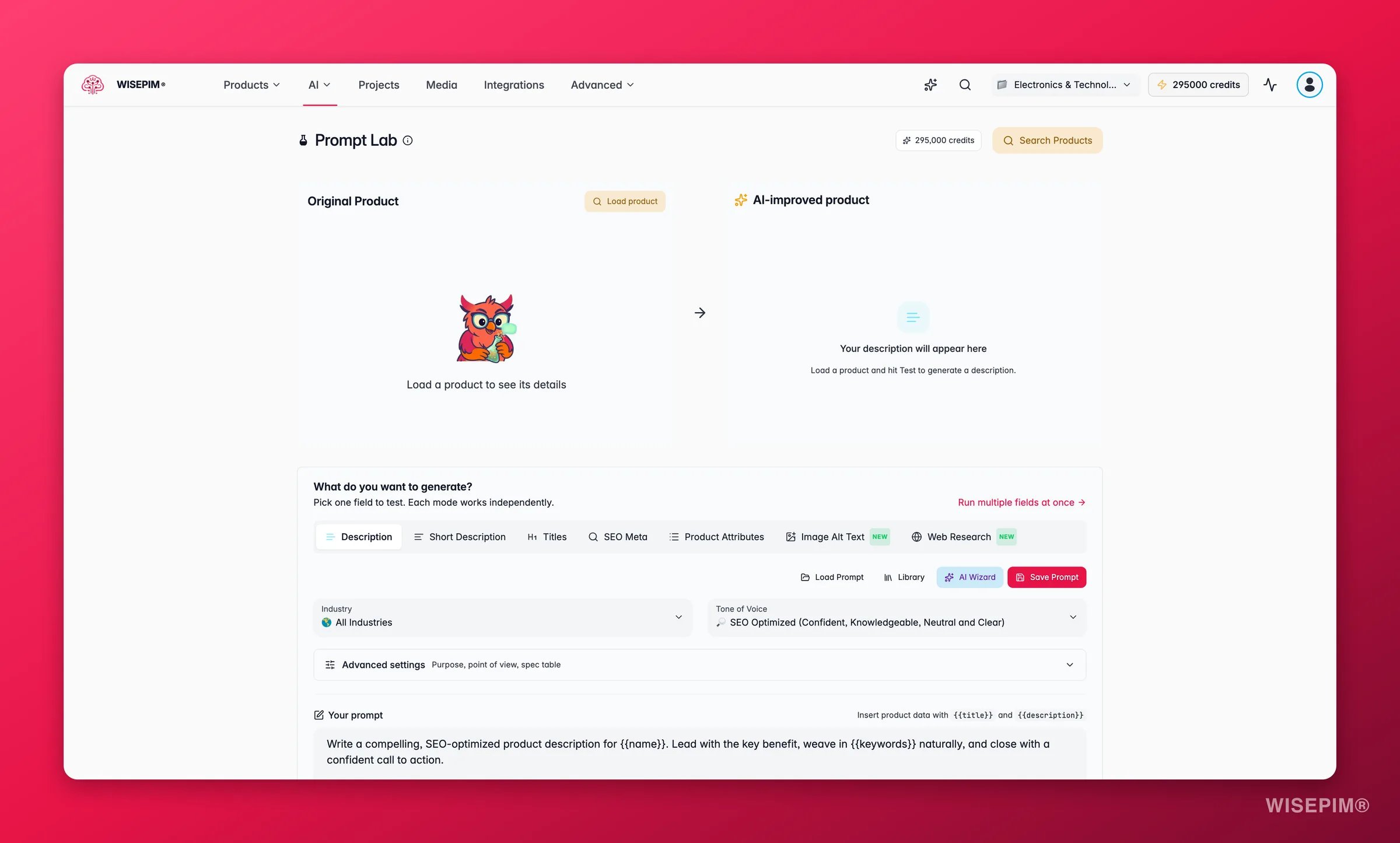
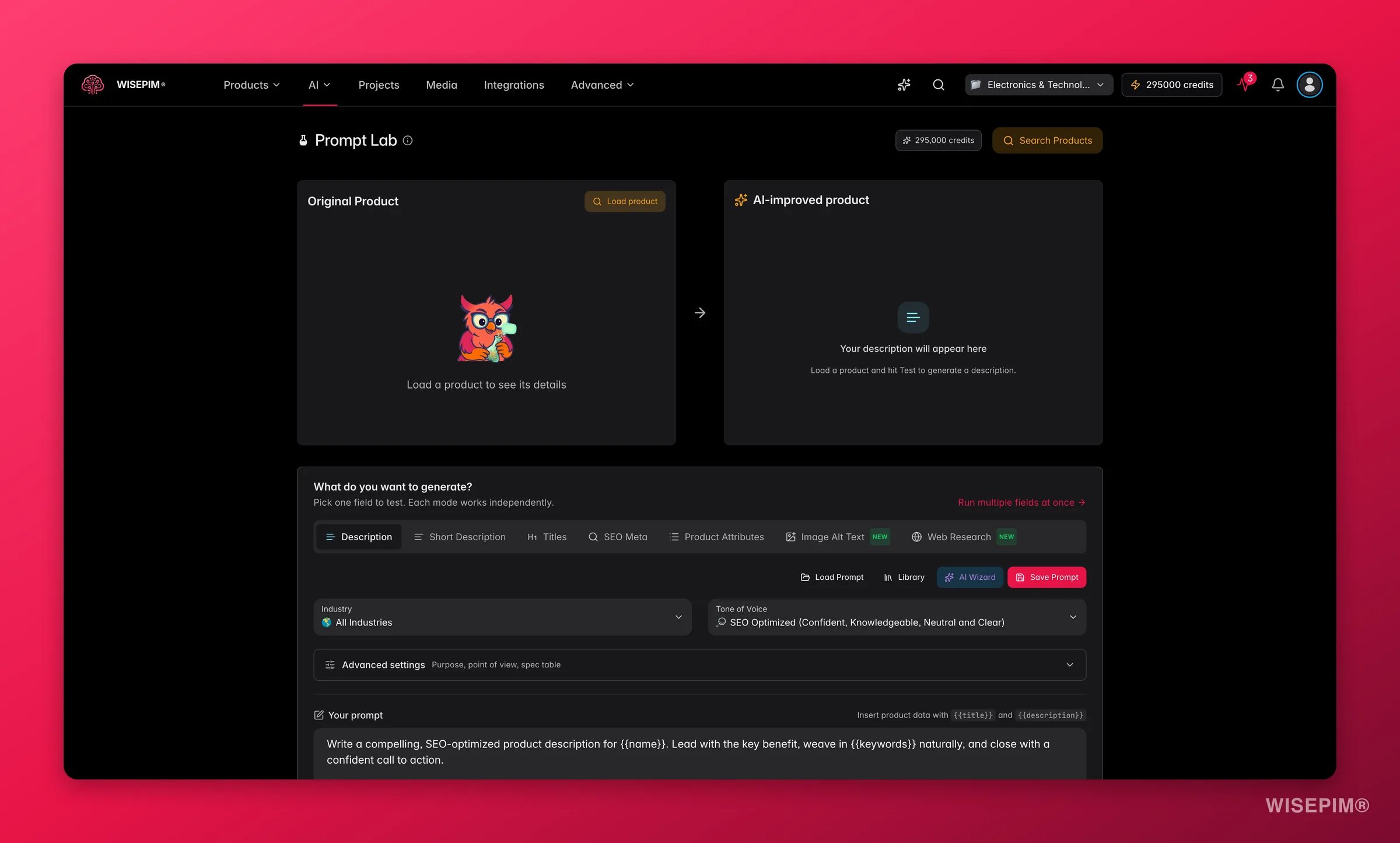
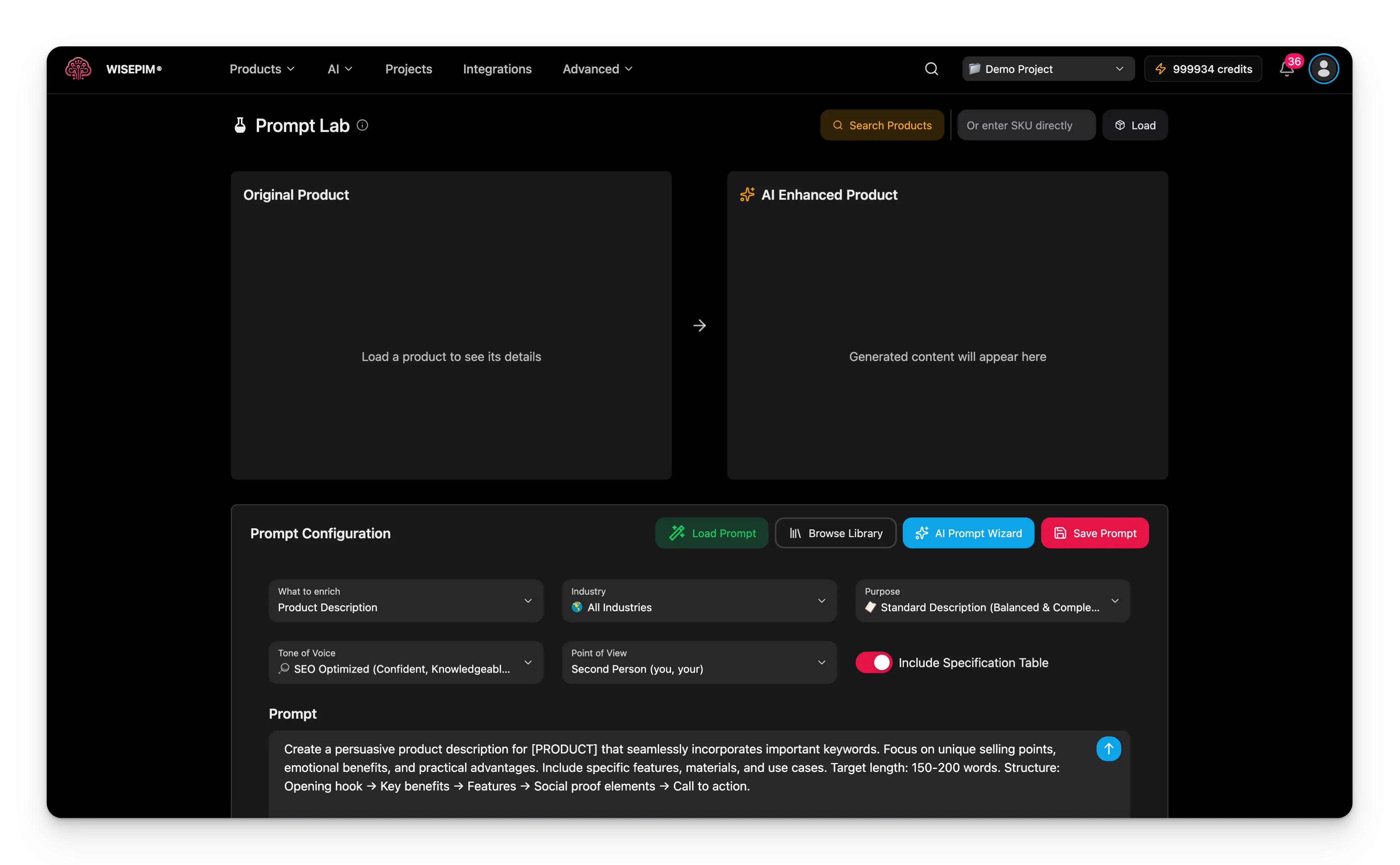
The Prompt Lab has three panels:
| Panel | What it shows |
| --------------------------------- | ------------------------------------------------------------------- |
| **Original product** (left) | The current product name and content. Your baseline for comparison. |
| **AI enhanced product** (right) | The AI-generated content. Updates each time you test. |
| **Prompt configuration** (bottom) | Where you write your prompt and choose the settings. |
## Test your first prompt
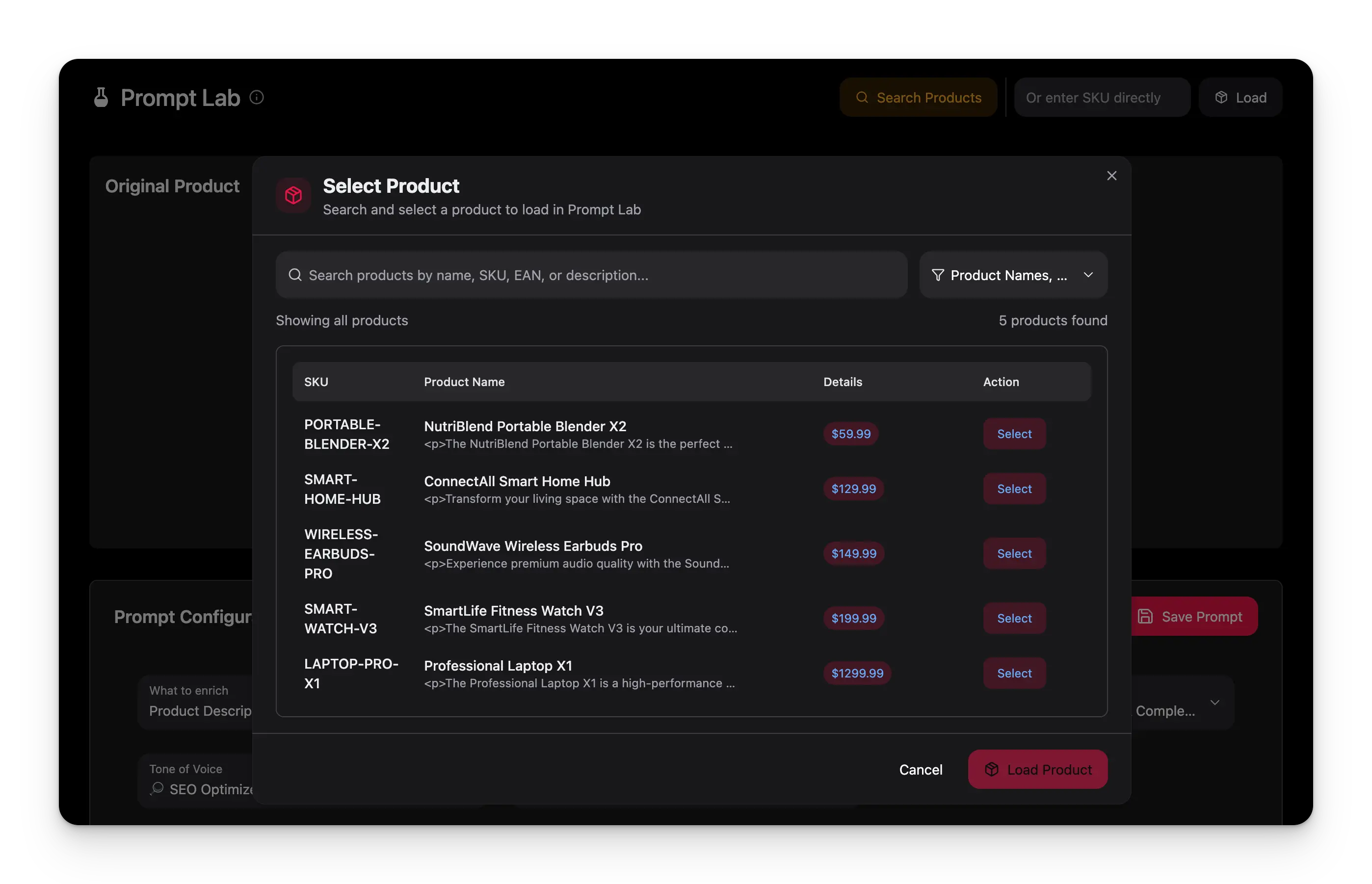
Type a product SKU in the search field at the top right, then click **Load Product**. The product appears in the left panel.
Pick a product that already has a description. That gives you a clear before-and-after comparison.
Choose what to enrich, then set the industry, purpose, tone, and point of view. See [Configuration options](#configuration-options) below.
Start from the default prompt template, or write your own. Use [variables](#using-variables) like `{{title}}` to pull in real product data.
Click **Test Prompt**. The generated content appears in the right panel in 30 to 60 seconds.
Check the result against the original. Change one setting, test again, and keep what works.
## The layout
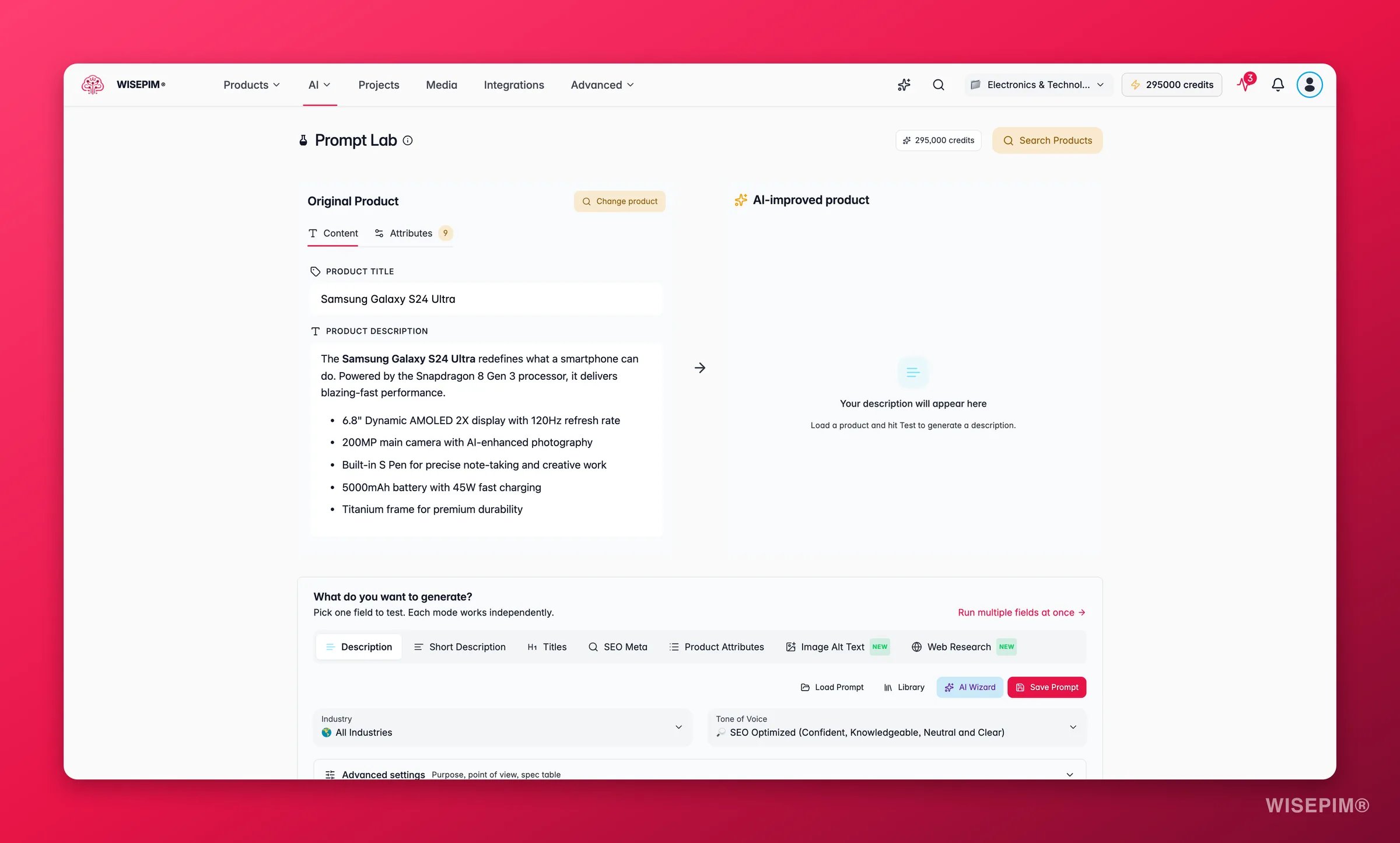
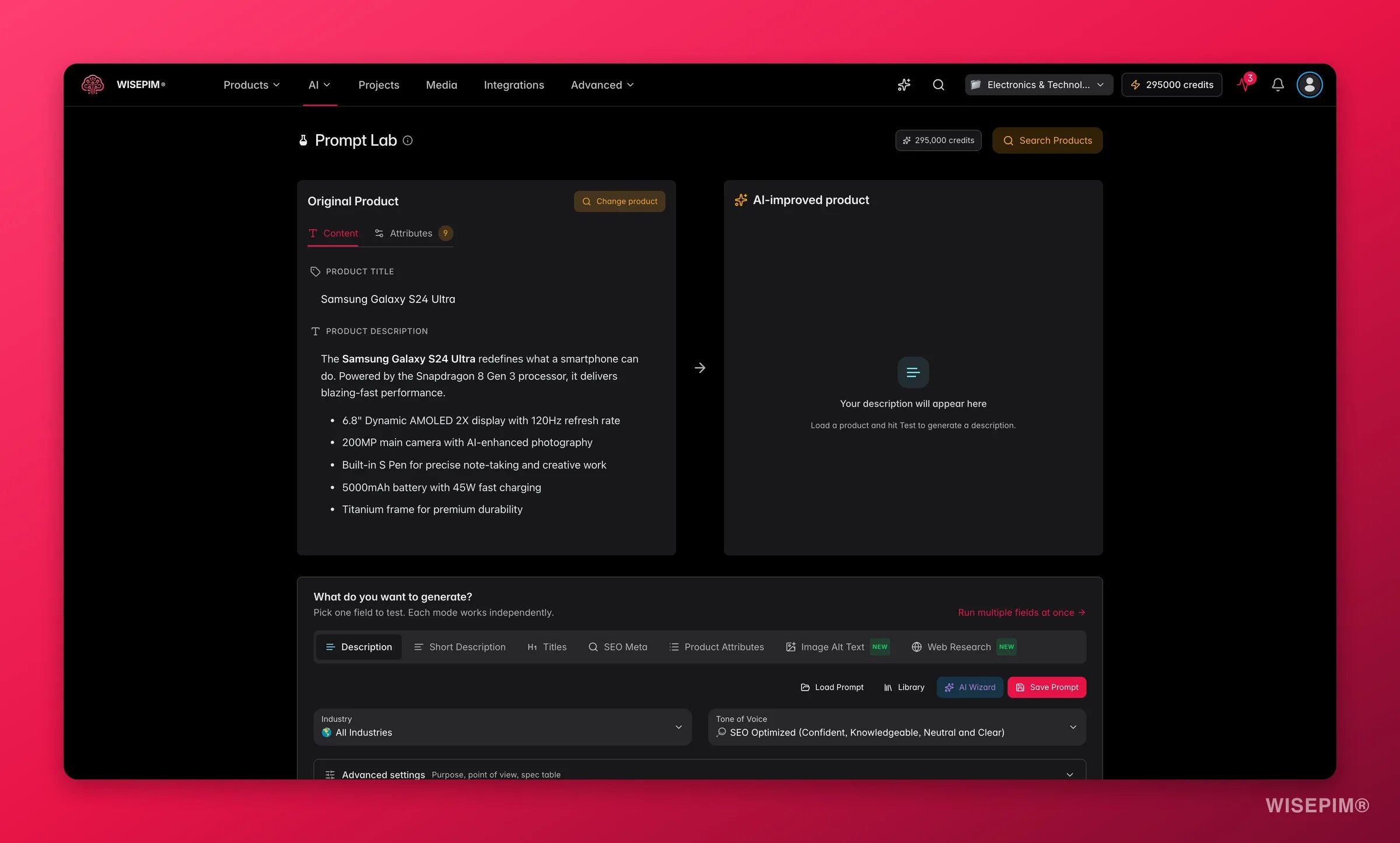
The Prompt Lab has three panels:
| Panel | What it shows |
| --------------------------------- | ------------------------------------------------------------------- |
| **Original product** (left) | The current product name and content. Your baseline for comparison. |
| **AI enhanced product** (right) | The AI-generated content. Updates each time you test. |
| **Prompt configuration** (bottom) | Where you write your prompt and choose the settings. |
## Test your first prompt
Type a product SKU in the search field at the top right, then click **Load Product**. The product appears in the left panel.
Pick a product that already has a description. That gives you a clear before-and-after comparison.
Choose what to enrich, then set the industry, purpose, tone, and point of view. See [Configuration options](#configuration-options) below.
Start from the default prompt template, or write your own. Use [variables](#using-variables) like `{{title}}` to pull in real product data.
Click **Test Prompt**. The generated content appears in the right panel in 30 to 60 seconds.
Check the result against the original. Change one setting, test again, and keep what works.
 ## Configuration options
The bottom panel controls how the AI writes. Set these before you test.
### What to enrich
| Field | Use it when |
| --------------- | ------------------------------------------------------------------- |
| **Description** | You want compelling marketing copy or better existing descriptions. |
| **Title** | Product titles are generic and need SEO and appeal. |
| **Attributes** | You need consistent, standardized product specifications. |
### Industry
The industry tells the AI your market context, so it uses the right terminology and focuses on relevant features. Options include All Industries, Fashion and Apparel, Electronics, Home and Garden, Health and Beauty, Sports and Outdoors, Automotive, and more.
## Configuration options
The bottom panel controls how the AI writes. Set these before you test.
### What to enrich
| Field | Use it when |
| --------------- | ------------------------------------------------------------------- |
| **Description** | You want compelling marketing copy or better existing descriptions. |
| **Title** | Product titles are generic and need SEO and appeal. |
| **Attributes** | You need consistent, standardized product specifications. |
### Industry
The industry tells the AI your market context, so it uses the right terminology and focuses on relevant features. Options include All Industries, Fashion and Apparel, Electronics, Home and Garden, Health and Beauty, Sports and Outdoors, Automotive, and more.
 ### Purpose
| Purpose | Best for | Produces |
| ---------------------------- | ---------------------------- | -------------------------------------- |
| **Standard** | Most product types | Well-rounded, informative content |
| **SEO Optimized** | Online catalogs and listings | Keyword-rich, search-friendly content |
| **Marketing Copy** | Product pages and promotions | Persuasive, conversion-focused content |
| **Technical Specifications** | B2B and complex products | Detailed, feature-focused content |
### Tone of voice
| Tone | Best for |
| ---------------- | ----------------------------------------- |
| **Professional** | B2B products and professional services |
| **Friendly** | Consumer products and lifestyle brands |
| **Enthusiastic** | Sports, entertainment, youth products |
| **Luxury** | High-end products and premium brands |
| **Technical** | Technical products and professional tools |
### Point of view
| Setting | Example | Best for |
| ----------------- | --------------------------------------------- | ---------------------------- |
| **Second person** | "You'll love how versatile this is" | A personal, engaging tone |
| **Third person** | "This product offers exceptional versatility" | A neutral, professional tone |
### Advanced options
Turn on **Include Specification Table** to add a structured table of technical details. This works well for electronics, appliances, and other spec-heavy products.
## Write effective prompts
A good prompt is specific. Tell the AI exactly what to create, how long it should be, and in what style. Add context about your brand and an example of the output you want.
### Using variables
Variables pull real product data into your prompt at test time. Wrap each one in double braces:
| Variable | Inserts |
| ----------------- | --------------------------- |
| `{{title}}` | Product name or title |
| `{{description}}` | Current product description |
| `{{sku}}` | Product SKU |
| `{{category}}` | Product category |
| `{{attributes}}` | Product attributes |
**Example prompt:**
```
Create a compelling description for {{title}}.
Current description: {{description}}
Focus on benefits and end with a call to action.
```
### Prompt tips
* **Be specific.** Define the length, format, and style you want.
* **Add structure.** Use numbered steps or bullet points for multiple requirements.
* **Give context.** Mention your brand voice and target audience.
* **Start simple.** Begin with a basic prompt, then add detail as you test.
For brand-consistent results, complete your [Knowledge Library](/en/other-features/knowledge-library) first. The AI uses it to match your brand voice automatically.
### Purpose
| Purpose | Best for | Produces |
| ---------------------------- | ---------------------------- | -------------------------------------- |
| **Standard** | Most product types | Well-rounded, informative content |
| **SEO Optimized** | Online catalogs and listings | Keyword-rich, search-friendly content |
| **Marketing Copy** | Product pages and promotions | Persuasive, conversion-focused content |
| **Technical Specifications** | B2B and complex products | Detailed, feature-focused content |
### Tone of voice
| Tone | Best for |
| ---------------- | ----------------------------------------- |
| **Professional** | B2B products and professional services |
| **Friendly** | Consumer products and lifestyle brands |
| **Enthusiastic** | Sports, entertainment, youth products |
| **Luxury** | High-end products and premium brands |
| **Technical** | Technical products and professional tools |
### Point of view
| Setting | Example | Best for |
| ----------------- | --------------------------------------------- | ---------------------------- |
| **Second person** | "You'll love how versatile this is" | A personal, engaging tone |
| **Third person** | "This product offers exceptional versatility" | A neutral, professional tone |
### Advanced options
Turn on **Include Specification Table** to add a structured table of technical details. This works well for electronics, appliances, and other spec-heavy products.
## Write effective prompts
A good prompt is specific. Tell the AI exactly what to create, how long it should be, and in what style. Add context about your brand and an example of the output you want.
### Using variables
Variables pull real product data into your prompt at test time. Wrap each one in double braces:
| Variable | Inserts |
| ----------------- | --------------------------- |
| `{{title}}` | Product name or title |
| `{{description}}` | Current product description |
| `{{sku}}` | Product SKU |
| `{{category}}` | Product category |
| `{{attributes}}` | Product attributes |
**Example prompt:**
```
Create a compelling description for {{title}}.
Current description: {{description}}
Focus on benefits and end with a call to action.
```
### Prompt tips
* **Be specific.** Define the length, format, and style you want.
* **Add structure.** Use numbered steps or bullet points for multiple requirements.
* **Give context.** Mention your brand voice and target audience.
* **Start simple.** Begin with a basic prompt, then add detail as you test.
For brand-consistent results, complete your [Knowledge Library](/en/other-features/knowledge-library) first. The AI uses it to match your brand voice automatically.
 ## Save and reuse prompts
Once a prompt works well, save it so you never rewrite it.
### Save a prompt
Confirm the prompt gives good results across a few different products.
Click **Explore Prompt Library** to open the save dialog.
Give it a clear name, a description, and tags. Set the industry and purpose so you can find it later.
Your prompt is stored in the [Prompt Library](/en/essentials/prompt-library) for reuse.
### Load an existing prompt
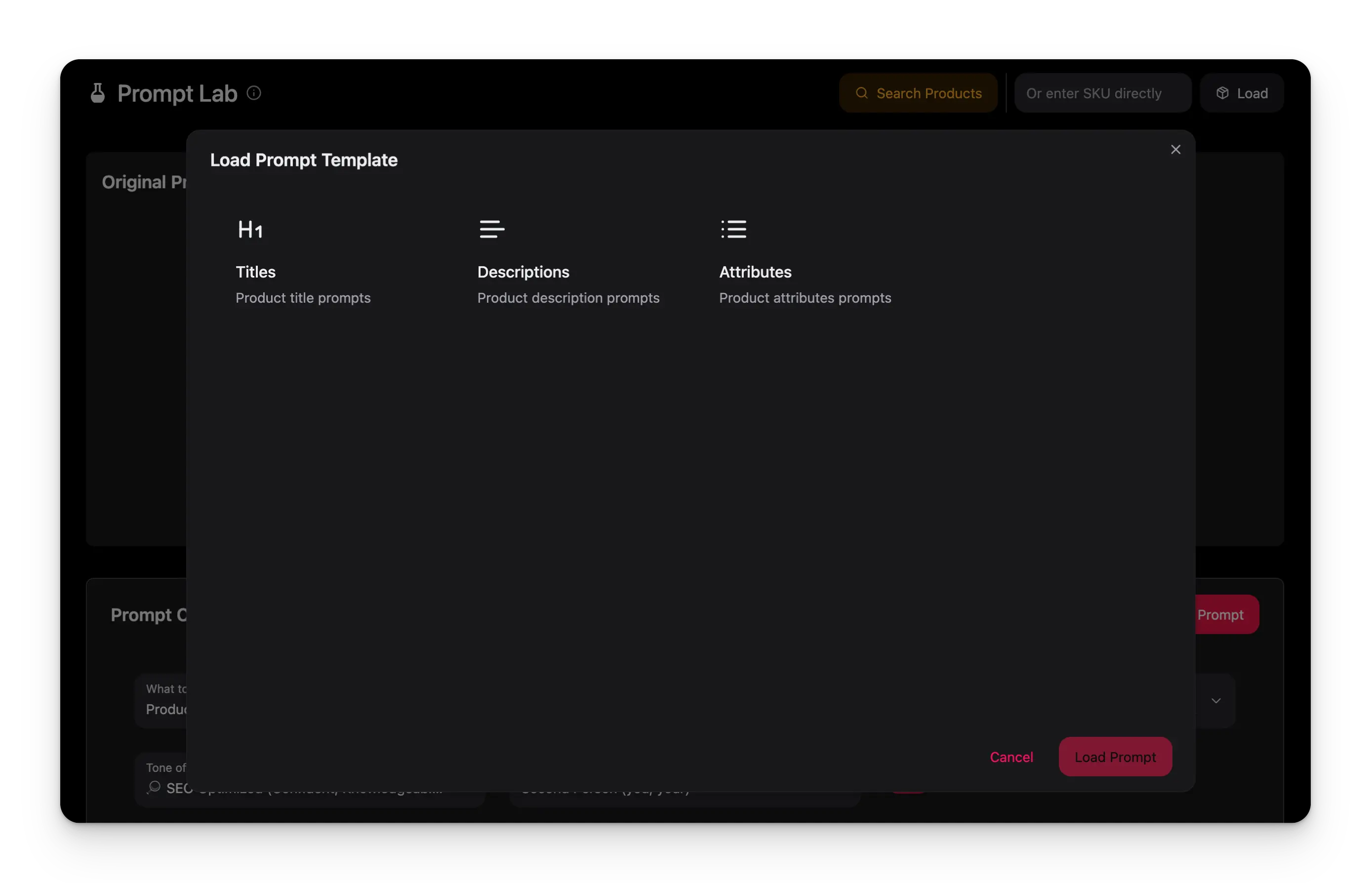
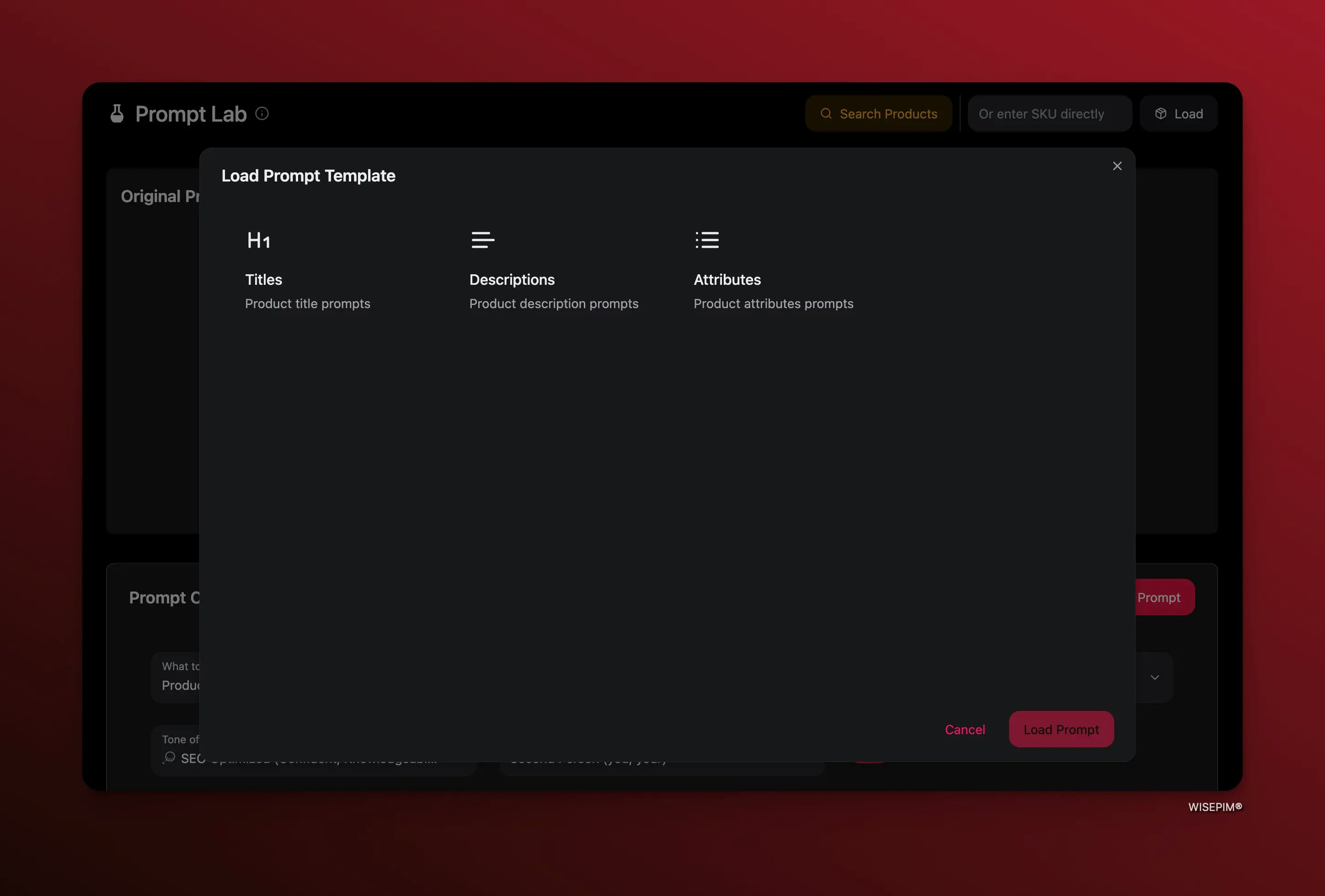
Click **Load from Library**, browse your saved prompts, and select one. All settings and prompt text load automatically, ready to test or modify.
Name prompts descriptively, like "Electronics SEO Description". Add a version number when you make a major change.
## Save and reuse prompts
Once a prompt works well, save it so you never rewrite it.
### Save a prompt
Confirm the prompt gives good results across a few different products.
Click **Explore Prompt Library** to open the save dialog.
Give it a clear name, a description, and tags. Set the industry and purpose so you can find it later.
Your prompt is stored in the [Prompt Library](/en/essentials/prompt-library) for reuse.
### Load an existing prompt
Click **Load from Library**, browse your saved prompts, and select one. All settings and prompt text load automatically, ready to test or modify.
Name prompts descriptively, like "Electronics SEO Description". Add a version number when you make a major change.
 ## From lab to bulk
Once a prompt is proven, use it to enrich your whole catalog.
Run the prompt on a few representative products from each category, including ones with minimal data.
Store the prompts that perform best in your library.
Select a saved prompt in a bulk enrichment operation to apply it across many products at once.
## From lab to bulk
Once a prompt is proven, use it to enrich your whole catalog.
Run the prompt on a few representative products from each category, including ones with minimal data.
Store the prompts that perform best in your library.
Select a saved prompt in a bulk enrichment operation to apply it across many products at once.
 ## Troubleshooting
Check the SKU for typos or extra spaces, and confirm the product exists in your current project. Try a different SKU to test the search.
Add more specific instructions to your prompt, name the unique selling points to highlight, and adjust the industry and purpose settings.
Complete your [Knowledge Library](/en/other-features/knowledge-library) for better brand context. Add tone examples and brand-specific terms to your prompt, and adjust the tone setting.
State the length you want in the prompt, using a word count or a number of paragraphs.
AI generation usually takes 30 to 60 seconds, and complex prompts take longer. If there's no response after 2 to 3 minutes or the test keeps timing out, contact support.
## Related
Organize, reuse, and share your saved prompts.
Apply your tested prompts to products in bulk.
Give the AI your brand voice for on-brand results.
Generate and refine content in a conversation.
## Troubleshooting
Check the SKU for typos or extra spaces, and confirm the product exists in your current project. Try a different SKU to test the search.
Add more specific instructions to your prompt, name the unique selling points to highlight, and adjust the industry and purpose settings.
Complete your [Knowledge Library](/en/other-features/knowledge-library) for better brand context. Add tone examples and brand-specific terms to your prompt, and adjust the tone setting.
State the length you want in the prompt, using a word count or a number of paragraphs.
AI generation usually takes 30 to 60 seconds, and complex prompts take longer. If there's no response after 2 to 3 minutes or the test keeps timing out, contact support.
## Related
Organize, reuse, and share your saved prompts.
Apply your tested prompts to products in bulk.
Give the AI your brand voice for on-brand results.
Generate and refine content in a conversation.