> ## Documentation Index
> Fetch the complete documentation index at: https://docs.wisepim.com/llms.txt
> Use this file to discover all available pages before exploring further.
# Managing Projects
> Use projects to keep separate catalogs apart. Give each brand, market, or client its own products, categories, attributes, AI prompts, and integrations in WISEPIM.
 A project is a self-contained workspace for one catalog. Each project keeps its own products, categories, attributes, AI prompts, and integrations. Use projects to manage separate brands, markets, or clients without their data ever mixing.
You work in one project at a time. The active project is your **current project**, and every action you take applies only to it.
## When to use separate projects
Create a new project whenever you need a clean, isolated catalog. Common reasons:
| Use case | Example |
| --------------------- | --------------------------------------------------------------- |
| **Multiple brands** | One project per brand, each with its own attributes and prompts |
| **Different markets** | A project per country or region, each in its own language |
| **Client work** | One project per client, so data stays separate and private |
| **Testing** | A throwaway project to try new categories or prompts safely |
## What lives inside a project
Each project holds its own copy of everything below. Nothing is shared between projects.
* **Products**: the full catalog and all its data
* **Categories**: the category tree for this catalog
* **Custom attributes**: the fields and properties your products use
* **AI prompts**: the default prompts for enrichment and translation
* **Integrations**: the platform connections and feeds
* **Team access**: who can see and edit the project
## View and switch projects
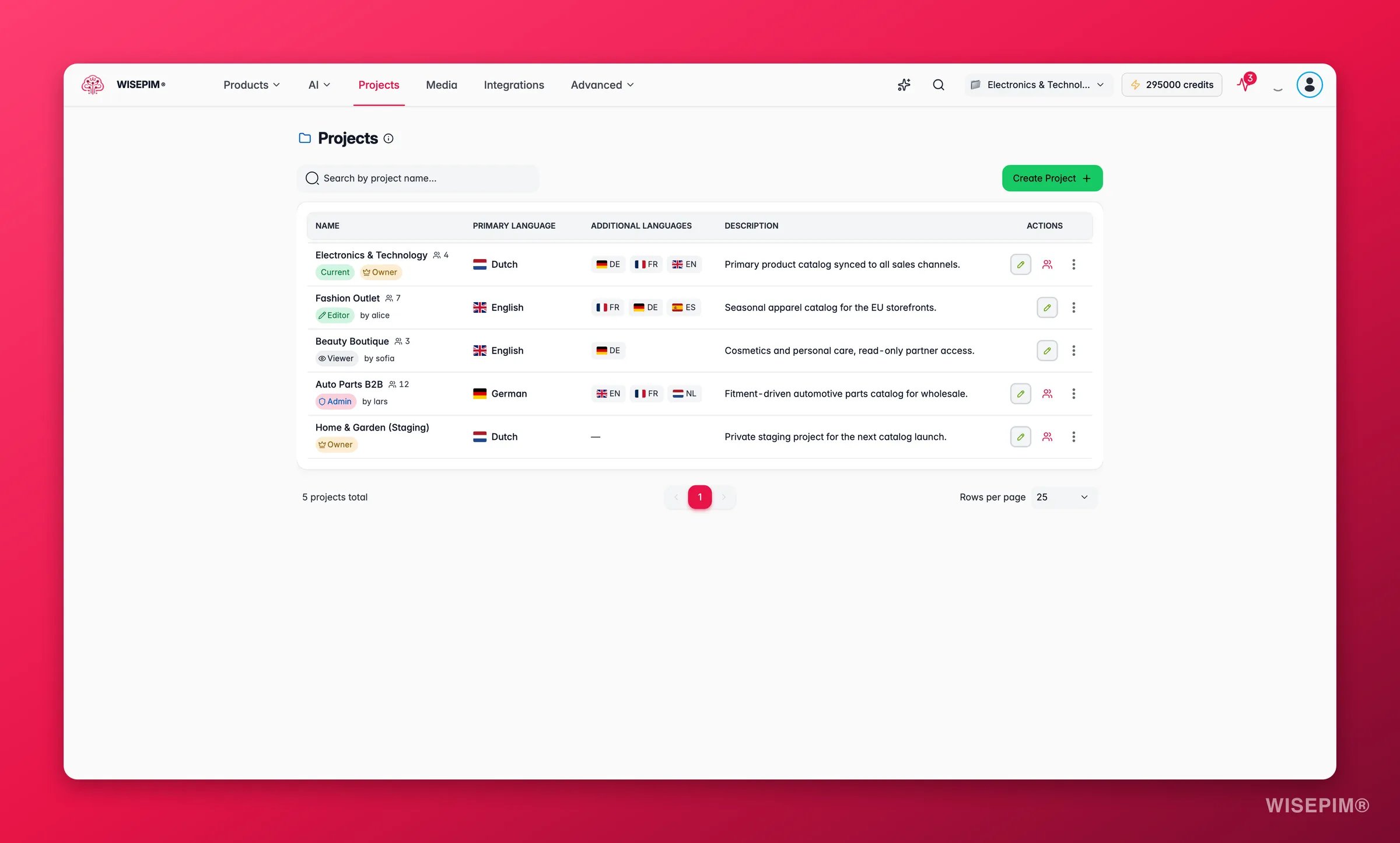
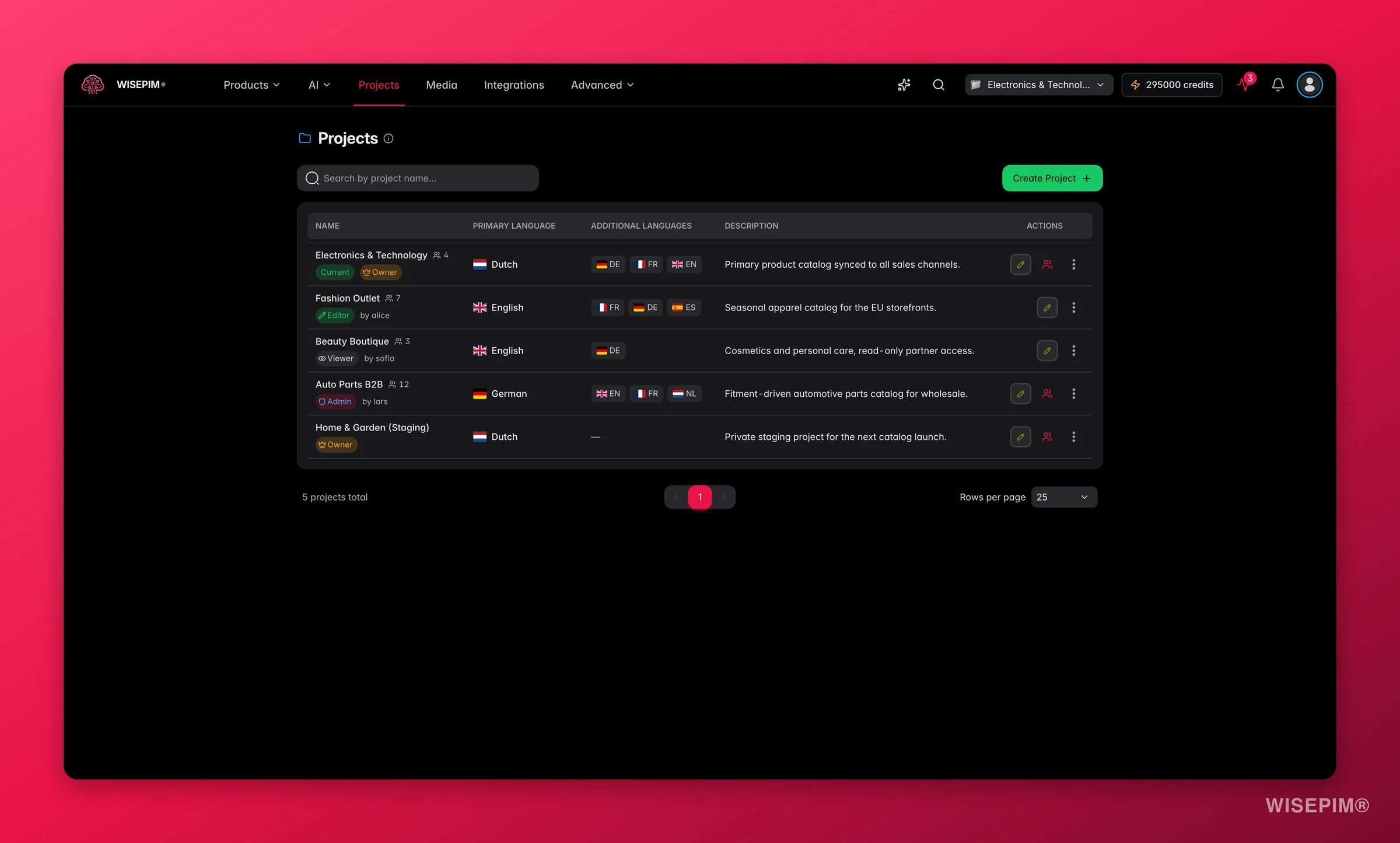
Open the **Projects** page from the main menu to see every project you can access. The table shows each project's name, description, target language, and status. Your **current project** is marked with a green chip, and a country flag shows each project's target language.
A project is a self-contained workspace for one catalog. Each project keeps its own products, categories, attributes, AI prompts, and integrations. Use projects to manage separate brands, markets, or clients without their data ever mixing.
You work in one project at a time. The active project is your **current project**, and every action you take applies only to it.
## When to use separate projects
Create a new project whenever you need a clean, isolated catalog. Common reasons:
| Use case | Example |
| --------------------- | --------------------------------------------------------------- |
| **Multiple brands** | One project per brand, each with its own attributes and prompts |
| **Different markets** | A project per country or region, each in its own language |
| **Client work** | One project per client, so data stays separate and private |
| **Testing** | A throwaway project to try new categories or prompts safely |
## What lives inside a project
Each project holds its own copy of everything below. Nothing is shared between projects.
* **Products**: the full catalog and all its data
* **Categories**: the category tree for this catalog
* **Custom attributes**: the fields and properties your products use
* **AI prompts**: the default prompts for enrichment and translation
* **Integrations**: the platform connections and feeds
* **Team access**: who can see and edit the project
## View and switch projects
Open the **Projects** page from the main menu to see every project you can access. The table shows each project's name, description, target language, and status. Your **current project** is marked with a green chip, and a country flag shows each project's target language.
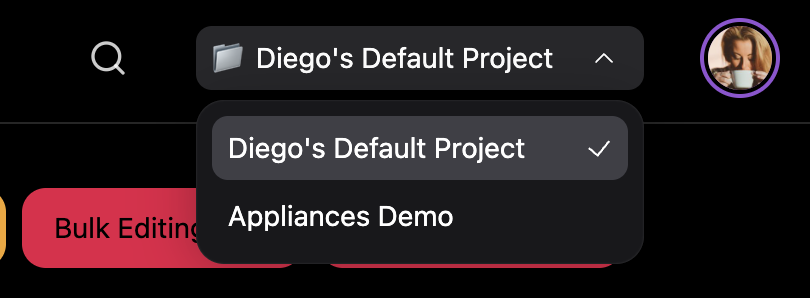 Each project has an actions menu for switching, editing, duplicating, and deleting.
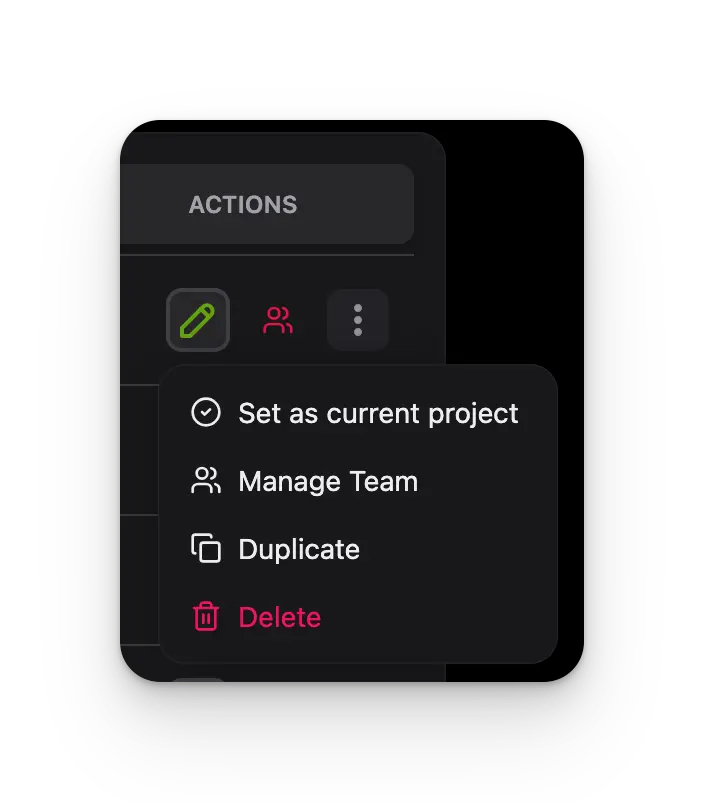 To start working in a different project:
Find the project you want in the table and open its actions menu.
Select **Set as current project**. WISEPIM updates your workspace to that project.
When you switch projects, your views, filters, and settings update to match the new project. Each project remembers its own setup.
## Create a project
To start working in a different project:
Find the project you want in the table and open its actions menu.
Select **Set as current project**. WISEPIM updates your workspace to that project.
When you switch projects, your views, filters, and settings update to match the new project. Each project remembers its own setup.
## Create a project
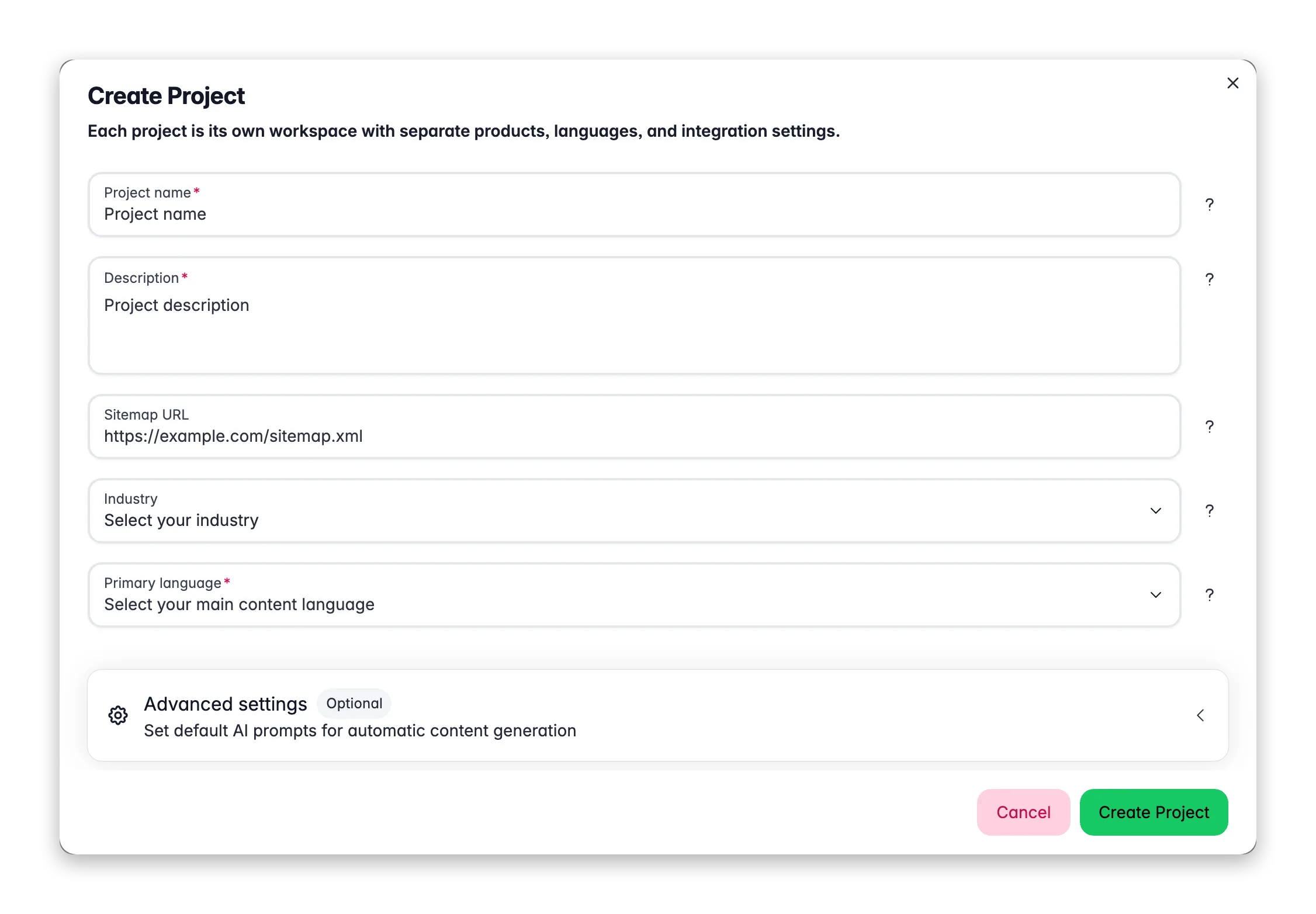
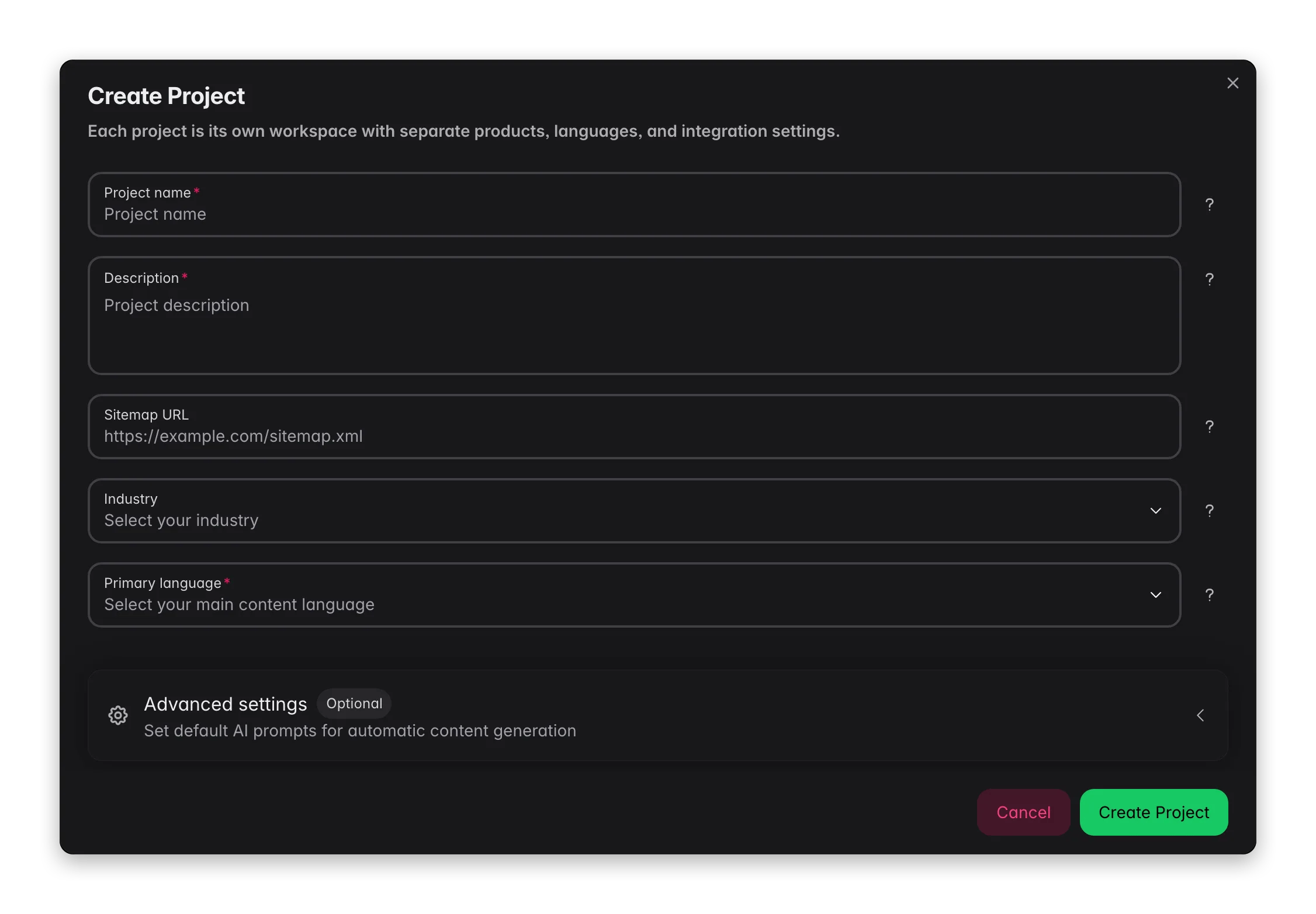 Open the **Projects** page and click **Create Project**.
Give the project a clear **name**, a short **description**, and a **target language**. The target language is the main language for this project's content.
Set **target keywords** for SEO and pick **default AI prompts** for descriptions, titles, and attributes. You can change all of these later.
Save to create the project. It appears in your projects table, ready to use.
You can fine-tune the name, language, keywords, and default prompts any time in [General settings](/en/settings/general).
## Edit a project
Open the **Projects** page and click **Create Project**.
Give the project a clear **name**, a short **description**, and a **target language**. The target language is the main language for this project's content.
Set **target keywords** for SEO and pick **default AI prompts** for descriptions, titles, and attributes. You can change all of these later.
Save to create the project. It appears in your projects table, ready to use.
You can fine-tune the name, language, keywords, and default prompts any time in [General settings](/en/settings/general).
## Edit a project
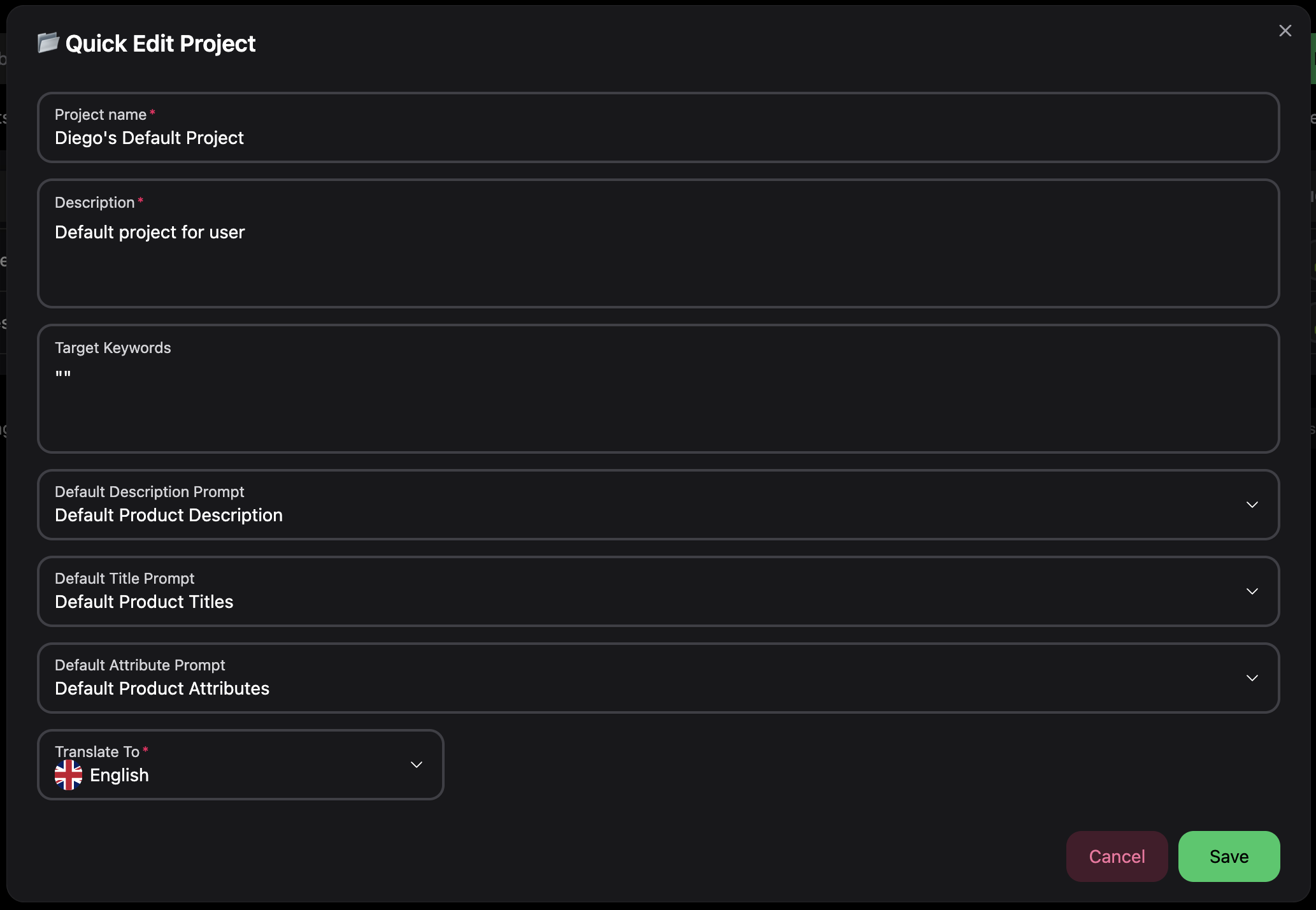 To update a project's details, open its actions menu and select **Edit**. You can change the name, description, target language, keywords, default AI prompt selections, and status. Save to apply your changes.
## Duplicate a project
Duplicating copies an entire project, so you can reuse a setup instead of building it again. It is useful for spinning up similar brands, testing big changes on a copy, or adapting a catalog for a new market.
Find the project you want to copy and open its actions menu.
Choose **Duplicate** and confirm.
WISEPIM builds the copy in the background and notifies you when it is ready.
A duplicate includes the products, categories, custom attributes, integration profiles, and project settings. For security, it does **not** copy user permissions, integration API keys, or historical logs. You become the owner of the new project.
Duplication can take several minutes for large catalogs. You will get a notification when it finishes.
## Delete a project
To remove a project, open its actions menu and select **Delete**, then confirm.
Deleting a project is permanent. All its products, categories, settings, and integrations are removed for good, and team members lose access. You cannot delete your current project: switch to another project first.
## Name your projects clearly
A clear naming pattern makes projects easy to scan. Include the brand or product line, plus the market or language where it helps.
* Acme Electronics, US market
* Fashion Brand, EU collection
* B2B Tools, German market
## Related
Set the name, language, keywords, and default prompts for your current project.
Work with the catalog inside your current project.
Fill a new project with products from Excel, CSV, or a platform.
Use the project's AI prompts to improve product content.
To update a project's details, open its actions menu and select **Edit**. You can change the name, description, target language, keywords, default AI prompt selections, and status. Save to apply your changes.
## Duplicate a project
Duplicating copies an entire project, so you can reuse a setup instead of building it again. It is useful for spinning up similar brands, testing big changes on a copy, or adapting a catalog for a new market.
Find the project you want to copy and open its actions menu.
Choose **Duplicate** and confirm.
WISEPIM builds the copy in the background and notifies you when it is ready.
A duplicate includes the products, categories, custom attributes, integration profiles, and project settings. For security, it does **not** copy user permissions, integration API keys, or historical logs. You become the owner of the new project.
Duplication can take several minutes for large catalogs. You will get a notification when it finishes.
## Delete a project
To remove a project, open its actions menu and select **Delete**, then confirm.
Deleting a project is permanent. All its products, categories, settings, and integrations are removed for good, and team members lose access. You cannot delete your current project: switch to another project first.
## Name your projects clearly
A clear naming pattern makes projects easy to scan. Include the brand or product line, plus the market or language where it helps.
* Acme Electronics, US market
* Fashion Brand, EU collection
* B2B Tools, German market
## Related
Set the name, language, keywords, and default prompts for your current project.
Work with the catalog inside your current project.
Fill a new project with products from Excel, CSV, or a platform.
Use the project's AI prompts to improve product content.