> ## Documentation Index
> Fetch the complete documentation index at: https://docs.wisepim.com/llms.txt
> Use this file to discover all available pages before exploring further.
# App Marketplace & Integrations
> Connect WISEPIM to your store. Import products from Shopify, WooCommerce, Magento, and more, then export your enriched data straight back.
The App Marketplace connects WISEPIM to your e-commerce platforms and marketplaces. Once a platform is connected, you can import its products, enrich them, and export the improved data back. No manual copy-paste, no exports by hand.
An integration is a live link between WISEPIM and one of your stores. Set it up once, then import and export as often as you like.
## What you can do
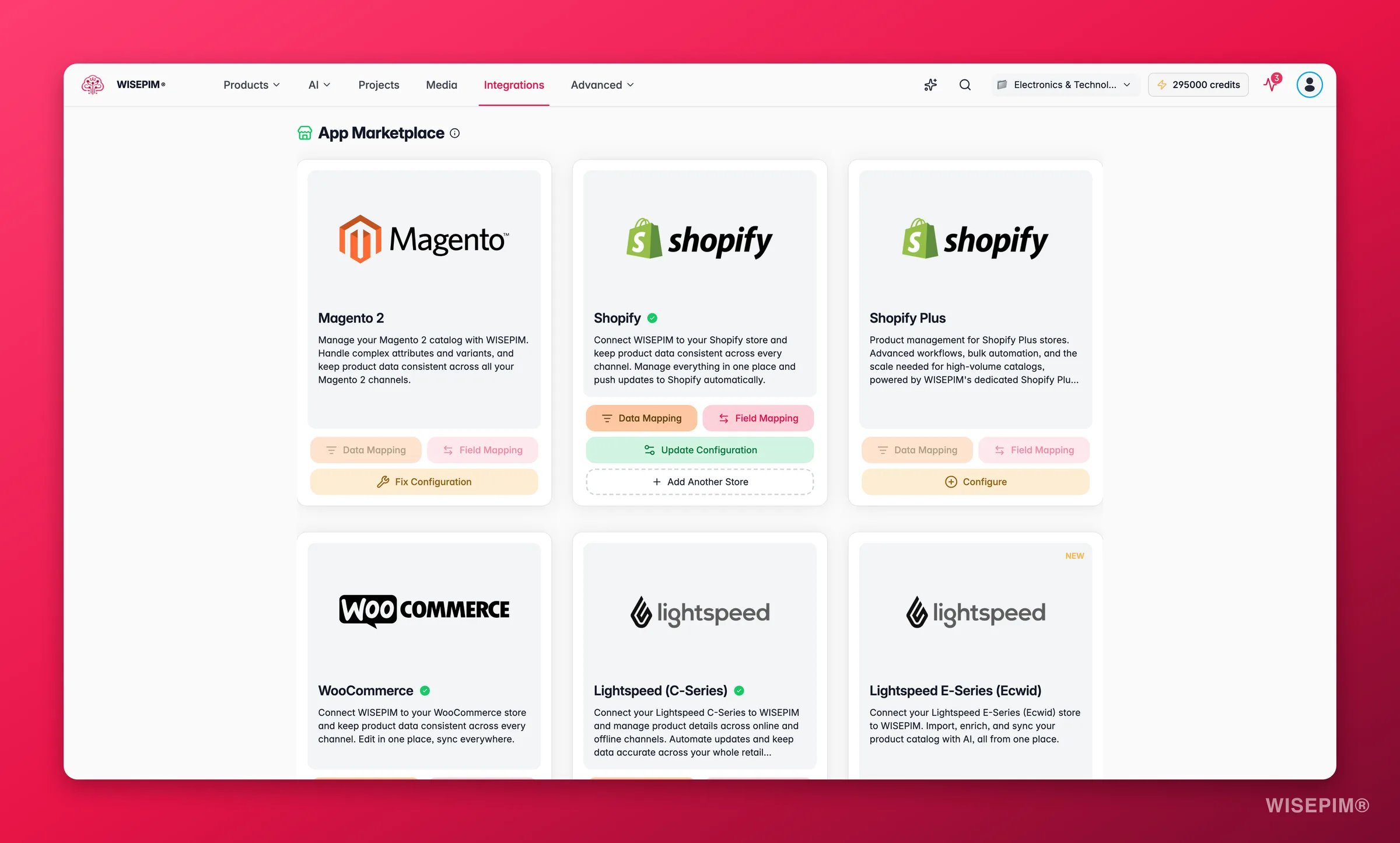
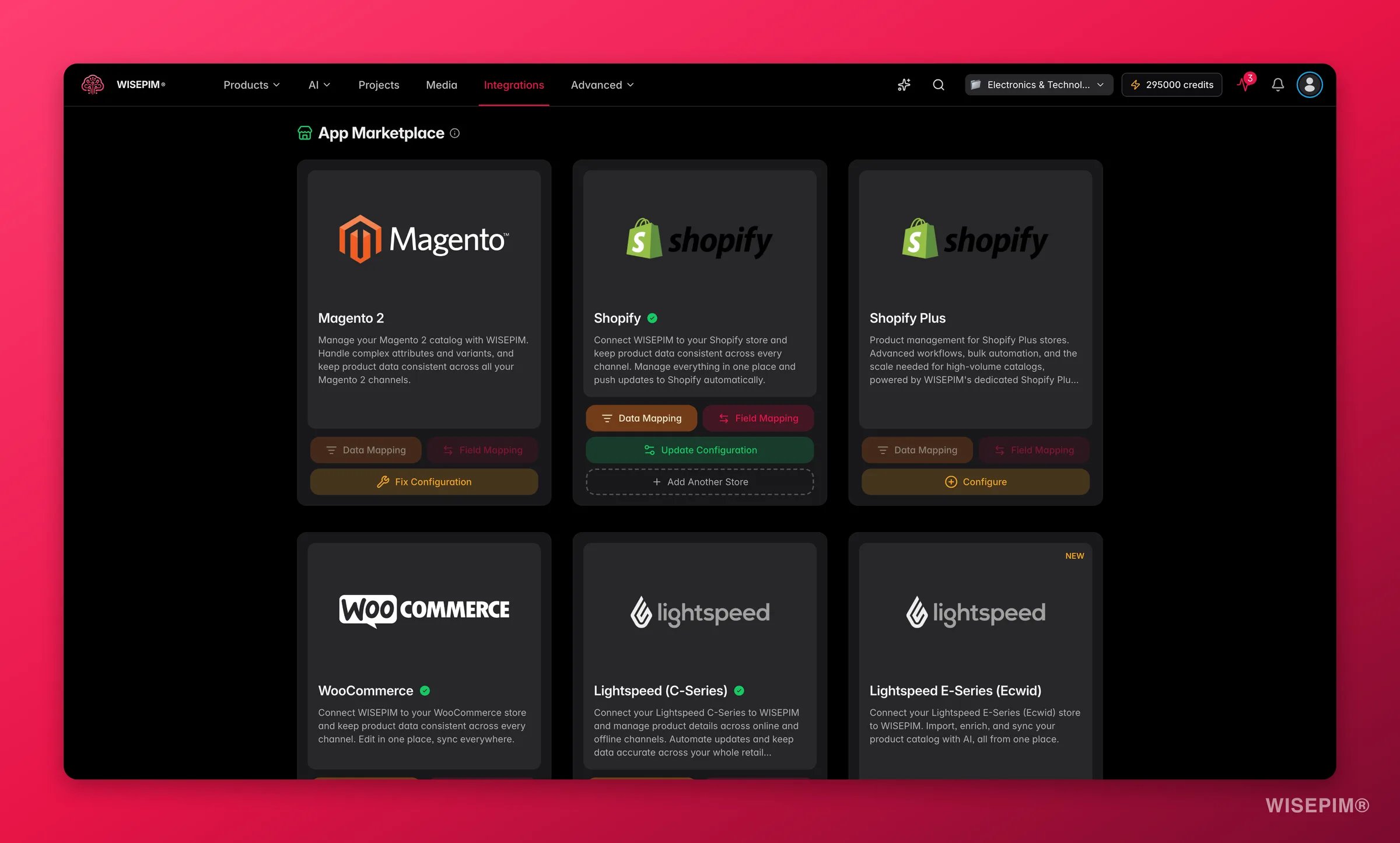 With a connected integration, you can:
* **Import products** from your store into WISEPIM.
* **Enrich them** with AI: better titles, descriptions, attributes, and SEO.
* **Export the results** back to the same store, or to a different one.
* **Manage every channel** from one place.
WISEPIM is multi-platform. You can import from one platform and export to another. Pull products from Magento, enrich them, and push them to Shopify.
## Supported platforms
Each platform has its own setup guide. Pick yours to see the exact steps.
Connect your Shopify store to import and export products.
Link your WordPress-based store and sync your catalog.
Connect Magento open-source or enterprise stores.
Connect your Lightspeed eCom shop in a few clicks.
Connect this Dutch e-commerce platform to enrich your data.
Link your Ecwid store and sync products.
List and manage products on the German marketplace.
Import dropshipment content and enrich it.
Can't find your platform? [Get in touch](https://swiftsync.ai/contact). We add new platforms regularly.
## Connect a platform
The exact fields differ per platform, but the flow is the same.
Find it in the main navigation.
Select the store or marketplace you want to connect.
Add the API key, token, or login details the platform needs. Your setup guide lists exactly what to enter.
Run the connection test. WISEPIM confirms it can reach your store.
Match the platform's fields to your WISEPIM attributes, then save.
A green status means the connection is live. You're ready to import and export.
### What you'll need
Credentials vary by platform. The most common ones:
| Platform | Credentials |
| --------------- | ------------------------------------------- |
| **Shopify** | Private app credentials or API access token |
| **WooCommerce** | Consumer key and consumer secret |
| **Magento 2** | Admin user credentials and store view codes |
| **Kaufland** | API key and secret from the seller portal |
Your platform's setup guide lists the exact fields. Give each integration a clear name so you can spot it later.
## Map your attributes
Attribute mapping tells WISEPIM which platform field matches which WISEPIM attribute. Good mapping means clean imports and correctly formatted exports.
To set it up, open your integration and click **Map Attributes**. Match each source field to the right WISEPIM attribute, then save. The mapping is reused on every sync.
Common matches:
| Platform field | WISEPIM attribute |
| -------------- | --------------------- |
| Product Title | Name |
| Description | Product Description |
| SKU | Product Identifier |
| Images | Product Images |
| Price | Cost or Selling Price |
| Color | Main Color |
| Size | Apparel Size |
| Category | WISEPIM Category |
| Brand | Brand |
| SEO Title | Meta Title |
## Keep connections healthy
Each integration shows a status so you always know where it stands.
| Status | Meaning |
| ------------- | -------------------------------------- |
| **Connected** | The connection is live and working. |
| **Error** | There's a connection or login problem. |
| **Idle** | Configured but not in use. |
| **Testing** | A connection check is running. |
WISEPIM tests every connection when you first set it up, and runs regular health checks after that. You can also test on demand from the integration's settings.
### Update your credentials
Update credentials when an API key expires, a store URL changes, or permissions are modified. Edit the integration, enter the new details, and re-test. Your attribute mappings stay intact.
## Troubleshooting
* Check your API credentials. They may be wrong or expired.
* Confirm the store URL is correct and the platform is online.
* Make sure the API user has the right permissions.
* Re-test the connection after any change.
* Review your attribute mappings for mismatches.
* Confirm all required fields are filled in.
* Check that your data meets the target platform's format rules.
* Process products in smaller batches.
* Run large syncs during off-peak hours.
* Platform rate limits cap how fast data transfers.
* Re-check your attribute mappings.
* Run a sync again to refresh the affected products.
* Confirm categories and images mapped correctly.
## Related
See every platform WISEPIM connects to, with setup guides.
Pull products from a connected platform into WISEPIM.
Push your enriched data back to your store.
Improve your product data with AI before you export.
With a connected integration, you can:
* **Import products** from your store into WISEPIM.
* **Enrich them** with AI: better titles, descriptions, attributes, and SEO.
* **Export the results** back to the same store, or to a different one.
* **Manage every channel** from one place.
WISEPIM is multi-platform. You can import from one platform and export to another. Pull products from Magento, enrich them, and push them to Shopify.
## Supported platforms
Each platform has its own setup guide. Pick yours to see the exact steps.
Connect your Shopify store to import and export products.
Link your WordPress-based store and sync your catalog.
Connect Magento open-source or enterprise stores.
Connect your Lightspeed eCom shop in a few clicks.
Connect this Dutch e-commerce platform to enrich your data.
Link your Ecwid store and sync products.
List and manage products on the German marketplace.
Import dropshipment content and enrich it.
Can't find your platform? [Get in touch](https://swiftsync.ai/contact). We add new platforms regularly.
## Connect a platform
The exact fields differ per platform, but the flow is the same.
Find it in the main navigation.
Select the store or marketplace you want to connect.
Add the API key, token, or login details the platform needs. Your setup guide lists exactly what to enter.
Run the connection test. WISEPIM confirms it can reach your store.
Match the platform's fields to your WISEPIM attributes, then save.
A green status means the connection is live. You're ready to import and export.
### What you'll need
Credentials vary by platform. The most common ones:
| Platform | Credentials |
| --------------- | ------------------------------------------- |
| **Shopify** | Private app credentials or API access token |
| **WooCommerce** | Consumer key and consumer secret |
| **Magento 2** | Admin user credentials and store view codes |
| **Kaufland** | API key and secret from the seller portal |
Your platform's setup guide lists the exact fields. Give each integration a clear name so you can spot it later.
## Map your attributes
Attribute mapping tells WISEPIM which platform field matches which WISEPIM attribute. Good mapping means clean imports and correctly formatted exports.
To set it up, open your integration and click **Map Attributes**. Match each source field to the right WISEPIM attribute, then save. The mapping is reused on every sync.
Common matches:
| Platform field | WISEPIM attribute |
| -------------- | --------------------- |
| Product Title | Name |
| Description | Product Description |
| SKU | Product Identifier |
| Images | Product Images |
| Price | Cost or Selling Price |
| Color | Main Color |
| Size | Apparel Size |
| Category | WISEPIM Category |
| Brand | Brand |
| SEO Title | Meta Title |
## Keep connections healthy
Each integration shows a status so you always know where it stands.
| Status | Meaning |
| ------------- | -------------------------------------- |
| **Connected** | The connection is live and working. |
| **Error** | There's a connection or login problem. |
| **Idle** | Configured but not in use. |
| **Testing** | A connection check is running. |
WISEPIM tests every connection when you first set it up, and runs regular health checks after that. You can also test on demand from the integration's settings.
### Update your credentials
Update credentials when an API key expires, a store URL changes, or permissions are modified. Edit the integration, enter the new details, and re-test. Your attribute mappings stay intact.
## Troubleshooting
* Check your API credentials. They may be wrong or expired.
* Confirm the store URL is correct and the platform is online.
* Make sure the API user has the right permissions.
* Re-test the connection after any change.
* Review your attribute mappings for mismatches.
* Confirm all required fields are filled in.
* Check that your data meets the target platform's format rules.
* Process products in smaller batches.
* Run large syncs during off-peak hours.
* Platform rate limits cap how fast data transfers.
* Re-check your attribute mappings.
* Run a sync again to refresh the affected products.
* Confirm categories and images mapped correctly.
## Related
See every platform WISEPIM connects to, with setup guides.
Pull products from a connected platform into WISEPIM.
Push your enriched data back to your store.
Improve your product data with AI before you export.