> ## Documentation Index
> Fetch the complete documentation index at: https://docs.wisepim.com/llms.txt
> Use this file to discover all available pages before exploring further.
# Importing Products
> Import your catalog from Shopify, WooCommerce, Magento, or CSV into WISEPIM. First import auto-maps categories and attributes so you are ready instantly.
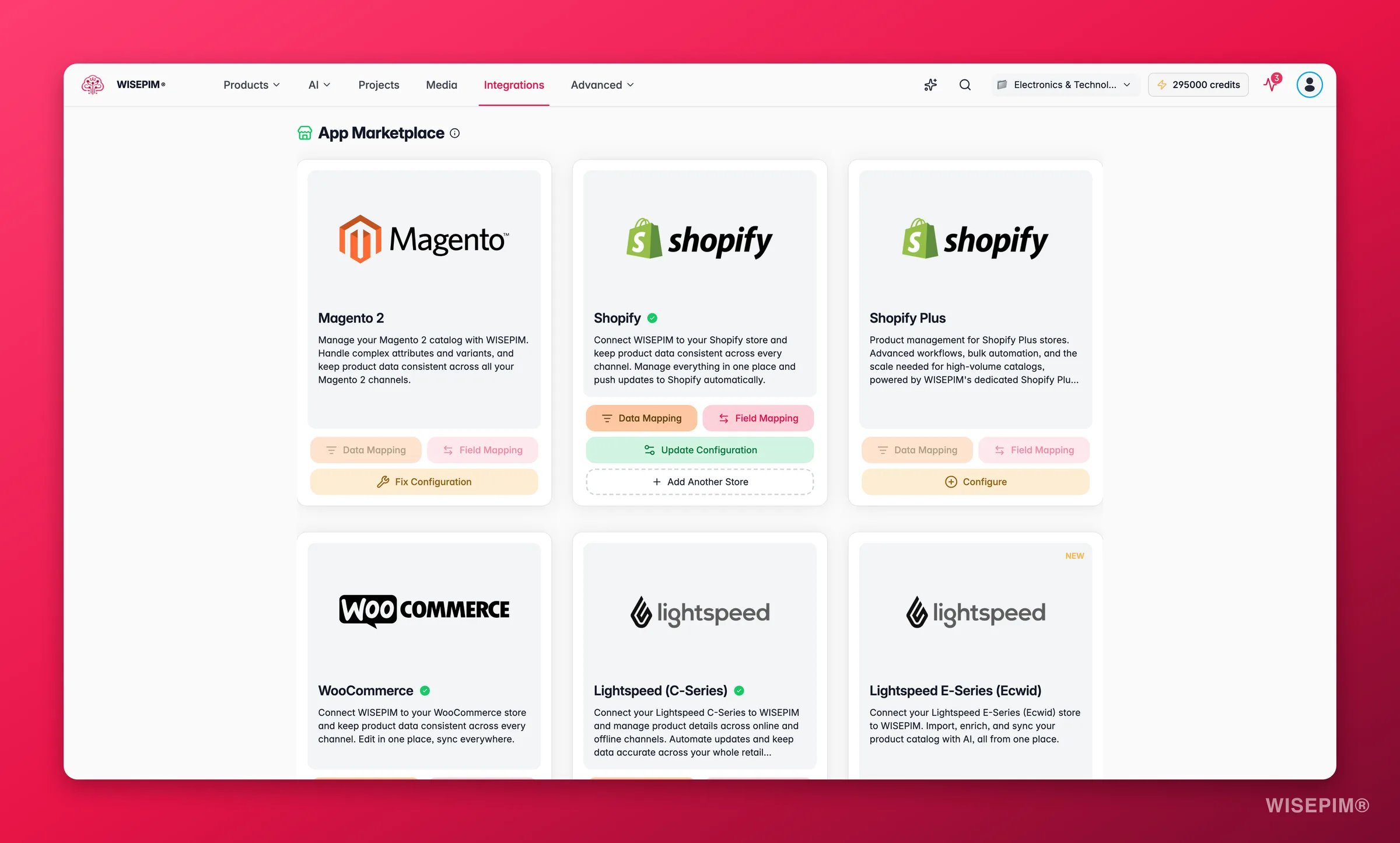
 Your product data lives somewhere already: in Shopify, Magento, WooCommerce, a spreadsheet, or all of the above. Importing brings it into WISEPIM so you can start improving it.
On your first platform import, WISEPIM automatically pulls in your categories and attributes alongside your products. No manual setup required. Your catalog structure is ready from the start.
## Import sources
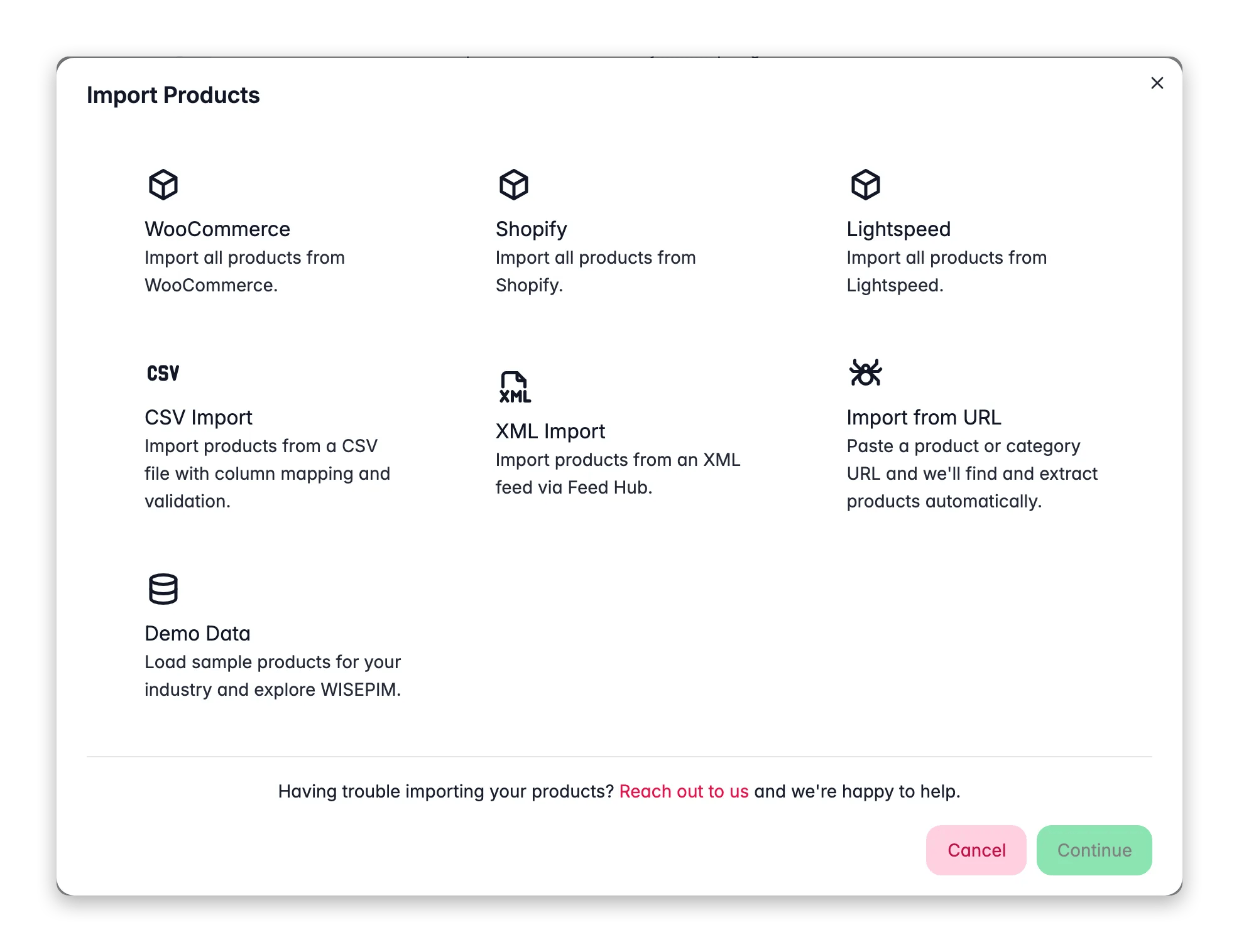
The import modal builds its list of sources automatically. Any connected integration that supports import appears as an option, so the more platforms you connect, the more you can import from. You don't need to manage a fixed list.
* **E-commerce platforms**: any connected integration that supports import, for example Shopify, WooCommerce, Magento, Lightspeed, Lightspeed E-Series (Ecwid), BigCommerce, PrestaShop, Shopware, Squarespace, CCV Shop, and more
* **CSV files**: any spreadsheet with product data
* **Excel files**: `.xlsx` and `.xls` spreadsheets
* **Web scraping**: paste a URL and let AI extract products, no file or API needed (see [Web Scraping Import](/en/essentials/web-scraping-import))
* **Demo data**: a ready-made sample catalog for your industry, perfect for exploring WISEPIM before you import your own
If you don't see a platform in the list, it just means it isn't connected yet. Set up the integration on the Integrations page and it will appear automatically.
## Connect your platform first
Before importing from an e-commerce platform, you need to set up the integration. Each platform has its own way of generating API credentials. Follow the guide for your platform:
Generate a custom app and API key
Create REST API keys
Set up an integration token
Connect your Lightspeed account
Get your Kaufland API credentials
Configure WebshopImporter
Once your credentials are ready:
1. Go to the **Integrations** page
2. Select your platform and enter your API credentials
3. Test the connection
4. Save
The import modal only shows platforms that have been successfully connected. If your platform doesn't appear, head to Integrations and set it up first.
Your product data lives somewhere already: in Shopify, Magento, WooCommerce, a spreadsheet, or all of the above. Importing brings it into WISEPIM so you can start improving it.
On your first platform import, WISEPIM automatically pulls in your categories and attributes alongside your products. No manual setup required. Your catalog structure is ready from the start.
## Import sources
The import modal builds its list of sources automatically. Any connected integration that supports import appears as an option, so the more platforms you connect, the more you can import from. You don't need to manage a fixed list.
* **E-commerce platforms**: any connected integration that supports import, for example Shopify, WooCommerce, Magento, Lightspeed, Lightspeed E-Series (Ecwid), BigCommerce, PrestaShop, Shopware, Squarespace, CCV Shop, and more
* **CSV files**: any spreadsheet with product data
* **Excel files**: `.xlsx` and `.xls` spreadsheets
* **Web scraping**: paste a URL and let AI extract products, no file or API needed (see [Web Scraping Import](/en/essentials/web-scraping-import))
* **Demo data**: a ready-made sample catalog for your industry, perfect for exploring WISEPIM before you import your own
If you don't see a platform in the list, it just means it isn't connected yet. Set up the integration on the Integrations page and it will appear automatically.
## Connect your platform first
Before importing from an e-commerce platform, you need to set up the integration. Each platform has its own way of generating API credentials. Follow the guide for your platform:
Generate a custom app and API key
Create REST API keys
Set up an integration token
Connect your Lightspeed account
Get your Kaufland API credentials
Configure WebshopImporter
Once your credentials are ready:
1. Go to the **Integrations** page
2. Select your platform and enter your API credentials
3. Test the connection
4. Save
The import modal only shows platforms that have been successfully connected. If your platform doesn't appear, head to Integrations and set it up first.
 ## Running a platform import
Click the **Import** button in the toolbar.
Select the platform you want to import from. Only connected integrations are shown.
If a platform has several stores connected, WISEPIM asks which one to import from. With a single store, it skips this and goes straight to the import.
WISEPIM connects to your platform, discovers your products, and pulls everything in, including categories, attributes, and product relationships.
Once the import completes, spot-check a few products to make sure everything came through correctly.
## Running a platform import
Click the **Import** button in the toolbar.
Select the platform you want to import from. Only connected integrations are shown.
If a platform has several stores connected, WISEPIM asks which one to import from. With a single store, it skips this and goes straight to the import.
WISEPIM connects to your platform, discovers your products, and pulls everything in, including categories, attributes, and product relationships.
Once the import completes, spot-check a few products to make sure everything came through correctly.
 Imports run in the background. You can keep working in WISEPIM while your products are being pulled in. You'll get a notification when it's done.
## CSV import
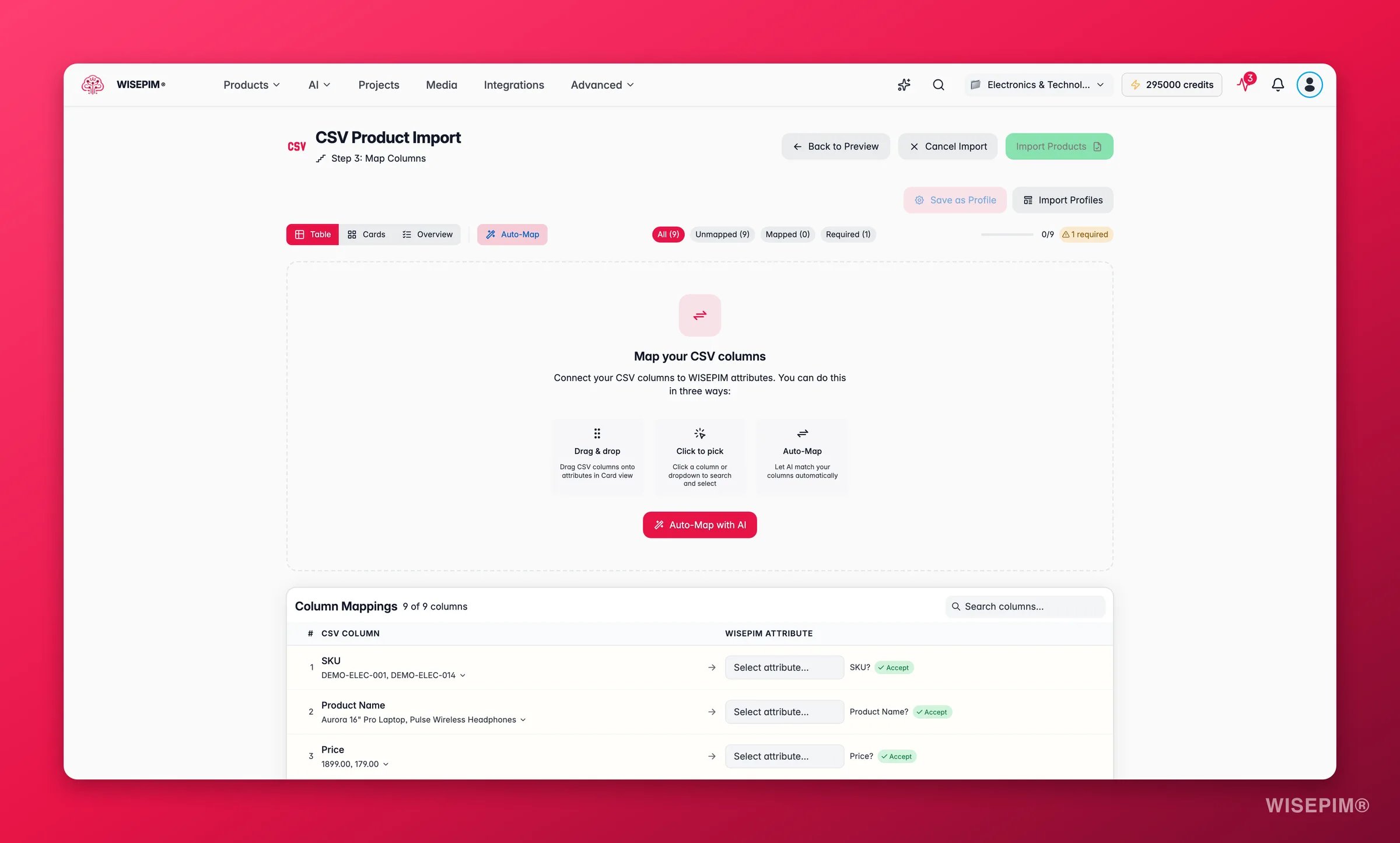
If your data lives in a spreadsheet, use CSV import. The CSV importer walks you through four steps: **Upload**, **Configure**, **Mapping**, and **Importing**.
**Prepare your file:**
* First row should contain column headers
* Use UTF-8 encoding
* Include at least product names and SKUs
Files must be `.csv` and up to **500 MB**. WISEPIM warns you as files get large (over 10 MB, 50 MB, and 100 MB) so you know a big upload may take a moment.
Drag in your file or browse for it. WISEPIM analyzes it and shows the row count, the detected delimiter, and the encoding. If it guessed wrong, you can switch the delimiter (comma, semicolon, tab, tilde, or pipe) or encoding right here, and it will recognize source systems like Shopify, WooCommerce, and Magento exports automatically.
Set how the import should behave before you map anything. This step is where you choose:
* **Duplicate handling**: what to do when a product already exists (skip, update, or create new)
* **Multi-value delimiter**: the character that separates several values in one cell (see below)
* **Dynamic attributes**: turn extra columns into attributes automatically, and optionally create any that don't exist yet
* **Nested data**: handle JSON columns and parent/variant relationships when your file contains them
Match your CSV columns to WISEPIM fields. Auto-mapping suggests matches based on your column names, and you can adjust any of them. Save the result as a template to reuse next time.
WISEPIM imports your products in the background and shows progress as it goes.
### Import templates
Once you've mapped a file, save the setup as a template: your column mappings and duplicate-handling choices, reusable on every future import with the same file shape. WISEPIM ships built-in templates for common source systems, and you can save your own. Next time you import a file from the same supplier or export, apply the template and skip the mapping work.
### Multiple images in one column
A single CSV column can hold multiple image URLs separated by a delimiter. WISEPIM splits them automatically: the first URL becomes the main product image and the remaining URLs are added as gallery images.
You set the separator in the **Multi-Value** panel of the **Configure** step. The default is the pipe character (`|`), which is the most common choice, and you can switch it to a semicolon (`;`) or comma (`,`) to match your file.
If WISEPIM finds several image columns in your file, it surfaces a notice: "Multiple image URLs detected." The first column mapped to images becomes the main image; the rest go into the gallery. No extra steps needed.
## Excel import
Prefer to work in Excel? Choose **Excel** in the import modal to open the dedicated Excel importer. It accepts both `.xlsx` and `.xls` files.
Click **Import** on the Products page and pick **Excel**.
Drag in or browse for your `.xlsx` or `.xls` file.
Match your columns to WISEPIM fields, then start the import. WISEPIM brings your products in and notifies you when it's done.
## Demo data
Want to explore WISEPIM before importing your own catalog? Choose **Demo Data**, pick your industry, and WISEPIM loads a sample catalog with products, categories, attributes, and families already set up. It's the fastest way to see how everything fits together, and you can clear it out later when your real products are ready.
## How long does it take?
Import speed depends on catalog size and your platform's API rate limits. Each platform throttles requests differently, so times can vary.
| Catalog size | CSV import | Platform import |
| ---------------------- | -------------- | ------------------- |
| Under 100 products | A few seconds | Under a minute |
| 100–1,000 products | Under a minute | 5–15 minutes |
| 1,000–10,000 products | A few minutes | 15 minutes – 1 hour |
| 10,000–50,000 products | A few minutes | 1–4 hours |
CSV imports are fast because there's no API rate limiting involved. Platform imports depend on how quickly the source platform serves requests. Shopify, Magento, and WooCommerce all have different rate limits.
Start with a small test batch to verify everything works before importing your full catalog.
## Post-import completeness scan
Once a CSV import finishes, WISEPIM automatically scans the imported products for missing critical fields, like a main image, weight, and price. If any gaps are found, the **Import Cleanup Wizard** opens.
The wizard walks you through each gap one step at a time:
* **Missing images**: WISEPIM checks whether an unmapped column in your original file might hold the image URLs. If so, it suggests re-running the import with that column mapped. You can also paste a placeholder URL to fill all products at once.
* **Missing weight or price**: AI reads each product's existing title and description and extracts the value where it finds one. For products where it can't, you can set a single value for all of them.
* **Other field gaps**: similar step-by-step fix options, including AI enrichment for text fields.
You can skip any step and come back later. Skipped gaps stay visible on the Products page as a banner until all critical fields are filled.
## After your import
Once your products are in, here's what to do next:
1. **Work through the Cleanup Wizard**: if critical fields are missing, the wizard opens automatically. Fix them before you publish
2. **Spot-check your data**: open a few products and verify the information came through correctly
3. **Review your categories**: your category structure was imported automatically. Make sure it looks right
4. **Check your attributes**: same for attributes. They're already there, ready to use
5. **[Enrich with AI](/en/essentials/enriching-products)**: this is where WISEPIM starts earning its keep. Select products and let the AI improve your content
## Troubleshooting
### Import not starting
* Check that your integration is connected and tested on the Integrations page
* Verify your API credentials haven't expired
* Make sure your API user has the right permissions
### No products found
* Confirm your store actually has published products
* Check API user permissions, as some platforms restrict product visibility
* Try re-testing the integration connection
### CSV issues
* Save as **CSV (UTF-8)**: encoding problems cause garbled text
* Remove special characters from column headers
* Make sure required fields (name, SKU) are mapped
### Slow import
Large catalogs take time, and platform API rate limits can slow things down. If an import seems stuck, check the [Process Tracker](/en/other-features/process-tracker) for status updates.
Imports run in the background. You can keep working in WISEPIM while your products are being pulled in. You'll get a notification when it's done.
## CSV import
If your data lives in a spreadsheet, use CSV import. The CSV importer walks you through four steps: **Upload**, **Configure**, **Mapping**, and **Importing**.
**Prepare your file:**
* First row should contain column headers
* Use UTF-8 encoding
* Include at least product names and SKUs
Files must be `.csv` and up to **500 MB**. WISEPIM warns you as files get large (over 10 MB, 50 MB, and 100 MB) so you know a big upload may take a moment.
Drag in your file or browse for it. WISEPIM analyzes it and shows the row count, the detected delimiter, and the encoding. If it guessed wrong, you can switch the delimiter (comma, semicolon, tab, tilde, or pipe) or encoding right here, and it will recognize source systems like Shopify, WooCommerce, and Magento exports automatically.
Set how the import should behave before you map anything. This step is where you choose:
* **Duplicate handling**: what to do when a product already exists (skip, update, or create new)
* **Multi-value delimiter**: the character that separates several values in one cell (see below)
* **Dynamic attributes**: turn extra columns into attributes automatically, and optionally create any that don't exist yet
* **Nested data**: handle JSON columns and parent/variant relationships when your file contains them
Match your CSV columns to WISEPIM fields. Auto-mapping suggests matches based on your column names, and you can adjust any of them. Save the result as a template to reuse next time.
WISEPIM imports your products in the background and shows progress as it goes.
### Import templates
Once you've mapped a file, save the setup as a template: your column mappings and duplicate-handling choices, reusable on every future import with the same file shape. WISEPIM ships built-in templates for common source systems, and you can save your own. Next time you import a file from the same supplier or export, apply the template and skip the mapping work.
### Multiple images in one column
A single CSV column can hold multiple image URLs separated by a delimiter. WISEPIM splits them automatically: the first URL becomes the main product image and the remaining URLs are added as gallery images.
You set the separator in the **Multi-Value** panel of the **Configure** step. The default is the pipe character (`|`), which is the most common choice, and you can switch it to a semicolon (`;`) or comma (`,`) to match your file.
If WISEPIM finds several image columns in your file, it surfaces a notice: "Multiple image URLs detected." The first column mapped to images becomes the main image; the rest go into the gallery. No extra steps needed.
## Excel import
Prefer to work in Excel? Choose **Excel** in the import modal to open the dedicated Excel importer. It accepts both `.xlsx` and `.xls` files.
Click **Import** on the Products page and pick **Excel**.
Drag in or browse for your `.xlsx` or `.xls` file.
Match your columns to WISEPIM fields, then start the import. WISEPIM brings your products in and notifies you when it's done.
## Demo data
Want to explore WISEPIM before importing your own catalog? Choose **Demo Data**, pick your industry, and WISEPIM loads a sample catalog with products, categories, attributes, and families already set up. It's the fastest way to see how everything fits together, and you can clear it out later when your real products are ready.
## How long does it take?
Import speed depends on catalog size and your platform's API rate limits. Each platform throttles requests differently, so times can vary.
| Catalog size | CSV import | Platform import |
| ---------------------- | -------------- | ------------------- |
| Under 100 products | A few seconds | Under a minute |
| 100–1,000 products | Under a minute | 5–15 minutes |
| 1,000–10,000 products | A few minutes | 15 minutes – 1 hour |
| 10,000–50,000 products | A few minutes | 1–4 hours |
CSV imports are fast because there's no API rate limiting involved. Platform imports depend on how quickly the source platform serves requests. Shopify, Magento, and WooCommerce all have different rate limits.
Start with a small test batch to verify everything works before importing your full catalog.
## Post-import completeness scan
Once a CSV import finishes, WISEPIM automatically scans the imported products for missing critical fields, like a main image, weight, and price. If any gaps are found, the **Import Cleanup Wizard** opens.
The wizard walks you through each gap one step at a time:
* **Missing images**: WISEPIM checks whether an unmapped column in your original file might hold the image URLs. If so, it suggests re-running the import with that column mapped. You can also paste a placeholder URL to fill all products at once.
* **Missing weight or price**: AI reads each product's existing title and description and extracts the value where it finds one. For products where it can't, you can set a single value for all of them.
* **Other field gaps**: similar step-by-step fix options, including AI enrichment for text fields.
You can skip any step and come back later. Skipped gaps stay visible on the Products page as a banner until all critical fields are filled.
## After your import
Once your products are in, here's what to do next:
1. **Work through the Cleanup Wizard**: if critical fields are missing, the wizard opens automatically. Fix them before you publish
2. **Spot-check your data**: open a few products and verify the information came through correctly
3. **Review your categories**: your category structure was imported automatically. Make sure it looks right
4. **Check your attributes**: same for attributes. They're already there, ready to use
5. **[Enrich with AI](/en/essentials/enriching-products)**: this is where WISEPIM starts earning its keep. Select products and let the AI improve your content
## Troubleshooting
### Import not starting
* Check that your integration is connected and tested on the Integrations page
* Verify your API credentials haven't expired
* Make sure your API user has the right permissions
### No products found
* Confirm your store actually has published products
* Check API user permissions, as some platforms restrict product visibility
* Try re-testing the integration connection
### CSV issues
* Save as **CSV (UTF-8)**: encoding problems cause garbled text
* Remove special characters from column headers
* Make sure required fields (name, SKU) are mapped
### Slow import
Large catalogs take time, and platform API rate limits can slow things down. If an import seems stuck, check the [Process Tracker](/en/other-features/process-tracker) for status updates.