> ## Documentation Index
> Fetch the complete documentation index at: https://docs.wisepim.com/llms.txt
> Use this file to discover all available pages before exploring further.
# Feed Hub
> Create and manage product feeds for Google Shopping, Meta, Bol.com, comparison sites, affiliate networks, and more. Every feed gets a hosted URL that channels fetch automatically.
Feed Hub is where your product catalog becomes a live feed. Pick a channel, map your fields, set your refresh strategy, and get a URL that Google, Meta, and any other platform can pull directly. No manual exports needed.
Each feed gets its own hosted URL. Channels fetch it automatically, so your listings stay up to date without any manual work on your end.
## Creating a feed
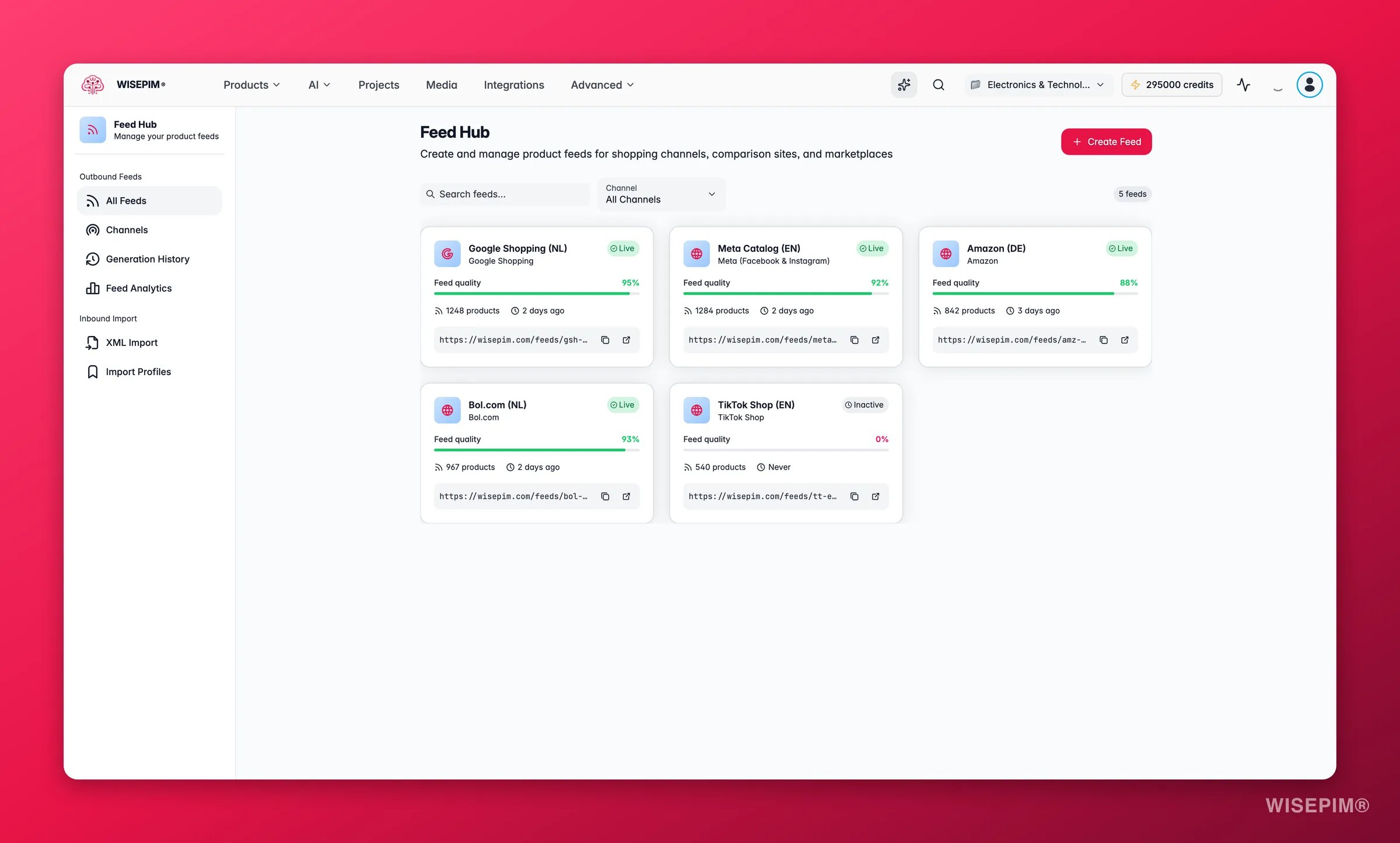
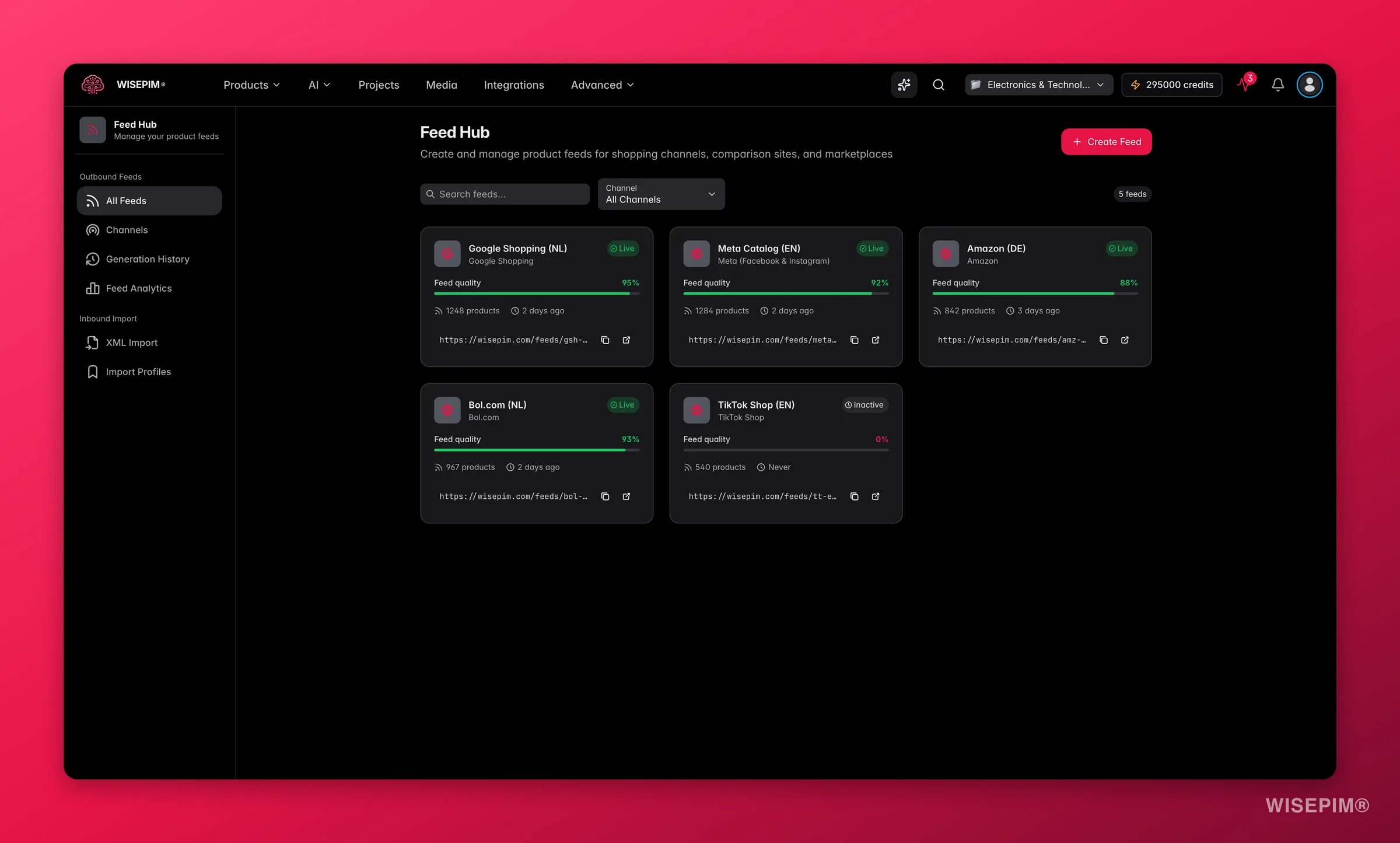 Click **Create Feed** from the Feed Hub overview. The two-step wizard walks you through:
1. **Choose a channel**: pick from the built-in channel presets (see below). WISEPIM sets sensible defaults so your feed works right away.
2. **Configure the basics**: give the feed a name, set the product language and currency, and choose a refresh strategy. You can fine-tune mappings, filters, and rules at any time after.
Selling in multiple languages? Create one feed per language. Most channels expect a separate URL per market, and it keeps each feed lean.
## Available channels
Feed Hub ships with built-in presets for a wide range of channels:
**Shopping engines and marketplaces**
* **Google Shopping**: Google Merchant Center product feed for Shopping ads and free listings
* **Meta (Facebook and Instagram)**: Facebook and Instagram Commerce product catalog feed
* **Bing Shopping**: Microsoft Merchant Center product feed for Bing Shopping
* **TikTok Shop**: TikTok catalog for shopping ads and in-app commerce
* **Bol.com**: Dutch marketplace (coming soon)
**AI shopping**
* **ChatGPT Shopping**: discoverable in ChatGPT via OpenAI's Agentic Commerce Protocol
* **Microsoft Copilot**: reaches Copilot.com, Bing, MSN, and Edge via Universal Commerce Protocol
* **Perplexity**: discoverable in Perplexity AI's shopping recommendations
**Price comparison sites**
* **Idealo**: leading European price comparison platform
* **Beslist**: Netherlands' largest price comparison platform
* **Vergelijk**: Dutch product and price comparison engine
* **Kieskeurig**: Dutch product review and comparison platform
* **Kelkoo**: European shopping comparison engine
* **PriceRunner**: Scandinavian price comparison
* **Prisjakt**: Nordic price comparison
* **Trovaprezzi**: Italy's top price comparison platform
**Affiliate networks**
* **Awin**: global affiliate marketing network
* **Daisycon**: Dutch affiliate marketing network
* **TradeTracker**: European performance marketing and affiliate platform
**Pinterest**: product catalog for shopping pins and ads
Browse the **Channels** section in Feed Hub to see what each channel requires and how many fields are needed.
## Product scope
By default, all active products in your project are included in a feed. Use **Product Scope** to narrow it down:
* **Categories**: select one or more product categories
* **Product Families**: filter by product family
* **Include out-of-stock products**: toggle this off to automatically exclude products without available stock
The scope panel shows a live product count so you know exactly what will end up in the feed.
## Filter rules
Filter Rules let you automatically exclude products that don't meet your quality bar. Rules are applied on top of the product scope. Available rule types:
| Rule | What it does |
| ------------------------------- | ---------------------------------------------------- |
| Exclude out-of-stock products | Keeps only products with available stock |
| Exclude products without price | Removes products with no price set |
| Exclude products without images | Removes products with no image |
| Exclude low quality products | Removes products below a quality score threshold |
| Exclude short titles | Removes products whose title is too short |
| Exclude short descriptions | Removes products whose description is too short |
| Custom field filter | Filter by any product field with your own conditions |
Use the **Preview** button to see how many products would be included or excluded before saving your rules.
## Field mappings
Field Mappings connect your product data to the fields a channel expects. Each channel has required, recommended, and optional fields.
For each channel field, you can set the source to:
* **Product Field**: map directly to a standard product field (title, description, price, etc.)
* **Attribute**: map to a custom product attribute
* **Template String**: compose a value using multiple fields, for example `` `{{brand}} {{name}} - {{color}}` ``
* **Static Value**: set a fixed text that applies to all products
* **Computed**: use a dynamically calculated value
You can also add a **fallback** value for any field. If the primary source is empty, the fallback is used instead.
### Auto-mapping
Click **Auto-map** to have WISEPIM suggest mappings based on matching field names. Click **AI Auto-map** to let AI match your product fields to the channel's requirements automatically. This is useful when field names don't match up exactly.
## Feed quality
After generating a feed, the **Feed Quality** panel scores how well your feed is set up. The score is broken down across six dimensions:
* **Required Fields**: are all mandatory channel fields mapped?
* **Recommended Fields**: how many of the channel's recommended fields are filled?
* **Title Quality**: are titles descriptive and within the channel's length requirements?
* **Product Completeness**: how complete are your product records overall?
* **Image Coverage**: what share of products have at least one image?
* **GTIN/EAN Coverage**: what share of products have a valid GTIN or EAN?
Scores run from Poor to Excellent, with concrete suggestions for what to fix. Click **Recalculate** to refresh the score after making changes.
## Feed validation
**Feed Validation** checks whether each individual product meets the channel's field requirements. Click **Validate** to run a check. You'll see a list of errors and warnings by product, so you can fix issues before the channel rejects your feed.
## AI optimization
The **AI Optimization** panel gives you three tools to improve your feed automatically:
* **Optimize Titles**: AI generates better titles for every product in the feed, tailored to what the channel expects
* **Optimize Descriptions**: AI rewrites product descriptions to be more complete and channel-appropriate
* **AI Audit**: AI reviews your feed setup and surfaces quick wins, including issues to fix and opportunities to improve coverage and quality
* **Suggest Schedule**: AI recommends when to refresh your feed based on when the channel typically fetches it
## Feed settings and refresh strategy
Each feed has three refresh strategies:
* **Manual**: you trigger regeneration yourself
* **On change**: the feed regenerates automatically whenever a product is updated
* **Scheduled**: the feed regenerates on a fixed schedule (hourly, daily, weekly, monthly, or a custom interval)
You can also set the product language and currency per feed, which is useful when you run separate feeds for different markets.
## Generation history
**Generation History** tracks every time a feed was generated. For each run you can see the version number, timestamp, number of products, file size, and duration. Select any two versions and click **Compare** to see a side-by-side diff. This is useful for spotting unexpected changes.
## Feed analytics
**Feed Analytics** shows how external platforms are accessing your feeds:
* **Total Fetches**: how many times the feed URL has been requested
* **Unique Platforms**: how many distinct platforms are fetching it
* **Peak Hours**: when fetches typically happen
* **Cache Hit Rate**: how often the cached version was served
* **Platform Breakdown**: which platforms are fetching and how often
* **Access Timeline**: fetch activity over time
* **Quality Score Trend**: how your feed quality score has changed across generations
## XML import
Feed Hub also supports importing products from external XML feeds. Go to **XML Import**, upload a file or paste a URL, and WISEPIM analyzes the XML structure and suggests field mappings automatically using AI. You can save a completed mapping as an **Import Profile** for reuse or schedule it to run automatically.
## Related
Export your catalog to CSV or Excel for one-off data tasks.
Manage your product catalog, attributes, and categories.
Click **Create Feed** from the Feed Hub overview. The two-step wizard walks you through:
1. **Choose a channel**: pick from the built-in channel presets (see below). WISEPIM sets sensible defaults so your feed works right away.
2. **Configure the basics**: give the feed a name, set the product language and currency, and choose a refresh strategy. You can fine-tune mappings, filters, and rules at any time after.
Selling in multiple languages? Create one feed per language. Most channels expect a separate URL per market, and it keeps each feed lean.
## Available channels
Feed Hub ships with built-in presets for a wide range of channels:
**Shopping engines and marketplaces**
* **Google Shopping**: Google Merchant Center product feed for Shopping ads and free listings
* **Meta (Facebook and Instagram)**: Facebook and Instagram Commerce product catalog feed
* **Bing Shopping**: Microsoft Merchant Center product feed for Bing Shopping
* **TikTok Shop**: TikTok catalog for shopping ads and in-app commerce
* **Bol.com**: Dutch marketplace (coming soon)
**AI shopping**
* **ChatGPT Shopping**: discoverable in ChatGPT via OpenAI's Agentic Commerce Protocol
* **Microsoft Copilot**: reaches Copilot.com, Bing, MSN, and Edge via Universal Commerce Protocol
* **Perplexity**: discoverable in Perplexity AI's shopping recommendations
**Price comparison sites**
* **Idealo**: leading European price comparison platform
* **Beslist**: Netherlands' largest price comparison platform
* **Vergelijk**: Dutch product and price comparison engine
* **Kieskeurig**: Dutch product review and comparison platform
* **Kelkoo**: European shopping comparison engine
* **PriceRunner**: Scandinavian price comparison
* **Prisjakt**: Nordic price comparison
* **Trovaprezzi**: Italy's top price comparison platform
**Affiliate networks**
* **Awin**: global affiliate marketing network
* **Daisycon**: Dutch affiliate marketing network
* **TradeTracker**: European performance marketing and affiliate platform
**Pinterest**: product catalog for shopping pins and ads
Browse the **Channels** section in Feed Hub to see what each channel requires and how many fields are needed.
## Product scope
By default, all active products in your project are included in a feed. Use **Product Scope** to narrow it down:
* **Categories**: select one or more product categories
* **Product Families**: filter by product family
* **Include out-of-stock products**: toggle this off to automatically exclude products without available stock
The scope panel shows a live product count so you know exactly what will end up in the feed.
## Filter rules
Filter Rules let you automatically exclude products that don't meet your quality bar. Rules are applied on top of the product scope. Available rule types:
| Rule | What it does |
| ------------------------------- | ---------------------------------------------------- |
| Exclude out-of-stock products | Keeps only products with available stock |
| Exclude products without price | Removes products with no price set |
| Exclude products without images | Removes products with no image |
| Exclude low quality products | Removes products below a quality score threshold |
| Exclude short titles | Removes products whose title is too short |
| Exclude short descriptions | Removes products whose description is too short |
| Custom field filter | Filter by any product field with your own conditions |
Use the **Preview** button to see how many products would be included or excluded before saving your rules.
## Field mappings
Field Mappings connect your product data to the fields a channel expects. Each channel has required, recommended, and optional fields.
For each channel field, you can set the source to:
* **Product Field**: map directly to a standard product field (title, description, price, etc.)
* **Attribute**: map to a custom product attribute
* **Template String**: compose a value using multiple fields, for example `` `{{brand}} {{name}} - {{color}}` ``
* **Static Value**: set a fixed text that applies to all products
* **Computed**: use a dynamically calculated value
You can also add a **fallback** value for any field. If the primary source is empty, the fallback is used instead.
### Auto-mapping
Click **Auto-map** to have WISEPIM suggest mappings based on matching field names. Click **AI Auto-map** to let AI match your product fields to the channel's requirements automatically. This is useful when field names don't match up exactly.
## Feed quality
After generating a feed, the **Feed Quality** panel scores how well your feed is set up. The score is broken down across six dimensions:
* **Required Fields**: are all mandatory channel fields mapped?
* **Recommended Fields**: how many of the channel's recommended fields are filled?
* **Title Quality**: are titles descriptive and within the channel's length requirements?
* **Product Completeness**: how complete are your product records overall?
* **Image Coverage**: what share of products have at least one image?
* **GTIN/EAN Coverage**: what share of products have a valid GTIN or EAN?
Scores run from Poor to Excellent, with concrete suggestions for what to fix. Click **Recalculate** to refresh the score after making changes.
## Feed validation
**Feed Validation** checks whether each individual product meets the channel's field requirements. Click **Validate** to run a check. You'll see a list of errors and warnings by product, so you can fix issues before the channel rejects your feed.
## AI optimization
The **AI Optimization** panel gives you three tools to improve your feed automatically:
* **Optimize Titles**: AI generates better titles for every product in the feed, tailored to what the channel expects
* **Optimize Descriptions**: AI rewrites product descriptions to be more complete and channel-appropriate
* **AI Audit**: AI reviews your feed setup and surfaces quick wins, including issues to fix and opportunities to improve coverage and quality
* **Suggest Schedule**: AI recommends when to refresh your feed based on when the channel typically fetches it
## Feed settings and refresh strategy
Each feed has three refresh strategies:
* **Manual**: you trigger regeneration yourself
* **On change**: the feed regenerates automatically whenever a product is updated
* **Scheduled**: the feed regenerates on a fixed schedule (hourly, daily, weekly, monthly, or a custom interval)
You can also set the product language and currency per feed, which is useful when you run separate feeds for different markets.
## Generation history
**Generation History** tracks every time a feed was generated. For each run you can see the version number, timestamp, number of products, file size, and duration. Select any two versions and click **Compare** to see a side-by-side diff. This is useful for spotting unexpected changes.
## Feed analytics
**Feed Analytics** shows how external platforms are accessing your feeds:
* **Total Fetches**: how many times the feed URL has been requested
* **Unique Platforms**: how many distinct platforms are fetching it
* **Peak Hours**: when fetches typically happen
* **Cache Hit Rate**: how often the cached version was served
* **Platform Breakdown**: which platforms are fetching and how often
* **Access Timeline**: fetch activity over time
* **Quality Score Trend**: how your feed quality score has changed across generations
## XML import
Feed Hub also supports importing products from external XML feeds. Go to **XML Import**, upload a file or paste a URL, and WISEPIM analyzes the XML structure and suggests field mappings automatically using AI. You can save a completed mapping as an **Import Profile** for reuse or schedule it to run automatically.
## Related
Export your catalog to CSV or Excel for one-off data tasks.
Manage your product catalog, attributes, and categories.