> ## Documentation Index
> Fetch the complete documentation index at: https://docs.wisepim.com/llms.txt
> Use this file to discover all available pages before exploring further.
# Exporting Products
> Push enriched product data back to your store, send it to a marketplace or data platform, copy it to another project, or download it as CSV or Excel. Pick the exact columns and languages, save the setup, and only send what changed.
You've imported your products, enriched them with AI, and now they're ready to go to work. Exporting sends your improved product data wherever it needs to be: back to your store, out to a marketplace, into a data platform, across to another project, or down to your computer as a file.
The payoff of a good export is simple: your channels show accurate, complete product data without you editing each platform by hand.
## Export destinations
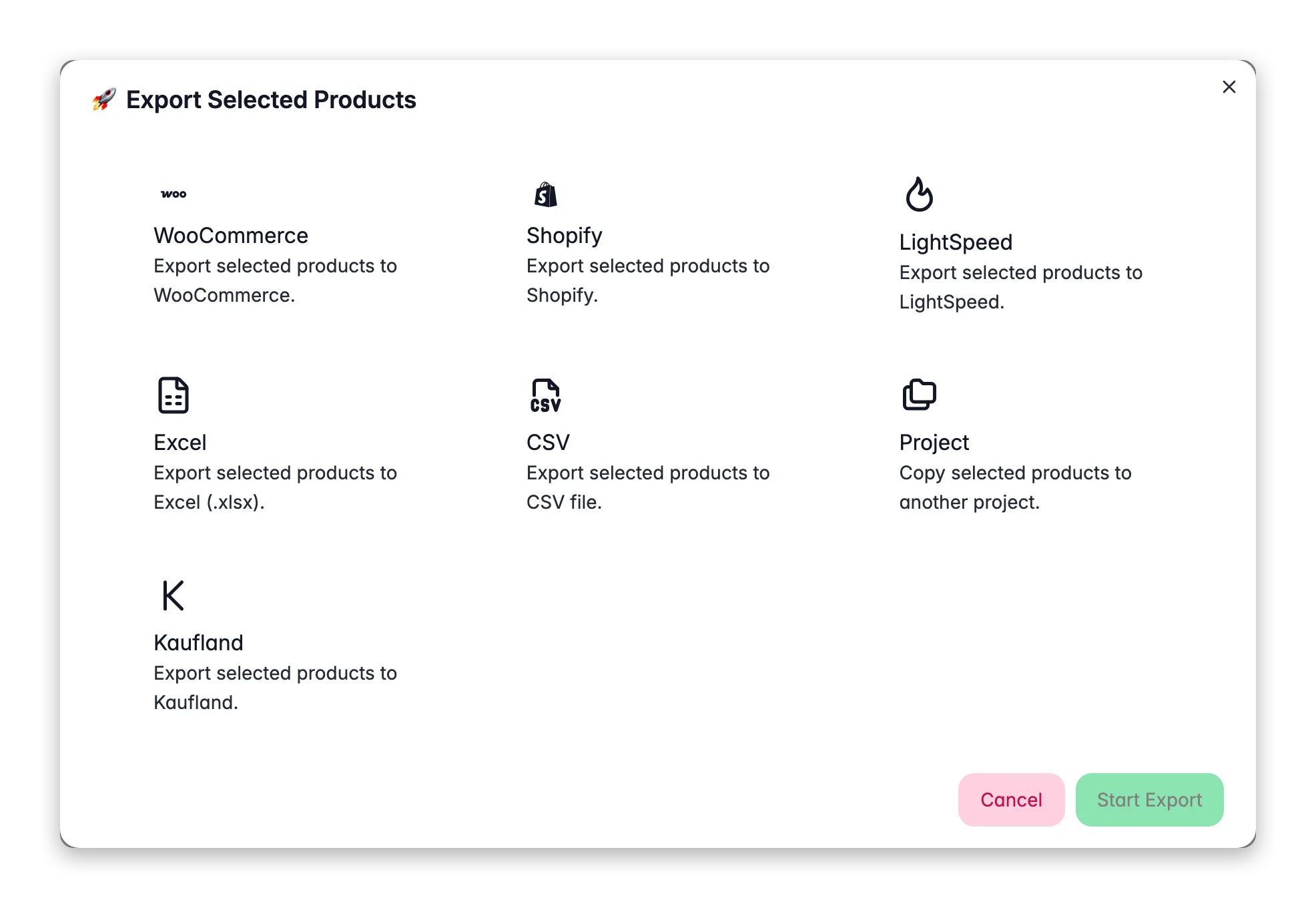
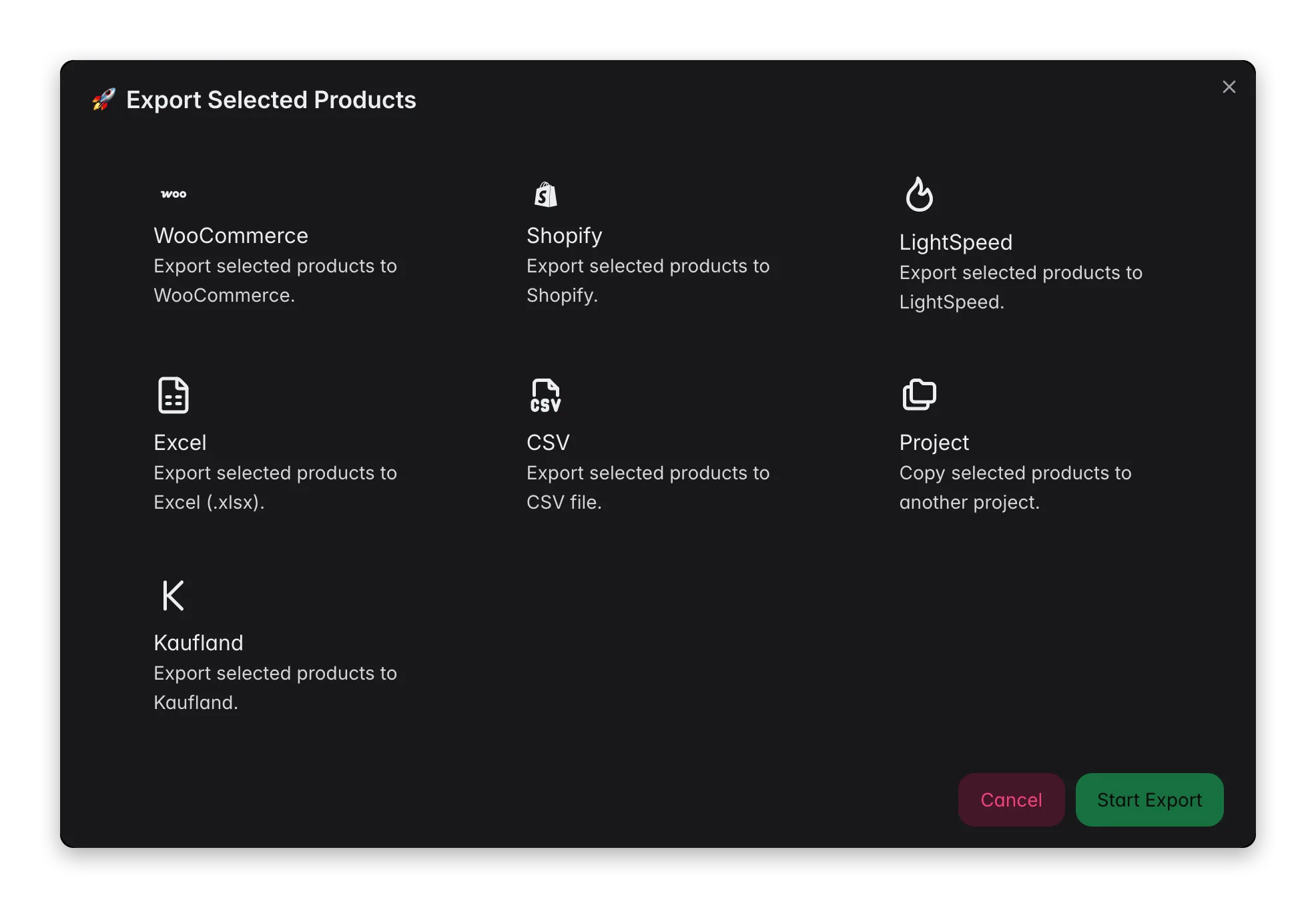 * **Files**: CSV or Excel, to download for backup, migration, or use in another tool.
* **E-commerce platforms**: any connected integration that supports export, for example Shopify, WooCommerce, Magento, Lightspeed, Lightspeed E-Series (Ecwid), and CCV Shop.
* **Marketplaces and shopping**: Google Merchant Center (Google Shopping), and more as you connect them.
* **Data platforms**: Databricks, to push product data into your analytics stack.
* **Another project**: copy selected products straight into one of your other WISEPIM projects.
File exports are always available. Every other destination shows up automatically once you connect the matching integration. Set yours up on the [Integrations](/en/integrations/supported-platforms) page first.
## Choose what to export
You decide which products go, in the same way you work on the Products page:
| Method | How |
| --------------------- | ------------------------------------------------------------------------------------------- |
| **Selected products** | Check the boxes next to specific products, then click Export |
| **Filtered products** | [Filter](/en/products/filtering-products) your catalog, then export everything that matches |
| **All products** | Select nothing, and the export covers your whole catalog |
## Shape the export
The export modal is more than a download button. These options control exactly what lands in the export, which is the difference between a messy dump and a channel-ready file.
| Option | What it does |
| -------------------- | ------------------------------------------------------------------------------------------------------------------------------------------------------------------------------------------ |
| **Export templates** | Save a destination plus its column and language setup as a named template, then reuse it in one click. Build "Shopify export" or "Price list" once and never reconfigure it. |
| **Columns** | For CSV and Excel, pick exactly which fields to include and in what order. Send only what the receiving system needs. |
| **Languages** | Choose which language columns to export. Send one market its language, or everything at once. |
| **Units of measure** | Decide how unit values appear: value and unit together (`100 mm`), in separate columns, or value only. See [Units of measure](/en/products/units-of-measure). |
| **Skip unchanged** | On by default for platform exports. Products that haven't changed since the last export to that platform are skipped, so syncs are faster and you don't touch listings that don't need it. |
Save an export template for every recurring job. The next monthly price update or channel sync becomes a single click with the right columns, languages, and settings already chosen.
## Export to a platform
On the Products page, select products or apply a filter.
Open the **Export** button in the toolbar.
Choose the platform (only connected integrations are shown), then set the columns, languages, and skip-unchanged option, or load a saved template.
WISEPIM prepares your data, connects to the platform, and pushes it over in the background.
Exports run as background jobs. You don't wait on the page: WISEPIM hands the export to the **[Process Tracker](/en/other-features/process-tracker)**, where you can watch progress and see the result. You get a notification when it finishes.
## Export to a file
Need your data as a file, for a backup, a migration, or another tool?
Pick the format you want.
Select exactly which fields and languages to include, or apply a saved template.
The export runs and the file is ready to download. Larger catalogs generate as a background job in the Process Tracker, so give big files a moment.
* **CSV**: universal, works with everything. UTF-8 encoded for international characters.
* **Excel**: a formatted spreadsheet with proper column types, ready for analysis or sharing.
## How long does it take?
File exports are fast because there's no platform rate limiting. Platform exports depend on how quickly the target accepts requests, and each platform throttles differently.
| Catalog size | File export | Platform export |
| ---------------------- | -------------- | ------------------- |
| Under 100 products | A few seconds | Under a minute |
| 100–1,000 products | Under a minute | 5–15 minutes |
| 1,000–10,000 products | A few minutes | 15 minutes – 1 hour |
| 10,000–50,000 products | A few minutes | 1–4 hours |
Turn on **Skip unchanged** for routine platform syncs. After the first full export, later runs only send the products that actually changed, which is far faster than re-sending the whole catalog.
## After exporting
1. **Verify on your platform**: log into your store and spot-check a few products.
2. **Check your storefront**: make sure products display correctly to customers.
3. **Review categories**: confirm category assignments carried over.
## Troubleshooting
* Check that your integration is connected on the Integrations page.
* Re-test the connection. API credentials may have expired.
* Confirm your API user has write permissions.
* With **Skip unchanged** on, products that haven't changed since the last export are skipped on purpose. Turn it off to force a full re-export, for example after changing the channel's settings.
* **Shopify**: check API permissions and rate limits.
* **WooCommerce**: confirm the REST API is enabled with write access.
* **Magento**: confirm your API user can create and update products.
* Check your browser's download settings and popup blocker.
* For large catalogs, wait a moment. The file generates as a background job first, then downloads.
Large catalogs and platform rate limits slow things down. For very large exports, split them by category or filter, and turn on Skip unchanged for repeat runs.
## Related
Bring products into WISEPIM from a file or a connected platform.
Improve titles, descriptions, and attributes with AI before you export.
Connect a platform so you can export directly to your store.
Watch the status of running exports and other background jobs.
* **Files**: CSV or Excel, to download for backup, migration, or use in another tool.
* **E-commerce platforms**: any connected integration that supports export, for example Shopify, WooCommerce, Magento, Lightspeed, Lightspeed E-Series (Ecwid), and CCV Shop.
* **Marketplaces and shopping**: Google Merchant Center (Google Shopping), and more as you connect them.
* **Data platforms**: Databricks, to push product data into your analytics stack.
* **Another project**: copy selected products straight into one of your other WISEPIM projects.
File exports are always available. Every other destination shows up automatically once you connect the matching integration. Set yours up on the [Integrations](/en/integrations/supported-platforms) page first.
## Choose what to export
You decide which products go, in the same way you work on the Products page:
| Method | How |
| --------------------- | ------------------------------------------------------------------------------------------- |
| **Selected products** | Check the boxes next to specific products, then click Export |
| **Filtered products** | [Filter](/en/products/filtering-products) your catalog, then export everything that matches |
| **All products** | Select nothing, and the export covers your whole catalog |
## Shape the export
The export modal is more than a download button. These options control exactly what lands in the export, which is the difference between a messy dump and a channel-ready file.
| Option | What it does |
| -------------------- | ------------------------------------------------------------------------------------------------------------------------------------------------------------------------------------------ |
| **Export templates** | Save a destination plus its column and language setup as a named template, then reuse it in one click. Build "Shopify export" or "Price list" once and never reconfigure it. |
| **Columns** | For CSV and Excel, pick exactly which fields to include and in what order. Send only what the receiving system needs. |
| **Languages** | Choose which language columns to export. Send one market its language, or everything at once. |
| **Units of measure** | Decide how unit values appear: value and unit together (`100 mm`), in separate columns, or value only. See [Units of measure](/en/products/units-of-measure). |
| **Skip unchanged** | On by default for platform exports. Products that haven't changed since the last export to that platform are skipped, so syncs are faster and you don't touch listings that don't need it. |
Save an export template for every recurring job. The next monthly price update or channel sync becomes a single click with the right columns, languages, and settings already chosen.
## Export to a platform
On the Products page, select products or apply a filter.
Open the **Export** button in the toolbar.
Choose the platform (only connected integrations are shown), then set the columns, languages, and skip-unchanged option, or load a saved template.
WISEPIM prepares your data, connects to the platform, and pushes it over in the background.
Exports run as background jobs. You don't wait on the page: WISEPIM hands the export to the **[Process Tracker](/en/other-features/process-tracker)**, where you can watch progress and see the result. You get a notification when it finishes.
## Export to a file
Need your data as a file, for a backup, a migration, or another tool?
Pick the format you want.
Select exactly which fields and languages to include, or apply a saved template.
The export runs and the file is ready to download. Larger catalogs generate as a background job in the Process Tracker, so give big files a moment.
* **CSV**: universal, works with everything. UTF-8 encoded for international characters.
* **Excel**: a formatted spreadsheet with proper column types, ready for analysis or sharing.
## How long does it take?
File exports are fast because there's no platform rate limiting. Platform exports depend on how quickly the target accepts requests, and each platform throttles differently.
| Catalog size | File export | Platform export |
| ---------------------- | -------------- | ------------------- |
| Under 100 products | A few seconds | Under a minute |
| 100–1,000 products | Under a minute | 5–15 minutes |
| 1,000–10,000 products | A few minutes | 15 minutes – 1 hour |
| 10,000–50,000 products | A few minutes | 1–4 hours |
Turn on **Skip unchanged** for routine platform syncs. After the first full export, later runs only send the products that actually changed, which is far faster than re-sending the whole catalog.
## After exporting
1. **Verify on your platform**: log into your store and spot-check a few products.
2. **Check your storefront**: make sure products display correctly to customers.
3. **Review categories**: confirm category assignments carried over.
## Troubleshooting
* Check that your integration is connected on the Integrations page.
* Re-test the connection. API credentials may have expired.
* Confirm your API user has write permissions.
* With **Skip unchanged** on, products that haven't changed since the last export are skipped on purpose. Turn it off to force a full re-export, for example after changing the channel's settings.
* **Shopify**: check API permissions and rate limits.
* **WooCommerce**: confirm the REST API is enabled with write access.
* **Magento**: confirm your API user can create and update products.
* Check your browser's download settings and popup blocker.
* For large catalogs, wait a moment. The file generates as a background job first, then downloads.
Large catalogs and platform rate limits slow things down. For very large exports, split them by category or filter, and turn on Skip unchanged for repeat runs.
## Related
Bring products into WISEPIM from a file or a connected platform.
Improve titles, descriptions, and attributes with AI before you export.
Connect a platform so you can export directly to your store.
Watch the status of running exports and other background jobs.