> ## Documentation Index
> Fetch the complete documentation index at: https://docs.wisepim.com/llms.txt
> Use this file to discover all available pages before exploring further.
# Command Menu
> Navigate WISEPIM instantly. Jump to any page, search products, run calculations, and trigger page actions. Open with ⌘K or the search icon.
The Command Menu is the fastest way to get around WISEPIM. Instead of clicking through menus, open it and type what you need. Jump to a page, find a product, or run a quick calculation, all from one search box.
## Opening the Command Menu
 There are two ways to open the Command Menu:
* **Keyboard shortcut**: press `⌘K` on Mac or `Ctrl+K` on Windows/Linux
* **Search icon**: click the search icon in the top-right corner of the screen
Press `Esc` or click outside the menu to close it.
## Navigating pages
Start typing the name of any page (products, analytics, settings, prompt lab) and the Command Menu instantly filters results. Press `Enter` to jump there.
The menu includes every destination in WISEPIM: product management, analytics dashboards, AI tools, automations, quality guard, settings, and more.
Use `↑` and `↓` arrow keys to move through results, or press `⌥1` through `⌥0` (Option + number) to jump directly to the first 10 items.
## Searching products
Type a product name, SKU, or keyword to search your catalog directly from the Command Menu. Select a result to open that product immediately.
## Page actions
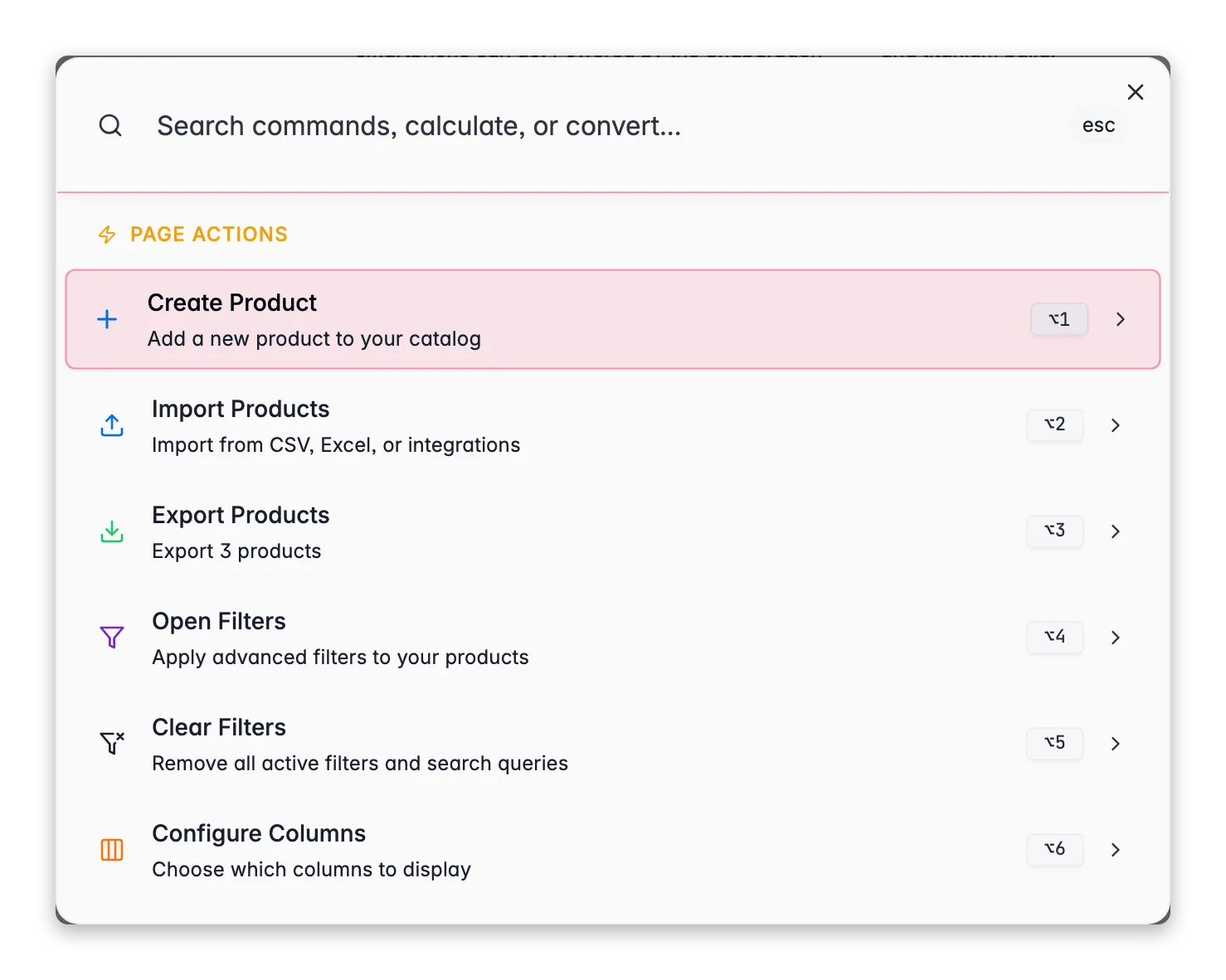
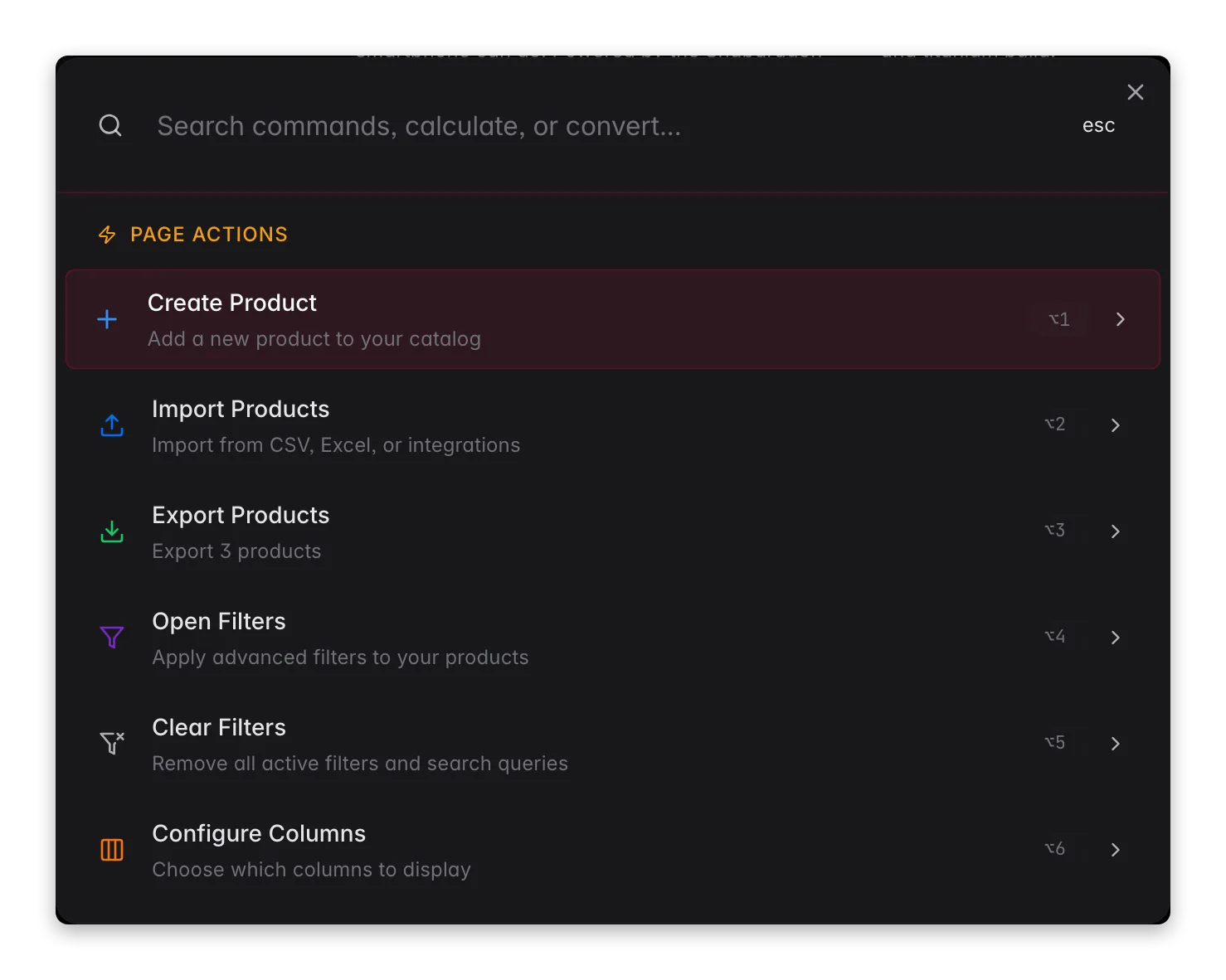
On certain pages, you'll see **Page Actions** at the top of the Command Menu. These are shortcuts for things you can do right here, on the page you're viewing. They appear automatically and change from page to page. They're searchable too: type what you want to do, and matching actions rise to the top.
### Products
The products page has the richest set of page actions. Without a selection, you can:
* **Create Product**: add a new product to your catalog
* **Import Products**: import from CSV, Excel, or integrations
* **Export Products**: export products to CSV or Excel
* **Open Filters**: apply advanced filters to your products
* **Clear Filters**: remove all active filters and search queries
* **Configure Columns**: choose which columns to display
Your **saved filter sets** and **saved column layouts** also appear as page actions, so you can switch between views instantly.
When you select products, additional actions appear:
* **Bulk Edit**: edit selected products in bulk
* **Enrich with AI**: enrich selected products with AI-generated content
* **Enrich: Titles**, **Descriptions**, **Short Descriptions**, **SEO Meta**, **Attributes**: enrich specific fields
* **AI Categorization**: auto-categorize products using AI
* **Translate Products**: translate product content to other languages
* **Web Research**: research product info from the web
* **Select All Products**: extend selection across all pages
* **Deselect All**: clear your selection
### Other pages with page actions
Load a product to test with, load or save prompts, and use the AI Prompt Wizard to generate optimized prompts.
Create a new prompt or use the AI Prompt Wizard.
Start a new chat, load a prompt, enhance your prompt with AI, or copy the last response.
Save, test run, export/import workflows, add suggested nodes, browse templates, or use the AI Designer.
Create a new automation.
Jump directly to editing any knowledge section: brand identity, target audience, value proposition, brand voice, content requirements, or visual guidelines.
Create a new attribute, import attributes from CSV/JSON, or use the AI Data Model Architect to generate attributes.
Create a new category or import categories from CSV/JSON.
Create a new project.
Export a data quality report.
## Favorites
Hover over any navigation item in the Command Menu and click the **star icon** to favorite it. Favorited items are pinned to the top of the menu for quick access.
Favorites persist across sessions, so your most-used pages are always one keystroke away.
## Built-in calculator
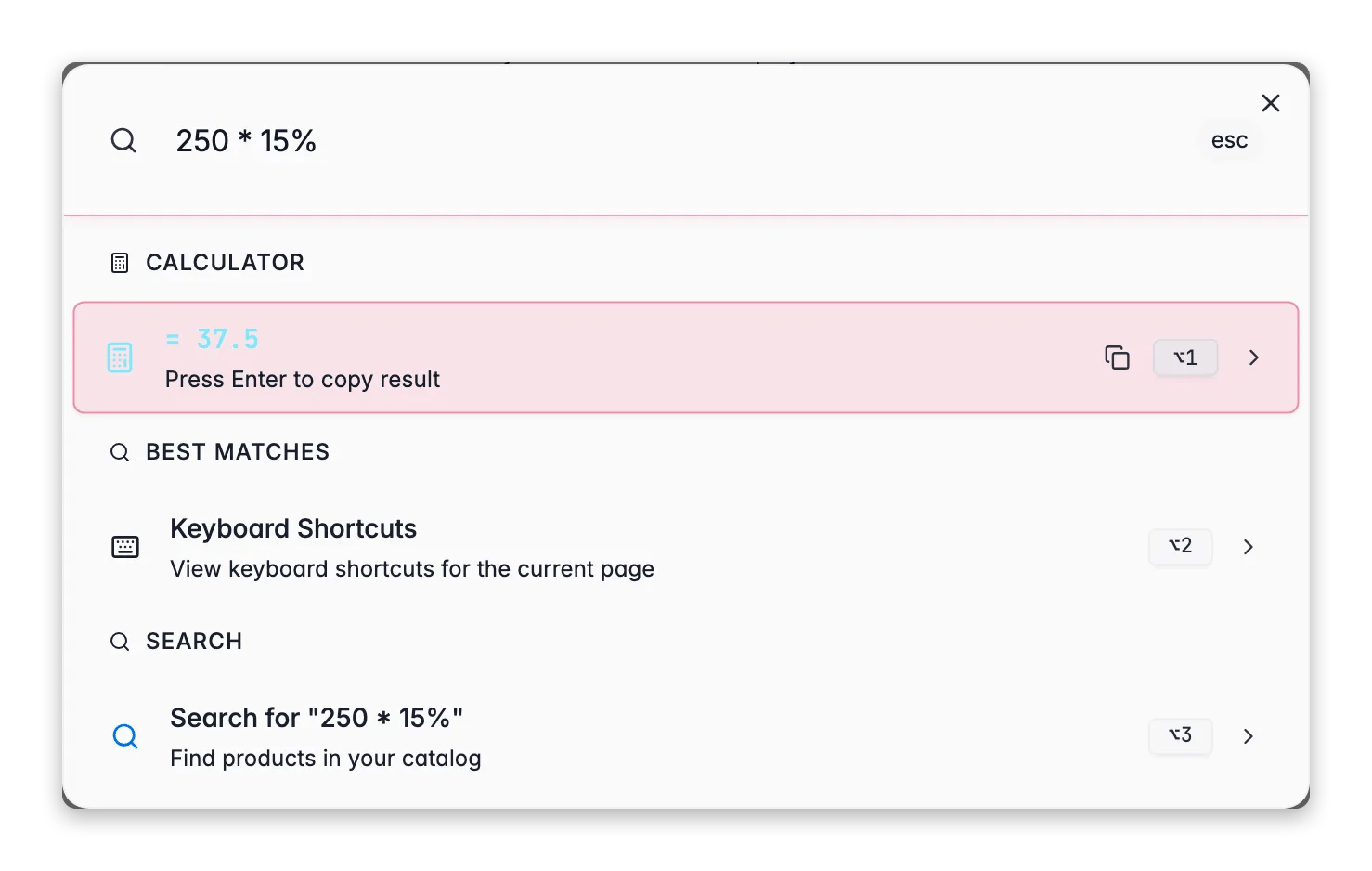
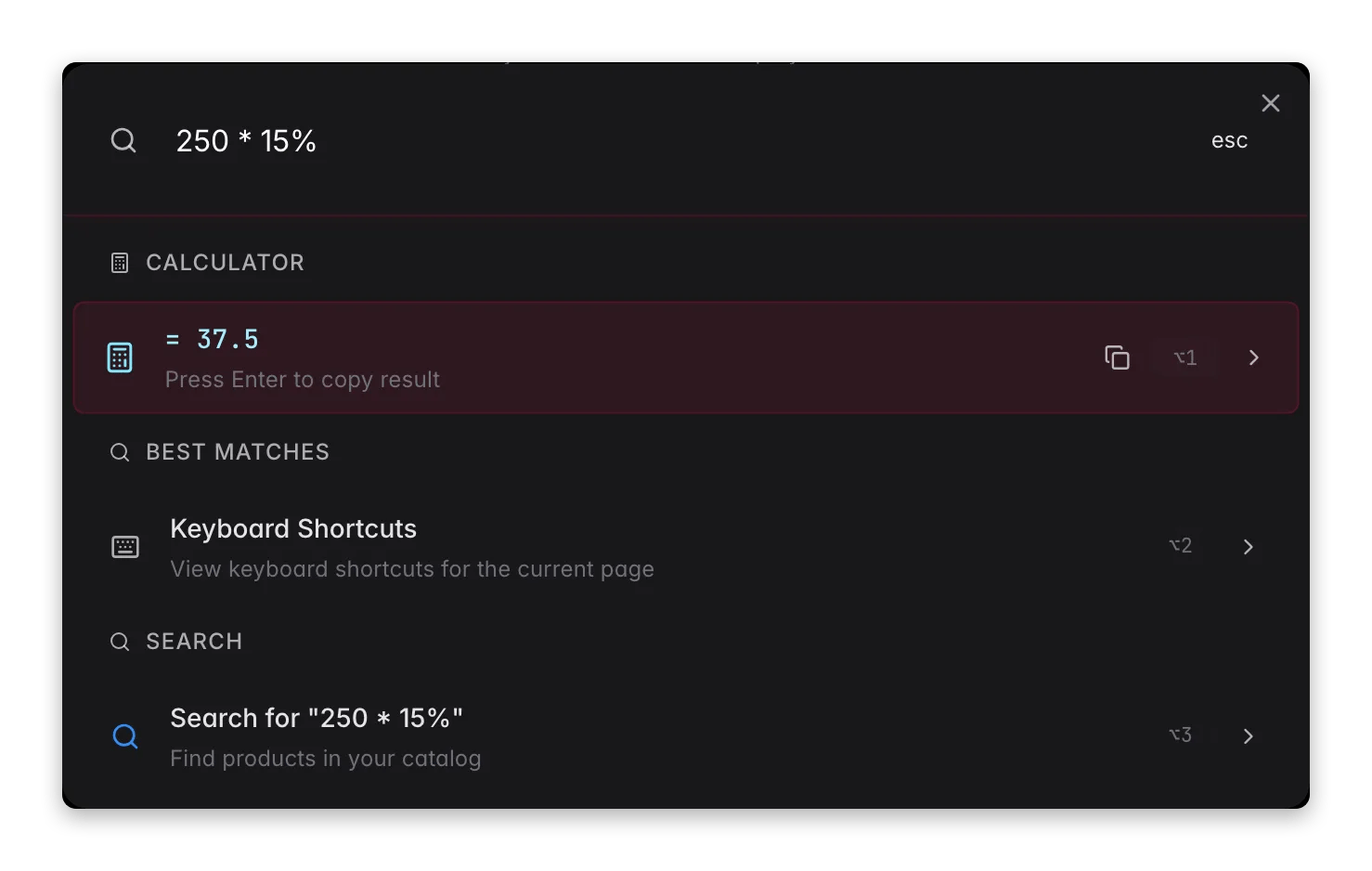
The Command Menu doubles as a calculator. Just type a math expression and see the result instantly. Press `Enter` to copy it to your clipboard.
There are two ways to open the Command Menu:
* **Keyboard shortcut**: press `⌘K` on Mac or `Ctrl+K` on Windows/Linux
* **Search icon**: click the search icon in the top-right corner of the screen
Press `Esc` or click outside the menu to close it.
## Navigating pages
Start typing the name of any page (products, analytics, settings, prompt lab) and the Command Menu instantly filters results. Press `Enter` to jump there.
The menu includes every destination in WISEPIM: product management, analytics dashboards, AI tools, automations, quality guard, settings, and more.
Use `↑` and `↓` arrow keys to move through results, or press `⌥1` through `⌥0` (Option + number) to jump directly to the first 10 items.
## Searching products
Type a product name, SKU, or keyword to search your catalog directly from the Command Menu. Select a result to open that product immediately.
## Page actions
On certain pages, you'll see **Page Actions** at the top of the Command Menu. These are shortcuts for things you can do right here, on the page you're viewing. They appear automatically and change from page to page. They're searchable too: type what you want to do, and matching actions rise to the top.
### Products
The products page has the richest set of page actions. Without a selection, you can:
* **Create Product**: add a new product to your catalog
* **Import Products**: import from CSV, Excel, or integrations
* **Export Products**: export products to CSV or Excel
* **Open Filters**: apply advanced filters to your products
* **Clear Filters**: remove all active filters and search queries
* **Configure Columns**: choose which columns to display
Your **saved filter sets** and **saved column layouts** also appear as page actions, so you can switch between views instantly.
When you select products, additional actions appear:
* **Bulk Edit**: edit selected products in bulk
* **Enrich with AI**: enrich selected products with AI-generated content
* **Enrich: Titles**, **Descriptions**, **Short Descriptions**, **SEO Meta**, **Attributes**: enrich specific fields
* **AI Categorization**: auto-categorize products using AI
* **Translate Products**: translate product content to other languages
* **Web Research**: research product info from the web
* **Select All Products**: extend selection across all pages
* **Deselect All**: clear your selection
### Other pages with page actions
Load a product to test with, load or save prompts, and use the AI Prompt Wizard to generate optimized prompts.
Create a new prompt or use the AI Prompt Wizard.
Start a new chat, load a prompt, enhance your prompt with AI, or copy the last response.
Save, test run, export/import workflows, add suggested nodes, browse templates, or use the AI Designer.
Create a new automation.
Jump directly to editing any knowledge section: brand identity, target audience, value proposition, brand voice, content requirements, or visual guidelines.
Create a new attribute, import attributes from CSV/JSON, or use the AI Data Model Architect to generate attributes.
Create a new category or import categories from CSV/JSON.
Create a new project.
Export a data quality report.
## Favorites
Hover over any navigation item in the Command Menu and click the **star icon** to favorite it. Favorited items are pinned to the top of the menu for quick access.
Favorites persist across sessions, so your most-used pages are always one keystroke away.
## Built-in calculator
The Command Menu doubles as a calculator. Just type a math expression and see the result instantly. Press `Enter` to copy it to your clipboard.
 ### Math expressions
Type any arithmetic expression using `+`, `-`, `*`, `/`, `%`, `^` (power), and parentheses.
| Expression | Result |
| ---------------- | ------ |
| `24 * 1.21` | 29.04 |
| `(100 + 50) / 3` | 50 |
| `2^10` | 1024 |
| `250 * 15%` | 37.5 |
### Unit conversions
Convert between units by typing the value, unit, and target, for example `5cm to inches` or `10kg in pounds`.
Supported categories:
| Category | Units |
| --------------- | ------------------------------ |
| **Length** | m, km, cm, mm, mi, ft, in, yd |
| **Weight** | g, kg, mg, lb, oz |
| **Temperature** | °C, °F, K |
| **Volume** | L, mL, gal, qt, pt, cup, fl oz |
| **Time** | s, ms, min, h, d, wk |
| **Data** | B, KB, MB, GB, TB |
### Currency conversions
Convert between 20+ currencies by typing the amount and currency code, for example `100usd to eur`, `$50 in gbp`, or `100 eur`.
Supported currencies include USD, EUR, GBP, JPY, CNY, CAD, AUD, CHF, INR, KRW, MXN, BRL, SEK, NOK, DKK, PLN, TRY, ZAR, HKD, SGD, NZD, and more.
## Opening documentation
On any page in WISEPIM, open the Command Menu and select **Documentation**. This takes you straight to the relevant documentation for the feature you're currently using, with no need to search for it manually.
### Math expressions
Type any arithmetic expression using `+`, `-`, `*`, `/`, `%`, `^` (power), and parentheses.
| Expression | Result |
| ---------------- | ------ |
| `24 * 1.21` | 29.04 |
| `(100 + 50) / 3` | 50 |
| `2^10` | 1024 |
| `250 * 15%` | 37.5 |
### Unit conversions
Convert between units by typing the value, unit, and target, for example `5cm to inches` or `10kg in pounds`.
Supported categories:
| Category | Units |
| --------------- | ------------------------------ |
| **Length** | m, km, cm, mm, mi, ft, in, yd |
| **Weight** | g, kg, mg, lb, oz |
| **Temperature** | °C, °F, K |
| **Volume** | L, mL, gal, qt, pt, cup, fl oz |
| **Time** | s, ms, min, h, d, wk |
| **Data** | B, KB, MB, GB, TB |
### Currency conversions
Convert between 20+ currencies by typing the amount and currency code, for example `100usd to eur`, `$50 in gbp`, or `100 eur`.
Supported currencies include USD, EUR, GBP, JPY, CNY, CAD, AUD, CHF, INR, KRW, MXN, BRL, SEK, NOK, DKK, PLN, TRY, ZAR, HKD, SGD, NZD, and more.
## Opening documentation
On any page in WISEPIM, open the Command Menu and select **Documentation**. This takes you straight to the relevant documentation for the feature you're currently using, with no need to search for it manually.
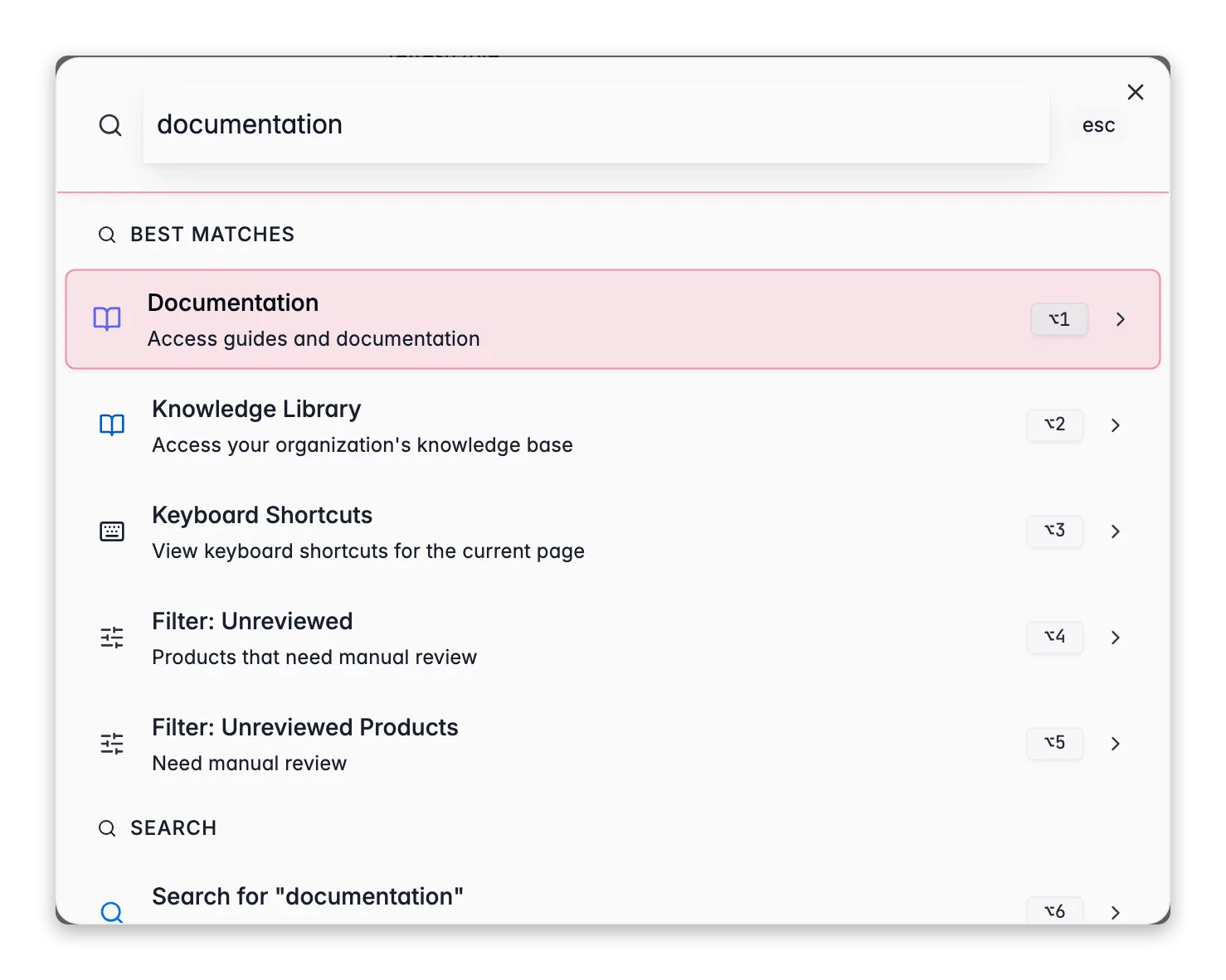
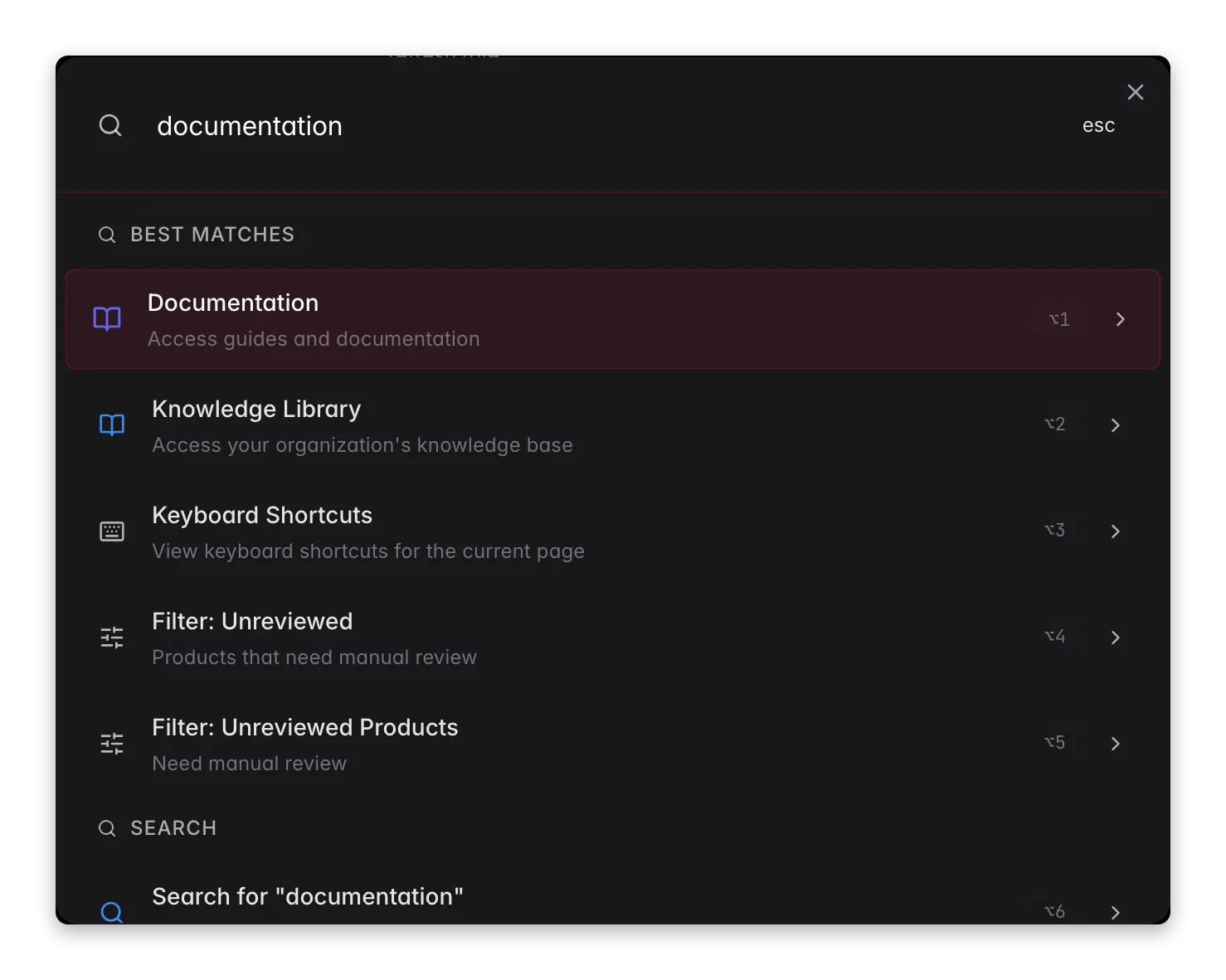 The link is **context-aware** in two ways:
* **It follows your page.** Open it on the products page and you land on product management; open it in analytics and you land on the analytics docs. Every major page maps to its matching guide.
* **It follows your language.** The docs open in the same language as your WISEPIM interface (English, Dutch, German, or Spanish), so you always read help in the language you work in.
If a page doesn't have a dedicated guide yet, the link falls back to the documentation home.
The same **Documentation** shortcut also lives in the [account menu](#documentation-from-the-account-menu) (your avatar, top-right). Both open the page you're currently on, so use whichever is closer to hand.
### Documentation from the account menu
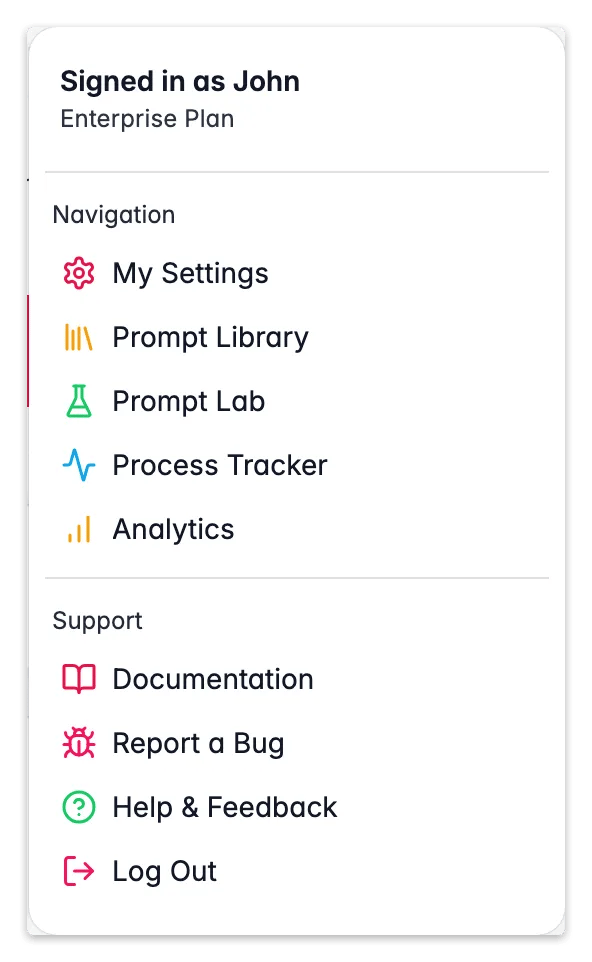
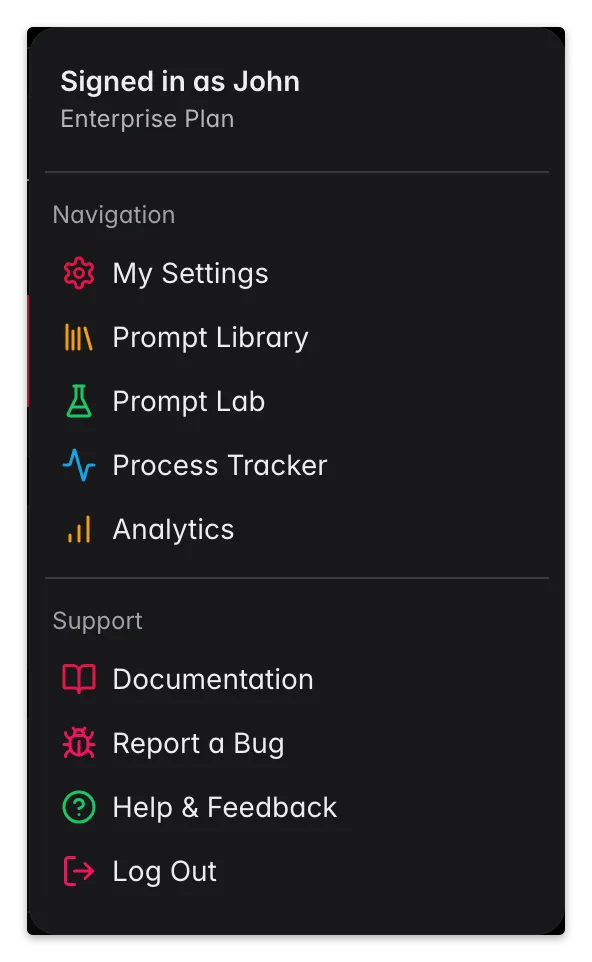
You don't have to open the Command Menu to reach contextual help. Click your **avatar** in the top-right corner and choose **Documentation** under *Support*. It behaves exactly like the Command Menu action: it opens the guide for the page you're on, in your interface language.
The link is **context-aware** in two ways:
* **It follows your page.** Open it on the products page and you land on product management; open it in analytics and you land on the analytics docs. Every major page maps to its matching guide.
* **It follows your language.** The docs open in the same language as your WISEPIM interface (English, Dutch, German, or Spanish), so you always read help in the language you work in.
If a page doesn't have a dedicated guide yet, the link falls back to the documentation home.
The same **Documentation** shortcut also lives in the [account menu](#documentation-from-the-account-menu) (your avatar, top-right). Both open the page you're currently on, so use whichever is closer to hand.
### Documentation from the account menu
You don't have to open the Command Menu to reach contextual help. Click your **avatar** in the top-right corner and choose **Documentation** under *Support*. It behaves exactly like the Command Menu action: it opens the guide for the page you're on, in your interface language.
 ## Keyboard shortcuts reference
| Action | Shortcut |
| ------------------------------------ | ----------------- |
| **Open the Command Menu** | `⌘K` / `Ctrl+K` |
| **Close the Command Menu** | `Esc` |
| **Navigate results** | `↑` / `↓` |
| **Select an item** | `Enter` |
| **Quick select items 1–10** | `⌥1` through `⌥0` |
| **Open keyboard shortcuts overview** | `?` or `Shift+/` |
Press `?` or `Shift+/` anywhere in WISEPIM to open the full keyboard shortcuts overview, a quick reference for all available shortcuts across the app.
## Easter eggs
Try typing `party`, `coffee`, or `42` into the Command Menu. We won't spoil what happens.
## Related
Search, filter, and select products you found through the Command Menu.
Run a bulk action on a selection straight from the products page.
Trigger AI enrichment for selected products from the page actions.
Build and test prompts, one of the page-action shortcuts you can jump to.
## Keyboard shortcuts reference
| Action | Shortcut |
| ------------------------------------ | ----------------- |
| **Open the Command Menu** | `⌘K` / `Ctrl+K` |
| **Close the Command Menu** | `Esc` |
| **Navigate results** | `↑` / `↓` |
| **Select an item** | `Enter` |
| **Quick select items 1–10** | `⌥1` through `⌥0` |
| **Open keyboard shortcuts overview** | `?` or `Shift+/` |
Press `?` or `Shift+/` anywhere in WISEPIM to open the full keyboard shortcuts overview, a quick reference for all available shortcuts across the app.
## Easter eggs
Try typing `party`, `coffee`, or `42` into the Command Menu. We won't spoil what happens.
## Related
Search, filter, and select products you found through the Command Menu.
Run a bulk action on a selection straight from the products page.
Trigger AI enrichment for selected products from the page actions.
Build and test prompts, one of the page-action shortcuts you can jump to.