> ## Documentation Index
> Fetch the complete documentation index at: https://docs.wisepim.com/llms.txt
> Use this file to discover all available pages before exploring further.
# Update Weight
> Bulk set, scale, or convert product weights for accurate shipping. Set exact values, multiply, or convert between grams, kilograms, ounces, and pounds.
Accurate weights mean accurate shipping costs. Set weights in bulk after an import, scale them to account for packaging, or convert your whole catalog between metric and imperial units.
## Update the weight
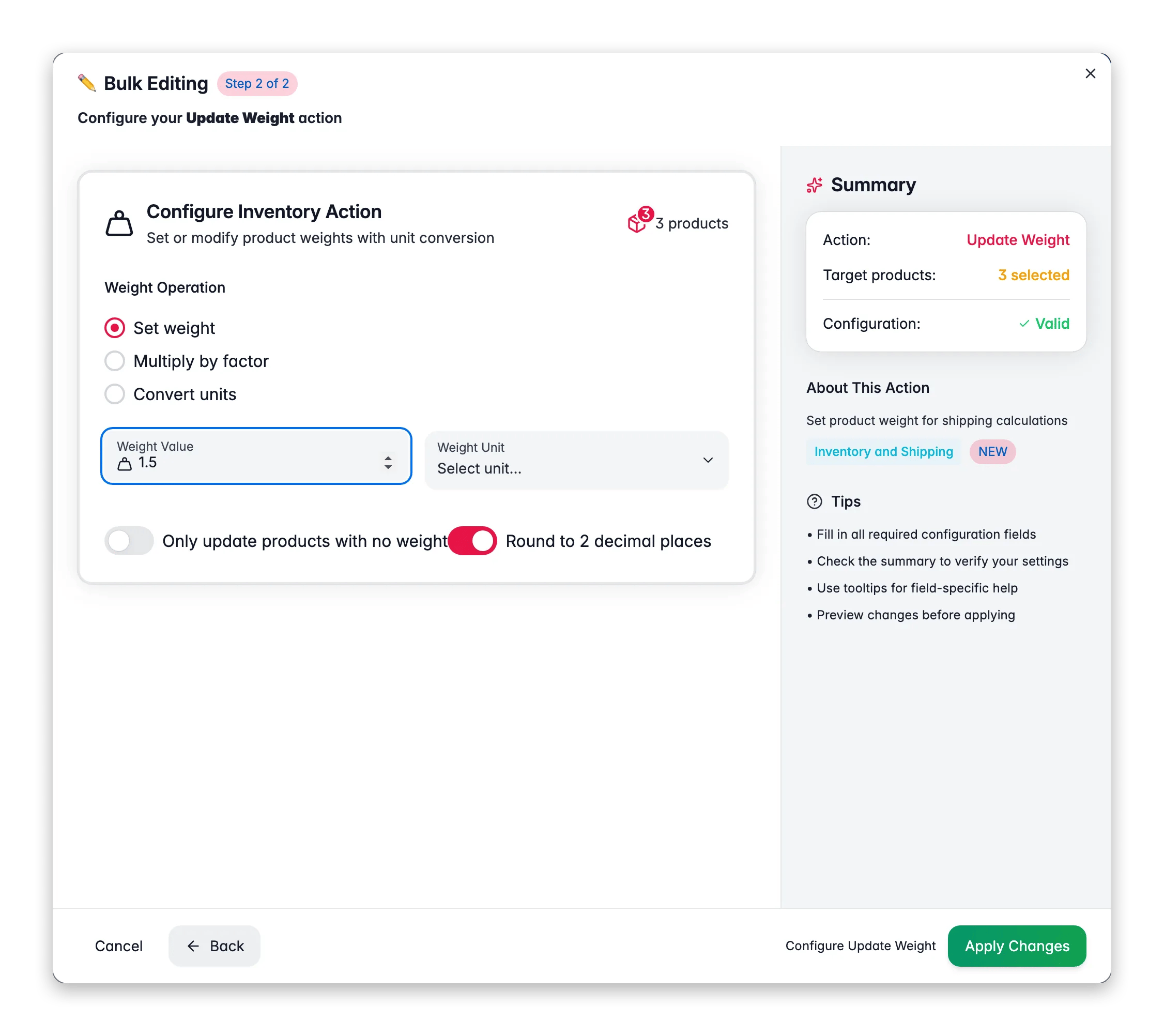
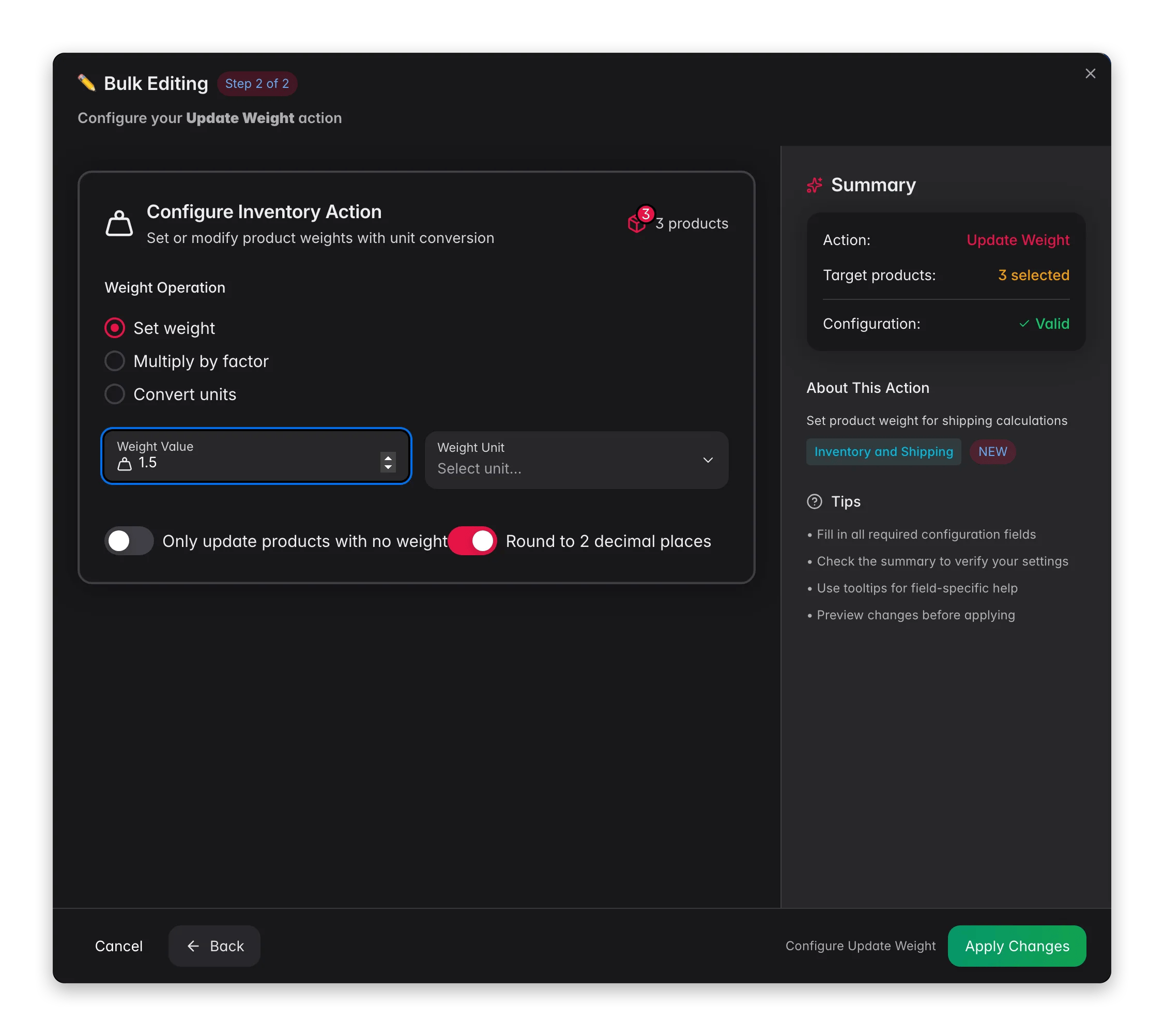 Check the products you want to update. Or use filters and select all matching results.
Click **Bulk Edit**, then search for "Update Weight" or find it under **Inventory & Shipping**.
Pick **Set**, **Multiply**, or **Convert units**.
Set the weight or conversion details, then click **Apply**.
## Operations
| Operation | What it does | Use it for |
| ----------------- | ----------------------------------------- | -------------------------------------------- |
| **Set** | Applies one exact weight to every product | Filling in a fixed weight |
| **Multiply** | Scales the current weight by a factor | Adding packaging weight (for example, × 1.1) |
| **Convert units** | Recalculates weights between unit systems | Switching metric to imperial or back |
## Options
| Option | Description | Default |
| --------------------------------------- | ----------------------------------------------- | ---------- |
| **Operation** | Set, Multiply, or Convert units | No default |
| **Value** | The weight to set, or the multiplication factor | No default |
| **Weight unit** | g, kg, oz, or lb | No default |
| **From unit / To unit** | Source and target units (for conversion) | No default |
| **Only update products with no weight** | Skip products that already have a weight | Off |
| **Round to 2 decimal places** | Round the result to two decimals | On |
## Supported units
| Unit | Name |
| ------ | --------- |
| **g** | Grams |
| **kg** | Kilograms |
| **oz** | Ounces |
| **lb** | Pounds |
Turn on **Only update products with no weight** to fill in the gaps. It adds weights where they are missing without overwriting the values you already have.
With **Convert units**, the conversion factor is applied for you. Pick the source and target units, and weights are recalculated automatically.
## Related
Set length, width, and height for accurate shipping.
Update HS codes, country of origin, and shipping flags.
Set or adjust stock quantities across your selection.
Browse every bulk editing action by category.
Check the products you want to update. Or use filters and select all matching results.
Click **Bulk Edit**, then search for "Update Weight" or find it under **Inventory & Shipping**.
Pick **Set**, **Multiply**, or **Convert units**.
Set the weight or conversion details, then click **Apply**.
## Operations
| Operation | What it does | Use it for |
| ----------------- | ----------------------------------------- | -------------------------------------------- |
| **Set** | Applies one exact weight to every product | Filling in a fixed weight |
| **Multiply** | Scales the current weight by a factor | Adding packaging weight (for example, × 1.1) |
| **Convert units** | Recalculates weights between unit systems | Switching metric to imperial or back |
## Options
| Option | Description | Default |
| --------------------------------------- | ----------------------------------------------- | ---------- |
| **Operation** | Set, Multiply, or Convert units | No default |
| **Value** | The weight to set, or the multiplication factor | No default |
| **Weight unit** | g, kg, oz, or lb | No default |
| **From unit / To unit** | Source and target units (for conversion) | No default |
| **Only update products with no weight** | Skip products that already have a weight | Off |
| **Round to 2 decimal places** | Round the result to two decimals | On |
## Supported units
| Unit | Name |
| ------ | --------- |
| **g** | Grams |
| **kg** | Kilograms |
| **oz** | Ounces |
| **lb** | Pounds |
Turn on **Only update products with no weight** to fill in the gaps. It adds weights where they are missing without overwriting the values you already have.
With **Convert units**, the conversion factor is applied for you. Pick the source and target units, and weights are recalculated automatically.
## Related
Set length, width, and height for accurate shipping.
Update HS codes, country of origin, and shipping flags.
Set or adjust stock quantities across your selection.
Browse every bulk editing action by category.