> ## Documentation Index
> Fetch the complete documentation index at: https://docs.wisepim.com/llms.txt
> Use this file to discover all available pages before exploring further.
# Update Stock
> Bulk set or adjust product stock quantities. Set an exact number, add or subtract, and protect against negative stock with min/max limits.
Keep your inventory accurate without editing products one by one. Set exact quantities after a stock count, add units when a delivery arrives, or subtract for shrinkage. Optional limits keep your numbers safe.
This action changes the stock quantity (the number). To mark products as in stock or out of stock without touching the number, use [Set Stock Status](/en/essentials/bulk-editing/stock-status).
## Update the stock
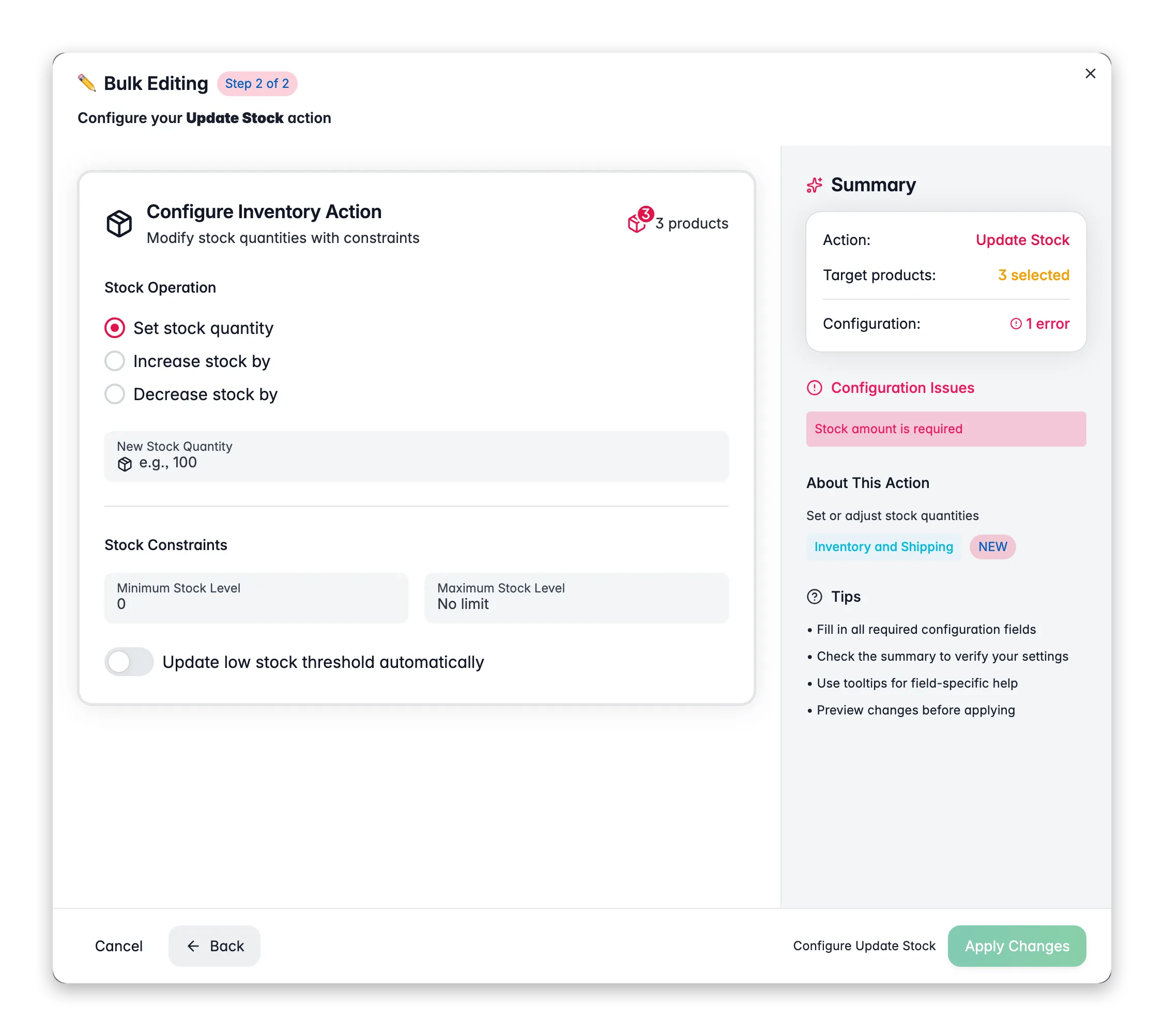
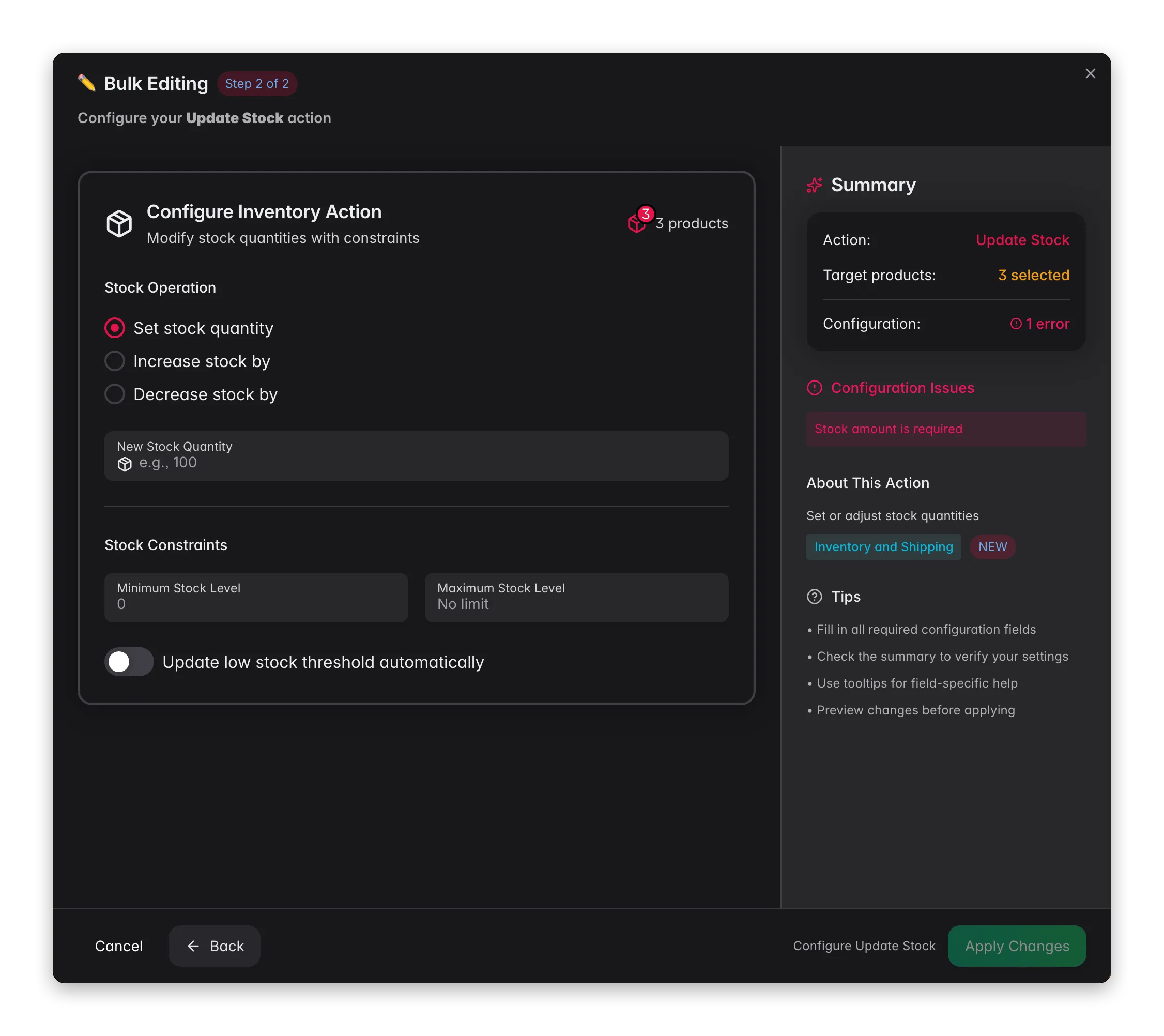 Check the products you want to update. Or use filters and select all matching results.
Click **Bulk Edit**, then search for "Update Stock" or find it under **Inventory & Shipping**.
Pick **Set**, **Increase**, or **Decrease**.
Set the value and, if you want, add minimum and maximum stock limits.
Review the impact preview, then click **Apply**.
## Operations
| Operation | What it does | Use it for |
| ------------ | ---------------------------------- | ----------------------------- |
| **Set** | Replaces stock with an exact value | A physical inventory count |
| **Increase** | Adds to the current stock | A new delivery |
| **Decrease** | Subtracts from the current stock | Damage, returns, or shrinkage |
## Options
| Option | Description | Default |
| -------------------------------------------- | ----------------------------------------------- | ---------- |
| **Operation** | Set, Increase, or Decrease | No default |
| **Quantity** | The value to set, add, or subtract | No default |
| **Minimum stock level** | Stock will not go below this value | None |
| **Maximum stock level** | Stock will not go above this value | None |
| **Update low stock threshold automatically** | Recalculate the low stock alert threshold | Off |
| **Low stock threshold** | Custom threshold value (when auto-update is on) | No default |
Set a **Minimum stock level** of 0 when you decrease stock. It prevents quantities from dropping below zero into negative inventory.
## Related
Mark products as in stock, out of stock, or on backorder.
Set product weights for accurate shipping calculations.
Add, subtract, multiply, or divide any numeric attribute.
Browse every bulk editing action by category.
Check the products you want to update. Or use filters and select all matching results.
Click **Bulk Edit**, then search for "Update Stock" or find it under **Inventory & Shipping**.
Pick **Set**, **Increase**, or **Decrease**.
Set the value and, if you want, add minimum and maximum stock limits.
Review the impact preview, then click **Apply**.
## Operations
| Operation | What it does | Use it for |
| ------------ | ---------------------------------- | ----------------------------- |
| **Set** | Replaces stock with an exact value | A physical inventory count |
| **Increase** | Adds to the current stock | A new delivery |
| **Decrease** | Subtracts from the current stock | Damage, returns, or shrinkage |
## Options
| Option | Description | Default |
| -------------------------------------------- | ----------------------------------------------- | ---------- |
| **Operation** | Set, Increase, or Decrease | No default |
| **Quantity** | The value to set, add, or subtract | No default |
| **Minimum stock level** | Stock will not go below this value | None |
| **Maximum stock level** | Stock will not go above this value | None |
| **Update low stock threshold automatically** | Recalculate the low stock alert threshold | Off |
| **Low stock threshold** | Custom threshold value (when auto-update is on) | No default |
Set a **Minimum stock level** of 0 when you decrease stock. It prevents quantities from dropping below zero into negative inventory.
## Related
Mark products as in stock, out of stock, or on backorder.
Set product weights for accurate shipping calculations.
Add, subtract, multiply, or divide any numeric attribute.
Browse every bulk editing action by category.