> ## Documentation Index
> Fetch the complete documentation index at: https://docs.wisepim.com/llms.txt
> Use this file to discover all available pages before exploring further.
# Update Status
> Bulk set the review status of products to Ready, Pending, or Needs Review. Track which products are done and which still need work.
Set the review status on many products at once. The review status tells you and your team where each product is in your workflow: finished, in progress, or still needing attention. Mark a fresh import as **Needs Review**, or flag a finished batch as **Ready**, all in one action.
## Update the review status
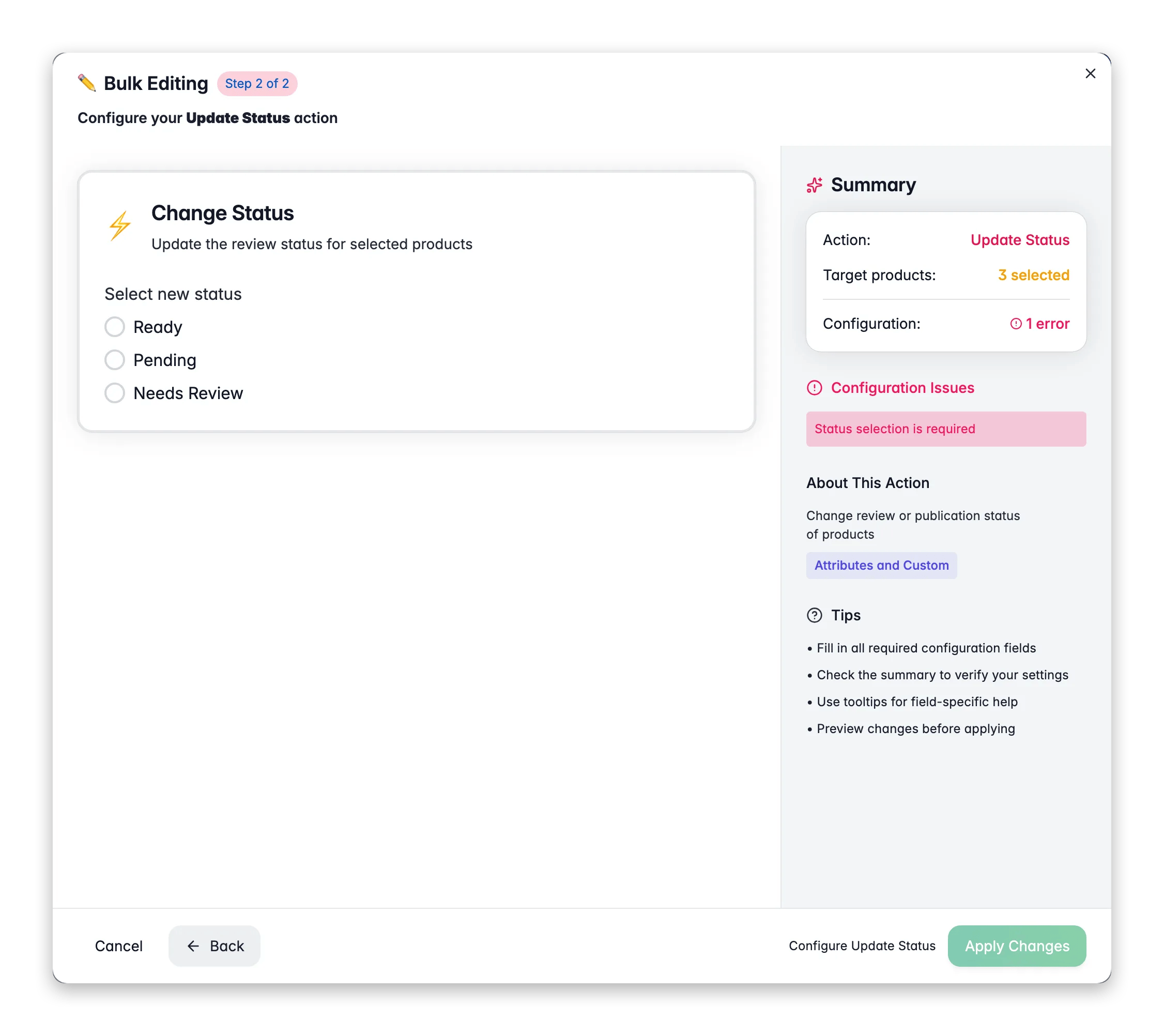
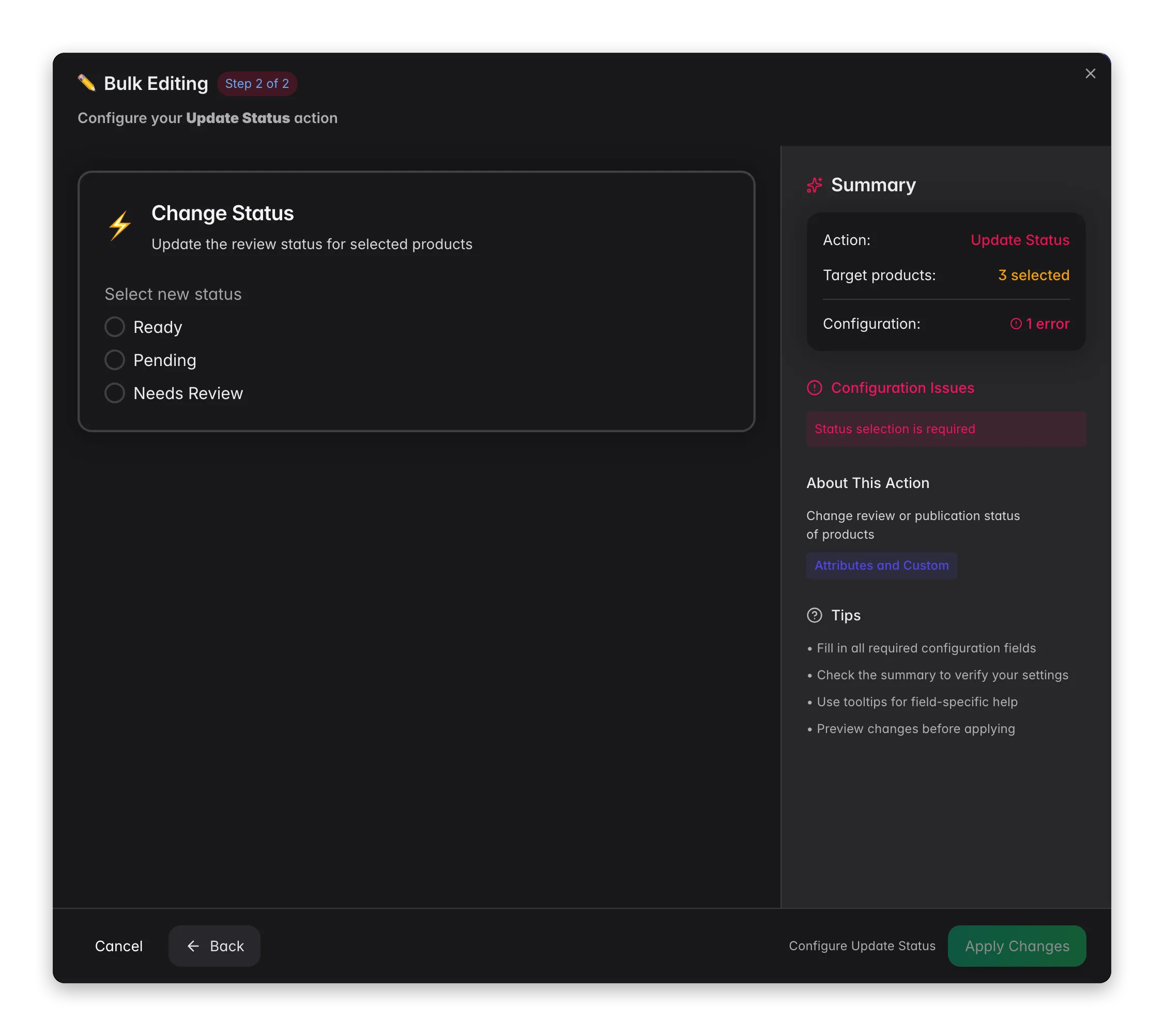 Check the products you want to update, or use filters and select all matching results.
Click **Bulk Edit**, then search for "Update Status" or find it under **Attributes & Custom Fields**.
Choose **Ready**, **Pending**, or **Needs Review** to apply to every selected product.
Click **Apply** to update your selection.
## Review status options
| Status | Meaning |
| ---------------- | ------------------------------------------------------- |
| **Ready** | The product data is checked, complete, and good to go |
| **Pending** | The product is in progress or waiting on someone |
| **Needs Review** | The product still needs a closer look before it is done |
## When to use it
* **After an import.** Set a freshly imported batch to **Needs Review** so your team knows to check the data before it ships anywhere.
* **After enrichment or cleanup.** Once you finish a batch, set it to **Ready** to signal the work is done.
* **To hand off work.** Set products to **Pending** when they are mid-flight and waiting on a colleague, a translation, or a supplier update.
The review status is a clear, shared signal of what is finished and what still needs work. You can filter your product list by review status to find everything that is still **Needs Review**, and it can also gate which products flow through to exports and channels.
Filter your products by a quality or completeness condition first, then set everything below your bar to **Needs Review** in one pass. It is a fast way to build a focused worklist.
## Related
Refresh quality scores and completeness for your selection.
Set any default product field to a specific value or formula.
Generate titles, descriptions, and attributes with AI.
Browse every bulk editing action by category.
Check the products you want to update, or use filters and select all matching results.
Click **Bulk Edit**, then search for "Update Status" or find it under **Attributes & Custom Fields**.
Choose **Ready**, **Pending**, or **Needs Review** to apply to every selected product.
Click **Apply** to update your selection.
## Review status options
| Status | Meaning |
| ---------------- | ------------------------------------------------------- |
| **Ready** | The product data is checked, complete, and good to go |
| **Pending** | The product is in progress or waiting on someone |
| **Needs Review** | The product still needs a closer look before it is done |
## When to use it
* **After an import.** Set a freshly imported batch to **Needs Review** so your team knows to check the data before it ships anywhere.
* **After enrichment or cleanup.** Once you finish a batch, set it to **Ready** to signal the work is done.
* **To hand off work.** Set products to **Pending** when they are mid-flight and waiting on a colleague, a translation, or a supplier update.
The review status is a clear, shared signal of what is finished and what still needs work. You can filter your product list by review status to find everything that is still **Needs Review**, and it can also gate which products flow through to exports and channels.
Filter your products by a quality or completeness condition first, then set everything below your bar to **Needs Review** in one pass. It is a fast way to build a focused worklist.
## Related
Refresh quality scores and completeness for your selection.
Set any default product field to a specific value or formula.
Generate titles, descriptions, and attributes with AI.
Browse every bulk editing action by category.