> ## Documentation Index
> Fetch the complete documentation index at: https://docs.wisepim.com/llms.txt
> Use this file to discover all available pages before exploring further.
# Trim Whitespace
> Bulk remove stray leading, trailing, and extra spaces from product text fields. A safe first step to clean up imported or copy-pasted data.
Imports and copy-paste often leave hidden spaces and blank lines behind. They break sorting, search, and feeds, even though you cannot see them. This action strips that clutter from your text fields across many products at once.
It is a safe cleanup: trimming spaces never changes the meaning of your content. Run it first, before other text actions.
## Clean up the spaces
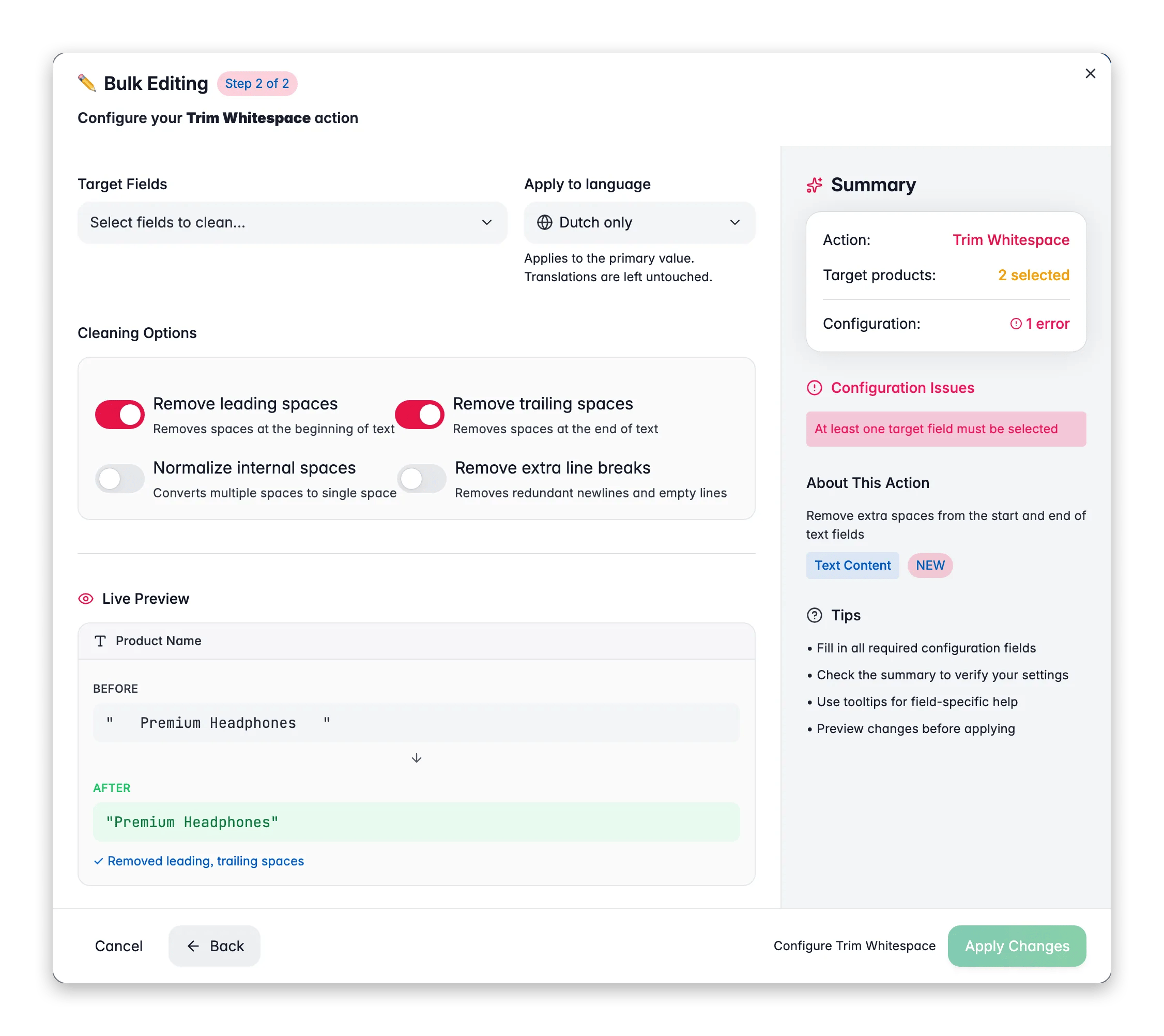
 Check the products you want to clean up. Or use filters and select all matching results.
Click **Bulk Edit**, then search for "Trim Whitespace" or find it under **Text & Content**.
Pick the cleanup options: leading spaces, trailing spaces, internal duplicates, or extra line breaks.
Select the fields to clean, then click **Apply**.
## Cleanup options
| Option | What it does | Default |
| ----------------------------- | ------------------------------------------------- | ------- |
| **Remove leading spaces** | Strip spaces from the start of the text | On |
| **Remove trailing spaces** | Strip spaces from the end of the text | On |
| **Normalize internal spaces** | Collapse multiple spaces into a single space | Off |
| **Remove extra line breaks** | Remove redundant blank lines in multi-line fields | Off |
**Target fields:** all text fields and custom text attributes.
Turn on **Normalize internal spaces** when you spot double spaces scattered through names or descriptions. It is common after merging data from several sources.
## Related
Convert text to a consistent Title Case, UPPERCASE, or lowercase style.
Fix typos or swap words across many products at once.
Add a prefix or suffix to any text field across your selection.
Browse every bulk editing action by category.
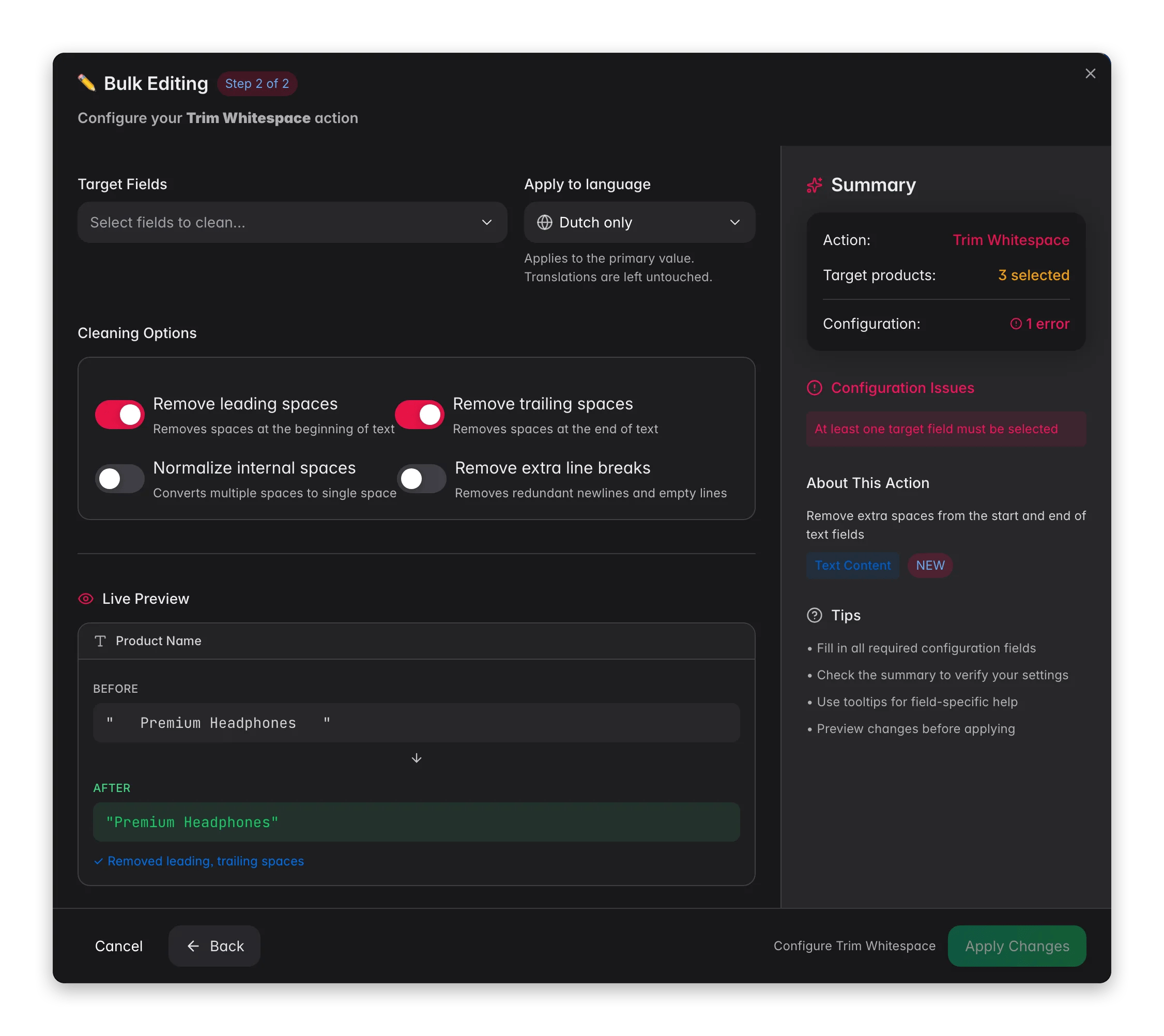
Check the products you want to clean up. Or use filters and select all matching results.
Click **Bulk Edit**, then search for "Trim Whitespace" or find it under **Text & Content**.
Pick the cleanup options: leading spaces, trailing spaces, internal duplicates, or extra line breaks.
Select the fields to clean, then click **Apply**.
## Cleanup options
| Option | What it does | Default |
| ----------------------------- | ------------------------------------------------- | ------- |
| **Remove leading spaces** | Strip spaces from the start of the text | On |
| **Remove trailing spaces** | Strip spaces from the end of the text | On |
| **Normalize internal spaces** | Collapse multiple spaces into a single space | Off |
| **Remove extra line breaks** | Remove redundant blank lines in multi-line fields | Off |
**Target fields:** all text fields and custom text attributes.
Turn on **Normalize internal spaces** when you spot double spaces scattered through names or descriptions. It is common after merging data from several sources.
## Related
Convert text to a consistent Title Case, UPPERCASE, or lowercase style.
Fix typos or swap words across many products at once.
Add a prefix or suffix to any text field across your selection.
Browse every bulk editing action by category.