> ## Documentation Index
> Fetch the complete documentation index at: https://docs.wisepim.com/llms.txt
> Use this file to discover all available pages before exploring further.
# Set Stock Status
> Bulk mark products as in stock, out of stock, or on backorder. Update stock management and backorder rules across your catalog in one action.
Set the availability of many products at once. Mark a batch as out of stock during a supplier delay, reopen items when stock returns, or switch made-to-order products to backorder. This action changes the status flag only, not the actual quantity.
## Set the status
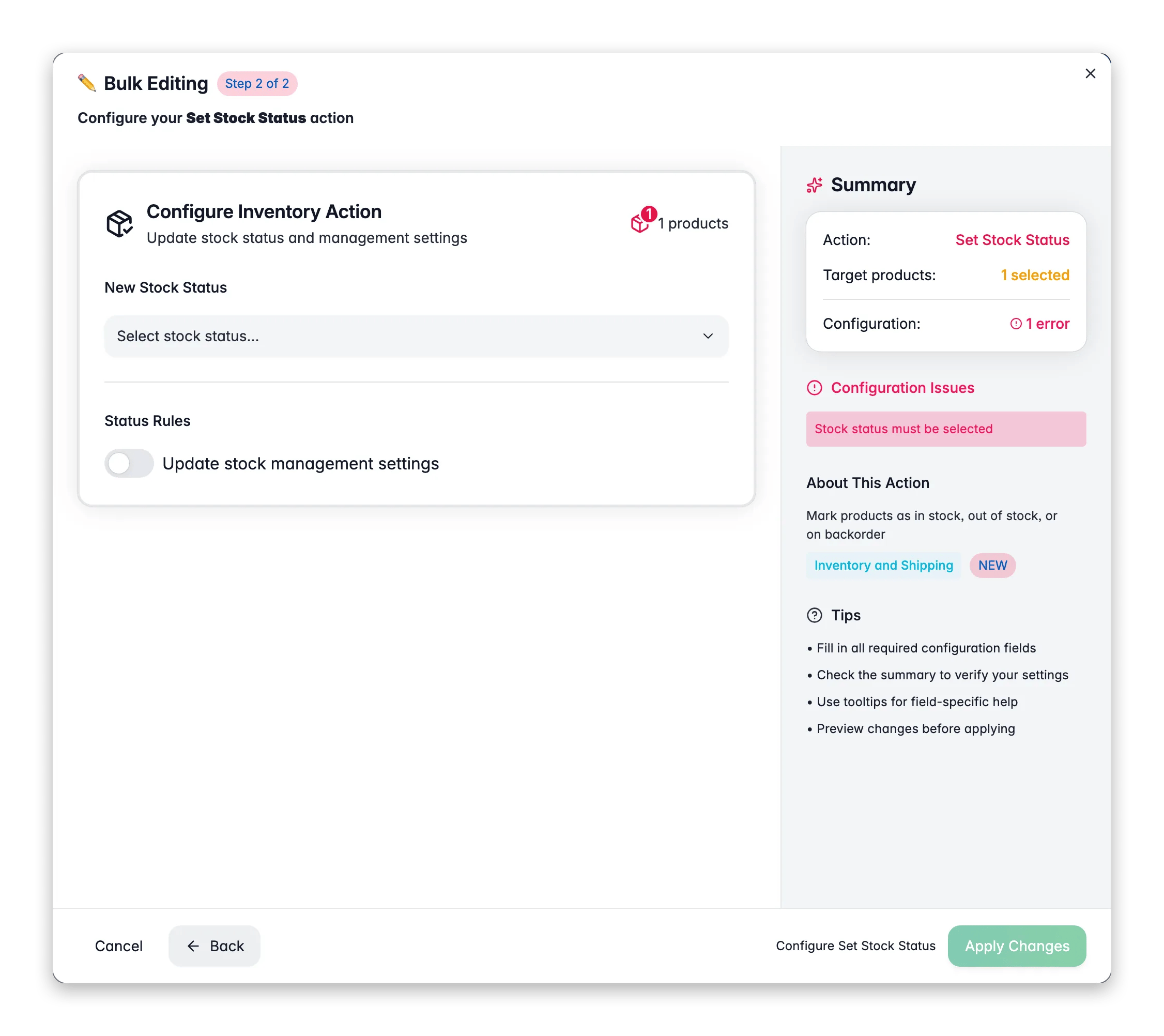
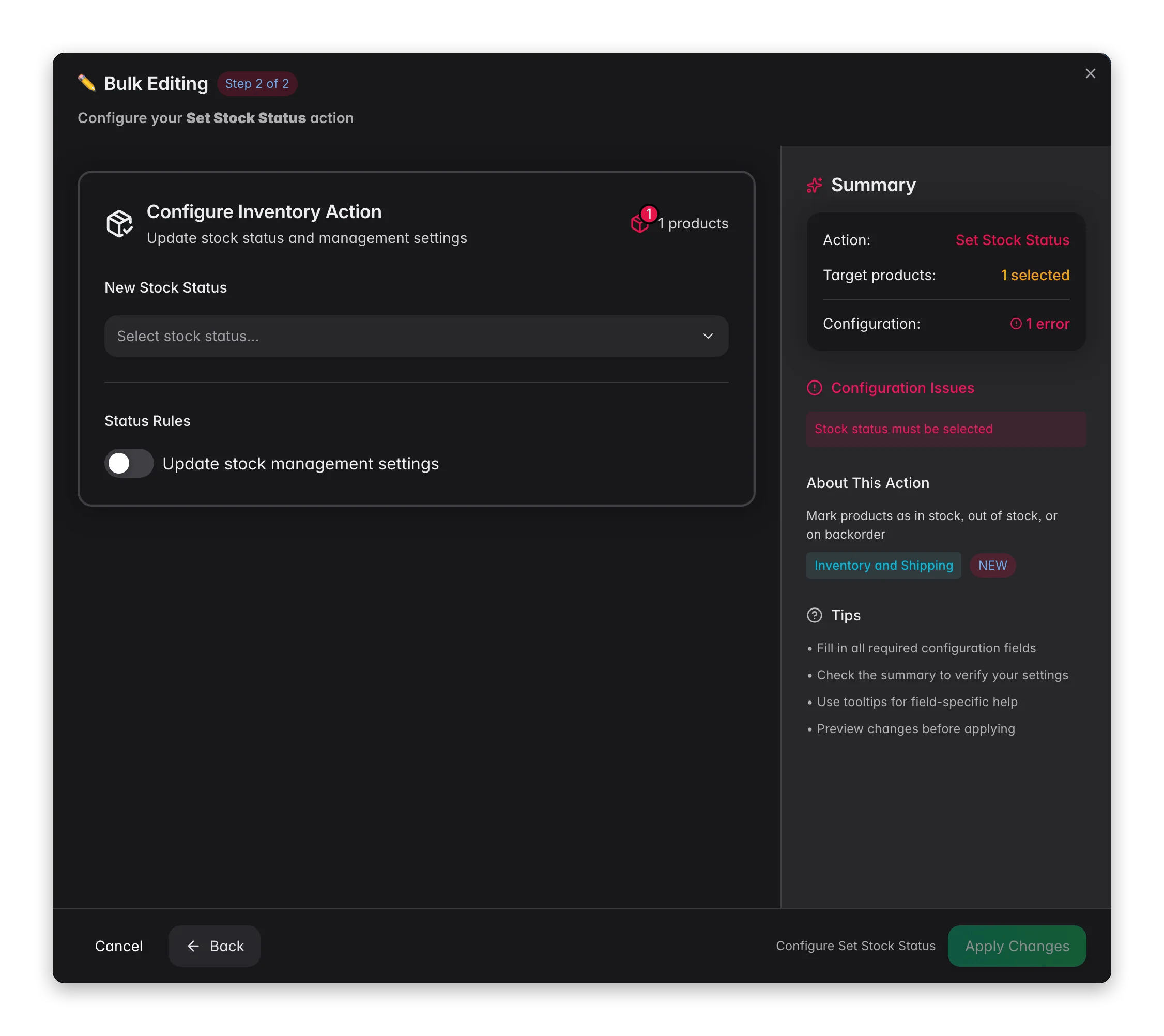 Check the products you want to update. Or use filters and select all matching results.
Click **Bulk Edit**, then search for "Stock Status" or find it under **Inventory & Shipping**.
Choose **In Stock**, **Out of Stock**, or **On Backorder**.
Optionally update stock management and backorder settings, then click **Apply**.
## Options
| Option | Description | Default |
| --------------------------- | --------------------------------------------------------------- | ---------- |
| **Stock status** | In Stock, Out of Stock, or On Backorder | No default |
| **Enable stock management** | Turn on quantity-based stock tracking for the selected products | On |
| **Allow backorders** | Let customers order even when stock is zero | Off |
Turn on **Allow backorders** for products you can still fulfill at zero stock, such as made-to-order or print-on-demand items.
This action sets the status flag only. It does not change the stock quantity. To adjust numbers, use [Update Stock](/en/essentials/bulk-editing/update-stock).
## Related
Set or adjust the actual stock quantity for your selection.
Set product weights for accurate shipping calculations.
Set the review status of products to Ready, Pending, or Needs Review.
Browse every bulk editing action by category.
Check the products you want to update. Or use filters and select all matching results.
Click **Bulk Edit**, then search for "Stock Status" or find it under **Inventory & Shipping**.
Choose **In Stock**, **Out of Stock**, or **On Backorder**.
Optionally update stock management and backorder settings, then click **Apply**.
## Options
| Option | Description | Default |
| --------------------------- | --------------------------------------------------------------- | ---------- |
| **Stock status** | In Stock, Out of Stock, or On Backorder | No default |
| **Enable stock management** | Turn on quantity-based stock tracking for the selected products | On |
| **Allow backorders** | Let customers order even when stock is zero | Off |
Turn on **Allow backorders** for products you can still fulfill at zero stock, such as made-to-order or print-on-demand items.
This action sets the status flag only. It does not change the stock quantity. To adjust numbers, use [Update Stock](/en/essentials/bulk-editing/update-stock).
## Related
Set or adjust the actual stock quantity for your selection.
Set product weights for accurate shipping calculations.
Set the review status of products to Ready, Pending, or Needs Review.
Browse every bulk editing action by category.