> ## Documentation Index
> Fetch the complete documentation index at: https://docs.wisepim.com/llms.txt
> Use this file to discover all available pages before exploring further.
# Set Special Price
> Bulk set promotional prices with optional start and end dates. Launch flash sales, weekend deals, or seasonal offers across your catalog in one step.
Put many products on sale at once. Set a fixed special price or a percentage discount, and add start and end dates for time-limited promotions. Use the quick presets to launch a sale in seconds.
## Set a special price
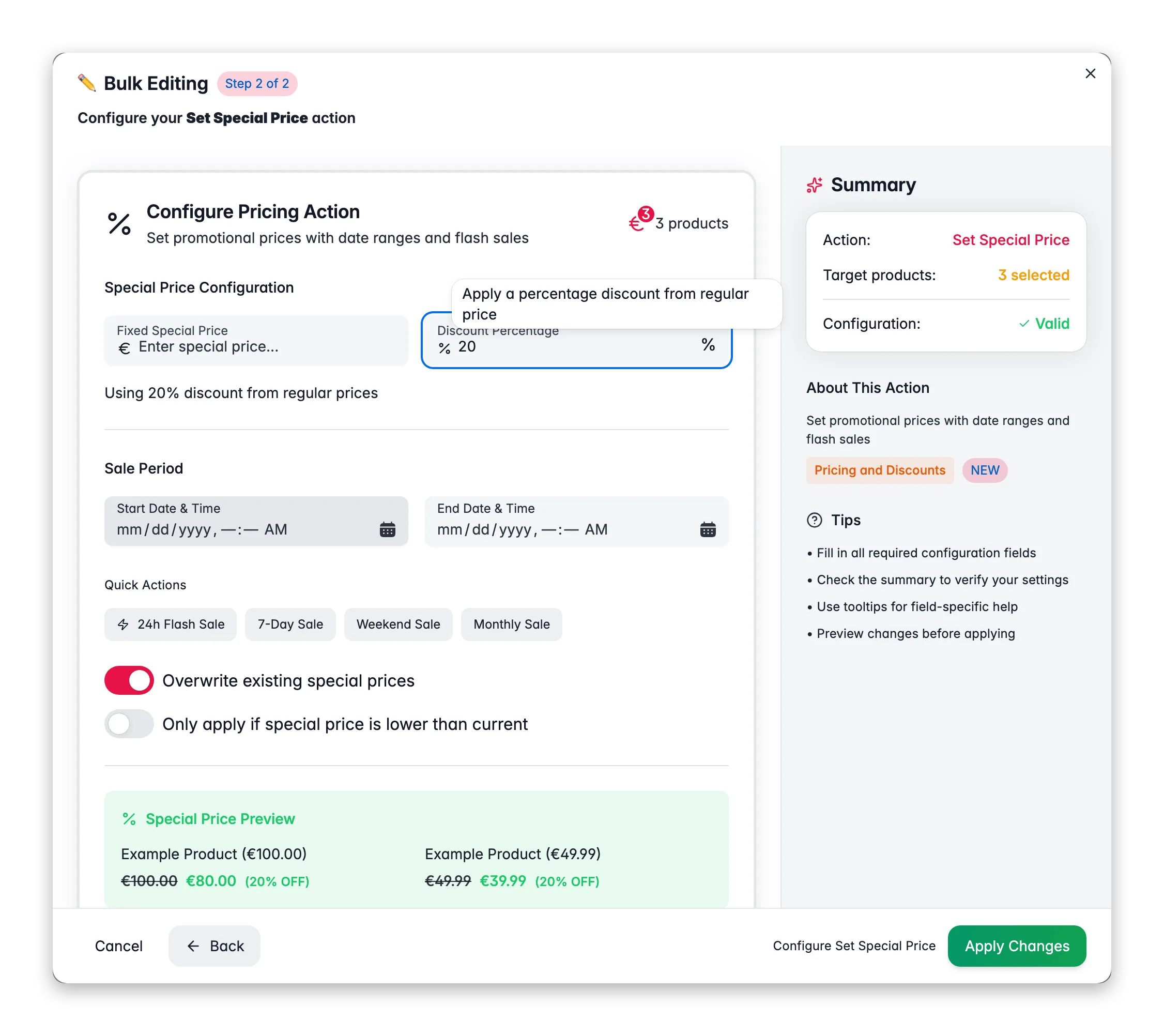
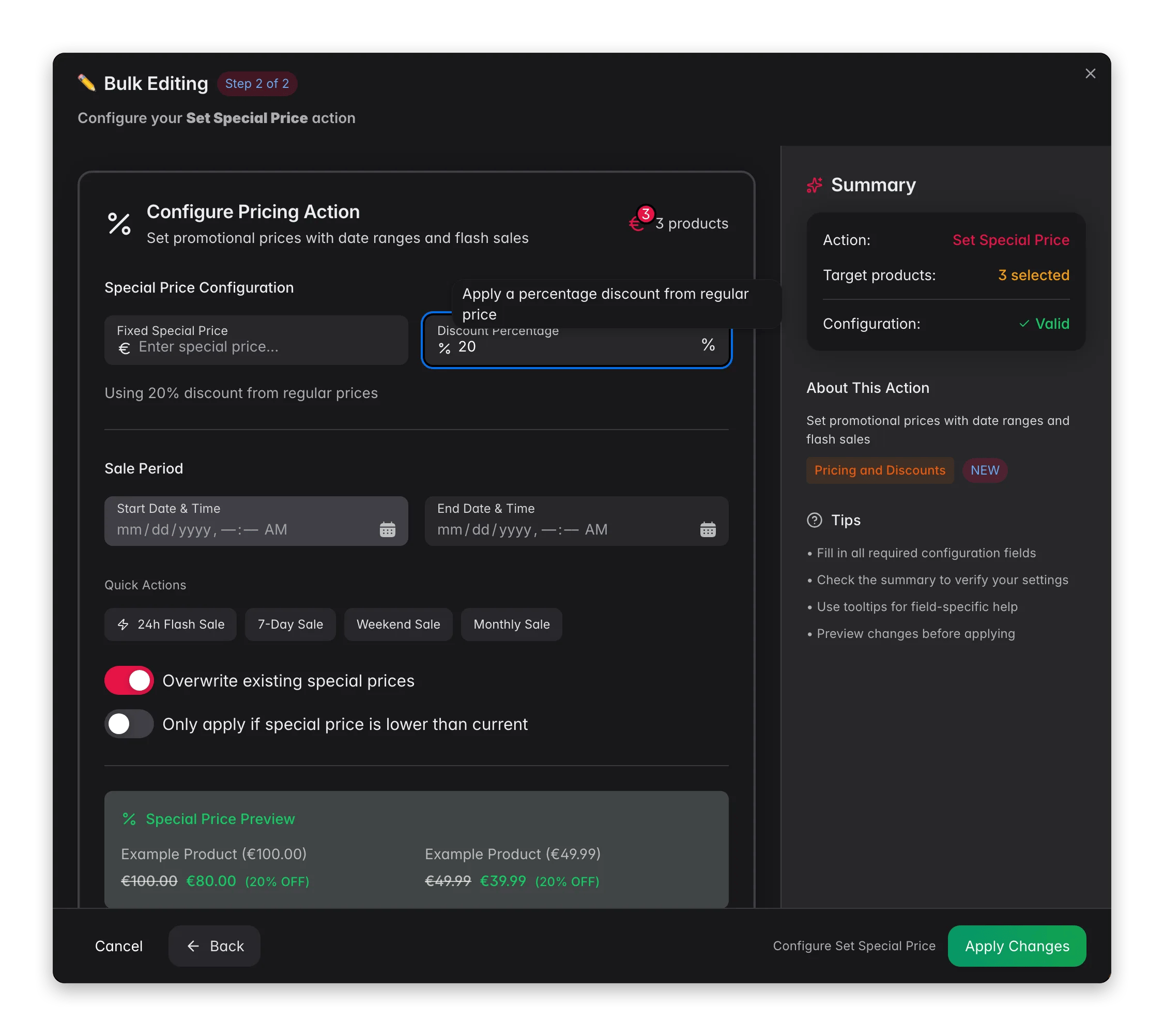 Check the products you want to put on sale, or use filters and select all matching results.
Click **Bulk Edit**, then search for "Set Special Price" or find it under **Pricing & Discounts**.
Choose a **fixed special price** (for example €9.99) or a **discount percentage** (for example 20% off).
Pick start and end dates, or use a quick preset for common sale lengths.
Decide whether to overwrite existing special prices, then click **Apply**.
## Options
| Option | What it does | Default |
| ------------------------------------------ | -------------------------------------------------------------------------------- | -------- |
| **Price type** | Fixed Special Price (€) or Discount Percentage (%) | Required |
| **Value** | The special price or the discount percentage | Required |
| **Start date & time** | When the sale begins | None |
| **End date & time** | When the sale ends | None |
| **Overwrite existing special prices** | Replaces special prices already set on products | On |
| **Only apply if lower than current price** | Skips products where the new special price would be higher than the existing one | Off |
### Quick sale presets
| Preset | Sale period |
| ------------------ | -------------------------------------------------------- |
| **24h Flash Sale** | Starts now, ends in 24 hours |
| **7-Day Sale** | Starts now, ends in 7 days |
| **Weekend Sale** | Starts Friday evening (6 PM), ends Monday morning (6 AM) |
| **Monthly Sale** | Starts now, ends in 30 days |
## Tips
* Use **Discount Percentage** when products have different base prices. Each product gets its own calculated special price.
* Turn on **Only apply if lower than current price** so you never accidentally raise a price that already has a deeper discount.
* The preview shows two example products with before and after prices, so you can check the result before you apply.
## Related
Adjust regular prices in bulk.
Set tiered pricing for larger quantities.
Check the products you want to put on sale, or use filters and select all matching results.
Click **Bulk Edit**, then search for "Set Special Price" or find it under **Pricing & Discounts**.
Choose a **fixed special price** (for example €9.99) or a **discount percentage** (for example 20% off).
Pick start and end dates, or use a quick preset for common sale lengths.
Decide whether to overwrite existing special prices, then click **Apply**.
## Options
| Option | What it does | Default |
| ------------------------------------------ | -------------------------------------------------------------------------------- | -------- |
| **Price type** | Fixed Special Price (€) or Discount Percentage (%) | Required |
| **Value** | The special price or the discount percentage | Required |
| **Start date & time** | When the sale begins | None |
| **End date & time** | When the sale ends | None |
| **Overwrite existing special prices** | Replaces special prices already set on products | On |
| **Only apply if lower than current price** | Skips products where the new special price would be higher than the existing one | Off |
### Quick sale presets
| Preset | Sale period |
| ------------------ | -------------------------------------------------------- |
| **24h Flash Sale** | Starts now, ends in 24 hours |
| **7-Day Sale** | Starts now, ends in 7 days |
| **Weekend Sale** | Starts Friday evening (6 PM), ends Monday morning (6 AM) |
| **Monthly Sale** | Starts now, ends in 30 days |
## Tips
* Use **Discount Percentage** when products have different base prices. Each product gets its own calculated special price.
* Turn on **Only apply if lower than current price** so you never accidentally raise a price that already has a deeper discount.
* The preview shows two example products with before and after prices, so you can check the result before you apply.
## Related
Adjust regular prices in bulk.
Set tiered pricing for larger quantities.