> ## Documentation Index
> Fetch the complete documentation index at: https://docs.wisepim.com/llms.txt
> Use this file to discover all available pages before exploring further.
# Shipping Settings
> Bulk update HS codes, country of origin, shipping flags, and handling notes. Keep customs and shipping data consistent across your catalog.
Update shipping data across many products at once. Set HS codes for customs, country of origin, shipping flags, and handling notes in a single pass. Only the fields you fill in get updated, so you can change one setting without touching the rest.
## Update shipping settings
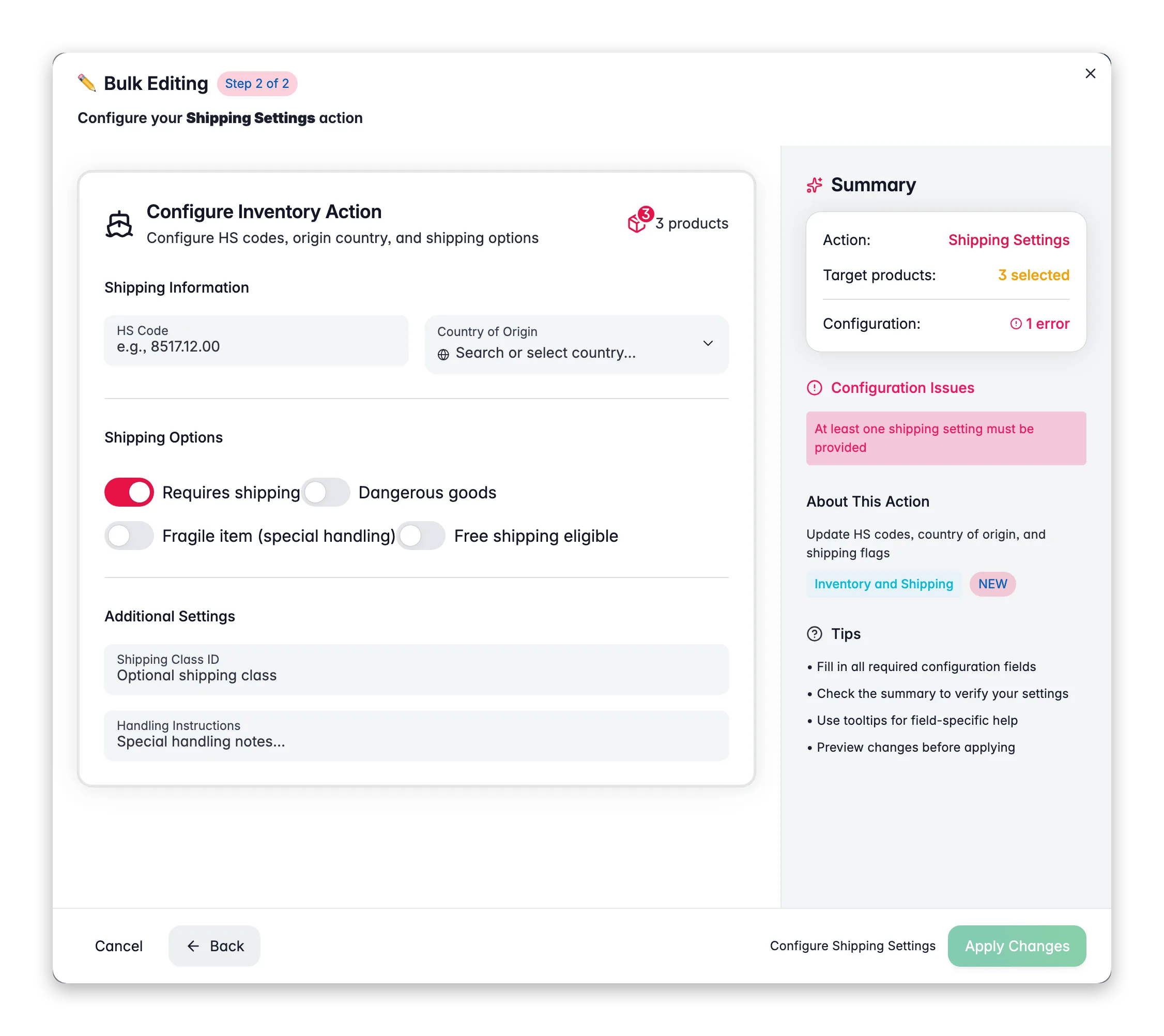
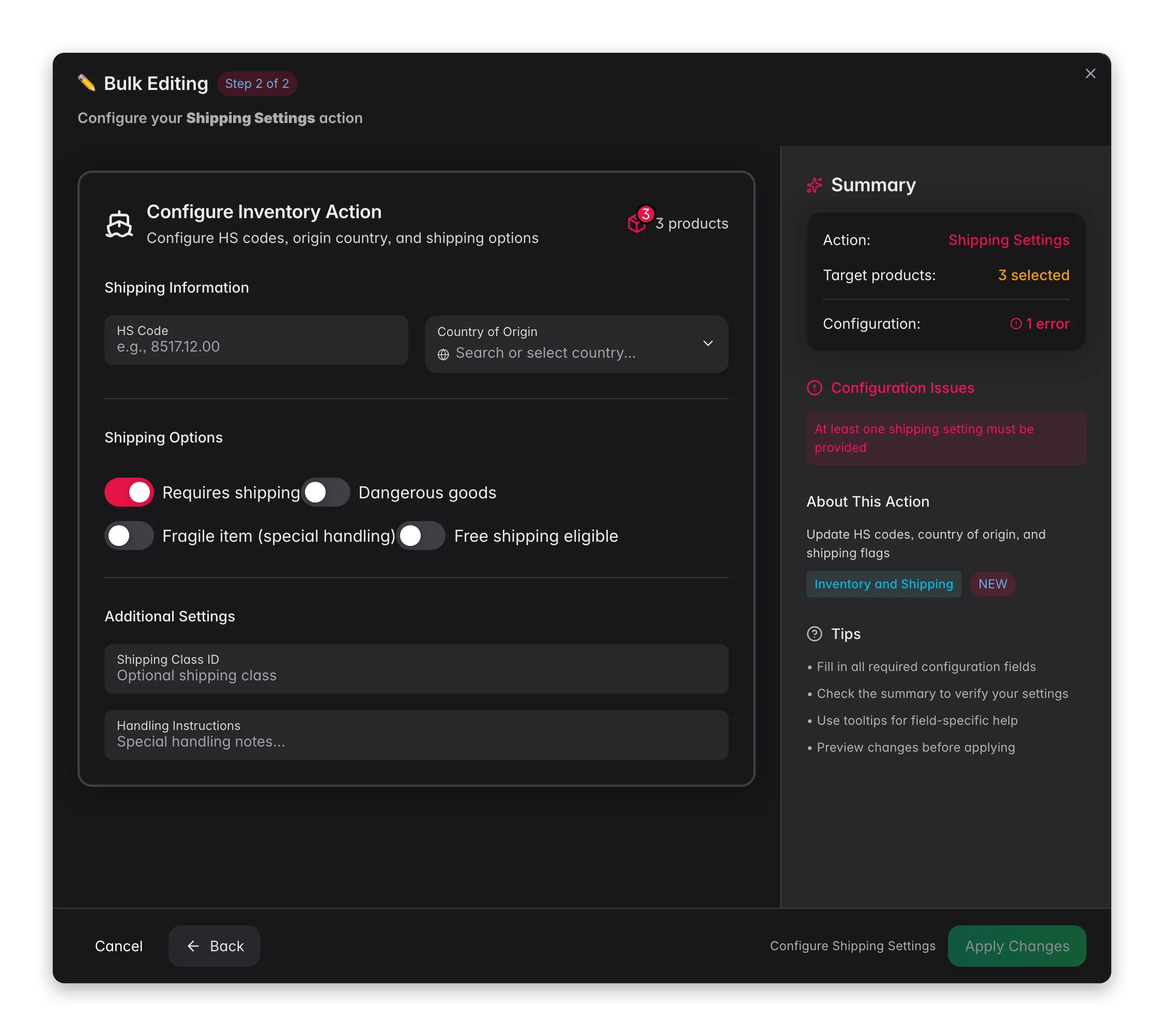 Check the products you want to update, or use filters and select all matching results.
Click **Bulk Edit**, then search for "Shipping Settings" or find it under **Inventory & Shipping**.
Set HS codes, country of origin, shipping flags, or handling notes. Leave the rest blank.
Click **Apply** to update the selected products.
## Options
### Customs information
| Field | What it does |
| --------------------- | ------------------------------------------------- |
| **HS Code** | Harmonized System code for customs classification |
| **Country of Origin** | Searchable dropdown with 50+ countries |
### Shipping flags
| Flag | What it does | Default |
| -------------------------- | ------------------------------------------------------------ | ------- |
| **Requires shipping** | Marks the product as needing physical shipment | On |
| **Dangerous goods** | Marks the product as hazardous material | Off |
| **Fragile item** | Marks the product as needing special handling | Off |
| **Free shipping eligible** | Marks the product as qualifying for free shipping promotions | Off |
### Additional settings
| Field | What it does |
| ------------------------- | ------------------------------------------------- |
| **Shipping Class ID** | Optional shipping class used for rate calculation |
| **Handling Instructions** | Free text for special handling notes |
Marking products as **Dangerous goods** can change shipping options and carrier availability. Make sure the classification is correct first.
## Tips
* Bulk-set HS codes by product type: filter by category first, then apply the right code.
* After onboarding a new supplier, filter by supplier and set their **Country of Origin** in one go.
* Use **Handling Instructions** for warehouse notes like "Keep upright" or "Temperature sensitive".
## Related
Set length, width, and height for shipping.
Set or adjust product weight in bulk.
Check the products you want to update, or use filters and select all matching results.
Click **Bulk Edit**, then search for "Shipping Settings" or find it under **Inventory & Shipping**.
Set HS codes, country of origin, shipping flags, or handling notes. Leave the rest blank.
Click **Apply** to update the selected products.
## Options
### Customs information
| Field | What it does |
| --------------------- | ------------------------------------------------- |
| **HS Code** | Harmonized System code for customs classification |
| **Country of Origin** | Searchable dropdown with 50+ countries |
### Shipping flags
| Flag | What it does | Default |
| -------------------------- | ------------------------------------------------------------ | ------- |
| **Requires shipping** | Marks the product as needing physical shipment | On |
| **Dangerous goods** | Marks the product as hazardous material | Off |
| **Fragile item** | Marks the product as needing special handling | Off |
| **Free shipping eligible** | Marks the product as qualifying for free shipping promotions | Off |
### Additional settings
| Field | What it does |
| ------------------------- | ------------------------------------------------- |
| **Shipping Class ID** | Optional shipping class used for rate calculation |
| **Handling Instructions** | Free text for special handling notes |
Marking products as **Dangerous goods** can change shipping options and carrier availability. Make sure the classification is correct first.
## Tips
* Bulk-set HS codes by product type: filter by category first, then apply the right code.
* After onboarding a new supplier, filter by supplier and set their **Country of Origin** in one go.
* Use **Handling Instructions** for warehouse notes like "Keep upright" or "Temperature sensitive".
## Related
Set length, width, and height for shipping.
Set or adjust product weight in bulk.