> ## Documentation Index
> Fetch the complete documentation index at: https://docs.wisepim.com/llms.txt
> Use this file to discover all available pages before exploring further.
# Shop sync
> Switch product sync on or off per connected shop across a whole selection. Move a range onto a new channel, or pull it off one, in a single action.
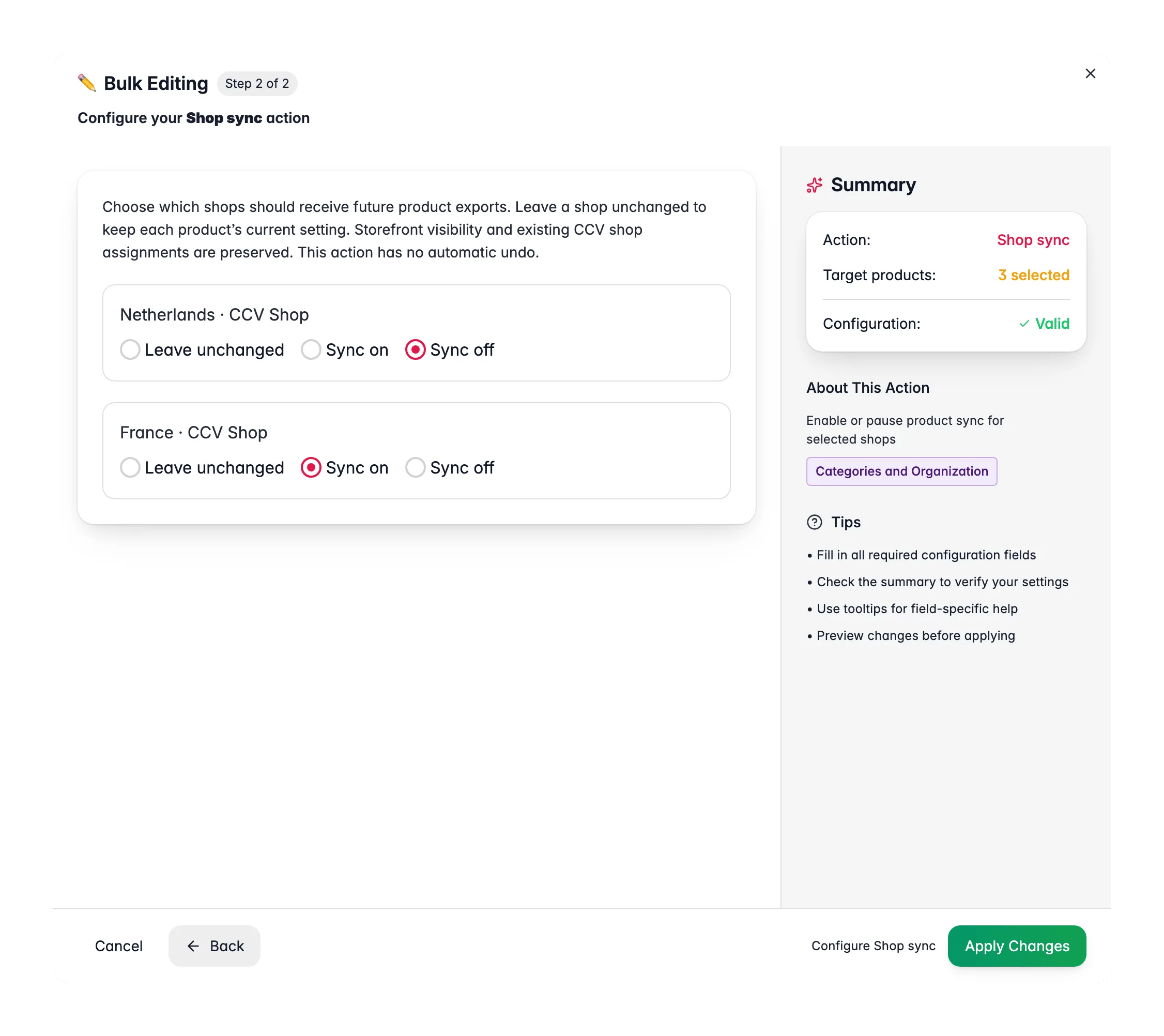
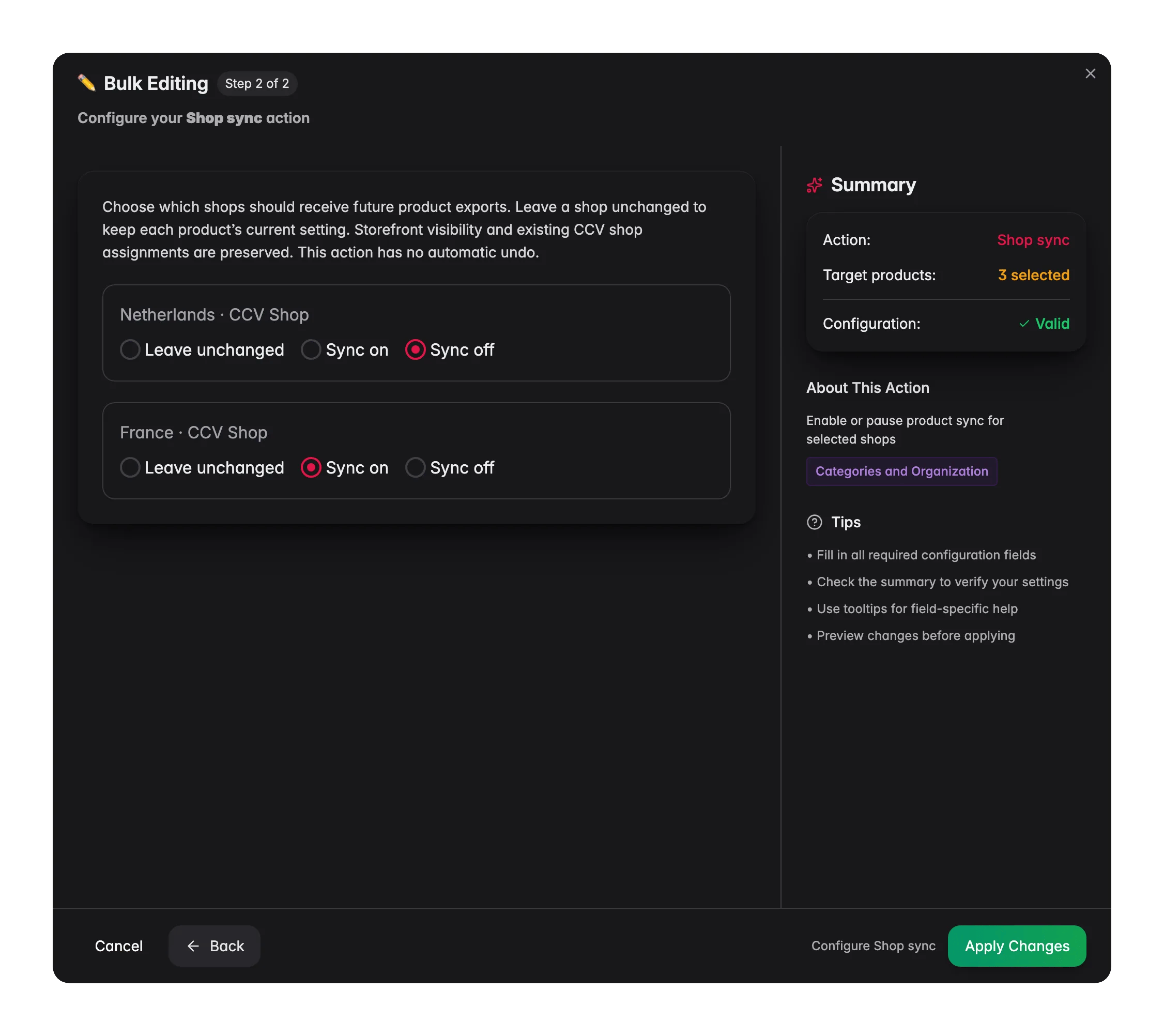 Every product carries its own answer to "which shops does this go to?". **Shop sync** sets that answer for a whole selection at once: "Choose which shops should receive future product exports."
You set each shop separately, so one action can add a range to a new marketplace and take it off an old one at the same time.
## Set shop sync in bulk
Check the products you want to update, or use filters and select all matching results.
Click **Bulk Editing**, then search for "Shop sync".
Every connected shop gets its own row, labelled with its name and platform. Pick one of three options per shop.
Click **Apply**. The selected products take their new sync settings.
## The three options, per shop
| Option | What happens |
| ------------------- | -------------------------------------------------------------------------------------------- |
| **Leave unchanged** | This shop is skipped. Each product keeps whatever it had. This is the default for every row. |
| **Sync on** | Every selected product is included in future exports to this shop. |
| **Sync off** | Every selected product is excluded from future exports to this shop. |
Because "Leave unchanged" is the default, an action only ever touches the shops you deliberately set. You can safely run it while other channels are mid-launch.
"This action has no automatic undo." There is no single click that puts the old per-product settings back. Run it on a small selection first, or note which products you are about to change.
## What it does not touch
* **Storefront visibility.** Whether a product is shown to shoppers is a separate flag. Use [Change Visibility](/en/essentials/bulk-editing/change-visibility) for that.
* **Existing CCV shop assignments.** Multishop membership in CCV is preserved. Manage it from the product's [Shops tab](/en/products/shops).
* **Listings already live.** Sync controls future exports. Switching sync off does not pull down a listing a shop already has.
Setting **Sync on** for a connection whose exports are paused is allowed, and the modal tells you what to expect: "Exports are paused for this connection. Turning product sync on takes effect when connection exports resume."
## When the action is unavailable
The action needs two things: permission to bulk edit, and at least two connected shops. With only one shop there is nothing to choose between, so the modal says: "Shop sync requires permission to bulk edit and at least two connected shops. Reload if your connections changed."
If you just connected a shop and it is not listed, reload the shop list rather than reopening the modal.
## When to use it
* **Launching a channel.** Filter for the range you want live on a new shop, set that shop to **Sync on**, and leave every other shop unchanged.
* **Retiring a channel.** Set the shop you are winding down to **Sync off** across its whole assortment before you disconnect it.
* **Splitting an assortment.** Filter by category or brand and give each channel the part of the catalog it should carry.
Add the **Shops** column to your product table before and after the run. It is the fastest way to confirm the selection landed where you meant it to.
## Related
Set sync one product at a time, and manage CCV multishop assignments.
Show or hide products on your storefront and connected channels.
Push your catalog to the connected platforms that are set to receive it.
Browse every bulk editing action by category.
Every product carries its own answer to "which shops does this go to?". **Shop sync** sets that answer for a whole selection at once: "Choose which shops should receive future product exports."
You set each shop separately, so one action can add a range to a new marketplace and take it off an old one at the same time.
## Set shop sync in bulk
Check the products you want to update, or use filters and select all matching results.
Click **Bulk Editing**, then search for "Shop sync".
Every connected shop gets its own row, labelled with its name and platform. Pick one of three options per shop.
Click **Apply**. The selected products take their new sync settings.
## The three options, per shop
| Option | What happens |
| ------------------- | -------------------------------------------------------------------------------------------- |
| **Leave unchanged** | This shop is skipped. Each product keeps whatever it had. This is the default for every row. |
| **Sync on** | Every selected product is included in future exports to this shop. |
| **Sync off** | Every selected product is excluded from future exports to this shop. |
Because "Leave unchanged" is the default, an action only ever touches the shops you deliberately set. You can safely run it while other channels are mid-launch.
"This action has no automatic undo." There is no single click that puts the old per-product settings back. Run it on a small selection first, or note which products you are about to change.
## What it does not touch
* **Storefront visibility.** Whether a product is shown to shoppers is a separate flag. Use [Change Visibility](/en/essentials/bulk-editing/change-visibility) for that.
* **Existing CCV shop assignments.** Multishop membership in CCV is preserved. Manage it from the product's [Shops tab](/en/products/shops).
* **Listings already live.** Sync controls future exports. Switching sync off does not pull down a listing a shop already has.
Setting **Sync on** for a connection whose exports are paused is allowed, and the modal tells you what to expect: "Exports are paused for this connection. Turning product sync on takes effect when connection exports resume."
## When the action is unavailable
The action needs two things: permission to bulk edit, and at least two connected shops. With only one shop there is nothing to choose between, so the modal says: "Shop sync requires permission to bulk edit and at least two connected shops. Reload if your connections changed."
If you just connected a shop and it is not listed, reload the shop list rather than reopening the modal.
## When to use it
* **Launching a channel.** Filter for the range you want live on a new shop, set that shop to **Sync on**, and leave every other shop unchanged.
* **Retiring a channel.** Set the shop you are winding down to **Sync off** across its whole assortment before you disconnect it.
* **Splitting an assortment.** Filter by category or brand and give each channel the part of the catalog it should carry.
Add the **Shops** column to your product table before and after the run. It is the fastest way to confirm the selection landed where you meant it to.
## Related
Set sync one product at a time, and manage CCV multishop assignments.
Show or hide products on your storefront and connected channels.
Push your catalog to the connected platforms that are set to receive it.
Browse every bulk editing action by category.