> ## Documentation Index
> Fetch the complete documentation index at: https://docs.wisepim.com/llms.txt
> Use this file to discover all available pages before exploring further.
# Set Primary Category
> Bulk set the primary category for your products. Control which category drives breadcrumbs, canonical URLs, and product organization.
Set which category is the primary (main) one for your products. Many e-commerce platforms use the primary category for breadcrumbs and canonical URLs, so getting it right helps your SEO.
## Set the primary category
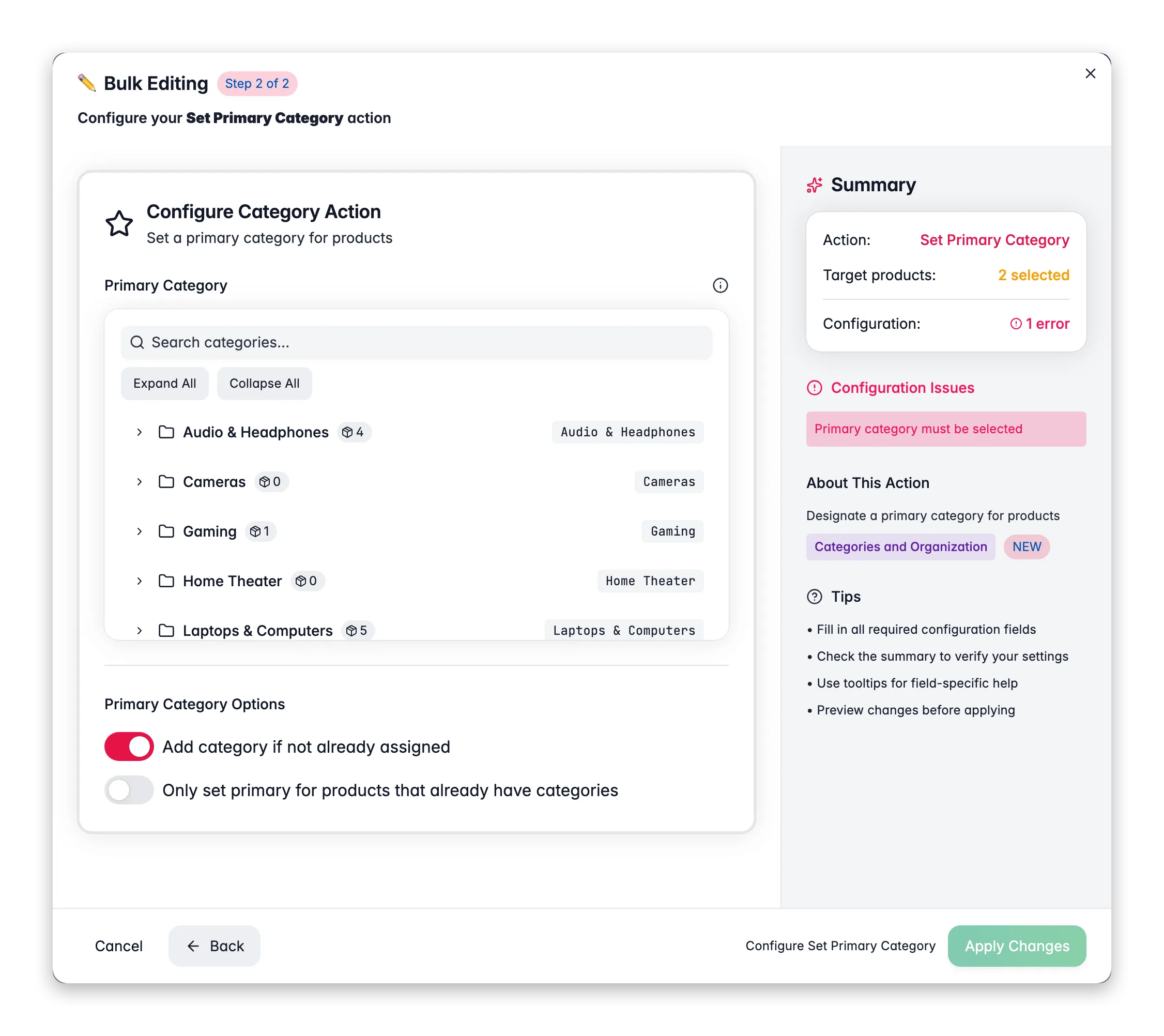
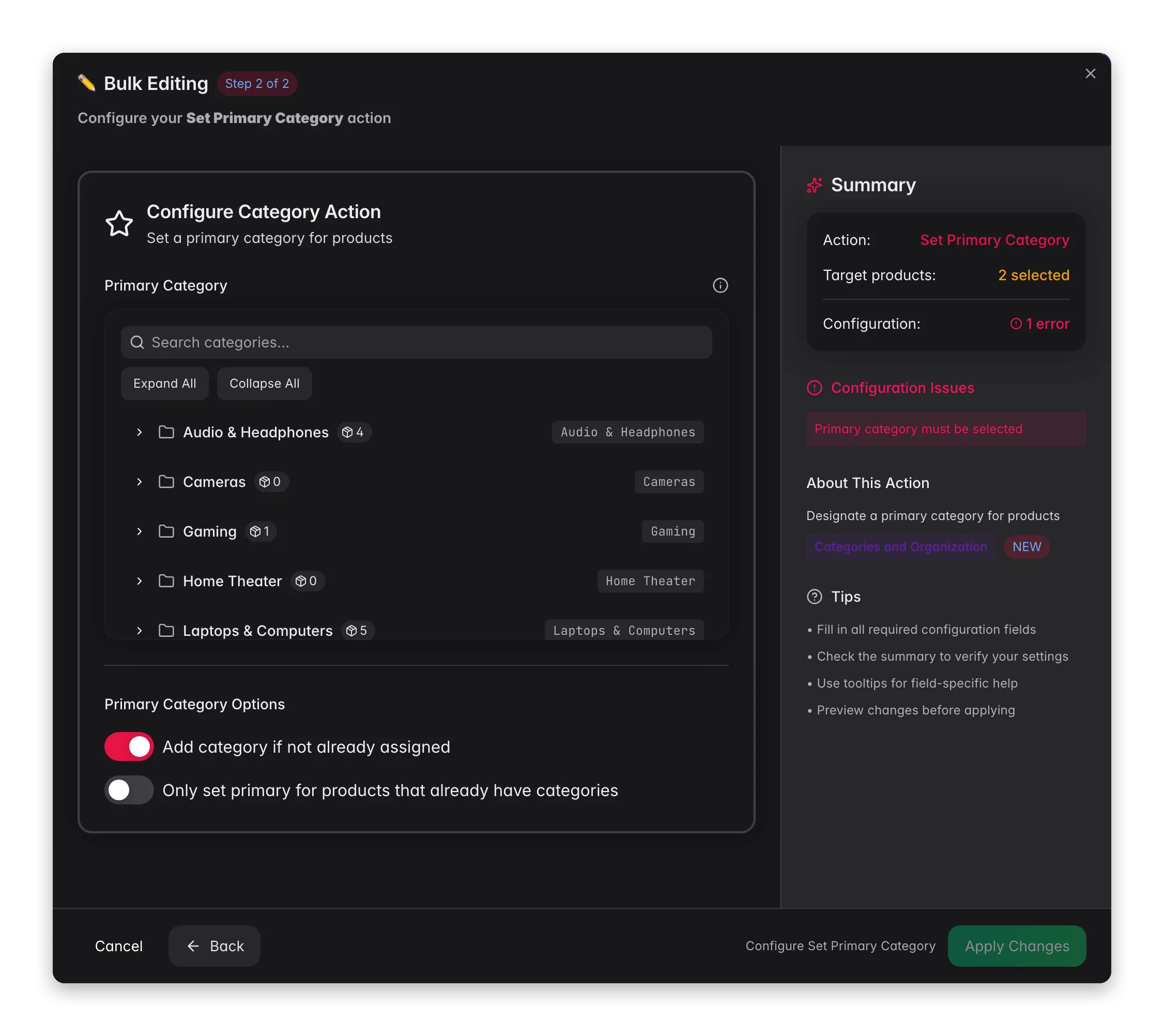 Check the products you want to update, or use filters and select all matching results.
Click **Bulk Edit**, then search for "Set Primary Category" or find it under **Categories & Organization**.
Choose one category to set as the primary for all selected products.
Decide whether to add the category to products that are not in it yet, then click **Apply**.
## Options
| Option | What it does | Default |
| -------------------------------------------------------------- | ---------------------------------------------------- | -------- |
| **Primary category** | The category to set as primary (single choice) | Required |
| **Add category if not already assigned** | Adds the category to products that are not in it yet | On |
| **Only set primary for products that already have categories** | Skips products with no categories | Off |
## Tips
* Leave **Add category if not already assigned** on so every selected product ends up with the primary category, even if it was not in it before.
* The primary category drives breadcrumbs and canonical URLs on most platforms, so getting it right helps your SEO.
* Filter by category first, then set the primary. That way you only touch products already in the right category tree.
## Related
Add products to one or more categories.
Swap a product's categories for a new set.
Check the products you want to update, or use filters and select all matching results.
Click **Bulk Edit**, then search for "Set Primary Category" or find it under **Categories & Organization**.
Choose one category to set as the primary for all selected products.
Decide whether to add the category to products that are not in it yet, then click **Apply**.
## Options
| Option | What it does | Default |
| -------------------------------------------------------------- | ---------------------------------------------------- | -------- |
| **Primary category** | The category to set as primary (single choice) | Required |
| **Add category if not already assigned** | Adds the category to products that are not in it yet | On |
| **Only set primary for products that already have categories** | Skips products with no categories | Off |
## Tips
* Leave **Add category if not already assigned** on so every selected product ends up with the primary category, even if it was not in it before.
* The primary category drives breadcrumbs and canonical URLs on most platforms, so getting it right helps your SEO.
* Filter by category first, then set the primary. That way you only touch products already in the right category tree.
## Related
Add products to one or more categories.
Swap a product's categories for a new set.