> ## Documentation Index
> Fetch the complete documentation index at: https://docs.wisepim.com/llms.txt
> Use this file to discover all available pages before exploring further.
# Set Dimensions
> Bulk set product length, width, and height in one step. Pick any unit and optionally store the calculated volume for shipping.
Set the length, width, and height for many products at once. Accurate dimensions keep shipping costs correct and product specs complete. You can also store the calculated volume for volumetric weight.
## Set dimensions
 Check the products you want to update, or use filters and select all matching results.
Click **Bulk Edit**, then search for "Set Dimensions" or find it under **Inventory & Shipping**.
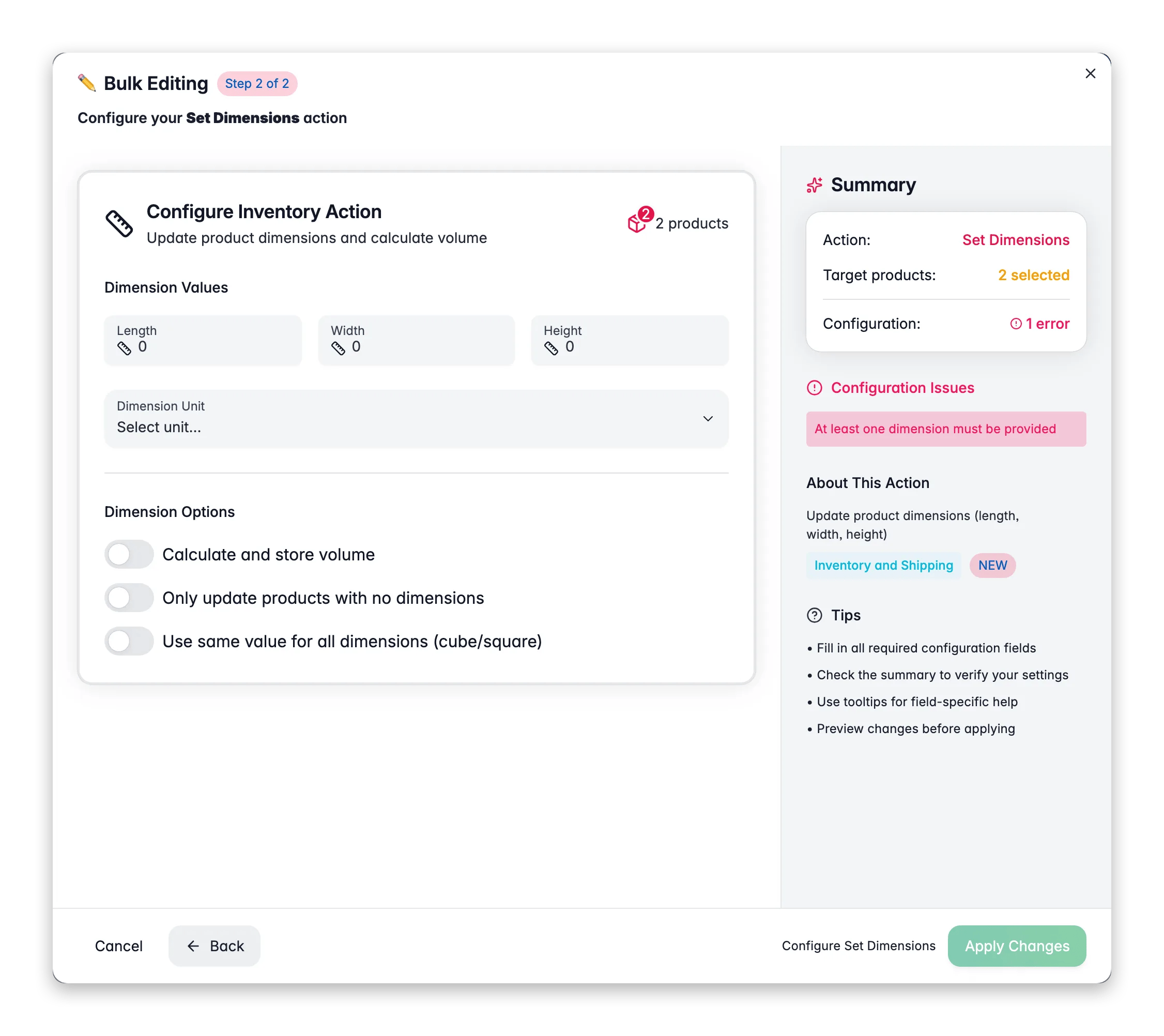
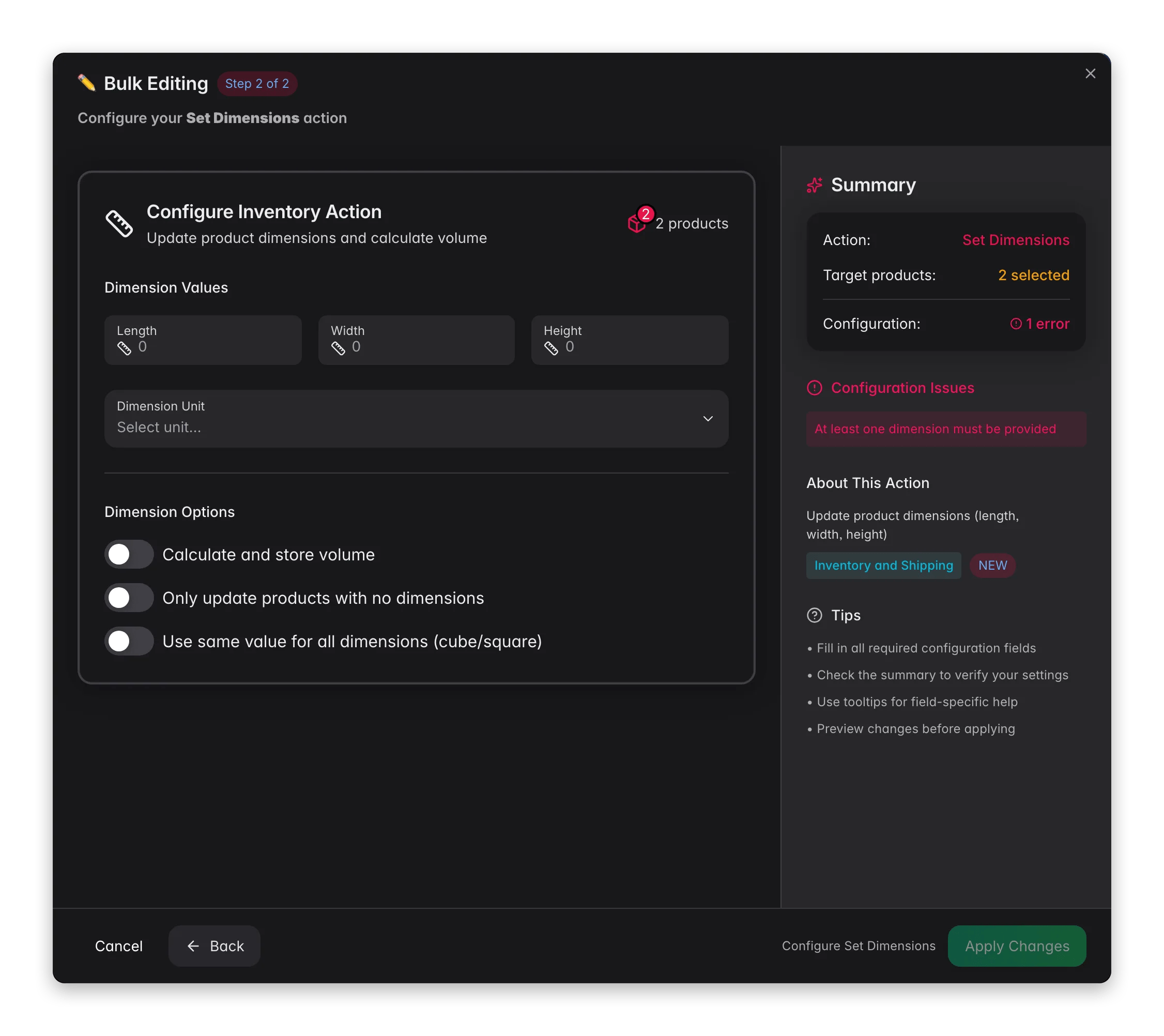
Fill in length, width, and height. To set all three at once, turn on **Use same value for all**.
Choose the dimension unit, set any options, then click **Apply**.
## Options
| Option | What it does | Default |
| ------------------------------------------- | ---------------------------------------------------- | -------- |
| **Length** | Product length | Required |
| **Width** | Product width | Required |
| **Height** | Product height | Required |
| **Dimension unit** | mm, cm, m, in, or ft | Required |
| **Use same value for all** | Sets length, width, and height to one value (a cube) | Off |
| **Calculate and store volume** | Works out and saves the volume from L × W × H | Off |
| **Only update products with no dimensions** | Skips products that already have dimensions | Off |
## Tips
* Turn on **Calculate and store volume** when you need volumetric weight for shipping. Volume is computed as L × W × H.
* Use **Only update products with no dimensions** to fill gaps without overwriting existing measurements.
* **Use same value for all** is quick for cube-shaped products or a uniform size estimate.
## Related
Set HS codes, country of origin, and shipping flags.
Set or adjust product weight in bulk.
Check the products you want to update, or use filters and select all matching results.
Click **Bulk Edit**, then search for "Set Dimensions" or find it under **Inventory & Shipping**.
Fill in length, width, and height. To set all three at once, turn on **Use same value for all**.
Choose the dimension unit, set any options, then click **Apply**.
## Options
| Option | What it does | Default |
| ------------------------------------------- | ---------------------------------------------------- | -------- |
| **Length** | Product length | Required |
| **Width** | Product width | Required |
| **Height** | Product height | Required |
| **Dimension unit** | mm, cm, m, in, or ft | Required |
| **Use same value for all** | Sets length, width, and height to one value (a cube) | Off |
| **Calculate and store volume** | Works out and saves the volume from L × W × H | Off |
| **Only update products with no dimensions** | Skips products that already have dimensions | Off |
## Tips
* Turn on **Calculate and store volume** when you need volumetric weight for shipping. Volume is computed as L × W × H.
* Use **Only update products with no dimensions** to fill gaps without overwriting existing measurements.
* **Use same value for all** is quick for cube-shaped products or a uniform size estimate.
## Related
Set HS codes, country of origin, and shipping flags.
Set or adjust product weight in bulk.