> ## Documentation Index
> Fetch the complete documentation index at: https://docs.wisepim.com/llms.txt
> Use this file to discover all available pages before exploring further.
# Set Attribute Value
> Bulk set a custom attribute value across many products at once. Works with text, number, date, select, boolean, and every other attribute type.
Give many products the same custom attribute value in one step. This is the fastest way to standardize data like material, color, or warranty across your catalog. It works with every attribute type, and the input adapts to the type you pick.
This action sets your own **custom attributes**. To set built-in product fields like name, price, or SKU, use [Set Field Value](/en/essentials/bulk-editing/set-field) instead.
## Set an attribute value
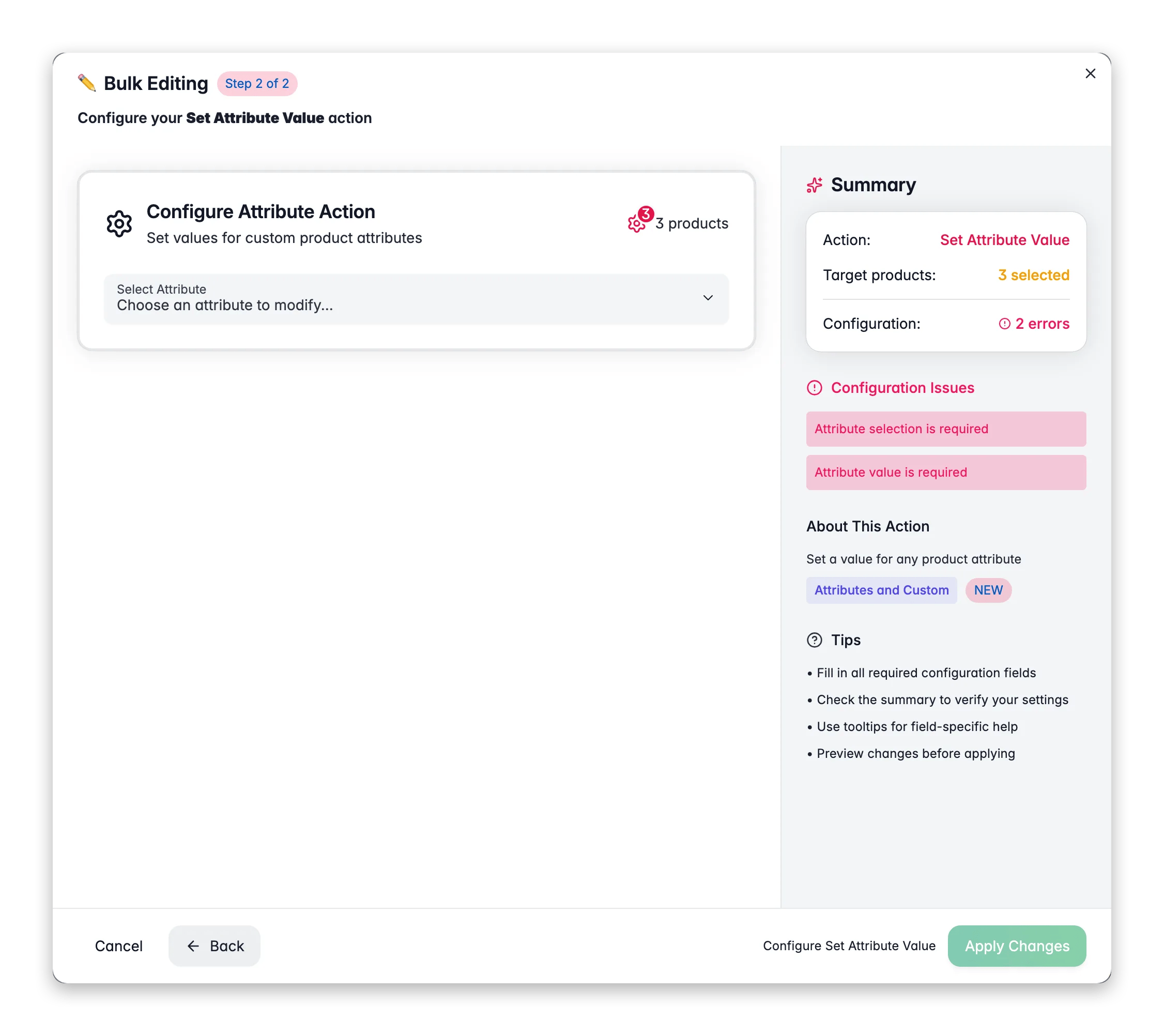
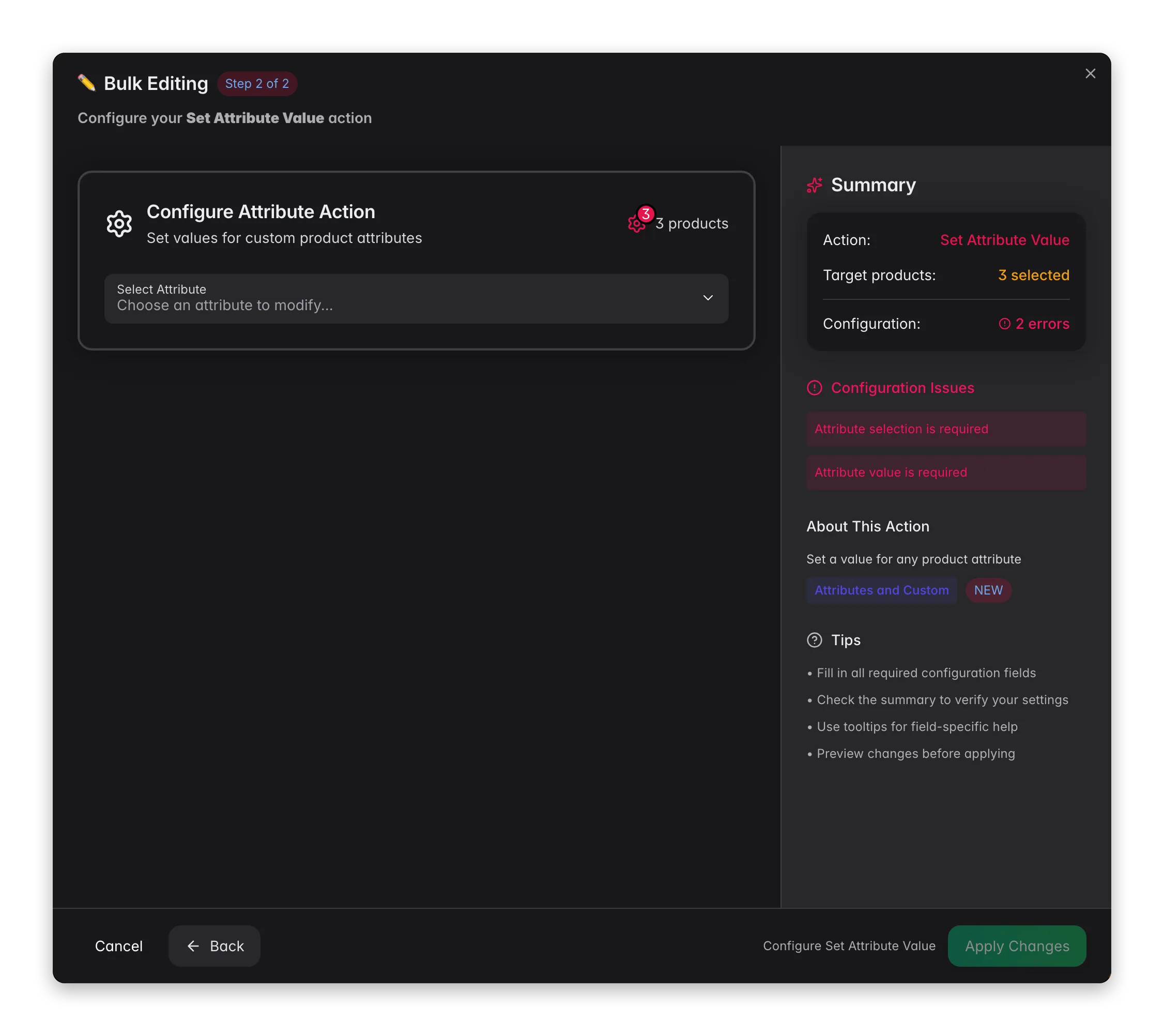 Check the products you want to update, or use filters and select all matching results.
Click **Bulk Edit**, then search for "Set Attribute" or find it under **Attributes & Custom Fields**.
Pick the custom attribute from the dropdown. The input adjusts automatically to match its type.
Set the value using the input shown: a text field, number input, dropdown, date picker, and so on.
Adjust any type-specific options, then click **Apply**.
## Options
| Option | What it does | Default |
| ---------------------------------- | ------------------------------------------------------ | -------- |
| **Attribute** | The custom attribute to set | Required |
| **Value** | The value to assign (input matches the attribute type) | Required |
| **Only set if attribute is empty** | Skips products that already have a value | Off |
### Options by attribute type
Some attribute types add their own options:
| Attribute type | Extra option |
| ------------------------------------ | ------------------------------------------------------------------- |
| Select, Multiselect, Checkbox, Radio | Create the attribute value if it does not exist yet (on by default) |
| Boolean | Force the value for all products (off by default) |
| Text, Textarea, WYSIWYG | Append to existing text instead of replacing it (off by default) |
| Date, Datetime | Use the current date and time (off by default) |
### Supported attribute types
Text, Textarea, WYSIWYG, Select, Multiselect, Checkbox, Radio, Boolean, Date, Datetime, Number, Decimal, Integer.
## Tips
* Turn on **Only set if attribute is empty** to fill gaps without overwriting values you already entered.
* For select and multiselect attributes, **Create attribute value if missing** lets you add new options on the fly. Handy when you introduce a new value.
* For text attributes, use **Append to existing text** to add to what is there instead of replacing it.
## Related
Set built-in product fields like name, price, or SKU.
Empty an attribute across selected products.
Check the products you want to update, or use filters and select all matching results.
Click **Bulk Edit**, then search for "Set Attribute" or find it under **Attributes & Custom Fields**.
Pick the custom attribute from the dropdown. The input adjusts automatically to match its type.
Set the value using the input shown: a text field, number input, dropdown, date picker, and so on.
Adjust any type-specific options, then click **Apply**.
## Options
| Option | What it does | Default |
| ---------------------------------- | ------------------------------------------------------ | -------- |
| **Attribute** | The custom attribute to set | Required |
| **Value** | The value to assign (input matches the attribute type) | Required |
| **Only set if attribute is empty** | Skips products that already have a value | Off |
### Options by attribute type
Some attribute types add their own options:
| Attribute type | Extra option |
| ------------------------------------ | ------------------------------------------------------------------- |
| Select, Multiselect, Checkbox, Radio | Create the attribute value if it does not exist yet (on by default) |
| Boolean | Force the value for all products (off by default) |
| Text, Textarea, WYSIWYG | Append to existing text instead of replacing it (off by default) |
| Date, Datetime | Use the current date and time (off by default) |
### Supported attribute types
Text, Textarea, WYSIWYG, Select, Multiselect, Checkbox, Radio, Boolean, Date, Datetime, Number, Decimal, Integer.
## Tips
* Turn on **Only set if attribute is empty** to fill gaps without overwriting values you already entered.
* For select and multiselect attributes, **Create attribute value if missing** lets you add new options on the fly. Handy when you introduce a new value.
* For text attributes, use **Append to existing text** to add to what is there instead of replacing it.
## Related
Set built-in product fields like name, price, or SKU.
Empty an attribute across selected products.