> ## Documentation Index
> Fetch the complete documentation index at: https://docs.wisepim.com/llms.txt
> Use this file to discover all available pages before exploring further.
# Replace All Categories
> Clear every category from the selected products and assign new ones in a single action. A clean-slate recategorization.
Clear every existing category from the selected products and assign new ones in one action. This is a clean-slate approach. Use it when you want to fully recategorize products.
This action removes **all existing categories** before assigning the new ones. To add categories without removing what's already there, use [Assign to Categories](/en/essentials/bulk-editing/assign-categories) instead.
## Replace all categories
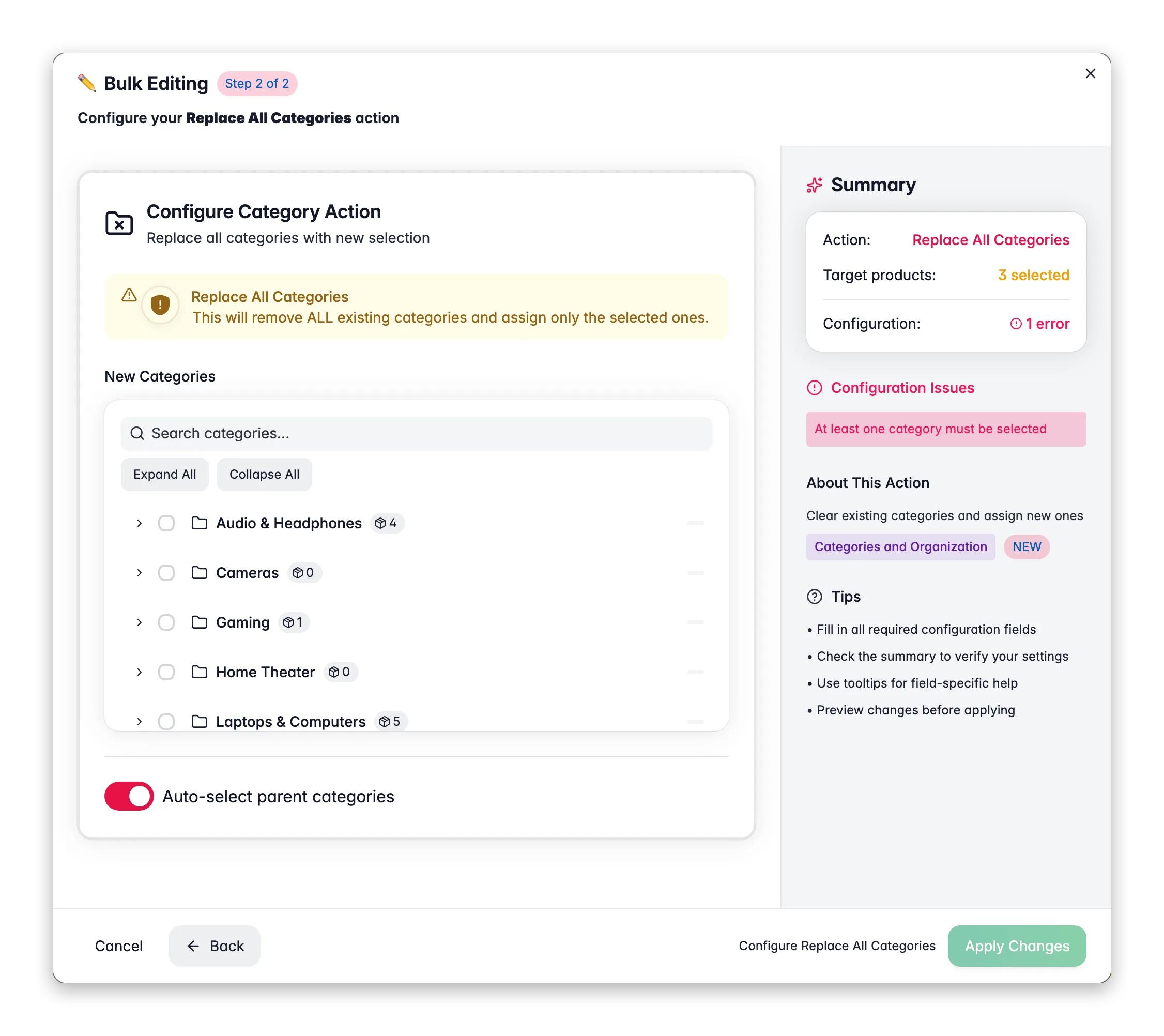
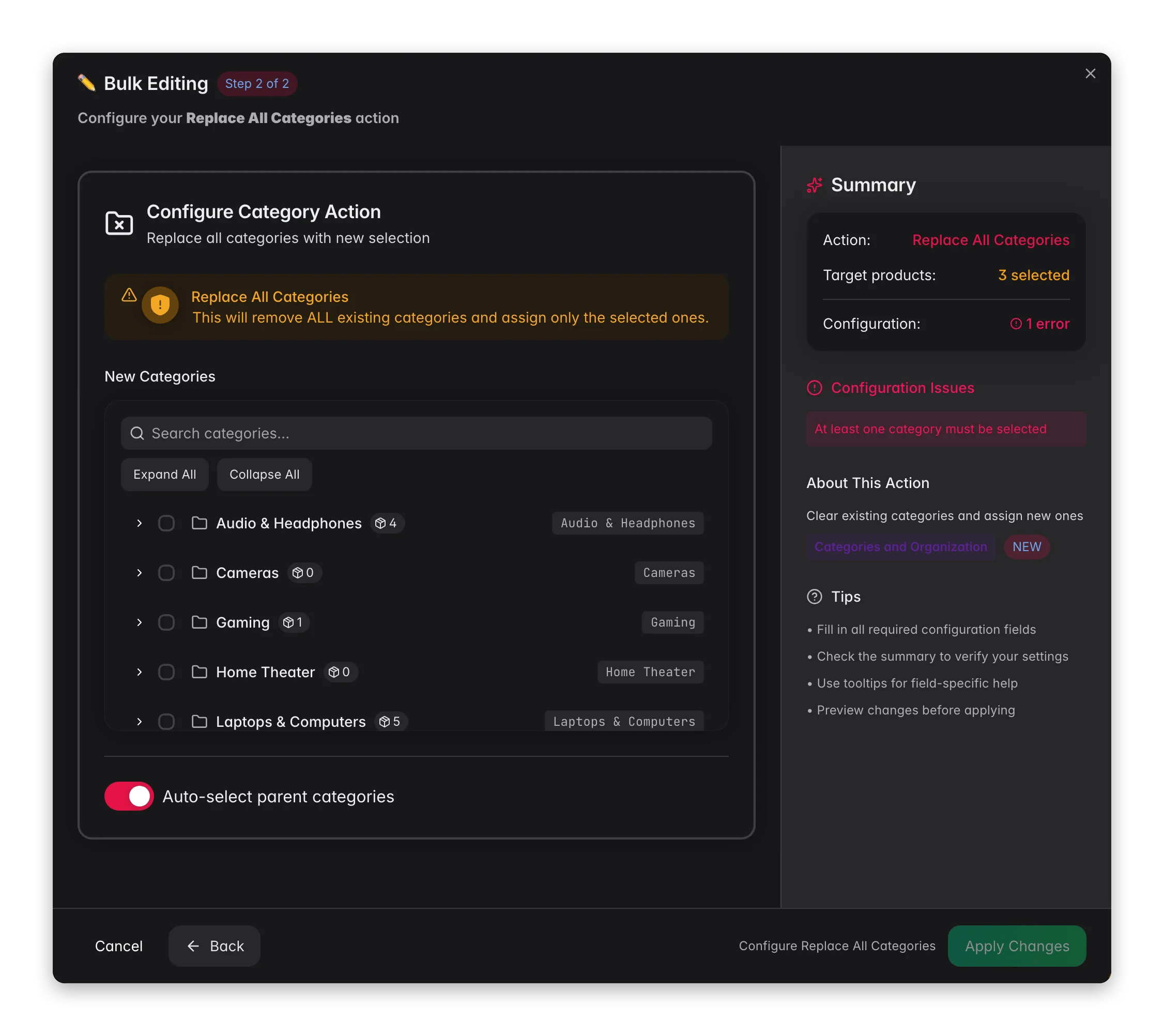 Check the products you want to recategorize, or use filters and select all matching results.
Click **Bulk Edit**, then search for "Replace All Categories" or find it under **Categories & Organization**.
Use the category tree to choose the new categories. Parent categories are auto-selected by default.
Review the warning about existing categories being removed, then click **Apply**.
## Configuration options
| Option | Description | Default |
| --------------------------------- | --------------------------------------------------------------- | ------- |
| **Categories** | The new categories to assign (replaces all existing) | No |
| **Auto-select parent categories** | Automatically include parent categories when you select a child | On |
## Tips
* This is the fastest way to move products from one category structure to another. There's no need to remove old categories first.
* Use this when migrating to a new category tree or restructuring your catalog.
* Test on a small batch first to confirm the new assignments look correct before applying to your full selection.
## Related
Add categories without removing existing ones.
Clear specific categories instead of all of them.
Check the products you want to recategorize, or use filters and select all matching results.
Click **Bulk Edit**, then search for "Replace All Categories" or find it under **Categories & Organization**.
Use the category tree to choose the new categories. Parent categories are auto-selected by default.
Review the warning about existing categories being removed, then click **Apply**.
## Configuration options
| Option | Description | Default |
| --------------------------------- | --------------------------------------------------------------- | ------- |
| **Categories** | The new categories to assign (replaces all existing) | No |
| **Auto-select parent categories** | Automatically include parent categories when you select a child | On |
## Tips
* This is the fastest way to move products from one category structure to another. There's no need to remove old categories first.
* Use this when migrating to a new category tree or restructuring your catalog.
* Test on a small batch first to confirm the new assignments look correct before applying to your full selection.
## Related
Add categories without removing existing ones.
Clear specific categories instead of all of them.