> ## Documentation Index
> Fetch the complete documentation index at: https://docs.wisepim.com/llms.txt
> Use this file to discover all available pages before exploring further.
# Remove Categories
> Remove many products from categories at once: clear specific categories, all of them, or everything except the ones you keep.
Remove many products from categories at once. Clear specific categories, remove every assignment, or keep only the categories you choose and drop the rest.
## Remove products from categories
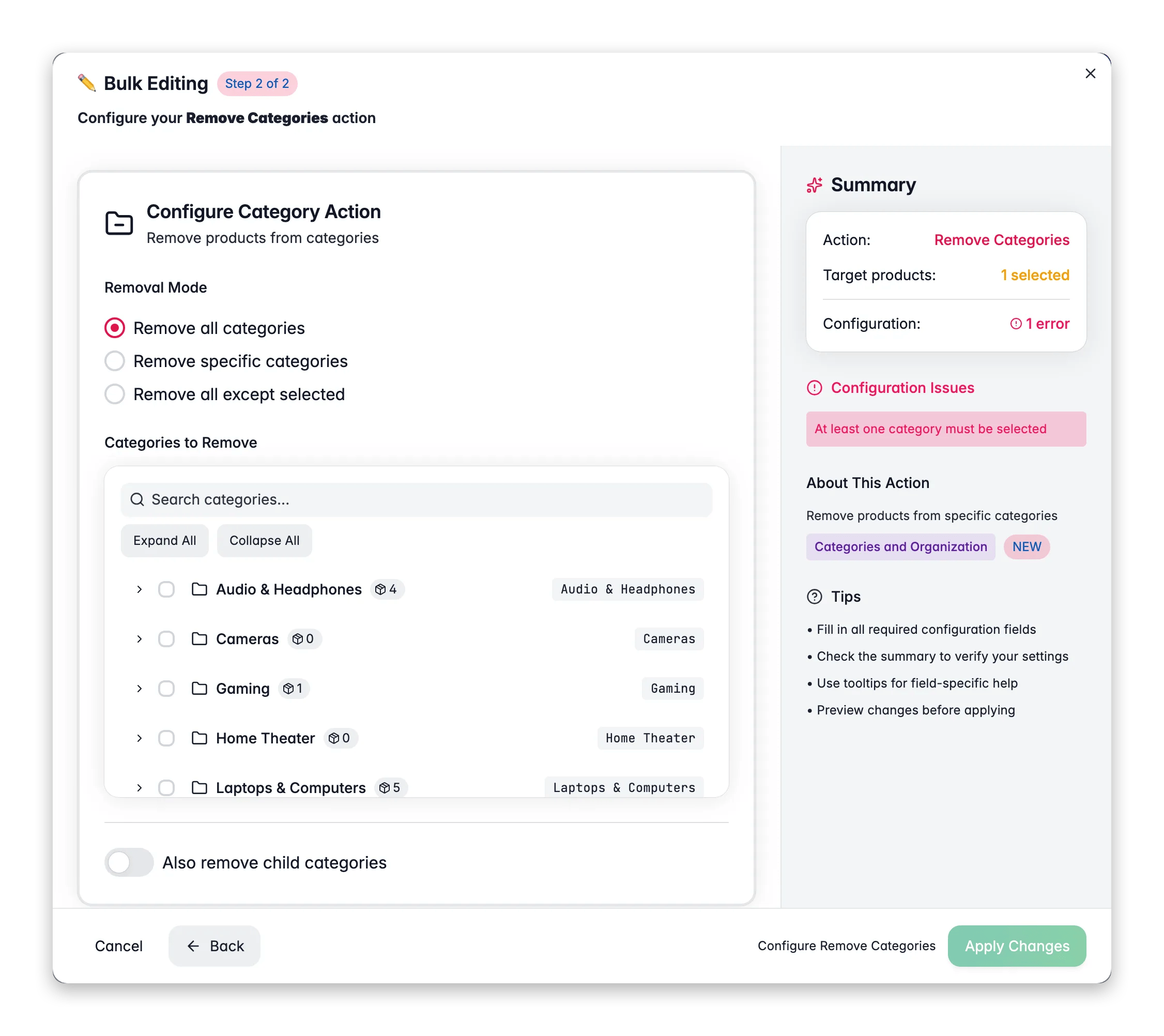
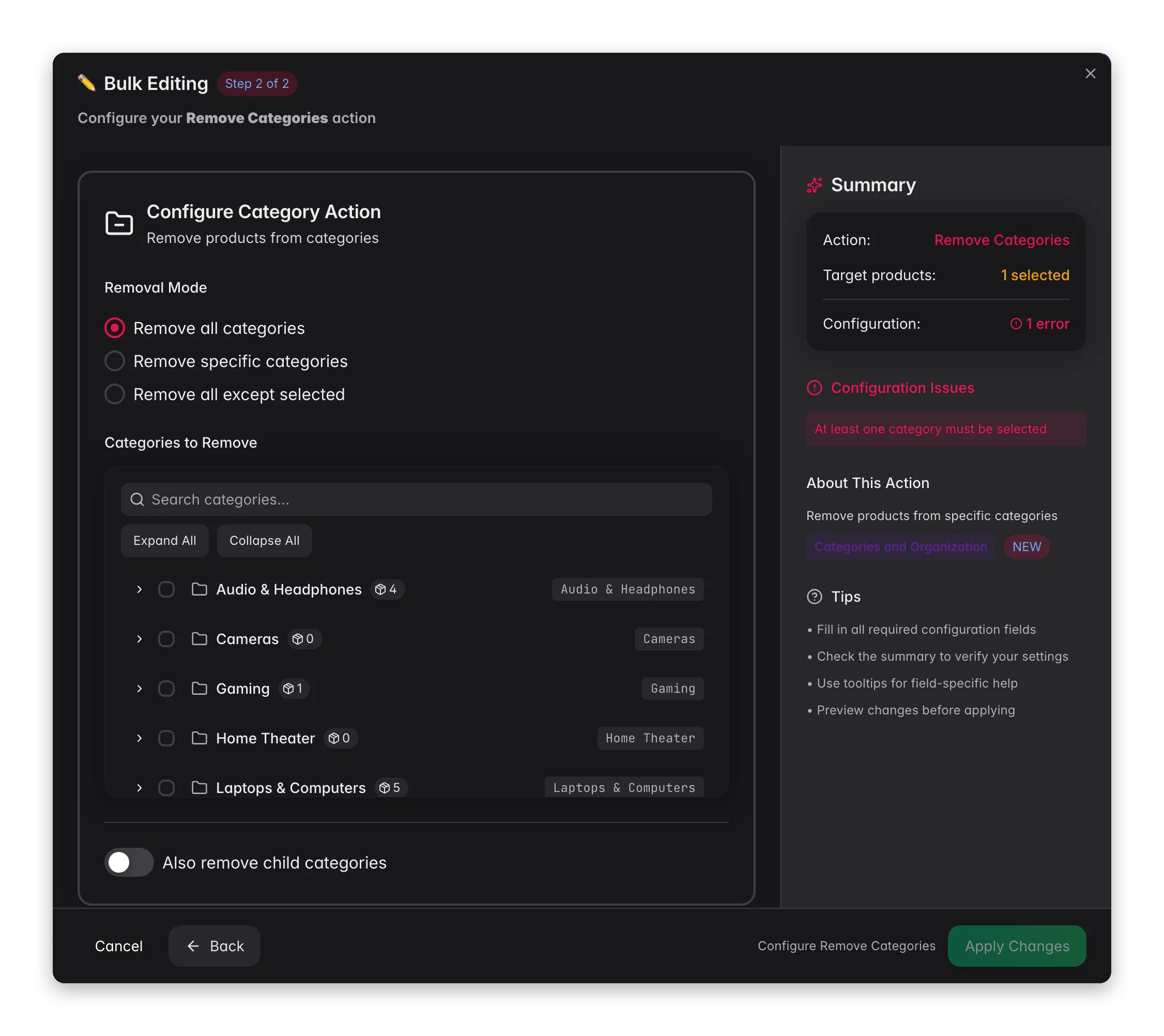 Check the products you want to update, or use filters and select all matching results.
Click **Bulk Edit**, then search for "Remove Categories" or find it under **Categories & Organization**.
Select how you want to remove categories: remove all, remove specific ones, or remove all except selected.
If removing specific categories, select them from the tree. Then click **Apply**.
## Configuration options
| Option | Description |
| -------------------------------- | ------------------------------------------------------------------------ |
| **Remove all categories** | Clear every category assignment from the selected products |
| **Remove specific categories** | Pick which categories to remove using the category tree |
| **Remove all except selected** | Keep only the categories you select, remove everything else |
| **Also remove child categories** | When removing a parent category, also remove its children (default: off) |
## Tips
* Use **Remove all except selected** when you want to consolidate products into a clean category structure. It's easier than removing categories one by one.
* Enable **Also remove child categories** when you're cleaning up an entire branch of your category tree.
* Products with no categories won't appear in most e-commerce storefronts. Reassign them after removing if needed.
## Related
Add categories without removing existing ones.
Clear and reassign categories in one step.
Check the products you want to update, or use filters and select all matching results.
Click **Bulk Edit**, then search for "Remove Categories" or find it under **Categories & Organization**.
Select how you want to remove categories: remove all, remove specific ones, or remove all except selected.
If removing specific categories, select them from the tree. Then click **Apply**.
## Configuration options
| Option | Description |
| -------------------------------- | ------------------------------------------------------------------------ |
| **Remove all categories** | Clear every category assignment from the selected products |
| **Remove specific categories** | Pick which categories to remove using the category tree |
| **Remove all except selected** | Keep only the categories you select, remove everything else |
| **Also remove child categories** | When removing a parent category, also remove its children (default: off) |
## Tips
* Use **Remove all except selected** when you want to consolidate products into a clean category structure. It's easier than removing categories one by one.
* Enable **Also remove child categories** when you're cleaning up an entire branch of your category tree.
* Products with no categories won't appear in most e-commerce storefronts. Reassign them after removing if needed.
## Related
Add categories without removing existing ones.
Clear and reassign categories in one step.