> ## Documentation Index
> Fetch the complete documentation index at: https://docs.wisepim.com/llms.txt
> Use this file to discover all available pages before exploring further.
# Recalculate Data Quality
> Refresh quality scores, completeness percentages, and improvement suggestions for many products at once after bulk changes.
Refresh quality scores, completeness percentages, and improvement recommendations for many products at once. Run it after bulk changes so your quality metrics match the current state of your data.
## Recalculate quality scores
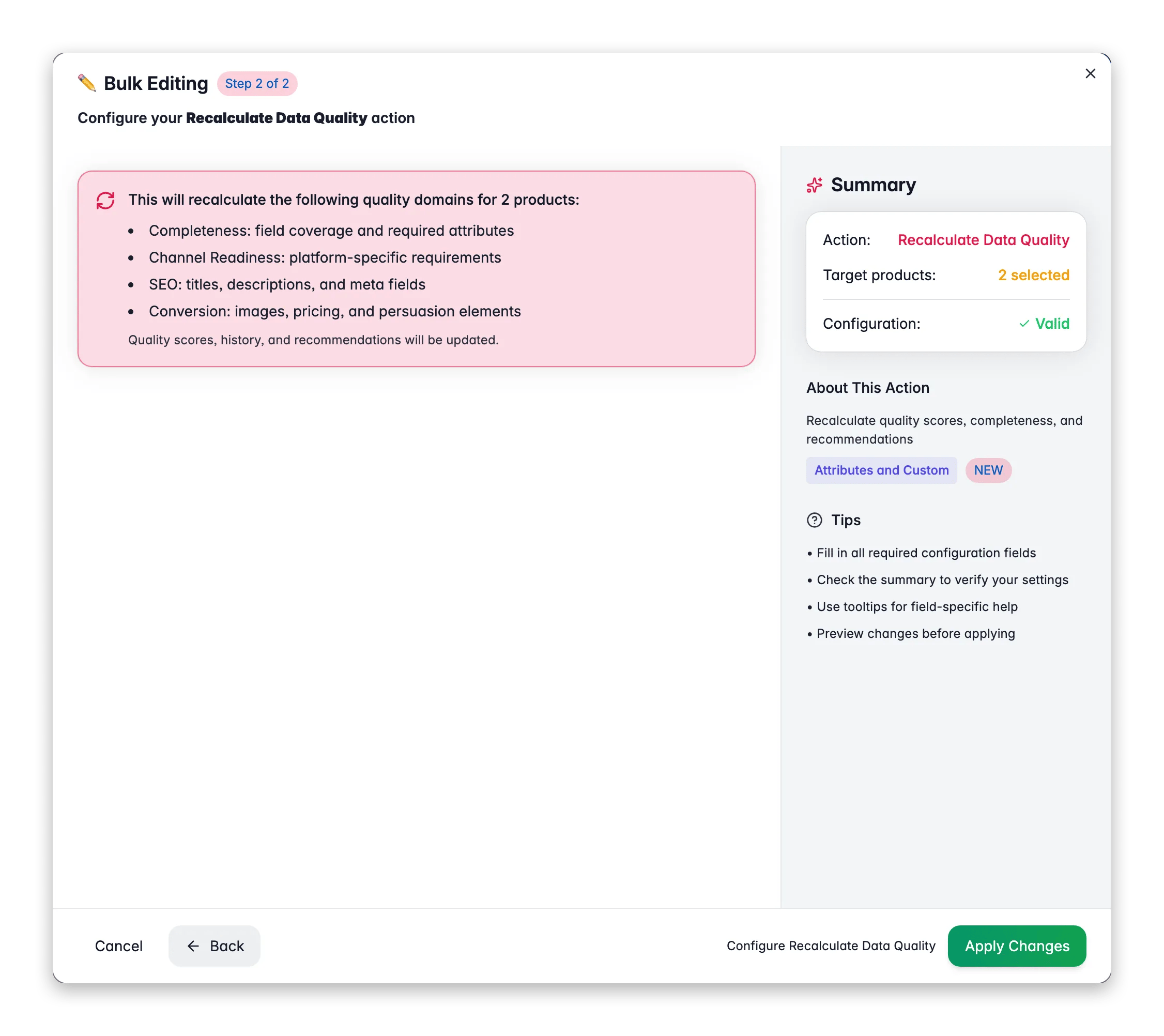
 Check the products you want to recalculate, or use filters and select all matching results.
Click **Bulk Edit**, then search for "Recalculate" or find it under **Attributes & Custom Fields**.
Click **Apply**. No additional configuration is needed.
## What gets recalculated
* **Quality score**: overall data quality rating based on completeness and accuracy
* **Completeness percentage**: how many required and recommended fields are filled in
* **Recommendations**: actionable suggestions for improving product data
## Tips
* Run this after bulk imports or large enrichment operations to get up-to-date quality metrics.
* Quality scores normally recalculate on their own when you edit a single product, but bulk actions may not refresh them right away.
* Use quality scores to spot products that need work. Filter by low scores and focus your enrichment there.
## Related
See completeness and quality trends across your catalog.
Fill gaps with AI to raise your quality scores.
Check the products you want to recalculate, or use filters and select all matching results.
Click **Bulk Edit**, then search for "Recalculate" or find it under **Attributes & Custom Fields**.
Click **Apply**. No additional configuration is needed.
## What gets recalculated
* **Quality score**: overall data quality rating based on completeness and accuracy
* **Completeness percentage**: how many required and recommended fields are filled in
* **Recommendations**: actionable suggestions for improving product data
## Tips
* Run this after bulk imports or large enrichment operations to get up-to-date quality metrics.
* Quality scores normally recalculate on their own when you edit a single product, but bulk actions may not refresh them right away.
* Use quality scores to spot products that need work. Filter by low scores and focus your enrichment there.
## Related
See completeness and quality trends across your catalog.
Fill gaps with AI to raise your quality scores.