> ## Documentation Index
> Fetch the complete documentation index at: https://docs.wisepim.com/llms.txt
> Use this file to discover all available pages before exploring further.
# Numeric Operations
> Do math on numeric attributes across many products at once: add, subtract, multiply, divide, adjust by percentage, or cap values to a range.
Do math on numeric custom attributes across many products at once. Add, subtract, multiply, divide, adjust by a percentage, or cap values to a range.
## Run a numeric operation
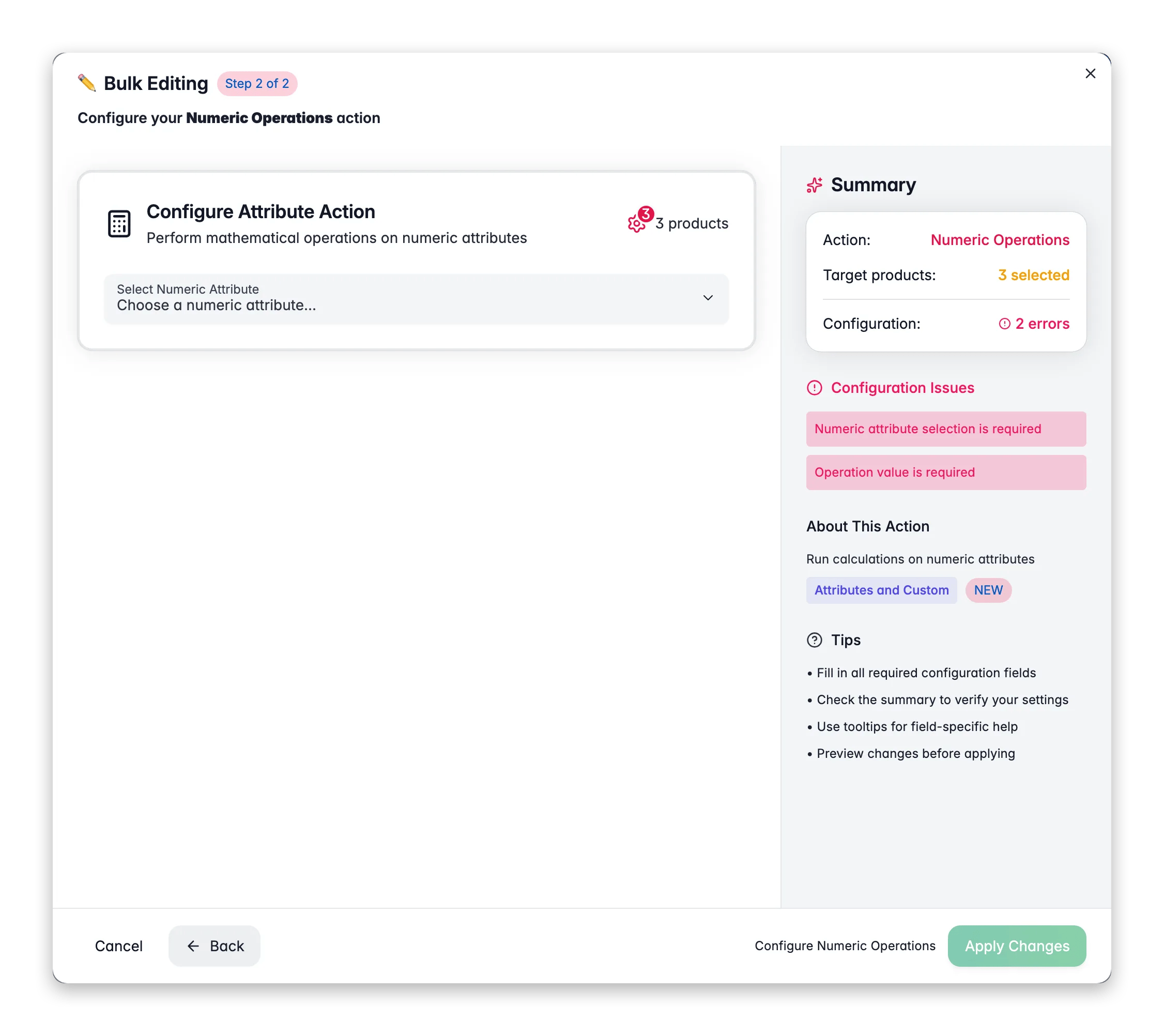
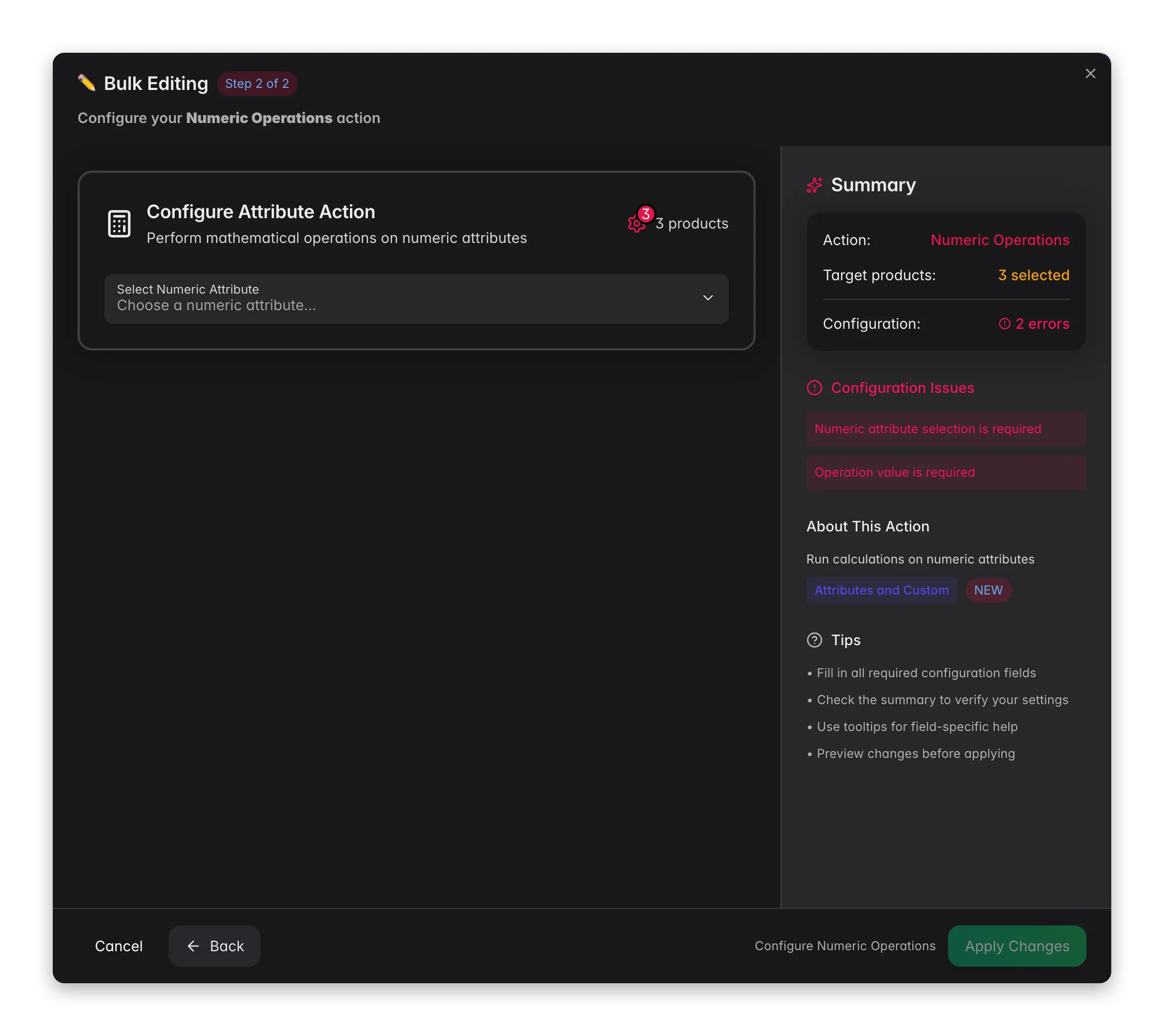 Check the products you want to update, or use filters and select all matching results.
Click **Bulk Edit**, then search for "Numeric Operations" or find it under **Attributes & Custom Fields**.
Choose from your numeric, decimal, or integer custom attributes.
Select the math operation and enter the operand value.
Review the operation preview, then click **Apply**.
## Configuration options
### Operations
| Operation | Description | Example (value = 10) |
| --------------------- | ----------------------------------------------- | ------------------------ |
| **Add** | Add a value to the current number | 100 → 110 |
| **Subtract** | Subtract a value from the current number | 100 → 90 |
| **Multiply** | Multiply the current number by a value | 100 → 1000 |
| **Divide** | Divide the current number by a value | 100 → 10 |
| **Increase by %** | Increase by a percentage | 100 → 110 |
| **Decrease by %** | Decrease by a percentage | 100 → 90 |
| **Set minimum value** | Set a floor, so values below this are raised | 50 → 50 (if min = 50) |
| **Set maximum value** | Set a ceiling, so values above this are lowered | 150 → 150 (if max = 150) |
### Options
| Option | Description | Default |
| ------------------------------------------- | -------------------------------------------------------------- | ------- |
| **Round result** | Round to the nearest whole number | Off |
| **Skip products with zero or empty values** | Don't apply the operation to products with no value or zero | On |
| **Prevent division by zero** | Skip division when the operand is zero (shown for divide only) | On |
## Tips
* The operation preview shows the result on an example value (100), so you can verify the calculation before applying.
* Use **Set minimum value** and **Set maximum value** to cap values within a range. For example, keep a rating attribute between 1 and 5.
* **Skip products with zero or empty values** is on by default to prevent unintended results like multiplying zero.
## Related
Adjust prices in bulk with percentage or fixed changes.
Set a fixed value for an attribute instead of calculating it.
Check the products you want to update, or use filters and select all matching results.
Click **Bulk Edit**, then search for "Numeric Operations" or find it under **Attributes & Custom Fields**.
Choose from your numeric, decimal, or integer custom attributes.
Select the math operation and enter the operand value.
Review the operation preview, then click **Apply**.
## Configuration options
### Operations
| Operation | Description | Example (value = 10) |
| --------------------- | ----------------------------------------------- | ------------------------ |
| **Add** | Add a value to the current number | 100 → 110 |
| **Subtract** | Subtract a value from the current number | 100 → 90 |
| **Multiply** | Multiply the current number by a value | 100 → 1000 |
| **Divide** | Divide the current number by a value | 100 → 10 |
| **Increase by %** | Increase by a percentage | 100 → 110 |
| **Decrease by %** | Decrease by a percentage | 100 → 90 |
| **Set minimum value** | Set a floor, so values below this are raised | 50 → 50 (if min = 50) |
| **Set maximum value** | Set a ceiling, so values above this are lowered | 150 → 150 (if max = 150) |
### Options
| Option | Description | Default |
| ------------------------------------------- | -------------------------------------------------------------- | ------- |
| **Round result** | Round to the nearest whole number | Off |
| **Skip products with zero or empty values** | Don't apply the operation to products with no value or zero | On |
| **Prevent division by zero** | Skip division when the operand is zero (shown for divide only) | On |
## Tips
* The operation preview shows the result on an example value (100), so you can verify the calculation before applying.
* Use **Set minimum value** and **Set maximum value** to cap values within a range. For example, keep a rating attribute between 1 and 5.
* **Skip products with zero or empty values** is on by default to prevent unintended results like multiplying zero.
## Related
Adjust prices in bulk with percentage or fixed changes.
Set a fixed value for an attribute instead of calculating it.