> ## Documentation Index
> Fetch the complete documentation index at: https://docs.wisepim.com/llms.txt
> Use this file to discover all available pages before exploring further.
# Find and Replace
> Find and replace text across many products at once: fix typos, update brand names, and clean up imported data.
Search and replace text across many products at once. Use it to fix typos, update brand names, swap out old terms, or clean up imported data.
## Run a find and replace
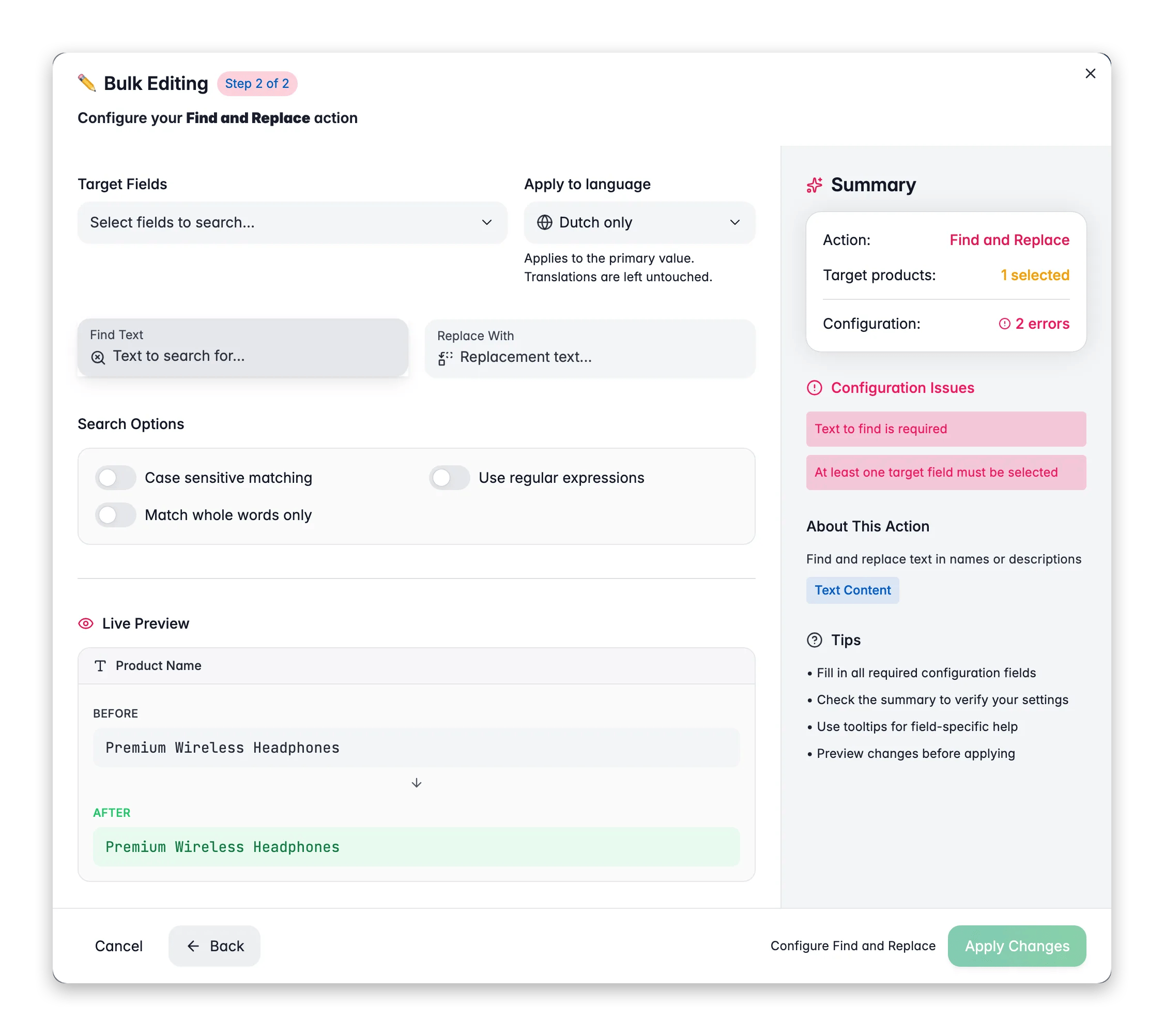
 Check the products you want to update, or use filters and select all matching results.
Click **Bulk Edit**, then search for "Find and Replace" or find it under **Text & Content**.
Type the text you want to find, and what to replace it with. Leave the replacement empty to simply remove the found text.
Select which fields to search: product name, description, enriched description, SEO fields, SKU, EAN, UPC, MPN, brand, supplier, or custom text attributes.
Toggle case sensitivity, regex, or whole-word matching as needed, then click **Apply**.
## Configuration options
| Option | Description | Default |
| --------------------------- | ------------------------------------------------------------------------------------ | ------- |
| **Find text** | The text to search for (required) | No |
| **Replace with** | The replacement text. Leave empty to delete the matched text | Empty |
| **Case sensitive** | Match exact uppercase/lowercase | Off |
| **Use regular expressions** | Enable regex pattern matching in the search field | Off |
| **Match whole words only** | Only match when the search text appears as a complete word, not part of another word | Off |
| **Target fields** | Which product fields to search and replace in | No |
## Using Content Logic variables in replacements
The **Replace with** field supports [Content Logic](/en/workflows/content-logic) variables. Type `{{` to open the autocomplete dropdown and insert dynamic values. This means your replacement text can be different for every product.
| Scope | Example variable | Resolves to |
| ---------- | ------------------------------------------------------------ | --------------------------------- |
| `product` | `{{product.name}}`, `{{product.brand}}`, `{{product.price}}` | Product-level data |
| `global` | `{{global.company_name}}`, `{{global.warranty_text}}` | Shared values across all products |
| `brand` | `{{brand.tagline}}` | Brand-specific content |
| `category` | `{{category.material_description}}` | Category-specific content |
### Examples
**Replace a placeholder with the actual brand name:**
* Find: `[BRAND]`
* Replace with: `{{product.brand}}`
> Every product's `[BRAND]` placeholder becomes its actual brand, such as "Nike" or "Adidas".
**Swap a generic call-to-action with a dynamic one:**
* Find: `Buy now`
* Replace with: `Buy {{product.name}} now at {{global.website_url}}`
> "Buy now" → "Buy Air Max 90 now at shop.example.com"
**Replace an outdated warranty line with a variable:**
* Find: `1-year warranty included`
* Replace with: `{{global.warranty_text}}`
> Every occurrence gets replaced with whatever you've defined in your [Content Logic globals](/en/workflows/content-logic). Update the variable once, and it applies everywhere.
### B2B examples
**Standardize inconsistent unit formats:**
* Find: `kilogram` (also run for `Kilogram`, `KG`, `kgs`, `Kgs`)
* Replace with: `kg`
> Normalizes weight units across your catalog so specs read consistently: "0.85 kg" instead of a mix of "0.85 kilogram", "0.85 KG", "0.85 Kgs".
**Replace a static lead time with a dynamic variable:**
* Find: `Delivery: 5-7 days`
* Replace with: `Delivery: {{global.lead_time_text}}`
> Swaps hardcoded lead times for a [Content Logic](/en/workflows/content-logic) variable. When your lead times change, update the variable once and every product description stays current.
**Swap generic compliance text for brand-specific certifications:**
* Find: `Meets industry standards`
* Replace with: `{{brand.compliance_text}}`
> Each product gets the actual certifications for its manufacturer: "ISO 9001:2015 certified. REACH compliant." for one brand, "CE marked. RoHS compliant." for another.
**Replace informal product descriptions with structured specs (regex):**
* Find: `weighs about \d+` (with **Use regular expressions** enabled)
* Replace with: `Weight: {{product.weight}} {{product.weight_unit}}`
> "weighs about 500" → "Weight: 0.5 kg". Replaces vague copy with the actual product weight from your data.
Content Logic variables are especially powerful with Find and Replace. You can swap static text for dynamic content that stays up to date automatically. Define your variables in [Content Logic](/en/workflows/content-logic), then reference them here.
## Tips
* Leave **Replace with** empty to bulk-delete a word or phrase from all selected products.
* Enable **Regular expressions** for pattern-based replacements. For example, replace `\d{4}` to remove all 4-digit numbers.
* Test on a small selection first when using regex to make sure the pattern matches what you expect.
* Combine regex with Content Logic variables: find a pattern and replace it with dynamic, per-product content.
## Related
Define the variables you can drop into replacements.
Fix inconsistent capitalization across text fields.
Remove stray spaces left over from imports.
Add text to the start or end of a field.
Check the products you want to update, or use filters and select all matching results.
Click **Bulk Edit**, then search for "Find and Replace" or find it under **Text & Content**.
Type the text you want to find, and what to replace it with. Leave the replacement empty to simply remove the found text.
Select which fields to search: product name, description, enriched description, SEO fields, SKU, EAN, UPC, MPN, brand, supplier, or custom text attributes.
Toggle case sensitivity, regex, or whole-word matching as needed, then click **Apply**.
## Configuration options
| Option | Description | Default |
| --------------------------- | ------------------------------------------------------------------------------------ | ------- |
| **Find text** | The text to search for (required) | No |
| **Replace with** | The replacement text. Leave empty to delete the matched text | Empty |
| **Case sensitive** | Match exact uppercase/lowercase | Off |
| **Use regular expressions** | Enable regex pattern matching in the search field | Off |
| **Match whole words only** | Only match when the search text appears as a complete word, not part of another word | Off |
| **Target fields** | Which product fields to search and replace in | No |
## Using Content Logic variables in replacements
The **Replace with** field supports [Content Logic](/en/workflows/content-logic) variables. Type `{{` to open the autocomplete dropdown and insert dynamic values. This means your replacement text can be different for every product.
| Scope | Example variable | Resolves to |
| ---------- | ------------------------------------------------------------ | --------------------------------- |
| `product` | `{{product.name}}`, `{{product.brand}}`, `{{product.price}}` | Product-level data |
| `global` | `{{global.company_name}}`, `{{global.warranty_text}}` | Shared values across all products |
| `brand` | `{{brand.tagline}}` | Brand-specific content |
| `category` | `{{category.material_description}}` | Category-specific content |
### Examples
**Replace a placeholder with the actual brand name:**
* Find: `[BRAND]`
* Replace with: `{{product.brand}}`
> Every product's `[BRAND]` placeholder becomes its actual brand, such as "Nike" or "Adidas".
**Swap a generic call-to-action with a dynamic one:**
* Find: `Buy now`
* Replace with: `Buy {{product.name}} now at {{global.website_url}}`
> "Buy now" → "Buy Air Max 90 now at shop.example.com"
**Replace an outdated warranty line with a variable:**
* Find: `1-year warranty included`
* Replace with: `{{global.warranty_text}}`
> Every occurrence gets replaced with whatever you've defined in your [Content Logic globals](/en/workflows/content-logic). Update the variable once, and it applies everywhere.
### B2B examples
**Standardize inconsistent unit formats:**
* Find: `kilogram` (also run for `Kilogram`, `KG`, `kgs`, `Kgs`)
* Replace with: `kg`
> Normalizes weight units across your catalog so specs read consistently: "0.85 kg" instead of a mix of "0.85 kilogram", "0.85 KG", "0.85 Kgs".
**Replace a static lead time with a dynamic variable:**
* Find: `Delivery: 5-7 days`
* Replace with: `Delivery: {{global.lead_time_text}}`
> Swaps hardcoded lead times for a [Content Logic](/en/workflows/content-logic) variable. When your lead times change, update the variable once and every product description stays current.
**Swap generic compliance text for brand-specific certifications:**
* Find: `Meets industry standards`
* Replace with: `{{brand.compliance_text}}`
> Each product gets the actual certifications for its manufacturer: "ISO 9001:2015 certified. REACH compliant." for one brand, "CE marked. RoHS compliant." for another.
**Replace informal product descriptions with structured specs (regex):**
* Find: `weighs about \d+` (with **Use regular expressions** enabled)
* Replace with: `Weight: {{product.weight}} {{product.weight_unit}}`
> "weighs about 500" → "Weight: 0.5 kg". Replaces vague copy with the actual product weight from your data.
Content Logic variables are especially powerful with Find and Replace. You can swap static text for dynamic content that stays up to date automatically. Define your variables in [Content Logic](/en/workflows/content-logic), then reference them here.
## Tips
* Leave **Replace with** empty to bulk-delete a word or phrase from all selected products.
* Enable **Regular expressions** for pattern-based replacements. For example, replace `\d{4}` to remove all 4-digit numbers.
* Test on a small selection first when using regex to make sure the pattern matches what you expect.
* Combine regex with Content Logic variables: find a pattern and replace it with dynamic, per-product content.
## Related
Define the variables you can drop into replacements.
Fix inconsistent capitalization across text fields.
Remove stray spaces left over from imports.
Add text to the start or end of a field.