> ## Documentation Index
> Fetch the complete documentation index at: https://docs.wisepim.com/llms.txt
> Use this file to discover all available pages before exploring further.
# Enforce Dictionary
> Apply your approved terminology across product content in bulk. Replace off-brand or inconsistent terms with the wording you have agreed on.
Keep your wording consistent across the whole catalog. Enforce Dictionary takes the terms in your translation dictionary and replaces them across product content, so every product uses the language you have approved. Use it to fix off-brand wording, enforce house style, or standardize terminology after an import or a translation pass.
It works from the dictionary you set up in **Settings → Translation → Dictionary**. Each dictionary entry has a source term and the term it should become. This action finds the source terms in your selected products and swaps in the approved version. Entries marked "Do Not Translate" are skipped automatically.
## Enforce your dictionary
 Check the products you want to update, or use filters and select all matching results.
Click **Bulk Edit**, then search for "Enforce Dictionary" or find it under **Text & Content**.
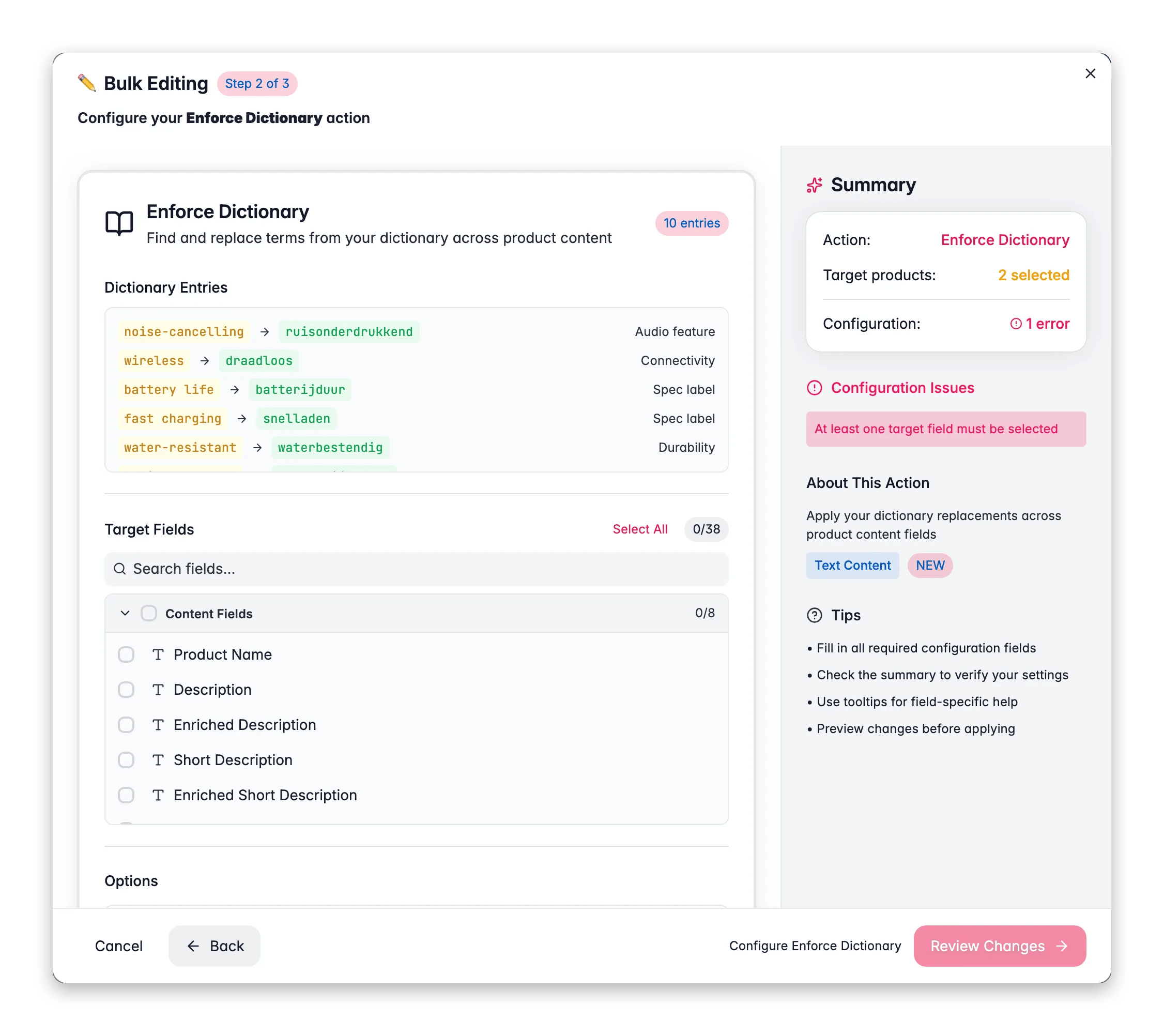
WisePIM loads your active dictionary and shows each term and its replacement. Set up your terms first in **Settings → Translation → Dictionary** if the list is empty.
Pick which fields to scan: product name, descriptions, SEO fields, identifiers, custom text attributes, and any translated fields per language.
Toggle case-sensitive matching if you need it, then click **Apply**.
## Options
| Option | What it does | Default |
| --------------------------- | ------------------------------------------------------------------------------------------------------------------------------------ | ---------- |
| **Target fields** | The fields to scan and update. Grouped into Content Fields, Identifier Fields, custom attributes, and per-language Translated Fields | All fields |
| **Case sensitive matching** | When on, "Product" will not match "product" | Off |
### Fields you can target
* **Content fields:** product name, description, enriched description, short description, enriched short description, SEO title, SEO description, meta keywords.
* **Identifier fields:** SKU, EAN, UPC, MPN, brand, supplier.
* **Custom attributes:** any text or textarea custom attribute, grouped by attribute group.
* **Translated fields:** the same content fields for each language you have set up, so you can enforce terminology per locale.
## When to use it
* **Brand and house style.** Replace casual or legacy wording with your approved terms across thousands of products at once.
* **After a translation pass.** Lock in the correct term for a concept so the whole catalog reads consistently in each language.
* **After an import.** A supplier feed often uses its own vocabulary. Enforce your dictionary to bring it in line with how you describe products.
Build your dictionary once in **Settings → Translation → Dictionary**, then run Enforce Dictionary whenever you bring in new products. Your terminology stays consistent without manual editing.
Only active dictionary entries are applied. Entries marked "Do Not Translate" are left out, so protected names and trademarks stay exactly as they are.
## Related
Replace a single phrase across many products at once.
Fix inconsistent capitalization across text fields.
Strip hyperlinks from product content in bulk.
Browse every bulk editing action by category.
Check the products you want to update, or use filters and select all matching results.
Click **Bulk Edit**, then search for "Enforce Dictionary" or find it under **Text & Content**.
WisePIM loads your active dictionary and shows each term and its replacement. Set up your terms first in **Settings → Translation → Dictionary** if the list is empty.
Pick which fields to scan: product name, descriptions, SEO fields, identifiers, custom text attributes, and any translated fields per language.
Toggle case-sensitive matching if you need it, then click **Apply**.
## Options
| Option | What it does | Default |
| --------------------------- | ------------------------------------------------------------------------------------------------------------------------------------ | ---------- |
| **Target fields** | The fields to scan and update. Grouped into Content Fields, Identifier Fields, custom attributes, and per-language Translated Fields | All fields |
| **Case sensitive matching** | When on, "Product" will not match "product" | Off |
### Fields you can target
* **Content fields:** product name, description, enriched description, short description, enriched short description, SEO title, SEO description, meta keywords.
* **Identifier fields:** SKU, EAN, UPC, MPN, brand, supplier.
* **Custom attributes:** any text or textarea custom attribute, grouped by attribute group.
* **Translated fields:** the same content fields for each language you have set up, so you can enforce terminology per locale.
## When to use it
* **Brand and house style.** Replace casual or legacy wording with your approved terms across thousands of products at once.
* **After a translation pass.** Lock in the correct term for a concept so the whole catalog reads consistently in each language.
* **After an import.** A supplier feed often uses its own vocabulary. Enforce your dictionary to bring it in line with how you describe products.
Build your dictionary once in **Settings → Translation → Dictionary**, then run Enforce Dictionary whenever you bring in new products. Your terminology stays consistent without manual editing.
Only active dictionary entries are applied. Entries marked "Do Not Translate" are left out, so protected names and trademarks stay exactly as they are.
## Related
Replace a single phrase across many products at once.
Fix inconsistent capitalization across text fields.
Strip hyperlinks from product content in bulk.
Browse every bulk editing action by category.