> ## Documentation Index
> Fetch the complete documentation index at: https://docs.wisepim.com/llms.txt
> Use this file to discover all available pages before exploring further.
# Update Cost/Margins
> Bulk update cost prices and profit margins. Set costs directly, hit a target margin, or apply a markup percentage across products.
Update cost prices across many products at once. Set costs directly, work back from a target margin, or apply a markup. WisePIM does the math for each product.
Use this to refresh costs after a supplier price change, or to lock in a consistent margin across your catalog.
## Update costs and margins
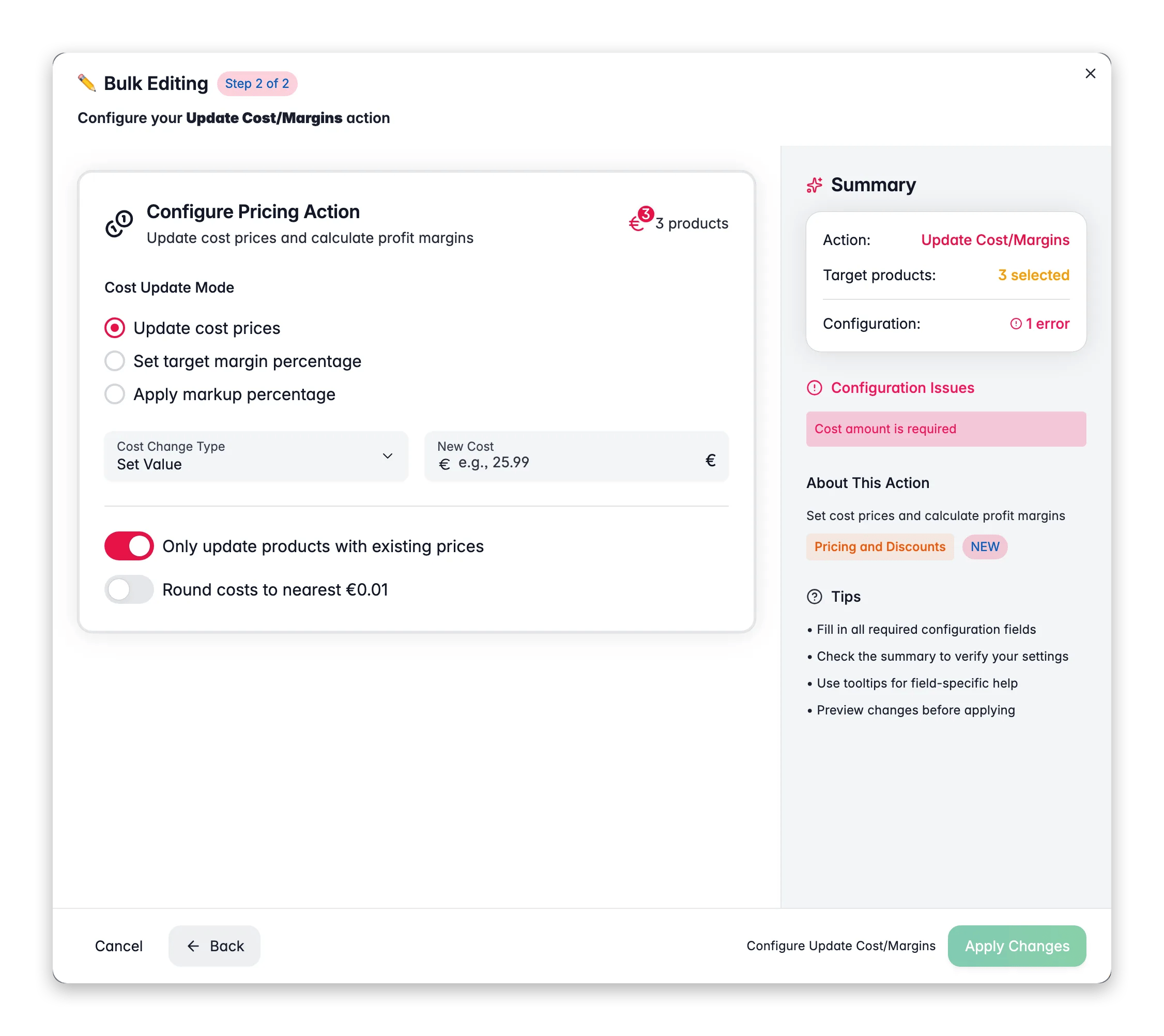
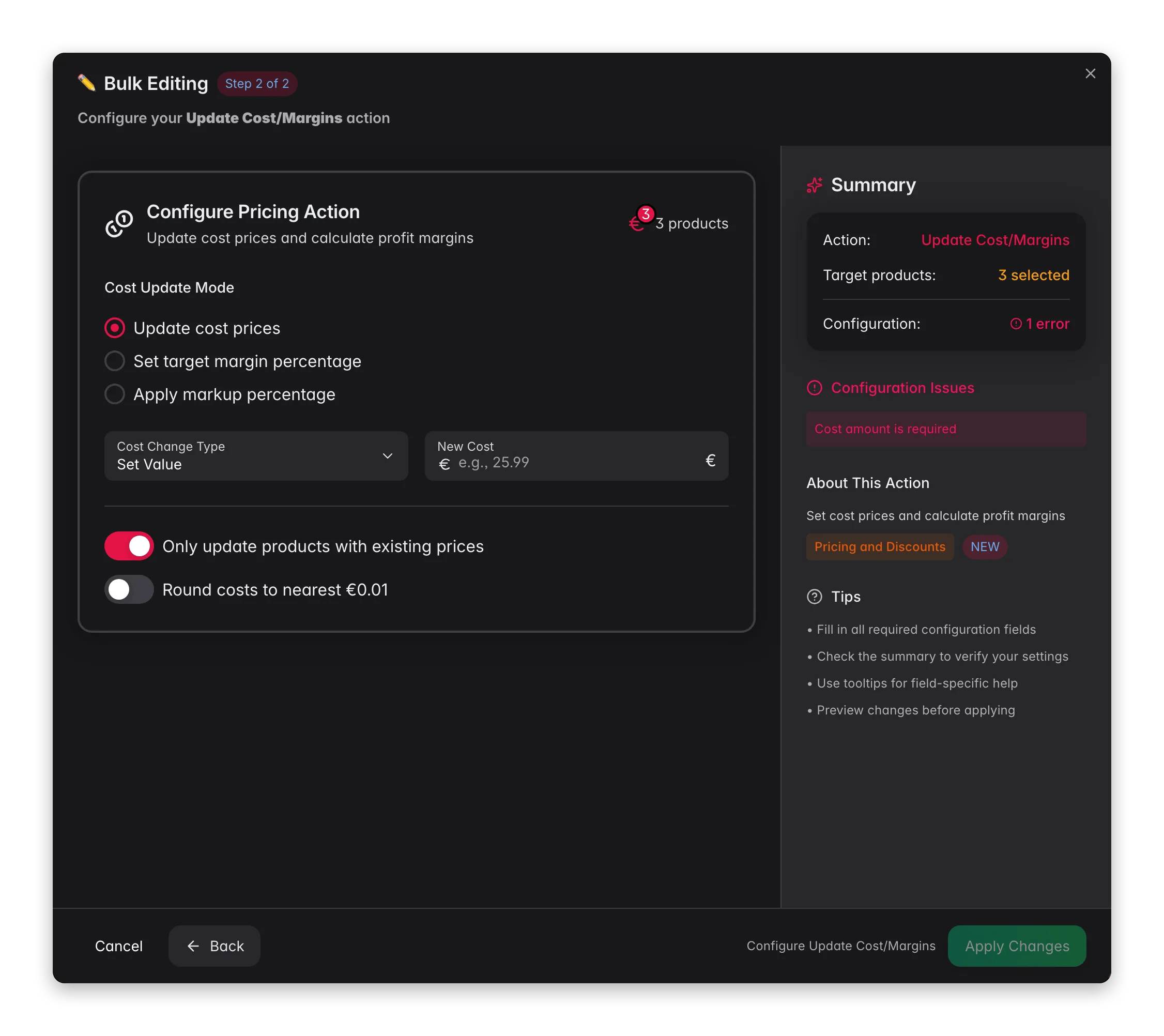 Check the products you want to update. Or use filters and select all matching results.
Click **Bulk Edit**. Search for "Cost" or "Margins" or find it under **Pricing & Discounts**.
Pick how to calculate costs: direct update, target margin, or markup percentage.
Set the amount, percentage, or target for the mode you chose.
Set rounding and scope, then click **Apply**.
## Update modes
| Mode | What it does | Formula |
| ---------------------- | --------------------------------------------------------------- | --------------------------------- |
| **Update cost prices** | Set, increase, or decrease cost by a fixed amount or percentage | Direct value change |
| **Set target margin** | Works the cost back from the selling price to hit a margin | Cost = Price × (1 - Margin / 100) |
| **Apply markup** | Works the cost back from the selling price using a markup | Cost = Price / (1 + Markup / 100) |
For **Update cost prices**, you can choose:
* **Fixed:** set or adjust by a specific euro amount.
* **Percentage:** adjust by a percentage of the current cost.
* **Set Value:** overwrite with an exact cost.
## Options
| Option | What it does | Default |
| --------------------------------------------- | -------------------------------------- | ------- |
| **Only update products with existing prices** | Skips products without a selling price | On |
| **Round costs** | Rounds to the nearest €0.01 | Off |
**Markup** and **margin** are not the same. A 50% markup on a €100 cost gives a €150 price. A 50% margin on a €150 price gives a €75 cost.
## Tips
* Use **Set target margin** for consistent profitability. Set a 40% margin and costs are worked back from the selling price.
* Keep **Only update products with existing prices** on so you don't set costs on products that aren't priced yet.
## Related
Adjust selling prices by a percentage or fixed amount.
Apply a sale price with an optional start and end date.
Add tiered pricing based on quantity.
Browse every bulk action available in WisePIM.
Check the products you want to update. Or use filters and select all matching results.
Click **Bulk Edit**. Search for "Cost" or "Margins" or find it under **Pricing & Discounts**.
Pick how to calculate costs: direct update, target margin, or markup percentage.
Set the amount, percentage, or target for the mode you chose.
Set rounding and scope, then click **Apply**.
## Update modes
| Mode | What it does | Formula |
| ---------------------- | --------------------------------------------------------------- | --------------------------------- |
| **Update cost prices** | Set, increase, or decrease cost by a fixed amount or percentage | Direct value change |
| **Set target margin** | Works the cost back from the selling price to hit a margin | Cost = Price × (1 - Margin / 100) |
| **Apply markup** | Works the cost back from the selling price using a markup | Cost = Price / (1 + Markup / 100) |
For **Update cost prices**, you can choose:
* **Fixed:** set or adjust by a specific euro amount.
* **Percentage:** adjust by a percentage of the current cost.
* **Set Value:** overwrite with an exact cost.
## Options
| Option | What it does | Default |
| --------------------------------------------- | -------------------------------------- | ------- |
| **Only update products with existing prices** | Skips products without a selling price | On |
| **Round costs** | Rounds to the nearest €0.01 | Off |
**Markup** and **margin** are not the same. A 50% markup on a €100 cost gives a €150 price. A 50% margin on a €150 price gives a €75 cost.
## Tips
* Use **Set target margin** for consistent profitability. Set a 40% margin and costs are worked back from the selling price.
* Keep **Only update products with existing prices** on so you don't set costs on products that aren't priced yet.
## Related
Adjust selling prices by a percentage or fixed amount.
Apply a sale price with an optional start and end date.
Add tiered pricing based on quantity.
Browse every bulk action available in WisePIM.