> ## Documentation Index
> Fetch the complete documentation index at: https://docs.wisepim.com/llms.txt
> Use this file to discover all available pages before exploring further.
# Copy Field Values
> Copy values from one product field into another across your selection. The source field keeps its value, so it is a safe way to seed or back up a field.
Copy the value from one field into another across many products at once. Copy Field Values reads a source field and writes it to a target field, while leaving the source field untouched. Use it to seed a new field from an existing one, back up a value before you change it, or fan a value out to a field that another channel needs.
WisePIM checks that the two fields are compatible and tells you how the values will convert (for example, a number copied into a text field becomes text). If the types do not mix at all, you will see a clear warning before you apply.
## Copy field values
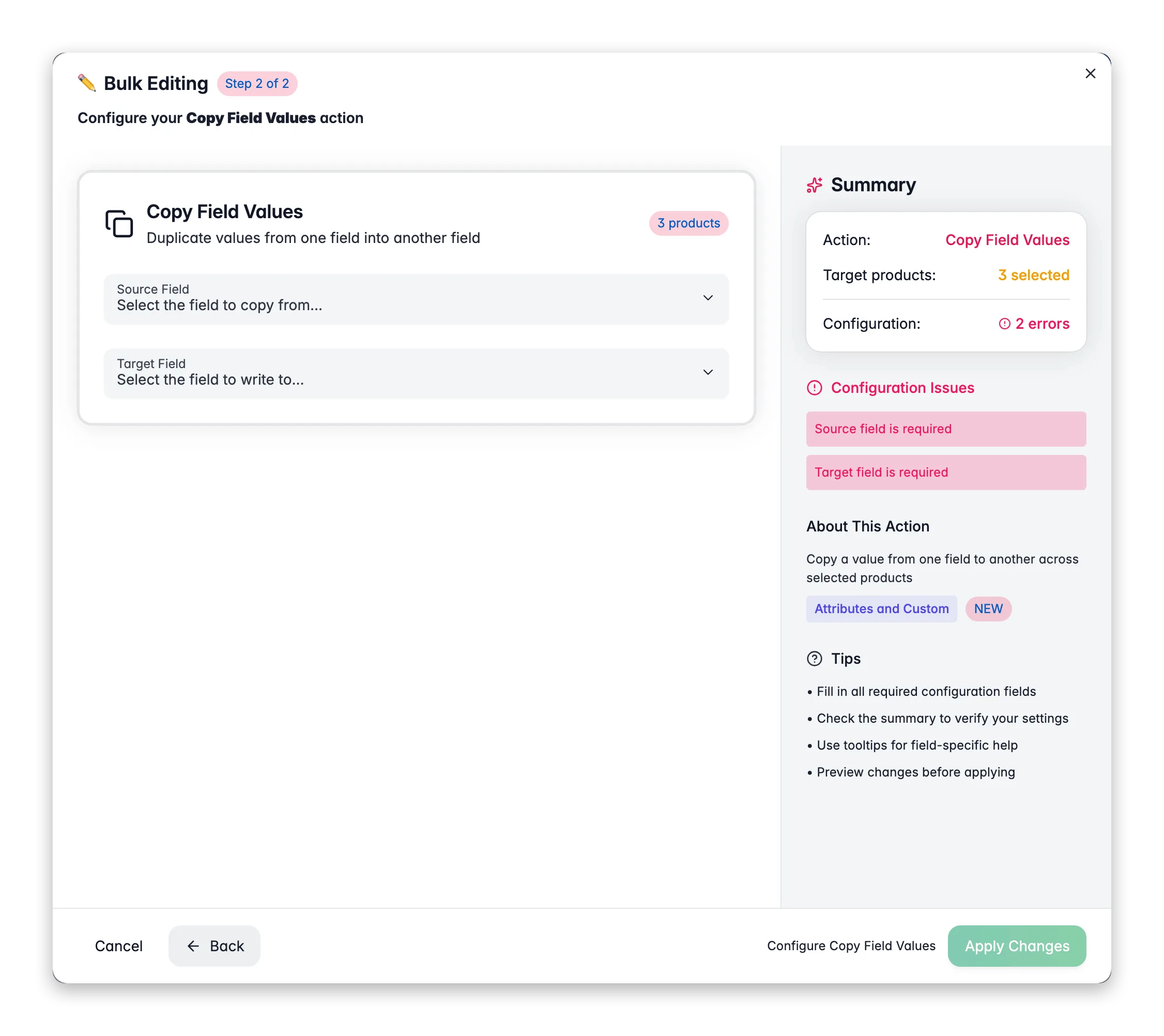
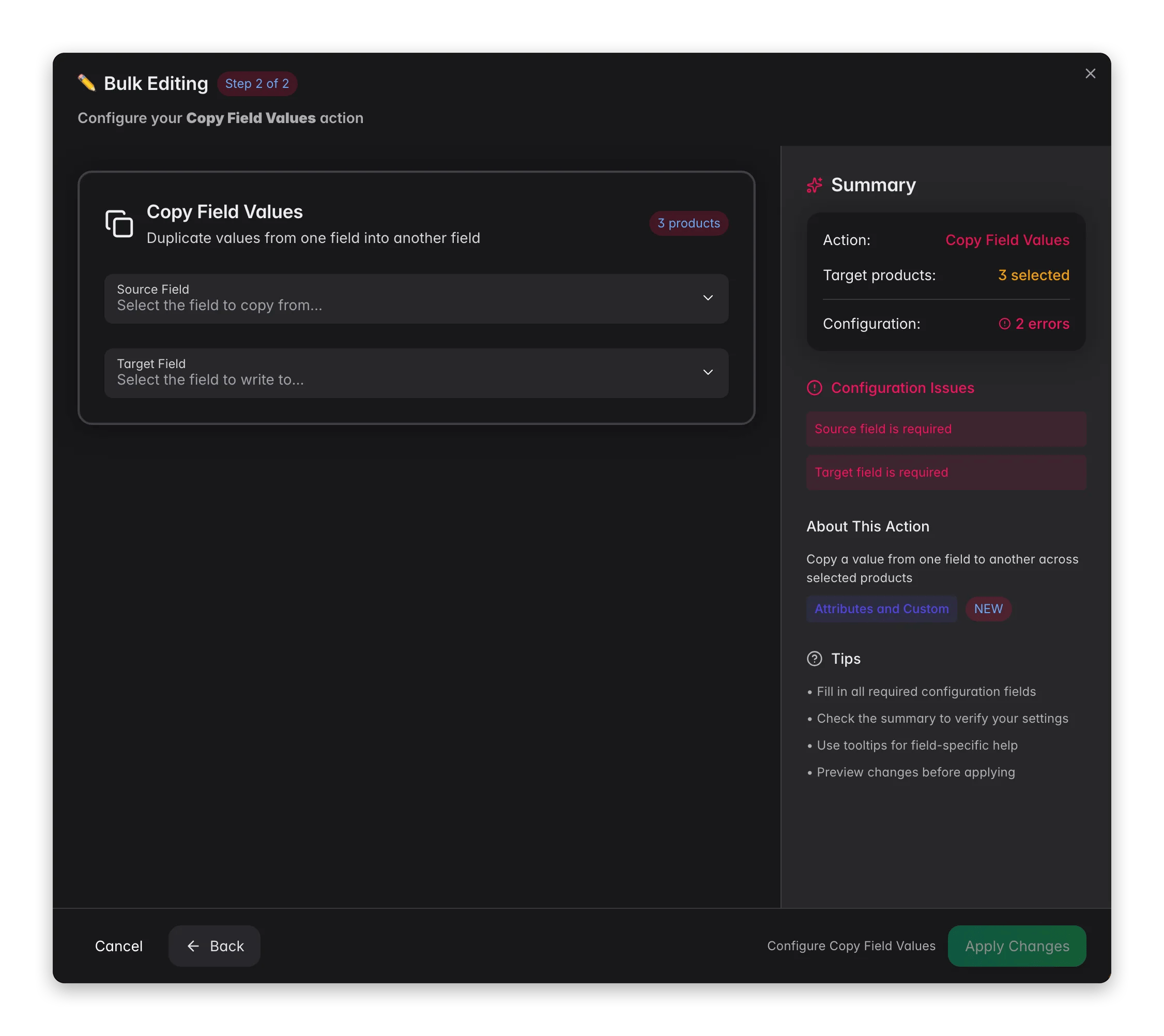 Check the products you want to update, or use filters and select all matching results.
Click **Bulk Edit**, then search for "Copy Field Values" or find it under **Attributes & Custom Fields**.
Choose the field to copy from. This is the field whose values get read.
Choose the field to copy into. WisePIM shows whether the two fields are compatible and how values will convert.
Decide whether to write only into empty target fields, then click **Apply**.
## Options
| Option | What it does | Default |
| --------------------------------- | --------------------------------------------------------- | -------- |
| **Source field** | The field to copy values from. It is left unchanged | Required |
| **Target field** | The field to copy values into | Required |
| **Only if target field is empty** | Skips products where the target field already has a value | Off |
You can pick from a wide range of fields: text and SEO fields, identifiers like SKU and EAN, numeric fields like price and weight, enum fields like status and review status, boolean flags, and your custom attributes.
### Type compatibility
When the source and target are different types, WisePIM converts the value and tells you how. For example:
* A number copied into a text field becomes text.
* A decimal copied into a whole-number field is rounded.
* Multi-line text copied into a single-line field is flattened.
If two fields cannot be converted at all, the action flags them as incompatible so you can choose a different target.
## When to use it
* **Seed a new field.** Copy your description into the enriched description to give enrichment a starting point.
* **Back up a value.** Copy a field into a custom attribute before you run a risky change, so you can restore it if needed.
* **Feed a channel.** Copy a value into the exact field a marketplace or feed expects.
Turn on **Only if target field is empty** to fill in gaps without overwriting work that is already there. It is the safe choice when you only want to top up missing values.
Copy keeps the source field as it is. To clear the source after transferring, use [Move Field Values](/en/essentials/bulk-editing/move-field-values) instead.
## Related
Transfer values and clear the source field.
Set a default product field to a specific value or formula.
Set a fixed value on a custom attribute across products.
Browse every bulk editing action by category.
Check the products you want to update, or use filters and select all matching results.
Click **Bulk Edit**, then search for "Copy Field Values" or find it under **Attributes & Custom Fields**.
Choose the field to copy from. This is the field whose values get read.
Choose the field to copy into. WisePIM shows whether the two fields are compatible and how values will convert.
Decide whether to write only into empty target fields, then click **Apply**.
## Options
| Option | What it does | Default |
| --------------------------------- | --------------------------------------------------------- | -------- |
| **Source field** | The field to copy values from. It is left unchanged | Required |
| **Target field** | The field to copy values into | Required |
| **Only if target field is empty** | Skips products where the target field already has a value | Off |
You can pick from a wide range of fields: text and SEO fields, identifiers like SKU and EAN, numeric fields like price and weight, enum fields like status and review status, boolean flags, and your custom attributes.
### Type compatibility
When the source and target are different types, WisePIM converts the value and tells you how. For example:
* A number copied into a text field becomes text.
* A decimal copied into a whole-number field is rounded.
* Multi-line text copied into a single-line field is flattened.
If two fields cannot be converted at all, the action flags them as incompatible so you can choose a different target.
## When to use it
* **Seed a new field.** Copy your description into the enriched description to give enrichment a starting point.
* **Back up a value.** Copy a field into a custom attribute before you run a risky change, so you can restore it if needed.
* **Feed a channel.** Copy a value into the exact field a marketplace or feed expects.
Turn on **Only if target field is empty** to fill in gaps without overwriting work that is already there. It is the safe choice when you only want to top up missing values.
Copy keeps the source field as it is. To clear the source after transferring, use [Move Field Values](/en/essentials/bulk-editing/move-field-values) instead.
## Related
Transfer values and clear the source field.
Set a default product field to a specific value or formula.
Set a fixed value on a custom attribute across products.
Browse every bulk editing action by category.