> ## Documentation Index
> Fetch the complete documentation index at: https://docs.wisepim.com/llms.txt
> Use this file to discover all available pages before exploring further.
# Convert Numbers
> Round, truncate, or run math on built-in numeric fields like price, weight, and stock. Clean up messy decimals or rescale values in bulk.
Transform the numbers on your products in one action. Convert Numbers rounds, truncates, or runs arithmetic on built-in numeric fields like price, weight, and stock. Use it to clean up long decimals from an import, rescale values, or convert units the simple way (for example, divide every weight by 1000 to go from grams to kilograms).
A live preview shows exactly what your chosen operation does to a sample value, so you can check the result before you apply.
Convert Numbers works on **built-in numeric fields** (price, cost, weight, dimensions, stock) and your custom numeric attributes. To run math on a custom numeric attribute on its own, [Numeric Operations](/en/essentials/bulk-editing/numeric-operations) is the more focused tool.
## Convert numbers
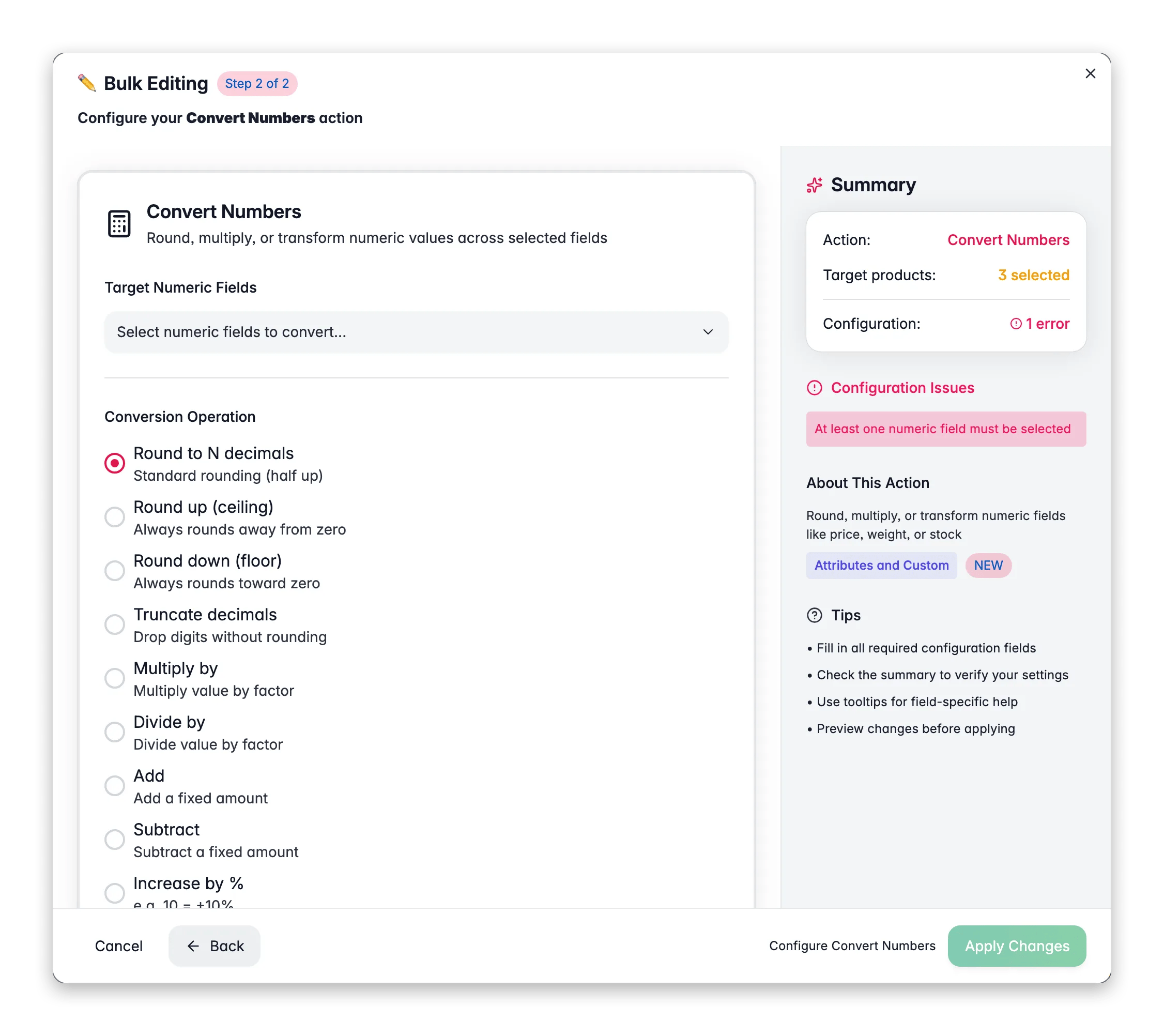
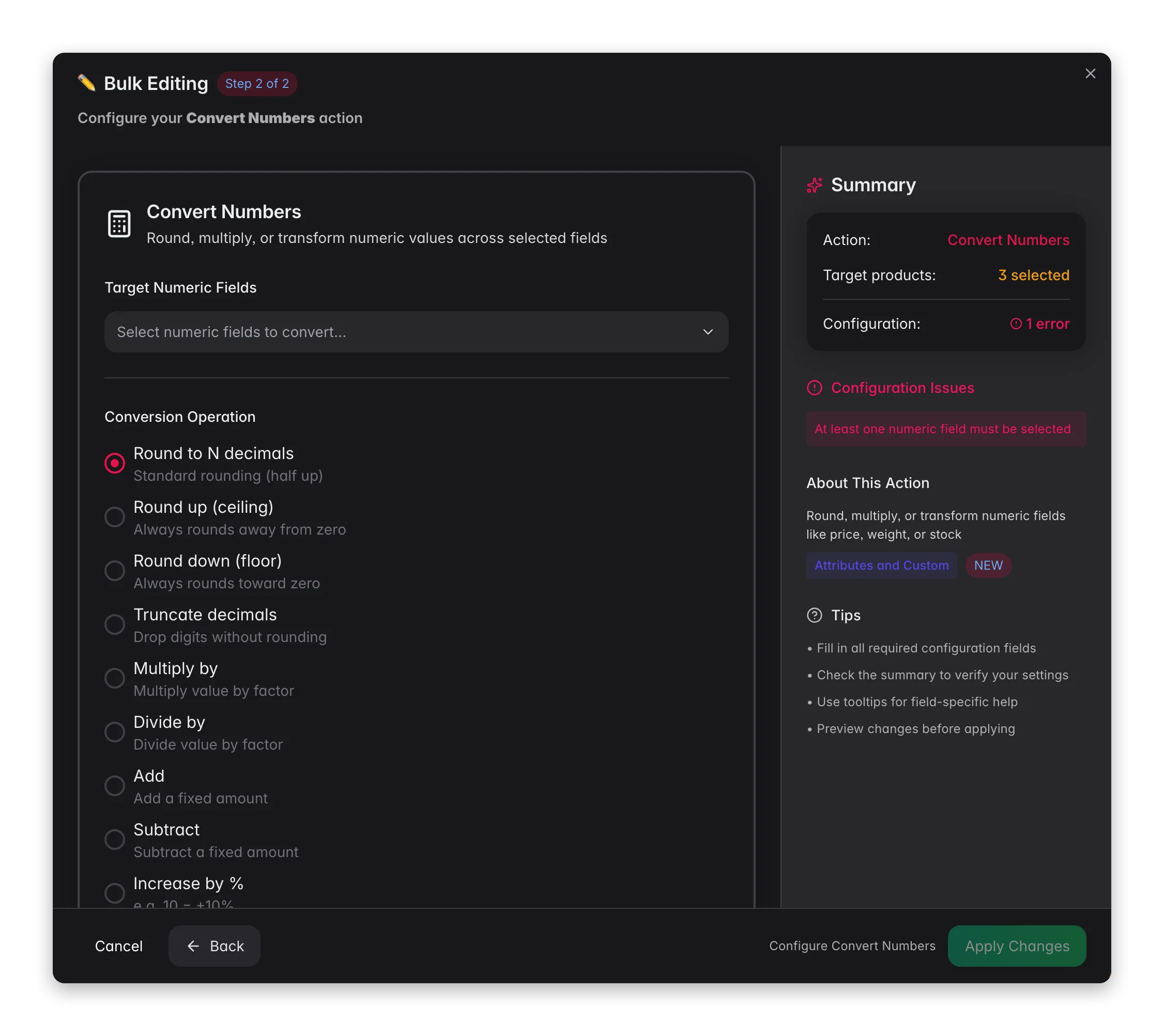 Check the products you want to update, or use filters and select all matching results.
Click **Bulk Edit**, then search for "Convert Numbers" or find it under **Attributes & Custom Fields**.
Choose one or more fields to convert: price, special price, cost, weight, length, width, height, stock quantity, low stock threshold, or a custom numeric attribute.
Pick how to transform the values, then enter any decimals or amount the operation needs.
The live preview shows the result on a sample value. When it looks right, click **Apply**.
## Operations
| Operation | What it does |
| ----------------------- | ------------------------------------------------------------- |
| **Round to N decimals** | Standard rounding (half up) to the number of decimals you set |
| **Round up (ceiling)** | Always rounds away from zero |
| **Round down (floor)** | Always rounds toward zero |
| **Truncate decimals** | Drops digits without rounding |
| **Multiply by** | Multiplies each value by your factor |
| **Divide by** | Divides each value by your factor |
| **Add** | Adds a fixed amount |
| **Subtract** | Subtracts a fixed amount |
| **Increase by %** | Adds a percentage (10 means +10%) |
| **Decrease by %** | Removes a percentage (10 means -10%) |
| **Absolute value** | Turns negative numbers positive |
## Options
| Option | What it does | Default |
| ------------------------------------------- | --------------------------------------------------------------- | ------- |
| **Target numeric fields** | The built-in or custom numeric fields to convert | None |
| **Decimals** | How many decimals to keep, for the rounding operations (0 to 6) | 0 |
| **Skip products with zero or empty values** | Leaves empty values alone and avoids dividing by zero | On |
Stock quantity and low stock threshold are whole-number fields. If a conversion produces a decimal, the result is rounded to a whole number automatically.
## When to use it
* **Clean up imported decimals.** A feed that brings in prices like 19.9900 can be rounded to two decimals in one pass.
* **Rescale a field.** Multiply or divide to convert grams to kilograms, or to adjust values that came in at the wrong scale.
* **Tidy stock numbers.** Round odd stock values to whole units across the catalog.
Watch the live preview as you set up the operation. It shows the result on a sample number, so you catch mistakes before they touch your products.
## Related
Run math on a single custom numeric attribute.
Adjust prices by percentage or fixed amount with price guards.
Switch units with the conversion factor worked out for you.
Browse every bulk editing action by category.
Check the products you want to update, or use filters and select all matching results.
Click **Bulk Edit**, then search for "Convert Numbers" or find it under **Attributes & Custom Fields**.
Choose one or more fields to convert: price, special price, cost, weight, length, width, height, stock quantity, low stock threshold, or a custom numeric attribute.
Pick how to transform the values, then enter any decimals or amount the operation needs.
The live preview shows the result on a sample value. When it looks right, click **Apply**.
## Operations
| Operation | What it does |
| ----------------------- | ------------------------------------------------------------- |
| **Round to N decimals** | Standard rounding (half up) to the number of decimals you set |
| **Round up (ceiling)** | Always rounds away from zero |
| **Round down (floor)** | Always rounds toward zero |
| **Truncate decimals** | Drops digits without rounding |
| **Multiply by** | Multiplies each value by your factor |
| **Divide by** | Divides each value by your factor |
| **Add** | Adds a fixed amount |
| **Subtract** | Subtracts a fixed amount |
| **Increase by %** | Adds a percentage (10 means +10%) |
| **Decrease by %** | Removes a percentage (10 means -10%) |
| **Absolute value** | Turns negative numbers positive |
## Options
| Option | What it does | Default |
| ------------------------------------------- | --------------------------------------------------------------- | ------- |
| **Target numeric fields** | The built-in or custom numeric fields to convert | None |
| **Decimals** | How many decimals to keep, for the rounding operations (0 to 6) | 0 |
| **Skip products with zero or empty values** | Leaves empty values alone and avoids dividing by zero | On |
Stock quantity and low stock threshold are whole-number fields. If a conversion produces a decimal, the result is rounded to a whole number automatically.
## When to use it
* **Clean up imported decimals.** A feed that brings in prices like 19.9900 can be rounded to two decimals in one pass.
* **Rescale a field.** Multiply or divide to convert grams to kilograms, or to adjust values that came in at the wrong scale.
* **Tidy stock numbers.** Round odd stock values to whole units across the catalog.
Watch the live preview as you set up the operation. It shows the result on a sample number, so you catch mistakes before they touch your products.
## Related
Run math on a single custom numeric attribute.
Adjust prices by percentage or fixed amount with price guards.
Switch units with the conversion factor worked out for you.
Browse every bulk editing action by category.